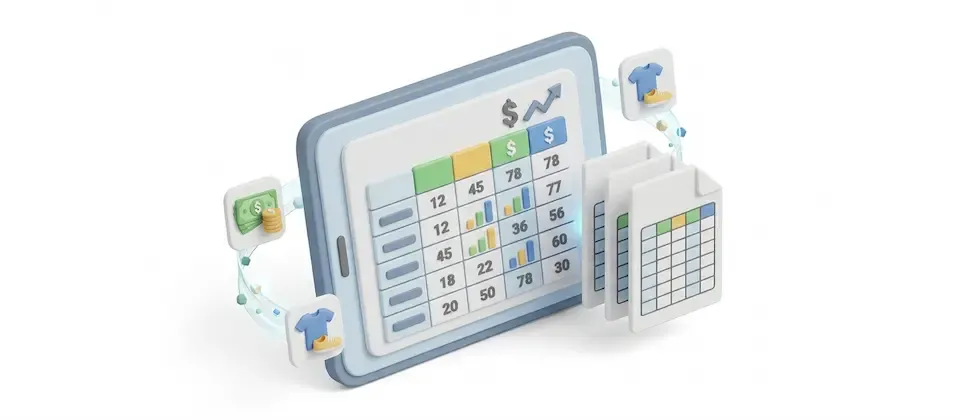
The Sales Report plugin adds an order-by-order sales report to the J2Commerce Reports screen. It lists every order with its customer, payment and shipping methods, status, discounts, tax and total, and shows summary totals for the orders that match your filters.
Use it to review sales for a period, narrow them by status, payment method, coupon, manufacturer or customer group, and download the results as a CSV file for your accountant or spreadsheet.
Requirements
- Joomla 6.0 or later
- J2Commerce 6.6.2 or later
- The View Reports permission for the people who open the report
The Sales Report is a separate add-on available from the J2Commerce Extensions Store. It does not ship with J2Commerce 6.
Installation
- Download the plugin package from your account on the J2Commerce Extensions Store.
- In Joomla, go to System -> Install -> Extensions and upload the package.
- Go to System -> Manage -> Plugins, search for Sales Report and make sure its status is Enabled.
Opening the Report
- Go to J2Commerce -> Analytics -> Reports.
- Click Sales Report in the list.
- Click View Report in the toolbar.
The report opens with a summary at the top and a table of orders below it.
Reading the Report
Summary
The summary shows Orders, Subtotal, Shipping, Discounts, Tax and Total. The totals cover every order that matches the filters, not only the orders on the current page. Amounts are shown in the store's default currency.
Order Table
The table shows one row for each order. Which columns appear depends on the Order Report Fields setting. The columns that can appear are:
- Order ID, which links to the order
- Date, Invoice and Customer (guest orders are marked Guest)
- Currency, Payment Method, Shipping Method and Order Status
- Products, with quantity, name, price, SKU and chosen options
- Discount, Shipping, Tax and Order Total
- Transaction ID and Total Weight
Click a column heading to sort by it. Click it again to reverse the order. Orders are sorted by date, newest first, until you choose another order.
Filtering Orders
Use the filter bar above the table. Several filters can be hidden in the plugin settings (see Filters Tab below).
| Filter | What It Does |
|---|---|
| Search | Finds orders by order ID, invoice number, customer name, email, product name or SKU. |
| Order Status | Shows only orders in the statuses you pick. You can pick more than one. |
| Duration | Today, This Week, This Month, This Year, Last 7 Days, Last Month, Last Year or Custom. Custom shows the From Date and To Date fields. |
| Payment Method | Shows orders paid with one payment method. |
| Shipping Method | Shows orders sent with one shipping method. |
| Coupon Code | Shows orders that used a coupon code containing the text you enter. |
| Manufacturer | Shows orders that include products from one manufacturer. |
| Vendor | Shows orders that include products from one vendor. |
| Tax Profile | Shows orders that include products with one tax profile. |
| Customer Group | Shows orders from customers in one user group. |
| Tax Number | Shows orders whose billing tax number starts with the text you enter. |
| Zip Code | Shows orders whose billing or shipping zip code starts with the text you enter. |
| Minimum Items and Maximum Items | Shows orders whose total quantity of items falls in the range you enter. |
Exporting to CSV
The report toolbar has two export buttons. Both apply the current filters.
- Export Orders creates one row for each order. Each product in the order is added in numbered columns, such as
Product 1 SKUandProduct 1 Name. The number of product columns matches the largest order in the export. - Export Itemized creates one row for each product in an order. Each product option gets its own column, such as
Option: Size.
The Export setting decides how much is exported: the orders on the page you are viewing, or every matching order. An export holds at most 50,000 rows. Narrow the filters if you need more.
The exports can also include columns the report screen does not show: Customer Note, Shipping Tax, Billing Information, Shipping Information and Payment Information. These are the exported columns for the billing, shipping and payment fields from your checkout, including custom fields. Each field gets its own column, named like Billing: Company.
Info
Custom checkout fields stay in the export even after you disable the field type's plugin. Orders placed while the field was active keep their values.
Settings
Click Options in the report toolbar, or go to System -> Manage -> Plugins and open Sales Report. The settings screen has a Help button in the toolbar that opens this page.
Report Tab
| Setting | What It Does | Default | Options |
|---|---|---|---|
| Order Report Fields | Chooses the columns for the report screen and for the order export. Customer note and the billing, shipping and payment information appear in the export only. | All fields | Any of the order columns listed above |
| Itemized Export Fields | Chooses the columns for the itemized export, which has one row for each product in an order. | All fields | Date, Invoice, Order ID, Shipping, Shipping Tax, Currency, Payment Method, SKU, Product Name, Options, Quantity, Product Tax, Product Discount, Price (Including Tax), Price (Excluding Tax), Product Weight, Billing Information, Shipping Information, Payment Information, Customer Note, Category, Coupon Codes, UPC, Backordered |
| Export | Exports the orders on the page you are viewing, or every order that matches the filters (up to 50,000 rows). | Current Page | Current Page, All Matching Orders |
Filters Tab
Each setting shows or hides one filter on the report screen. A hidden filter stops filtering, even if a value was chosen earlier.
| Setting | What It Does | Default | Options |
|---|---|---|---|
| Order Status Filter | Shows the Order Status filter. | Show | Hide, Show |
| Payment Method Filter | Shows the Payment Method filter. | Show | Hide, Show |
| Shipping Method Filter | Shows the Shipping Method filter. | Show | Hide, Show |
| Manufacturer Filter | Shows the Manufacturer filter. | Show | Hide, Show |
| Vendor Filter | Shows the Vendor filter. | Show | Hide, Show |
| Tax Profile Filter | Shows the Tax Profile filter. | Hide | Hide, Show |
| Customer Group Filter | Shows the Customer Group filter. | Show | Hide, Show |
Troubleshooting
The Report Shows No Orders
No order matches the current filters. Clear the search box and reset the filters, then check J2Commerce -> Sales -> Orders to confirm orders exist for the period.
Sales Report Is Missing From the Reports List
Check that the Sales Report plugin is enabled under System -> Manage -> Plugins. The report also needs the View Reports permission for your user group.
A Column Is Missing From the Export
Open the plugin settings and check Order Report Fields or Itemized Export Fields. Only the fields selected there are exported.
The Export Stops at 50,000 Rows
Narrow the filters, for example by choosing a shorter duration, and export again.
Uninstalling
Go to System -> Manage -> Extensions, search for Sales Report, select it and click Uninstall. Your orders are not changed.