Product Navbar
The Product Navbar app adds a sticky navigation bar to your J2Commerce product detail pages. As customers scroll through a long product page, the bar stays fixed to the top (or bottom) of the screen and provides instant links to every major section — the product description, specifications, filters, a linked Joomla article, and any custom content sections you define per-product. An optional Add to Cart button in the bar lets shoppers add the item at any point while reading.
The bar only appears when enough navigation links exist (configurable minimum), so products with a single short description are never cluttered with an empty bar.
Requirements
- PHP 8.3.0 or higher
- Joomla 6.x
- J2Commerce 6.x
Purchase and Download
This app is a separate add-on available from the J2Commerce Extensions Store. It is not included with the core J2Commerce component.
Step 1: Go to the J2Commerce website -> Apps.
Step 2: Locate the Product Navbar app -> click View Details -> Add to Cart -> Checkout.
Step 3: Go to My Downloads under your profile at the top-right corner. Click Available Versions -> View Files -> Download Now to save the ZIP package.
Install the App
Install the downloaded ZIP file through the standard Joomla installer.
- In your Joomla admin, go to System -> Install -> Extensions.
- Click Upload Package File and select the
app_productnavbar.zipfile you downloaded, then click Upload & Install.

Enable the App
After installation you must enable the plugin. There are two ways to reach the Apps list.
Option A: Click the J2Commerce icon at the top-right corner of the admin panel -> Apps.
Option B: Go to Components on the left sidebar -> J2Commerce -> Apps.

Find Product Navbar in the list and click the red X next to it. It turns into a green checkmark — the app is now enabled.
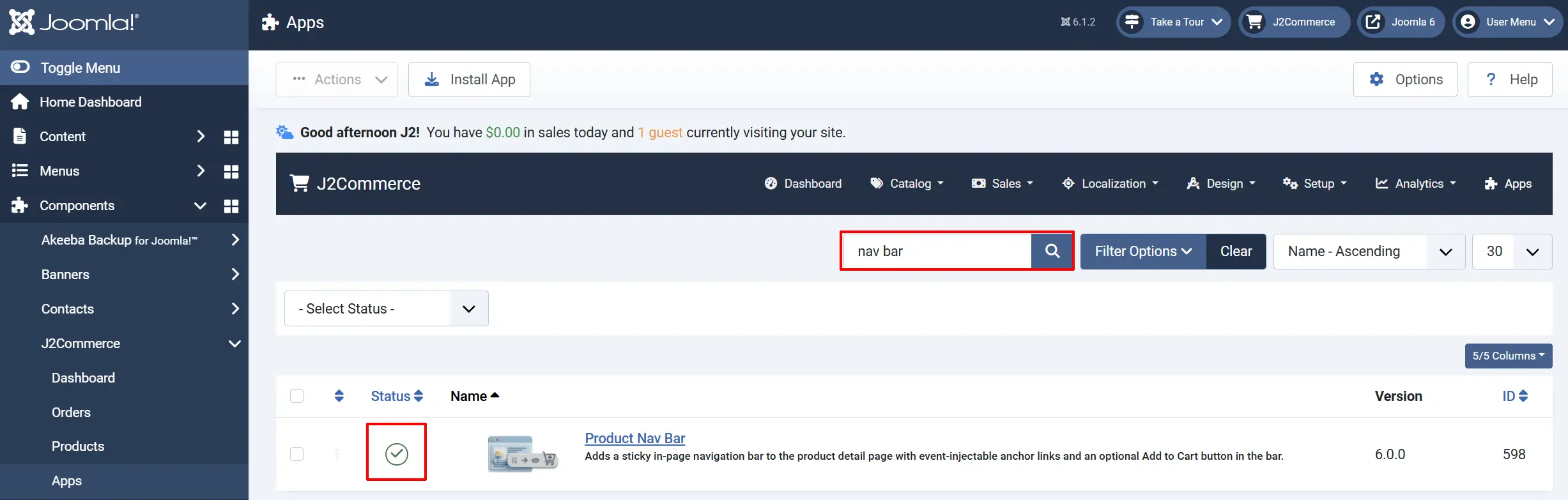
Configure the App
Click the Product Navbar title to open the configuration screen.
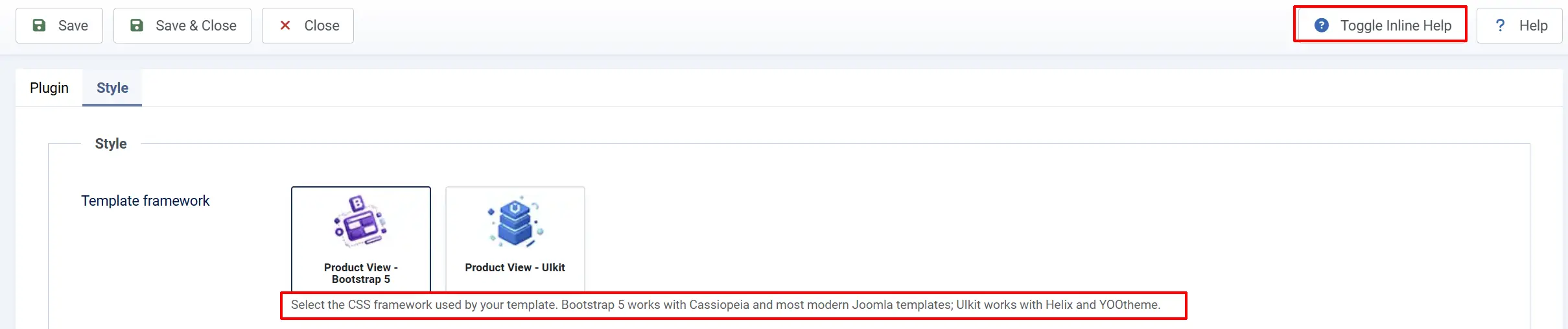
Click the Toggle Inline Help button in the toolbar to reveal a description beneath every field as you configure it.
Basic Settings tab
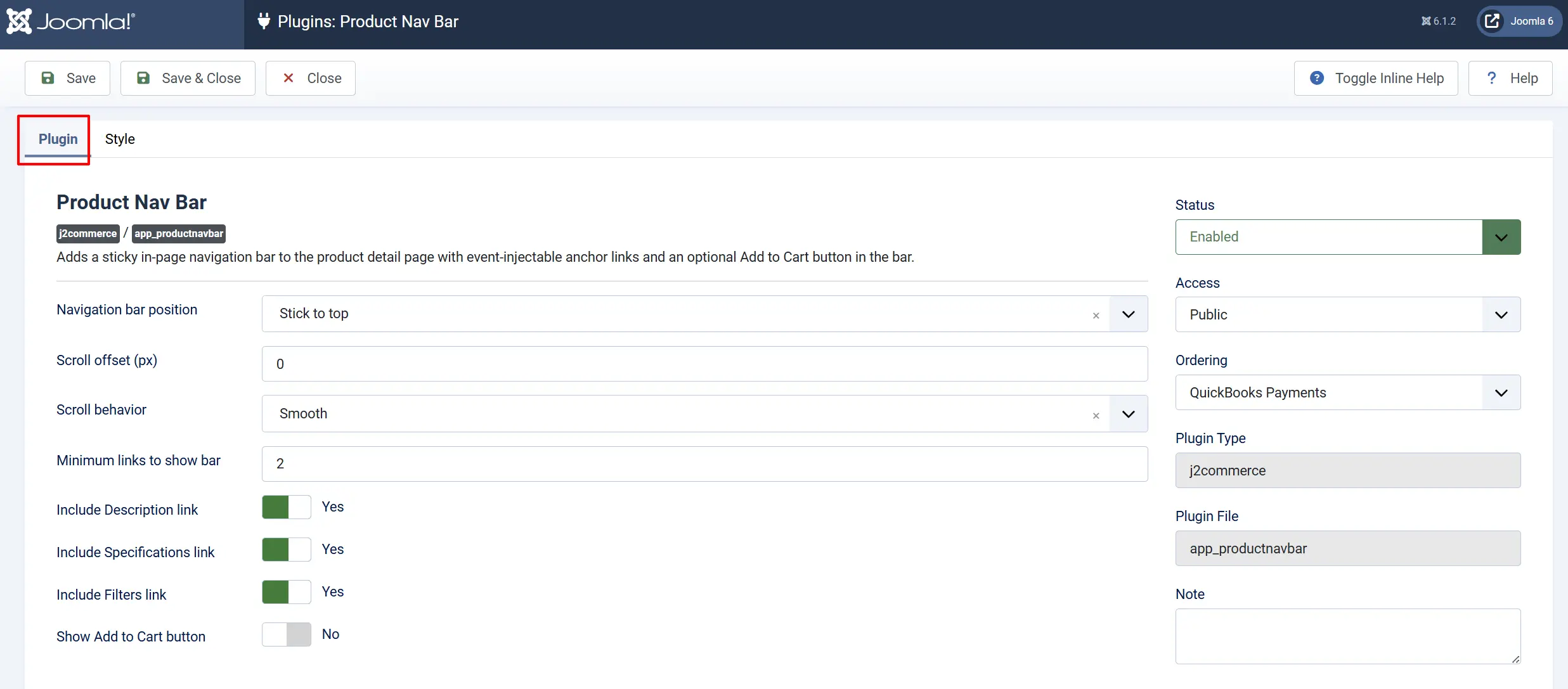
Navigation bar position: Whether the bar sticks to the top or bottom of the viewport as the customer scrolls.
Scroll offset (px): Extra vertical gap (in pixels) between the section heading and the top of the viewport when a link is clicked. Use this when a fixed site header covers the destination.
Scroll behavior: How the page animates when a nav link is clicked. Smooth glides to the section; Instant jumps immediately.
Minimum links to show bar: The bar only renders when at least this many navigation links are available. Prevents an almost-empty bar from appearing on simple products.
Include Description link: Adds a Description link to the bar when the product has a short or long description and J2Commerce is set to show it.
Include Specifications link: Adds a Specifications link to the bar when J2Commerce is configured to display product specifications.
Include Filters link: Adds a Filters link to the bar when J2Commerce is configured to display product filters and the product has filters assigned.
Show Add to Cart button: Displays an Add to Cart button inside the navigation bar so shoppers can add the product to their cart at any point on the page.
Style tab
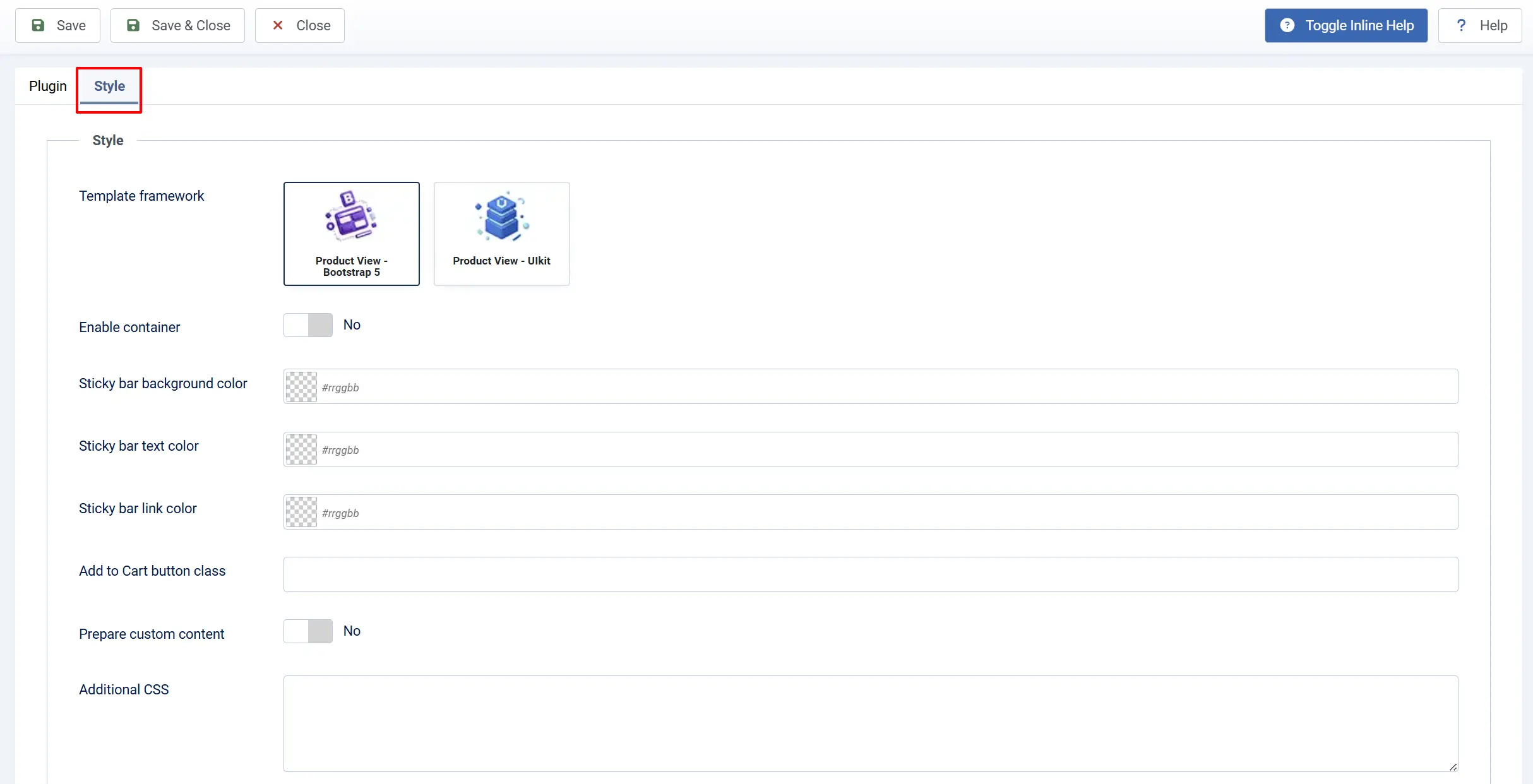
Template framework: The CSS framework your Joomla template uses. Bootstrap 5 works with Cassiopeia and most modern templates. UIkit works with Helix and YOOtheme.
Enable container: Wraps the navigation bar contents in a centered Bootstrap/UIkit container so the links align with your page width. Useful when the bar spans the full browser width while stuck.
Sticky bar background color: Sets the background color of the navigation bar using a hex color picker. Leave blank to inherit the color from your template CSS.
Sticky bar text color: Sets the text color inside the navigation bar. Leave blank to inherit from your template.
Sticky bar link color: Sets the color of the navigation links. Leave blank to inherit from your template.
Add to Cart button class: Extra CSS class names added to the Add to Cart button inside the navbar — for example, btn-secondary to change the button style.
Prepare custom content: Runs the per-product article and inline content sections through Joomla content plugins before display. Enable this when your content uses shortcodes like {loadposition} or third-party plugin syntax. Leave disabled for plain HTML — it avoids unnecessary processing.
Additional CSS: Extra CSS rules applied directly to the #productNav element. Useful for fine-tuning position, z-index, or padding without touching your template CSS file. Example: top: 70px; z-index: 1020;
Click Save in the toolbar when you have finished configuring the app.
Per-Product Configuration
Each product can override the global settings and add product-specific content. Open any product to access these options.
Edit a Product
There are three ways to reach the product edit screen.
Option A: Click the J2Commerce icon at the top-right corner -> Catalog -> Products.
Option B: Go to Components -> J2Commerce -> Products.
Open the product, then click the J2Commerce tab -> Apps tab -> expand the Product Navbar section.
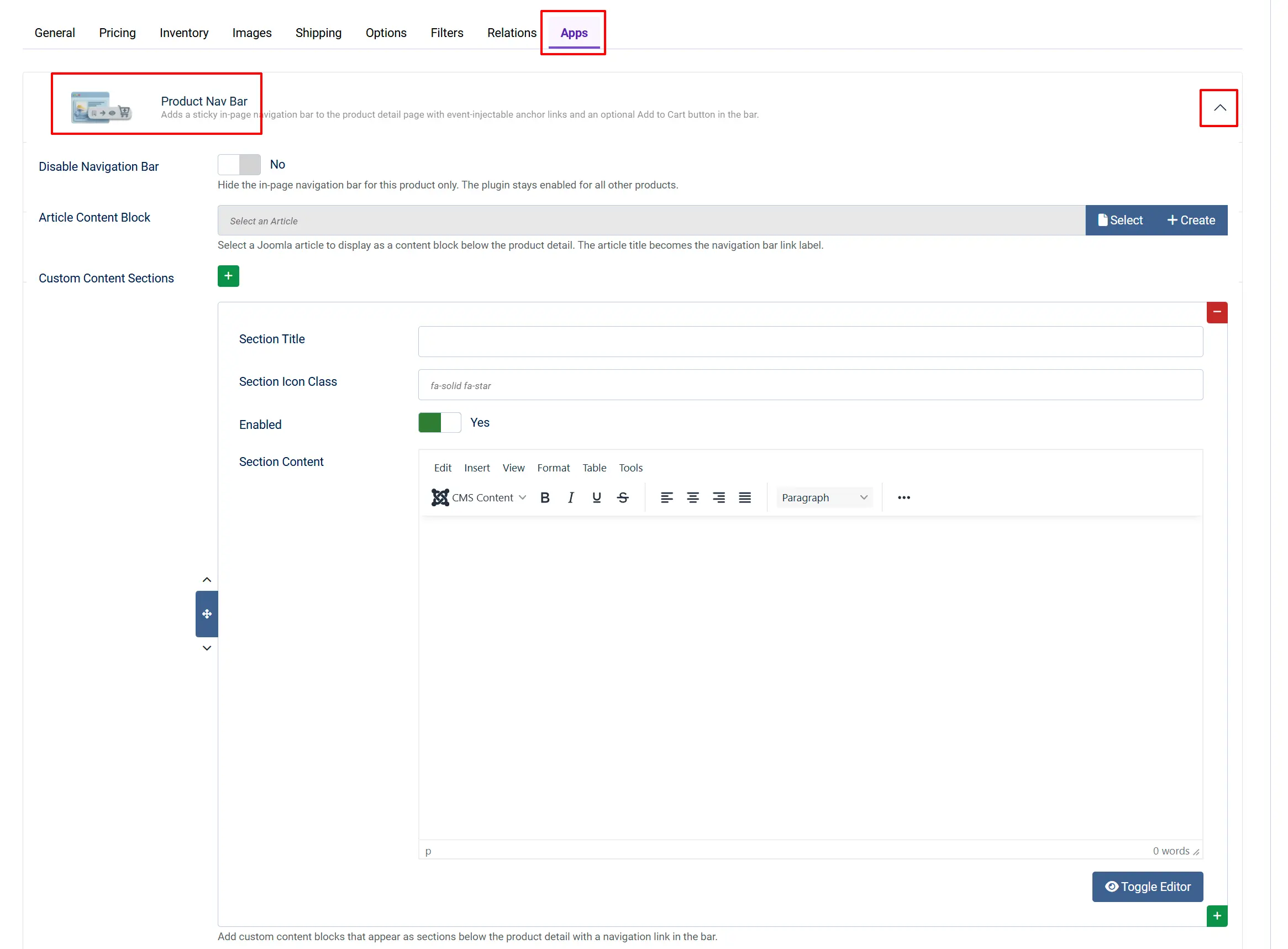
Disable Navigation Bar: Set to Yes to hide the navbar on this product only. The app remains active for all other products.
Article Content Block: Select a published Joomla article. Its title becomes a navigation link and its content appears as a section below the product detail. Useful for reusable content such as return policies, allergen disclosures, or shipping information shared across multiple products.
Custom Content Sections: A repeatable list of content blocks. Each block adds a navigation link and a content section below the product.
Adding Custom Content Sections
Click Add item in the Custom Content Sections area to create a new section row.
Each row has four fields:
Section Title: The text that appears as the navigation link label and as the section heading below the product.
Section Icon Class: An optional Font Awesome icon class displayed before the title in the bar — for example, fa-solid fa-star. Leave blank for no icon.
Enabled: Toggle a section on or off without deleting it. Disabled sections do not generate a nav link or render content.
Section Content: A WYSIWYG editor for the section body. Supports full HTML.
Add as many rows as you need. Rows appear in the order they are listed; drag the reorder handle to rearrange them.
Click Save on the product when done.
How It Works
When a customer opens a product page:
- J2Commerce fires the before-product-content event. The Product Navbar plugin collects all navigation links — built-in section links (Description, Specifications, Filters), any linked article, and custom content sections.
- Links are sorted by their internal order and filtered to remove any without a title or target.
- If the number of links meets the configured minimum, the navigation bar is injected at the top of the product detail area and the CSS and JavaScript assets are loaded.
- After the product detail renders, the plugin injects the article content and custom section content blocks below the product form.
- The JavaScript reads the position, offset, and scroll behavior settings from the page and activates sticky behavior on the bar.
- As the customer scrolls, the script highlights the navigation link that corresponds to the currently visible section.
- If the Add to Cart button is shown and the product requires variant selection, the button is disabled until the customer picks their options.
The navigation bar does not appear inside quickview modals. It is designed for full product detail pages only.
Display Conditions
The navigation bar appears on the product page when:
- The Product Navbar app is enabled in J2Commerce -> Apps.
- The current page is a full product detail page (not a quickview modal).
- The product does not have Disable Navigation Bar set to Yes in its Apps tab.
- The total number of navigation links (built-in + article + custom sections) meets the Minimum links to show bar threshold.
The Add to Cart button in the bar appears only when Show Add to Cart button is set to Yes in the plugin configuration.
A linked article section appears only when:
- A published, publicly accessible Joomla article is selected in the product's Article Content Block field.
Custom sections appear only when:
- The section row's Enabled toggle is set to Yes.
- The section has a title or non-empty content.
Tips
- Use articles for shared content — If the same return policy, warranty information, or allergen notice applies to many products, write it once as a Joomla article and link it to each product's Article Content Block field. Updating the article updates every product at once.
- Set a scroll offset when your site has a fixed header — Most templates show a fixed top bar (logo + navigation). Set Scroll offset to the height of that bar (typically 60–90 px) so the linked section is not hidden behind it when the user clicks a nav link.
- Stick to the bottom for long buy-boxes — If your product options (size, color, quantity) take up a lot of vertical space, placing the navbar at the bottom keeps it visible below the add-to-cart area without overlapping your header.
- Keep section titles short — Navigation bar space is limited on mobile. Titles over 20 characters may wrap or be truncated on small screens.
- Enable Prepare Content only when needed — The content processing step adds overhead. Leave it disabled for plain HTML sections and only enable it when you need Joomla shortcodes like
{loadposition}to work inside the section content. - Raise Minimum links to show bar to 3 — If your catalog has many simple products with only a description and no specs or filters, raising this threshold to 3 prevents the bar from appearing with a single lonely link.
Troubleshooting
Navigation bar does not appear on the product page
Cause: The app is disabled, the per-product override is active, or the link count falls below the minimum.
Solution:
- Go to J2Commerce -> Apps and verify that Product Navbar shows a green checkmark (enabled).
- Open the product and go to the J2Commerce tab -> Apps tab -> Product Navbar section. Confirm that Disable Navigation Bar is set to No.
- Check the Minimum links to show bar setting in the app configuration. If only one built-in section is active (for example, only a description link), raise the product's content or lower the minimum to
1. - Verify that J2Commerce is configured to display the sections you expect. Go to J2Commerce -> Configuration -> Product Display tab and check that Short Description, Long Description, Product Specifications, and Product Filters are set to show.
Linked article content does not appear below the product
Cause: The article is unpublished, trashed, or restricted to a Joomla access level that the current visitor cannot view.
Solution:
- Go to Content -> Articles and confirm the article is published.
- Check the article's Access field — if it is set to Registered or Special, guest visitors will not see it.
- Return to the product's Apps tab and use the article picker's Clear button, then reselect the article to refresh the reference.
Scroll jumps past the section heading (heading is hidden behind the fixed header)
Cause: Your Joomla template uses a fixed top header, but Scroll offset is set to 0.
Solution:
- Go to J2Commerce -> Apps -> Product Navbar.
- Set Scroll offset (px) to the pixel height of your fixed header. A value of
70works for most Cassiopeia-based templates. Increase or decrease by 5 px until the landing position looks correct.
Shortcodes or module positions inside section content are not processed
Cause: Prepare custom content is set to No.
Solution:
- Go to J2Commerce -> Apps -> Product Navbar.
- On the Style tab, set Prepare custom content to Yes.
- Clear the Joomla cache: go to Home Dashboard -> Clear Cache -> Delete All.
Add to Cart button in the navbar is disabled
Cause: The product requires variant selection (it is a variable, configurable, or advanced-variable product type, or has product options). The button is intentionally disabled until the customer picks their options.
Solution: This is expected behavior. The button becomes active automatically once the customer selects all required options on the product page. No configuration change is needed.