PDF Invoices
The PDF Invoices app automatically generates a PDF invoice for each order and can attach it to the notification emails sent to your customer, your store admin, or both. Customers can also download their invoice from their order history page, and store admins can download any order's invoice directly from the order detail screen.
This app is a separate add-on available from the J2Commerce Extensions Store. It is not included with the core J2Commerce 6 component.
Prerequisites
Before installing, ensure the following are in place:
- J2Commerce 6 is installed and enabled
- The Dompdf Library add-on is installed (see below)
- PHP 8.2 or higher
- Joomla 5 or 6
Install the Dompdf Library and
The PDF Invoices app depends on the Dompdf library to render HTML into PDF files. This library is a separate add-on also available from the J2Commerce Extensions Store.
- Download the
lib_dompdf.zippackage from the J2Commerce website. - Go to System -> Install -> Extensions.
- Upload
lib_dompdf.zipand click Upload & Install.
 (1)-a6689f12b23b8e992f5c2a169737672f.webp)
The library creates a working directory at tmp/dompdf/ inside your Joomla root. This directory must be writable by the web server.
If you attempt to install the PDF Invoices app before the Dompdf library is present, the installer will stop and display an error with a download link for the library.
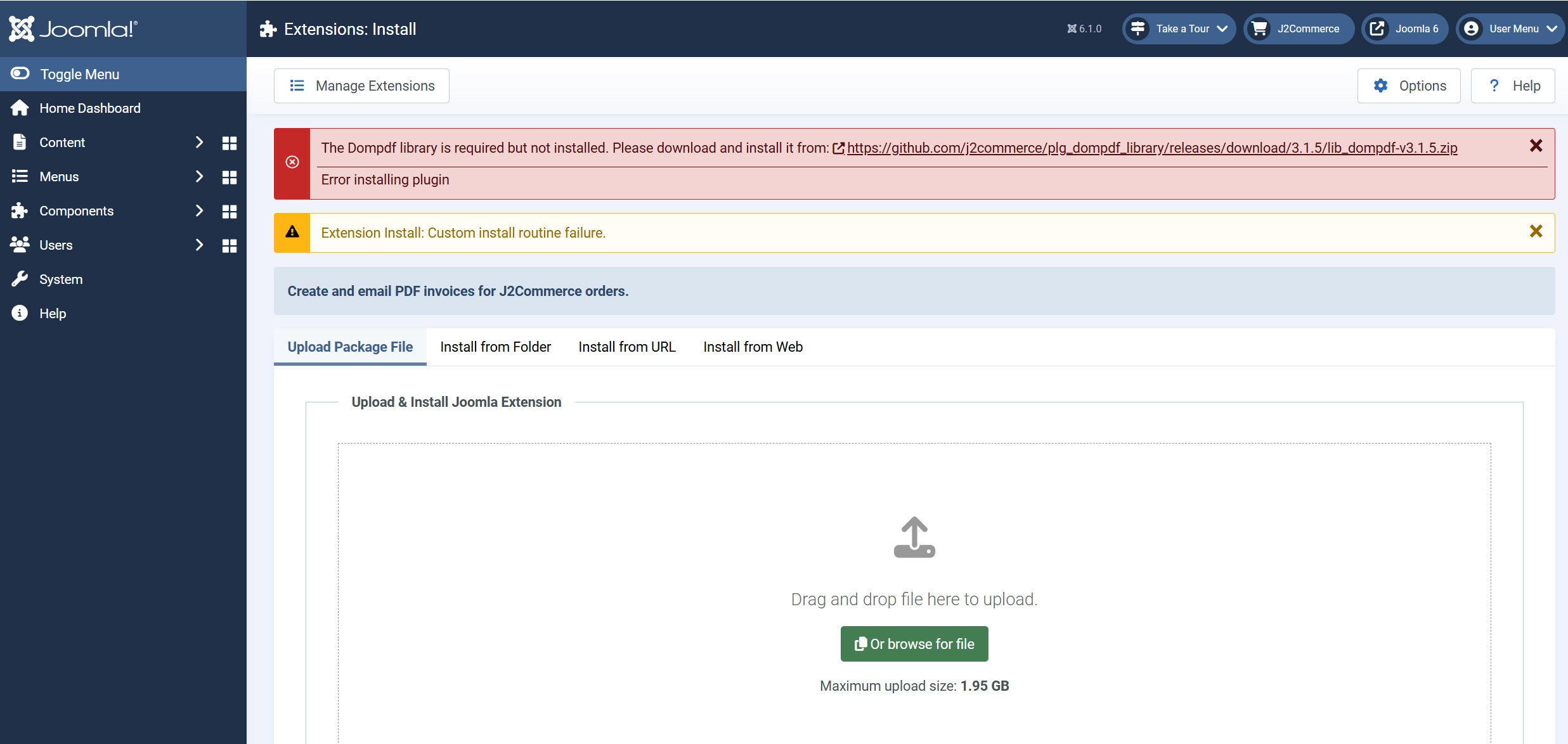
Simply click on the DOMpdf link, then download and install the library link.
Installation
Once the Dompdf library is installed:
- Download the
plg_j2commerce_app_pdfinvoices.zippackage from the J2Commerce website. - Go to System -> Install -> Extensions.
- Upload the ZIP file and click Upload & Install.
Enable the App
Once you have installed the App, you will need to enable it. There are two ways you can access the extension.
Option A: Go to the J2Commerce icon at the top right corner -> Apps
Option B: Go to Components on the left sidebar -> J2Commerce -> Apps
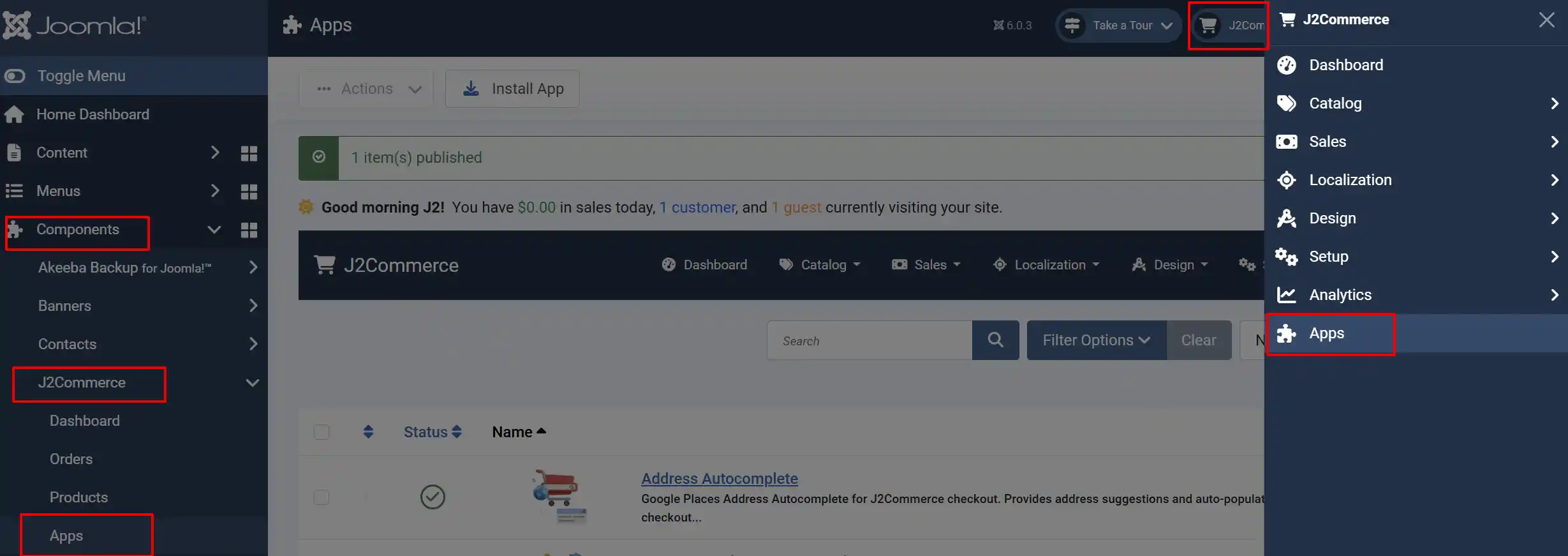
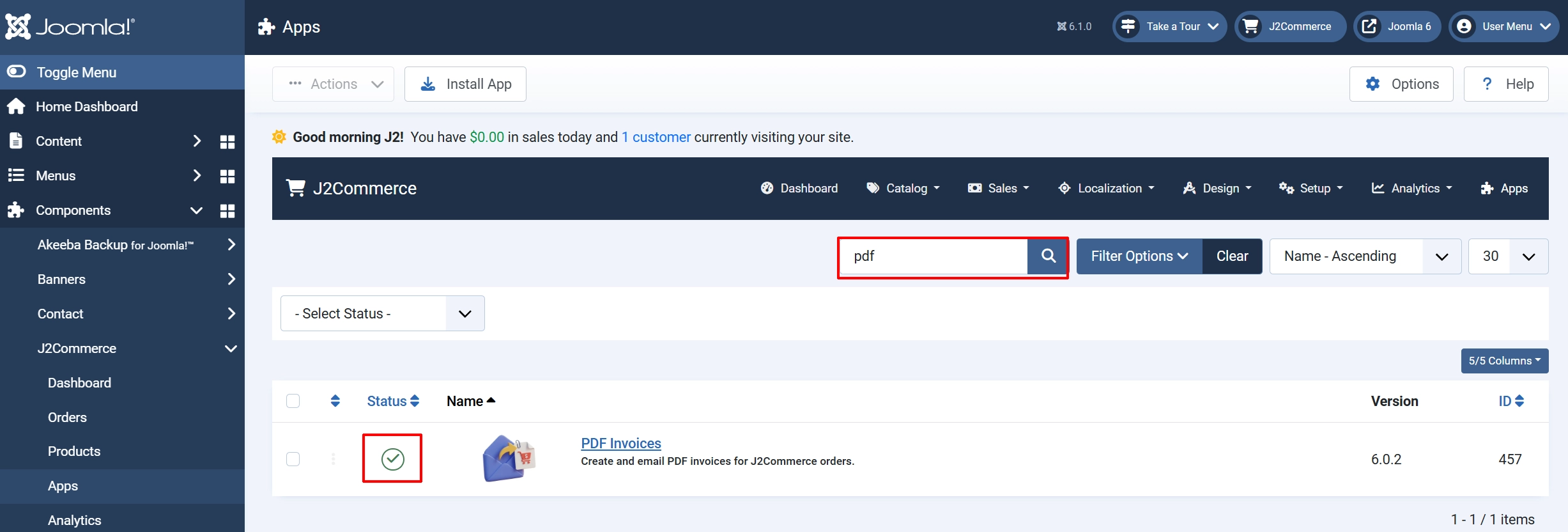
Look for PDF Invoices, click the X, and it will turn into a green checkmark. It is now enabled and ready for setup.
Configuration
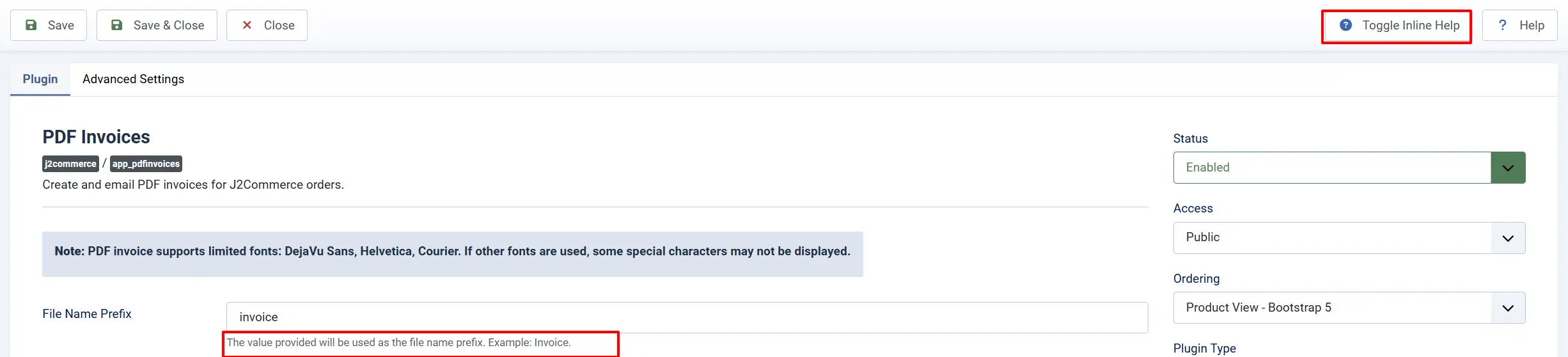
Click the Toggle Inline Help button in the toolbar and the app will show a description below each field as you configure it.
Basic Settings tab
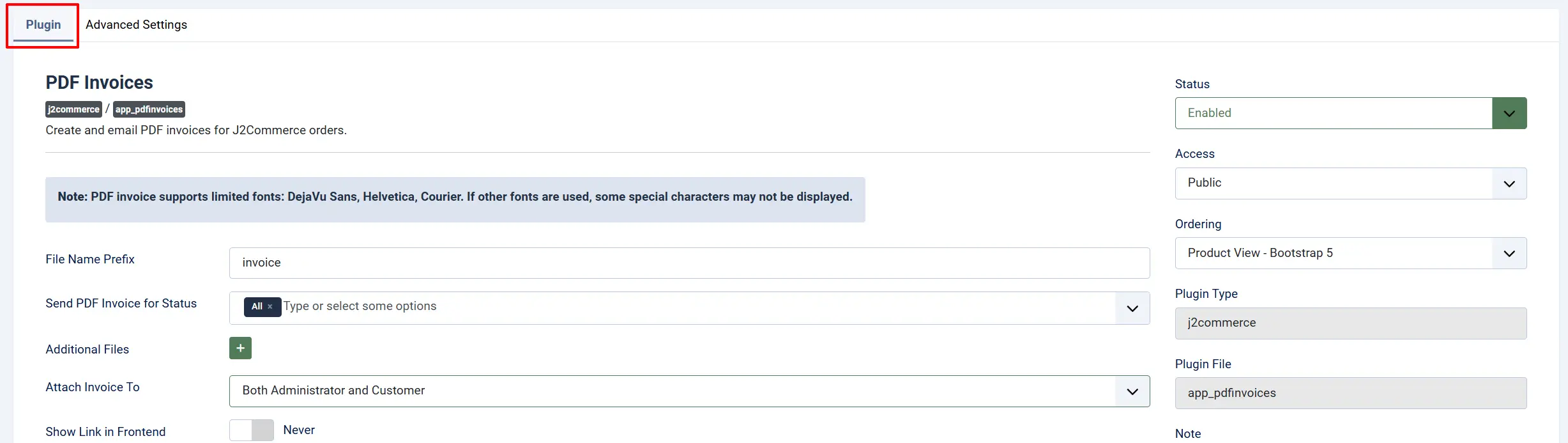
File Name Prefix: The text prepended to the PDF file name. The value provided will be used as the file name prefix. Example: Invoice. For example, a prefix of invoice produces a file named invoice_INV001.pdf.
Send PDF Invoice for Status: Restrict PDF generation to specific order statuses. Select one or more statuses from the list. The PDF will be attached and sent only when the status of the order is among the chosen values here. If nothing is selected, a PDF is generated for every order.
Additional Files: Attach an extra PDF file alongside the invoice. You can send additional files along with the PDF Invoice. Use the Joomla Media Manager to upload files, then select them here. Upload the file to media/j2commerce/ first, then select it here. You can add multiple files by clicking on the green plus sign. Both the generated invoice and the additional file will be attached to matching order emails.
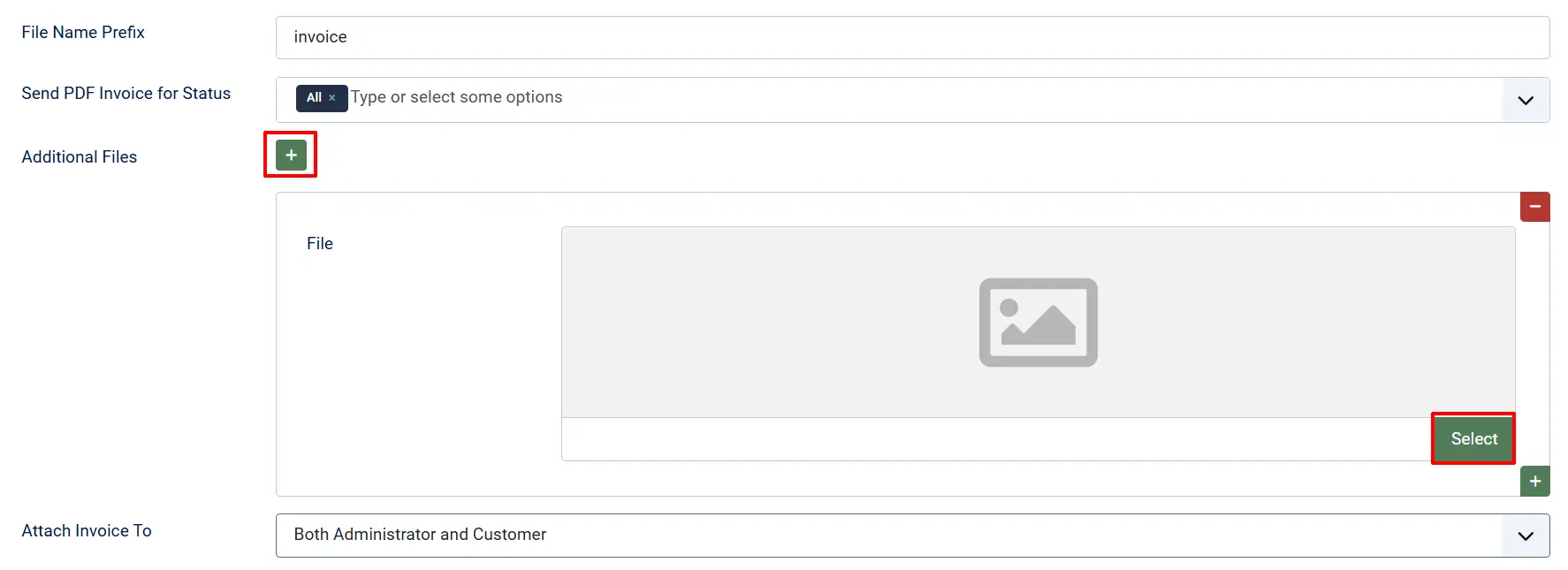
Attach Invoice To: Select who should receive the PDF invoice as an email attachment.
-
None
-
Both Administrator and Customer
-
Customer Only, Administrator Only
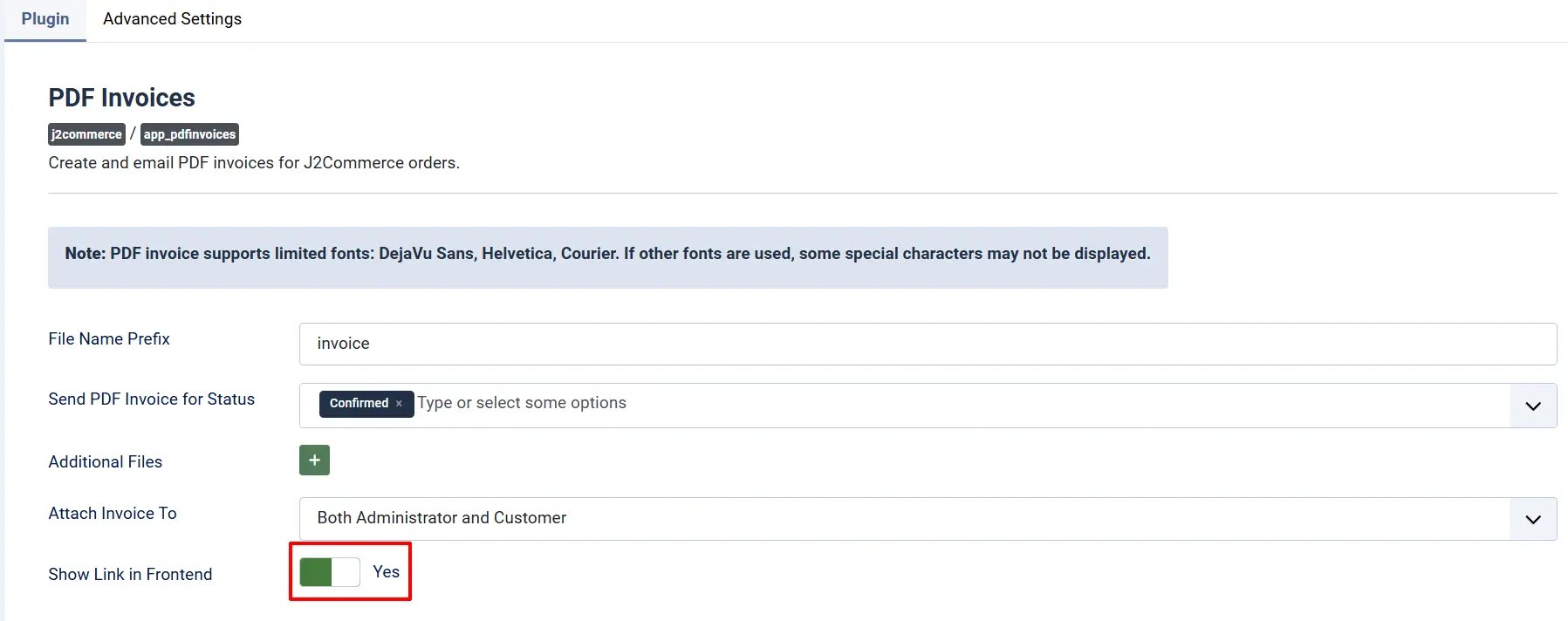
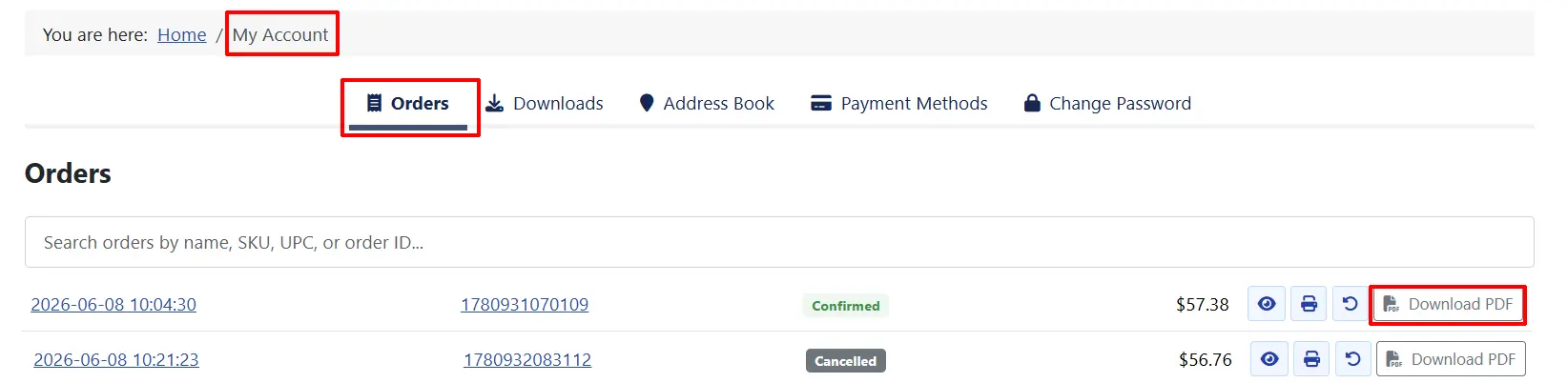
Show Link in Frontend: When enabled, a Download PDF button appears on the customer's order history page so they can download their invoice at any time.
Setting Up Order Status Filtering
By default, PDFs are generated for orders in any status. If you only want to send invoices for confirmed or paid orders, select those statuses from the Send PDF Invoice for Status field.
For example, to only send invoices for orders that have been paid:
- Click the Send PDF Invoice for Status dropdown.
- Select Confirmed (or whatever status your store uses for paid orders).

Orders in other statuses will not have a PDF attached to their email notification.
Advanced Settings
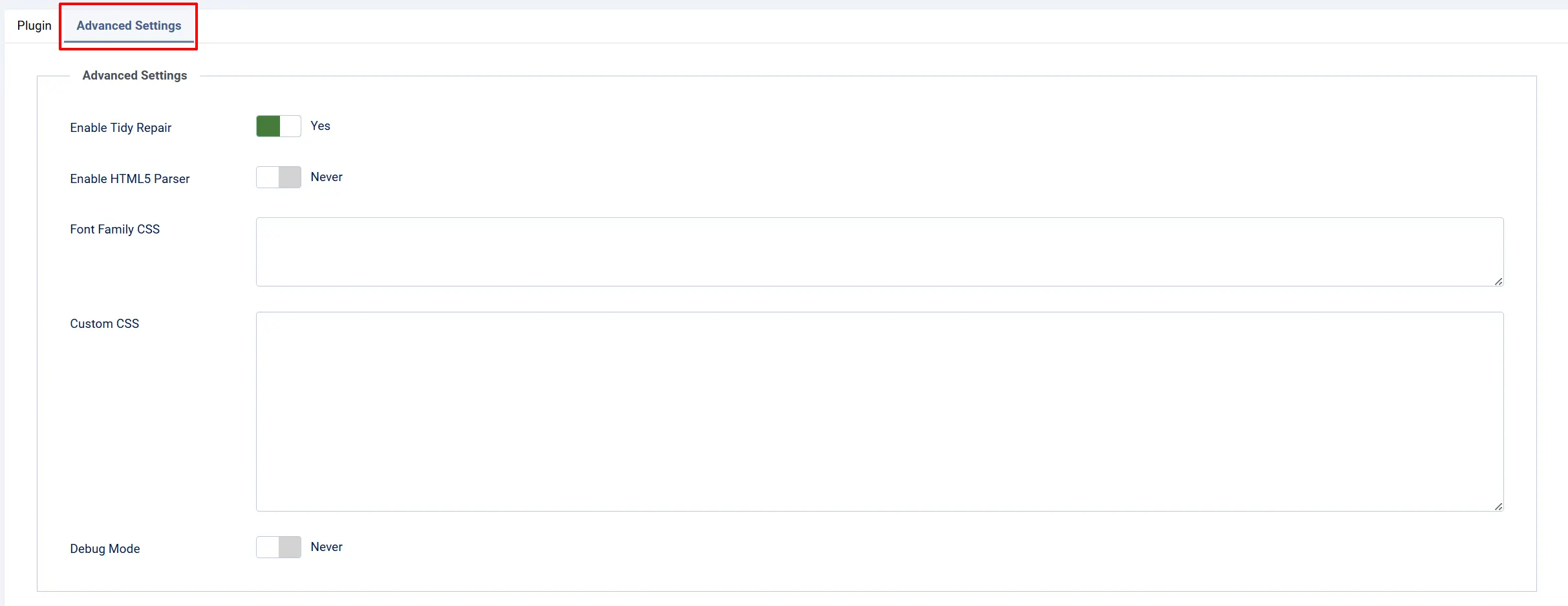
Enable Tidy Repair: Uses PHP's Tidy extension to clean up malformed HTML in the invoice template before passing it to the PDF renderer. Requires ext-tidy on your server.
Enable HTML5 Parser: Switches the Dompdf renderer to its HTML5-compatible parsing mode. Enable this if the invoice contains modern HTML5 elements that are not rendering correctly.
Font Family CSS: Override the body font used throughout the PDF. Enter a valid CSS font-family declaration, for example: font-family: Helvetica;
Custom CSS: Additional CSS rules applied to the entire invoice. Use this to adjust colours, spacing, borders, and layout.
Debug Mode: Writes detailed log entries to the Joomla log directory. Useful for diagnosing PDF generation problems. Disable this in production.
How Invoice PDFs Are Generated
When an order notification email is sent — either to the customer or the store admin — the plugin intercepts that email, generates a PDF from the order's invoice template, and attaches it. The PDF is saved temporarily to media/j2commerce/invoices/ before being attached. If the same order's PDF has already been generated during the same request, the cached file is reused rather than rendering it twice.
The invoice content is taken from the J2Commerce invoice template stored in your Joomla installation. The same template that appears when you view or print an invoice in the admin is used to produce the PDF. Images in the invoice are automatically converted to embedded data so they appear correctly in the rendered PDF.
Customizing the Invoice Appearance

Changing the Font
Dompdf supports a limited set of built-in fonts: DejaVu Sans, Helvetica, and Courier. Fonts outside this set may not display special characters correctly.
To change the font, enter a CSS font-family declaration in the Font Family CSS field:
font-family: Helvetica;
or for a sans-serif fallback chain:
font-family: Helvetica, DejaVu Sans, sans-serif;
Adding Custom Styles
Use the Custom CSS field to override any aspect of the invoice layout. The CSS is injected into the PDF document's <style> block directly. Examples:
- Change the table border colour:
table { border-color: #003366; } - Adjust the header background:
.invoice-header { background-color: #f5f5f5; } - Increase the body font size:
body { font-size: 13px; }
Because PDF rendering with Dompdf does not support all CSS properties, keep styles simple. Avoid CSS Grid, Flexbox, or advanced selectors that are not supported in the PDF layout engine.
Frontend Download Link
When Show Link in Frontend is set to Yes, a Download PDF button appears on the customer's order history page for each order.
Customers must be logged in to use the download link. The plugin verifies that the customer requesting the download is the owner of the order before streaming the PDF. Guests and other users cannot download invoices this way.
To enable this feature:
- Go to J2Commerce -> Apps -> PDF Invoices.
- On the Basic Settings tab, set Show Link in Frontend to Yes.
Frontend Customer View
Customers who are logged in will now appear under My Account -> Orders
Admin Download Button
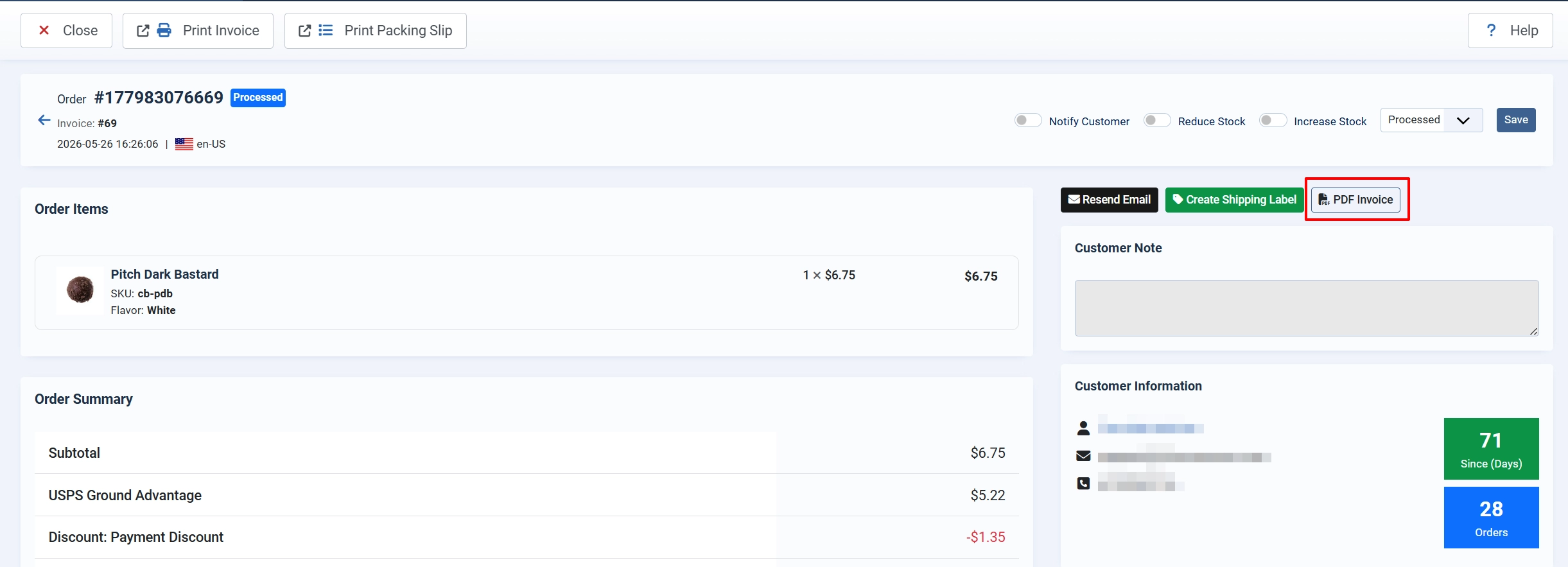
When viewing an order in the backend, the PDF invoice download button appears in the order's sidebar panel. Click PDF invoice to open the generated PDF in a new browser tab. The PDF is rendered on demand using the current order data — no stored file is needed.
Where PDF Files Are Stored
Generated invoice PDFs are saved to:
/media/j2commerce/invoices/
inside your Joomla site root. The install script creates this directory automatically. File names follow the pattern [prefix]_[invoice_number].pdf, for example invoice_INV0042.pdf.
These files are generated at email-send time and regenerated on each admin or frontend download request. You do not need to manage or clean up these files manually, but they are available on disk if you need to access them via FTP or your server's file manager.
Troubleshooting
No PDF Attached to Email
Cause: The Dompdf library is not installed, or the plugin is not enabled.
Solution:
- Go to J2Commerce -> Apps and confirm that PDF Invoices is enabled (toggle is green).
- Go to System -> Extensions -> Manage and verify that the Dompdf library (
lib_dompdf) is listed and installed. - Check that your Attach Invoice To setting is not set to None.
- If you have Send PDF Invoice for Status configured, confirm the order's current status matches one of the selected values.
Blank or Corrupted PDF
Cause: The invoice HTML contains markup that Dompdf cannot parse.
Solution:
- Enable Tidy Repair in the Advanced Settings tab. This cleans malformed HTML before it reaches the PDF renderer.
- If Tidy Repair is already enabled but the issue persists, also enable Enable HTML5 Parser and test again.
- Check that the PHP Tidy extension (
ext-tidy) is installed on your server. Without it, Tidy Repair silently skips the cleanup step.
PDF Download Returns a Blank Page or 404
Cause: A session token mismatch or permission issue blocked the download request.
Solution:
- Clear your browser cache and try the download again.
- Ensure the customer is logged in. Guest users cannot download invoices.
- In the Joomla backend, go to System -> Clear Cache and clear all caches.
Images Missing from PDF
Cause: Product images in the invoice are loaded via relative URLs that Dompdf cannot resolve.
Solution: The plugin automatically converts local image URLs to embedded base64 data. If images are still missing, check that the image files actually exist on disk at the expected paths. Images hosted on external domains are not embedded.
PDF Generation Fails with a Server Error
Cause: Insufficient PHP memory or the tmp/dompdf/ directory is not writable.
Solution:
- Verify that
tmp/dompdf/exists in your Joomla root and is writable by the web server. - Enable Debug Mode in the Advanced Settings tab. Log entries are written to the Joomla log directory (usually
logs/app_pdfinvoices.php). Review the log for specific error messages. - If the log shows memory errors, contact your host about increasing the PHP memory limit for your site.
Font Characters Not Displaying Correctly
Cause: You are using a font that is not built into Dompdf, or the invoice contains characters outside the supported range of the selected font.
Solution: Use one of the three supported built-in fonts: DejaVu Sans, Helvetica, or Courier. DejaVu Sans has the widest character support and handles accented Latin characters, Greek, and Cyrillic scripts. Enter it in the Font Family CSS field:
font-family: DejaVu Sans;
What Is New in J2Commerce
The PDF Invoices app for J2Commerce 6 is a complete rewrite of the J2Store PDF invoice plugin. Key improvements include:
- Uses the shared
PdfFactoryclass from the J2Commerce Dompdf Library, so all PDF-generating extensions share the same renderer configuration and autoloader — no duplication. - Images in the invoice are automatically embedded as base64 data URIs, eliminating the need to enable remote resource loading in Dompdf and improving security.
- The admin download button uses a CSRF-protected URL and verifies the request token before streaming any file.
- Frontend download verifies that the requesting user owns the order before sending the PDF, preventing customers from accessing other customers' invoices.
- Debug mode writes structured log entries to a dedicated
app_pdfinvoices.phplog file in the Joomla logs directory, making it easier to trace problems. - The plugin caches generated PDF file paths per request, so if both the customer and admin emails are sent in the same transaction, the invoice is only rendered once.