CECA Payment (Cecabank TPV)
Cecabank (formerly Confederación Española de Cajas de Ahorros) operates one of Spain's most widely used payment gateways, known as TPV Virtual. This plugin connects J2Commerce to the Cecabank hosted payment page, where customers complete their transaction securely on Cecabank's infrastructure. After payment, Cecabank notifies your store and redirects the customer back automatically.
The plugin uses SHA-256 request signing to protect all transactions and supports both sandbox and live environments with fully isolated credentials.
Requirements
- PHP 8.3 or higher
- Joomla 6.x
- J2Commerce 6.x
- An active Cecabank merchant account (obtained through your savings bank entity or directly from Cecabank)
Purchase and download
This plugin is a separate add-on available from the J2Commerce Extensions Store. It is not included with the core J2Commerce 6 component.
- Go to the J2Commerce website and locate Ceca.
- Add it to your cart and complete checkout.
- Go to My Downloads under your account profile and find the plugin.
- Click Available Versions -> View Files -> Download Now to download the ZIP file.
Install the plugin
In the Joomla Administrator, go to System -> Install -> Extensions.
Upload the payment_ceca.zip file.

Enable the Plugin
Once you have installed the App, you will need to enable it. There are two ways you can access the App.
Option A: Go to the J2Commerce icon at the top right corner -> Setup -> Payment Methods
Option B: Go to Components on the left sidebar -> J2Commerce -> Dashboard -> Setup -> Payment Methods

To help you narrow down the list, you can do a search for Ceca, click the X, and it will turn into a green checkmark. It is now enabled and ready for setup.
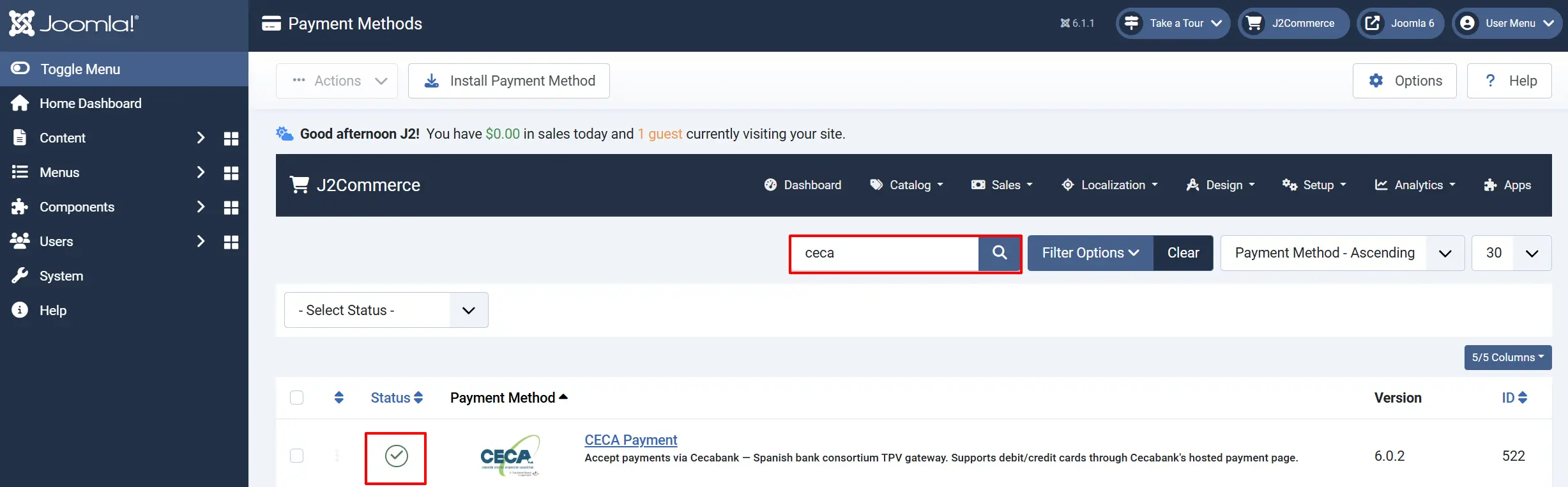
Configuring the Plugin
Click the Toggle Inline Help button in the toolbar and the app will show a description below each field as you configure it.

Basic Settings
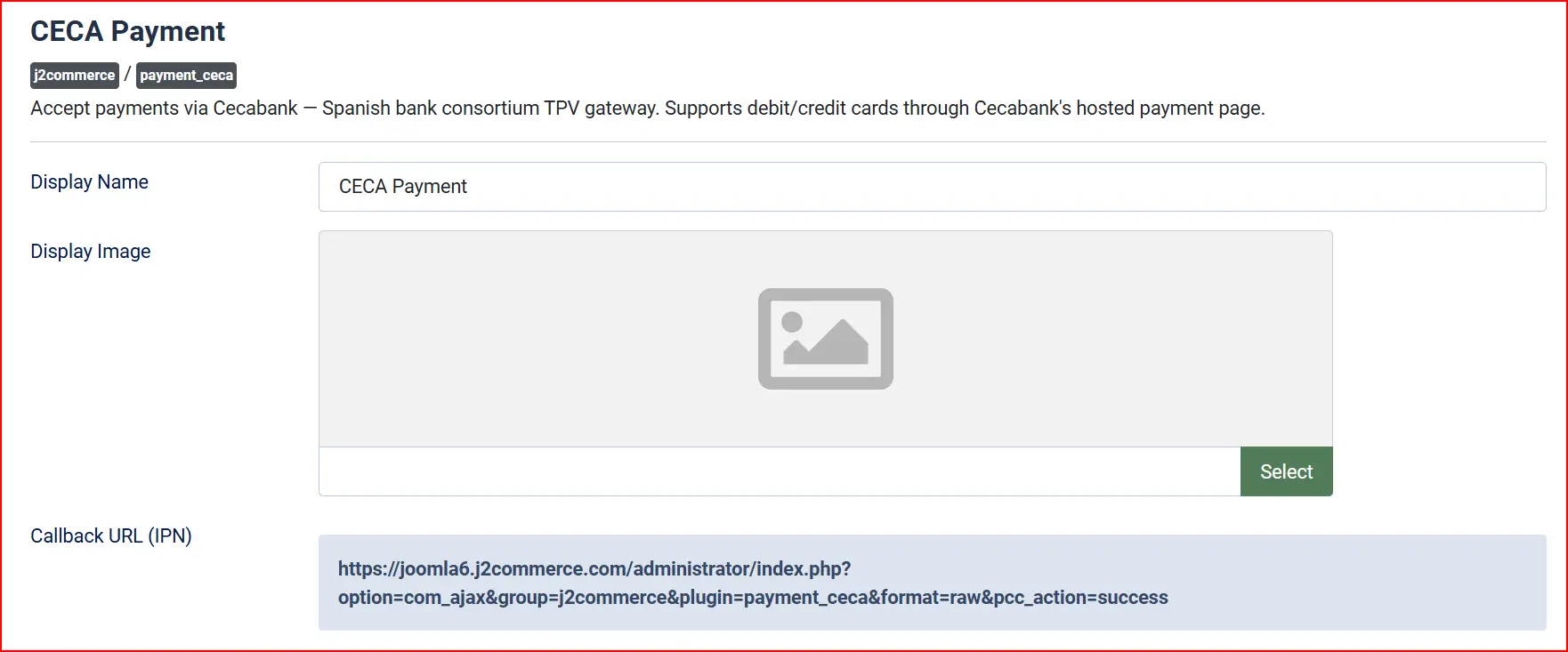
Display Name: The label shown to customers at checkout (e.g., "Bank Transfer", "Wire Transfer", or "Direct Bank Payment").
Display Image: Optional logo or image shown next to the payment option at checkout. Upload a bank or payment icon to help customers recognise the method.
Callback URL (IPN): The plugin displays a read-only Callback URL field in its settings. Copy this URL and paste it into your Cecabank merchant portal as the Merchant URL (server notification URL).
https://yourdomain.com/index.php?option=com_ajax&plugin=payment_ceca&group=j2commerce&format=raw&pcc_action=success
Cecabank uses this URL to POST the payment result to your store's server. The plugin verifies the signature on every incoming notification.
Sandbox vs Live Mode
The plugin provides a dedicated sandbox environment using Cecabank's test gateway at tpv.ceca.es:8000. Use sandbox mode to verify the full payment flow before going live — no real money is charged.
Sandbox / Test Mode: Toggle between test and live environments. Credentials are completely separate for each mode — the plugin never mixes them.
When Sandbox / Test Mode is on, the sandbox credential fields appear. When it is off, the live credential fields appear. Cecabank's test environment requires separate merchant credentials obtained through their test portal.
If sandbox credentials are incomplete (Merchant ID, Encryption Key, or Acquirer BIN missing) while sandbox mode is on, the plugin blocks all payments and displays a configuration error. This prevents accidental live-credential exposure in test mode.
Credentials
Obtain your credentials from your Cecabank merchant portal or through your savings bank entity.
Live Credentials (shown when Sandbox is off)
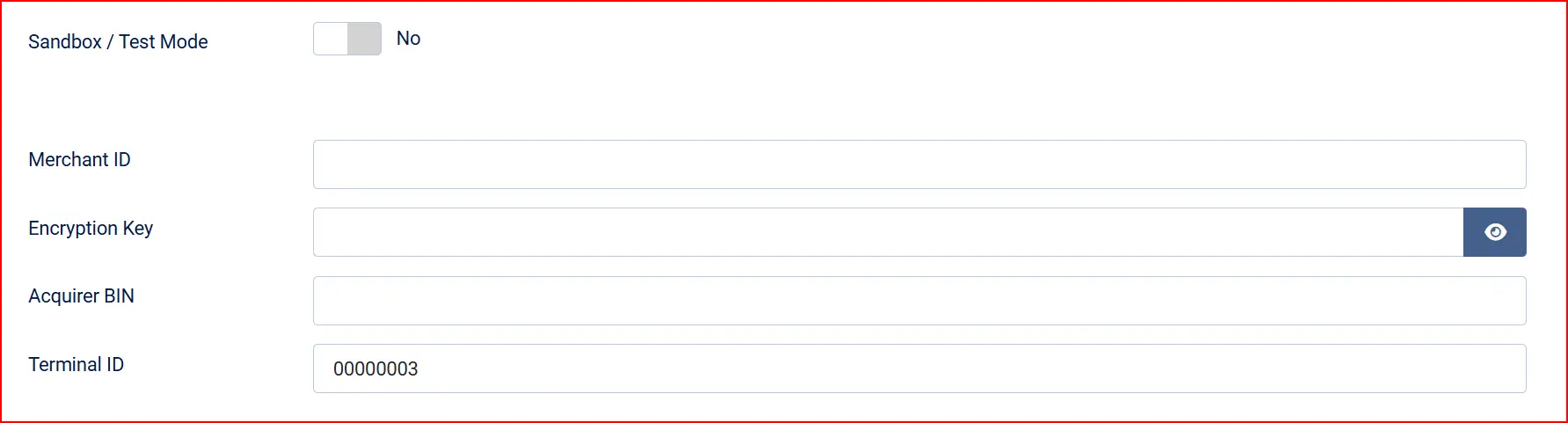
Merchant ID: Your 9-digit Cecabank Merchant ID, provided during merchant enrolment
Encryption Key: Your Cecabank encryption key — used to sign all transactions. Keep this confidential.
Acquirer BIN: Your 10-digit Acquirer BIN — identifies your savings bank entity
Terminal ID: Your 8-digit Terminal ID (default is 00000003 for standard TPV)
Sandbox Credentials (shown when Sandbox is on)
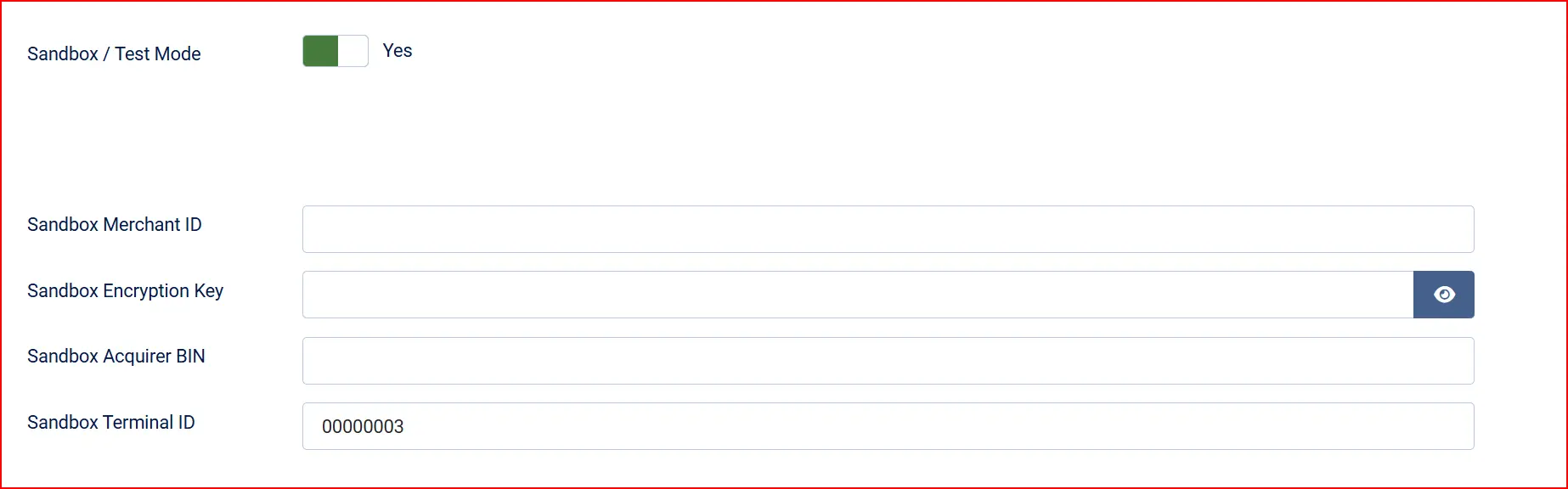
The same four fields appear prefixed with Sandbox and accept your Cecabank test account credentials. These are entirely separate from your live credentials.
Keep your Encryption Key confidential. It is used to sign every transaction and verify every callback. Never share it or include it in any public file or source repository.
Gateway URLs
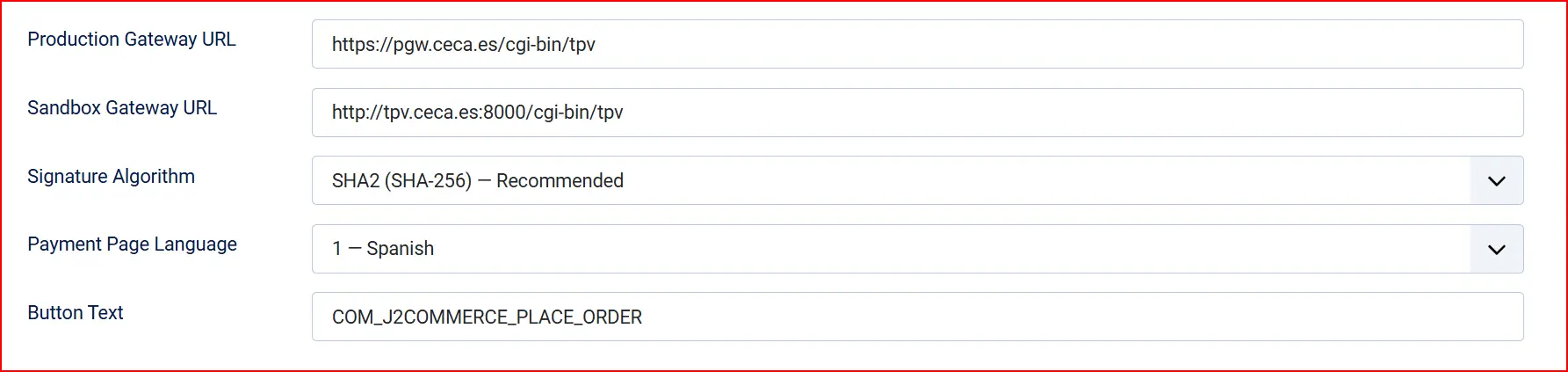
The plugin uses Cecabank's standard endpoint URLs by default. You can override them if Cecabank provides a custom URL for your merchant account.
Production Gateway URL: https://pgw.ceca.es/cgi-bin/tpv
Sandbox Gateway URL: http://tpv.ceca.es:8000/cgi-bin/tpv
- Leave these fields blank to use the defaults.
Signature Algorithm: Hash algorithm used to sign outbound requests and verify incoming callbacks. SHA2 (SHA-256) is required for all new merchants. SHA1 is provided only for legacy merchants who have not yet migrated — Cecabank deprecated SHA1 in 2018.
- Always use SHA2 unless Cecabank specifically instructs otherwise.
Cecabank Merchant Portal Setup
Configure the following in your Cecabank merchant portal before going live:
- Log in to your Cecabank merchant portal.
- Set the Merchant URL (server notification) to the Callback URL shown in the plugin settings.
- The plugin sets URL OK (success redirect) and URL NOK (failure redirect) automatically — you do not need to configure these manually.
- Select SHA-256 as the signature algorithm in the portal. This must match the Signature Algorithm setting in the plugin.
- Verify that your live Merchant ID, Encryption Key, Acquirer BIN, and Terminal ID are entered correctly.
Payment Page Language
Select the language displayed to your customers on the Cecabank hosted payment page.
| Value | Language |
|---|---|
| 1 | Spanish |
| 2 | Catalan |
| 3 | Basque |
| 4 | Galician |
| 5 | Valencian |
| 6 | English |
| 7 | French |
| 8 | German |
| 9 | Portuguese |
| 10 | Italian |
| 11 | Swedish |
| 12 | Danish |
| 13 | Russian |
| 14 | Dutch |
| 15 | Norwegian |
Button Text: The text on the confirmation button at checkout (e.g., "Place Order" or "Confirm Order").
Template Style

Template Style: Choose the checkout layout style — Bootstrap 5 or UIkit. Defaults to your site's active J2Commerce theme.
Order Status Configuration

Successful Payment Status: Status applied when Cecabank reports the payment as successful
Failed Payment Status: Status applied when the payment fails or the customer cancels
NOTE: If the status you want isn't listed in the dropdown menu, you can create a new one by going to J2Commerce -> Setup -> Order Statuses

Surcharge (Optional)

Add a processing fee to orders paid via CECA. Leave all fields blank to apply no surcharge.
Surcharge Name: Label shown to the customer (e.g., "Bank processing fee")
Surcharge Percent: Percentage of the order total added as a fee (e.g., 1.5 for 1.5%)
Surcharge Fixed: Fixed amount added to the order total
Surcharge Tax Class: Tax profile applied to the surcharge amount, if applicable
Percent and fixed surcharges are added together when both are set.
Availability Restrictions (Optional)

Geozone Restriction: Restrict CECA to customers in a specific geozone. When set, the payment method is hidden for customers whose shipping address falls outside that geozone. Leave blank to make CECA available worldwide.
Min Subtotal: Hide CECA when the order subtotal is below this amount
Max Subtotal: Hide CECA when the order subtotal is above this amount
Leave either field blank to apply no limit in that direction.
Checkout messages
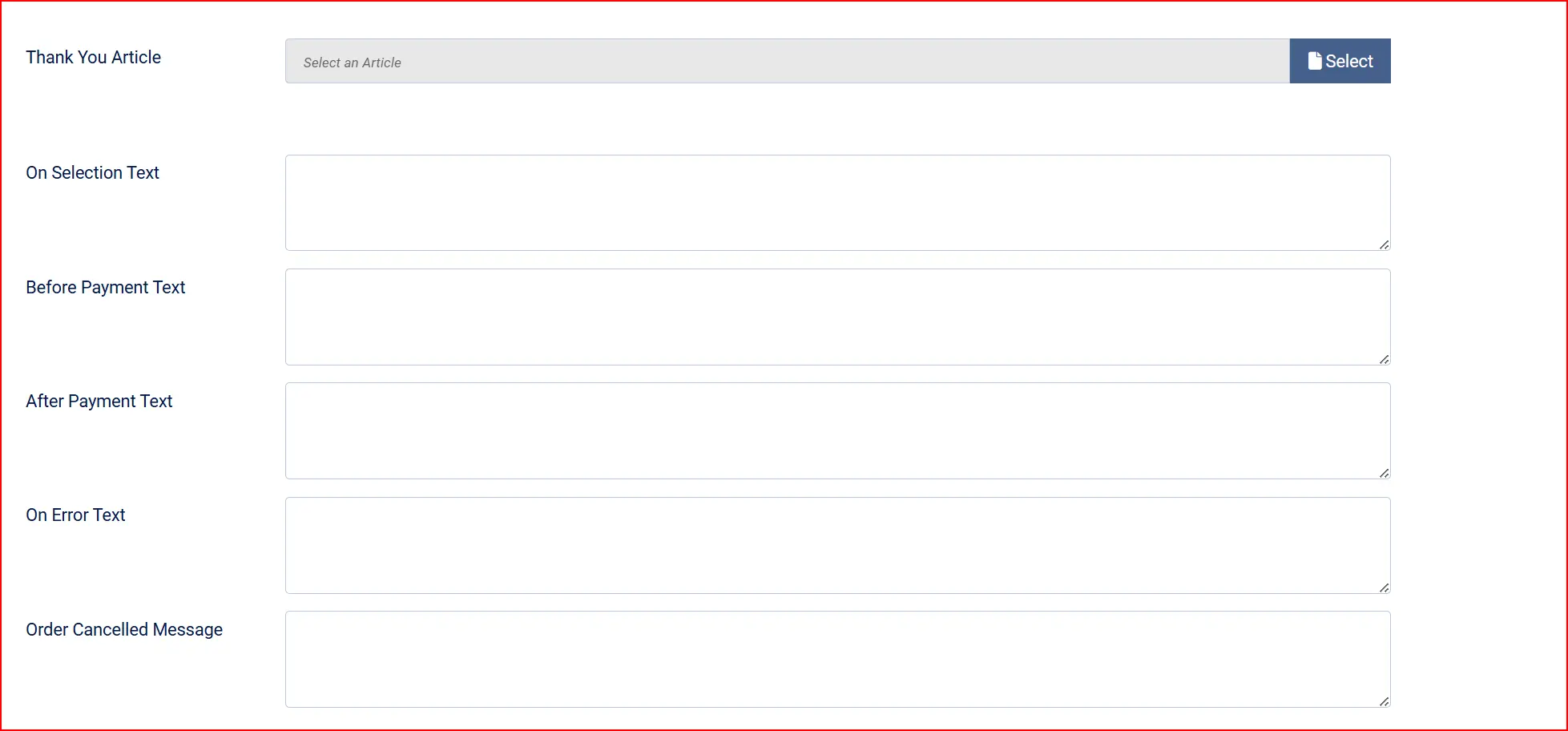
Thank-You Article: Joomla article displayed to the customer after a successful payment
On Selection Text: HTML or text shown when the customer selects CECA at checkout
Before Payment Text: HTML shown on the pre-payment confirmation screen
After Payment Text: HTML shown after a successful payment
On Error Text: HTML shown when the payment fails
On Cancel Text: HTML shown when the customer cancels
Dashboard Icon and Debug

Show Dashboard Icon: When enabled, this plugin adds an icon tile to the J2Commerce dashboard and the J2Commerce quick icons module.
Icon Label: Override the default label shown on the icon tile. Leave empty to use the plugin default.
Debug Mode: When enabled, detailed logs are written to administrator/logs/payment_ceca.php. Disable in production.
Enable debug mode during initial setup and sandbox testing to trace the full payment flow, including the outbound form fields sent to Cecabank and the incoming callback data. Debug logs may contain order amounts and transaction reference numbers. Disable debug mode before going live.
How the Payment Flow Works
- The customer selects CECA as the payment method at checkout.
- J2Commerce builds the payment form fields, signs them with your Encryption Key using SHA-256, and presents a pre-payment screen with a redirect button.
- After 1.5 seconds (or when the customer clicks the button), they are sent to the Cecabank hosted payment page.
- The customer completes the payment on Cecabank's secure infrastructure.
- Cecabank POSTs the payment result to your store's Callback URL (server-to-server notification). The plugin verifies the SHA-256 signature, checks the Merchant ID, and validates the payment amount.
- If all three checks pass, the plugin updates the order status to Confirmed and sends the
$*$OKY$*acknowledgement to Cecabank. - Cecabank redirects the customer to either the success or failure URL on your store.
The server-to-server callback is protected against replay attacks: the plugin verifies the firma (signature), matches the Merchant ID, and confirms the payment amount matches the order total within a one-cent tolerance before accepting any callback.
Currency
CECA operates exclusively in Euro (EUR). The plugin checks your store configuration at checkout and verifies that EUR is either the store's base currency or an active currency. If EUR is not available, the payment method is hidden automatically.
Troubleshooting
Orders stuck in "Pending" status
Cause: The server-to-server callback from Cecabank did not reach your store, or the Callback URL in the Cecabank portal is incorrect.
Solution:
- Verify the Merchant URL in your Cecabank portal matches the Callback URL shown in the plugin settings exactly.
- Ensure your store is accessible over HTTPS from external servers.
- Enable Debug Mode and check
administrator/logs/payment_ceca.phpfor incoming callback data.
"Signature verification failed" error
Cause: The signature on the Cecabank callback does not match what the plugin computed. This is caused by an incorrect Encryption Key or a mismatch in the Signature Algorithm.
Solution:
- Confirm the Encryption Key in the plugin settings matches exactly what is shown in your Cecabank portal.
- Confirm the Signature Algorithm setting matches what is configured in your Cecabank portal (SHA2 is standard).
- Check whether any proxy, CDN, or WAF is modifying POST body content.
"Merchant ID mismatch" error
Cause: The Merchant ID returned in the Cecabank callback does not match the Merchant ID configured in the plugin.
Solution: Compare the Merchant ID field in the plugin with the ID shown in your Cecabank portal. They must be identical, including leading zeros.
Payment succeeds at Cecabank but order stays "Pending"
Cause: The Cecabank server-to-server notification is being blocked before it reaches your store.
Solution:
- Ensure the Callback URL is accessible over HTTPS from external servers.
- Check whether a firewall, security plugin, or WAF is blocking the request. Cecabank's gateway servers must be able to reach your Callback URL.
- Enable Debug Mode to verify whether the callback is arriving.
"Sandbox credentials missing" error
Cause: Sandbox mode is on but one or more sandbox credentials (Merchant ID, Encryption Key, or Acquirer BIN) are blank.
Solution: Fill in all three sandbox credential fields. Cecabank provides test credentials through their sandbox portal — contact your Cecabank account representative to obtain them.
CECA not appearing at checkout
Cause: One of the availability restrictions is preventing the payment method from appearing.
Solution:
- Check whether a Geozone Restriction is set and whether the customer's shipping address falls within it.
- Check the Min Subtotal and Max Subtotal fields and verify the order total falls within the configured range.
- Verify the store's active currencies include EUR (CECA only accepts Euro).