Barclaycard ePDQ Payment
The Barclaycard ePDQ plugin lets your J2Commerce store accept credit and debit card payments through the Barclaycard ePDQ gateway. Customers are redirected to a secure Barclaycard-hosted payment page to enter their card details — your server never handles raw card numbers. After payment, Barclaycard sends a notification back to your store to confirm the order.
Barclaycard sold the ePDQ product to Worldline in 2023. If you already hold an ePDQ PSPID, your account continues to work unchanged under Worldline branding. If you do not yet have an ePDQ account, contact Worldline directly to open a new one.
Key features:
- Secure Hosted Payment Page (HPP) — card data handled entirely by Barclaycard (SAQ-A compliant)
- Optional on-site FlexCheckout card form using the ePDQ Alias Gateway
- Saved cards — logged-in customers can store and reuse their card at checkout
- Subscription product support with automatic renewal billing via saved cards
- Admin Capture, Void, and Refund buttons on the order detail screen
- Test mode with a separate set of sandbox credentials
Requirements
- Joomla 6.0 or later
- J2Commerce 6.3.4 or later
- An active Barclaycard ePDQ merchant account
- SHA-IN and SHA-OUT passphrases set in your ePDQ Back Office
- Your site served over HTTPS
Get your credentials from the ePDQ Back Office
Before you configure the plugin, you need to collect five values from the ePDQ Back Office at payments.epdq.co.uk:
| What you need | Where to find it in the Back Office |
|---|---|
| PSPID | Your merchant account name shown at the top of the Back Office screen |
| API User ID | Configuration -> Users — create or select a user with DirectLink rights |
| API Password | Set when you create the API user |
| SHA-IN Passphrase | Configuration -> Technical information -> Data and origin verification |
| SHA-OUT Passphrase | Configuration -> Technical information -> Transaction feedback |
The SHA-IN and SHA-OUT passphrases should be long, random strings that you create yourself. Write them down securely — you will enter the same values in both the ePDQ Back Office and the plugin.
Purchase and download
This plugin is a separate add-on available from the J2Commerce Extensions Store. It is not included with the core J2Commerce 6 component.
- Go to the J2Commerce website and locate Barclaycard ePDQ Payment.
- Add it to your cart and complete checkout.
- Go to My Downloads under your account profile and find the plugin.
- Click Available Versions -> View Files -> Download Now to download the ZIP file.
Install the plugin
In the Joomla Administrator, go to System -> Install -> Extensions.
Upload the plg_j2commerce_payment_barclays.zip file.

Enable the Plugin
Once you have installed the App, you will need to enable it. There are two ways you can access the App.
Option A: Go to the J2Commerce icon at the top right corner -> Setup -> Payment Methods
Option B: Go to Components on the left sidebar -> J2Commerce -> Dashboard -> Setup -> Payment Methods

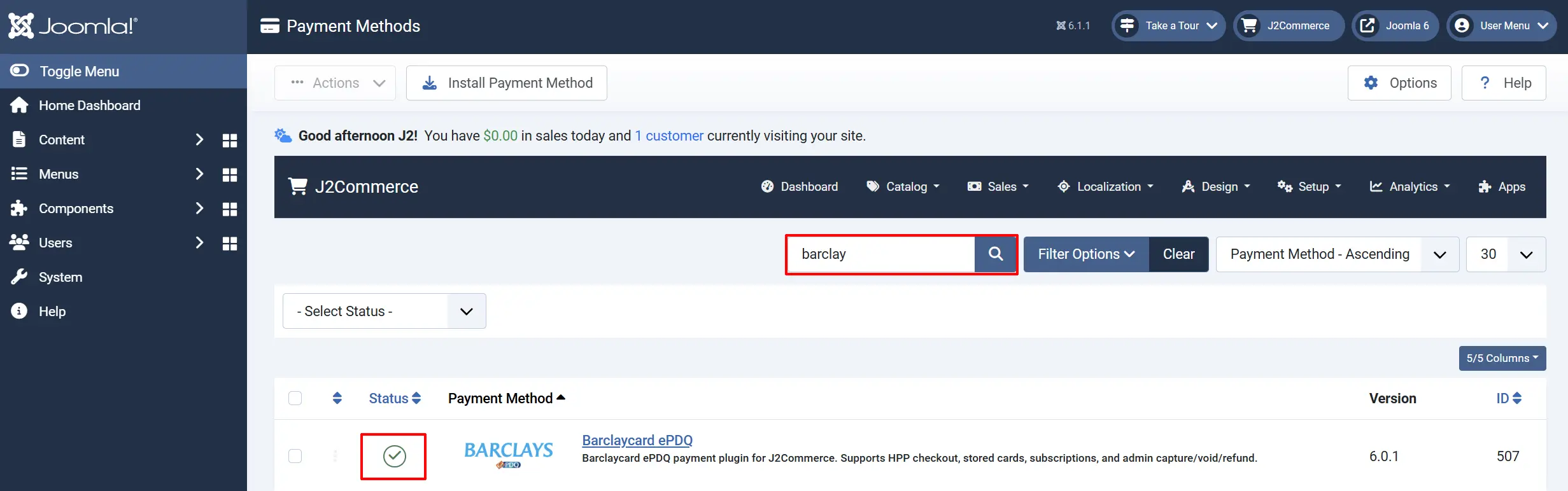
To help you narrow down the list, you can do a search for Barclaycard ePDQ Payment, click the X, and it will turn into a green checkmark. It is now enabled and ready for setup.
Configure the plugin
Click the Barclaycard ePDQ title next to the green checkmark to open the configuration screen.
Click the Toggle Inline Help button at the top of any plugin configuration page to show a short description beneath each field.

Display Settings
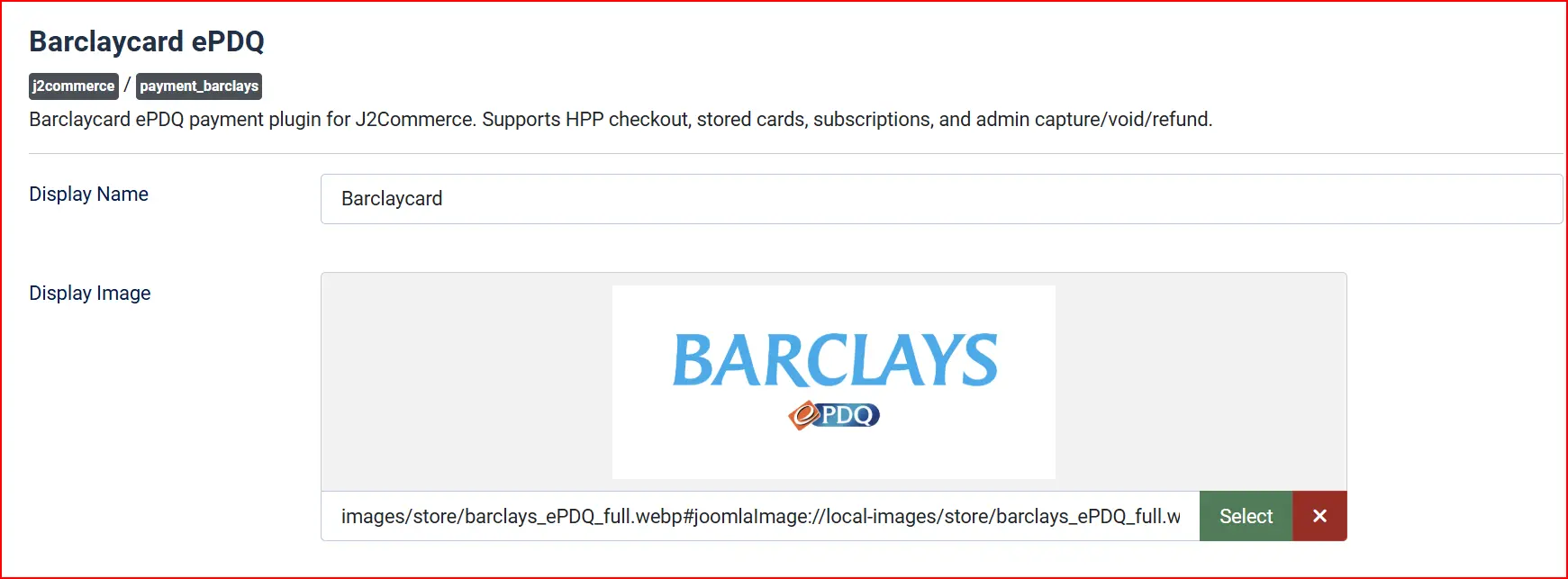
Display Name: The name customers see at checkout (default: Barclaycard)
Display Image: Optional logo to show at checkout alongside the payment method name
Test mode
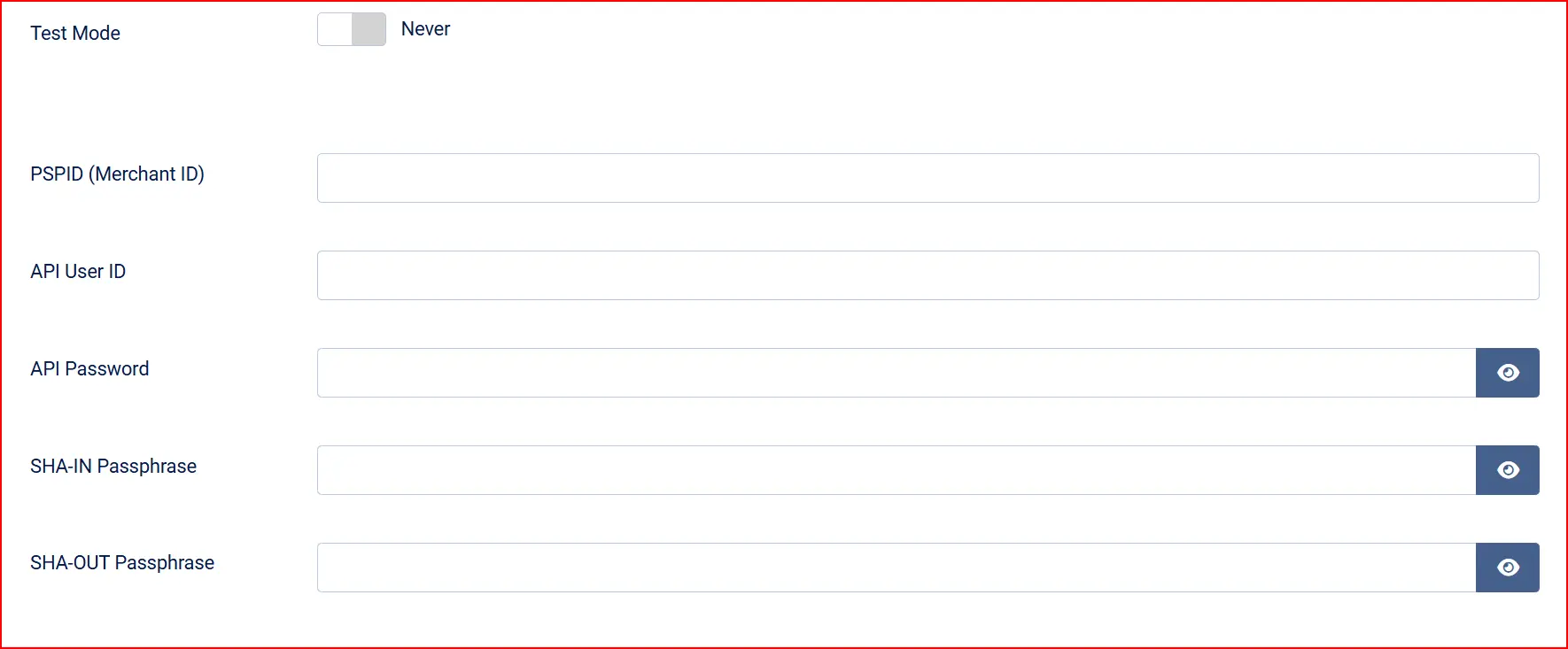
Test Mode: Switch this to Yes while you are testing. Payments go to the Barclaycard sandbox — no real money is charged. Switch to No before you go live.
Credentials (live)
These fields are shown when Test Mode is off.
-
PSPID (Merchant ID): Your ePDQ affiliation name (PSPID) from the Back Office
-
API User ID: The DirectLink API username you created in the Back Office under Configuration -> Users
-
API Password: Password for that DirectLink API user
-
SHA-IN Passphrase: The passphrase from Technical information -> Data and origin verification
-
SHA-OUT Passphrase: The passphrase from Technical information -> Transaction feedback
Credentials (Test)
When Test Mode is enabled, a separate set of Sandbox credential fields appears. Enter your sandbox PSPID, sandbox API User ID, sandbox API Password, sandbox SHA-IN, and sandbox SHA-OUT there. Your live credentials remain safely stored and untouched.
-
Before going live, enable Test Mode in the plugin and enter your Barclaycard sandbox PSPID and passphrase values in the sandbox fields. The Barclaycard sandbox environment is at
mdepayments.epdq.co.uk. -
Barclaycard provides test card numbers through their merchant documentation. Typical test cards include:
-
Visa:
4111 1111 1111 1111(check your ePDQ sandbox documentation for current test numbers) -
Any future expiry date and any 3-digit CVV work on the test environment
-
-
When Test Mode is enabled, a warning banner appears on the J2Commerce dashboard reminding you that no real payments are being processed.
Always disable Test Mode and switch to your live credentials before opening your store to customers.
Security

Hash Algorithm: Must match exactly what you selected in the ePDQ Back Office under Technical information -> Global transaction parameters. SHA-512 is recommended.
Verify SHA-OUT Signature: Verifies that every payment notification genuinely comes from Barclaycard. Keep this enabled in production — disable only temporarily for debugging.
Hosted page appearance

These fields let you brand the Barclaycard payment page to match your store.
HPP Background Color: Hex colour code for the page background (for example, #FFFFFF for white). Leave blank to use the ePDQ default.
HPP Logo URL: Full HTTPS URL to your store logo displayed on the Barclaycard page
HPP Page Title: Title text shown at the top of the Barclaycard hosted page
Saved cards and integration mode

Enable Saved Cards: When set to Yes, logged-in customers can save their card at checkout and reuse it for future orders without re-entering card details. Requires the Alias feature to be enabled in the ePDQ Back Office.
Integration Mode: Choose how customers enter card details: HPP redirects them to Barclaycard's hosted page; FlexCheckout shows a card form on your own checkout page (on-site, SAQ-A, requires the Alias Gateway to be enabled in the Back Office).
Template Style

Template Style: Choose the checkout layout style — Bootstrap 5 or UIkit. Defaults to your site's active J2Commerce theme.
Order statuses
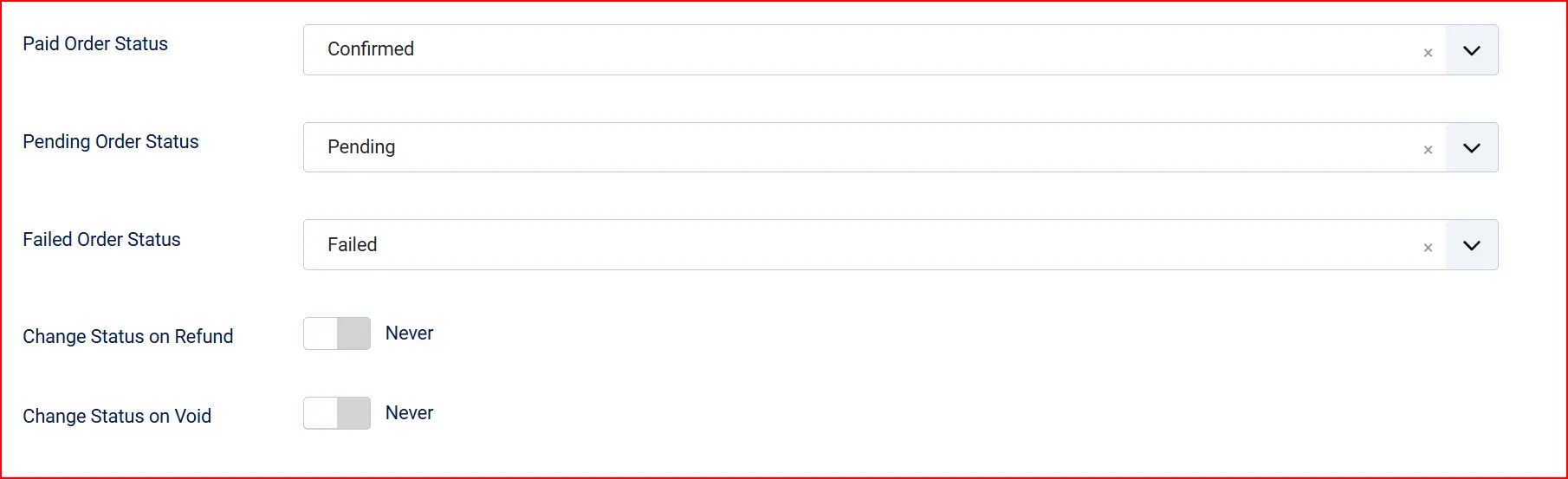
Paid Order Status: Applied when Barclaycard confirms a successful payment (STATUS 5 or STATUS 9)
Pending Order Status: Applied when payment is awaiting confirmation (STATUS 51 or STATUS 91)
Failed Order Status: Applied when payment is declined, cancelled, or encounters an error
Change Status on Refund: Automatically move the order to a chosen status after a refund is processed
Refund Order Status: Status to apply when a refund completes (only shown when the above is enabled)
Change Status on Void: Automatically move the order to a chosen status after a payment is voided
Void Order Status: Status to apply when a payment is voided (only shown when the above is enabled)
If the order status you want is not listed, create it first under J2Commerce -> Setup -> Order Statuses.

Surcharges
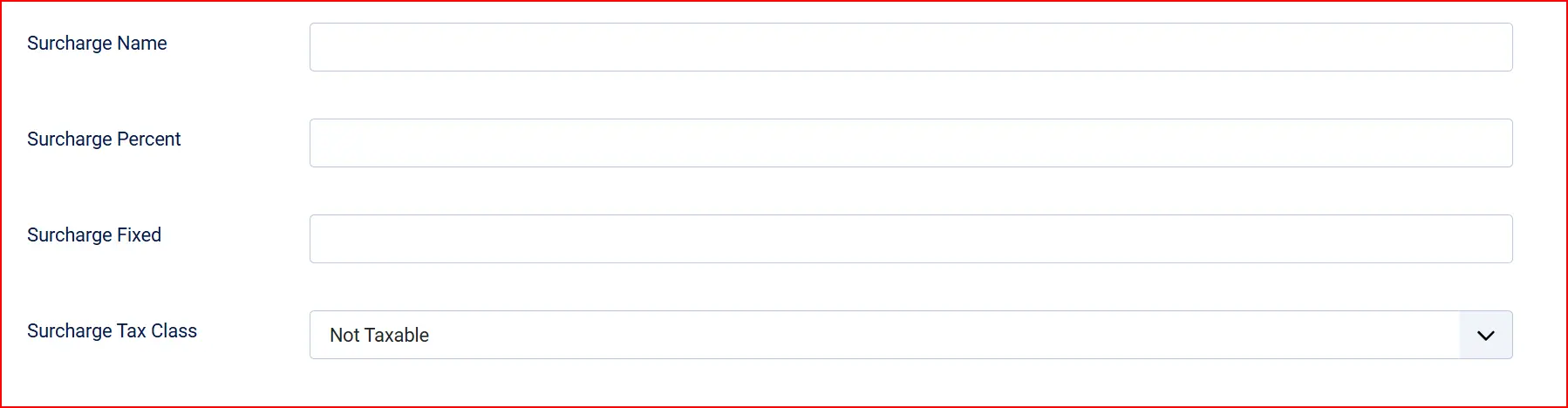
Add an optional payment surcharge to cover your Barclaycard transaction fees. Leave both fields blank or set to 0 if you do not charge a surcharge.
Surcharge Name: Label shown to customers at checkout for the surcharge line item
Surcharge Percentage: Adds a percentage of the order total as a fee (for example, 2.5 for 2.5%)
Surcharge Fixed Amount: Adds a flat amount on top of the order total
Surcharge Tax Class: Tax profile to apply to the surcharge
Visibility restrictions

Geo-zone Restriction: Limit Barclaycard ePDQ to customers in a specific geo-zone. Leave blank to show it to all customers.
Minimum Order Subtotal: Hide this payment method for orders below this amount. Enter -1 to disable the limit.
Maximum Order Subtotal: Hide this payment method for orders above this amount. Enter -1 to disable the limit.
Checkout messages
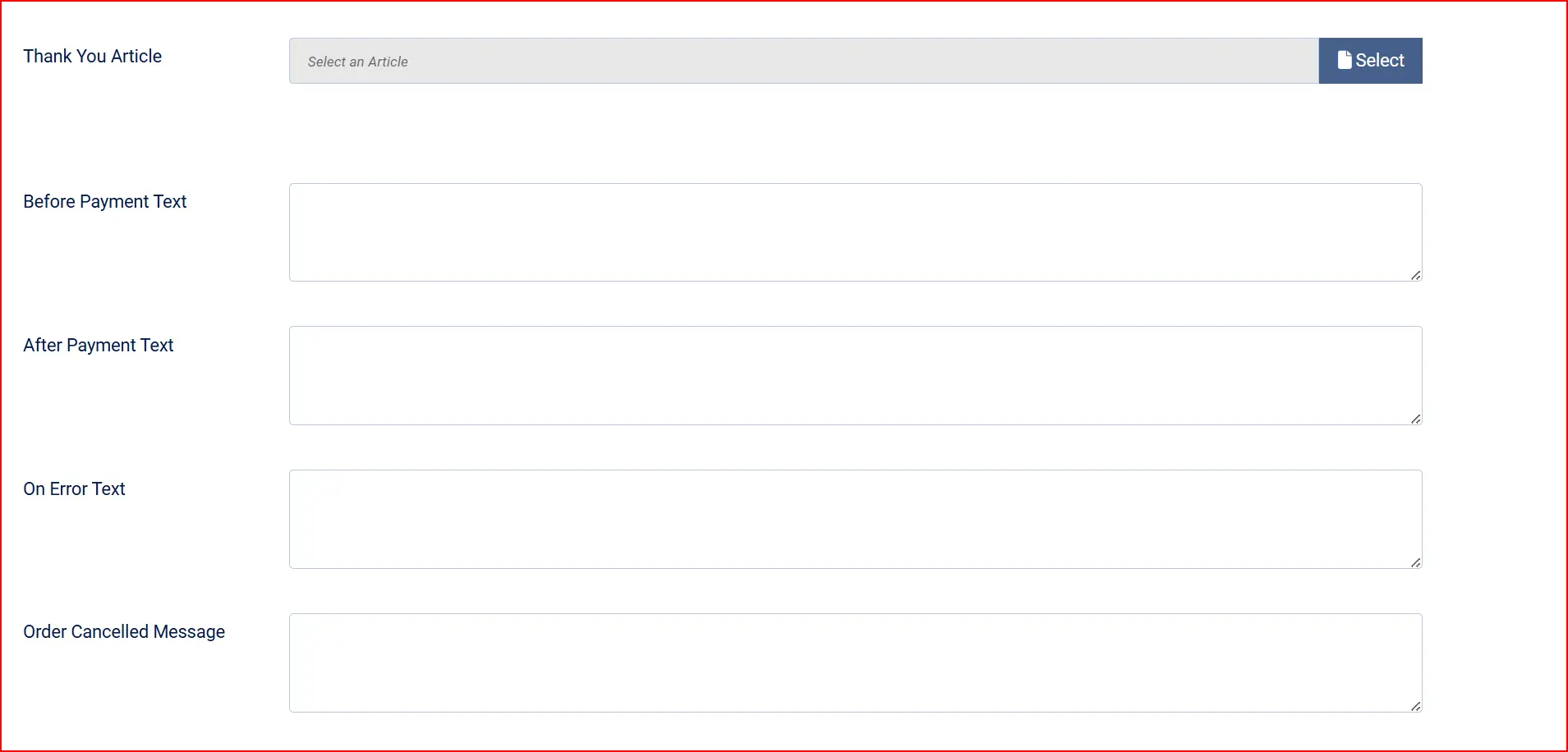
These optional text fields let you customise what customers see at each stage of the payment flow.
Thank-You Article: Optional Joomla article to display after a successful payment
On Before Payment: Text shown before the customer is redirected to Barclaycard
On After Payment: Text shown on the order confirmation page after a successful payment
On Error: Text shown when a payment error occurs
On Cancel: Text shown when the customer cancels on the Barclaycard page
Dashboard icon

Show Dashboard Icon: Adds a shortcut icon for this plugin to the J2Commerce dashboard
Icon Label: Custom label for the dashboard icon
Debug logging
Debug Logging: Writes transaction details to administrator/logs/plg_j2commerce_payment_barclays.log.php. Useful when troubleshooting. Disable in production — the log never contains raw card numbers or passphrases.
Configure the ePDQ Back Office
After setting up the plugin, you also need to make a few settings in the ePDQ Back Office so that Barclaycard knows where to send payment notifications.
Select a hash algorithm
In the Back Office, go to Configuration -> Technical information -> Global transaction parameters.
Under Hash algorithm, select the same algorithm you chose in the plugin (SHA-512 recommended).
Set your SHA-IN passphrase
Still on the Global transaction parameters page, enter your SHA-IN passphrase in the SHA-IN pass phrase field. This must match the value you entered in the plugin's SHA-IN Passphrase field exactly.
Set your SHA-OUT passphrase and configure the callback
Go to Configuration -> Technical information -> Transaction feedback.
Under Direct HTTP server-to-server request, enter your store's notification URL:
https://yoursite.com/index.php?option=com_ajax&plugin=payment_barclays&group=j2commerce&format=raw&task=webhook
Replace https://yoursite.com with your actual site URL. This URL is how Barclaycard confirms a payment to your store server — it must be publicly reachable.
Under SHA-OUT pass phrase, enter the passphrase that matches the plugin's SHA-OUT Passphrase field.
Enable feedback parameters on redirection URLs (recommended)
On the same Transaction feedback page, enable I would like to receive transaction feedback parameters on the redirection URLs. This ensures that when Barclaycard bounces the customer back to your store, it includes the payment status so the order can update even if the server-to-server notification is delayed.
Enable the Alias Gateway (if using FlexCheckout or saved cards)
If you set Integration Mode to FlexCheckout, or if you enabled Saved Cards, contact Barclaycard support to activate the Alias Gateway (also called the Alias Manager) on your account. Without it, FlexCheckout and saved-card features will not work.
How checkout works
Standard (Hosted Payment Page)
Customer reaches the payment step and selects Barclaycard as their payment method.
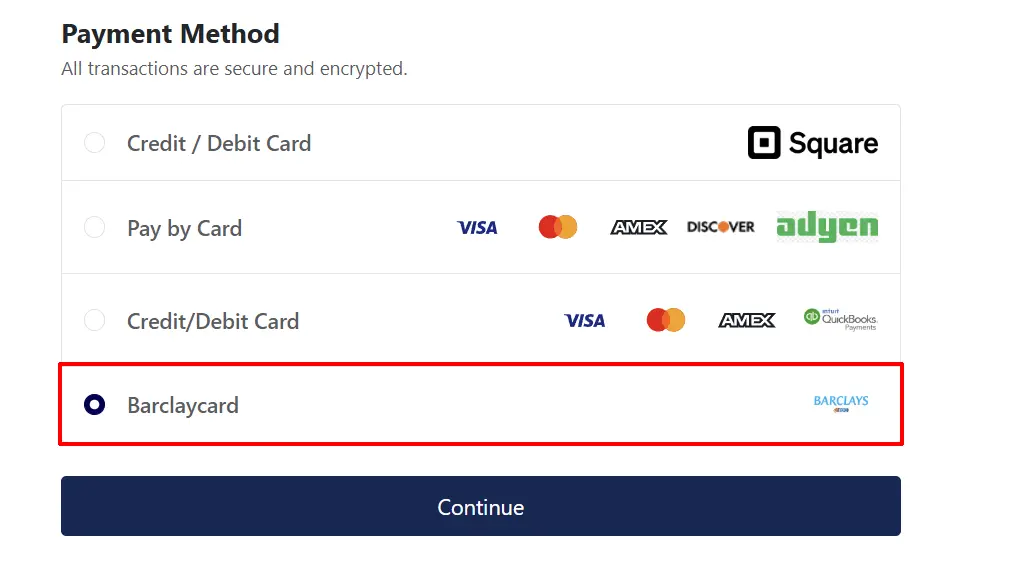
They click Place Order and are redirected to the secure Barclaycard payment page.
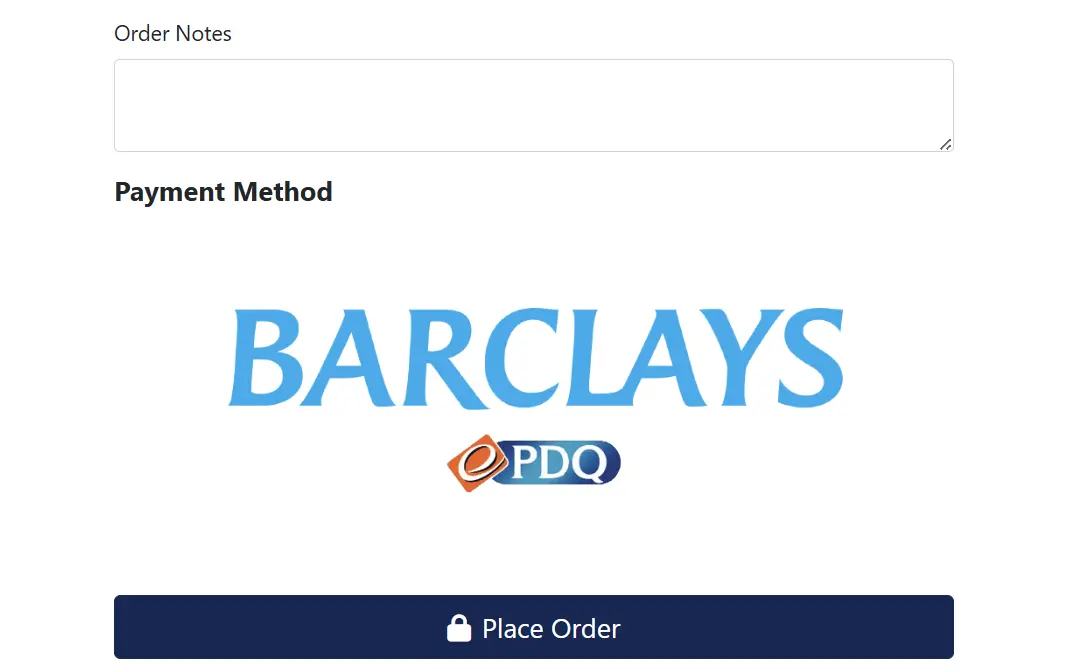
They enter their card details on Barclaycard's page — your server never sees the card number.
Barclaycard processes the payment and sends a server-to-server notification to your site.
Your store verifies the signature and updates the order status.
The customer is redirected back to your order confirmation page.
FlexCheckout (on-site card form)
When FlexCheckout is enabled, the card entry form appears directly on your checkout page inside a secure Barclaycard-hosted iframe. The customer never leaves your site. After they submit their card details, the Alias Gateway generates a token (Alias) and redirects back to your server, which then processes the charge via the DirectLink API.
Saved cards
When Enable Saved Cards is on, a logged-in customer can choose to save their card when they pay. On future orders, they see their saved cards listed at checkout and can pay with one click — no need to re-enter card details. The plugin securely stores an Alias (a tokenised reference) — never the actual card number.
Admin order actions
On any Barclaycard order in the J2Commerce order screen, you will see action buttons provided by the plugin.
| Button | When it appears | What it does |
|---|---|---|
| Capture Payment | After an authorized (STATUS 5) payment | Settles the payment and collects the funds from the customer |
| Void Payment | While the payment is still authorized and not yet settled | Cancels the authorization — no money is collected |
| Refund | After a captured (STATUS 9) payment | Returns some or all of the payment to the customer |
For a refund, you can enter a specific amount to refund a partial amount, or leave the amount field blank to refund the full order total.
Void is only available before a payment settles. Once Barclaycard has settled a payment (usually within one business day), you must use Refund instead.
NOTE: If the status you want isn't listed in the dropdown menu, you can create a new one by going to J2Commerce -> Setup -> Order Statuses
Subscriptions
When Enable Saved Cards is turned on, customers can use Barclaycard ePDQ to pay for subscription products. Their card is stored as an Alias after the first payment, and the plugin uses that saved Alias to charge subsequent renewals automatically — no customer action is required.
If you need subscription support, make sure:
- Enable Saved Cards is set to Yes
- The Alias Gateway is active on your Barclaycard account
- The customer is logged in when they place their initial subscription order
Troubleshooting
Payment goes through but the order stays in Pending
Barclaycard usually sends the server-to-server notification (webhook) within a few seconds. If your order remains in Pending:
- Check that the notification URL in the ePDQ Back Office is correct and publicly accessible.
- Ensure no firewall, WAF, or Cloudflare rule is blocking the incoming POST from Barclaycard IP addresses.
- Enable Debug Logging in the plugin to see the incoming callback details in the Joomla log.
- Orders set to Pending will automatically update when Barclaycard sends a delayed notification.
SHA signature mismatch error
This means the passphrase entered in the plugin does not match the one configured in the ePDQ Back Office, or the hash algorithms differ.
- Copy and paste the passphrases carefully — watch for leading/trailing spaces.
- Confirm the Hash Algorithm setting in the plugin matches the selection in the ePDQ Back Office exactly.
- Enable Debug Logging to inspect the computed and received signatures in the log file.
PSPID or SHA-IN passphrase not configured warning on the dashboard
The J2Commerce dashboard shows a warning if the PSPID or SHA-IN Passphrase field is blank. Open the plugin settings and ensure both fields (or their sandbox equivalents when in Test Mode) are filled in.
FlexCheckout card form does not appear
The FlexCheckout mode requires the Alias Gateway to be active on your Barclaycard account. Contact Barclaycard support and ask them to enable the Alias Gateway (Alias Manager) for your PSPID. You also need your DirectLink API user to have the appropriate permissions.
Void button is missing on an order
The Void button only appears when a valid Barclaycard PAYID exists for the order and the payment has not yet been settled. If the payment has already settled, use the Refund button instead.
Refund fails with "maximum refund exceeded" error
The refund amount cannot exceed the original transaction amount. Enter a lower amount in the partial refund field, or click Full Refund to return the exact original total.