Checkout Finland (Paytrail)
Checkout Finland (Paytrail) is the leading payment aggregator for Finnish online stores. A single merchant account gives your customers access to every major Finnish bank transfer method, Visa and Mastercard, MobilePay, Apple Pay, Pivo, and buy-now-pay-later options — all through a gateway-hosted payment picker that Paytrail maintains and keeps up to date. Your store never touches card numbers.
This plugin is a separate add-on available from the J2Commerce Extensions Store. It is not included with the core J2Commerce component.
Why Finnish stores need Paytrail
Finland is unique in European e-commerce. Around 60% of Finnish online payments are made by instant bank transfer (Verkkomaksut) rather than cards. Nordea, OP, Danske Bank, Handelsbanken, S-Pankki, Aktia, POP Pankki, Säästöpankki, and Ålandsbanken all participate. International gateways like Stripe or PayPal do not reach these customers. Paytrail does.
Paytrail was founded as Checkout Finland and rebranded in 2022 after being acquired by OP Financial Group in 2019. It is the most widely used payment aggregator in Finland and is used by thousands of Finnish online shops.
Supported payment methods include:
- Finnish bank transfers (all major banks listed above)
- Visa and Mastercard (domestic and international)
- MobilePay
- Apple Pay
- Pivo (OP's mobile wallet)
- Walley / Collector (BNPL)
- OP Lasku (OP invoice)
- Jousto (Finnish BNPL)
Currency requirement: Euro (EUR) only. The plugin automatically hides itself from the payment picker if the customer's cart is in any other currency.
Before you start
Before configuring the plugin, make sure you have:
- An active Paytrail merchant account. Apply at paytrail.com. A Finnish business registration (Y-tunnus) is required.
- Your Merchant ID and Security Key from the Paytrail Extranet (merchant portal).
- Your store's base currency or the customer's cart currency set to EUR.
- SSL (HTTPS) active on your Joomla site. Paytrail will not post callbacks to HTTP URLs in production.
Purchase and download
This plugin is a separate add-on available from the J2Commerce Extensions Store. It is not included with the core J2Commerce 6 component.
- Go to the J2Commerce website and locate Checkout Finland (Paytrail).
- Add it to your cart and complete checkout.
- Go to My Downloads under your account profile and find the plugin.
- Click Available Versions -> View Files -> Download Now to download the ZIP file.
Install the plugin
In the Joomla Administrator, go to System -> Install -> Extensions.
Upload the payment_checkoutfi.zip file.

Enable the Plugin
Once you have installed the App, you will need to enable it. There are two ways you can access the App.
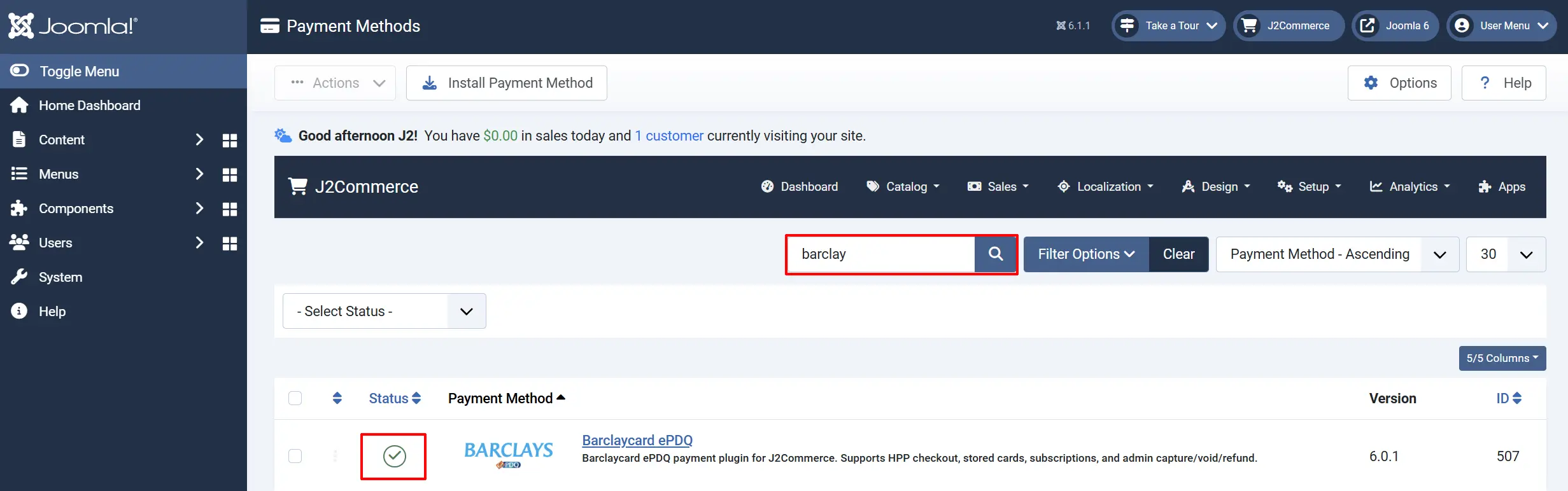
Option A: Go to the J2Commerce icon at the top right corner -> Setup -> Payment Methods
Option B: Go to Components on the left sidebar -> J2Commerce -> Dashboard -> Setup -> Payment Methods

To help you narrow down the list, you can do a search for Checkout Finland (Paytrail), click the X, and it will turn into a green checkmark. It is now enabled and ready for setup.
Configure the plugin
Click the Checkout Finland (Paytrail) title next to the green checkmark to open the configuration screen.
Click the Toggle Inline Help button at the top of any plugin configuration page to show a short description beneath each field.

Display Settings
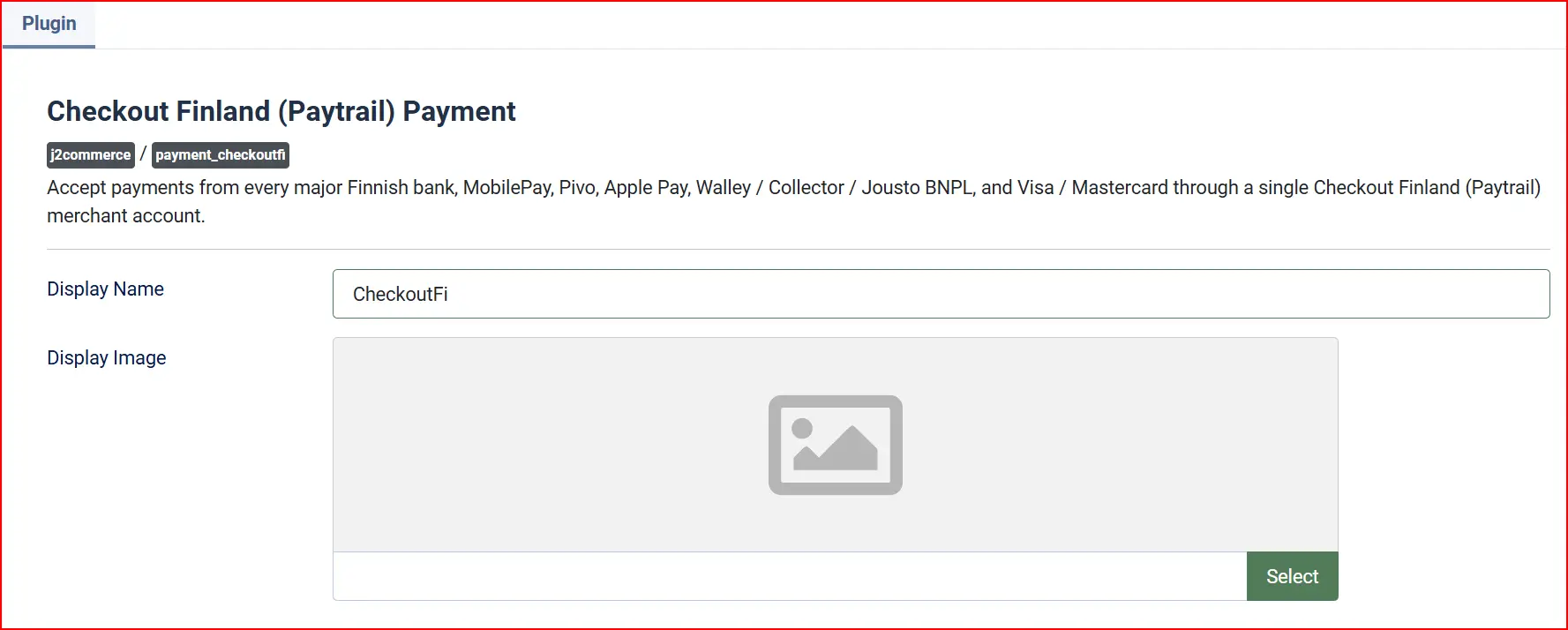
Display Name: The field controls what customers see as the payment method label during checkout. The default value is "Pay with Checkout Finland (Paytrail)". You can change this to anything you like — "Finnish Bank Payment", "Maksa verkkopankilla", or whatever suits your store.
Display Image: Optional logo to show at checkout alongside the payment method name
API Credentials

The plugin ships with Sandbox Mode turned on by default. This is intentional — Paytrail's published test credentials are already pre-filled for you, so you can test the full payment flow immediately without a live merchant account.
Test credentials
- On the plugin settings page, confirm Sandbox Mode is set to Yes.
- The Sandbox Merchant ID field should already show
375917. - The Sandbox Security Key field should already show
SAIPPUAKAUPPIAS. - Click Save and place a test order on your store.
See the Sandbox testing section below for test card numbers and bank simulation.
Live credentials
Once you are ready to go live:
- Set Sandbox Mode to No.
- In the Merchant ID field, enter your live Merchant ID from the Paytrail Extranet.
- In the Security Key field, paste your live Security Key. This value is case-sensitive — copy it directly from the Extranet.
- Leave the Sandbox Merchant ID and Sandbox Security Key fields unchanged (they are only used when sandbox mode is on).
The Security Key is used to sign every request sent to Paytrail and to verify every callback. Treat it like a password. Never share it, post it in a support ticket, or commit it to version control.
order statuses

- Paid Order Status — the status applied to the order when Paytrail confirms successful payment. Default: Confirmed (status ID 1).
- Failed Order Status — the status applied when payment fails, is cancelled, or fails HMAC verification. Default: Failed (status ID 3).
If the order status you want is not listed, create it first under J2Commerce -> Setup -> Order Statuses.

Surcharge (reserved for future use)

Surcharge Name: Label shown on the cart for the payment surcharge line item.
Surcharge Percent: Surcharge as a percentage of the order subtotal (e.g. 2.5 for 2.5%).
Surcharge Fixed: Fixed surcharge amount in EUR (e.g. 0.50).
Surcharge Tax Class: Tax profile applied to the surcharge.
The surcharge fields are present for forward compatibility. The J2Commerce 6 core does not yet dispatch the onJ2CommerceCalculateFees event that activates surcharge calculations. This affects all payment plugins in J2Commerce 6, not just Checkout Finland. Surcharges will become functional in a future core release.
Availability restrictions

Minimum Subtotal: Hide this payment method if the order subtotal is below this amount (EUR). Leave empty for no minimum.
Maximum Subtotal: Hide this payment method if the order subtotal is above this amount (EUR). Leave empty for no maximum.
Geozone Restriction: Limit this payment method to customers in a specific geozone. Leave empty to allow all countries.
The plugin also enforces a hard currency gate: if the cart currency is anything other than EUR, this payment option does not appear to the customer at all.
Checkout messages
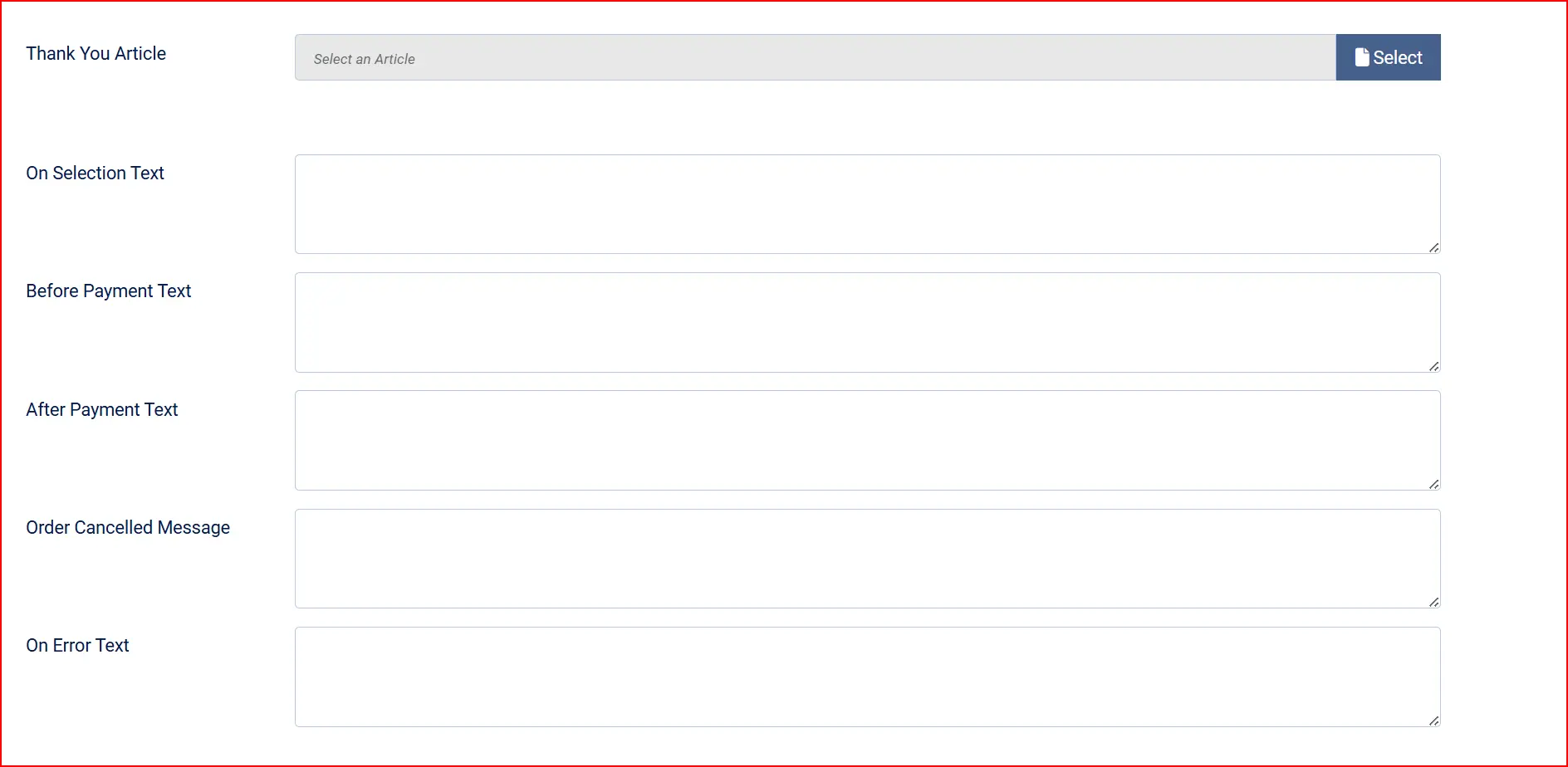
These are short text snippets shown to the customer at various points in the checkout flow. You can leave them empty to use the built-in default messages, or enter your own text — in Finnish, Swedish, or any other language.
Thank You Article: Optional Joomla article displayed on the post-payment thank-you page.
On Selection: Text shown when the customer selects this payment method in the cart.
On Before Payment: Text shown on the pre-payment confirmation screen, just before the customer is sent to Paytrail.
On After Payment: Text shown after successful payment return.
On Cancel Payment: Text shown when the customer cancels at the Paytrail payment picker.
On Error Payment: Text shown if an error occurs during payment processing.
Other settings

Place Order Button Text: Text on the button that submits the order and redirects to Paytrail.
Debug Logging: When Yes, writes detailed payment lifecycle events to the Joomla log file. Errors and warnings are always logged regardless of this setting.
How the payment flow works
Here is what happens from the customer's perspective and behind the scenes:
-
Customer selects Checkout Finland at checkout. The plugin checks that the cart currency is EUR and that the order total and geozone (if set) match the restrictions. If everything passes, the payment option appears.
-
Customer clicks "Place Order". J2Commerce calls the plugin, which makes a signed API request to Paytrail's server. Paytrail creates a payment session and returns a hosted payment page URL.
-
Customer is redirected to Paytrail's payment picker. They see a page hosted by Paytrail showing their bank logos, card payment, MobilePay, and any other active methods. Your store is not involved — your server is not transmitting any card data.
-
Customer authenticates at their bank or card provider. For Finnish bank transfers, this means logging into their online bank and confirming the payment. For card payments, the cardholder data goes directly to Paytrail's PCI-DSS-certified infrastructure.
-
Paytrail sends a callback to your store. This is a server-to-server notification with the payment result. The plugin runs three verification checks before accepting it:
- HMAC check: The callback signature is verified using HMAC SHA-256 against your Security Key.
- Amount check: The amount in the callback must match your order total (within 1 cent).
- Reference check: The order reference in the callback must match the order in your database. Only after all three checks pass is the order marked as paid.
-
Customer is redirected back to your store. They see the thank-you message and any article you configured.
What you do NOT have to manage
- PCI compliance forms: Because card data never passes through your server, you qualify for SAQ-A (the simplest PCI self-assessment questionnaire). Paytrail handles all card data security.
- Per-bank integrations: You configure one merchant account in one plugin. Paytrail manages the relationship with each bank and updates payment methods as new ones become available.
- 3DS authentication UI: 3D Secure is handled entirely by Paytrail's hosted page. You do not need to build any 3DS prompts or callbacks.
Sandbox testing
Use Paytrail's public test environment to verify your integration without processing real money.
Sandbox credentials (already pre-filled)
| Field | Test value |
|---|---|
| Sandbox Merchant ID | 375917 |
| Sandbox Security Key | SAIPPUAKAUPPIAS |
These are Paytrail's officially published test credentials. They are safe to share and are used by all developers testing against the Paytrail sandbox.
Test cards
Use these card numbers when the Paytrail test payment picker shows a card payment option. Use any future expiry date and any 3-digit CVC.
| Card | Number | Result |
|---|---|---|
| Visa (success) | 4153 0139 9970 0024 | Payment approved |
| Visa (decline) | 4153 0139 9970 0032 | Payment declined |
| Mastercard (success) | 5254 7455 8007 4069 | Payment approved |
Test bank simulation
When using the Paytrail sandbox, clicking any bank button in the payment picker opens a simulated bank login page. You do not need real banking credentials — enter anything and confirm the payment.
Verifying the HMAC log
After a test transaction, you can check that callback verification is working correctly:
- Make sure Debug Logging is set to Yes in the plugin settings.
- Place a test order and complete payment.
- Open
administrator/logs/plg_j2commerce_payment_checkoutfi.phpin a text editor or via your hosting control panel. - Look for a line containing
HMAC validation succeeded. If you see this, the callback passed all three security checks and the order was marked paid.
What's new in J2Commerce 6
If you previously used this plugin with J2Store v4, here is what changed in the J2Commerce 6 migration:
-
No more vendored SDK. The old plugin bundled a 5 MB copy of Guzzle HTTP client and the
respect/validationlibrary, both of which produced PHP 8.x deprecation warnings. The J2Commerce 6 version uses a purpose-built native client based on Joomla's own HTTP layer. No vendor folder, no conflicts. -
Three-layer callback verification. The J2Store version checked only the HMAC signature. J2Commerce 6 adds an amount cross-check (callback amount in cents must match the order total within 1 cent) and a reference match check. This prevents replay attacks where an old callback from a different transaction is submitted again.
-
Duplicate callback protection. If Paytrail sends the same success callback twice (which can happen under network conditions), the plugin detects that the order is already confirmed and skips re-processing. Your order history will not have duplicate entries.
-
Order status changes fire the full event chain. In J2Store, status updates were done by writing directly to the database, which skipped sending the customer confirmation email. In J2Commerce 6, status changes go through the
OrderModel::updateOrderStatus()method, which firesonJ2CommerceOrderStatusChange. This means your customer gets their order confirmation email automatically. -
No PII in transaction logs. The J2Store version stored the raw gateway callback in the database, which could include billing addresses and email addresses. J2Commerce 6 stores only the eight non-identifying fields: transaction ID, status, amount in cents, stamp, reference, provider, account, and settlement reference.
-
Sandbox pre-configured. Paytrail's published test credentials are pre-filled in the plugin. New installations are sandbox-first — you cannot accidentally go live before you are ready.
-
Native Joomla 6 architecture. The plugin implements
SubscriberInterface, uses constructor dependency injection, and follows Joomla 6 coding standards (PHP 8.3, namespaced, strict types). It integrates cleanly with J2Commerce's payment event system.
Troubleshooting
"Could not contact the Checkout Finland gateway"
Cause: The plugin could not reach Paytrail's API server at services.paytrail.com.
Solution:
- Check that your Merchant ID and Security Key are correct (no leading or trailing spaces).
- Confirm the cart currency is EUR.
- Check that your server can make outbound HTTPS connections (port 443). Some hosting environments block outbound connections by default.
- Check that Sandbox Mode matches your credentials — do not use sandbox credentials with sandbox mode off, or live credentials with sandbox mode on.
"HMAC validation failed — order not marked paid"
Cause: The signature in the gateway callback does not match the expected value calculated from your Security Key.
Solution:
- Re-copy the Security Key from the Paytrail Extranet. Hidden whitespace characters are the most common cause — paste into a plain-text editor first to strip any invisible characters, then paste into the plugin settings.
- If you recently changed your Security Key in the Paytrail Extranet, make sure the plugin settings are updated to match.
- If this error appears repeatedly on sandbox transactions, check that
SAIPPUAKAUPPIAShas not been modified.
"Callback amount does not match order total"
Cause: The amount Paytrail reported in the callback (in euro cents) differs from the order total in your J2Commerce database by more than 1 cent.
Solution: This is an expected security rejection, not a bug. It most commonly indicates a replay attack attempt — an old callback from a different transaction being resubmitted. If you see this on legitimate transactions, contact J2Commerce support and include the log file entry. Genuine currency conversion drift beyond 1 cent should not occur with EUR-only transactions.
"Reference number not found in payment callback"
Cause: The order reference in the Paytrail callback does not match any order in your database.
Solution: This usually means the order was deleted between the customer leaving your site and Paytrail posting the callback, or the order reference was corrupted somewhere in the flow. Check the log file for the full reference value and compare it with your orders in J2Commerce -> Sales -> Orders. If the reference looks correct but the order is missing, contact J2Commerce support with the log line.
Payment marked failed, but money was taken from my customer
Cause: This can happen if the customer's bank debited them but Paytrail's server-to-server callback to your store failed or timed out before delivery.
Solution:
- Log in to the Paytrail Extranet at extranet.paytrail.com and check the actual payment status there.
- If Paytrail shows the payment as successful, you can manually update the order status in J2Commerce to Confirmed.
- For bank transfers, settlement is typically instant. For cards, settlement confirmation arrives within a few seconds. If Paytrail's Extranet shows a pending state, wait a few minutes and refresh.
- If callbacks are consistently failing, check your server error logs for any firewall or mod_security rules blocking the incoming Paytrail callback URLs.
Related topics
- Geozones — restrict payment methods by country
- Order Statuses — configure the statuses used for paid and failed orders
- Design: Shipping and Payment Overrides — customise the checkout form and pre-payment templates