Worldpay Payment
The Worldpay Payment plugin connects your J2Commerce store to the Worldpay Access platform so customers can pay by credit or debit card at checkout. It supports two integration modes: a secure embedded card form that keeps shoppers on your site the entire time, and a redirect to a Worldpay-hosted payment page. Both modes include 3DS2/SCA (the extra card-security step banks now require in the UK and Europe), and both let you manage settled, refunded, and cancelled payments directly from the J2Commerce order screen.
Requirements
- Joomla 6.x
- J2Commerce 6.x
- PHP 8.3 or later
- A Worldpay Access merchant account
- Your store must be accessible over HTTPS
Purchase and Download
This plugin is a separate add-on available from the J2Commerce Extensions Store. It is not included with the core J2Commerce 6 component.
- Go to the J2Commerce website and locate Worldpay Payment.
- Add it to your cart and complete checkout.
- Go to My Downloads under your account profile and find the plugin.
- Click Available Versions -> View Files -> Download Now to download the ZIP file.
Get Your Worldpay Credentials
Before configuring the plugin you need four pieces of information from the Worldpay Access portal.
-
Log in to Worldpay Access (use try.access.worldpay.com for sandbox/test credentials).
-
Navigate to your merchant settings to find:
- API Username — your Worldpay Access username
- API Password — your Worldpay Access password
- Merchant Entity — your merchant entity identifier (also called the merchant code)
-
If you are using Embedded Checkout mode, also find your Checkout ID — the Worldpay Checkout.js client ID for your account.
-
Set up a Webhook Signing Secret in the Worldpay portal so incoming notifications can be verified. Copy this value — you will paste it into the plugin settings.
Keep this browser tab open while you configure the plugin in Joomla.
Install the Plugin
In the Joomla Administrator, go to System -> Install -> Extensions.
Upload the payment_worldpay.zip ZIP file or use the Install from URL option.

Enable the Plugin
Once you have installed the App, you will need to enable it. There are two ways you can access the App.
Option A: Go to the J2Commerce icon at the top right corner -> Setup -> Payment Methods
Option B: Go to Components on the left sidebar -> J2Commerce -> Dashboard -> Setup -> Payment Methods

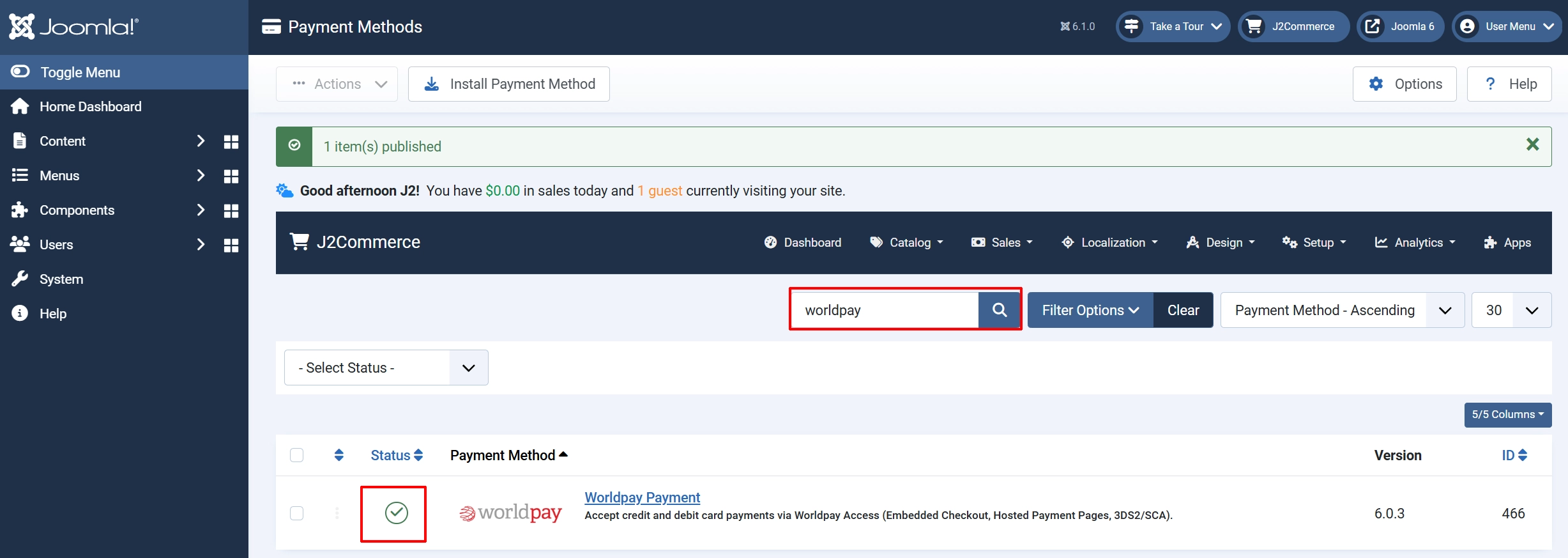
To help you narrow down the list, you can do a search for Worldpay Payment, click the X, and it will turn into a green checkmark. It is now enabled and ready for setup.
Configure the Plugin
Click the Worldpay Payment title to open its settings.
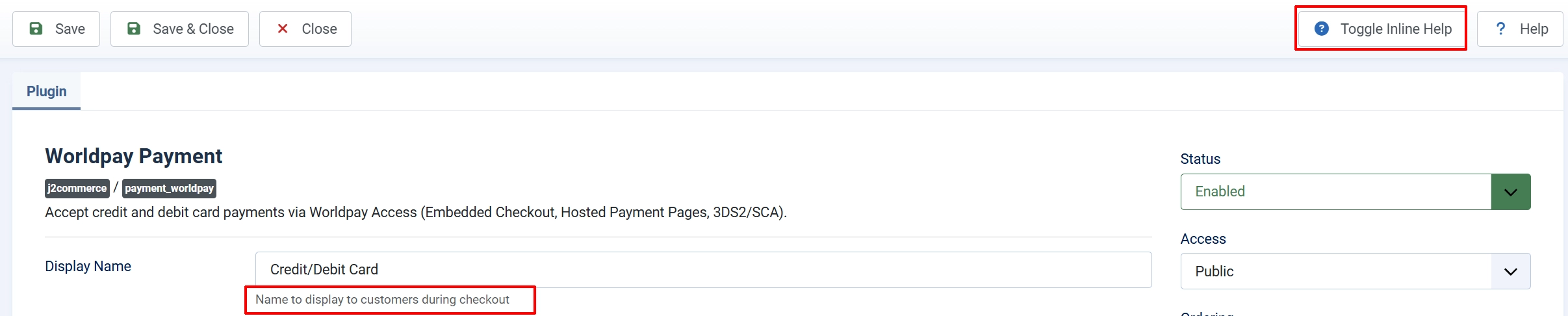
Click the Toggle Inline Help button at the top of any plugin settings screen to show a description below each field.
Appearance
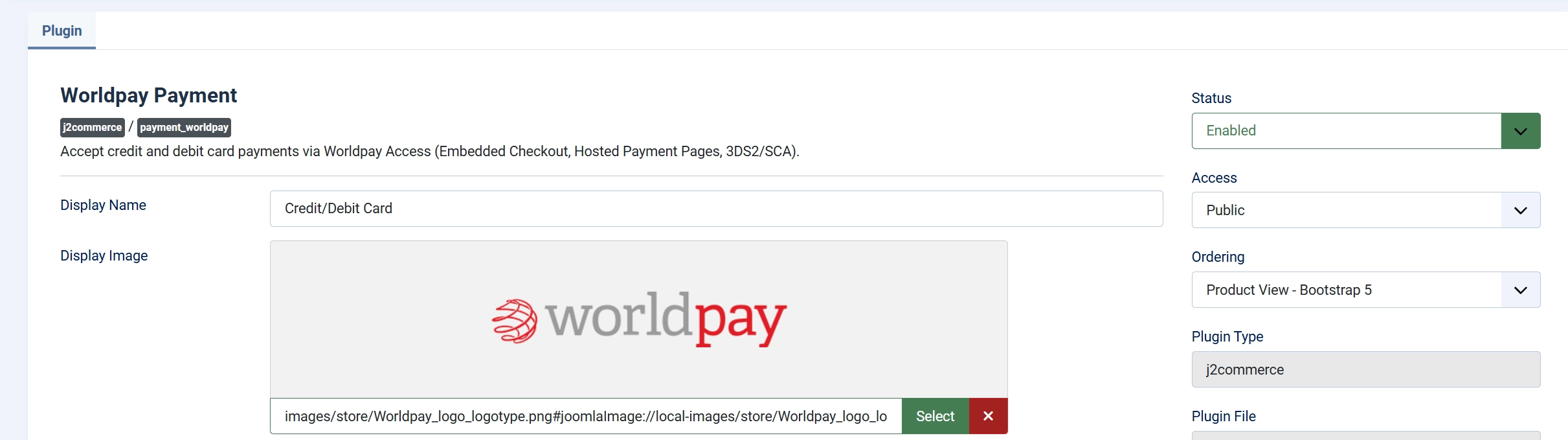
Display Name: Label shown to customers on the checkout page (e.g., "Credit/Debit Card")
Display Image: Optional logo or card-brand image to show beside the payment method name
Integration
Integration Mode: How the card form is presented to customers
Embedded Checkout (Checkout.js) or Hosted Payment Pages (HPP)
-
Embedded Checkout (Checkout.js) — the card entry fields appear directly on your checkout page inside secure iframes supplied by Worldpay. Card data never touches your server. This is the recommended option and qualifies for SAQ-A (the simplest PCI self-assessment).
-
Hosted Payment Pages (HPP) — the customer is redirected to a Worldpay-hosted payment page to enter their card details, then returned to your store. Choose this if you prefer a fully off-site flow.
Transaction Type
Transaction Type: Controls whether payment is collected immediately or held for manual capture
-
Authorize + Capture collects funds from the customer's card as soon as the order is placed. This is the recommended setting for most stores.
-
Authorize Only reserves the funds on the customer's card but does not collect them yet. You then manually capture (settle) the payment from the order admin when you are ready to ship. This is useful when you want to confirm stock availability before taking money.
Sandbox / Test Mode
Sandbox / Test Mode: When enabled, all transactions go to the Worldpay test environment — no real money moves
Enable this during setup and testing. Disable it when you are ready to go live. When sandbox mode is active, a warning banner appears on the J2Commerce dashboard to remind you.
Live Credentials
These fields appear when Sandbox / Test Mode is turned off.
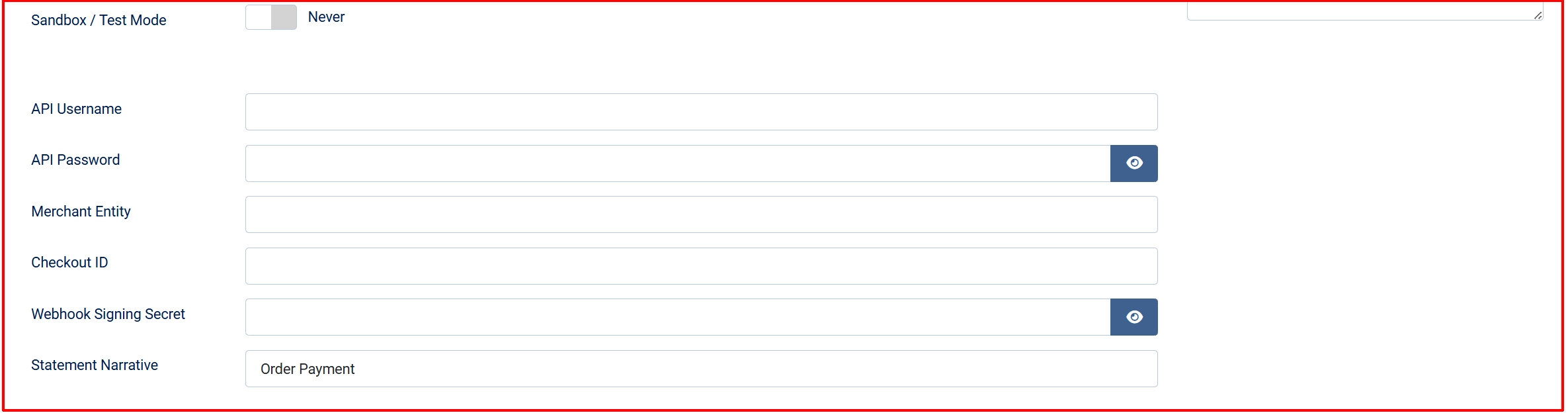
API Username: Your Worldpay Access username for live transactions
API Password: Your Worldpay Access password for live transactions
Merchant Entity: Your Worldpay merchant entity identifier
Checkout ID: Your Worldpay Checkout.js client ID — only required when Integration Mode is set to Embedded Checkout
Webhook Signing Secret: The signing secret from the Worldpay portal — used to verify that incoming webhook notifications really came from Worldpay
Statement Narrative: Text that appears on your customer's card or bank statement to identify the charge (e.g., "My Store Order")
Sandbox Credentials
These fields appear when Sandbox / Test Mode is turned on. They work identically to the live fields but connect to the Worldpay test environment.
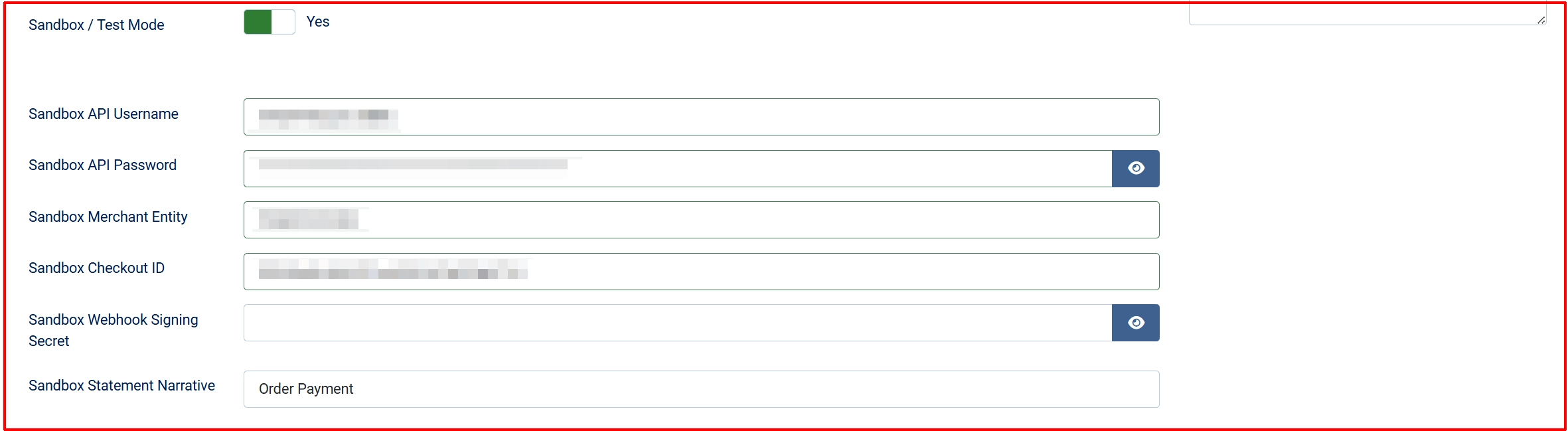
Sandbox API Username: Worldpay test API username
Sandbox API Password: Worldpay test API password
Sandbox Merchant Entity: Worldpay test merchant entity
Sandbox Checkout ID: Worldpay Checkout.js test client ID (Embedded Checkout only)
Sandbox Webhook Signing Secret: Signing secret for sandbox webhook verification
Sandbox Statement Narrative: Statement text used in test transactions
Saved Cards

Allow Saved Cards: Let logged-in customers save their card for faster checkout next time
Only available in Embedded Checkout mode. Customers see a checkbox at checkout to save their card. On future visits, they can select a saved card instead of re-entering their details. Saved cards can also be used for automatic subscription renewals if you have the Subscriptions add-on installed.
Template Style: Choose between Bootstrap 5 and UIkit layout for the checkout form — match this to your site's front-end template
Order Statuses

Order Status: Order status set when payment is authorized but not yet settled — only shown when Transaction Type is Authorize Only
Change Status on Refund: Automatically update the order status when a refund is issued
- Refund Order Status: Status to apply after a refund — only shown when Change Status on Refund is enabled
Change Status on Cancel: Automatically update the order status when a payment is cancelled
- Cancel Order Status: Status to apply after a cancellation — only shown when Change Status on Cancel is enabled
NOTE: If the status you want isn't listed in the dropdown menu, you can create a new one by going to J2Commerce -> Setup -> Order Statuses

Surcharge
Add an optional handling fee when customers choose Worldpay.

Surcharge Name: Label shown to the customer for the fee (e.g., "Card processing fee")
Surcharge Percent: Percentage of the order total to add as a fee (e.g., 1.5 for 1.5%)
Surcharge Fixed: Fixed amount to add as a fee regardless of order size
Surcharge Tax Class: Tax profile to apply to the surcharge amount
Leave both percent and fixed fields empty to charge no surcharge.
GeoZone Availability Restrictions
Geozone Restriction: Limit this payment method to customers in a specific geozone — leave blank to allow all locations
Minimum Order Subtotal: Hide Worldpay as a payment option when the cart subtotal is below this amount
Maximum Order Subtotal: Hide Worldpay when the cart subtotal is above this amount
Custom HTML Snippets
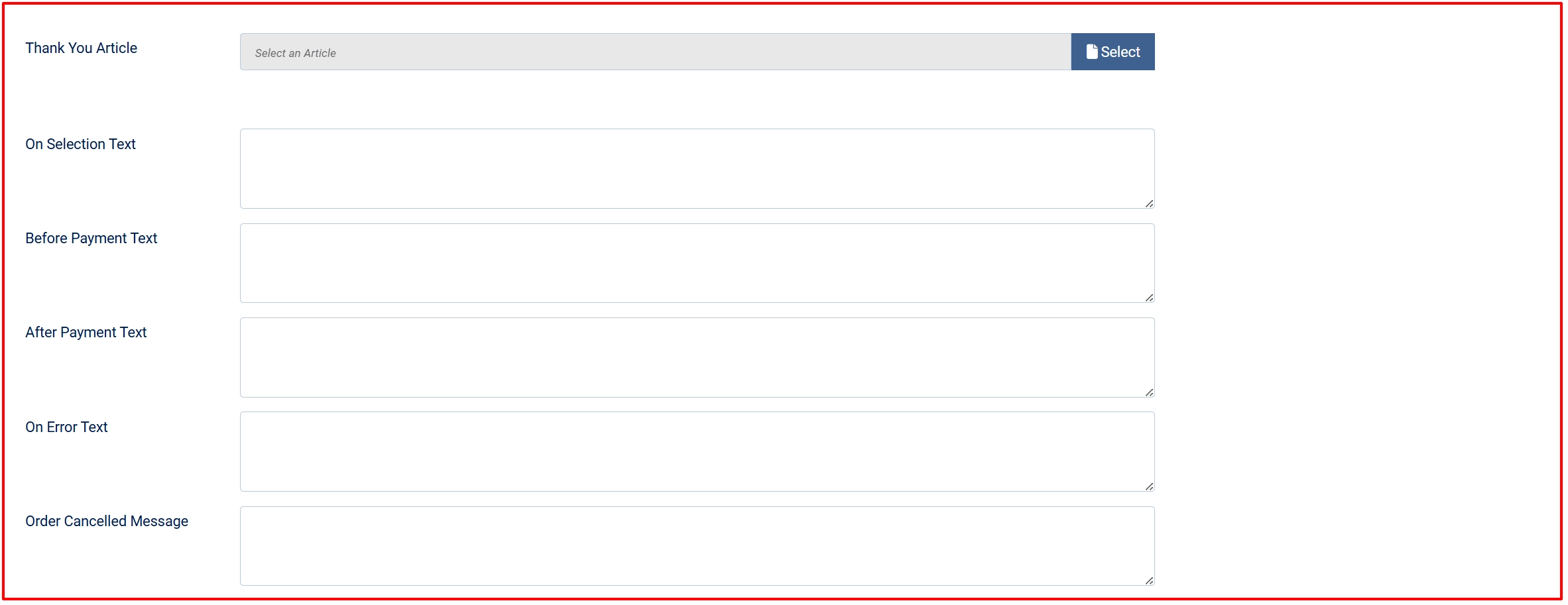
Thank-You Article: Optional Joomla article to display on the order confirmation page after a successful payment
The following optional fields let you inject custom HTML at different points in the payment flow.
On Selection Text: It displays when the customer selects Worldpay as their payment method
Before Payment Text: It displays just above the card form, before the customer enters card details
After Payment Text: It displays on the confirmation page after a successful payment
On Error Text: It displays when a payment attempt fails
Order Cancelled Message: It displays when the customer cancels or navigates away
Dashboard Icon

Show Dashboard Icon: Add a quick-access icon for this plugin to the J2Commerce dashboard
Dashboard Icon Label: Label for the icon; defaults to "Worldpay Payment" if left blank
Debug Mode
Debug Mode: Record detailed API request and response data in the Joomla log
Only enable this when diagnosing a specific problem. Disable it on live sites — debug logs can contain sensitive payment data.
How Checkout Works for Customers
Embedded Checkout mode
- The customer adds items to the cart and proceeds to checkout.
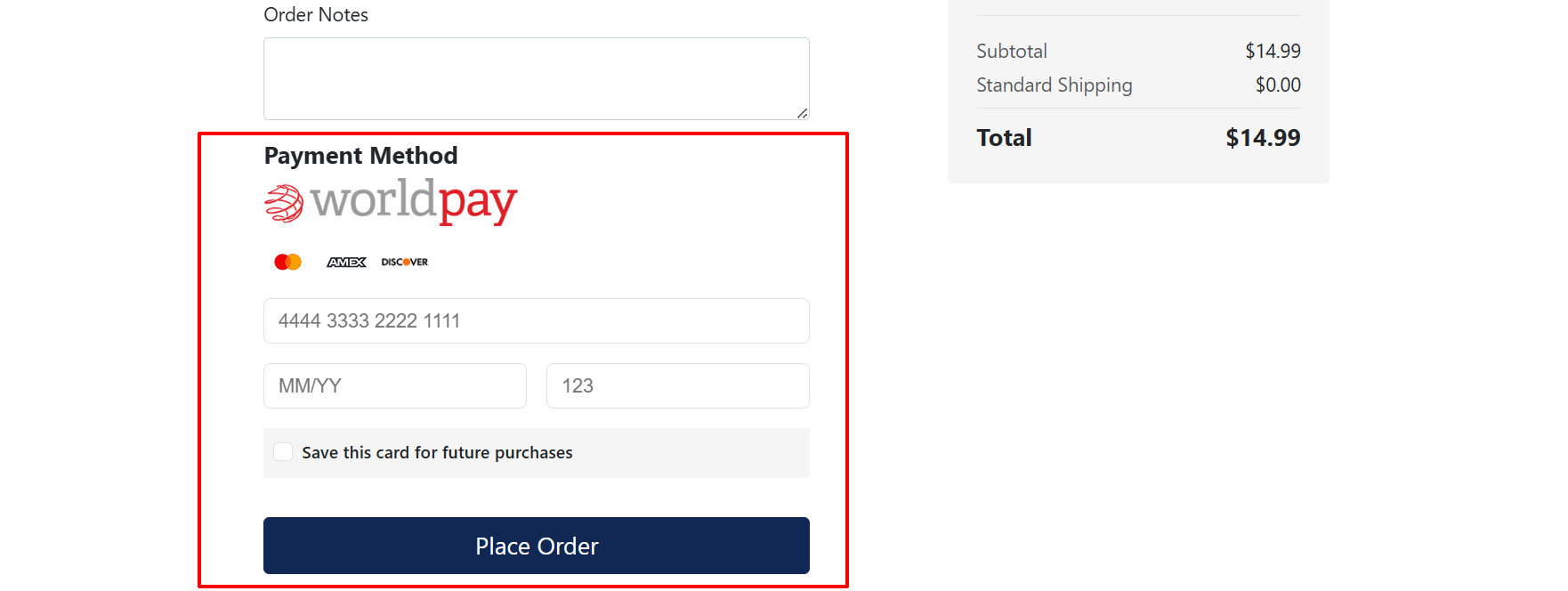
- On the payment step, the Worldpay card form loads directly on the page — card number, expiry date, and CVV fields appear inside secure iframes.
- If the customer has saved cards on file (and Allow Saved Cards is enabled), they see a list of saved cards and can select one or choose to use a new card.
- If saving is allowed, a checkbox lets them save the new card for future orders.
- The customer clicks Place Order.
- If the customer's bank requires 3DS2 verification (the extra security step, sometimes called "Verified by Visa" or "Mastercard Identity Check"), a challenge screen appears — the customer completes it and is returned to the store.
- On success, the customer sees the order confirmation page.
Hosted Payment Pages mode
- The customer selects Worldpay and clicks Place Order.
- They are redirected to a Worldpay-hosted page to enter their card details.
- After completing payment (including any 3DS2 challenge), they are returned to the store confirmation page.
Webhooks
Worldpay sends real-time notifications to your store when payment events occur — such as a payment being settled, refused, cancelled, or refunded. The plugin verifies each notification using an HMAC-SHA256 signature (the Webhook Signing Secret you configured) so only genuine Worldpay events are processed.
To receive webhooks, you need to register your store's webhook URL in the Worldpay Access portal. The URL format is:
https://your-site.com/index.php?option=com_ajax&format=raw&plugin=payment_worldpay&group=j2commerce&task=webhook
Replace your-site.com with your actual domain.
Supported webhook events:
| Event | What happens |
|---|---|
payment.authorized | Order status updated to Authorized Status (Authorize Only mode) |
payment.settled | Order status updated to Payment Status |
payment.refused | Payment failure recorded on the order |
payment.cancelled | Payment cancellation recorded |
payment.reversed | Full refund recorded |
payment.partiallyReversed | Partial refund recorded |
Frontend Sandbox View
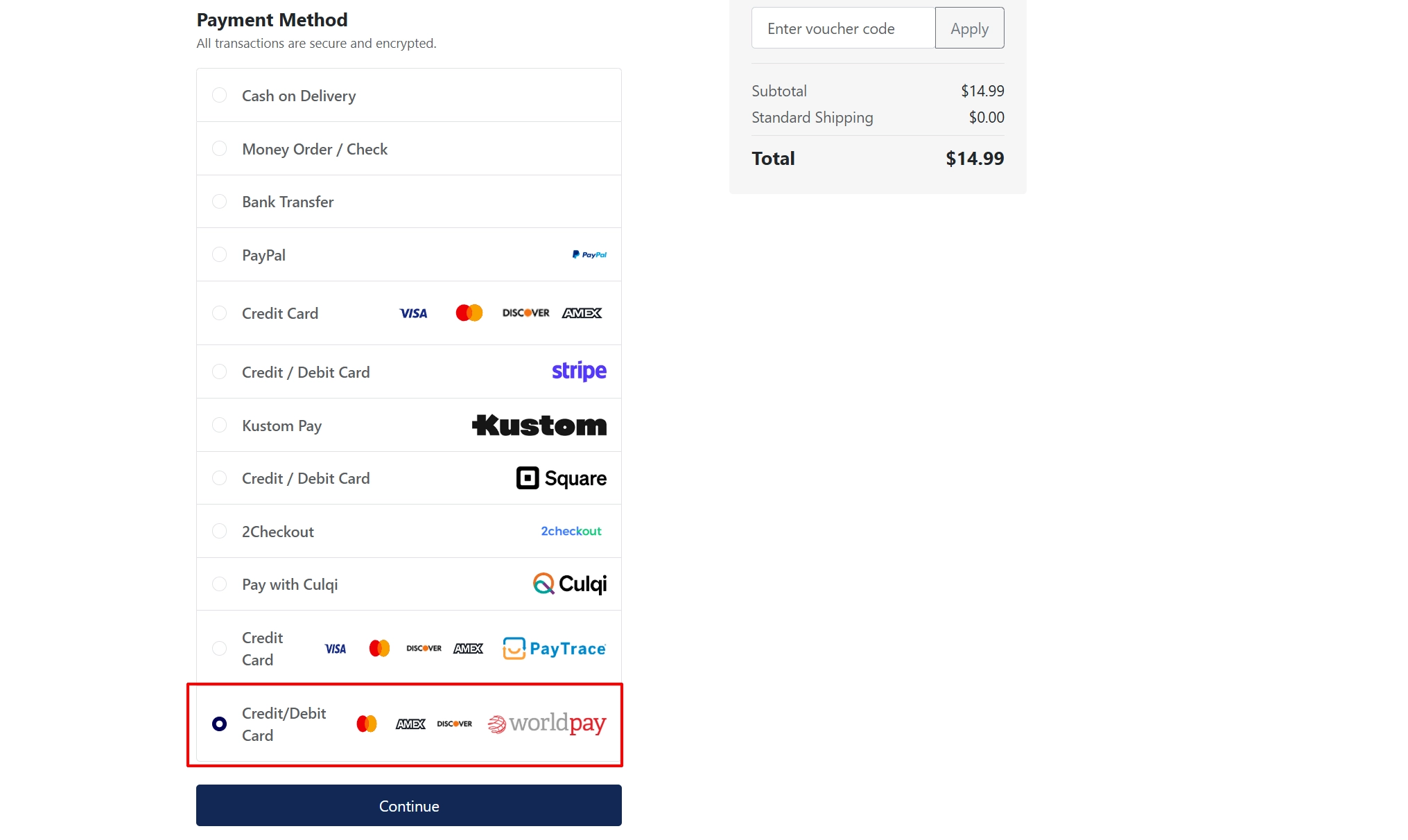
Managing Payments from the Order Screen
After an order is paid, you can take follow-up actions directly from the J2Commerce order detail page without leaving your admin panel.
Go to J2Commerce -> Sales -> Orders -> click the order number to open it. The Worldpay action buttons appear in the payment section.
Settle a Payment (Authorize Only mode only)
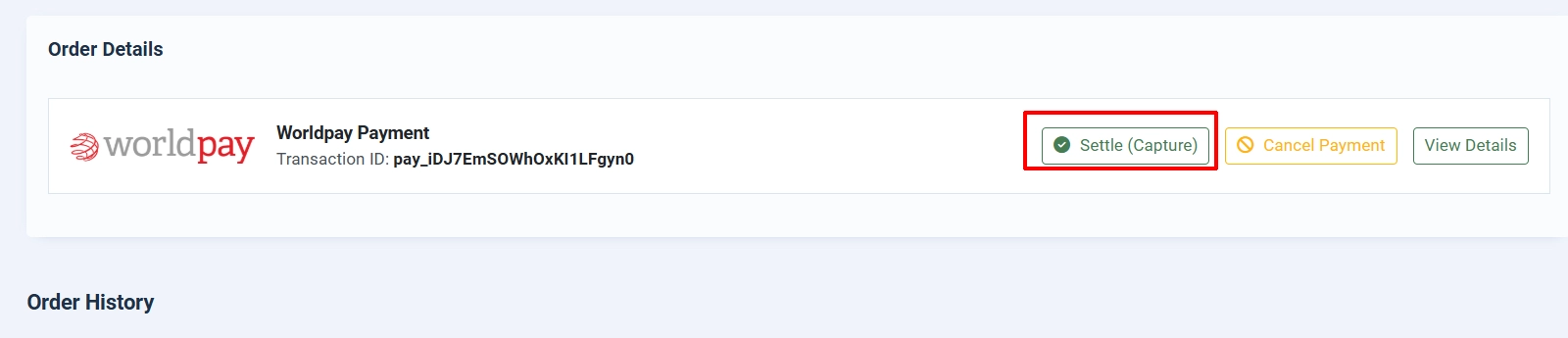
If you set Transaction Type to Authorize Only, payments are held but not collected. When you are ready to capture the funds:
- Open the order in J2Commerce -> Sales -> Orders.
- Click Settle (Capture) and confirm the prompt.
- The funds are collected from the customer's card and the order status updates automatically.
Cancel a Payment

A cancellation voids an authorized payment before it has been settled. Once a payment has been settled, use Issue Refund button shows up instead.
- Open the order.
- Click Cancel Payment and confirm the prompt.
- The authorization is released — the customer is not charged and the hold on their card is removed.
If the Cancel Payment button is not visible, the payment has already been settled and cannot be cancelled. Use Issue Refund in that case.
Issue a Refund
You can refund a settled payment in full or in part.
- Open the order.
- Click Issue Refund.
- Choose Full refund to return the entire amount, or enter a smaller amount for a partial refund.
- Click Process Refund to confirm.
The refund is sent to the customer's original card. If Change Status on Refund is enabled, the order status updates automatically.
Testing Payments
Always test in sandbox mode before going live.
-
Enable Sandbox / Test Mode in the plugin settings and enter your Worldpay test credentials.
-
Place a test order on your storefront using a Worldpay test card number.
-
Check that the order appears in J2Commerce -> Sales -> Orders with the correct status.
-
Test a refund from the order screen to confirm it processes without errors.
-
Check your Joomla log (System -> Logs) for any errors — enable Debug Mode temporarily if needed.
-
When everything is working, disable Sandbox / Test Mode and replace the sandbox credentials with your live credentials.
Remember to turn off Sandbox / Test Mode before accepting real orders. A warning banner on the J2Commerce dashboard will remind you if sandbox mode is still active.
Troubleshooting
The payment form does not load on the checkout page
Cause: The Checkout ID is missing or incorrect, or the plugin is not enabled.
Solution:
- Go to J2Commerce -> Setup -> Payment Methods and verify the Worldpay plugin shows a green enabled indicator.
- Open the plugin settings and confirm the Checkout ID field is filled in (Embedded Checkout mode only).
- Check that the correct Checkout ID is being used — sandbox and live IDs are different.
- Clear the Joomla cache: System -> Clear Cache -> Delete All.
Orders are stuck in a pending status after payment
Cause: Worldpay webhooks are not being received or the Webhook Signing Secret is incorrect.
Solution:
- Confirm your webhook URL is registered in the Worldpay Access portal and points to your store.
- Open the plugin settings and verify the Webhook Signing Secret matches the value in the Worldpay portal exactly — it is case-sensitive.
- Make sure your store's URL is publicly reachable over HTTPS. Webhooks cannot reach a site on localhost.
- Enable Debug Mode, attempt a test payment, then check System -> Logs for any webhook-related errors.
The Settle / Refund / Cancel buttons do not appear on the order
Cause: The order was not paid through Worldpay, or no transaction data was recorded.
Solution:
- Confirm the order's payment method is Worldpay (check the payment section of the order detail view).
- The buttons only appear when a
transaction_idis stored on the order — if the checkout was interrupted before completion, no transaction data is saved. - Enable Debug Mode and re-test a full checkout to confirm the transaction data is being stored correctly.
Card declined errors
Cause: The card details are incorrect, the card is not authorized for online transactions, or the bank declined the charge.
Solution:
- Ask the customer to double-check their card number, expiry date, and CVV.
- Ask them to try a different card or contact their bank.
- In sandbox mode, verify you are using a valid Worldpay test card.
Missing credentials warning on the J2Commerce dashboard
Cause: The API Username, API Password, or Merchant Entity field is empty.
Solution:
- Go to J2Commerce -> Setup -> Payment Methods -> Worldpay Payment.
- Fill in all three credential fields (API Username, API Password, Merchant Entity) for whichever environment (live or sandbox) is currently active.
- Click Save to apply the changes.