Bulk Discounts
The Bulk Discounts app lets you reward customers who buy more by automatically applying tiered price reductions at checkout. You define discount rules based on quantity thresholds — for example, "buy 5 or more, save $3 each" — and J2Commerce calculates and applies the savings without any manual intervention from you or the customer.
Discounts can be set globally for your whole store, per product category, or on individual products, giving you precise control over which items participate in bulk pricing promotions.
Requirements
- PHP 8.3.0+
- Joomla! 6.x
- J2Commerce 6.x
Purchase and Download
Step 1: Go to our J2Commerce website -> Apps
Step 2: Locate the Bulk Discount app -> click View Details -> Add to cart -> Checkout.
Step 3: Go to your My Downloads under your profile button at the top right corner and search for the app. Click Available Versions -> View Files -> Download Now
Install the App
In the Joomla Administrator, go to System -> Install -> Extensions.
Upload the app_bulkdiscount.zip file or use the Install from URL option.

Enable the App
Once you have installed the app, you will need to enable it. There are two ways you can access the extension.
Option A: Go to the J2Commerce icon at the top right corner -> Apps
Option B: Go to Components on the left sidebar -> J2Commerce -> Apps

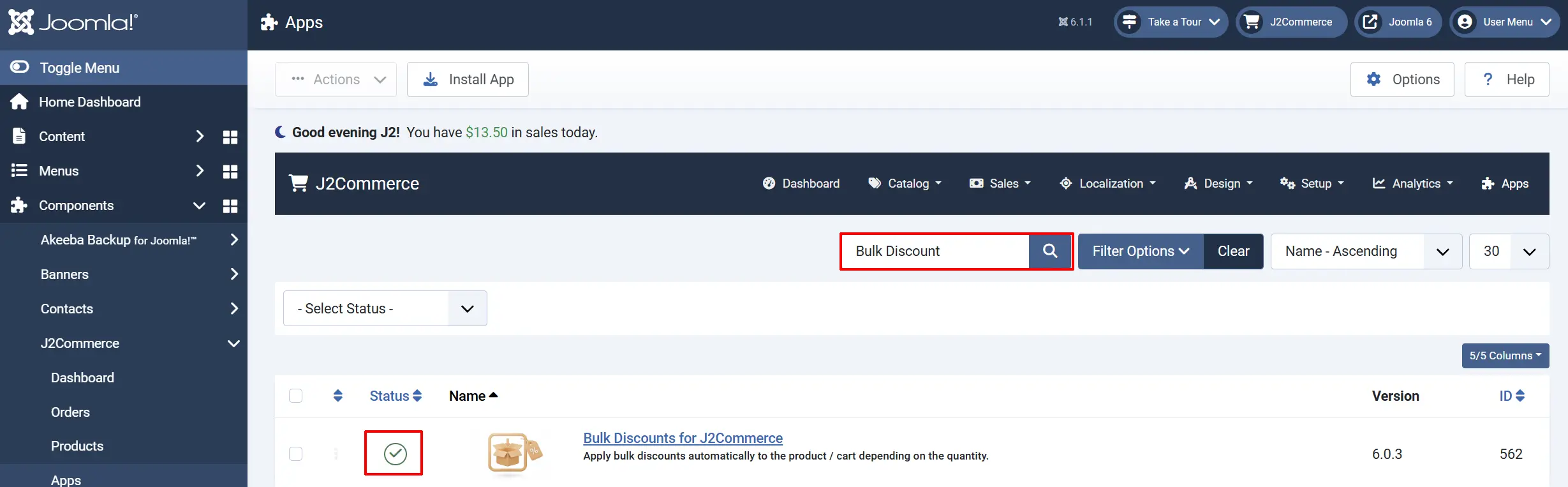
Look for Bulk Discount, click the X, and it will turn into a green checkmark. It is now enabled and ready for setup.
Configure the App
Click on the Bulk Discounts title next to the green checkmark to open the settings.
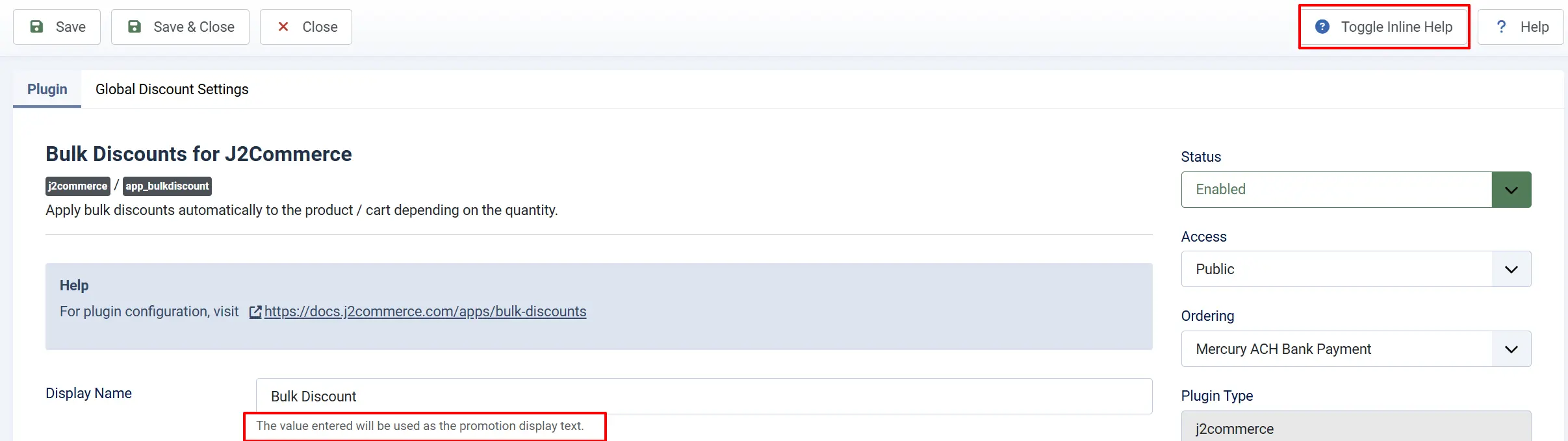
Click the Toggle Inline Help button in the toolbar and the app will show a description below each field as you configure it.
Basic Settings tab
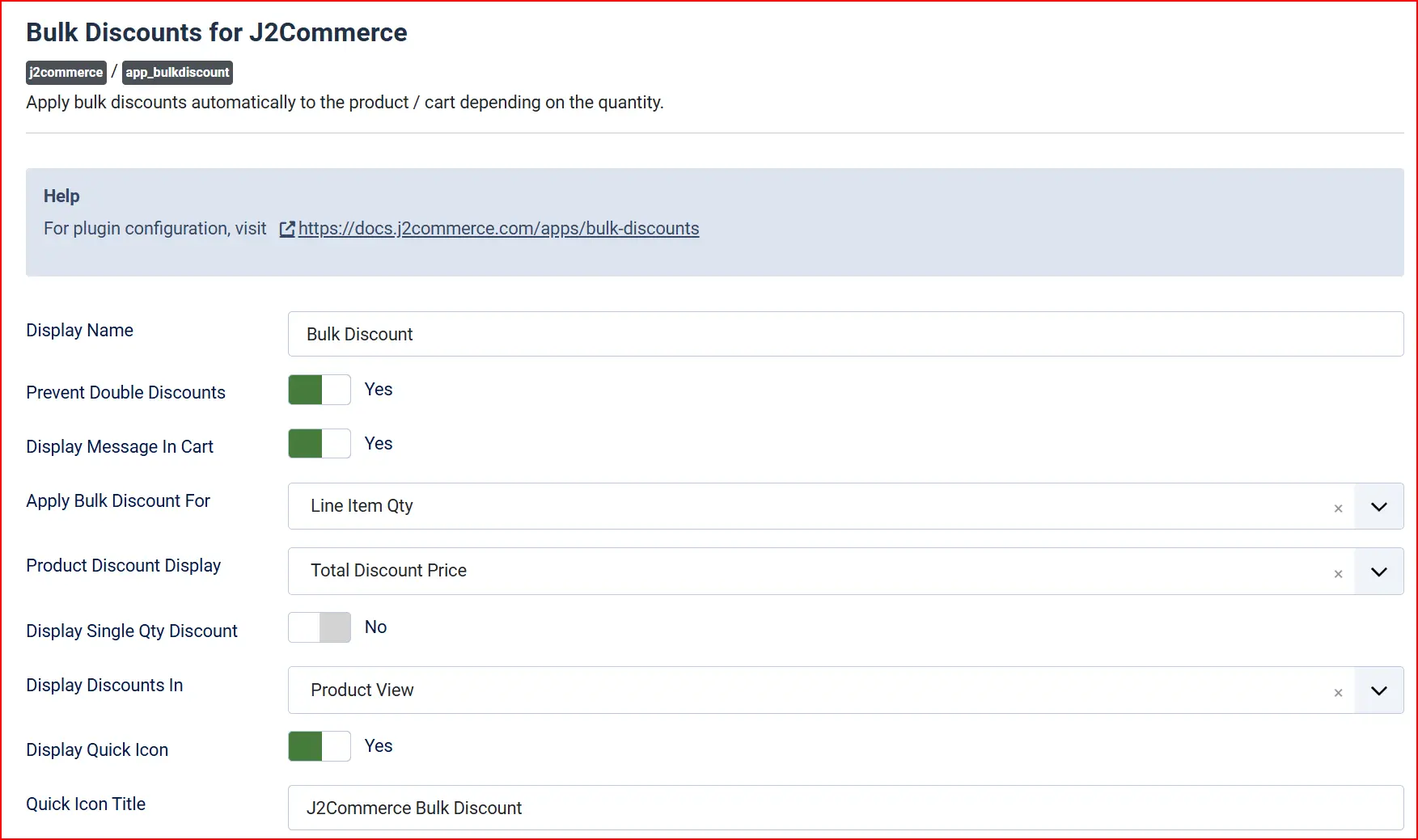
Display Name: The label shown to customers when bulk discount savings appear in the cart and on product pages.
Prevent Double Discounts: When set to Yes, the bulk discount is automatically removed if the customer applies a coupon code — preventing customers from combining two discounts at once.
Display Message In Cart: When set to Yes, a promotional message appears beneath each qualifying cart line item showing the applied discount.
Apply Bulk Discount For: Controls which quantity figure triggers the discount tier: Line Item Qty counts the quantity of that specific product line; Cart Qty counts the total number of all items in the cart.
Product Discount Display: Controls the number shown in the discount table on the product page: Per Quantity Discount shows the discount per unit; Total Discount Price shows the total price for that quantity tier.
Display Single Qty Discount: When set to Yes, a tier with a minimum quantity of 1 is shown in the product discount table.
Display Discounts In: Where the discount table appears: Product View (individual product page only), Category View (product listings only), Product and Category Views (both), or Never Show (hide the table entirely but still apply the discount).
Display Quick Icon: When set to Yes, a shortcut icon for this app appears on the J2Commerce home dashboard. Requires the J2Commerce Quick Icons plugin to be installed and enabled.
Quick Icon Title: The label displayed on the dashboard quick icon. Only visible when Display Quick Icon is enabled.
Global Discount Settings tab
This tab lets you define store-wide discount rules that apply to every product unless overridden at the category or product level.
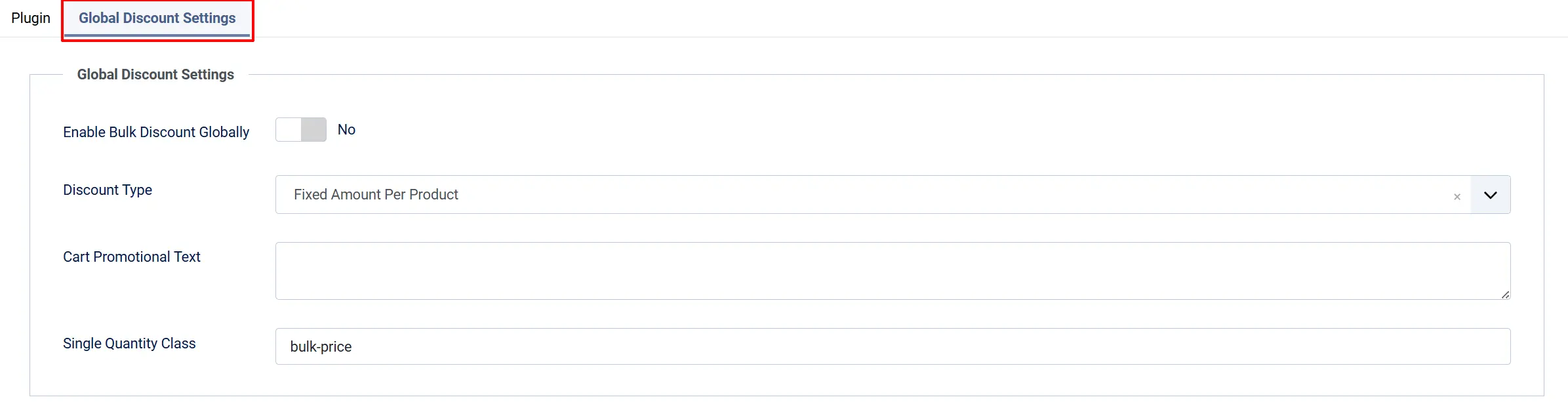
Enable Bulk Discount Globally: When set to Yes, the discount rules defined on this tab apply across the entire store.
Discount Type: Fixed Amount Per Product deducts a specific currency amount per item; Cart Percentage deducts a percentage of the item price.
Cart Promotional Text: Optional text displayed under each cart line item as a promotional message. Only shown on the cart page.
Single Quantity Class: A CSS class applied to the discount display element when the minimum quantity is 1. Useful for styling a "default" discounted price differently.
Adding Global Discount Rules

Click Add Bulk Discount to add a tiered rule to the table. Each rule row has the following columns:
- Quantity — The minimum number of items the customer must buy to qualify for this tier.
- Cart Price — Optional minimum cart total required for this tier to activate. Leave blank to ignore cart value.
- Combine Product Quantity In Cart — When enabled, quantities of the same product variant spread across multiple cart line items are combined before checking the threshold.
- Customer Group — The Joomla user group this rule applies to. Set to Public to apply to all visitors.
- Discount Value — The discount amount. For fixed discounts enter a number (e.g.
5.00); for percentage enter a number without the % sign (e.g.10).
You can add as many rows as you need to build a tiered pricing structure (e.g. 5 items = $2 off, 10 items = $5 off, 20 items = $10 off). J2Commerce automatically selects the highest qualifying tier for each item in the cart.
Click the Delete icon on any row to remove it.
Setting Up Category-Level Discounts

You can apply bulk discount rules to all products within a specific Joomla category, without enabling discounts globally or editing each product individually.
-
Go to Content -> Categories.
-
Click the category you want to configure.
-
Open the Bulk Discounts tab.
-
Set Enable Bulk Discount to Yes.
-
Choose the Apply Bulk Discount For option:
- Line Item Qty — checks each product line individually.
- Total quantity of products in cart that fall under this category — sums the quantities of all products from this category that are in the cart.
-
Select the Discount Type and optionally enter Cart Promotional Text.
-
Click Add Bulk Discount to add your tier rules.
-
Click Save to apply.
Category-level discounts only apply when the global discount is not enabled for the same product. Product-level settings take priority over category settings, which in turn take priority over global settings.
Setting Up Product-Level Discounts
For fine-grained control, you can configure bulk discount rules on individual products. These settings override both category and global rules for that product.
Open a Product
There are three ways to access products.
Option A: Go to the J2Commerce icon at the top right corner -> Catalog -> Products
Option B: Go to Components on the left sidebar -> J2Commerce -> Catalog -> Products
Option C: Go to Content -> Categories -> find the category, then click into the article list
Add Discount Rules to the Product
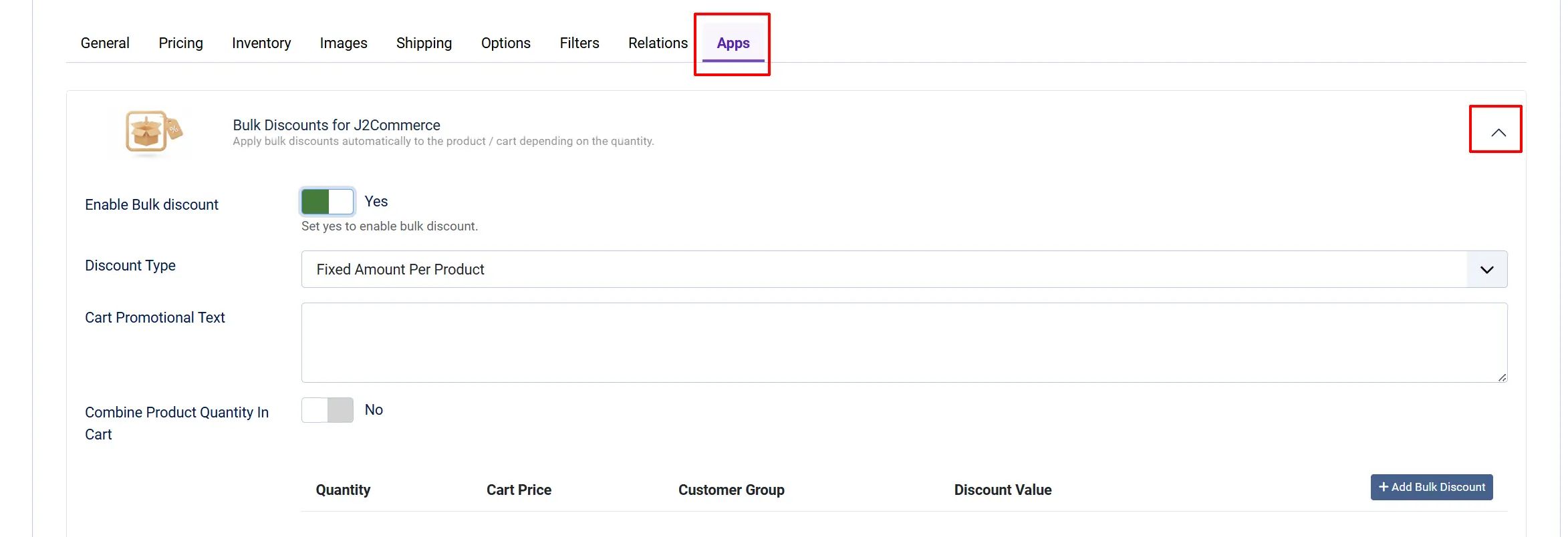
-
Open the product for editing.
-
Go to the J2Commerce tab -> Apps tab.
-
Locate the Bulk Discounts section.
-
Set Enable Bulk Discount to Yes.
-
Choose the Discount Type: Fixed Amount Per Product or Cart Percentage.
-
Optionally enter Cart Promotional Text to show a message in the cart for this product.
-
Set Combine Product Quantity In Cart to Yes if you want quantities of the same product variant in different cart rows to be added together before the tier threshold is checked.
-
Click Add Bulk Discount and fill in your tier rows (Quantity, Cart Price, Customer Group, Discount Value).
-
Click Save to apply.
How It Works
When a customer views a product page:
- J2Commerce checks whether the Bulk Discounts app is enabled.
- If enabled, it looks for discount rules in this order: product level first, then category level, then the global plugin settings.
- The discount table (if configured to display) appears on the product page showing each quantity tier and the corresponding discounted price.
- When the customer adds items to the cart, J2Commerce recalculates the applicable tier each time the quantity changes.
- At checkout, the highest qualifying tier for each eligible product is selected and the discount is deducted from that line item's total.
- If Prevent Double Discounts is enabled and the customer enters a coupon code, the bulk discount is removed so the two promotions do not stack.
- If Display Message In Cart is enabled, a note appears under each discounted line item in the cart confirming the applied saving.
Discount Priority
Product level: Category and global
Category level: Global only
Global level: Nothing (lowest priority)
Tax Handling
Discount amounts are computed against the pre-tax price. If your store is configured with tax-inclusive pricing, the tax portion is separated out so that the net discount and the tax adjustment are tracked independently. The final order total always reflects the correct tax treatment for your tax configuration.
Tips
- Start with a global rule, then override per category or product — this saves time when most products share the same discount structure.
- Use Cart Qty mode for bundling — if you want to encourage customers to add any combination of products to reach a quantity threshold, select Cart Qty in the Apply Bulk Discount For setting.
- Leave Cart Price blank unless you have minimum order requirements — an unintentionally high cart price threshold silently prevents a tier from activating.
- Test each tier before going live — add the qualifying quantity to your own test cart and confirm the discount appears as expected.
- Use Prevent Double Discounts with coupon campaigns — avoid unintended margin erosion by enabling this when running simultaneous coupon promotions.
Troubleshooting
No Discount Applied at Checkout
Cause: Bulk discount is not enabled at any level, or the quantity threshold has not been reached.
Solution:
- Go to J2Commerce -> Apps -> Bulk Discounts and confirm the plugin is enabled (green checkmark).
- Check whether the discount is configured at global, category, or product level and confirm Enable Bulk Discount is set to Yes at that level.
- Add enough items to the cart to meet the lowest quantity threshold in your rules.
- If using Customer Group restrictions, confirm the logged-in customer belongs to the correct group.
Discount Table Not Showing on Product Page
Cause: The display visibility setting is hiding the table, or the discount type is set to percentage.
Solution:
- Go to J2Commerce -> Apps -> Bulk Discounts -> Basic Settings.
- Check Display Discounts In — make sure it is not set to Never Show and matches the page where you expect the table to appear (product view, category view, or both).
- Confirm the Discount Type is set to Fixed Amount Per Product — the discount table is only shown for fixed-amount discounts, not percentage discounts.
Coupon and Bulk Discount Both Applying
Cause: Prevent Double Discounts is set to No.
Solution:
- Go to J2Commerce -> Apps -> Bulk Discounts -> Basic Settings.
- Set Prevent Double Discounts to Yes.
- Click Save.
Discount Applies to Some Products but Not Others
Cause: A product-level setting overrides the global or category rule, or the product's category does not have discounts enabled.
Solution:
- Edit the product and check the Apps tab for any product-level bulk discount settings.
- If Enable Bulk Discount is set to No at the product level, the global and category settings will not apply to that product.
- Check the product's category — if a category rule exists, confirm Enable Bulk Discount is set to Yes on that category.
Cart Promotional Message Not Appearing
Cause: Display Message In Cart is disabled, or no discount was actually applied to that line item.
Solution:
- Go to J2Commerce -> Apps -> Bulk Discounts -> Basic Settings and set Display Message In Cart to Yes.
- Confirm the cart item meets the quantity threshold for an active discount tier.
- Verify the Cart Promotional Text field is not empty if you want a custom message to appear alongside the savings notice.