Gift Wrapping
The Gift Wrapping app adds an optional step to your J2Commerce checkout where customers can select gift wrapping for their order. You can offer multiple wrapping options with different prices, images, and descriptions. Customers can also include a personal message to be included with the gift.
This feature is perfect for stores selling gifts, seasonal merchandise, or any products where customers may want a special presentation.
Requirements
- with PHP 8.3.0 +
- Joomla! 6.x
- J2Commerce 6.x
Purchase and Download
The Gift Wrapping app is a premium add-on available from the J2Commerce extension directory.
Step 1: Go to our J2Commerce website -> Apps
Step 2: Locate the Gift Wrapping App -> click View Details -> Add to cart -> Checkout.
Step 3: Go to your My Downloads under your profile button at the top right corner and search for the app. Click Available Versions -> View Files -> Download
Install the App
In the Joomla Administrator, go to System -> Install -> Extensions.
Upload the plugin ZIP file or use the Install from URL option.

Enable the App
Once you have installed the App, you will need to enable it. There are two ways you can access the App.
Option A: Go to the J2Commerce icon at the top right corner -> Apps
Option B: Go to Components on the left sidebar -> J2Commerce -> Apps

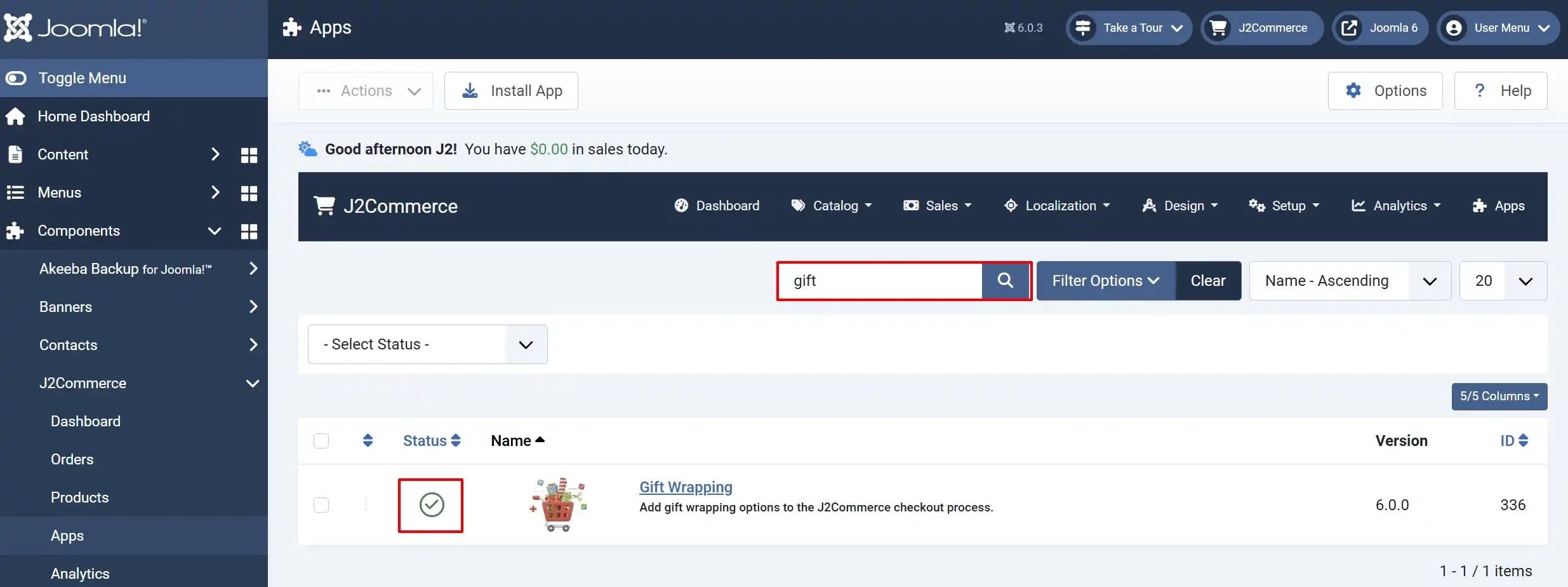
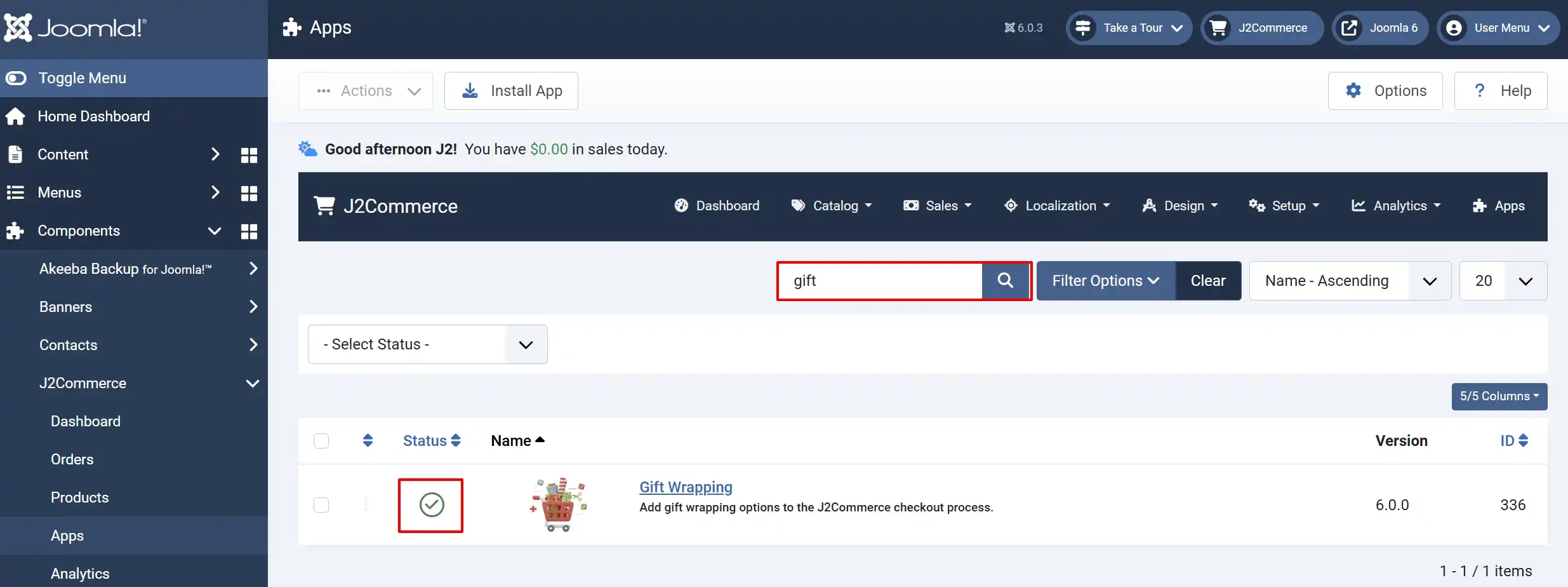
To help you narrow down the list, you can do a search for Gift Wrapping, click the X, and it will turn into a green checkmark. It is now enabled and ready for setup.
Configure the App
Click on the Gift Wrapping Title to open it.
Click the Toggle Inline Help button in the toolbar and the app will show a description below each field as you configure it.
Plugin Tab
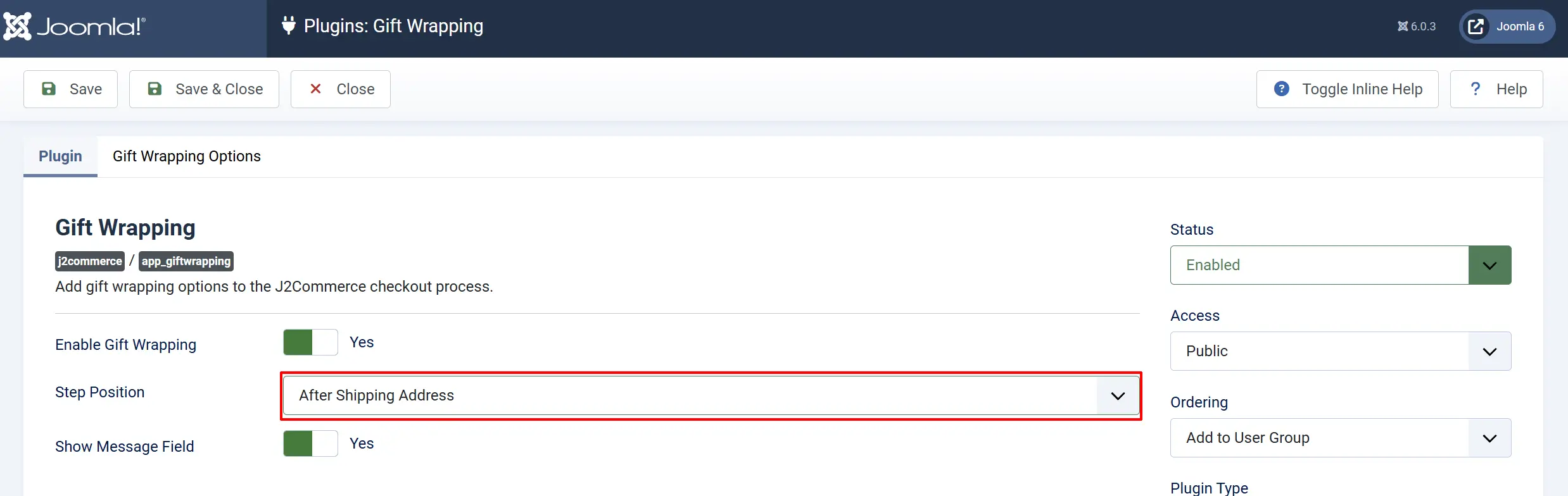
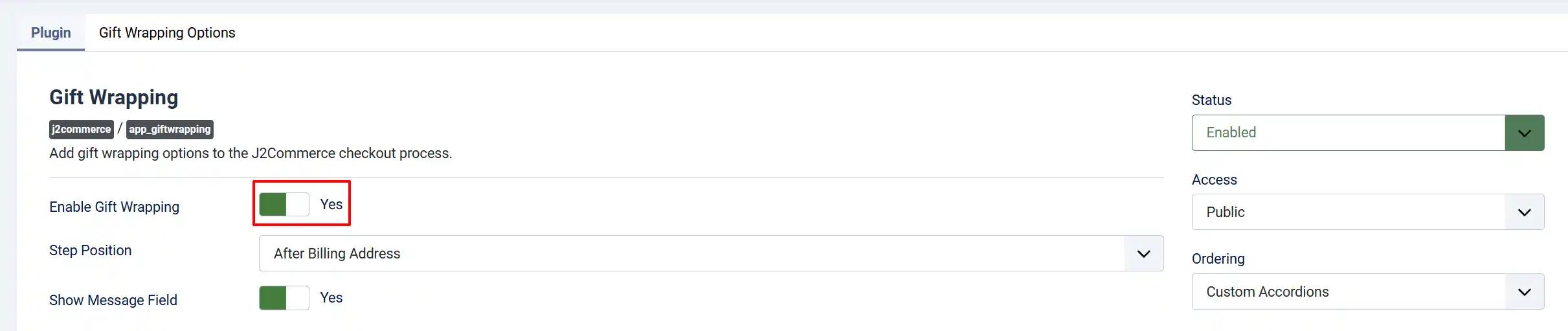
Enable Gift Wrapping: Show or hide the gift wrapping step in checkout.
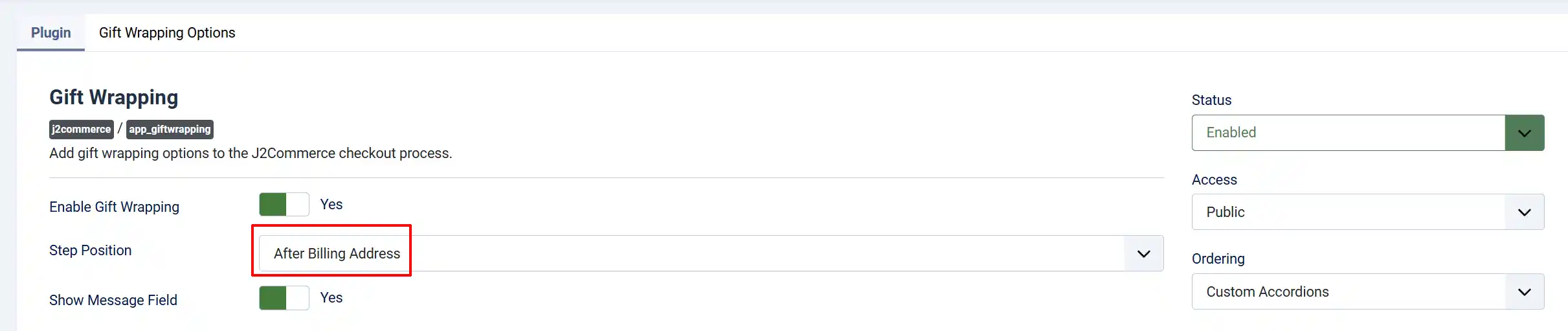
Step Position: Where in the checkout flow the gift wrapping step appears.
NOTE: The gift wrapping step can appear at different points in the checkout flow.
After Billing Address: Shows after the billing address step (default)
After Shipping Address: Shows after the shipping address step
Before Payment Method: Shows before the payment selection step
Before Confirm Order: Shows just before the order confirmation step
Choose the position that best fits your checkout flow. For most stores, After Billing Address or After Shipping Address works well.
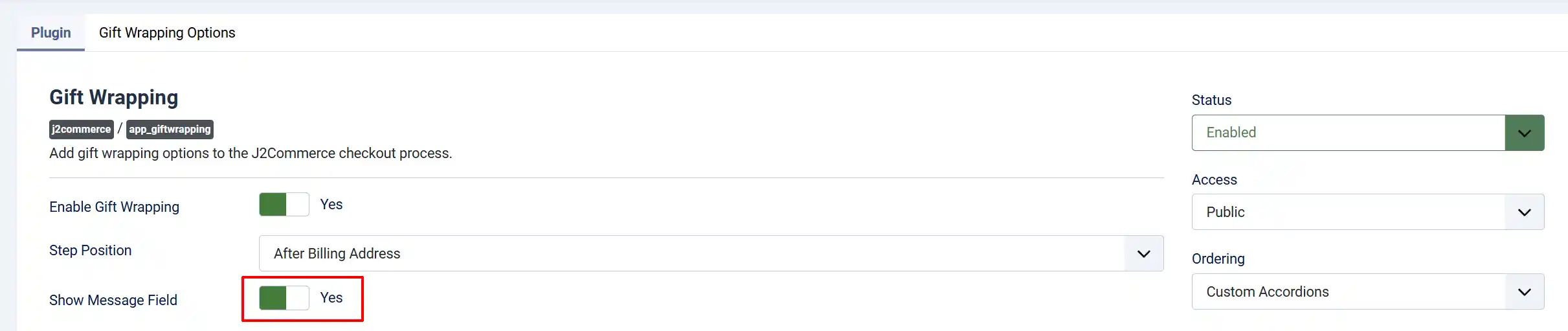
Show Message Field: Allow customers to include a personal message with the gift wrapping.
Add Gift Wrapping Options Tab
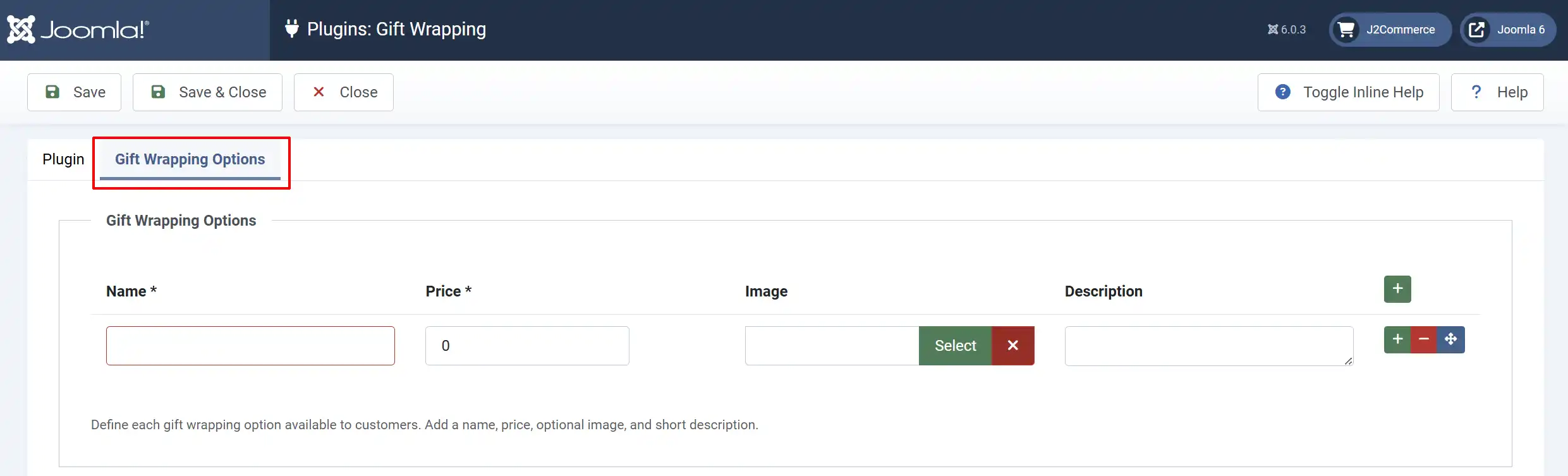
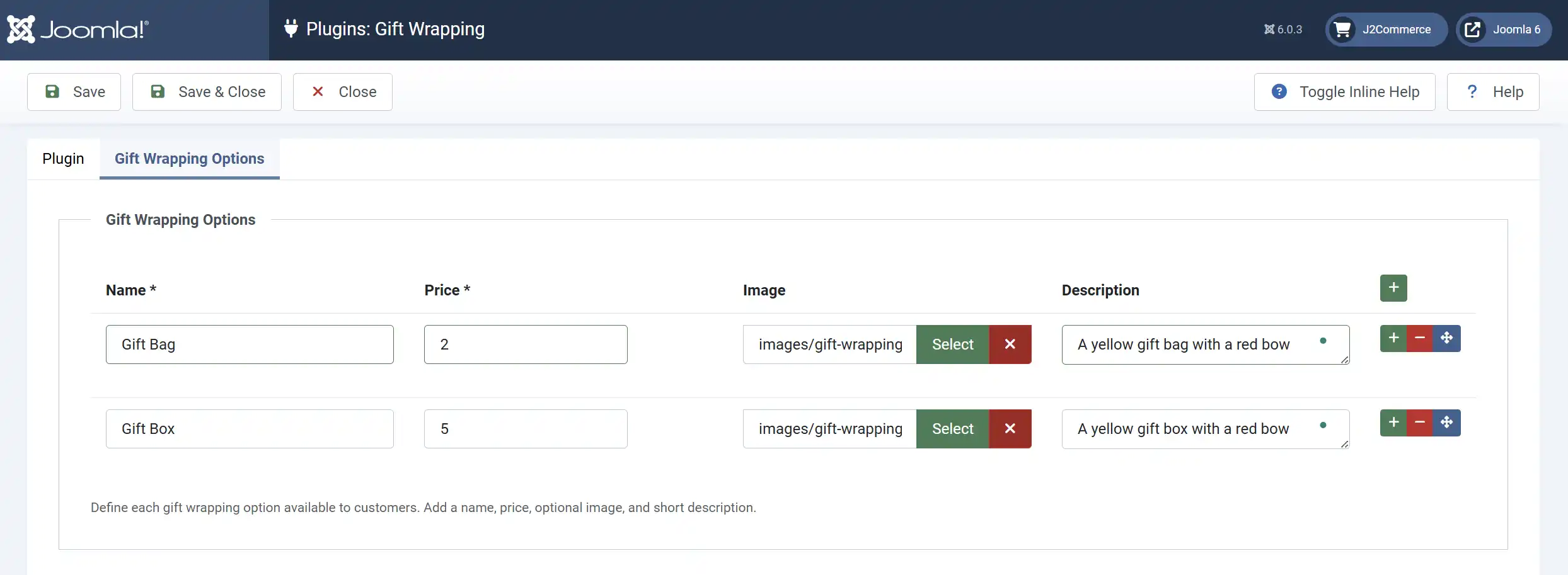
In the Gift Wrapping Options tab, define each wrapping option available to customers.
- Click the green plus icon to create a new wrapping option.
- Fill in the following fields:
Name: The name displayed to customers (e.g., "Standard Gift Wrap", "Premium Gift Box").
Price: The cost for this wrapping option. Enter 0 for free gift wrapping.
Image: An optional image showing the wrapping style. Upload to media/com_j2commerce/giftwrapping/.
Description: A short description of the wrapping (e.g., "Red ribbon with white gift tag").
-
Click Add again to add more options.
-
Use the drag blue icon on the right up/down, to rearrange the options.
-
Click Save or Save & Close.
Creating Effective Wrapping Options
Consider these strategies:
- Free option — Offer a basic gift wrap at no charge to encourage selection.
- Premium tier — Charge more for elaborate packaging or branded gift boxes.
- Seasonal options — Add holiday-themed wrapping during gift-giving seasons.
- Clear images — Upload photos of actual wrapping to set customer expectations.
How It Works
When a customer reaches the gift wrapping step during checkout:
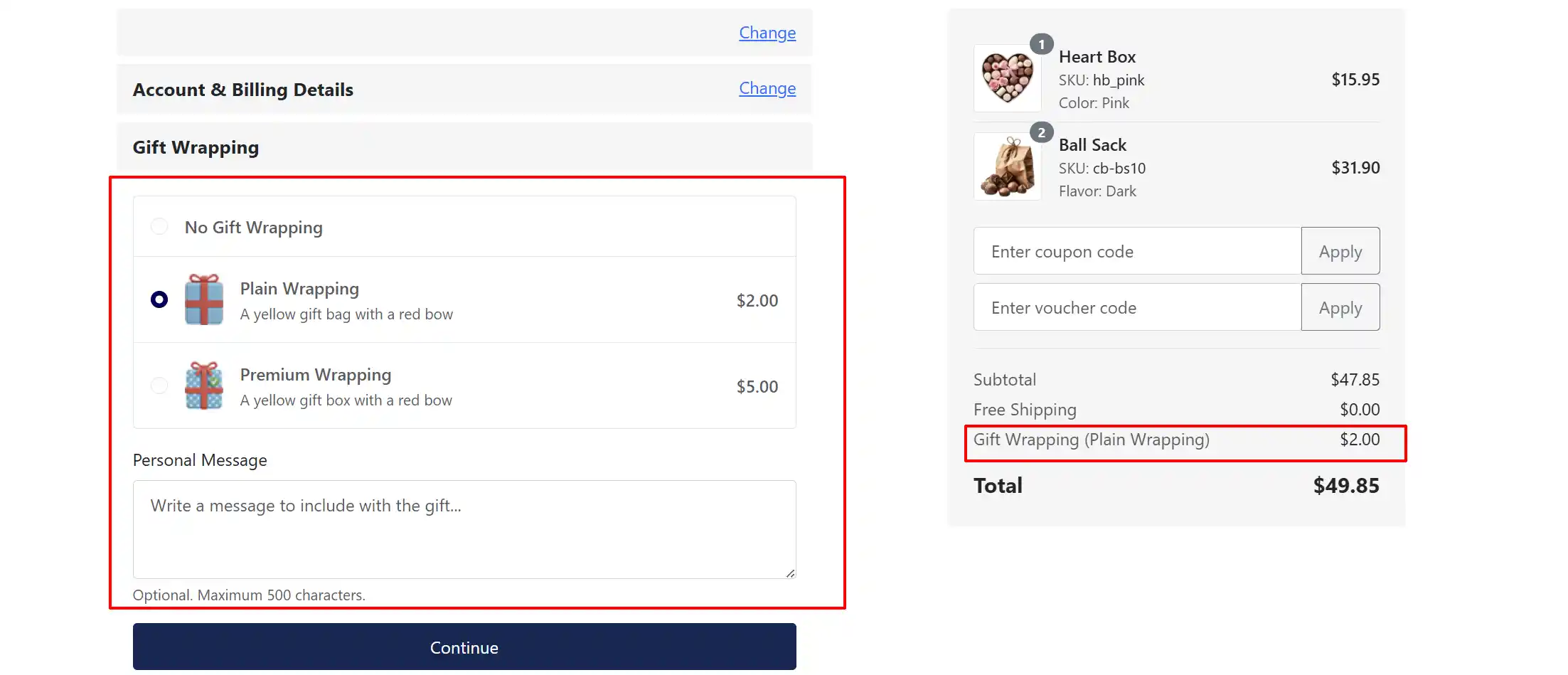
- They see a list of wrapping options with images, descriptions, and prices.
- The first option is always No Gift Wrapping (free, no packaging).
- Selecting a paid option adds the gift wrapping fee to the order total.
- If the Show Message Field is enabled, a text area appears for a personal message (max 500 characters).
Frontend View
Fee Integration
When a customer selects a paid wrapping option:
- The fee appears in the order summary as "Gift Wrapping (Option Name)".
- The fee is added to the order total before tax calculation.
- The selected option and message are stored with the order.
Display Conditions
The gift wrapping step only appears when:
- Enable Gift Wrapping is set to 'Yes' in the app.
- At least one gift wrapping option is configured.
- The cart contains at least one shippable item.
If the cart contains only digital products (no shipping required), the gift wrapping step is automatically hidden.
Tips
- Upload clear images of each wrapping style to help customers make informed choices.
- Keep descriptions short but descriptive — customers scan quickly during checkout.
- Test the checkout flow after configuring to ensure the step appears in the correct position.
- Consider offering a free option to make gift wrapping accessible to all customers.
Troubleshooting
Gift Wrapping Step Does Not Appear
Cause: The step is hidden due to configuration or cart contents.
Solution:
- Verify Enable Gift Wrapping is set to Yes.
- Check that at least one gift wrapping option is configured in the Gift Wrapping Options section.
- Ensure the cart contains at least one physical product that requires shipping.
- Verify the plugin is enabled in J2Commerce -> Apps -> Gift Wrapping
Fee Not Added to Order
Cause: JavaScript error or session issue.
Solution:
- Open the browser Developer/Inspect Tools (F12) and check the Console for errors.
- Clear browser cache and cookies, then try again.
- Verify the wrapping option has a price greater than
0.
Message Field Not Showing
Cause: The Show Message Field setting is disabled.
Solution:
- Go to J2Commerce -> Apps -> Gift Wrapping.
- Set Show Message Field to Yes.
- Click Save.
Gift Wrapping Step Appears in Wrong Position
Cause: Step position is configured incorrectly.
Solution:
- Go to J2Commerce -> Apps -> Gift Wrapping.
- Change Step Position to the desired location in the checkout flow.
- Click Save.
- Test the checkout to verify the position.
The gift wrapping option doesn't appear in the checkout process
Cause: The product being purchased doesn't have 'Shipping' enabled
Solution:
At least one physical product in the shopping cart requires shipping
-
Go to J2Commerce -> Catalog -> Product -> Open the product
-
Go to J2Commerce tab -> Shipping tab
-
Set Enable Shipping to 'Yes'

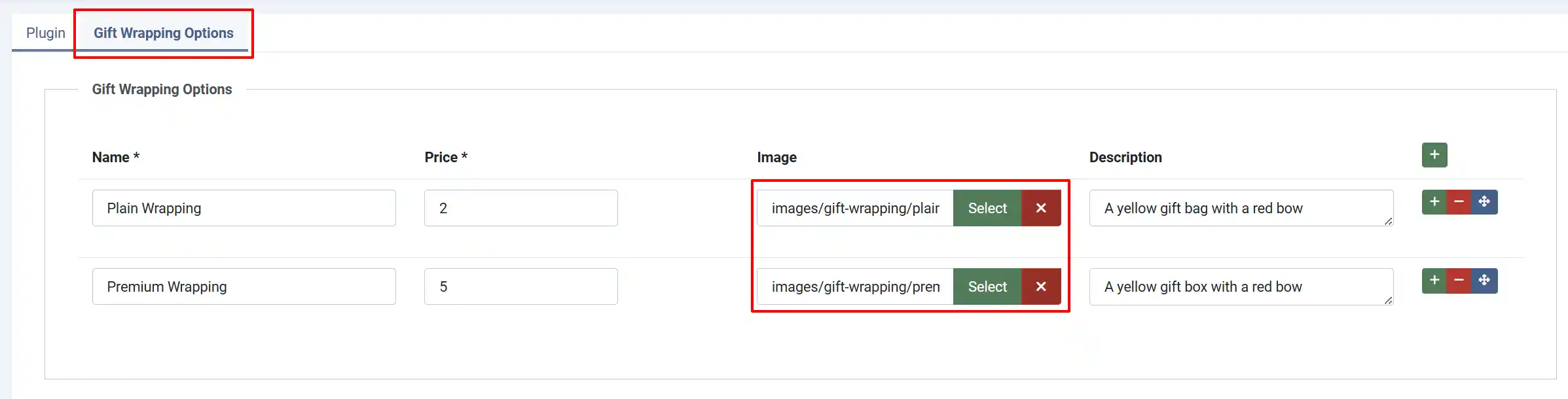
Options Display, but Images Don't Load
Cause: Image path is incorrect, or the file doesn't exist.
Solution:
-
Go to Content -> Media.
-
Navigate to
com_j2commerce/gift-wrapping/folder. (or whatever you named the folder)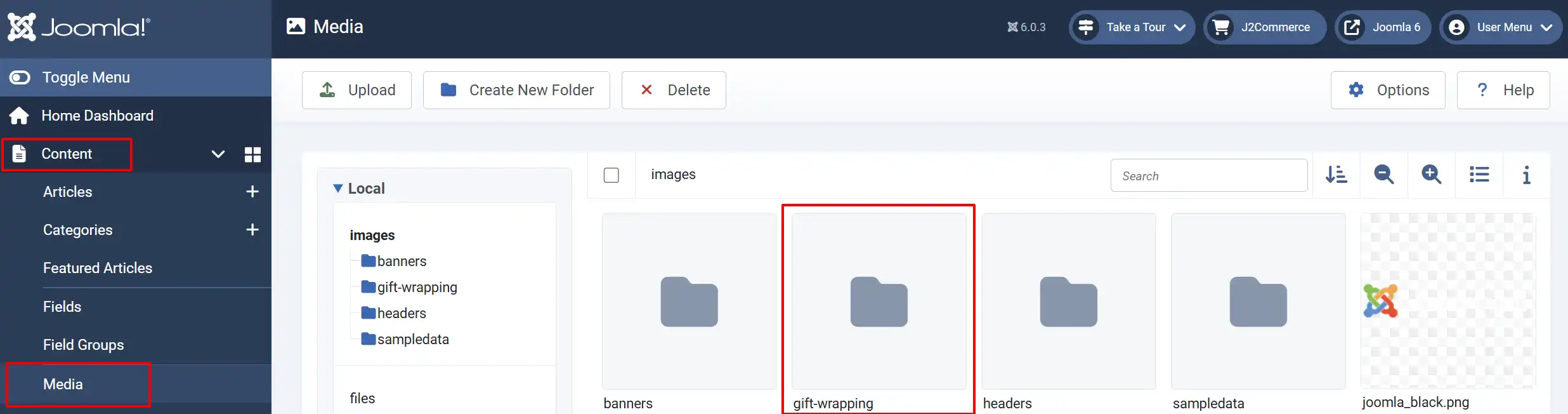
-
Open the folder to verify the images exist in this location.
-
Open the Gift Wrapping Options tab in the app and re-select the images in the plugin configuration.