Queue Hub
The Queue Hub is where J2Commerce handles background tasks — things that happen quietly behind the scenes so your store stays fast and responsive. When third-party apps (like shipping integrations, accounting sync, or inventory tools) need to send or receive data, they add those jobs to the queue rather than making your customers wait.
Think of it like a to-do list for your store. Items get added, processed one by one, and then marked complete. If something goes wrong, the system retries automatically before flagging it for your attention.
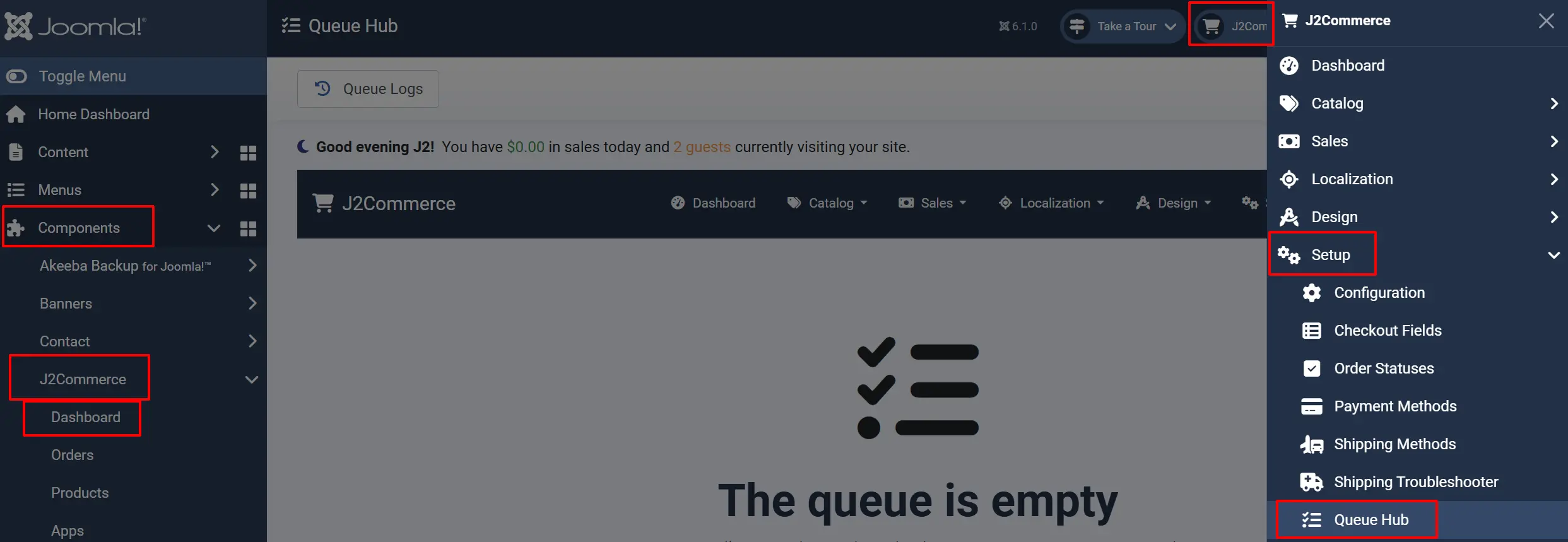
Accessing the Queue Hub
There are two ways to open the Queue Hub.
Option A: Go to the J2Commerce icon at the top right corner -> Setup -> Queue Hub
Option B: Go to Components on the left sidebar -> J2Commerce -> Setup -> Queue Hub
When Will I See Queue Items?
The queue is only populated when third-party J2Commerce apps push tasks for background processing. If you have no apps that use queuing, the list will be empty — that is normal.
Common apps that use the queue include shipping integrations, ERP/accounting sync tools, and inventory management systems.
Understanding Queue Statuses
Each queue item moves through a lifecycle:
Pending: Waiting to be processed
Processing: Currently being worked on
Completed: Finished successfully
Failed: An error occurred — will retry automatically
Dead: Failed too many times — needs your attention
Items retry automatically after a failure using a gradual backoff schedule (waits a bit longer between each retry). After 10 failed attempts (by default), the item moves to Dead status and stops retrying.
Managing Queue Items
Process Items Now
If you want to process items immediately rather than waiting for the next scheduled run:
- Use the Queue Type filter to select a specific app's queue.
- Click the Process Now button in the toolbar.
- J2Commerce processes up to 10 items per click and logs the results.
The Process Now button only appears when a Queue Type filter is selected.
Retry Failed Items
When items have a Failed or Dead status, you can reset them for another attempt:
- Check the box next to the items you want to retry.
- Click Retry Failed in the toolbar.
- The items reset to Pending and will be processed on the next run.
Delete Items
To permanently remove specific queue items:
- Check the box next to the items you want to remove.
- Click Delete in the toolbar.
- Confirm the deletion.
Purge Old Items
To clean up accumulated records in bulk, click the dropdown arrow next to the Delete button:
- Purge Completed — Removes completed items older than 30 days.
- Purge Dead — Removes all dead-letter items that exceeded their retry limit.
Run a purge periodically if your store processes high volumes of queue items. This keeps the list manageable and improves loading speed.
Filtering and Searching
Use the filter bar above the list to narrow down what you see:
Search: Search by relation ID (e.g., order number) or error message
Queue Type: Filter by a specific app or integration
Item Type: Filter by what kind of item is being processed (order, product, user)
Status: Show only items with a specific status
Queue Logs
Click Queue Logs in the toolbar to view a history of every processing batch that has run. Each log entry shows:
- Which queue type was processed
- When it started and finished
- How long it took
- How many items succeeded, failed, or were skipped
- Any error messages from the batch
Queue logs are useful for diagnosing patterns — for example, if a particular app's items consistently fail, the logs give you the details needed to troubleshoot.
Configuration
To adjust queue settings, click Options in the toolbar (or go to J2Commerce -> Setup -> Configuration -> Store tab -> Queue section at the bottom).
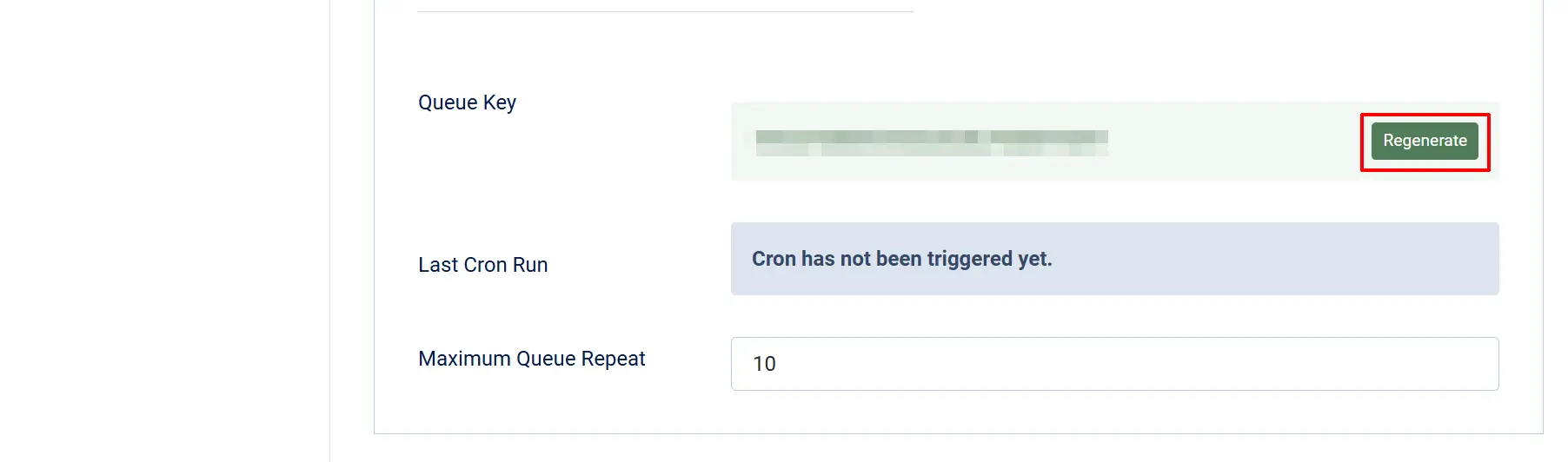
Queue Key: A security key required for external or cron-based queue processing. Click Regenerate to create a new key if needed.
Maximum Retry Attempts: How many times a failed item retries before becoming Dead. Default is 10.
Tips
- If items stay in Processing for a long time, they may be stuck due to a lock. Locks release automatically after 30 minutes.
- Check Queue Logs before contacting an app's support team — the detailed error messages often point directly to the issue.
- Use the Queue Type filter when working with a specific integration to avoid processing unrelated items.
- Schedule the J2Commerce task plugin to run the queue automatically via System -> Scheduled Tasks.
Troubleshooting
The Queue Is Empty
Cause: No apps are installed or enabled that use the queue system.
Solution:
- Verify that your third-party J2Commerce apps are installed and enabled via J2Commerce -> Apps.
- Trigger an action in the app that would normally queue a task (e.g., place a test order).
- Return to the Queue Hub and refresh the page.
Items Stay in "Processing" Status
Cause: A processing lock was not released after an error or server interruption.
Solution:
Locks expire automatically after 30 minutes. If you need to clear them immediately:
- Wait 30 minutes for the lock to expire.
- The item will return to Pending and retry on the next run.
- If the problem persists, check Queue Logs for error details from the last processing attempt.
Items Keep Failing (Become Dead)
Cause: A persistent error with the app or the data being processed.
Solution:
- Click Queue Logs and review the error messages for the affected queue type.
- Check the third-party app's configuration in J2Commerce -> Apps.
- Once the underlying issue is resolved, select the Dead items and click Retry Failed.
- If the items are no longer needed, use Purge Dead to remove them.
"Process Now" Button Is Not Visible
Cause: No Queue Type filter is selected.
Solution:
- Use the Queue Type dropdown to select a specific app's queue.
- The Process Now button will appear in the toolbar.