Taxation
Taxation in J2Commerce uses a three-tier system: Tax Profiles, Tax Rates, and Tax Rules. Understanding how these work together is essential for configuring accurate tax calculations for your store.
The information and examples provided are for general informational purposes only and do not constitute tax or legal advice. J2Commerce and its employees or affiliates make no representations or warranties regarding accuracy or applicability and accept no liability for VAT or tax compliance. Tax regulations, including but not limited to, US, CANADIAN tax or EU VAT rules for digital and physical goods, are complex and subject to change. Users are solely responsible for ensuring compliance and should consult a qualified tax advisor.
Requirements
- PHP 8.3.0+
- Joomla 6.x
- J2Commerce 6.x
Taxation Architecture
J2Commerce calculates taxes using three interconnected components:
Three-Tier System
Tax Profiles
Location: J2Commerce -> Dashboard -> Localisation -> Tax Profiles
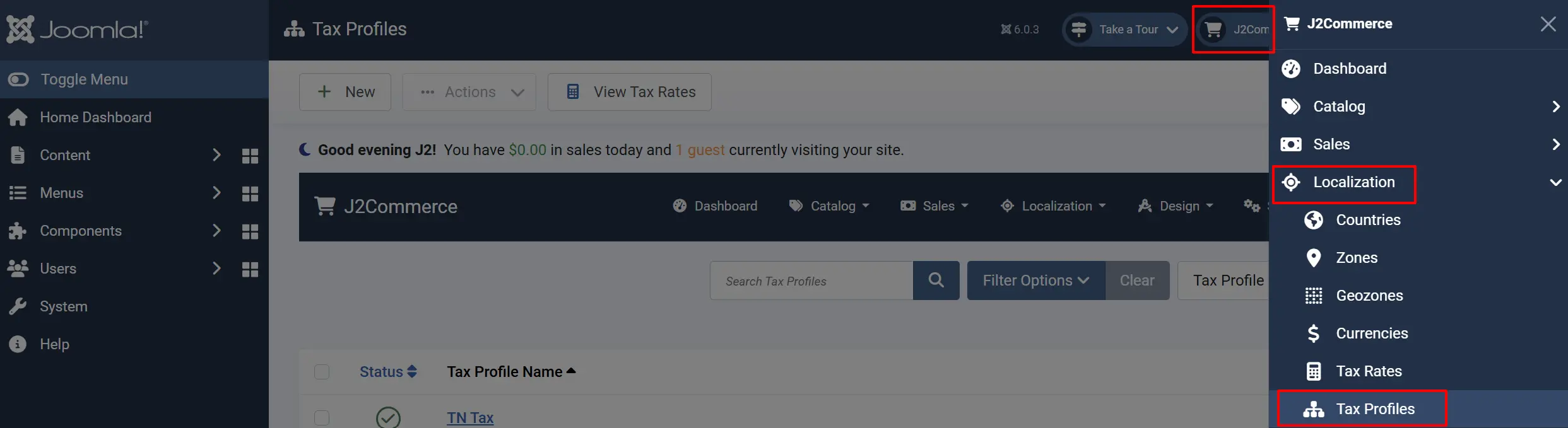
A Tax Profile is a named tax configuration that you assign to products. Think of it as a "tax category."
| Example Profiles | Use Case |
|---|---|
| Standard VAT | Regular products subject to standard VAT |
| Reduced VAT | Essential goods with lower tax rate |
| No Tax | Tax-exempt products |
| US Sales Tax | Products sold in specific US states |
Tax Rates
Location: J2Commerce -> Dashboard -> Localisation -> Tax Rates
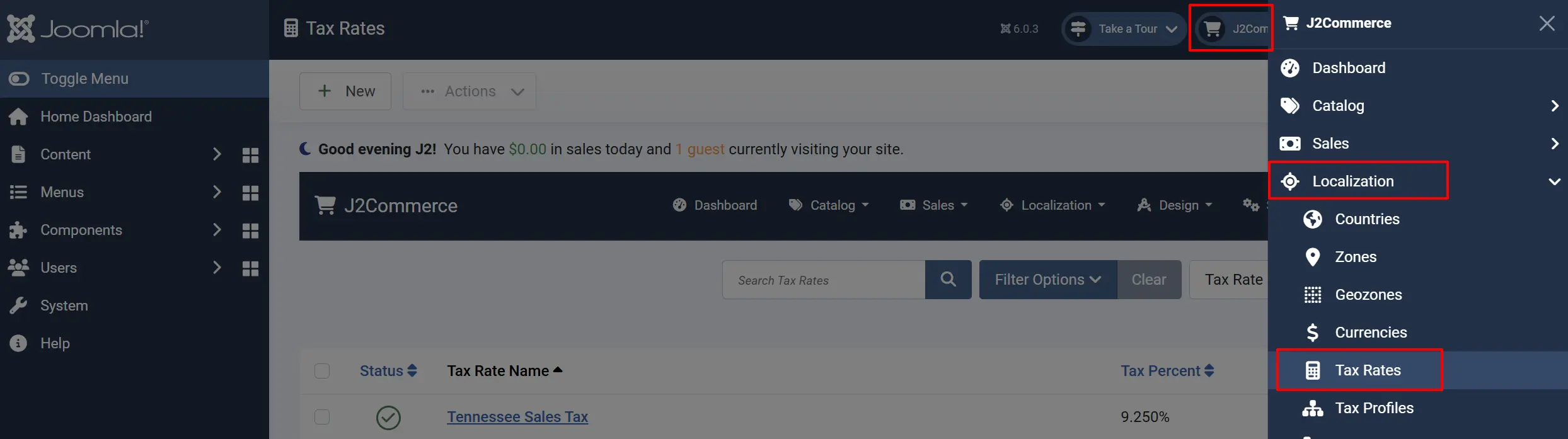
A Tax Rate defines the actual percentage charged and the geographic zone where it applies.
| Example Rates | Percentage | Geozone |
|---|---|---|
| UK Standard VAT | 20% | United Kingdom |
| US California Sales Tax | 9.25% | California |
| Switzerland VAT | 7% | Switzerland |
Tax Rules Tab with Tax Rates
A Tax Rule connects a Tax Profile to a Tax Rate for a specific address type (billing or shipping).
How Tax Calculation Works
When a customer checks out:
- Get the customer's address — Billing or shipping address (based on rule configuration)
- Match to Geozone — Find which geozone the address belongs to
- Find Tax Rules — Look for rules matching the product's Tax Profile
- Calculate Tax — Apply the Tax Rate percentage to the product price
Example: UK Customer Ordering a Standard Product
- Product has Tax Profile: Standard VAT
- The customer's shipping address is in the United Kingdom
- Tax Rule matches: Standard VAT + Shipping Address + UK VAT Rate
- Tax Rate applies: 20% UK VAT
- Tax calculated: Product price × 20%
Address Type Selection
Tax Rules can use either Billing Address or Shipping Address for geozone matching:
| Address Type | Use When |
|---|---|
| Billing | Tax based on where the customer is billed |
| Shipping | Tax based on where the product is delivered |
For US sales tax, use Shipping Address. For VAT in the EU, use Billing Address.
Compound Tax
When multiple tax rules match, J2Commerce can apply compound tax:
- Priority 1: First tax rate applied to base price
- Priority 2: Second tax rate applied to price + first tax
- Priority 3: Third tax rate applied to the cumulative total
Lower priority numbers are calculated first.
Quick Setup Guide
For a Single Tax Rate (e.g., UK VAT)
-
Create a Geozone
- Go to J2Commerce -> Localisation -> Geozones
- Create a geozone for "United Kingdom"
- Add the UK country (and zones if needed)
-
Create a Tax Rate
- Go to J2Commerce -> Localisation -> Tax Rates
- Create "UK Standard VAT 20%"
- Set rate:
20 - Assign geozone: "United Kingdom"
-
Create a Tax Profile
- Go to J2Commerce -> Localisation -> Tax Profiles
- Create "Standard VAT"
-
Create a Tax Rule
- Go to J2Commerce -> Localisation -> Tax Rules
- Select Tax Profile: "Standard VAT"
- Select Tax Rate: "UK Standard VAT 20%"
- Address Type: "Billing"
-
Assign to Products
- Edit each product
- Set the Tax Profile to "Standard VAT"