Tax Rules
Tax Rules connect Tax Profiles to Tax Rates, determining which tax percentage applies based on the customer's location. Each rule defines which Tax Profile, Tax Rate, and address type to use for tax calculation.
The information and examples provided are for general informational purposes only and do not constitute tax or legal advice. J2Commerce and its employees or affiliates make no representations or warranties regarding accuracy or applicability and accept no liability for VAT or tax compliance. Tax regulations, including but not limited to, US, CANADIAN tax or EU VAT rules for digital and physical goods, are complex and subject to change. Users are solely responsible for ensuring compliance and should consult a qualified tax advisor.
Requirements
- PHP 8.3.0+
- Joomla 6.x
- J2Commerce 6.x
- At least one Tax Profile created
- At least one Tax Rate created
Accessing Tax Rules
Go to J2Commerce -> Localisation -> Tax Profiles -> Tax Rules tab
Tax Rules List View
The tax rules list displays all configured rules:
Status: Published (green) or Unpublished (grey)
Tax Profile: The tax profile this rule applies to
Tax Rate: The rate and geozone for this rule
Address Type: Billing or Shipping
ID: Internal rule ID
Filter Options
Search: Search by tax profile name or tax rate name
Tax Profile: Filter by tax profile
Address Type: Filter by Billing or Shipping
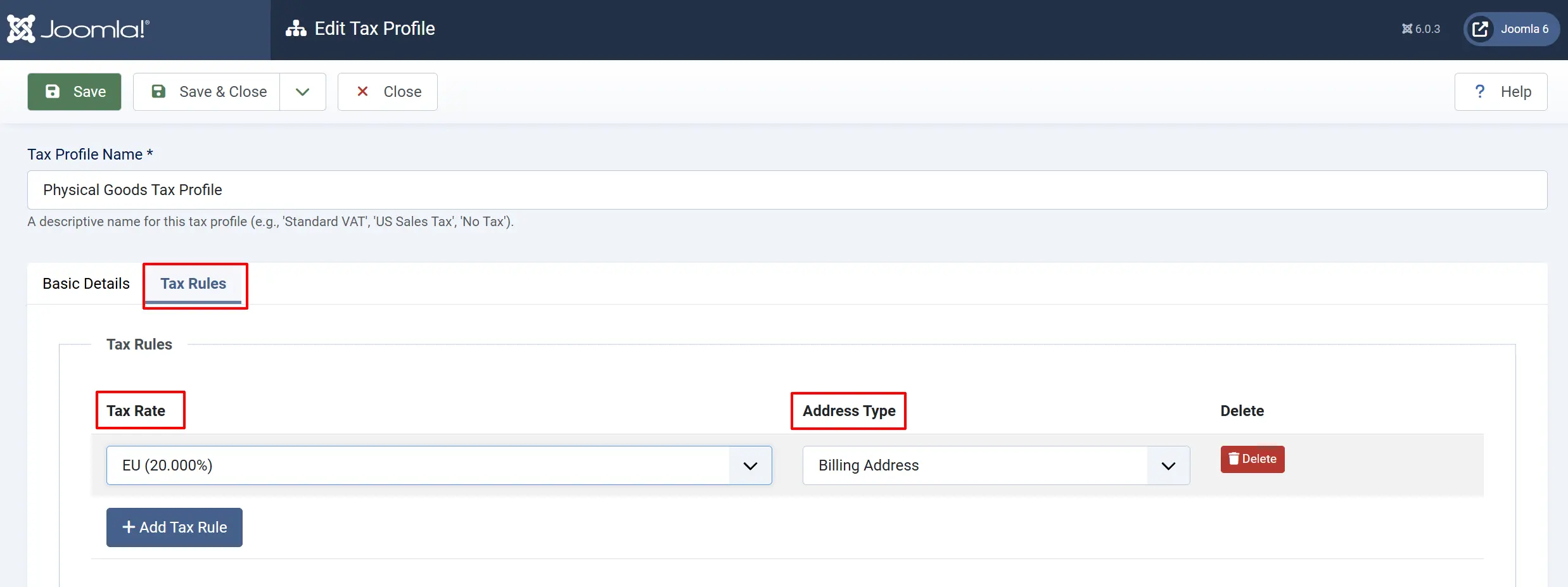
Creating a Tax Rule
- Click New
- Select the Tax Profile Name.
- Select the Tax Rate.
- Choose the Address Type.
- Click Save or Save & Close.
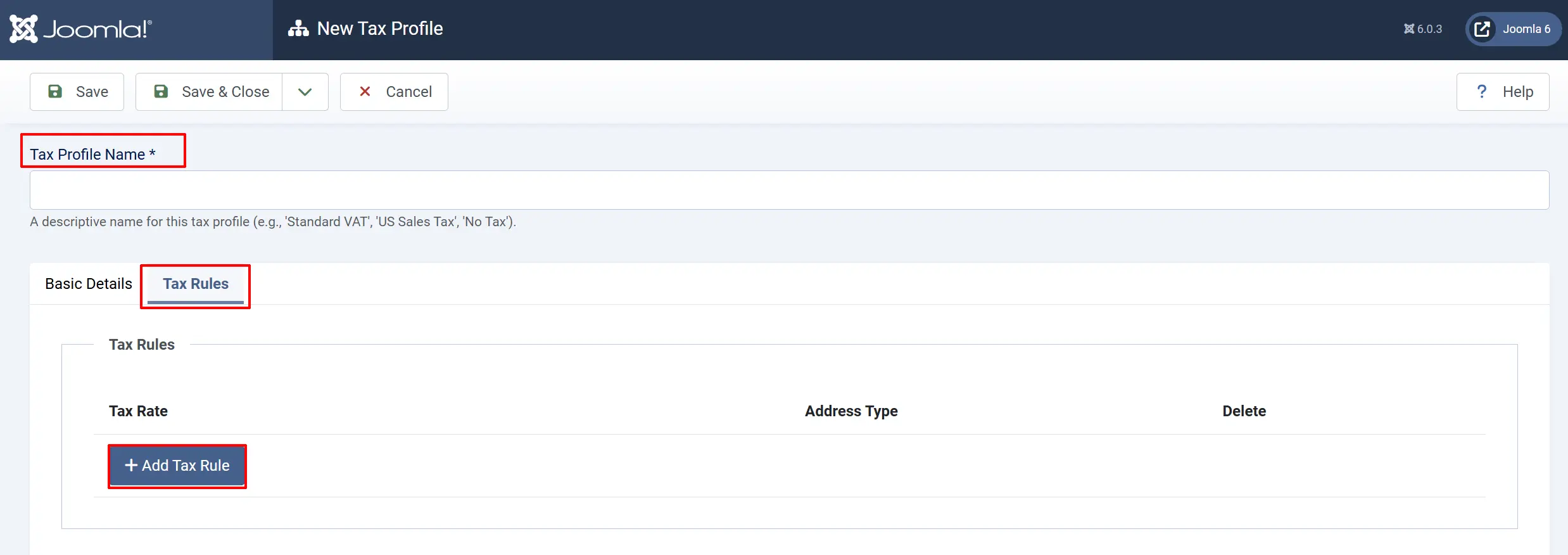
Tax Rule Fields
| Field | Description | Options |
|---|---|---|
| Tax Profile | The tax profile this rule applies to | Select from existing profiles |
| Tax Rate | The tax rate (percentage and geozone) | Select from existing rates |
| Address Type | Which address to use for geozone matching | Billing / Shipping |
| Ordering | Priority for compound tax calculation | Numeric (lower = first) |
Address Type Options
| Address Type | Use Case | Description |
|---|---|---|
| Billing | EU VAT, GST | Tax calculated from where customer is billed |
| Shipping | US Sales Tax | Tax calculated from delivery destination |
How Tax Rules Work
Simple Tax Scenario
For a single tax rate in one region:
- Product is assigned Tax Profile: Standard VAT
- Customer's address matches Geozone: United Kingdom
- Tax Rule matches: Standard VAT + UK + Billing Address
- Tax Rate: 20% is applied
Multiple Tax Rules (Compound Tax)
For regions with multiple taxes (e.g., federal + state tax):
| Priority | Tax Rule | Rate | Calculation |
|---|---|---|---|
| 1 | Federal Tax | 5% | Applied to base price |
| 2 | State Tax | 7% | Applied to price + federal tax |
Example:
- Base price: [dollar]100
- Priority 1: [dollar]100 × 5% = [dollar]5 (federal)
- Priority 2: ([dollar]100 + [dollar]5) × 7% = [dollar]7.35 (state)
- Total tax: [dollar]12.35
Rule Matching Logic
When J2Commerce calculates tax for a product:
-
Get the product's Tax Profile
-
Get the customer's address (billing or shipping based on rule)
-
Match address to Geozone
-
Find Tax Rules where:
- Tax Profile matches product's profile
- Tax Rate's geozone matches customer's location
-
Apply matched Tax Rate(s) in priority order
Multiple Matching Rules
If multiple rules match:
- Rules are applied in ordering sequence (lower first)
- Each rule's tax is added to the cumulative total
- This enables compound tax calculations
Best Practices
Naming Conventions
Use descriptive names for Tax Rates:
| Good Name | Poor Name |
|---|---|
| UK Standard VAT 20% | Tax Rate 1 |
| California Sales Tax 9.25% | CA Tax |
| Swiss VAT 7% | Switzerland |
Rule Organization
- Group by Tax Profile: Keep all rules for a profile together
- Use consistent ordering: Priority 1, 2, 3 for compound taxes
- Document address types: Note why billing vs shipping is used
Common Configurations
UK/EU VAT (Single Rate)
| Setting | Value |
|---|---|
| Tax Profile | Standard VAT |
| Tax Rate | UK VAT 20% (Geozone: UK) |
| Address Type | Billing |
US Sales Tax (Single State)
| Setting | Value |
|---|---|
| Tax Profile | Taxable Goods |
| Tax Rate | CA Sales Tax 9.25% (Geozone: California) |
| Address Type | Shipping |
Canadian Tax (GST + PST Compound)
Rule 1 (GST):
| Setting | Value |
|---|---|
| Tax Profile | Canadian Tax |
| Tax Rate | Canada GST 5% |
| Address Type | Shipping |
| Ordering | 1 |
Rule 2 (PST):
| Setting | Value |
|---|---|
| Tax Profile | Canadian Tax |
| Tax Rate | BC PST 7% |
| Address Type | Shipping |
| Ordering | 2 |
Tips
- Test with real addresses: Create test orders from different locations
- Use geozones correctly: Ensure geozone boundaries match tax jurisdictions
- Document your rules: Keep notes on why each rule exists
- Check ordering: Lower priority numbers are calculated first
- Match address types: Use Shipping for US sales tax, Billing for EU VAT
Troubleshooting
Tax Not Calculating
Cause: No matching tax rule for the customer's location.
Solution:
- Go to J2Commerce -> Localisation -> Geozones.
- Verify the geozone includes the customer's country/zone.
- Go to Tax Rates and check the Tax Rate is linked to the correct geozone.
- Go to Tax Rules and verify a rule links the product's Tax Profile to the Tax Rate.
- Check the product has the correct Tax Profile assigned.
Wrong Tax Rate Applied
Cause: Multiple rules matching, or incorrect address type.
Solution:
-
Check Address Type — Should match your tax jurisdiction rules.
- US sales tax: Use Shipping address
- EU VAT: Use Billing address
-
Verify the Tax Rate has the correct percentage.
-
Check if compound tax is applying multiple rates.
Tax Calculated on a Different Address Than Expected
Cause: Address Type set incorrectly.
Solution:
- Edit the Tax Rule.
- Change Address Type to Billing or Shipping as needed.
- Save the rule.
- Test with a new order.
Customer in Exempt Location Being Charged Tax
Cause: Geozone includes areas that should be exempt.
Solution:
-
Review geozone configuration.
-
Either:
- Create a separate geozone for exempt areas
- Remove exempt areas from the geozone
-
Or create a "No Tax" Tax Profile with 0% rate for exempt products.