Schema.org - Ecommerce
The Schema.org Ecommerce plugin automatically adds structured data markup to your J2Commerce product pages. This tells search engines like Google exactly what your products are, how much they cost, and whether they are in stock — enabling rich snippets (star ratings, prices, and availability badges) directly in search results.
The plugin detects your J2Commerce product data automatically. No manual data entry is required for most products.
Requirements
- PHP 8.3.0+
- Joomla! 6.x
- J2Commerce 6.x
What Is Structured Data?
Structured data is a standardized way of describing your page content to search engines. When Google understands that a page is a product with a price and stock status, it can display rich snippets — enhanced search results that show:
- Product name and image
- Price and currency
- Availability (In Stock, Out of Stock)
- Star ratings and review counts
- Breadcrumb navigation
These rich snippets make your listings stand out in search results and can significantly increase click-through rates.
Enable the Plugin
-
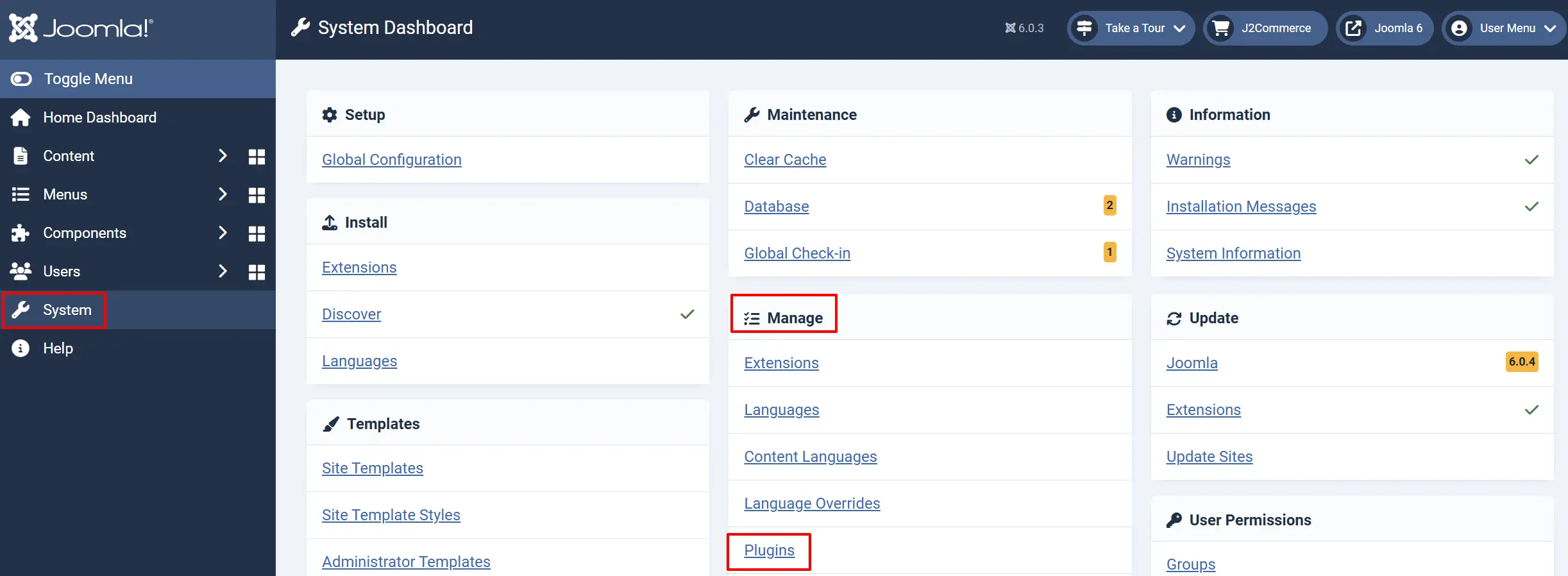
Go to System -> Manage -> Plugins.
-
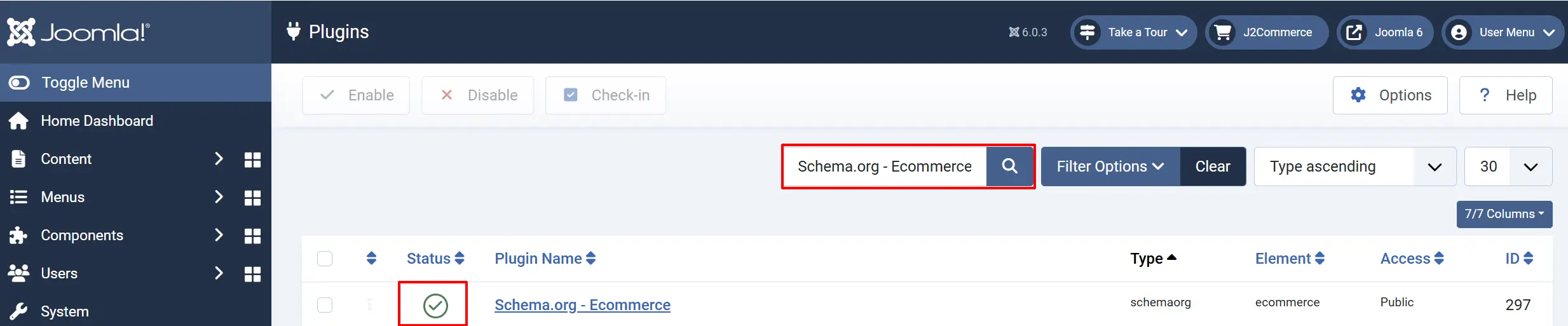
Search for Schema.org - Ecommerce.
-
Verify it shows a green checkmark (enabled). If not, click the status icon to enable it.
Configure the Plugin
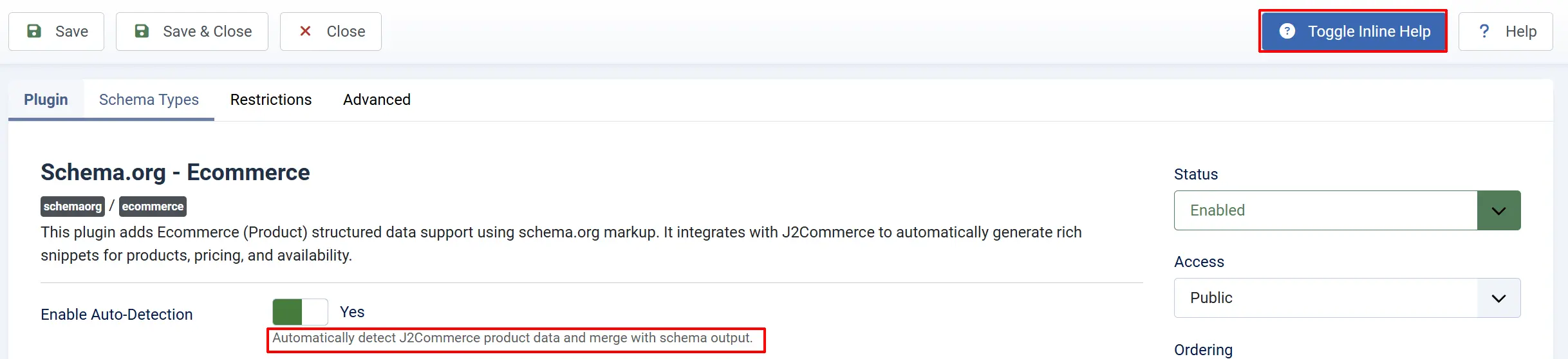
Click on the Schema.org - Ecommerce title
Helpful tip: If you click on the Toggle Inline Help icon, it will explain each section
Basic Settings tab
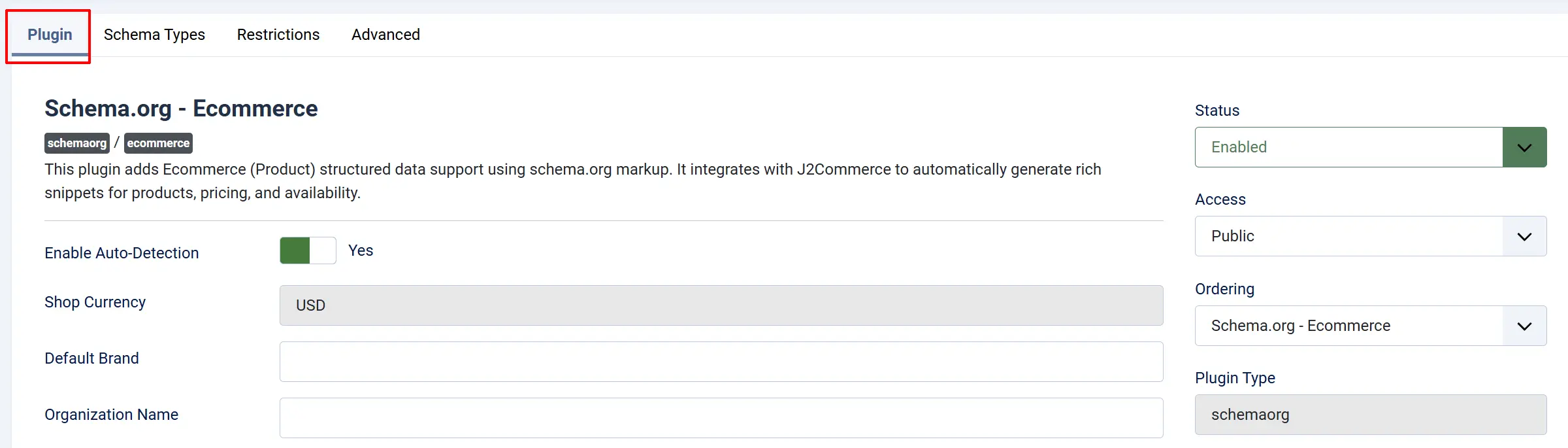
Enable Auto-Detection: Automatically detect J2Commerce product data (name, price, stock, images) and include it in the schema output.
Shop Currency: Read-only field showing your J2Commerce store currency (e.g., USD, EUR). This is pulled from your J2Commerce configuration.
Default Brand: A fallback brand name used when no manufacturer is assigned to a product.
Organization Name: Your business name, used as the seller in the Offer schema.
Schema Types tab
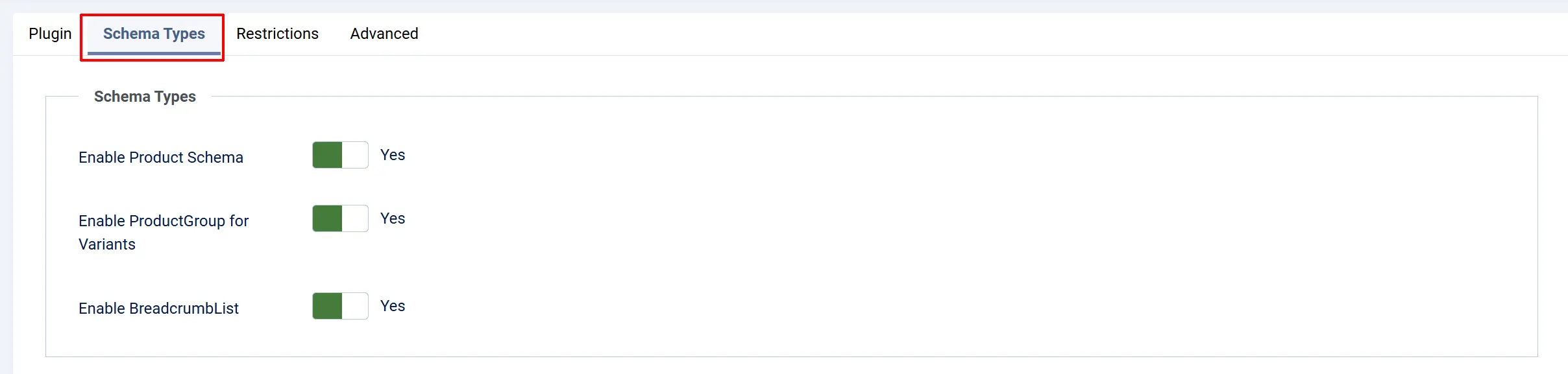
Control which types of structured data the plugin generates.
Enable Product Schema: Generate schema.org/Product markup for individual product pages.
Enable ProductGroup for Variants: Use ProductGroup schema for products with multiple variants (sizes, colors). Each variant gets its own Product entry nested under the group.
Enable BreadcrumbList: Generate BreadcrumbList schema based on the product's category hierarchy. This creates breadcrumb navigation in search results.
Restrictions tab
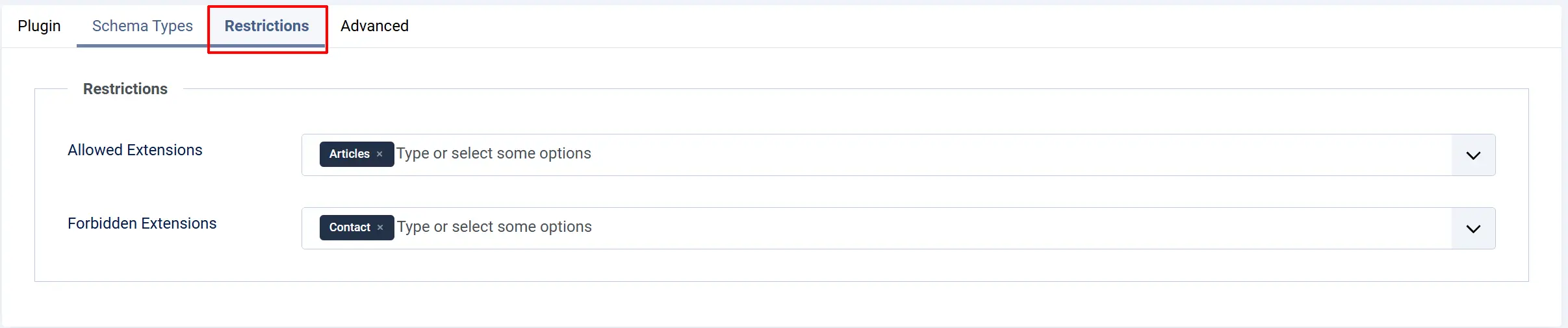
Limit which pages receive structured data markup.
Allowed Sections: Only generate schema for these specific sections. Leave empty to allow all.
Forbidden Sections: Never generate a schema for these sections.
Advanced tab

Debug Mode: Outputs the generated schema as an HTML comment in the page source for troubleshooting. Do not enable in production.
How Auto-Detection Works
When a visitor loads a product page, the plugin:
- Identifies the current page as a J2Commerce product (either via the article link or the product view).
- Reads the product data from J2Commerce — name, description, SKU, GTIN, price, stock quantity, images, manufacturer, and variants.
- Builds the appropriate schema type (
Productfor simple products,ProductGroupfor variable products). - Adds Offer data with pricing, currency, and availability status.
- Includes breadcrumb data from the category hierarchy.
- Injects the structured data as JSON-LD into the page's
<head>section.
All of this happens automatically. You do not need to edit each product unless you want to override specific values.
Overriding Schema Data Per Article
Note: This is ONLY used if you want to override the existing product schema
For advanced control, you can override the auto-detected values on a per-article basis.
Step 1: Go to Content -> Articles and open the article linked to your J2Commerce product.
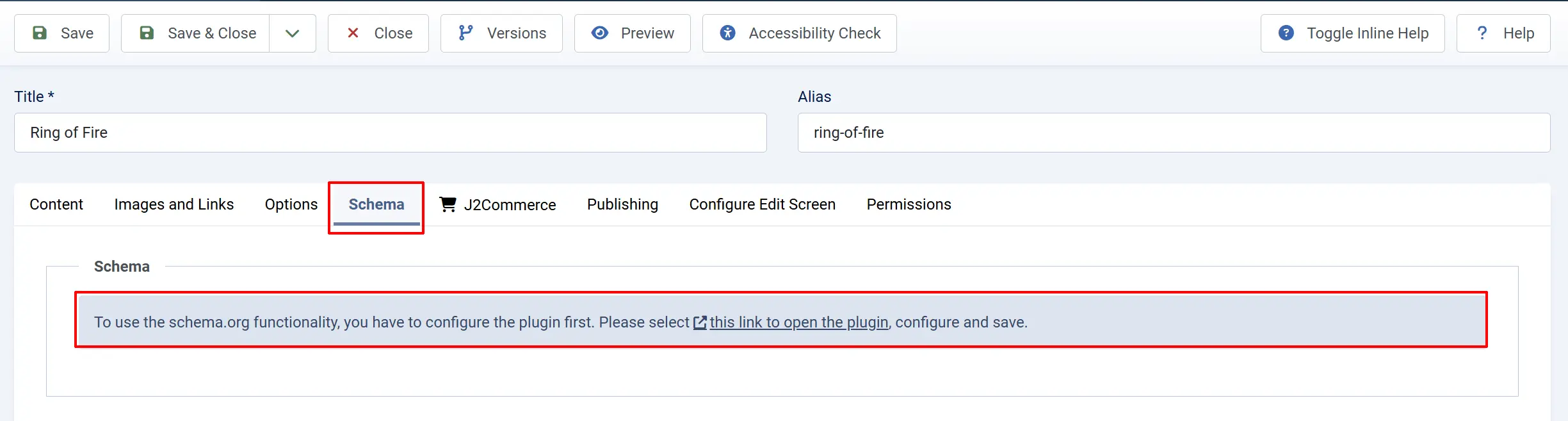
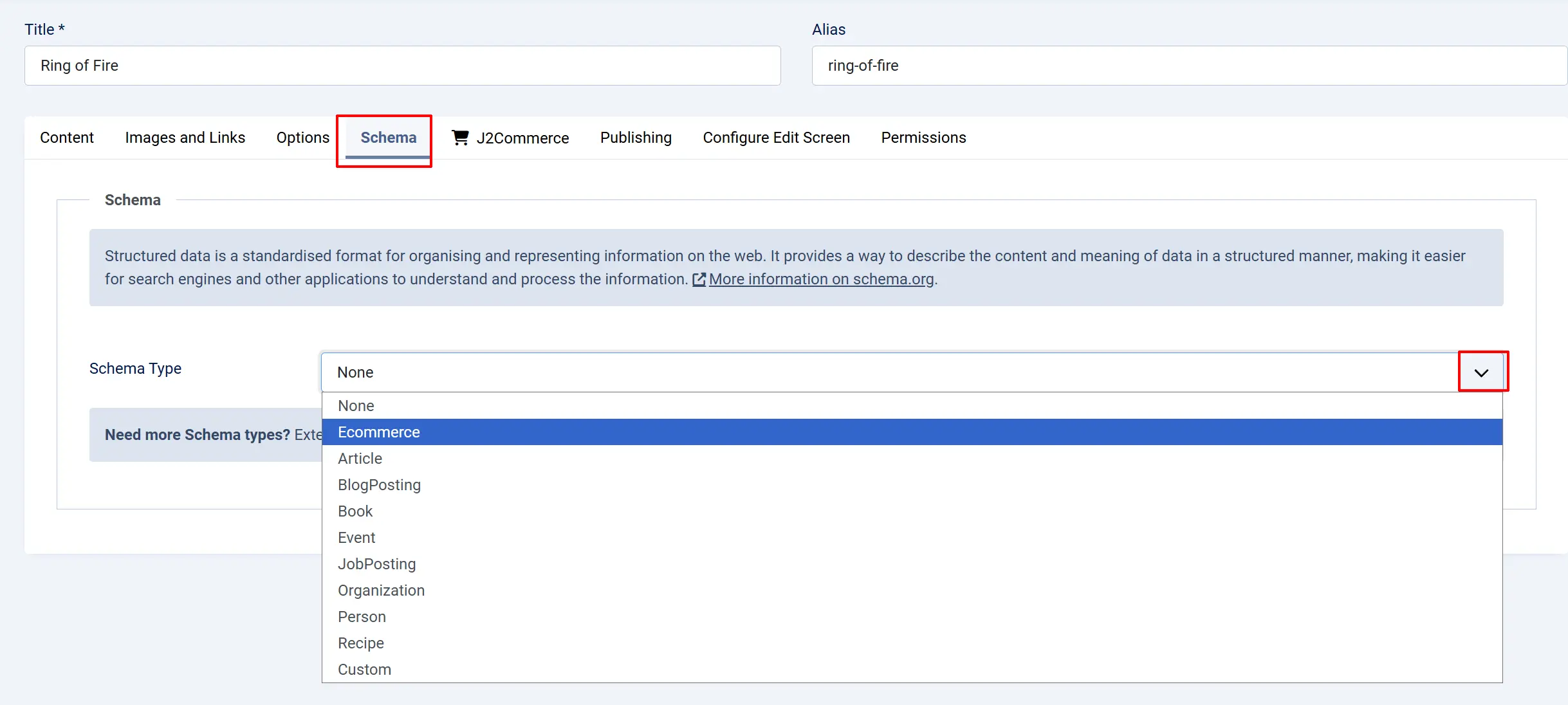
Step 2: Click the Schema tab in the article editor. The link (this link to open the plugin) will only appear the first time you want to set it up. Once you click in the link and tell Google if the website is an organization or a personal website, that information will link to any other product you want to override
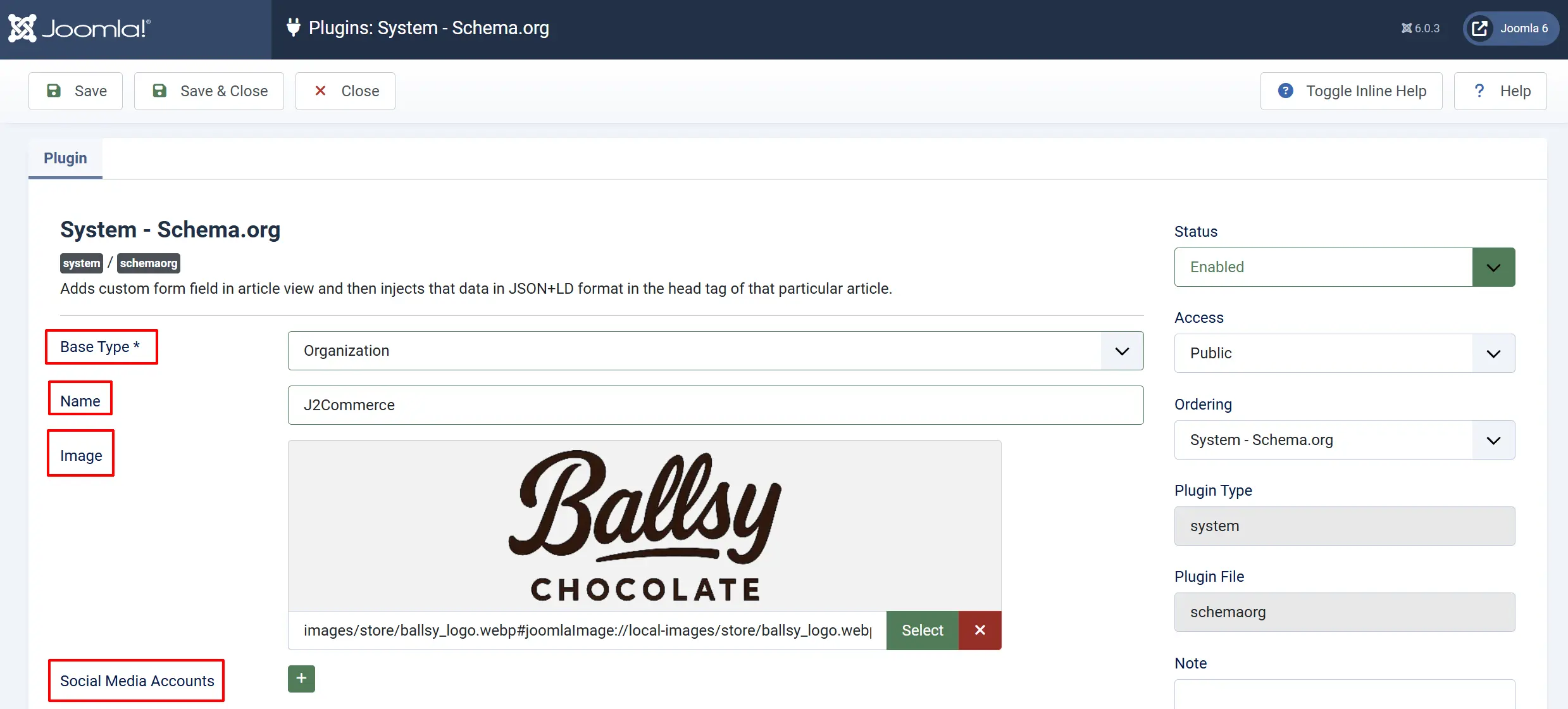
Click on the link, this link to open the plugin, and fill out the information for Google, ie; Company Name, logo, social media
Step 3: Go back to the product, select the schema tab and now select Ecommerce from the Schema Type dropdown. Once you select E-commerce, your product information will appear and you can now customise the override information.
The schema editor has three sections:
Existing Product Data Tab
This read-only preview shows what the plugin has auto-detected from J2Commerce:
- Product Name
- SKU
- GTIN/UPC
- Price and currency
- Availability status
- Stock quantity
- Brand/Manufacturer
- Product type and variant count
- Description preview
Review this tab to confirm the plugin is reading your product data correctly.
Schema Overrides Tab
Override any auto-detected value by entering a new value. Leave fields empty to keep the auto-detected value.
Product Name: Override the product name in schema output.
Product Description: Override the product description.
Product Image: Override the main product image.
SKU: Override the Stock Keeping Unit.
GTIN/EAN/UPC: Override the Global Trade Item Number.
MPN: Override the Manufacturer Part Number.
Brand Name: Override the brand/manufacturer name.
Price: Override the offer price (numeric value without currency symbol).
Availability: Override the availability status: In Stock, Out of Stock, Pre-Order, Back Order, or Discontinued.
Price Valid Until: Set an expiration date for the listed price.
Offer URL: Override the URL where the product can be purchased.
Seller Name: Override the seller/organization name.
Additional Images: Add extra product images beyond the main image.
Custom Properties: Add any custom schema.org property not covered above.
Variant Overrides Tab
For products with multiple variants (sizes, colors, materials), you can override schema data for each variant individually.
- Click Add to create a variant override row.
- Enter the Variant SKU — this must exactly match the SKU in J2Commerce.
- Fill in any overrides for that variant:
Variant Name: Custom name (e.g., "Blue T-Shirt - Large")
Variant GTIN: GTIN specific to this variant
Variant MPN: MPN specific to this variant
Variant Image: Image specific to this variant
Color: Color value (e.g., "Blue")
Size: Size value (e.g., "XL")
Material: Material type (e.g., "Cotton")
Price Override: Override the variant's price
Availability Override: Override the variant's stock status
Schema Types Generated
The plugin generates different schema types depending on the product:
| Product Type | Schema Output | When Used |
|---|---|---|
| Simple product | Product with Offer | Products with one variant or no variants |
| Variable product | ProductGroup with nested Product entries | Products with 2+ variants (sizes, colors, etc.) |
| Category page | ItemList with ListItem entries | Product listing/category pages |
| All product pages | BreadcrumbList | When breadcrumb schema is enabled |
| Store-level | Organization | Seller information in Offer schema |
Tips
- Fill in GTINs and MPNs. Google strongly recommends product identifiers for rich snippets. Add GTIN (UPC/EAN) and MPN values to your J2Commerce products for the best search results.
- Assign manufacturers. Set a manufacturer for each product in J2Commerce so the Brand property is populated automatically. Otherwise, the Default Brand from the plugin settings is used.
- Use the preview tab. Before saving, check the Existing Product Data tab to confirm the plugin is reading your product correctly. If something looks wrong, check your J2Commerce product configuration.
- Test with Google's Rich Results Test. After enabling the plugin, paste a product page URL into Google's Rich Results Test to verify your structured data is valid and eligible for rich snippets.
- Keep Debug Mode off in production. Debug Mode outputs schema data as HTML comments, which adds unnecessary content to your pages for real visitors.
Troubleshooting
No structured data appears on the page
Cause: The plugin is disabled, auto-detection is turned off, or the page is not a recognized product page.
Solution:
- Go to System -> Manage -> Plugins and confirm Schema.org - Ecommerce is enabled.
- Open the plugin settings and verify Enable Auto-Detection is set to Yes.
- Verify the page is a Joomla article linked to a J2Commerce product, or a J2Commerce product view.
- Check the Restrictions tab — make sure the page's section is not in the Forbidden Sections list.
"J2Commerce is not installed or not configured" message
Cause: J2Commerce is not installed, not enabled, or has not been configured yet.
Solution:
- Verify J2Commerce is installed and enabled by checking Components -> J2Commerce.
- Complete the J2Commerce setup wizard if you have not done so.
- Make sure a store currency is configured in J2Commerce -> Setup -> Configuration.
Rich snippets not showing in Google
Cause: Google takes time to re-crawl pages, or the structured data may have validation errors.
Solution:
- Use Google's Rich Results Test to validate your structured data.
- Fix any errors or warnings reported by the tool.
- Request re-indexing via Google Search Console for specific pages.
- Allow several days for Google to process the updated markup — rich snippets are not instant.
Preview shows "No J2Commerce product is linked to this article"
Cause: The article is not connected to a J2Commerce product.
Solution:
- Open the article in the editor.
- Click the J2Commerce tab.
- Create or link a product to this article.
- Save the article and return to the Schema tab — the preview should now show product data.
Variant data is not appearing in schema
Cause: The product has only one variant (the master variant), so it is treated as a simple product rather than a ProductGroup.
Solution:
Products need 2 or more variants to trigger ProductGroup schema. If your product has only one variant, it will use standard Product schema. This is correct behavior — ProductGroup is only meaningful when there are multiple options (e.g., Small, Medium, Large).