Payment Method Discount
The Payment Method Discount app lets you reward customers for choosing a preferred payment method. When a customer selects an eligible payment method at checkout, the app automatically deducts a discount from their order total — no coupon code required.
Common use cases include:
- Cash on Delivery incentive — take 5% off orders paid by cash to encourage local pickups
- Bank Transfer bonus — offer a flat discount to customers who pay by bank transfer, reducing card processing fees
- PayPal fee offset — absorb part of the PayPal transaction fee by applying a small percentage discount to bank transfer orders instead
- VIP-only perks — restrict a discount to customers in a specific Joomla access level, such as a "VIP" or "Wholesale" group
The discount appears as a separate Payment Discount line in the cart totals — just above the grand total — so customers can clearly see the saving they are getting.
Requirements
- PHP 8.3+
- Joomla! 6.x
- J2Commerce 6.0.0 or later
- At least one payment plugin published in J2Commerce
Purchase and Download
The Payment Method Discount app is a separate add-on available from the J2Commerce Extensions Store. It is not included with the core J2Commerce 6 component.
- Go to www.j2commerce.com and navigate to Apps.
- Locate Payment Method Discount, click View Details, add it to your cart, and complete the checkout.
- Go to My Downloads under your profile menu, find the app, and click Available Versions -> View Files -> Download to save the ZIP file.
Install the Plugin
- In the Joomla admin panel, go to System -> Install -> Extensions.
- Upload the
app_paymentdiscount.zipfile using the Upload Package File tab. - The app installs and enables automatically — you do not need to manually enable it after installation.
 (1)-a6689f12b23b8e992f5c2a169737672f.webp)
Open the Plugin
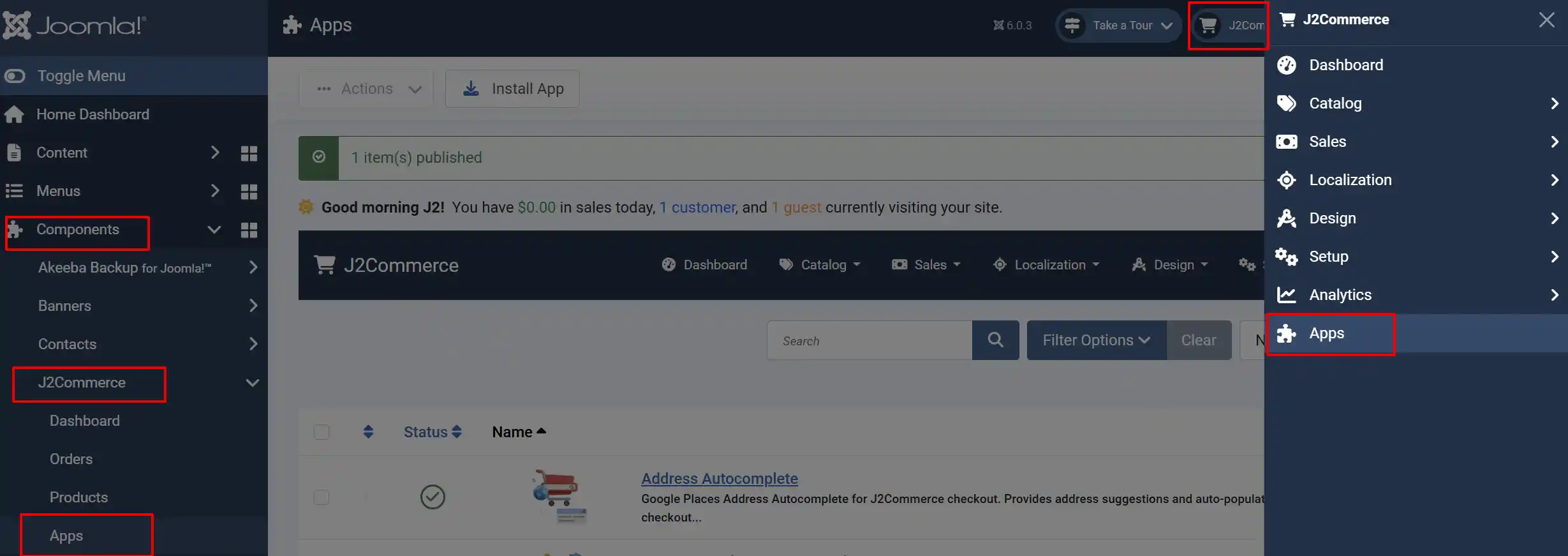
Once you have installed the App, it will automatically enable itself. You can now configure it by going to either:
Option A: Go to the J2Commerce icon at the top right corner -> Apps
Option B: Go to Components on the left sidebar -> J2Commerce -> Apps
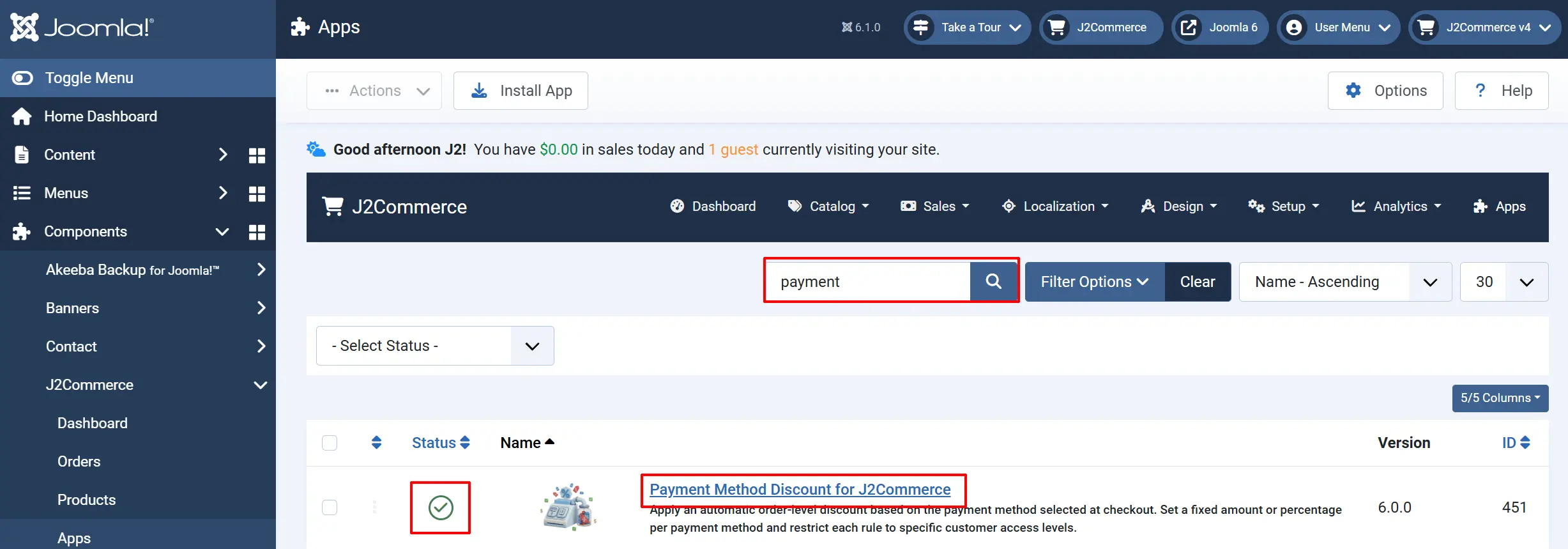
Search for Payment Method Discount, make sure there is a green checkmark and not a X, click on the title to open it.
Configure the Plugin
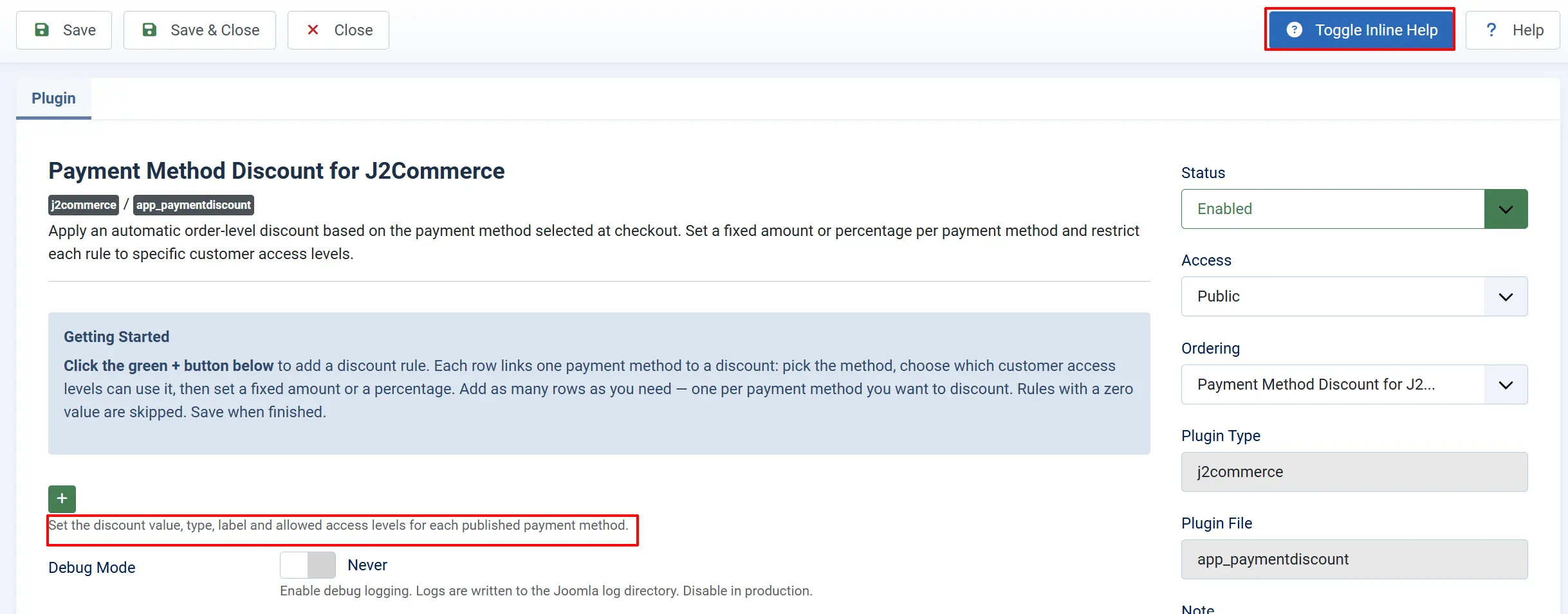
Tip: Click on the Toggle Inline Help button on any app/plugin you install and it will show a description below each section. See image below
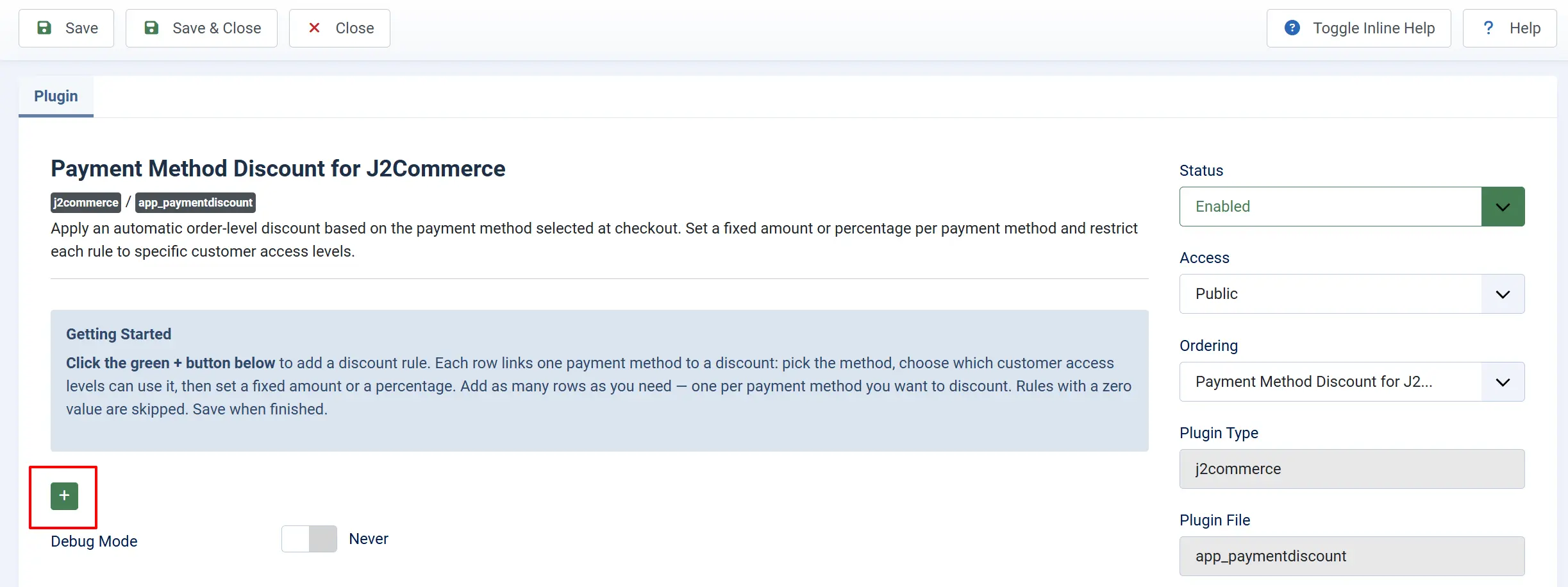
Click the green + button below to add a discount rule. Each row links one payment method to a discount: pick the method, choose which customer access levels can use it, then set a fixed amount or a percentage. Add as many rows as you need — one per payment method you want to discount. Rules with a zero value are skipped. Save when finished.
Configure Discounts Per Payment Method
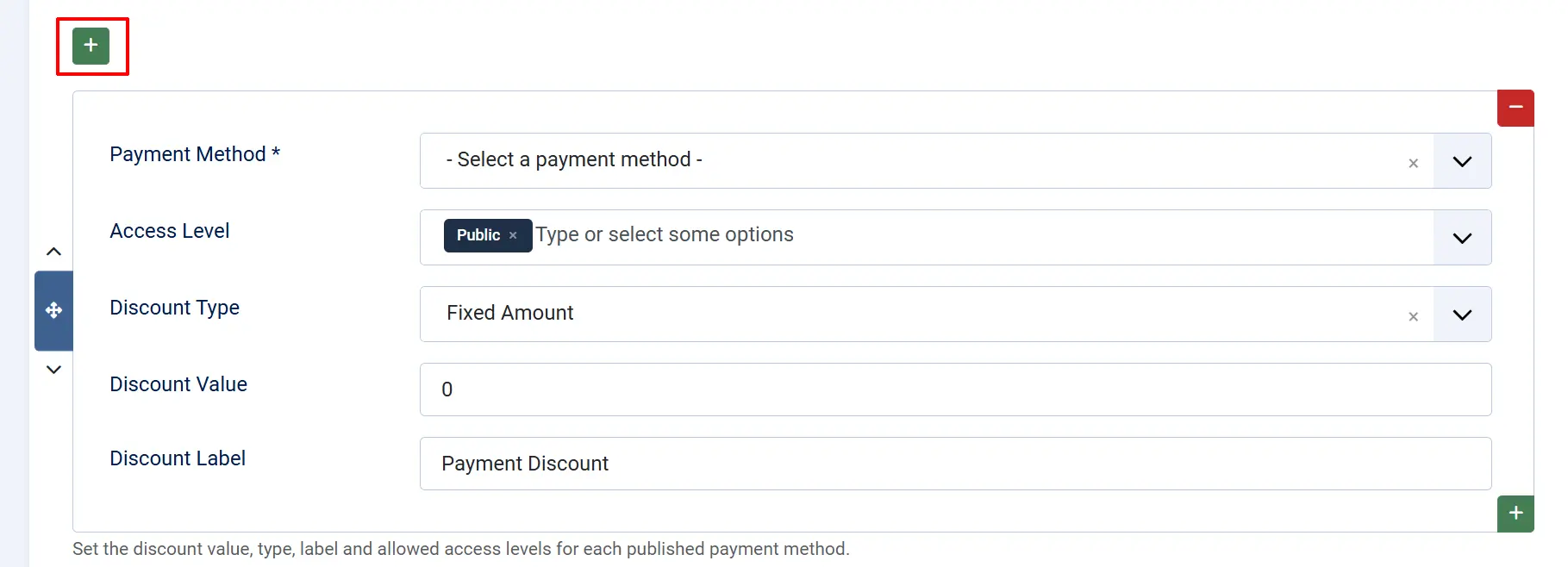
The Payment Method Discounts table lists every enabled J2Commerce payment plugin on your site. Each row represents one payment method and has five columns:
Payment Method: The name of the payment plugin. Read-only — determined by your installed payment plugins.
Access Level: One or more Joomla view levels. The discount only applies when the customer belongs to at least one selected level.
Discount Value: The numeric amount of the discount. Enter 0 or leave blank to disable the discount for that method.
Discount Type:
-
Fixed Amount deducts a specific currency amount.
-
Percentage deducts a percentage of the Percentage Base.
Discount Label: The text shown next to the discount line in the cart totals. Defaults to Payment Discount.
Percentage Base
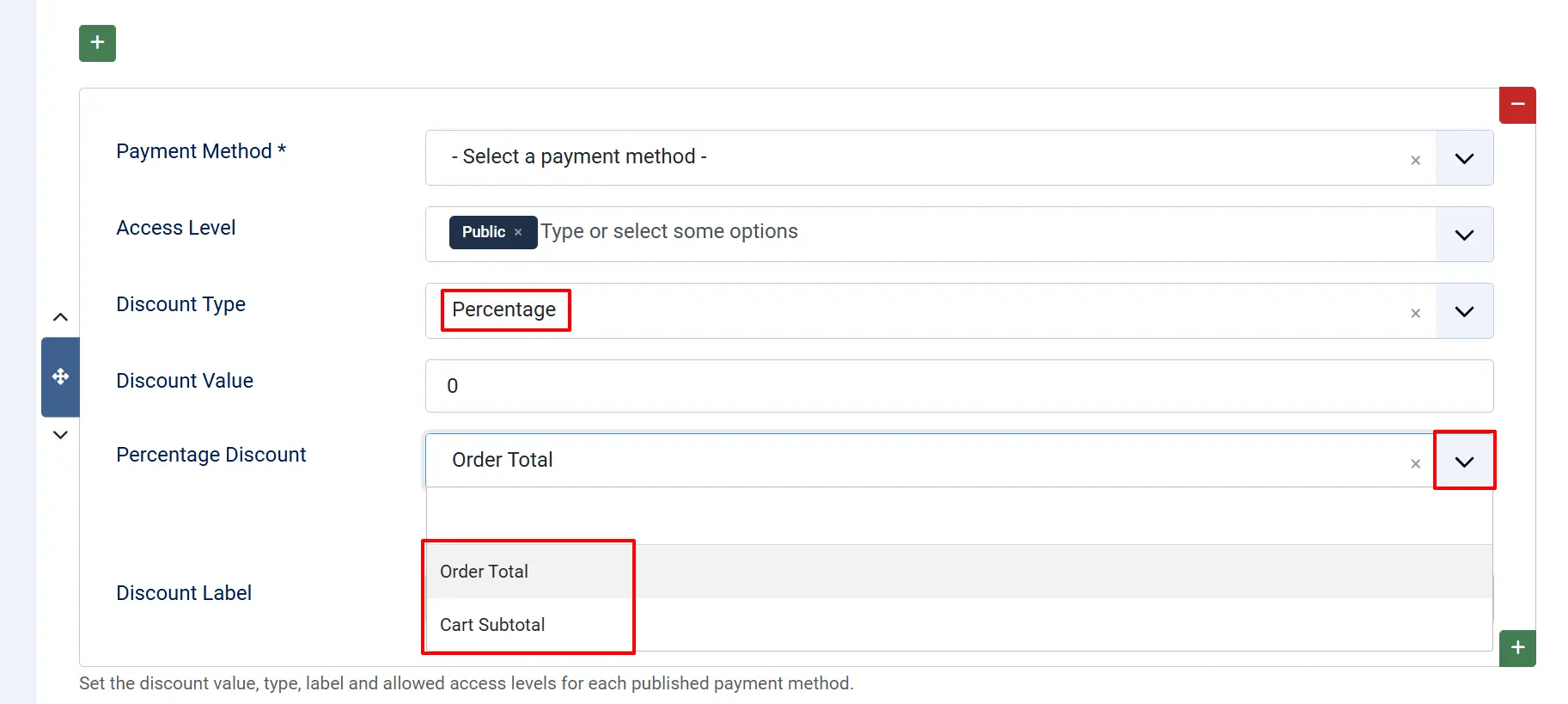
The Percentage Base setting controls what the discount percentage is calculated against when you choose the Percentage discount type for a payment method.
Order Total: Percentage is applied to the full order total, including shipping costs and taxes.
Cart Subtotal: The percentage applies only to the product subtotal, before shipping and taxes are added.
This is a global setting that applies to all payment methods configured below.
To disable a method: Set Discount Value to 0 or leave it empty. The rule is skipped entirely.
To restrict to specific customers: Select one or more Access Levels. See Understanding Access Levels below for guidance. If no access level is selected, the rule never applies.
Step 3: Save
Click Save or Save & Close in the toolbar when you are done.
Understanding Access Levels
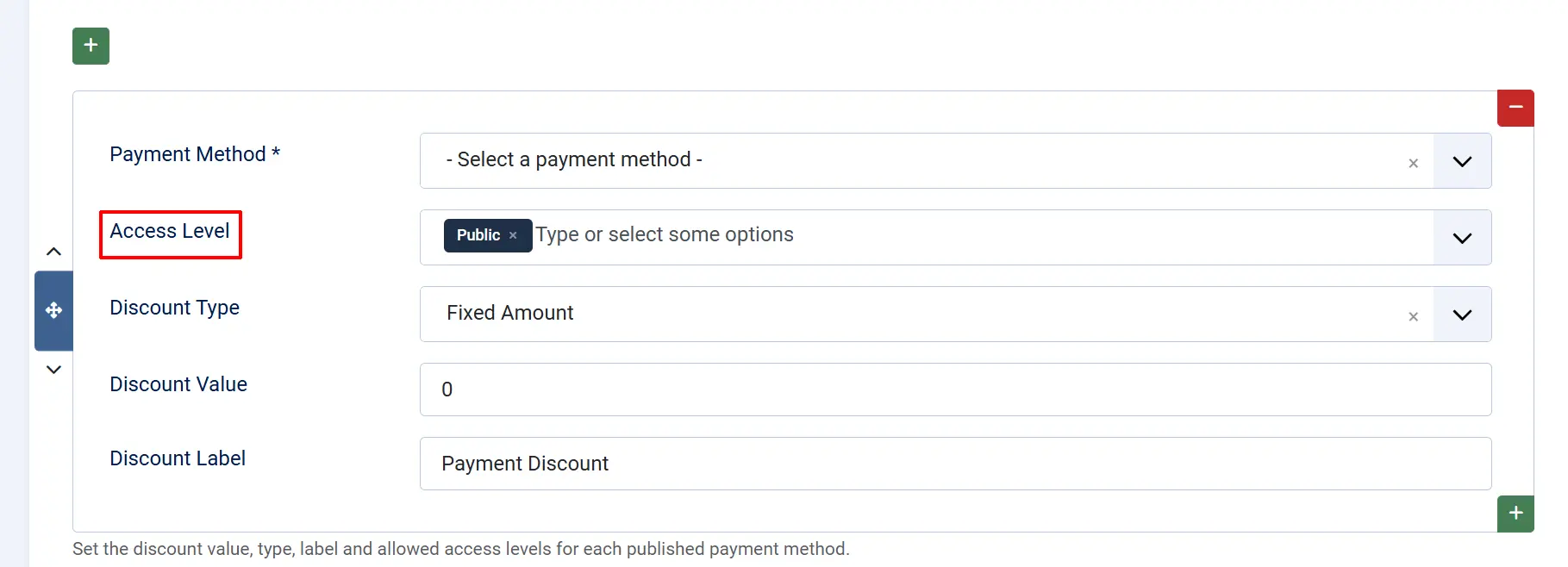
J2Commerce uses Joomla's built-in view levels to control who sees what. Each view level groups one or more user groups. For example, the default Joomla site has:
- Public — all visitors, including guests
- Registered — logged-in users
- Special — editors, publishers, and administrators
When you select an access level in the Payment Method Discount table, the discount is granted only when the customer's account belongs to at least one of the selected levels.
Example: If you set the Bank Transfer discount to the Registered level, a guest checking out will not receive the discount, but a logged-in customer will.
You can create custom access levels (such as "Wholesale" or "VIP") under System -> Manage -> Access Levels. After creating them, they appear automatically in the Access Level dropdown inside the plugin.
For a full explanation of how Joomla view levels work, see the Joomla documentation on Access Control.
How the Discount Appears at Checkout
When a customer selects an eligible payment method and meets the access level requirement, the discount is calculated and displayed as a separate line in the order totals — positioned just above the grand total.
The line label is whatever you entered in the Discount Label column for that payment method (default: "Payment Discount"). The amount is shown as a negative value, for example:
Subtotal          $80.00
Shipping           $5.00
Tax                $7.00
Payment Discount  -$4.00
Grand Total       $88.00
The discount is also recorded in the order record and visible to admins in J2Commerce -> Sales -> Orders.
Configuration Reference
Percentage Base: Basis for percentage-type discounts: Order Total (incl. shipping and tax) or Cart Subtotal (products only).
Payment Method (table column): Read-only label from the payment plugin. Populated automatically from enabled payment plugins.
Access Level (table column): Joomla view level(s) required for the discount to apply. Must select at least one level.
Discount Value (table column): Numeric discount amount. Set to 0 or leave empty to disable.
Discount Type (table column): Fixed Amount (currency) or Percentage.
Discount Label (table column): Text shown in the cart totals row for this discount.
Debug Mode: Write detailed discount calculation logs to the Joomla log directory. Disable in production.
Debug Mode
Enable Debug Mode to log detailed information about every discount calculation. Log entries are written to:
administrator/logs/app_paymentdiscount.php
The log records which payment method was detected, whether the customer passed the access level check, the calculated discount amount, and the discount type used. This is useful for troubleshooting why a discount is or is not being applied.
Disable Debug Mode on production sites — it adds log writes on every checkout page load.
What's New in J2Commerce
If you previously used this app with J2Store, here is what changed in the J2Commerce version:
- Auto-enabled on install — the plugin enables itself automatically after installation. No manual toggle needed.
- Debug logging — a dedicated debug toggle writes detailed logs to the Joomla log directory. The J2Store version had no logging.
- Access Level fix — the J2Store version stored user group IDs but compared them against view level IDs, which caused the access check to fail silently. J2Commerce now stores and compares view level IDs correctly. After migrating, re-select the correct access levels for each payment method.
- Cleaner configuration UI — the plugin uses the native Joomla plugin manager instead of a custom J2Store Apps tab.
- Payment method element names changed — J2Commerce payment plugins use the
payment_prefix (e.g.payment_paypal). If you are migrating an existing configuration, reconfigure each row after installation.
Troubleshooting
The Payment Method Discounts table shows "No published payment plugins were found"
Cause: There are no J2Commerce payment plugins enabled on your site.
Solution:
- Go to System -> Manage -> Plugins.
- Search for plugins with the type "j2commerce" and an element starting with "payment_".
- Enable at least one payment plugin.
- Return to the Payment Method Discount plugin — the table will now list the enabled methods.
The discount does not appear at checkout
Cause: One or more conditions are not met. Work through this checklist:
- Access Level — Confirm the customer's user account is in a group that belongs to at least one of the selected access levels. Guests have only the "Public" level.
- Discount Value — Confirm the value is greater than
0for the selected payment method. - Payment method selected — The discount is calculated when the payment method is chosen. Confirm the customer is actively choosing the correct method at the payment step.
- Enable Debug Mode and re-attempt checkout. Check
administrator/logs/app_paymentdiscount.phpfor a log entry explaining why the rule was skipped.
The discount amount is wrong
Cause: The Percentage Base setting may not be set as expected.
Solution: Go to the plugin settings and check the Percentage Base field.
- If you want the percentage applied to the full order amount (including shipping and tax), select Order Total.
- If you want the percentage applied only to the product total before shipping and tax, select Cart Subtotal.
The access level dropdown shows "Public" and "Registered" but not my custom level
Cause: The custom view level may not have been created yet, or the plugin settings page needs to be refreshed.
Solution:
- Create the view level at System -> Manage -> Access Levels.
- Return to the Payment Method Discount plugin settings — the new level will appear in the Access Level multi-select.