Tax Rates
Tax rates define the actual percentage of tax to apply based on a customer's location (geozone) and the product's tax profile. Each tax rate links a tax profile, a geozone, and a percentage. When a customer checks out, J2Commerce calculates tax by finding the matching tax rate for the product's tax profile and the customer's geozone.
IMPORTANT: You must create a Geozone before setting up the Tax Rate. If you need help, go to the Geozone Documentation
Requirements
- PHP 8.3.0+
- Joomla 6.x
- J2Commerce 6.x
Locating Tax Rates
Tax Rates are managed from the J2Commerce Dashboard.
There are two ways you can access the Tax Rates.
Option A: Go to the J2Commerce icon at the top right corner -> Localization -> Tax Rates
Option B: Go to Components on the left sidebar -> J2Commerce -> Dashboard -> Localization -> Tax Rates
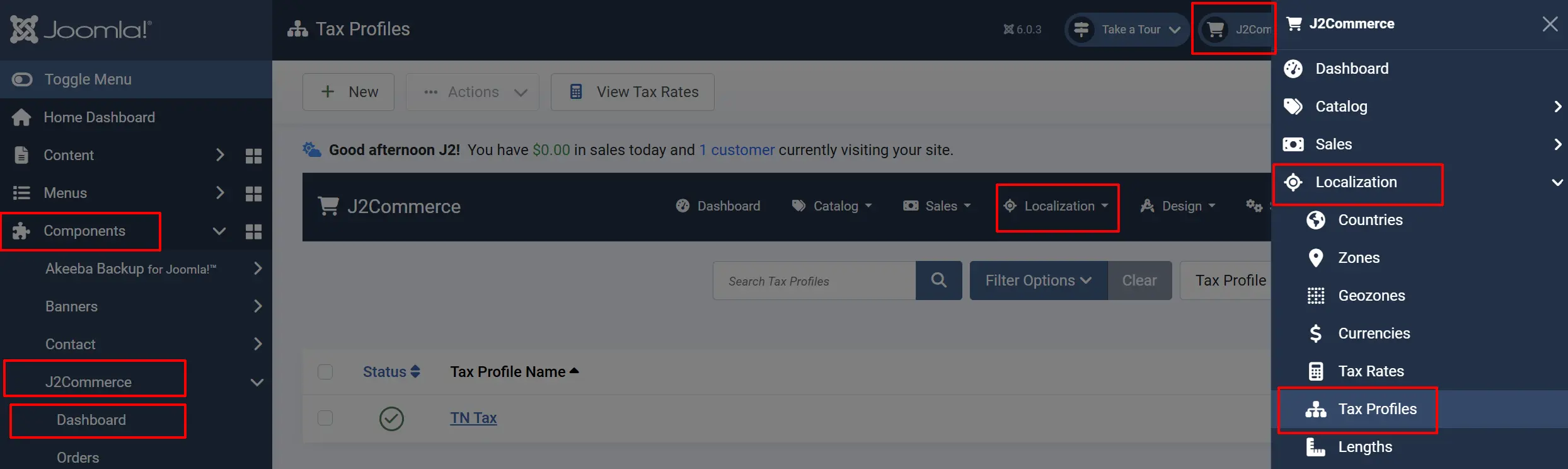
Tax Rate List
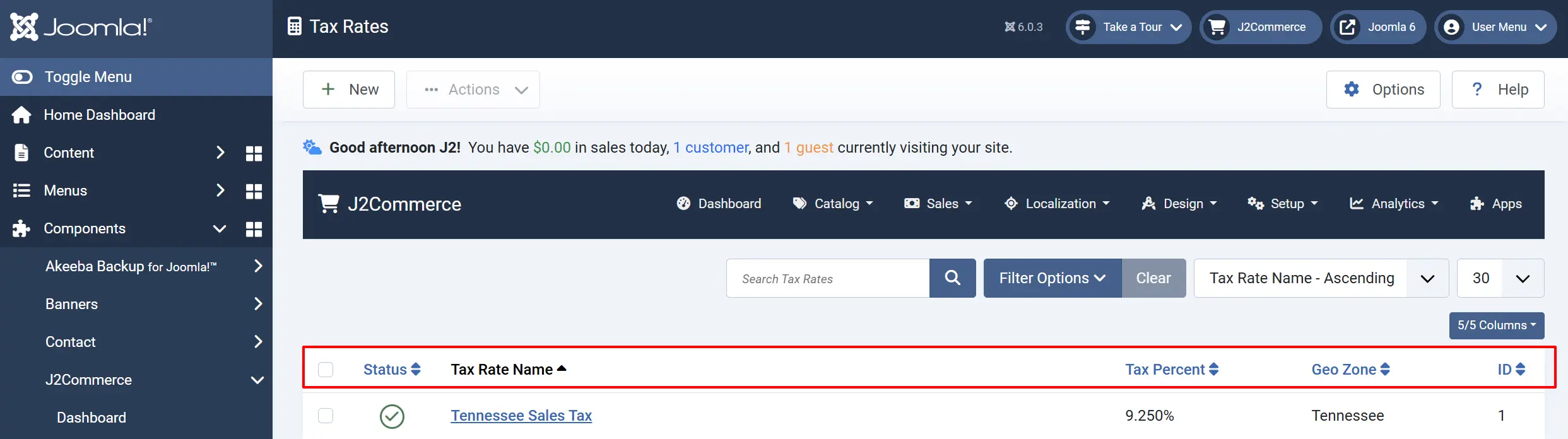
The Tax Rates list displays all tax rates configured in your store. Each rate shows:
Checkbox: Select rates to activate the batch actions button.
Status: Set to Published to make the rate active.
Tax Rate Name: A descriptive name for this tax rate. Example: UK Standard VAT 20%
Tax Rate %: The tax rate as a percentage. Supports decimal precision. Example: 20.000
Geozone: The geographic zone where this tax rate applies. Example: United Kingdom
ID: The individual ID number
Tax Profile: The tax profile this rate belongs to.
Adding a New Tax Rate
-
Click the New button in the toolbar.
-
Fill in the tax rate details (see Configuration below).
-
Click Save or Save & Close.
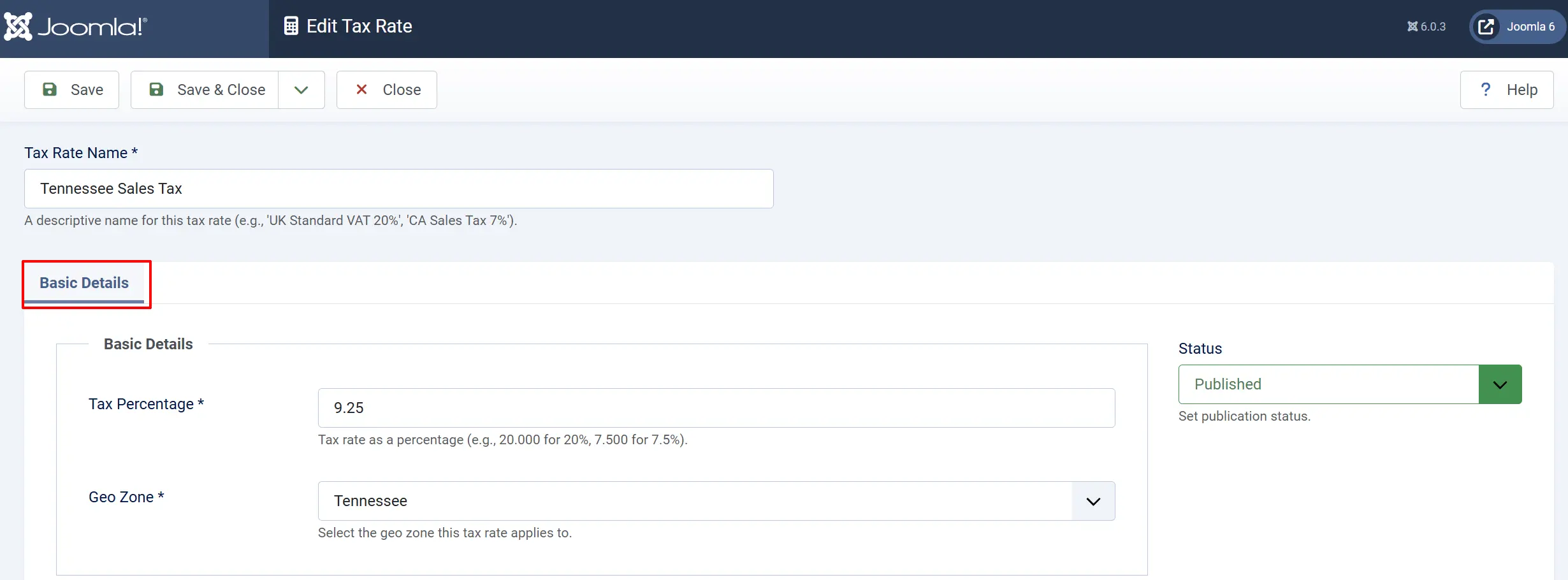
Tax Percentage Precision
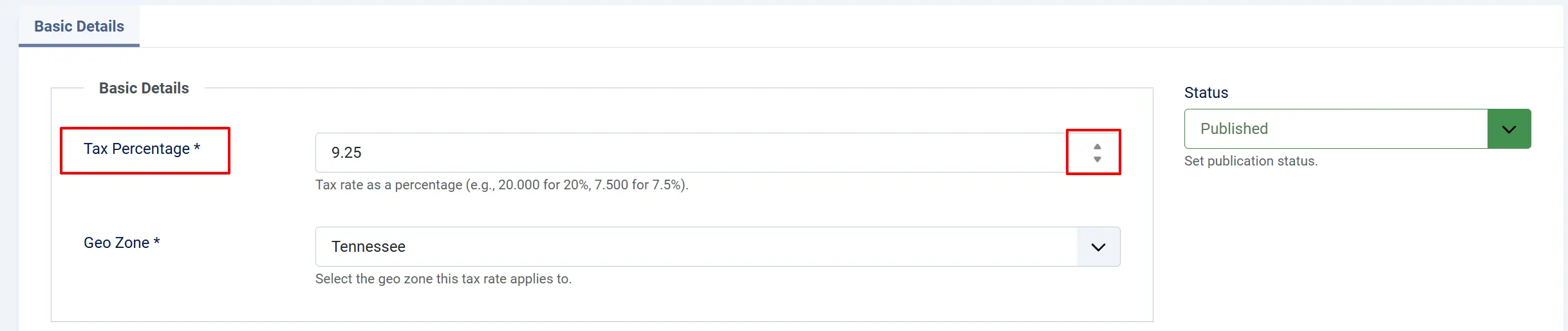
The tax percentage field supports up to 3 decimal places for precision:
- Standard rate:
20.000(20%) - Fractional rate:
7.500(7.5%) - Precise rate:
8.375(8.375%)
This precision is useful for regions with specific tax rates that aren't whole numbers.
How Tax Rates Are Used
Tax rates connect three elements together:
When a customer places an order:
- J2Commerce identifies the customer's shipping/billing address country and zone.
- The address is matched to geozones to find applicable tax geozones.
- For each product in the cart, J2Commerce finds the product's tax profile.
- The matching tax rate is found for the tax profile + geozone combination.
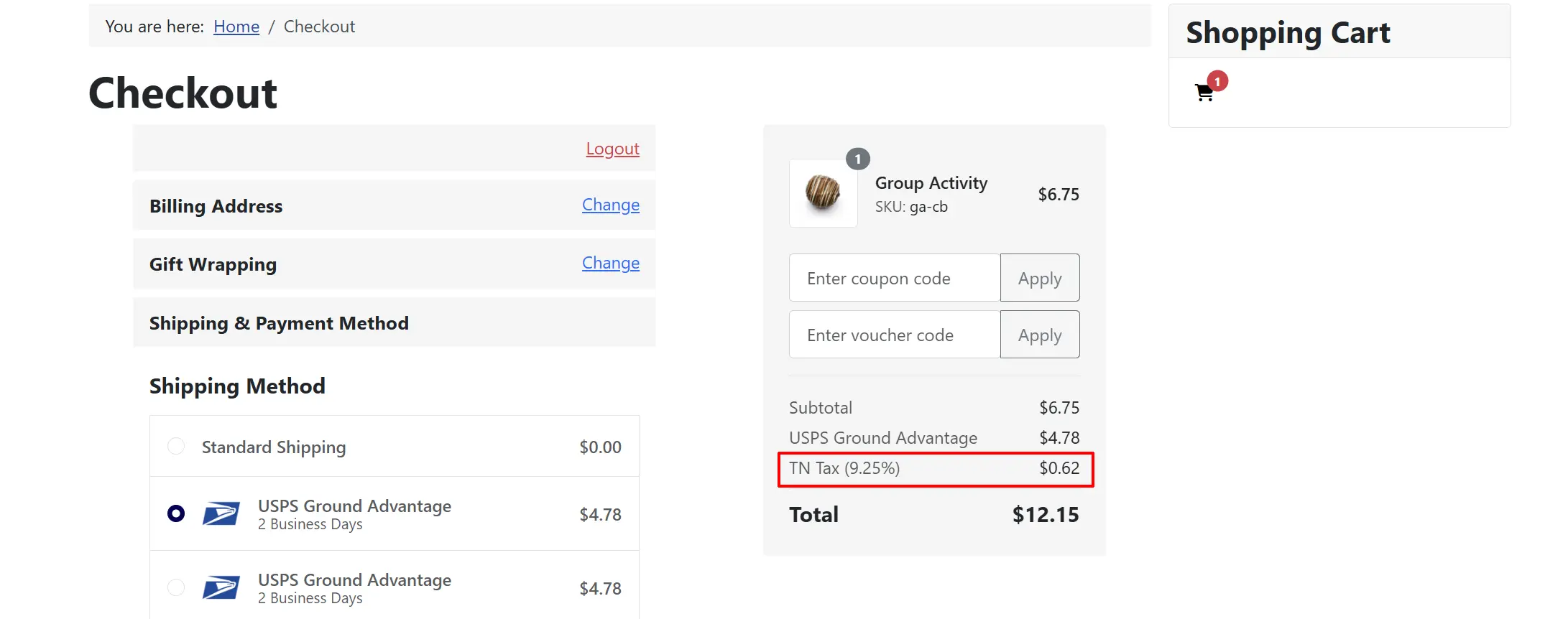
- Tax is calculated as
product_price × tax_rate / 100.
Frontend View
Tax Rate Priority
When multiple tax rates could apply, J2Commerce uses priority and specificity:
- Geozone specificity — A geozone matching a specific zone takes precedence over "All Zones" for a country.
- Ordering — Lower ordering numbers are checked first.
- Tax profile — Only rates matching the product's tax profile are considered.
Tax Calculation Examples
Example 1: UK Store with EU Sales
| Tax Profile | Geozone | Rate |
|---|---|---|
| Standard VAT | United Kingdom | 20% |
| Standard VAT | EU Member States | 19% (varies by country) |
| Standard VAT | Rest of World | 0% |
| Reduced VAT | United Kingdom | 5% |
| Reduced VAT | EU Member States | 5-7% (varies) |
A UK customer buying a book (Reduced VAT profile) pays 5% tax. An EU customer buying a standard product (Standard VAT profile) pays their local VAT rate.
Example 2: US Store with Nexus States
| Tax Profile | Geozone | Rate |
|---|---|---|
| Sales Tax | California | 7.25% |
| Sales Tax | New York | 8.00% |
| Sales Tax | Texas | 6.25% |
| Sales Tax | Rest of US | 0% |
A California customer pays 7.25% sales tax on taxable items. A Florida customer (no nexus state) pays 0% tax.
Example 3: Mixed Tax Profile Store
| Tax Profile | Geozone | Rate |
|---|---|---|
| Standard VAT | United Kingdom | 20% |
| Digital Goods | United Kingdom | 0% |
| Standard VAT | EU | 19% |
| Digital Goods | EU | VAT MOSS rates |
Physical goods sold to UK: 20% VAT. Digital goods sold to UK: 0% (reverse charge). Digital services sold to EU: Customer's local VAT rate (VAT MOSS).
Creating Tax Rates for a Tax Profile
After creating a tax profile, you need tax rates for each geozone:
- Go to J2Commerce -> Localisation -> Tax Rates.
- Click New.
- Enter the rate name (e.g., "UK Standard VAT 20%").
- Enter the tax percentage (e.g.,
20). - Select the geozone (e.g., "United Kingdom").
- Select the tax profile (e.g., "Standard VAT").
- Save the rate.
- Repeat for each geozone/profile combination.
Tips
- Name rates descriptively — Include the region and rate in the name (e.g., "California Sales Tax 7.25%").
- Create rates for all regions — Ensure every geozone has a tax rate for each tax profile.
- Use 0% for tax-free — Create explicit 0% rates rather than leaving regions without rates.
- Document nexus states — For US stores, clearly document which states you have tax nexus in.
- Update for rate changes — Tax rates change frequently; set a reminder to review quarterly.
- Test checkout — After configuration, test checkout with addresses in each geozone.
Common Tax Rate Configurations
VAT-Based Systems (UK, EU)
Create a geozone for each country/region with different VAT rates:
| Geozone | Profile: Standard | Profile: Reduced |
|---|---|---|
| United Kingdom | 20% | 5% |
| Germany | 19% | 7% |
| France | 20% | 5.5% |
| Ireland | 23% | 9% |
US Sales Tax
Create a geozone for each state where you have tax nexus:
| Geozone | Profile: Taxable | Profile: Exempt |
|---|---|---|
| California | 7.25% | 0% |
| New York | 8.00% | 0% |
| Texas | 6.25% | 0% |
| Florida | 0% | 0% |
GST-Based Systems (Australia, Canada)
| Geozone | Profile: Standard |
|---|---|
| Australia | 10% |
| Canada | 5% (plus provincial) |
Troubleshooting
Tax Shows 0% When It Should Show Tax
Cause: No tax rate exists for the customer's geozone and product's tax profile.
Solution:
- Go to J2Commerce -> Localisation -> Tax Rates.
- Click New to create a rate.
- Select the appropriate Tax Profile and Geozone.
- Enter the tax percentage.
- Save and test checkout.
Wrong Tax Rate Calculated
Cause: Multiple tax rates match, or geozone rules overlap incorrectly.
Solution:
- Review your geozones for overlapping country/zone rules.
- Check tax rates for duplicate profile/geozone combinations.
- Verify the customer's address is correctly matched to a geozone.
- Check the product's assigned tax profile.
Customer Geozone Not Found
Cause: Customer's country or zone is not included in any geozone.
Solution:
- Go to J2Commerce -> Localisation -> Geozones.
- Create a "Rest of World" or catch-all geozone for countries without specific rates.
- Add countries not covered by existing geozones.
- Create a 0% tax rate for this geozone if you don't charge tax to those regions.
Tax Rate Changes Not Applying
Cause: Cache or rate not updated.
Solution:
- Clear Joomla cache: Home Dashboard -> System -> Clear Cache.
- Verify the tax rate is published (green check).
- Check that the old rate is unpublished or deleted.
- Test with a new browser session.