Address Autocomplete
The Address Autocomplete app adds Google Places-powered address suggestions to your J2Commerce checkout. As customers type their address, they see matching suggestions from Google's address database. Selecting an address automatically fills in all the address fields, including city, state/province, and postal code.
This improves the checkout experience by reducing typing effort and minimizing address entry errors that can lead to shipping problems.
Requirements
- with PHP 8.3.0 +
- Joomla! 6.x
- J2Commerce 6.x
Get a Google Maps API Key
Before configuring the plugin, you need a Google Maps Platform API key with access to the Places API (New).
- Go to the Google Cloud Console.
- Select My First Project
- Create a New Project or select an existing one.
- Navigate to APIs & Services -> Library in the left sidebar menu.
- Search for Places API and enable it.
- Follow the sign-up steps
- Go to APIs & Services -> Credentials in the left sidebar menu
- Click Create Credentials at the top -> API Key.
- Copy the generated API key.
Secure Your API Key
For production use, restrict your API key to prevent unauthorized use:
-
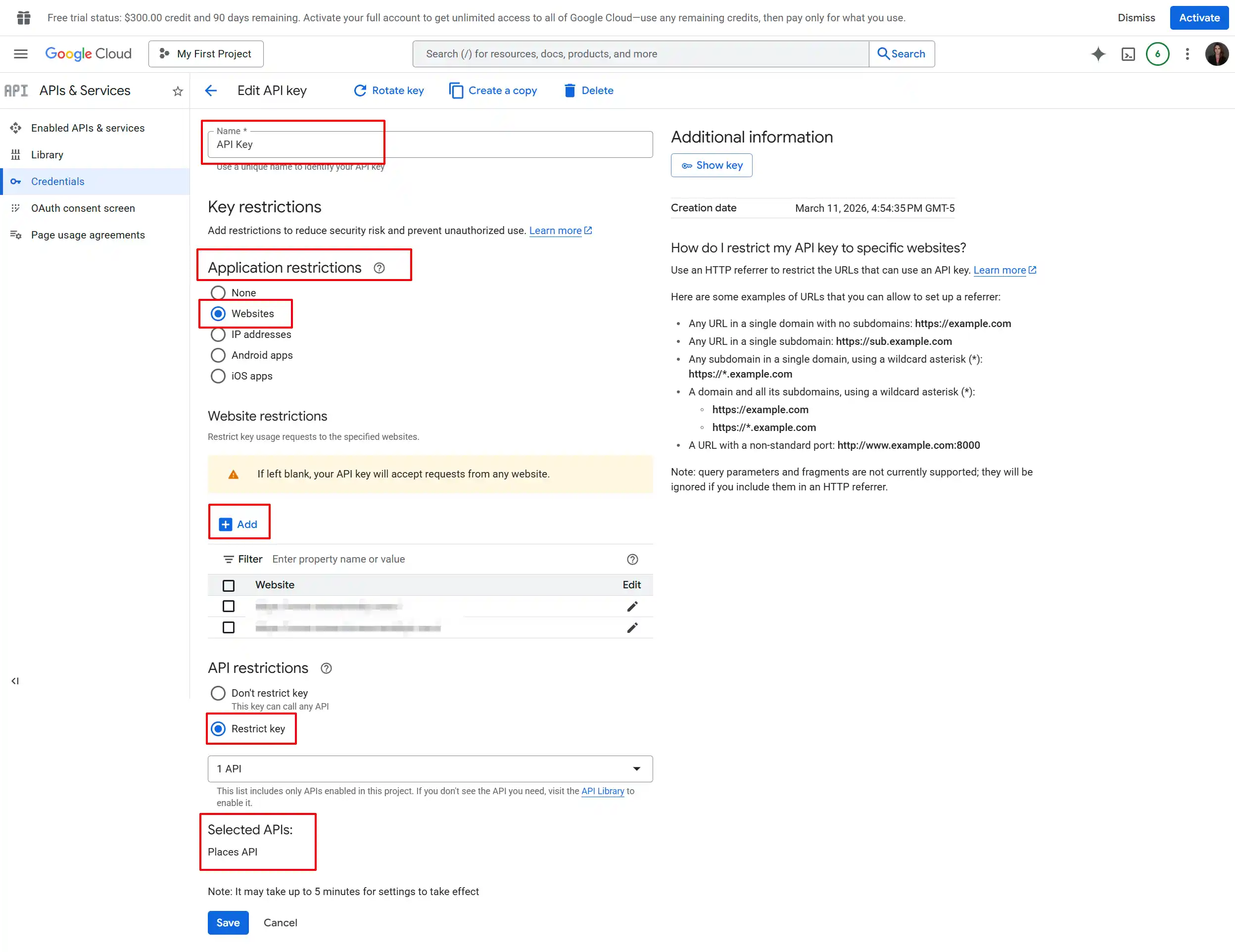
In the Credentials page, click the pencil icon next to your API key.
-
Under Application restrictions, select Website.
-
Add your domain(s) in the format:
https://yoursite.com/*https://*.yoursite.com/*
-
Under API restrictions, select Restrict key and choose Places API.
-
Click Save.
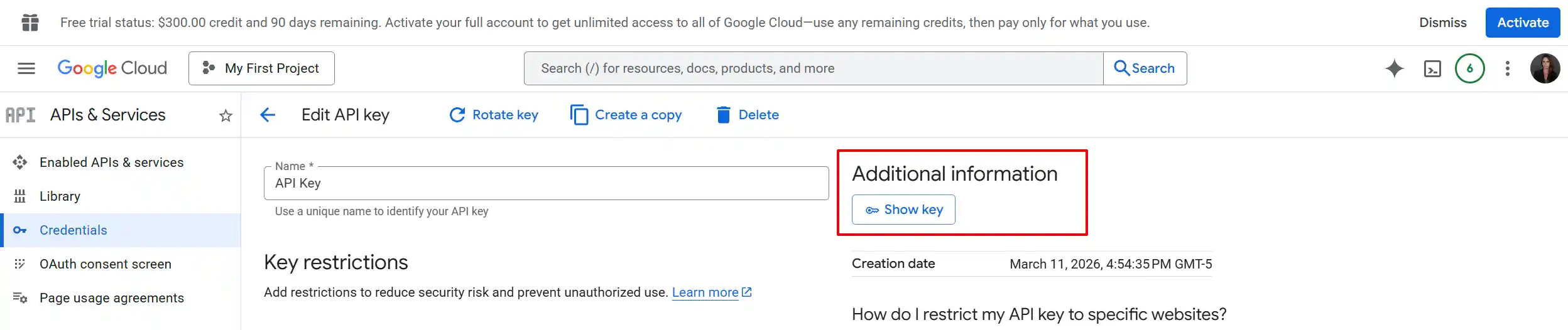
How to find your API Key again
Tip: If you need to find your API Key in the future, go back to this same page and click Show Key in the Additional Information section
Purchase and Download
Step 1: Go to our J2Commerce website -> Apps
Step 2: Locate the Address Autocomplete App -> click View Details -> Add to cart -> Checkout.
Step 3: Go to your My Downloads under your profile button at the top right corner and search for the app. Click Available Versions -> View Files -> Download
Install the App
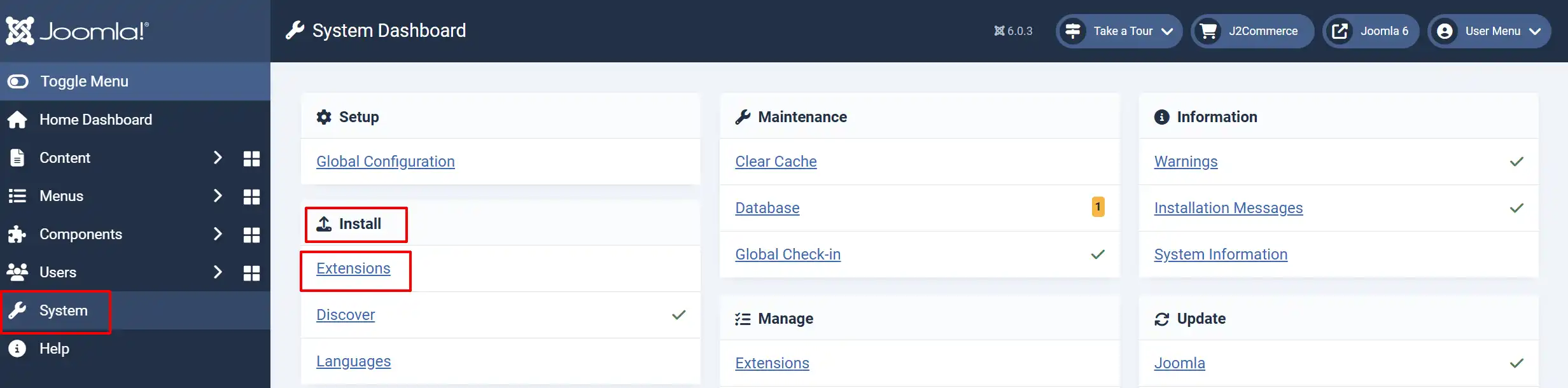
Go to System -> Install -> Extensions
Upload the plugin ZIP file or use the Install from URL option.
Enable the App
Once you have installed the App, you will need to enable it. There are two ways you can access the App.
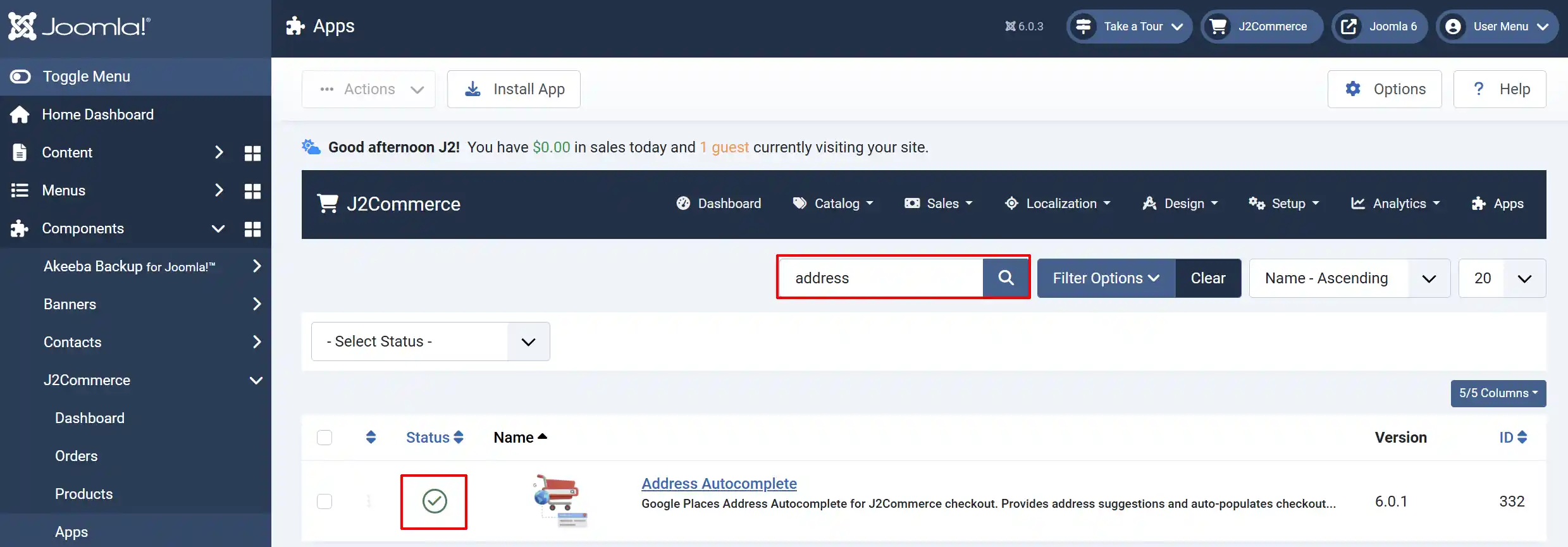
Option A: Go to the J2Commerce icon at the top right corner -> Apps
Option B: Go to Components on the left sidebar -> J2Commerce -> Apps
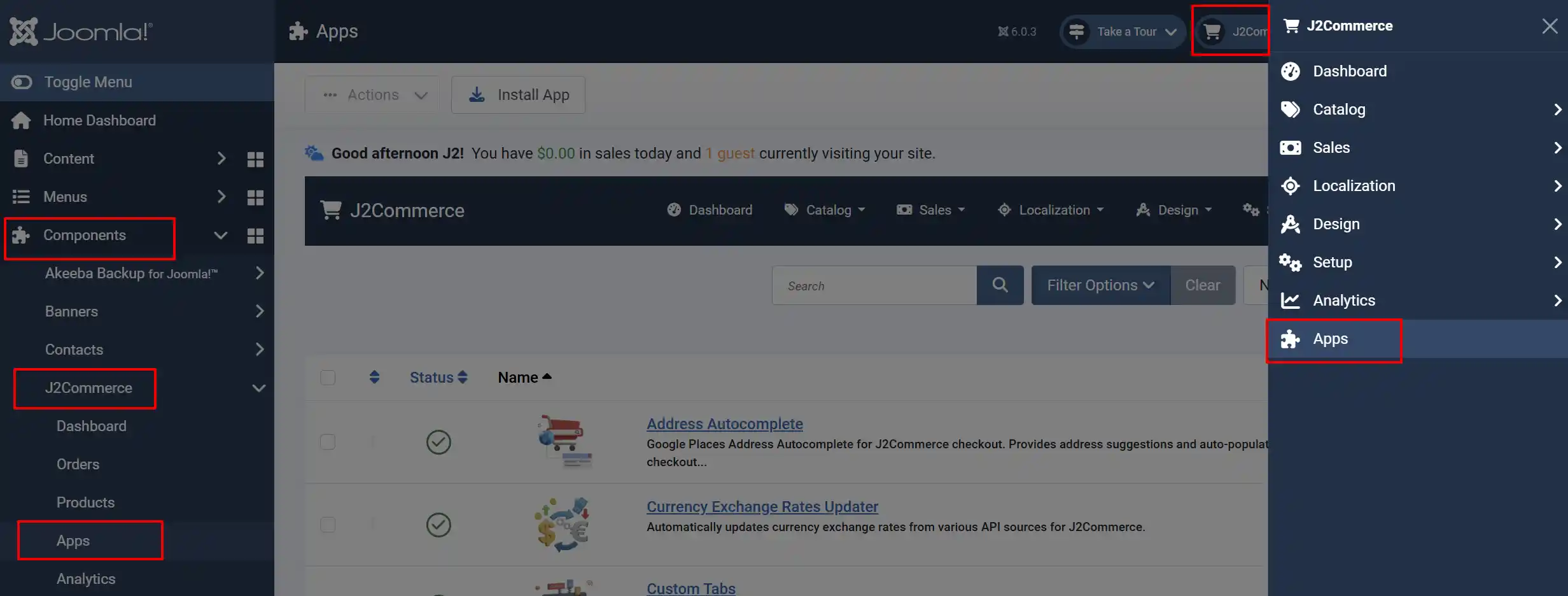
To help you narrow down the list, you can do a search for the Address Autocomplete app, click the X, and it will turn into a green checkmark. It is now enabled and ready for setup.
Configure the App
Click on the Address Autocomplete title to open the configuration.
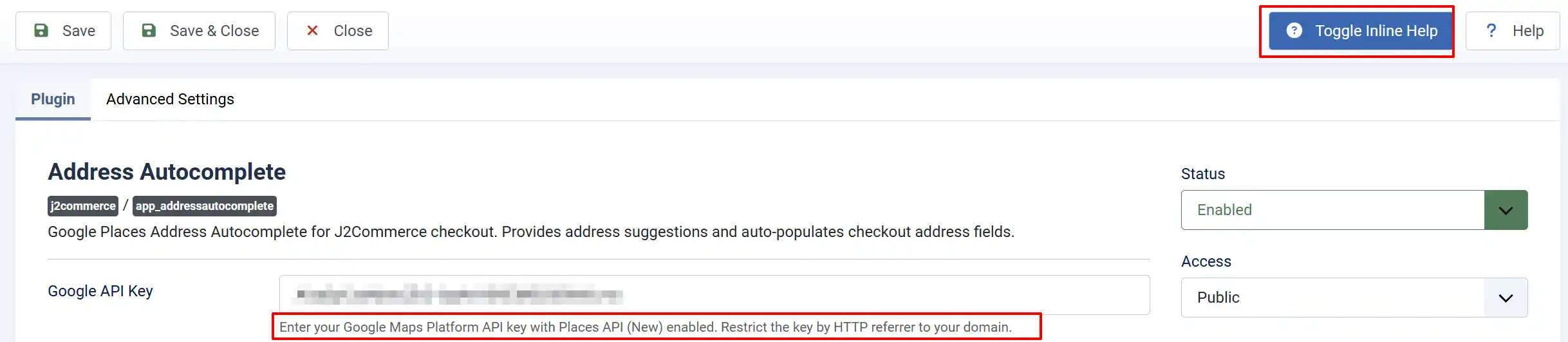
Helpful Hint: If you click on the Toggle Inline Help button, it will explain each section.: If you need to find your API Key in the future, go back to this same page and click Show Key in the Additional Information section
Plugin Tab
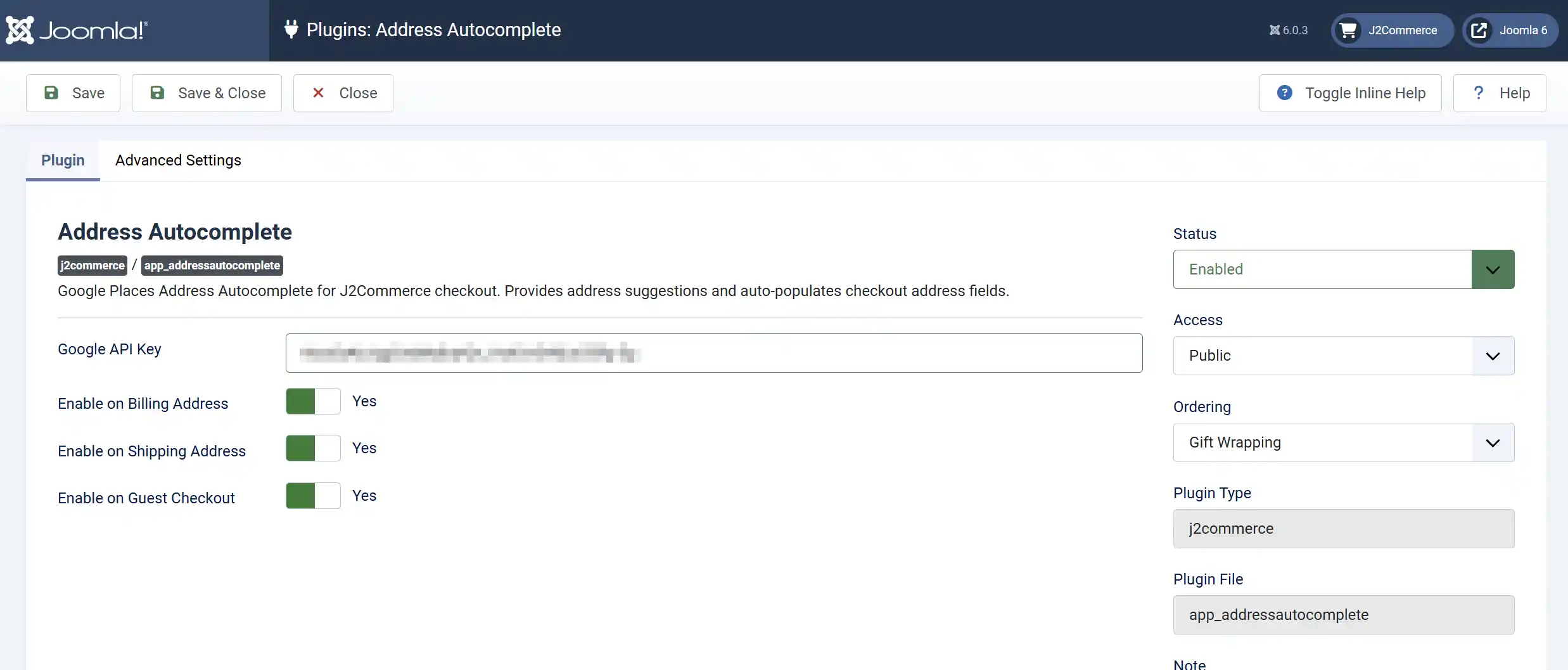
Google API Key: Enter your Google API key in the field.
Enable on Billing Address: Show address autocomplete on the billing address form.
Enable on Shipping Address: Show address autocomplete on the shipping address form.
Enable on Guest Checkout: Show address autocomplete on guest billing and guest shipping forms.
Advanced Settings Tab
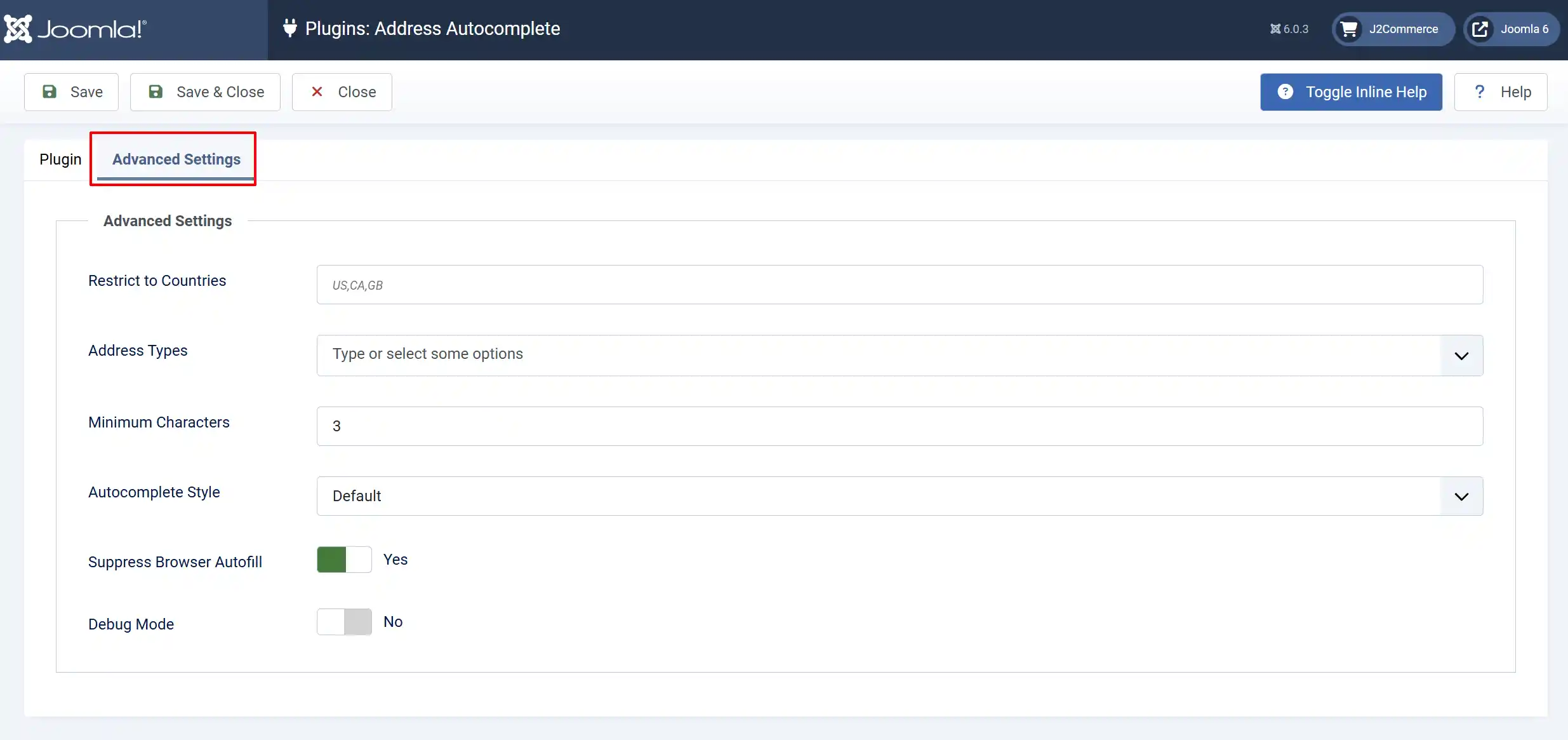
Restrict to Countries: Comma-separated ISO 3166-1 alpha-2 country codes (e.g., US,CA,GB). Leave empty for all countries.
Limiting suggestions to specific countries reduces API costs and improves relevance for stores that only ship to certain regions.
Enter country codes separated by commas:
US- United States onlyUS,CA- United States and CanadaGB,IE,FR,DE- United Kingdom, Ireland, France, Germany
Use ISO 3166-1 alpha-2 country codes (two-letter codes).
Address Types: Select which address types to include in autocomplete suggestions.
| Type | Description |
|---|---|
| street_address | Street addresses (e.g., "123 Main Street") |
| premise | Named locations, buildings (e.g., "Empire State Building") |
| subpremise | Sub-units within a building (e.g., "Apt 4B", "Suite 100") |
| route | Street names without numbers (e.g., "Main Street") |
For most stores, the default (street_address and premise) provides the best results.
Minimum Characters: Minimum number of characters the user must type before autocomplete activates (1-10).
Autocomplete Style: Visual style for the autocomplete dropdown.
Suppress Browser Autofill: Attempt to suppress the browser's built-in address autofill to prevent conflicts with Google autocomplete.
Debug Mode: Enable debug logging to the browser console. Disable in production.
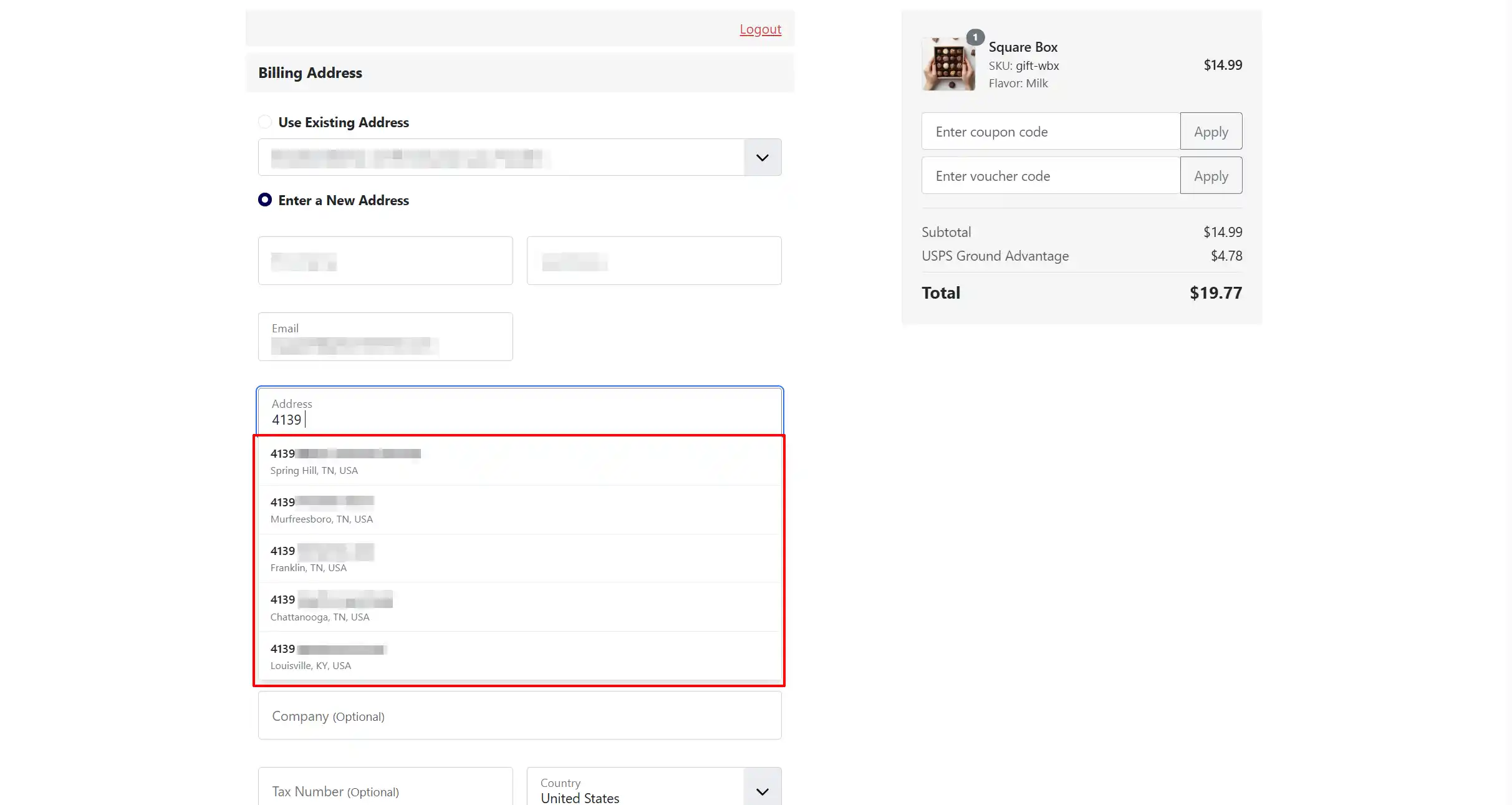
How It Works
When a customer types in the Address Line 1 field during checkout:
-
After typing the minimum number of characters (default: 3), Google's Places API returns matching address suggestions.
-
The customer sees a dropdown with address suggestions, each showing the main address text and secondary information (city, region).
-
The customer can use keyboard navigation (arrow keys + Enter) or mouse to select an address.
-
Upon selection, the plugin:
- Populates Address Line 1 with the street number and route.
- Populates Address Line 2 with premise or subpremise information (apartment, unit, etc.).
- Fills in City, Postal Code.
- Sets the Country dropdown and triggers the zone/state dropdown to load.
- Automatically selects the correct State/Province/Region from the dropdown.
Frontend Checkout View
Browser Autofill Conflicts
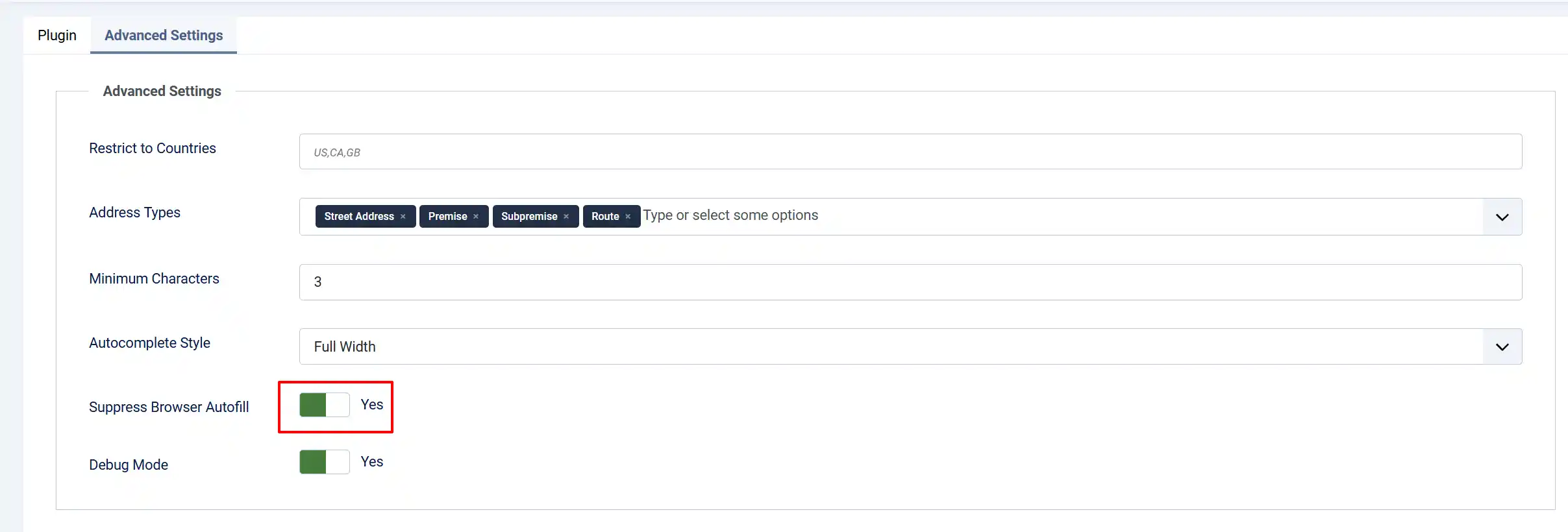
Modern browsers have built-in address autofill that can conflict with Google's autocomplete. When both features are active, the browser's autofill dropdown may cover the Google suggestions.
The plugin includes a Suppress Browser Autofill option that attempts to prevent this by:
- Setting
autocomplete="one-time-code"on address fields (a workaround that disables browser autofill). - Using a MutationObserver to apply this to dynamically added fields (such as when a customer clicks "New Address" during checkout).
If you experience conflicts, try different combinations:
- Suppress Autofill: Yes - Attempts to disable browser autofill (recommended).
- Suppress Autofill: No - Allows browser autofill; may cause overlap with Google suggestions.
API Costs and Billing
Google Places API (New Option) uses a pay-per-request model. Each keystroke that triggers a suggestion request counts as an autocomplete request. Each address selection that fetches full details counts as a Place Details request.
Cost Management Tips
- Set a higher minimum character count (e.g., 4 or 5) to reduce API calls during typing.
- Restrict countries to only those you ship to, reducing the number of returned suggestions.
- Set API quotas in Google Cloud Console to prevent unexpected charges.
- Monitor usage in Google Cloud Console under Billing -> Reports.
Google offers a monthly free tier. Check the Google Maps Platform pricing page for current rates and free tier limits.
Debug Mode
When troubleshooting, enable Debug Mode to see detailed logging in the browser's developer console:
- Open your browser's Developer/Inspect Tools (F12 or right-click -> Inspect).
- Go to the Console tab.
- Type in an address field during checkout.
- Look for messages starting with
[AddressAutocomplete].

Debug mode shows:
- API requests and responses
- Place details returned by Google
- Field population events
- Country/zone lookup results
Disable Debug Mode in production to avoid exposing API details to customers.
Tips
- Test the autocomplete on your live checkout page after configuration. Some browsers behave differently with autofill on HTTPS vs. HTTP.
- If suggestions do not appear, verify your API key has no domain restrictions blocking your site, or that you have not exceeded your Google Cloud quota.
- For stores shipping internationally, leave Restrict to Countries empty and let customers select their country from the dropdown. The autocomplete will adapt to the selected country.
Troubleshooting
No Suggestions Appear
Cause: API key is missing, invalid, or restricted incorrectly.
Solution:
- Verify the API key is entered correctly in the plugin configuration.
- Check that Places API (New) is enabled in Google Cloud Console (not the legacy Places API).
- Ensure your API key has no HTTP referrer restrictions blocking your domain.
- Enable Debug Mode and check the browser console for error messages.
- Confirm you have not exceeded your Google Cloud API quota.
Suggestions appear, but do not fill the form.
Cause: JavaScript error or DOM structure mismatch.
Solution:
- Enable Debug Mode and check the browser console for errors.
- Verify your checkout template uses standard J2Commerce field names (
address_1,address_2,city,zip,country_id,zone_id). - If using a heavily customized template, the field selectors may need adjustment. Contact your template developer.
State/Province Not Populated Correctly
Cause: The Google-provided state name does not match the zone name in J2Commerce.
Solution:
The plugin uses a three-tier matching system:
- Exact match - Compares the Google state name to J2Commerce zone names.
- Code match - Compares the Google state abbreviation to zone codes (e.g., "CA" matches California).
- Partial match - Uses LIKE comparison for close matches.
If all three fail, the country is set but the state field remains empty. Ensure your J2Commerce zones are properly configured:
-
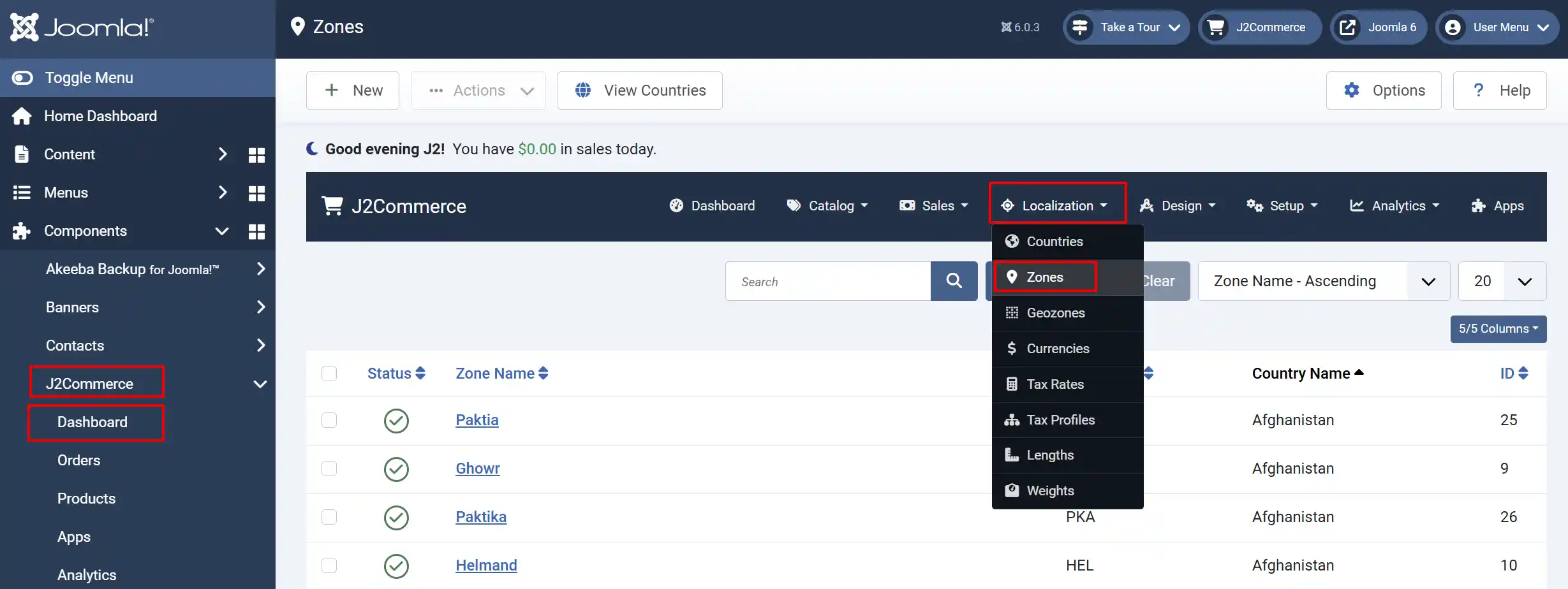
Go to J2Commerce -> Dashboard -> Localization -> Zones.
-
Verify zone names and codes match the expected values for your shipping countries.
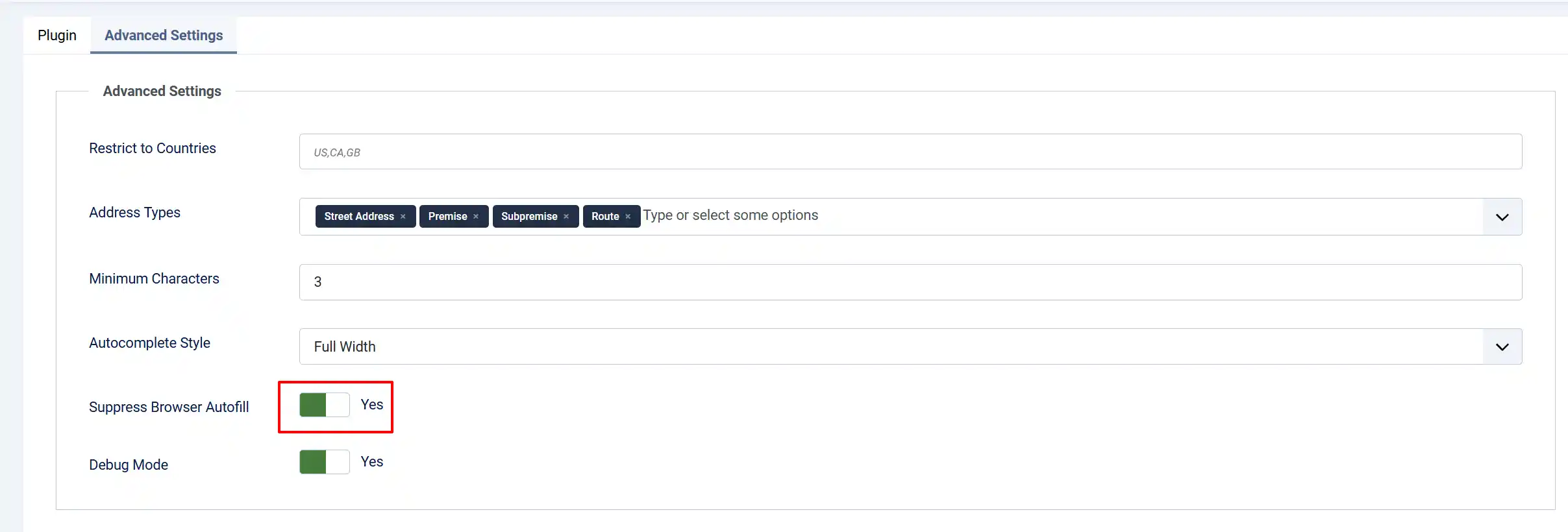
Browser Autofill Covers the Suggestions
Cause: Browser autofill is enabled and conflicting with the plugin.
Solution:
- Ensure Suppress Browser Autofill is set to Yes.
- Test in a different browser to confirm the issue is browser-specific.
- Some browsers (especially Chrome) aggressively autofill addresses. Try adding
autocomplete="off"directly to your template's address fields if the plugin's suppression is insufficient.
API Quota Exceeded
Cause: Your Google Cloud Platform account has exceeded its free tier or set budget.
Solution:
- Check your Google Cloud Console for quota status.
- Increase your budget or enable billing if on the free tier.
- Consider setting request quotas in the Google Cloud Console to prevent unexpected costs.
Debug Mode Shows API Errors
Cause: Various API-level issues.
Solution:
Common API error messages and their meanings:
| Error | Cause | Solution |
|---|---|---|
REQUEST_DENIED | API key invalid or missing permissions | Verify API key and Places API (New) is enabled |
OVER_QUERY_LIMIT | Quota exceeded | Check Google Cloud billing and quotas |
INVALID_REQUEST | Malformed request | Check country codes format (should be two letters) |
ZERO_RESULTS | No matches found | Normal; no action needed |