Price Texts
Price Texts lets you display a short line of text directly before or after any product price. You configure it once at the category level, or override it on individual products. The text appears everywhere J2Commerce renders a price: product detail pages, category lists, tag pages, related product modules, the cart, and the order confirmation screen.
Common examples include "From $29.99", "$99 / month", "$50 inc. VAT", and "$25 per kg". No code changes or template editing are required.
Requirements
- Joomla 6.0.0 or later
- J2Commerce 6.0.0 or later
- PHP 8.3 or later
- At least one product set up in J2Commerce
Purchase and Download
The Price Text package is a separate add-on available from the J2Commerce Extensions Store. It is not included with the core J2Commerce 6 component.
Step 1: Go to the J2Commerce website -> Extensions.
Step 2: Locate the Price Text package -> click View Details -> Add to cart -> Checkout.
Step 3: Go to My Downloads under your profile menu at the top right corner and search for the app. Click Available Versions -> View Files -> Download.
Install the App
You can install this Price Text package using the Joomla installer. The following steps help you with a successful installation.
In the Joomla admin, go to System -> Install -> Extensions
Upload the plugin app_pricetexts.zip package file or use the Install from URL option.
The plugin installs and enables itself automatically — no extra steps are needed.
 (1)-a6689f12b23b8e992f5c2a169737672f.webp)
Plugin Settings
After installation, you can adjust two global settings.. There are two ways you can access the extension.
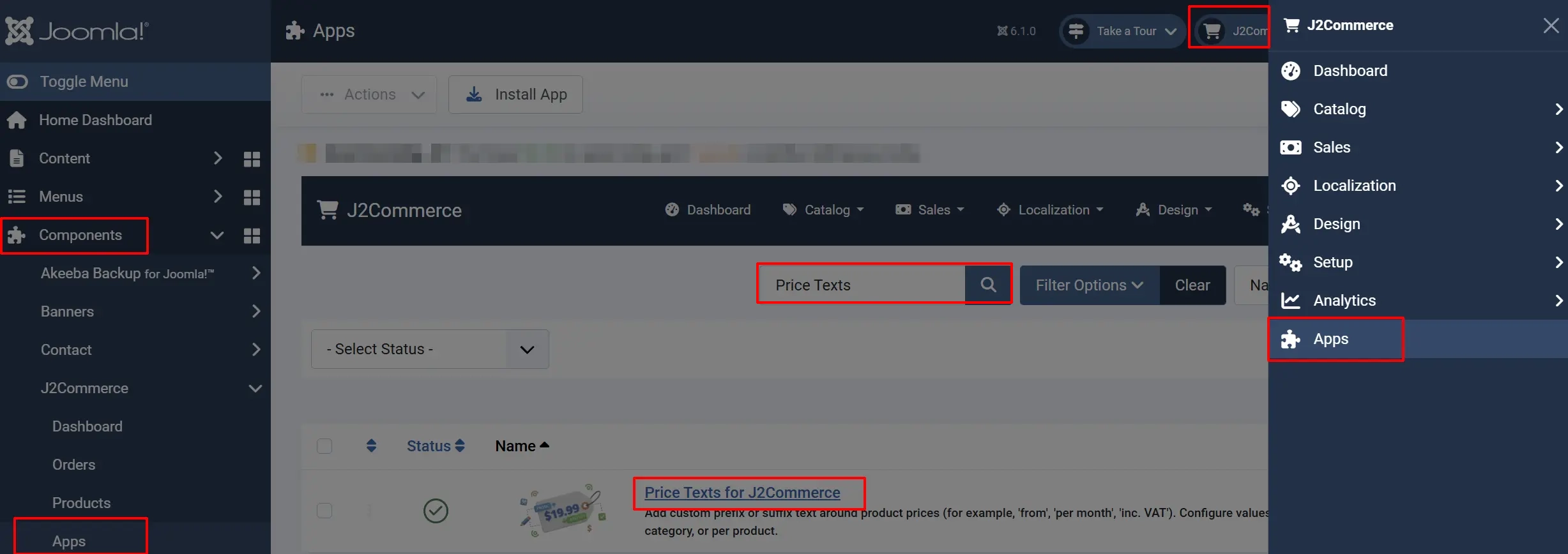
Option A: Go to the J2Commerce icon at the top right corner -> Apps
Option B: Go to Components on the left sidebar -> J2Commerce -> Apps
Search for Price Texts, Click the plugin name to open it.
Configure the App
Helpful tip: Click on the Toggle Inline Help button on any app/plugin you install and it will show a description below each section. See image below
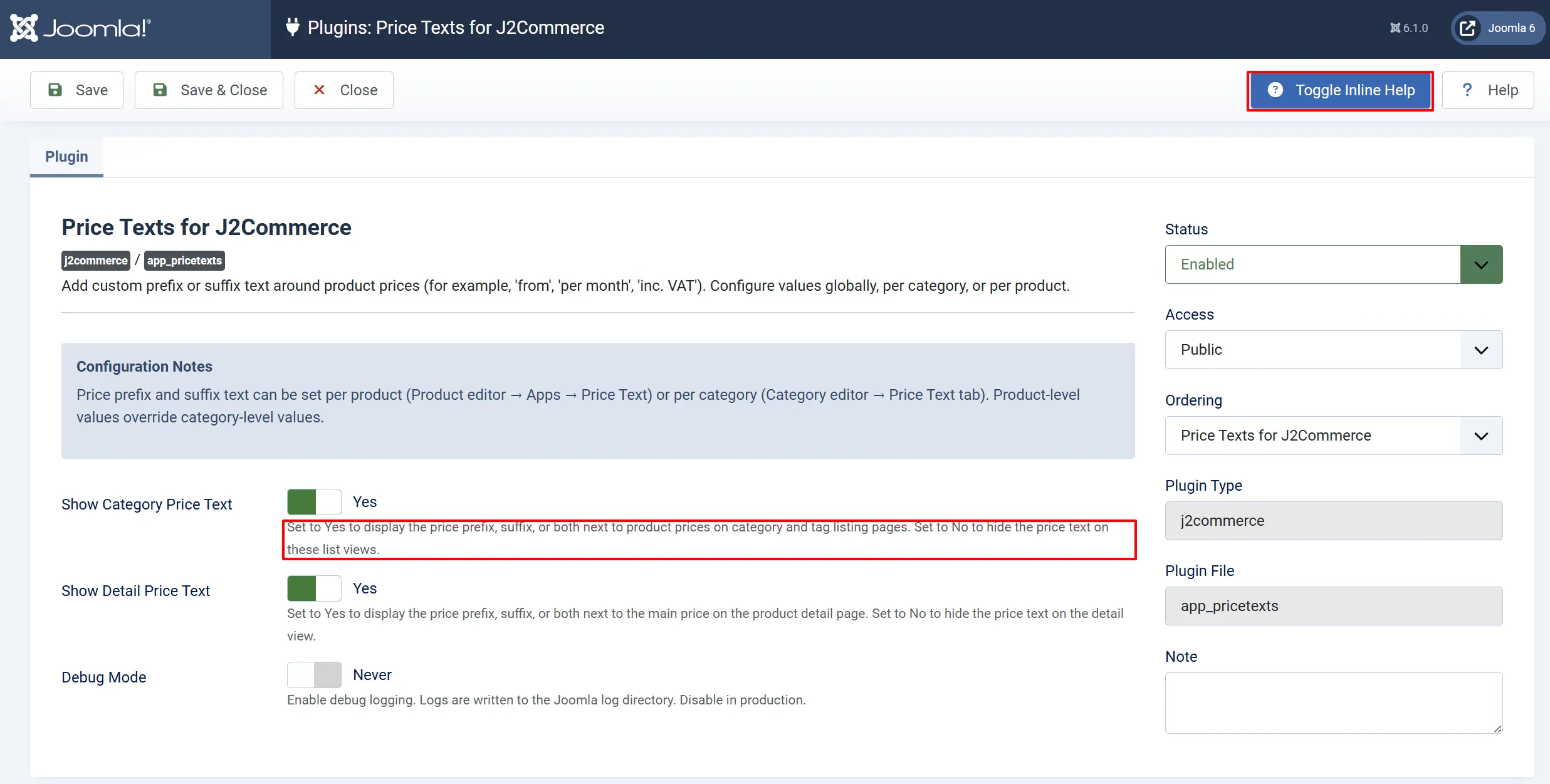
Configuration Notes: Price prefix and suffix text can be set per product (Product editor → Apps → Price Text) or per category (Category editor → Price Text tab). Product-level values override category-level values.
Show Category Price Text: Set to Yes to display the price prefix, suffix, or both next to product prices on category and tag listing pages. Set to Never to hide the price text on these list views.
Show Detail Price Text: Set to Yes to display the price prefix, suffix, or both next to the main price on the product detail page. Set to Never to hide the price text on the detail view.
Debug Mode: When set to Yes, the plugin writes diagnostic messages to administrator/logs/app_pricetexts.php. Turn this off in production.
Click Save after making any changes.
How the Three Levels Work
Price Texts uses a simple priority chain. The more specific setting wins:
- Per-product — set directly on the product. This always takes priority.
- Per-category — set on the Joomla content category that contains the product. Used when no per-product value is set.
- No global default — if neither the product nor its category has a value set, no text is shown.
Think of it like this: if you sell a range of SaaS plans and want most of them to show "/ month", set that suffix on their category. Then, for a single product that bills annually, override the suffix on that product alone.
Setting Prefix and Suffix Per Product
These steps set the price text on one individual product. Per-product values override the category setting.
- Go to Content -> Articles and open the article that is linked to your product.
- Click the J2Commerce Cart tab
- Click the Apps sub-tab.
- Locate the Price Text section.
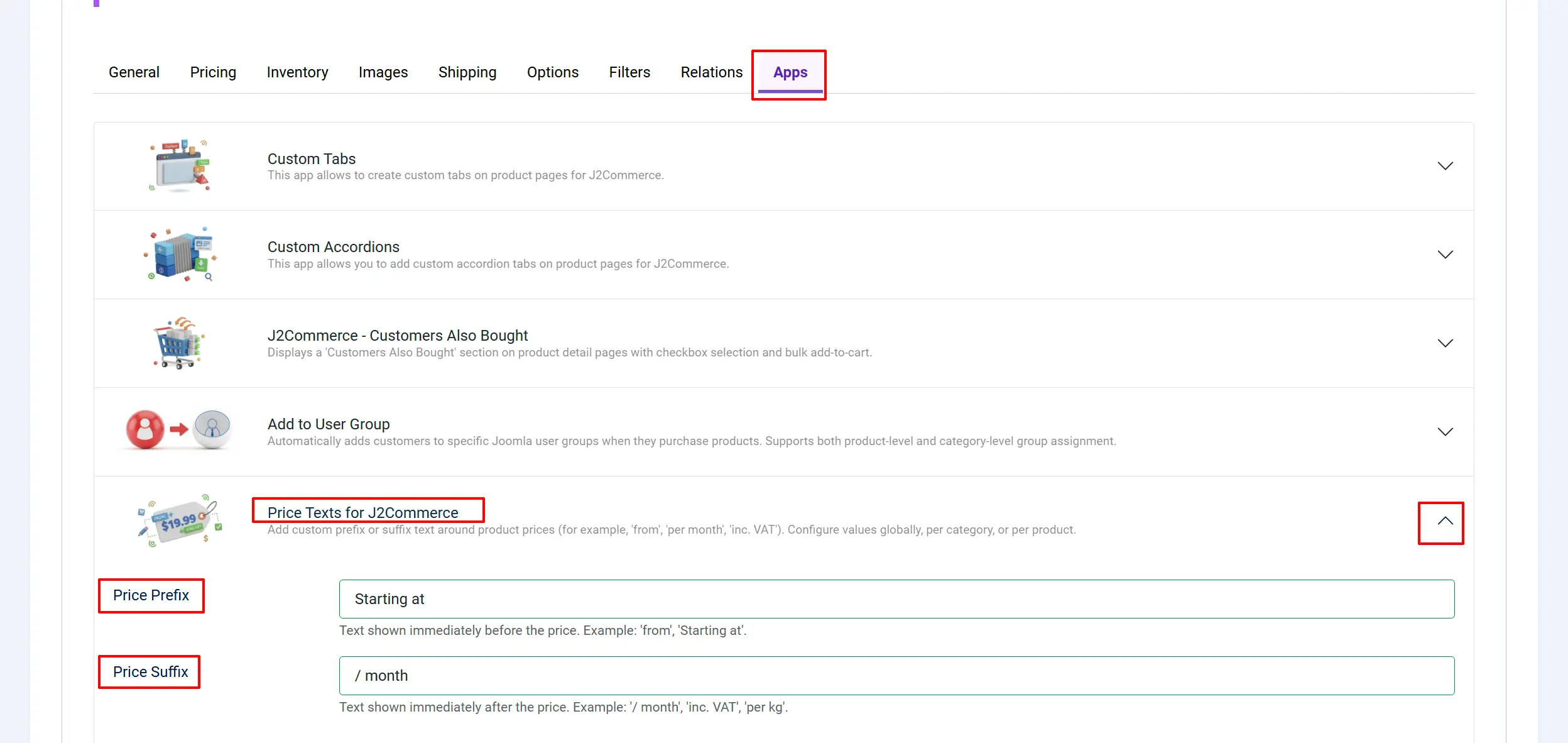
Fill in one or both fields:
Price Prefix: Text shown immediately before the price, followed by a space. Example: From
Price Suffix: Text shown immediately after the price, preceded by a space. Example: / month
Click Save or Save & Close.
Frontend Product View
The product detail page will now show the text next to the price.
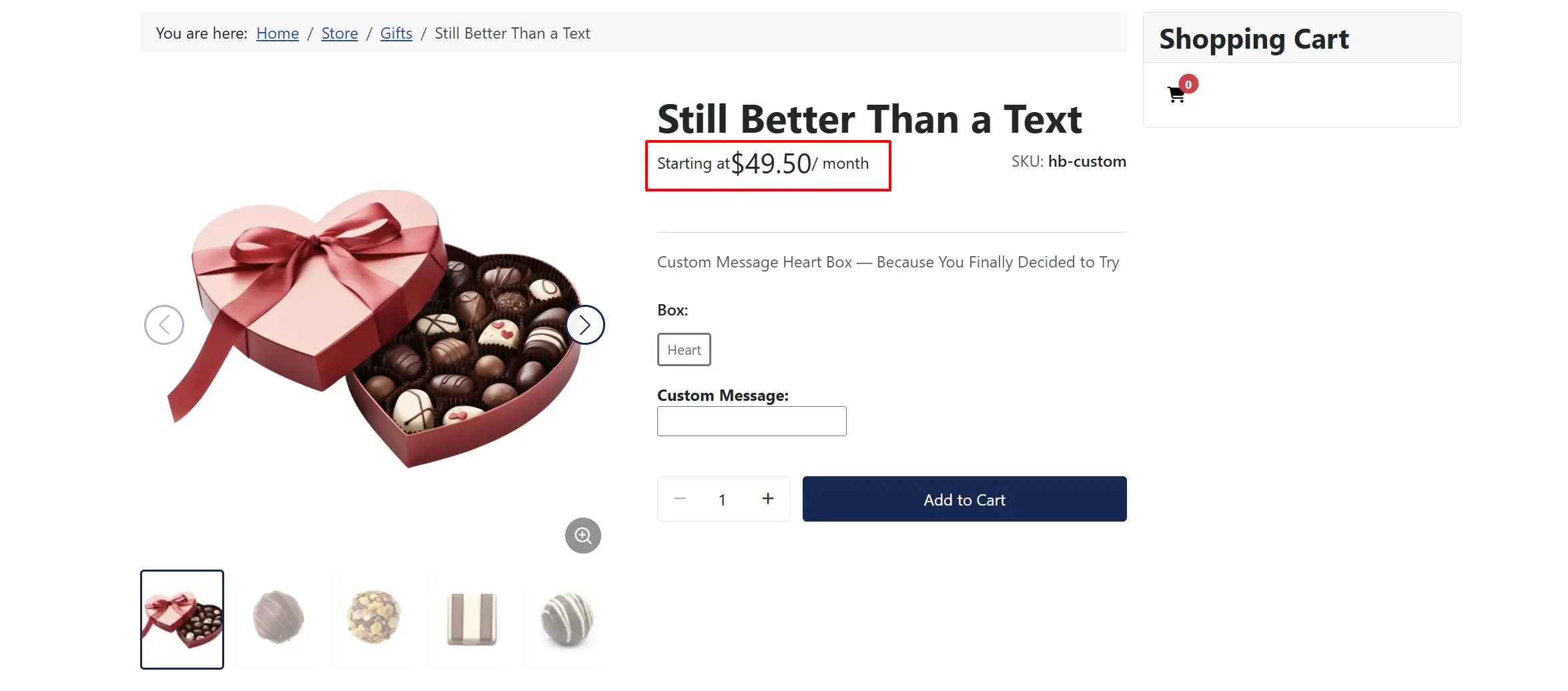
The Category detail page will now show the text next to the price.
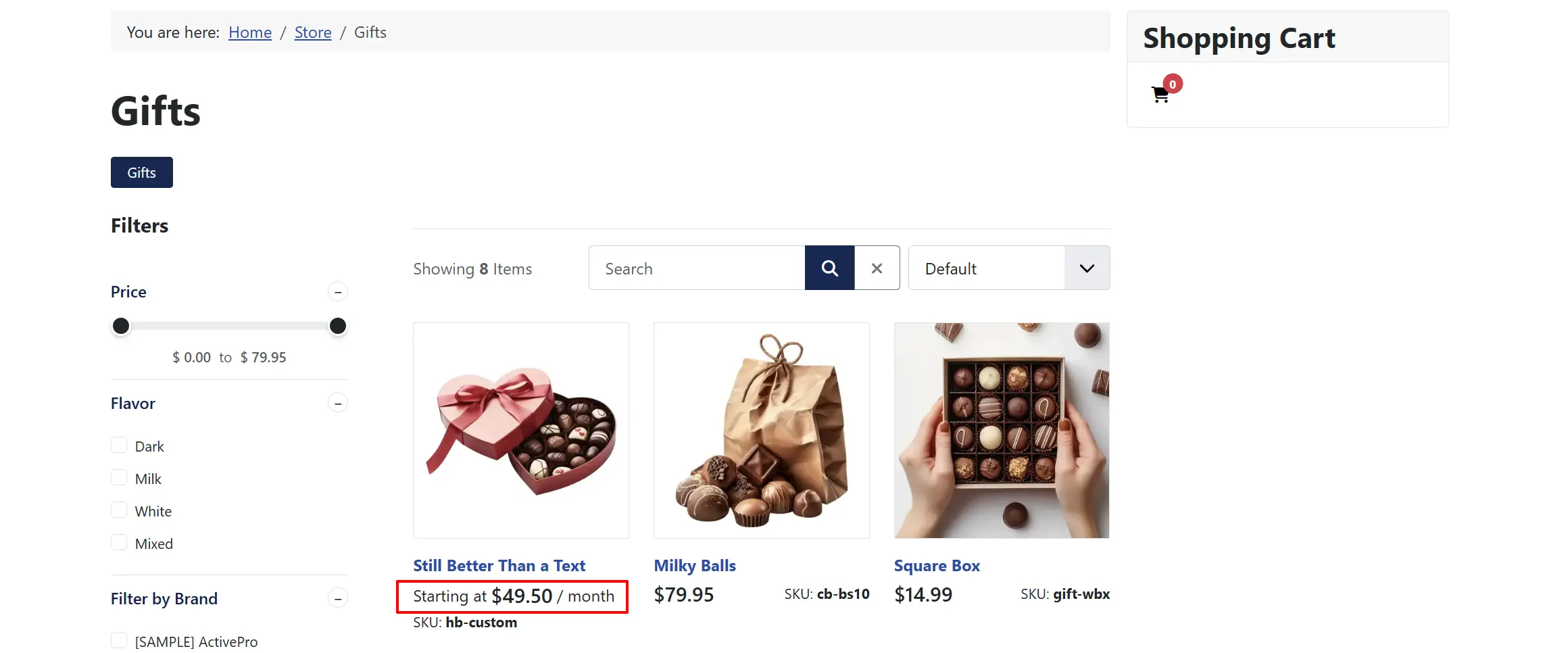
Setting Prefix and Suffix Per Category
Category-level settings apply to all products in that category that do not have their own per-product value.
Go to Content -> Categories and open the category that contains your products.
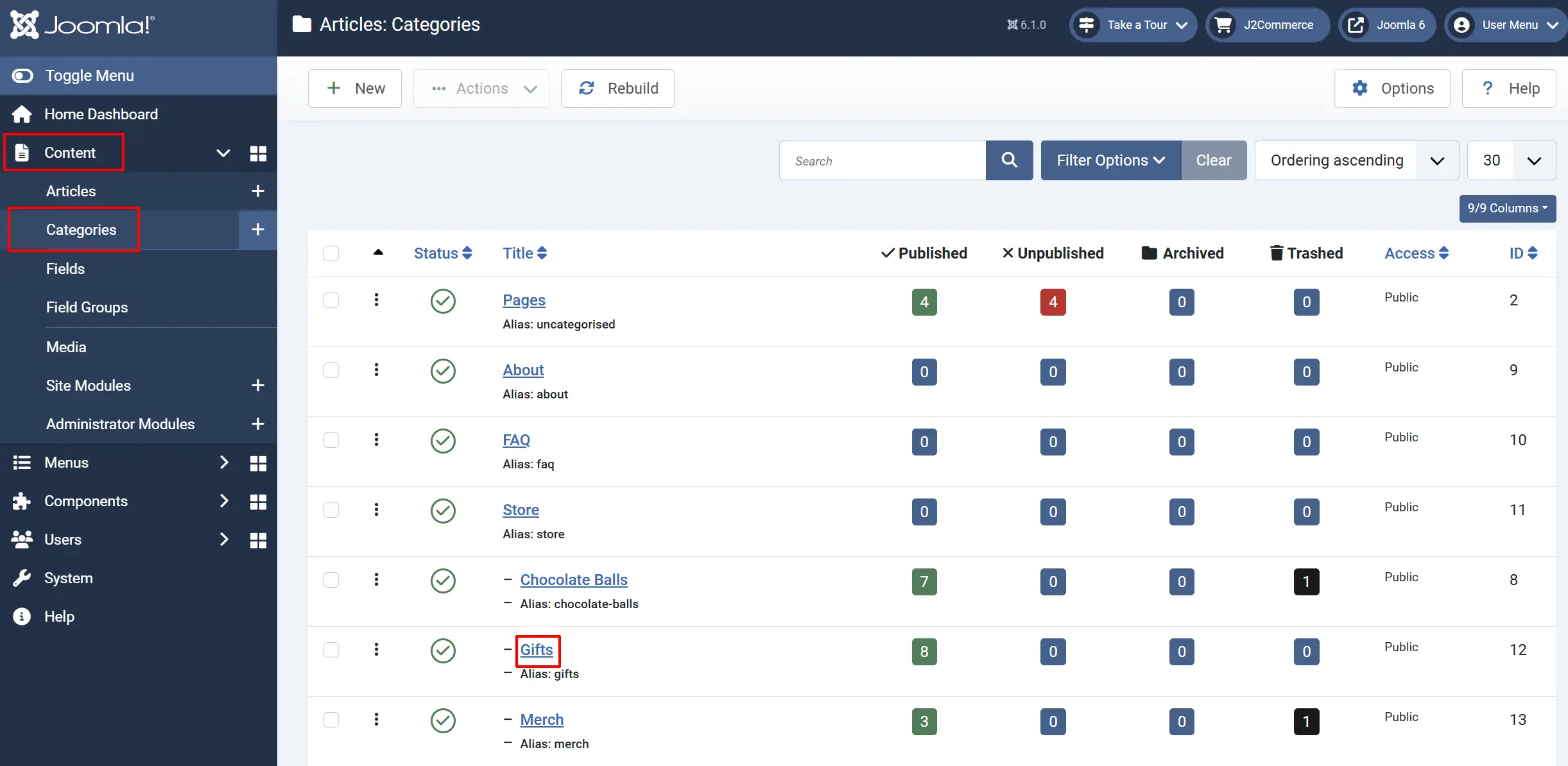
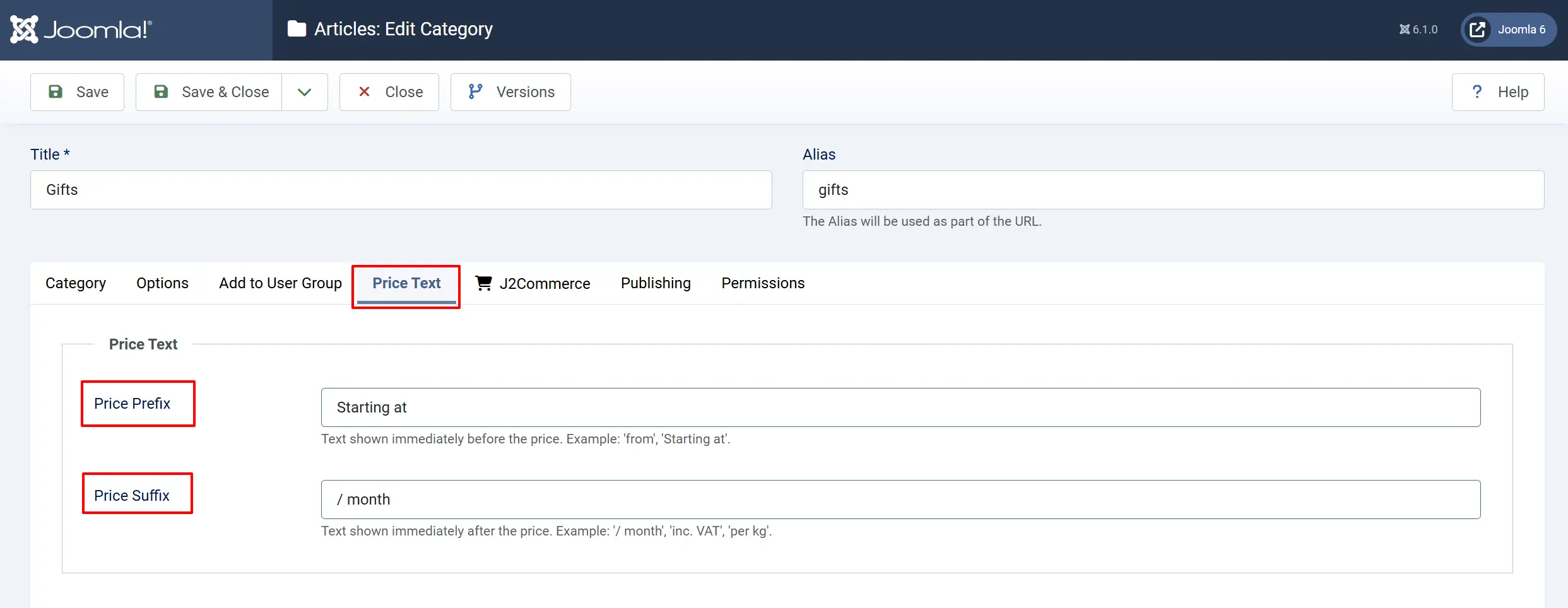
Click the Price Text tab.
If you are creating a brand-new category, save it first. The Price Text tab shows a notice asking you to save before the fields become available. This is normal — open the category again after saving.
Fill in the Price Prefix and/or Price Suffix fields using the same descriptions above.
Click Save.
Every product in this category will now display the text unless it has its own per-product values.
Frontend Category View
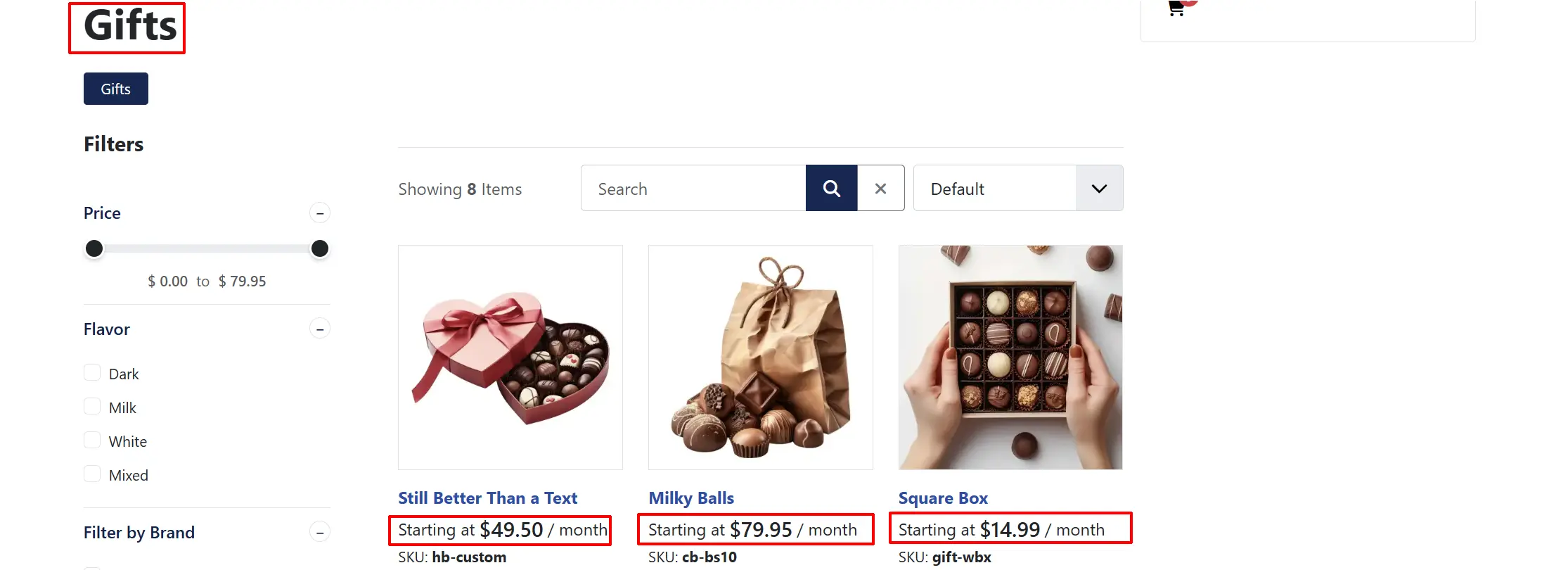
Where the Text Appears
Once configured, the text renders automatically in every place J2Commerce displays a price:
Location:
Product detail page: Main price.
Category list: Product price
Tag list: Product price
Featured / related product modules
Common Use Cases
Here are some patterns you can set up today:
| Goal | Prefix | Suffix |
|---|---|---|
| "From $29.99" pricing | From | (empty) |
| "$99 / month" subscription | (empty) | / month |
| "$50 inc. VAT" tax-inclusive display | (empty) | inc. VAT |
| "$25 per kg" unit pricing | (empty) | per kg |
| "Starting at $100" range | Starting at | (empty) |
What Changed from J2Store
If you are migrating from J2Store, here is what is different in the J2Commerce version of this plugin:
- XSS-safe output. The J2Store version echoed prefix/suffix text without escaping. J2Commerce escapes all output with
htmlspecialchars(), so any<script>or HTML tags in the text fields are displayed as plain text instead of being executed. - Broader coverage. The plugin hooks into J2Commerce's unified
onJ2CommerceBeforeRenderingProductPriceandonJ2CommerceAfterRenderingProductPriceevents. These fire in all Bootstrap 5, UIkit, and Builder block templates automatically — including layouts that did not exist in J2Store. - Auto-enable on install. The J2Store version required manual enabling after installation. Price Texts for J2Commerce enables itself during the install step.
- Debug logging. A new Debug Mode setting writes diagnostic output to
administrator/logs/app_pricetexts.phpto help troubleshoot rendering issues without needing Joomla's system debug mode. - Cleaner category form. The per-category settings now appear as a native Price Text tab in the standard Joomla category editor, rather than in a separate J2Store admin screen.
Troubleshooting
Text does not appear on the category list
Cause: The category list shows prices from J2Commerce product data. If neither the product nor its category has a value set, no text is shown — this is expected.
Solution:
- Check that the category has a Price Text tab. This tab only appears on content categories that J2Commerce uses (
com_contentcategories). - Open the category and confirm the Price Prefix or Price Suffix field is not empty.
- If you set the value on the product directly, confirm it is saved in the article's J2Commerce Cart tab -> Apps -> Price Text section.
- If the category was newly created, save it first, then reopen it to set the price text fields.
HTML tags in my prefix or suffix are showing as plain text
Cause: This is by design. The plugin escapes all prefix and suffix content before rendering it, which means angle brackets and other HTML characters are displayed as visible text rather than interpreted as markup. This prevents cross-site scripting attacks.
Solution: Use plain text only. For example, write inc. VAT instead of <em>inc. VAT</em>. If you need styled text around prices, consider a template override instead.