Printify Print-on-Demand
Connect your Printify account to J2Commerce to import print-on-demand products from your Printify shop, keep them in sync, automate order fulfillment, and show live Printify shipping rates at checkout.
This plugin bridges your J2Commerce store with Printify (https://printify.com) — one of the largest print-on-demand networks around. You design your products in Printify, then import them into J2Commerce in a couple of clicks: the plugin creates the article, the product, its options and every variant, prices them from your markup or margin settings, and keeps them in step with Printify from then on. When someone buys, the order is sent to Printify for production and fulfilment, live Printify shipping rates appear at checkout, and tracking flows back to the order. No inventory. No packing boxes. Printify handles the physical side entirely.
Requirements
- PHP 8.3.0+
- Joomla! 6.x
- J2Commerce 6.x
- A free Printify account with at least one shop, plus a Personal Access Token from that account
Purchase and Download
The Printify Print-on-Demand is a separate add-on available from the J2Commerce Extensions Store. It is not included with the core J2Commerce 6 component.
Step 1: Go to our J2Commerce website -> Apps
Step 2: Locate the Printify Print-on-Demand App -> click View Details -> Add to cart -> Checkout.
Step 3: Go to your My Downloads under your profile button at the top right corner and search for the app. Click Available Versions -> View Files -> Download Now
Install the App
You can install this Printify Print-on-Demand App using the Joomla installer. The following steps help you with a successful installation.
In the Joomla admin, go to System -> Install -> Extensions
Upload the app_printify.zip file or use the Install from URL option.

Enable the App
Once you have installed the App, you will need to enable it. There are two ways you can access the extension.
Option A: Go to the J2Commerce icon at the top right corner -> Apps
Option B: Go to Components on the left sidebar -> J2Commerce -> Apps

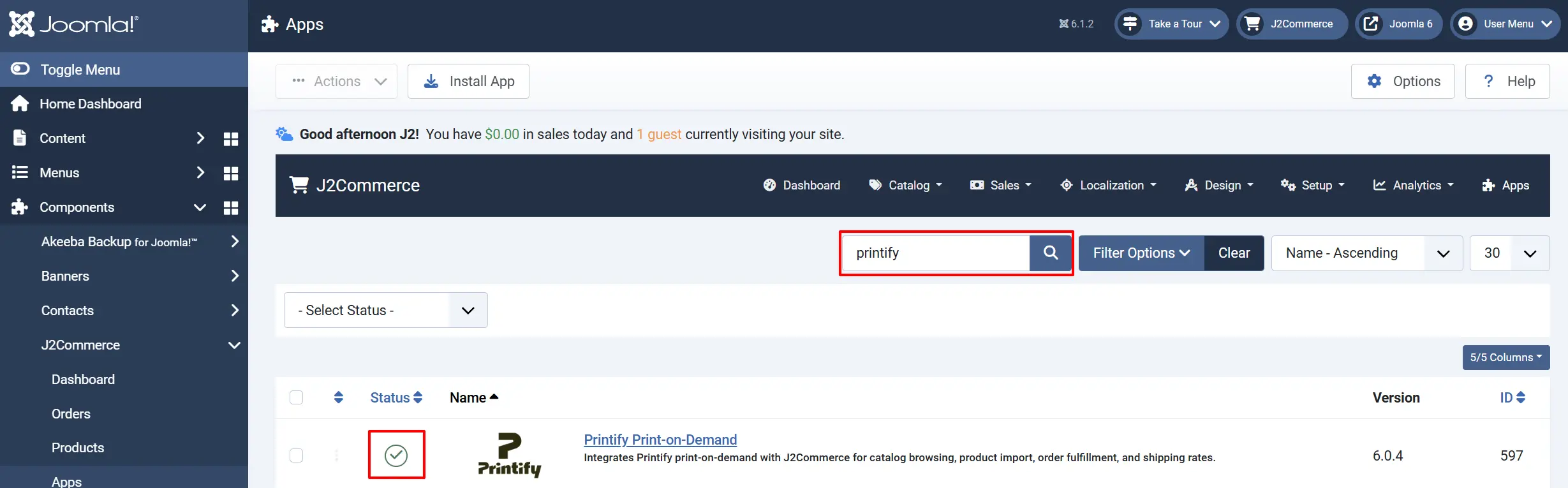
Look for Printify Print-on-Demand, click the X, and it will turn into a green checkmark. It is now enabled and ready for setup.
Configure the App
Once you click on the Printify Print-on-Demand Title next to the green checkmark, you are ready to start setting up the parameters. The settings are organized into six tabs: Connection, Product Import, Pricing, Order Fulfillment, Shipping, and Advanced.
Click the Toggle Inline Help button in the toolbar and the app will show a description below each field as you configure it.

Connection tab
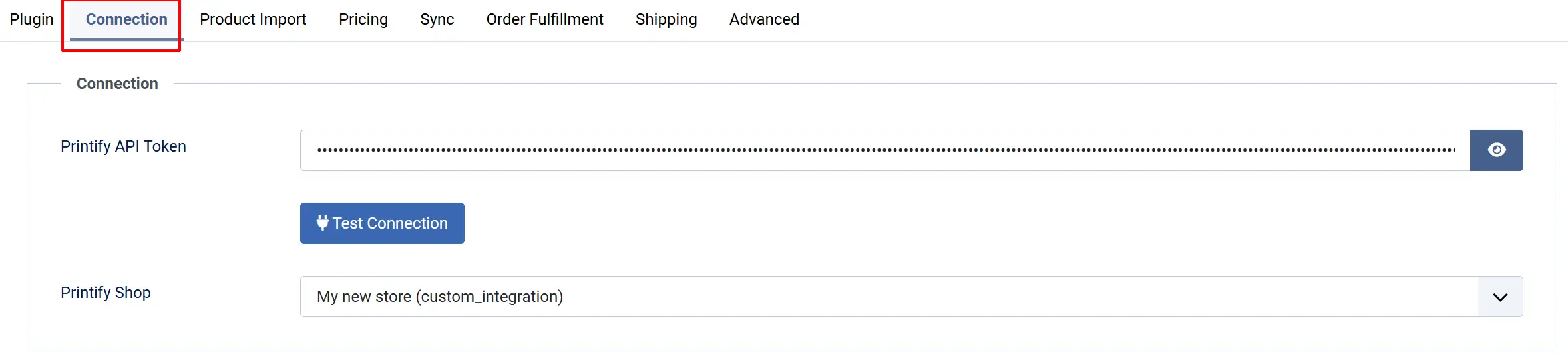
Printify API Token: Your Personal Access Token from your Printify dashboard (Settings -> Connections -> API). Required before anything else on this page works.
Test Connection: Click to verify your API token and shop connection. Shows a confirmation message with your shop name and plan, or an error if something's wrong.
Printify Shop: Select the Printify shop to connect to this J2Commerce store. This dropdown fills in once you have entered and saved a valid Printify API Token.
-
Click Test Connection. You should see a message such as "Connected to Printify shop: My Shop Name (standard plan)."
-
Click Save in the toolbar to store the token, then reopen the settings — the Printify Shop dropdown will now list every shop on your account.
-
Select your shop and click Save again.
Most accounts only have one shop, so the choice is obvious. If you manage several Printify shops, double-check you've picked the right one — orders and products only ever sync with the shop selected here.
Product Import tab
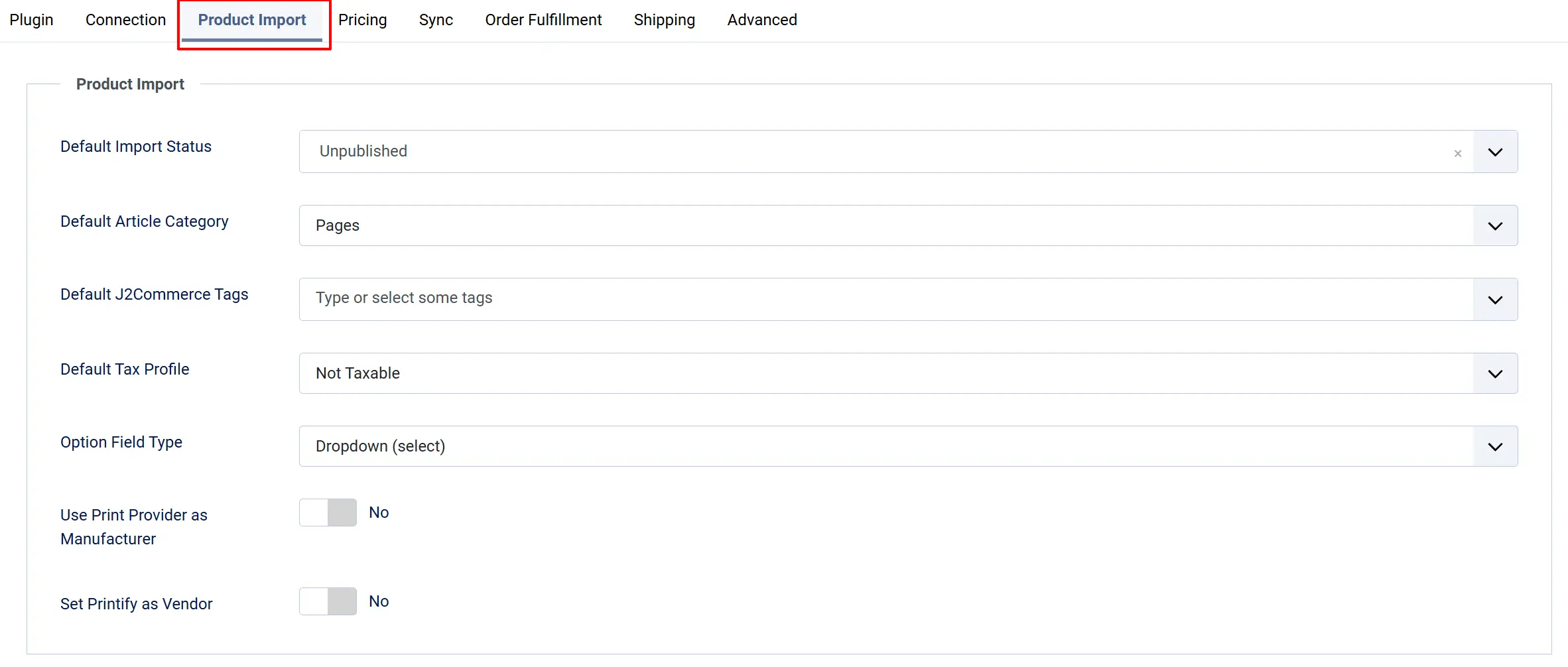
Import defaults — control how newly imported products are set up in J2Commerce:
Default Import Status: The enabled state applied to newly imported Printify products.
Default Article Category: The Joomla content category assigned to the article created for each imported product. Required — importing fails without it.
Default J2Commerce Tags: Joomla tags assigned to imported Printify products. Products must be tagged to appear in tag-based storefront listings. Select one or more
Default Tax Profile: The J2Commerce tax profile applied to imported products.
***Product assignment — how imported products connect to the rest of your catalog:
Option Field Type: How Size/Color-style product options are displayed on the frontend. Choices are Dropdown (select), Radio Buttons, Color Swatches, or Checkboxes.
Use Print Provider as Manufacturer: Assigns the Printify print provider (for example Printify Choice, Monster Digital) as the product's manufacturer, creating the manufacturer record if it does not exist
Set Printify as Vendor: Assigns Printify as the vendor for imported products, creating a vendor record linked to your admin account if one does not exist.
Pricing tab
The Pricing tab decides how the retail price in your store is calculated from the base cost Printify charges you.
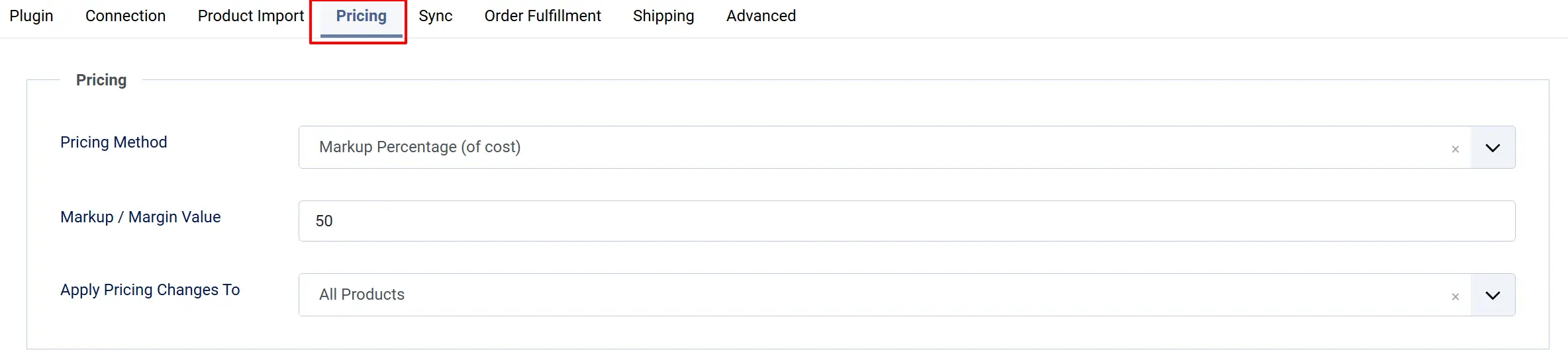
Pricing Method: How the retail price is calculated from Printify's base cost — Percentage or Fixed Amount.
-
Markup Percentage (of cost):
retail = cost x (1 + value / 100). A 50% markup on a $12.50 base cost gives $18.75. -
Gross Margin Percentage (of selling price):
retail = cost / (1 - value / 100). A 60% margin on a $12.50 base cost gives $31.25, and your profit is 60% of the selling price. This is the same figure Printify's own interface reports, so use this method if you want to type the number you see in Printify. A margin of 100 or more cannot be solved and falls back to the base cost. -
Fixed Amount:
retail = cost + value. A $10.00 fixed amount on a $12.50 base cost gives $22.50. -
Use the Retail Price Set in Printify: adopts the retail price already set on the Printify variant. If that variant has no retail price, the plugin falls back to your markup value, and failing that to cost x 1.5.
Markup / Margin Value: The markup amount. For Percentage, 50 adds 50% on top of the base cost. For Fixed Amount, the value is added directly in your store currency.
Currency: Printify quotes costs in the print provider's currency, which is not necessarily yours. The plugin resolves that currency from the provider's shipping profile and converts every cost and every Printify retail price into your store base currency before pricing. Conversion happens at import and at every sync.
Apply Pricing Changes To: Whether a change to the settings above reaches products you have already imported
-
All Products: changing the method or value above reprices every imported product the next time it syncs. Any price you set by hand in J2Commerce is overwritten.
-
Newly Imported Products Only — the pricing settings apply at import time and syncing never changes the price of a product you already imported. Costs, SKUs, images and variant additions or removals still sync normally. Choose this if you price products manually after import.
Prices of zero or less are refused: A calculated retail price of $0.00 or less is never applied:
-
On an existing variant, the old price is kept and an alert is raised.
-
On a new variant found during a sync, the variant is skipped.
-
At import, the product is left unpublished no matter what Default Import Status says.
This is deliberate — a zero-total order takes the free-order path through checkout. If a product imports unpublished, check the markup or margin value against that product's Printify base cost.
Sync tab
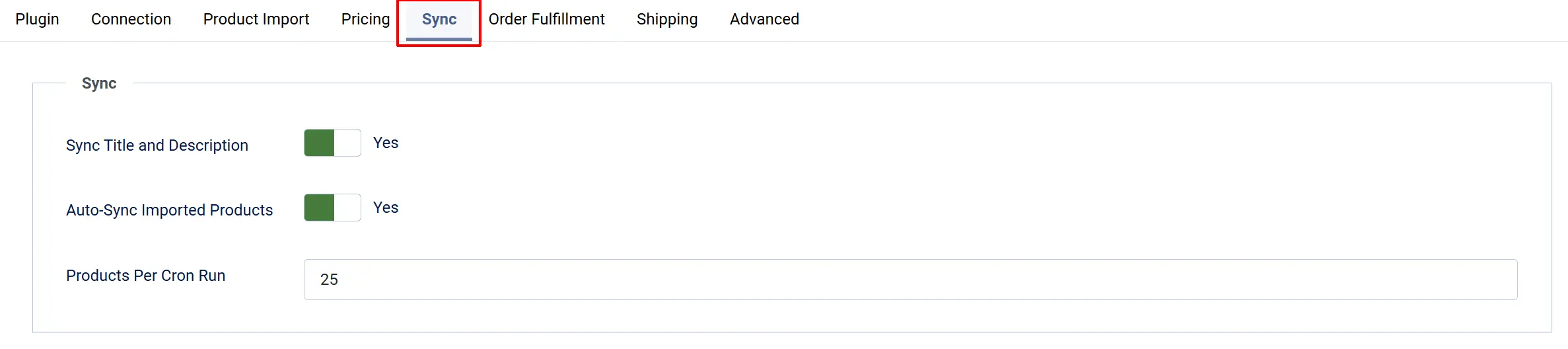
Sync Title and Description: Overwrites the linked article's title and description with the current Printify values on every sync. Turn this off if you edit product copy locally.
Auto-Sync Imported Products: Queues imported products for re-sync each time the printify_sync cron runs, so Printify edits reach the store without manual action.
Products Per Cron Run | How many products are queued per cron run. Keep this modest to stay inside Printify's rate limits.
Order Fulfillment tab
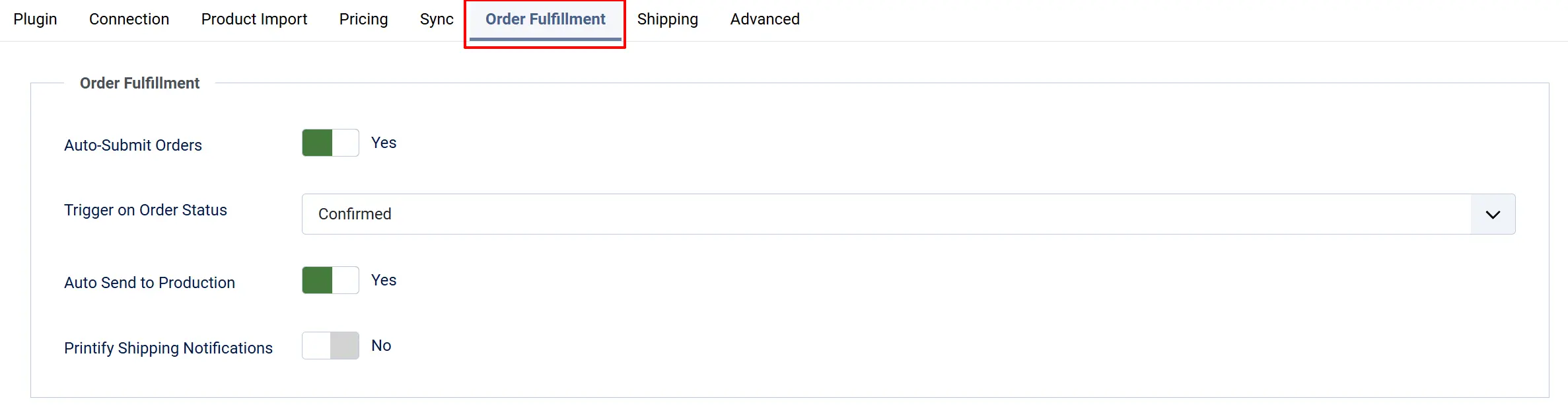
Auto-Submit Orders: Automatically submits orders containing Printify products to Printify once the order reaches the status configured below.
Trigger on Order Status: The J2Commerce order status that triggers automatic submission to Printify.
NOTE: If the status you want isn't listed in the dropdown menu, you can create a new one by going to J2Commerce -> Setup -> Order Statuses
Auto Send to Production: When enabled, after the order is created at Printify it is immediately sent to production. Leave this off to review orders at Printify first and send them yourself from the Printify Orders screen.
Printify Shipping Notifications: Lets Printify email shipping confirmations directly to your customers. Disable this if J2Commerce already sends your own shipping emails, to avoid duplicate notifications.
The plugin checks whether the order contains any Printify products (identified by the Printify product ID stored against each J2Commerce product).
Shipping tab
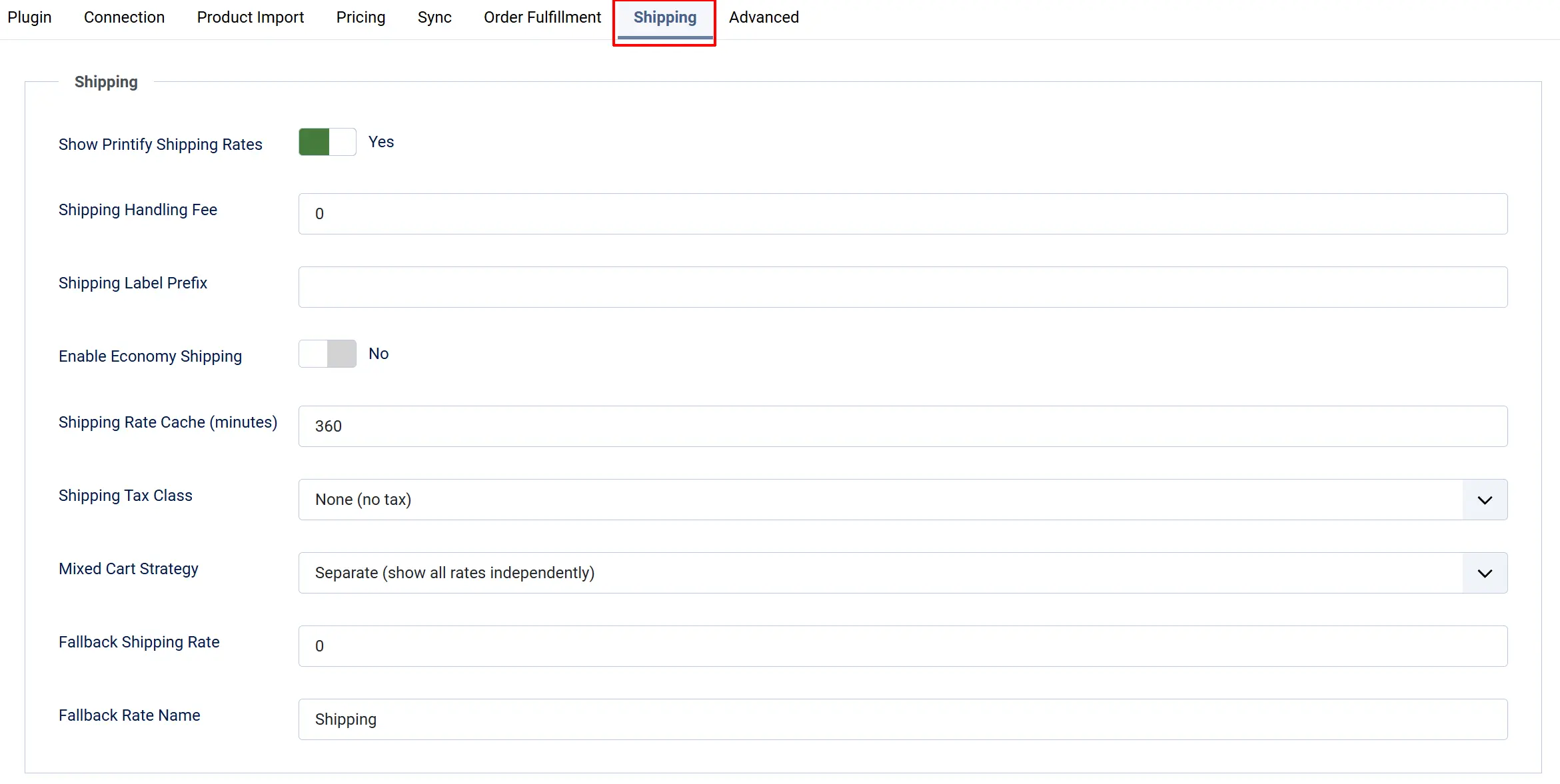
Show Printify Shipping Rates: Displays Printify's shipping options at checkout for carts that contain Printify products.
Shipping Handling Fee: A flat amount added on top of every Printify shipping rate — useful for packaging costs or margin.
Shipping Label Prefix: Optional text added to the start of every Printify shipping method name at checkout, e.g. entering POD: shows "POD: Standard Shipping."
Enable Economy Shipping: Shows a slower, cheaper Economy rate from Printify alongside Standard, Priority, and Express.
Shipping Rate Cache (minutes): How long Printify shipping rates are cached before refreshing, to reduce API calls during checkout. Minimum 60, in steps of 60.
Shipping Tax Class: The tax class applied to Printify shipping charges at checkout.
Mixed Cart Strategy: How shipping options are presented when the cart holds both Printify and non-Printify items. When a cart holds both Printify and non-Printify items, Mixed Cart Strategy decides what the shopper sees:
-
Separate: Printify rates and your own shipping methods are listed side by side, and the shopper picks one of each set as usual.
-
Sum Cheapest: the cheapest Printify rate is folded into every one of your own shipping rates, so the shopper sees a single set of prices that already covers the print-on-demand items. The Printify component is named in the rate description.
Carts that contain only Printify items, or only your own items, are unaffected by this setting.
***When Printify Cannot Be Reached: If the Printify API does not answer, the plugin falls back to the Fallback Shipping Rate using Fallback Rate Name. With the fallback left at 0, a Printify-only cart gets no shipping option at all and checkout stops — which is the safe default, but set a fallback if you would rather take the order and absorb the difference.
Fallback Shipping Rate: A flat rate used when the Printify API is unreachable. Set to 0 to block checkout for Printify-only carts when the API fails.
Fallback Rate Name: The name shown at checkout for that fallback rate.
The Shipping Summary Screen
Go to J2Commerce -> Apps -> Printify -> Dashboard -> Quick link -> Shipping

Shows a read-only summary of the shipping settings currently in force — whether rates are shown, economy shipping, cache duration, handling fee and label prefix.
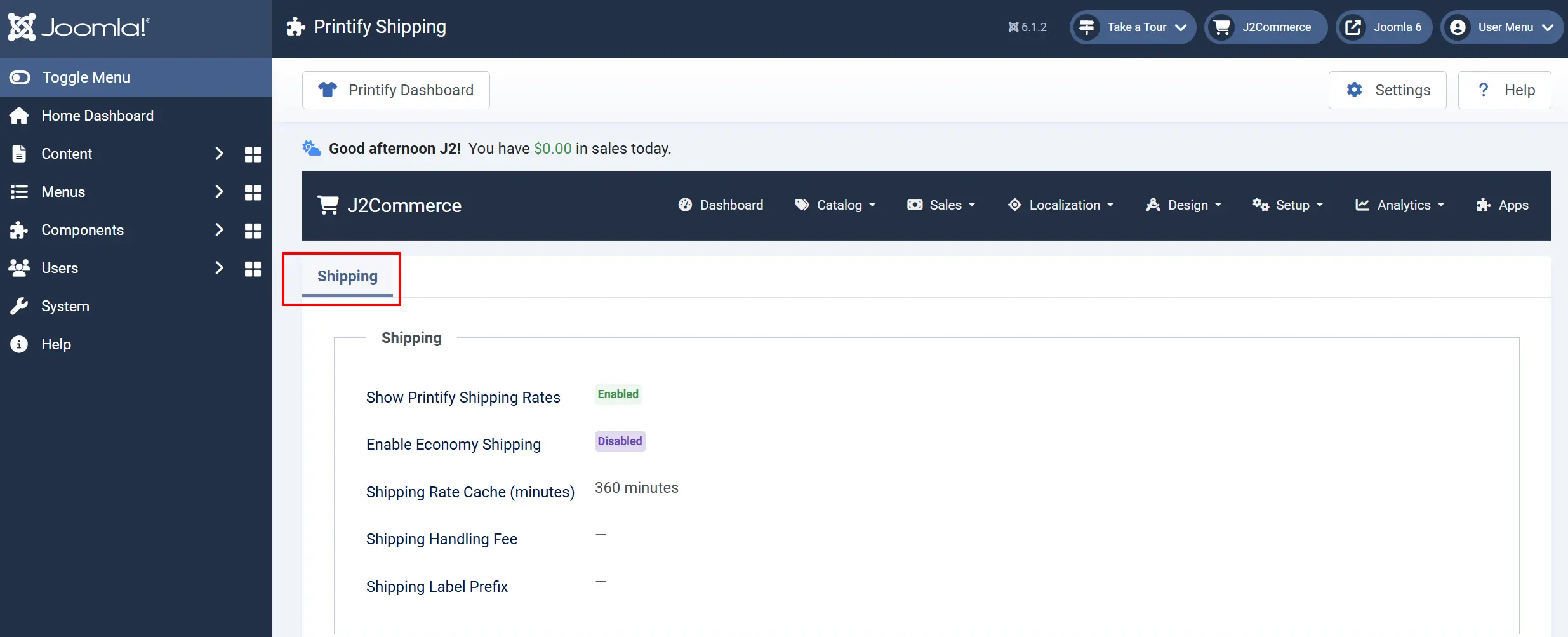
To change any of them, use the Shipping tab in the plugin settings.
Advanced tab
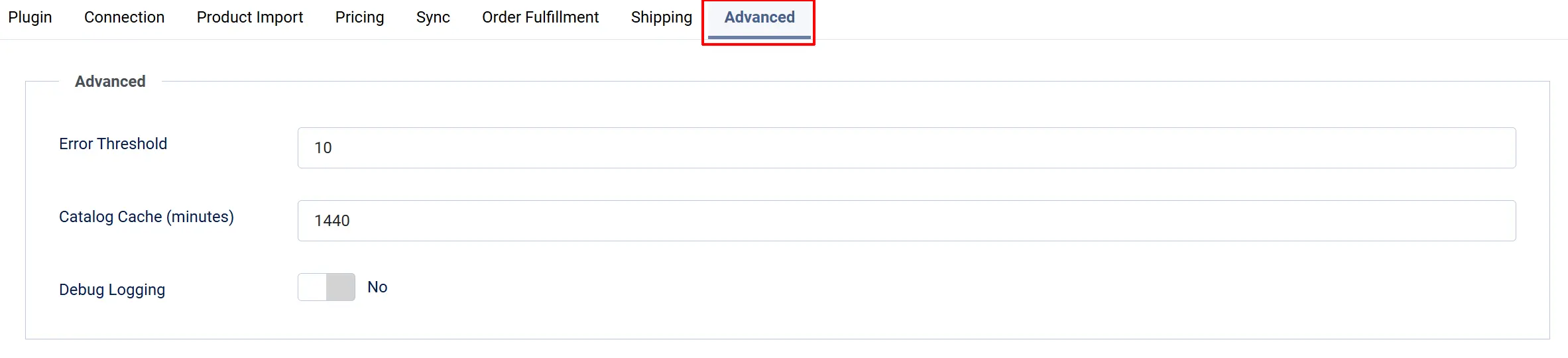
Error Threshold: The number of consecutive API failures before the app automatically pauses all Printify API calls (a circuit breaker, so one bad outage doesn't flood your error log or hammer Printify's API).
Catalog Cache (minutes): How long blueprint and print provider data fetched from Printify is cached. This data is used internally for shipping rates, currency resolution and manufacturer names. Minimum 60, in increments of 60.
Debug Logging: Writes detailed API request/response information to a log file for troubleshooting. Only enable this while diagnosing a problem.
The j2commerce_printify_cache table also holds shipping-rate cache entries and short-lived webhook bookkeeping. Expired rows are deleted on every scheduled printify_sync run, so the table does not need manual maintenance.
Getting Your Printify API Token
You need a Personal Access Token from Printify before the connection will work.
- Log in at printify.com.
- Click your account name in the top-right corner and choose My profile (or Settings).
- Go to the Connections tab and click API.
- Click Generate new token, give it a name like "J2Commerce," and click Create.
- Copy the token immediately — Printify only shows it once.
Treat this token like a password. Anyone who has it can fully control your Printify shop through the API.
Connecting Your Shop
Go to J2Commerce -> Apps and open Printify Print-on-Demand.
On the Connection tab, paste your token into Printify API Token.
Click Test Connection. You should see a message such as "Connected to Printify shop: My Shop Name (standard plan)."
A pointer to the Webhooks control further down the same tab, and note that it only works once the token and shop have been saved
Click Save in the toolbar to store the token, then reopen the settings — the Printify Shop dropdown will now list every shop on your account.
Select your shop and click Save again.
Most accounts only have one shop, so the choice is obvious. If you manage several Printify shops, double-check you've picked the right one — orders and products only ever sync with the shop selected here.
A Test Connection button also appears in the settings-screen toolbar, not only inside the Connection tab.

Printify Dashboard
Once the plugin is connected, the dashboard is the screen you will live in. It reports what you have imported, what is selling, and what Printify is currently doing with your orders.
Opening the Dashboard
Go to J2Commerce -> Apps -> Printify, or pick Printify Dashboard from the Analytics group in the J2Commerce menu.

Date Range
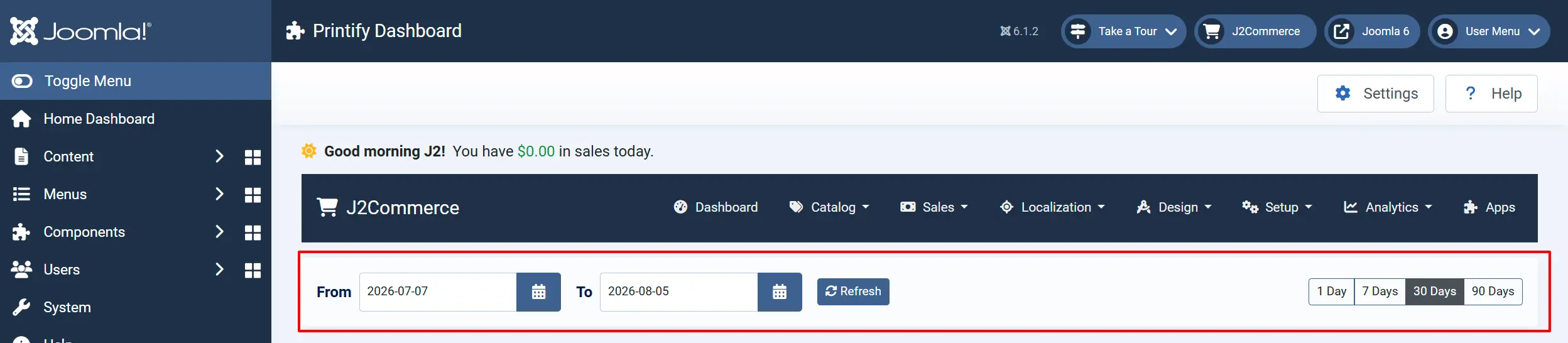
The dashboard opens on the trailing 30 days in your store's timezone. Set From and To by hand, or use the 1 / 7 / 30 / 90 day preset buttons, then click Refresh. Ranges longer than 366 days are rejected.
What the Dashboard Shows
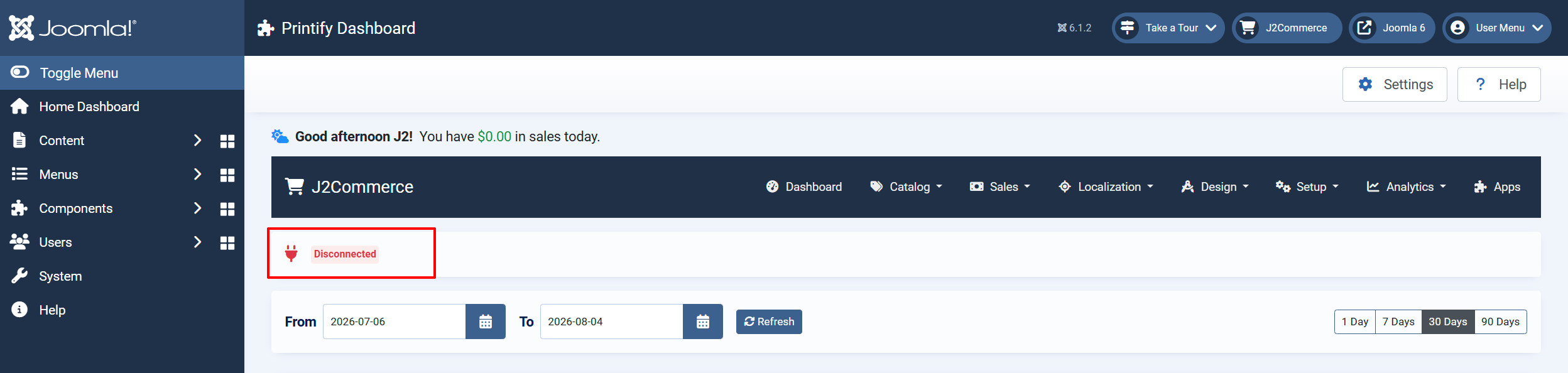
Connection banner: Connected or Disconnected, plus an "API operations paused" warning with a Resume API Operations button when the error threshold has tripped
Migrated Products: How many of your Printify products have been imported into this store (all time, not range-limited)
Total Sales / Total Profit / Margin: Revenue, profit over Printify base cost, and the resulting margin for the selected date range

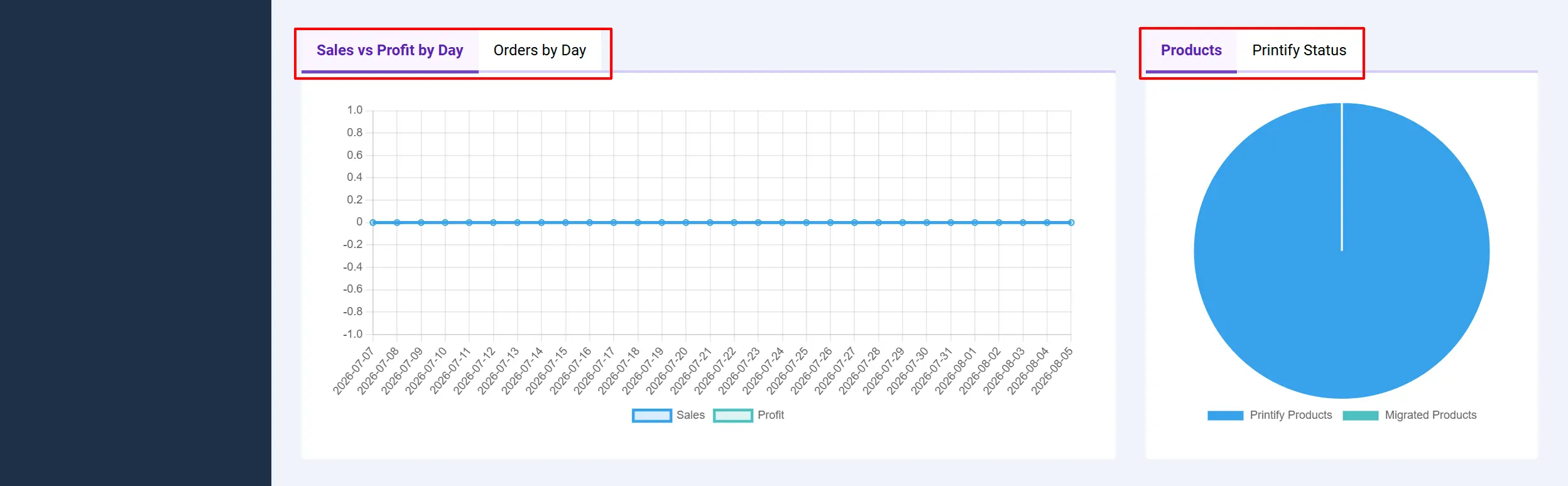
Sales vs Profit by Day / Orders by Day: Two charts on a tabbed card
Products / Printify Status: A pie comparing your Printify shop total against what you have imported, and a donut of order states
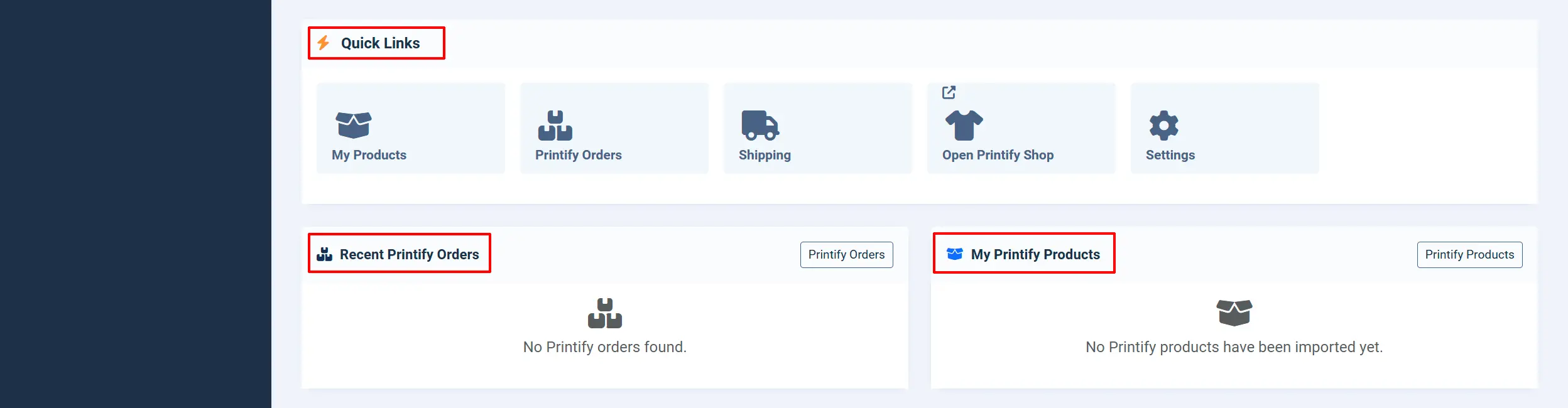
Quick Links: My Products, Printify Orders, Shipping, Open Printify Shop, Settings
Recent Printify Orders: The last 8 Printify orders with their status
My Printify Products: The 10 most recent Printify products with SKU, sync badge and an Edit Printify link
Fulfilment Status: Pending / In Production / Shipped / Delivered / Canceled: Order counts for the selected range

Toolbar
Every Printify screen carries the same toolbar: Printify Dashboard (on all screens except the dashboard itself), Sync Products (dashboard and Products screens, once the plugin is configured), Settings and Help.
Loading and Importing Your Printify Products
Products are designed and published in your Printify shop first (using Printify's own product editor), then pulled into J2Commerce with one click from the My Products screen.
- Go to J2Commerce -> Apps -> Printify Print-on-Demand to open the app dashboard
- Scroll to the Quick Links section, click the My Products quick link (or go to J2Commerce -> Apps -> Printify -> pluginview=products from the dashboard's quick links).

- Click Load My Products to fetch the product list from your Printify shop.
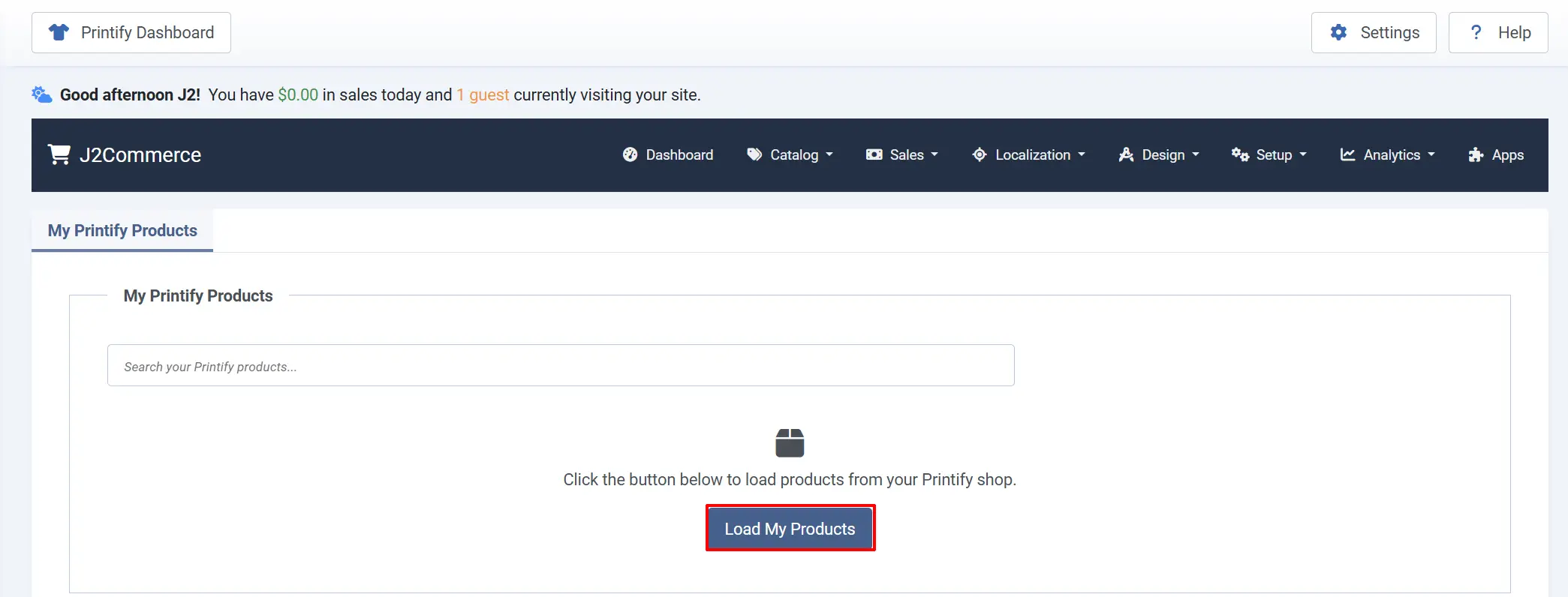
-
Each product appears as a card showing its image, title, and number of variants (sizes/colors), along with a badge that reads Not Imported or Imported.
-
Use the Search your Printify products... box to filter by name, or use the Previous/Next buttons to page through your shop.
-
Click Import on any product that shows Not Imported. The button shows a spinner while the import runs.
When the import completes, the app:
- Creates a Joomla article (title + description) in your configured Default Article Category.
- Creates the J2Commerce product record with the variants, prices, and options (Size, Color, etc.) that are enabled in Printify.
- Downloads and processes the product images from Printify's CDN.
- Applies your configured tags, tax profile, manufacturer, and vendor settings.
- Tells Printify the product was published successfully.
The card then switches to Imported with two buttons: Edit in J2Commerce (opens the product for editing) and a sync icon for pulling in future updates.
Importing Products from Printify
Importing Products from Printify: You design your products in Printify. This plugin brings the finished product into J2Commerce as a real article, product, option set and variant set. Opening the Products Screen: Go to J2Commerce -> Apps -> Printify and click Products, or use the My Products quick link on the dashboard.

Importing a Product
1. Click Load My Products. The plugin lists the products in your connected Printify shop — this is your own shop, not Printify's global catalog.
2. Use the search box to narrow the list, and Prev / Next to page through it.
3. Each card shows whether the product is Not Imported or Already Imported.
4. Click Import on the product you want to sell. Once it is in, the card offers Edit in J2Commerce instead.
What Import Creates
-
A Joomla article in your Default Article Category, tagged with your Default J2Commerce Tags, authored to whoever ran the import.
-
A J2Commerce product —
variablewhen the Printify product has more than one enabled variant,simplewhen it has one. -
Product options and option values for every Printify option (Size, Colour, and so on), rendered using your Option Field Type setting.
-
One variant per enabled Printify variant, plus a master variant, each priced from your Pricing settings and carrying its Printify base cost and SKU.
-
Product images, downloaded from Printify into
images/j2commerce/printify/, with thumbnails and WebP conversion following your J2Commerce image settings. -
Optionally a manufacturer (the print provider) and a vendor (Printify), if those settings are on.
The plugin also tells Printify that the product is published in your store, so it shows as connected in the Printify interface.
Duplicates Are Prevented
Before creating anything, the plugin looks for an existing import — first by the Printify product ID, then by the master SKU. If it finds one, it syncs that product instead of creating a second copy. Renaming a product in Printify no longer causes a duplicate import, because matching no longer uses the title.
Products Created in Printify Do Not Appear Automatically
Which Printify products your store sells is your decision. A product created or published in Printify is not put on sale in J2Commerce automatically — you must import it here. Webhook events for products you have never imported are recorded and ignored.
Syncing an Imported Product
If you change a product in Printify later — adding a color, updating the base cost, disabling a variant — sync it to bring J2Commerce up to date.
From the My Products screen: click the sync icon (circular arrows) on an already-imported product's card.
From the product edit screen: open J2Commerce -> Catalog -> Products, edit the product, and look for the Printify sync badge shown on the J2Commerce tab -> Apps tab. It shows the current sync status, the last-synced date and time, and an Edit Printify link that opens the product directly in your Printify shop editor.
Locating the Sync button
Option A: At the top table of the plugin

Option B: At the top of the Dashboard pages
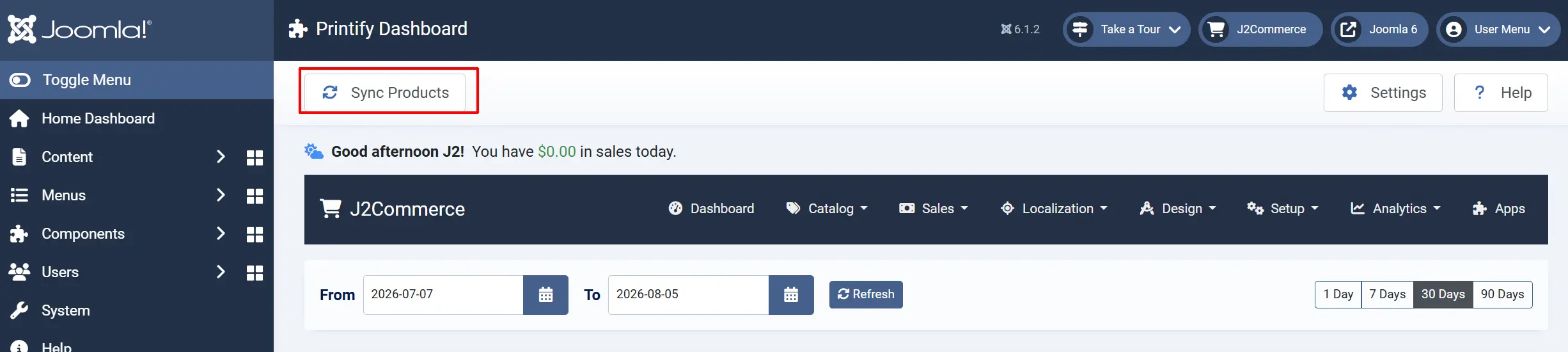
Syncing updates base costs on existing variants (your manual price overrides are kept), adds any new enabled variants, and removes variants you've disabled in Printify. It does not touch variants you've manually hidden in J2Commerce.
Keeping Products in Sync: Printify keeps moving — base costs change, colours are added, titles are edited. Syncing pulls those changes into J2Commerce.
Sync Settings: Configure these in the Sync tab of the plugin settings.
Sync Title and Description: Overwrites the linked article's title and description with the current Printify values on every sync. Turn this off if you edit product copy locally.
Auto-Sync Imported Products: Queues imported products for re-sync each time the printify_sync cron runs, so Printify edits reach the store without manual action.
Products Per Cron Run | How many products are queued per cron run. Keep this modest to stay inside Printify's rate limits.
Syncing a Single Product
-
1. Go to J2Commerce -> Catalog -> Products and open the product (Printify products open in the Joomla article editor, with the Printify panel in the J2Commerce apps section).
-
2. The Printify panel shows a status badge — Imported, Synced, Pending or Error — the date of the last successful sync, and an Edit Printify link that opens the product in Printify's own editor.
-
3. Click Sync Now to pull the latest data immediately.
Syncing Every Product
Click Sync Products in the toolbar of the Printify Dashboard, the Printify Products screen or the plugin settings screen. This queues every imported product for a background re-sync and confirms with a message such as "42 product(s) queued for sync." The work runs through the J2Commerce queue, so nothing is synced synchronously while you wait.
Automatic Sync: The scheduled command printify_sync, dispatched by the J2Commerce cron, does three things on every run:
-
1. Clears the catalog cache.
-
2. Deletes expired cache rows — this is what keeps the Printify cache table from growing without limit.
-
3. If Auto-Sync Imported Products is on, queues up to Products Per Cron Run products for sync, least-recently-synced first, skipping any product already sitting in the queue.
What Sync Does
-
Updates each existing variant's Printify base cost and SKU.
-
Recalculates the retail price of every variant, including the master variant — **unless** Apply Pricing Changes To is set to Newly Imported Products Only. A calculated price of zero or less is refused and the old price is kept.
-
Adds variants newly enabled in Printify, and removes local variants whose Printify variant is no longer enabled.
-
Updates the article's title and description when Sync Title and Description is on. The Printify HTML is passed through your site's Text Filters first.
-
Re-downloads product images and rebuilds the variant-to-image mapping.
-
Re-resolves the manufacturer and vendor when those settings are on.
-
Refreshes the storefront price index, so new prices show in category listings and price filters, not only on the product page.
Sync Status Values:
-
Imported: The product has been imported but not synced since
-
Synced: The product data matches the latest Printify data
-
Pending: A sync is queued but has not completed yet
-
Error: The last sync attempt failed |
Managing Printify Orders
The Order Sync screen lists every J2Commerce order that contains a Printify product, along with its Printify fulfillment status.
- Go to J2Commerce -> Apps -> Printify Print-on-Demand, then open the Dashboard -> Printify Order quick link.

-
Use the search box and the J2Commerce Status, Printify Status, and Tracking filters to narrow the list, and click any column heading to sort.
-
Order links straight to the J2Commerce order detail screen.
Searching and Filtering
-
Search: By order number or Printify order ID.
-
J2Commerce Status: filter by any enabled J2Commerce order status.
-
Printify Status: pending, on-hold, submitted, sending-to-production, in-production, shipped, delivered, canceled.
-
Tracking: Yes or No, to isolate orders that have tracking details. Every column sorts, and the list pages in the usual J2Commerce way.
The Columns
-
Order: Your J2Commerce order reference, linked to the order detail page
-
J2Commerce Status: The order's status in your store, as a badge
-
Printify Status: The current fulfilment status at Printify
-
Tracking: A Yes or No badge showing whether tracking details have arrived
-
Submitted: When the order was submitted to Printify
-
Created: When the Printify order record was created
-
Actions: Export, Send to Production or Cancel, depending on the order's state
Printify Status Values
-
Pending: Submitted to Printify, awaiting action
-
On-hold: Held at Printify before production
-
Submitted: Accepted by Printify but not yet in production
-
Sending-to-production: Being handed to the print provider
-
In-production: Being manufactured
-
Shipped: Shipped — tracking information is available
-
Delivered: Confirmed as delivered
-
Canceled: Cancelled at Printify
Actions
-
Export — appears when the order has not yet reached Printify. Sends it now. Use this when auto-submit is off, or for orders placed before you enabled it.
-
Send to Production — appears while the order is pending, on hold or submitted. Tells Printify to start manufacturing.
-
Cancel at Printify — cancels the order at Printify after a confirmation prompt. Only available before production begins, and it cannot be undone.
-
Refresh — reloads the list so the latest webhook updates appear.
Row actions
- Export — appears on orders not yet submitted; manually pushes that order to Printify. Use this if Auto-Submit Orders is off, or the order existed before you turned automation on.
- Send to Production — appears once an order is submitted but still on hold; tells Printify to start manufacturing.
- Cancel at Printify (trash icon) — cancels the order at Printify. You'll be asked to confirm, and this cannot be undone. Only available before production has started.
- Refresh — reloads the list so you can see the latest statuses updated by Printify in the background.
Webhook Integration
Webhooks let Printify push updates to your store the moment they happen — an order enters production, a shipment is created, a product is edited — instead of your store polling Printify.
Where Events Arrive: Printify delivers to a standard J2Commerce app endpoint on your site: ``` https://yoursite.com/index.php?option=com_ajax&group=j2commerce&plugin=app_printify&format=raw ```
Your site must be publicly reachable: Printify cannot deliver to localhost. The address registered with Printify is read from your site's own configuration, never typed in by hand.
Registering Webhooks:
1. Open the plugin settings and go to the Connection tab. Your API token and Printify shop must already be saved.
2. The Webhooks row shows whether this store is registered, along with the callback address Printify will post to.
3. Click Register Webhooks. The plugin subscribes to all nine topics in one go and reports how many succeeded.
4. If some topics fail — usually a Printify API hiccup — click Register Webhooks Again. Registering again always clears the previous subscriptions first, so you never end up with duplicates.
Deleting Webhooks
Click Delete Webhooks in the same place, for example before moving the store to a different address or switching Printify shops. Printify stops sending updates immediately, and the store forgets the signing secret that went with the registration. Register again once the move is done.
What Each Event Does
The plugin subscribes to nine Printify topics, one subscription per topic.
product:created | Syncs the linked product, if it has already been imported. A product you have never imported is recorded and ignored.
product:updated | As above
product:publish:started | As above
product:deleted | Unpublishes the matching J2Commerce product
order:created | Sets the Printify order record to pending
order:updated | Updates the Printify order status from the payload
order:sent-to-production | Sets the status to in-production
order:shipment:created | Saves the tracking carrier, number and URL, sets the status to shipped, and writes the tracking number onto the J2Commerce order's shipping record |
order:shipment:delivered | Sets the status to delivered
Creating or publishing a product in Printify never puts it on sale in your store — importing is always a decision you make from the Printify Products screen.
Security and Reliability
-
Every delivery is verified with an HMAC-SHA256 signature sent in the
X-Pfy-Signatureheader in the formsha256={digest}. A request with a missing or wrong signature is rejected. -
Printify occasionally redelivers the same event. Each event ID is remembered for seven days, so a redelivered event is acknowledged and dropped rather than processed twice.
-
Because the endpoint is public by design, repeated invalid requests are logged at most once per reason every fifteen minutes, so a misbehaving caller cannot fill the log file.
Also note: the plugin can still handle product:publish:succeeded, product:publish:failed and order:canceled, but does not subscribe to them, so Printify never sends them. Do not list them in the table — the current doc does, which is why it claims a publish event triggers an automatic import.
Fulfilling an Individual Order
Every J2Commerce order that contains a Printify product shows a Printify Fulfillment panel on its order detail screen, with the same actions available from the Order Sync screen: Submit to Printify, Send to Production, Cancel Printify Order, and Refresh Status. The panel also displays the Printify order ID, submission date, tracking number and carrier (once shipped), and a shipping cost breakdown when available.
How It Works
- You design and publish a product in your Printify shop, then import it into J2Commerce from My Products (or sync an existing import when it changes).
- A customer adds the product to their cart and checks out. If Show Printify Shipping Rates is enabled, Printify's own shipping rates for the destination country appear alongside your other shipping methods.
- When the order reaches the order status you configured under Trigger on Order Status, the app automatically submits the order to Printify (if Auto-Submit Orders is on).
- If Auto Send to Production is on, Printify immediately starts manufacturing the item. Otherwise, you send it to production manually from the Order Sync screen or the order's Printify Fulfillment panel.
- Printify prints, packs, and ships the order directly to your customer. Once it ships, the tracking carrier, number, and URL are recorded on the order automatically.
- You track every Printify order's progress — pending through delivered — from the Order Sync screen without leaving your J2Commerce admin.
Tips
- Design in Printify, import in J2Commerce — this app does not create new Printify products for you; build and publish them in your Printify shop first, then bring them in with Import.
- Leave Default Import Status set to Unpublished while you're getting started, so you can review descriptions and pricing before a product goes live.
- Set up your tag and category first — create a dedicated Joomla content category and J2Commerce tag before your first import, so products land in the right place automatically.
- Sync after every Printify change — if you add a new color or size to a product in Printify, sync it in J2Commerce so the new variant becomes purchasable.
- Review your markup on a real product — check that your Markup Value produces a price you're comfortable with before importing your whole catalog.
Troubleshooting
"Printify API token is not configured"
Cause: The app has not been connected to Printify, or the token wasn't saved.
Solution:
- Go to J2Commerce -> Apps -> Printify Print-on-Demand.
- Confirm the Printify API Token field on the Connection tab contains your token.
- Click Save in the toolbar.
Printify Shop dropdown is empty
Cause: The token has not been saved yet, so the shop list hasn't been fetched.
Solution:
- Paste your token into Printify API Token and click Save.
- Reopen the plugin settings — the Printify Shop dropdown now lists your shops.
- Select your shop and Save again.
"Default article category is not configured"
Cause: The Default Article Category field on the Product Import tab is empty. Import fails without it.
Cause: The product was imported with Default Import Status set to Unpublished; no Default J2Commerce Tags were configured; or the plugin calculated a retail price of zero or less for one of its variants and deliberately left the product unpublished.
Solution:
- Go to the Product Import tab.
- Select a Joomla content category from Default Article Category.
- Click Save, then retry the import.
Imported products don't show up on the storefront
Cause: The product imported as Unpublished, or it wasn't assigned a tag your storefront listing depends on.
Solution:
- Go to J2Commerce -> Products and find the imported product.
- Set its status to Published.
- Confirm the product carries the tag used by your storefront's tag-based listing.
A product I created in Printify has not appeared in my store
Cause: This is intentional. Since version 6.1.0, creating or publishing a product in Printify no longer puts it on sale in J2Commerce.
Solution:
1. Go to J2Commerce -> Apps -> Printify -> Products.
2. Click Load My Products, find the product, and click Import. ---
No Printify shipping rates at checkout
Cause: Show Printify Shipping Rates is off, the cart has no Printify product in it, or the destination isn't covered by the print provider.
Solution:
- Confirm Show Printify Shipping Rates is set to Yes on the Shipping tab.
- Confirm the product in the cart was imported from Printify (check for the sync badge on its edit screen).
- Try a different destination country to rule out a country-specific gap in coverage.
- Set a Fallback Shipping Rate in the Shipping tab so a Printify API outage does not stall checkout. Printify rates are cached for the duration of Shipping Rate Cache (minutes) and expire on their own — there is no manual cache-clear control.
An imported product is unpublished, or a variant is missing after a sync
Cause: The plugin calculated a retail price of zero or less for that variant. It refuses to sell a product for nothing, so it leaves the product unpublished at import and skips the variant on sync.
Solution:
1. Check the Pricing Method and Markup / Margin Value in the Pricing tab against the product's Printify base cost.
2. A gross margin of 100 or more cannot be solved and falls back to the base cost — use a value below 100.
3. If the method is Use the Retail Price Set in Printify, confirm the variant actually has a retail price set in Printify.
4. Correct the setting, then sync the product again.
The scheduled Printify sync does not seem to run
Cause: The printify_sync command is dispatched by the J2Commerce cron, not by Joomla's Task Scheduler.
Solution:
1. Confirm your site's J2Commerce cron is firing at all.
2. Confirm Auto-Sync Imported Products is set to Yes in the Sync tab.
3. If the store is running a plugin build older than 6.1.1, update it — the scheduled command could not run in earlier builds.
4. As an immediate workaround, click Sync Products in the Printify toolbar.
Printify events are not reaching my store
Cause: The webhook endpoint moved in version 6.1.1, or the signature is not validating.
Solution:
1. Confirm your site is publicly reachable over HTTPS — Printify cannot deliver to a local or firewalled site.
2. If you have a firewall or allow-list referencing the old task=cron.execute webhook address, remove it: events now arrive at index.php?option=com_ajax&group=j2commerce&plugin=app_printify&format=raw.
3. Enable Debug Logging and check logs/app_printify.php. A rejected delivery is logged as a signature verification failure, at most once every fifteen minutes.
4. If events have never arrived at all, open the Connection tab and check the Webhooks status. Click Register Webhooks if it reports that this store is not registered.
Orders aren't auto-submitting to Printify
Cause: Auto-Submit Orders is off, or Trigger on Order Status doesn't match the status your order actually reaches.
Solution:
- Confirm Auto-Submit Orders is Yes on the Order Fulfillment tab.
- Confirm Trigger on Order Status matches the status your payment gateway sets on successful payment (for example, "Confirmed").
- Check whether the order appears on the Printify Orders screen. If it does, the order was recognised as a Printify order. If it does not appear, the products in that order may not have been imported from Printify.
API operations paused
Cause: The app hit the Error Threshold of consecutive API failures and paused itself to avoid flooding your error log.
Solution:
- On the Printify dashboard (J2Commerce -> Apps -> Printify Print-on-Demand), note the warning banner.
- Confirm your Printify API token is still valid — log in to Printify and check it hasn't been revoked.
- If you need more detail, turn on Debug Logging and check the log file described below.
- Once the underlying issue is resolved, click Resume API Operations on the dashboard.
Debug log location
When Debug Logging is enabled, entries are written to app_printify.php in your site's Joomla logs folder, using Joomla's standard log format.