GDPR Compliance
The GDPR app brings data privacy compliance features to J2Commerce. It gives customers meaningful control over their personal data stored in your shop, and helps you meet obligations under GDPR and similar privacy regulations.
Key features include:
- Terms and conditions checkbox or link at checkout (billing or payment step)
- Customer self-service buttons to delete saved addresses and order address records
- Activity log that records every address edit and deletion
- Email notifications to store admins and customers when data changes
- Optional GDPR data request form on the My Profile page
- IP address removal from carts and orders
Requirements
- PHP 8.3+
- Joomla! 6.x
- J2Commerce 6.x
Purchase and Download
The GDPR app is a separate add-on available from the J2Commerce Extensions Store. It is not included with the core J2Commerce 6 component.
Step 1: Go to the J2Commerce website -> Apps.
Step 2: Locate the GDPR app -> click View Details -> Add to cart -> Checkout.
Step 3: Go to My Downloads under your profile menu at the top right corner and search for the app. Click Available Versions -> View Files -> Download.
Install the App
You can install this GDPR App using the Joomla installer. The following steps help you with a successful installation.
In the Joomla admin, go to System -> Install -> Extensions
Upload the plugin ZIP file or use the Install from URL option.
 (1)-a6689f12b23b8e992f5c2a169737672f.webp)
Enable the App
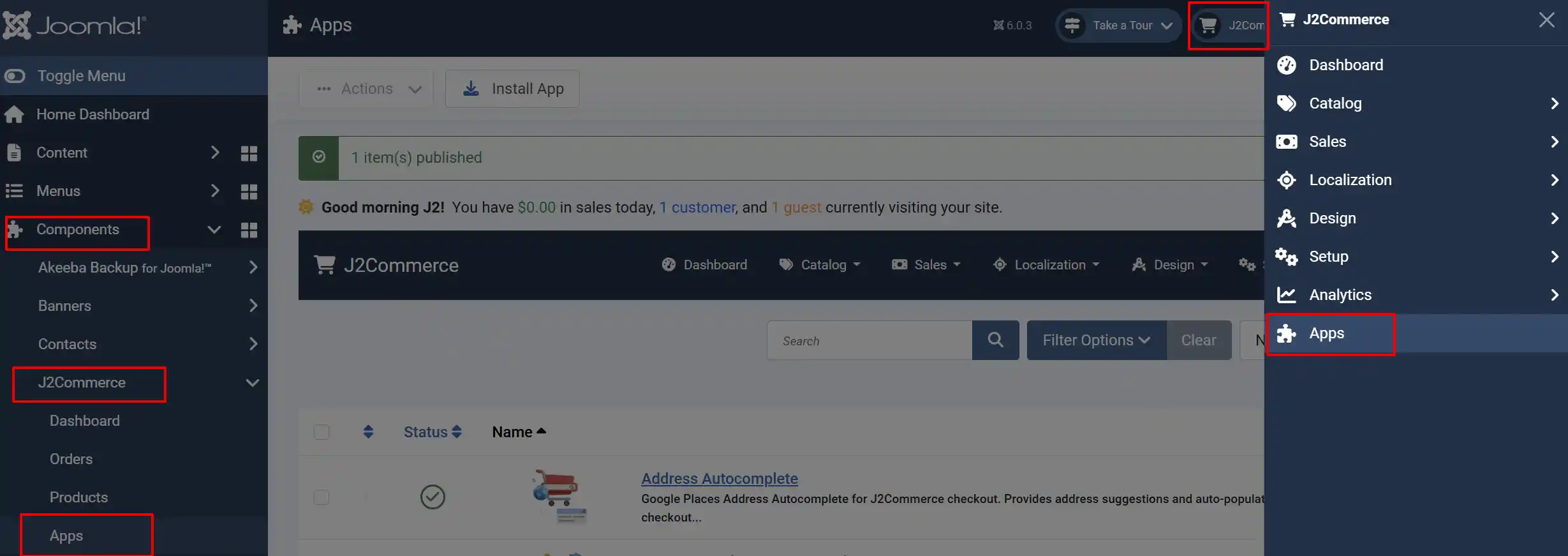
Once installed, you must enable the app. There are two ways to access it:
Option A: Click the J2Commerce icon at the top right corner -> Apps.
Option B: Go to the left sidebar -> Components -> J2Commerce -> Apps.
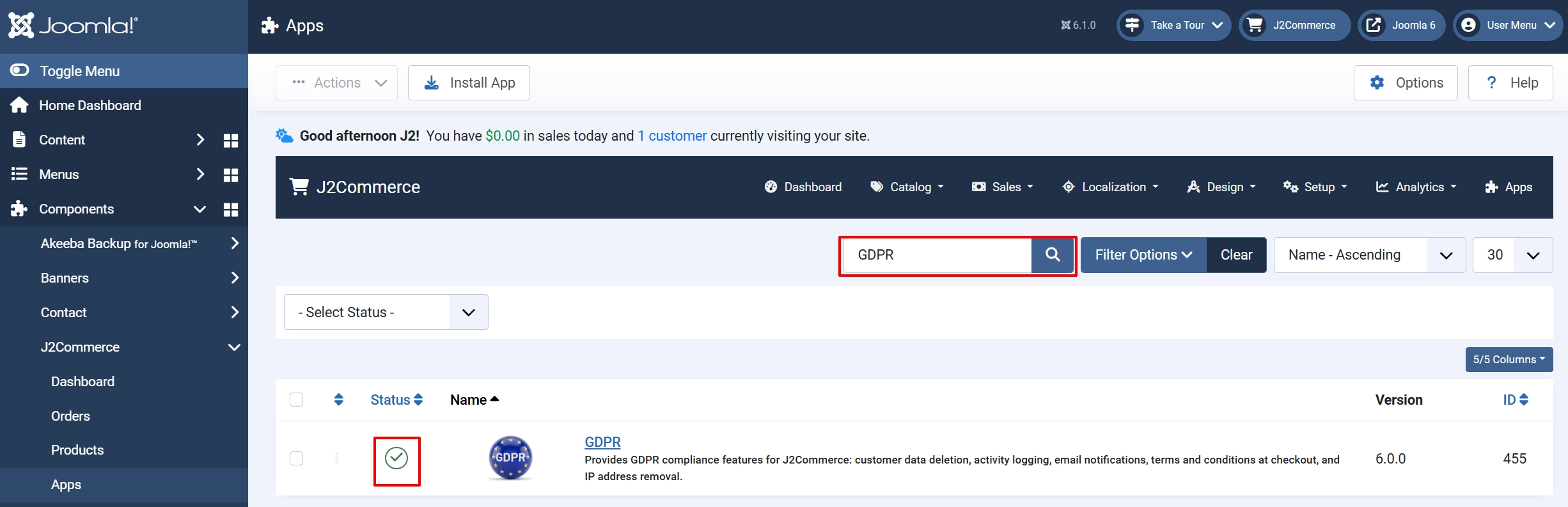
Look for GDPR, click the X, and it will turn into a green checkmark. It is now enabled and ready for setup.
Configuration
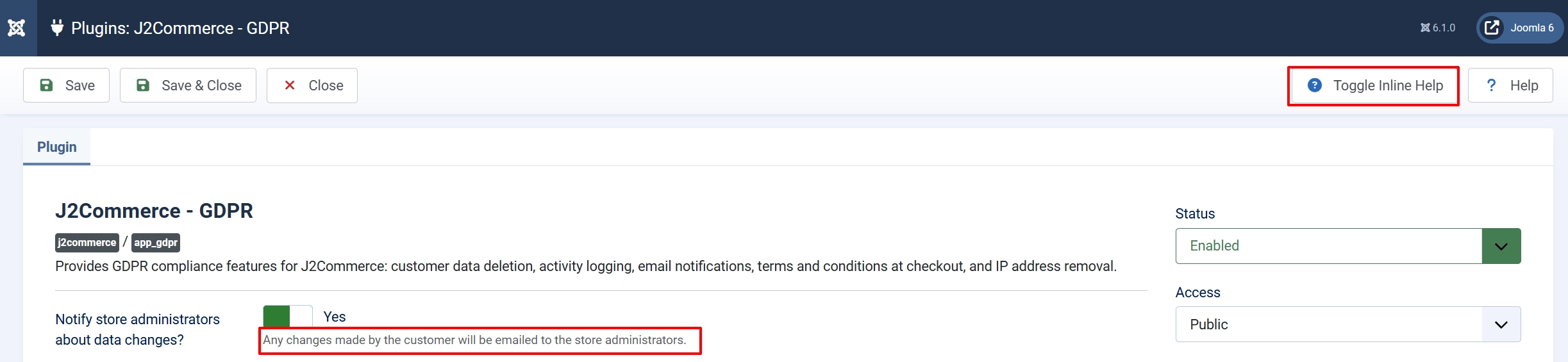
Open the GDPR app settings by clicking its name in the Apps list.
Click the Toggle Inline Help button in the toolbar and the app will show a description below each field as you configure it.
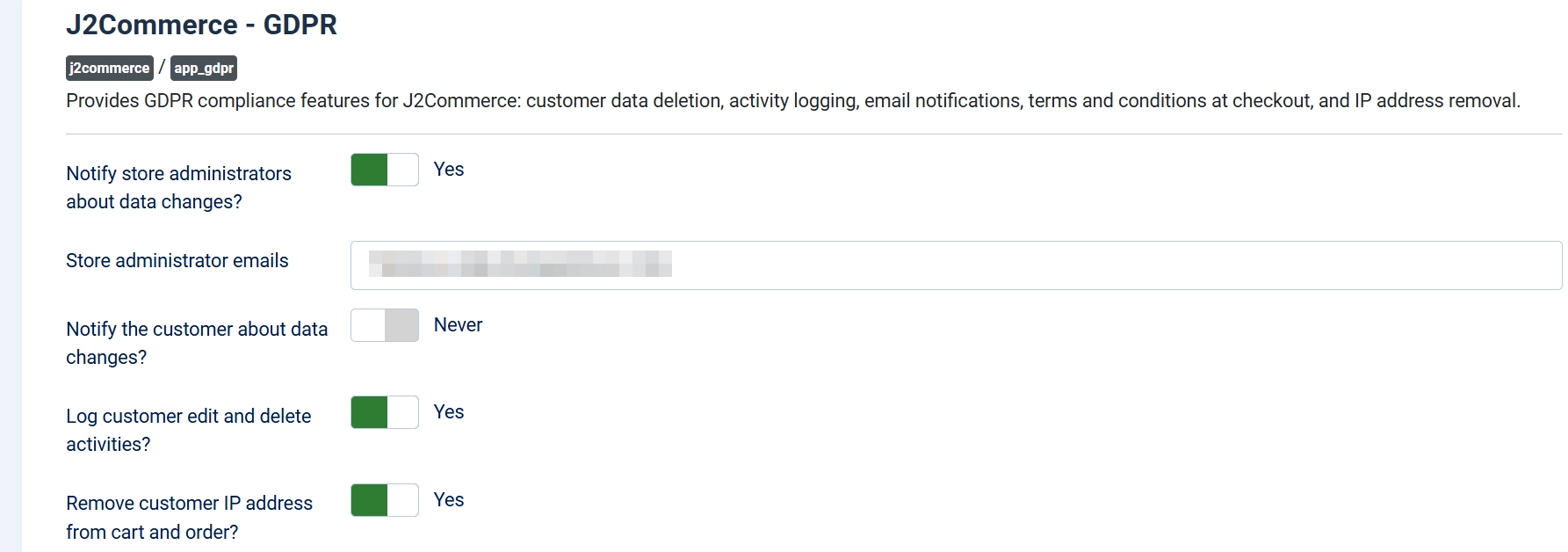
Email Notifications
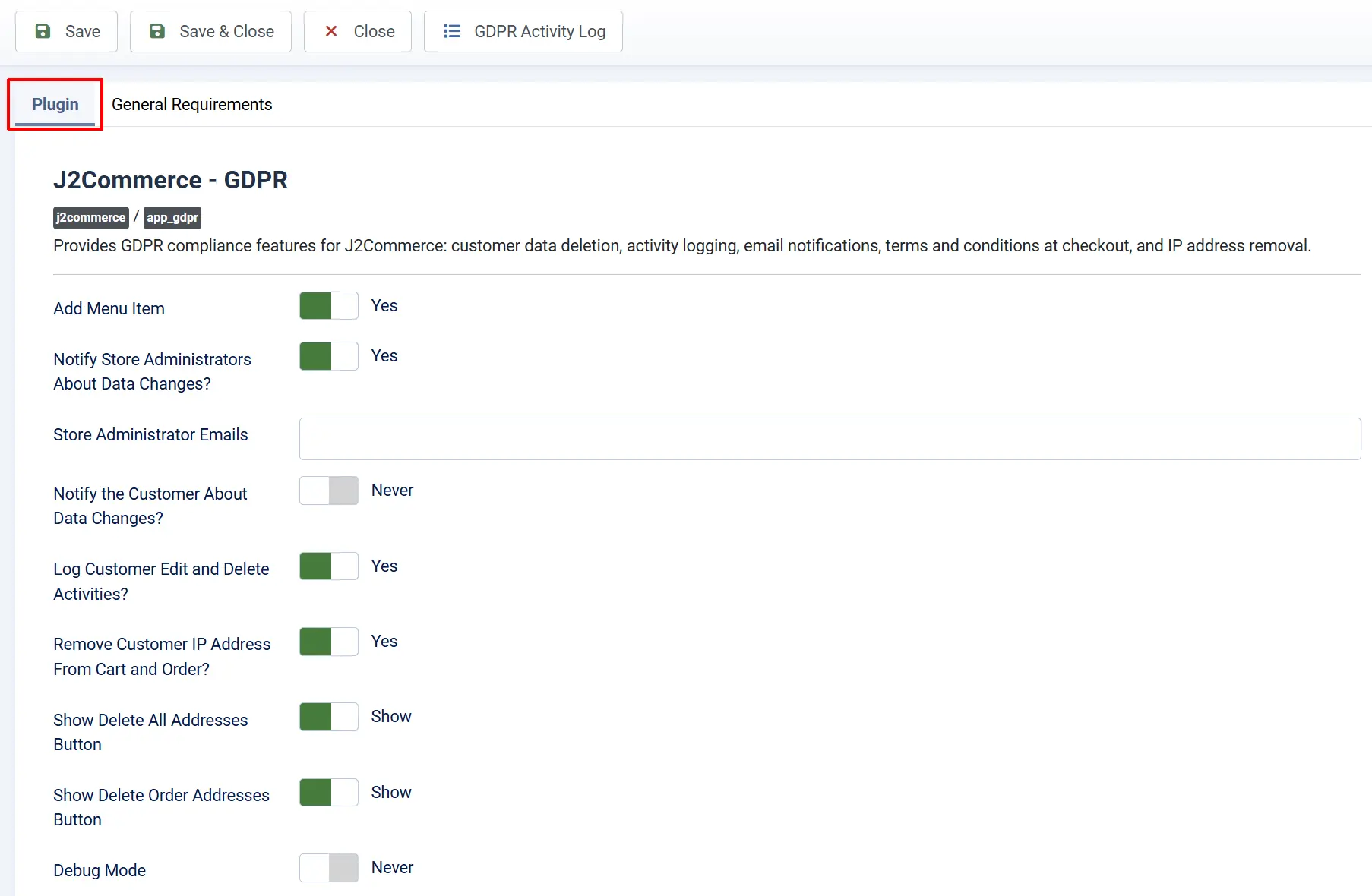
Add Menu Item: Show or hide the GDPR Activity Log link in the J2Commerce dashboard menu.
Notify store administrators about data changes: Send an email to the admin addresses below whenever a customer edits or deletes address data
Store administrator emails: Comma-separated list of admin email addresses to notify
Notify the customer about data changes: Send a confirmation email to the customer when they change their own data
Log customer edit and delete activities: Record every address edit and deletion in the GDPR activity log
When enabled, all changes are stored in the activity log, viewable from the J2Commerce Apps page.
Remove customer IP address from cart and order: Strip the IP address field from new cart and order records at the time they are created
IP removal only applies to new carts and orders created after the setting is enabled. Existing records are not retroactively modified.
Show delete all addresses button: Display a button on the My Profile page allowing customers to delete all their saved addresses
Debug Mode: Write detailed log entries to administrator/logs/app_gdpr.php
Enable Debug Mode temporarily when troubleshooting. Disable it in production to avoid filling your log directory.
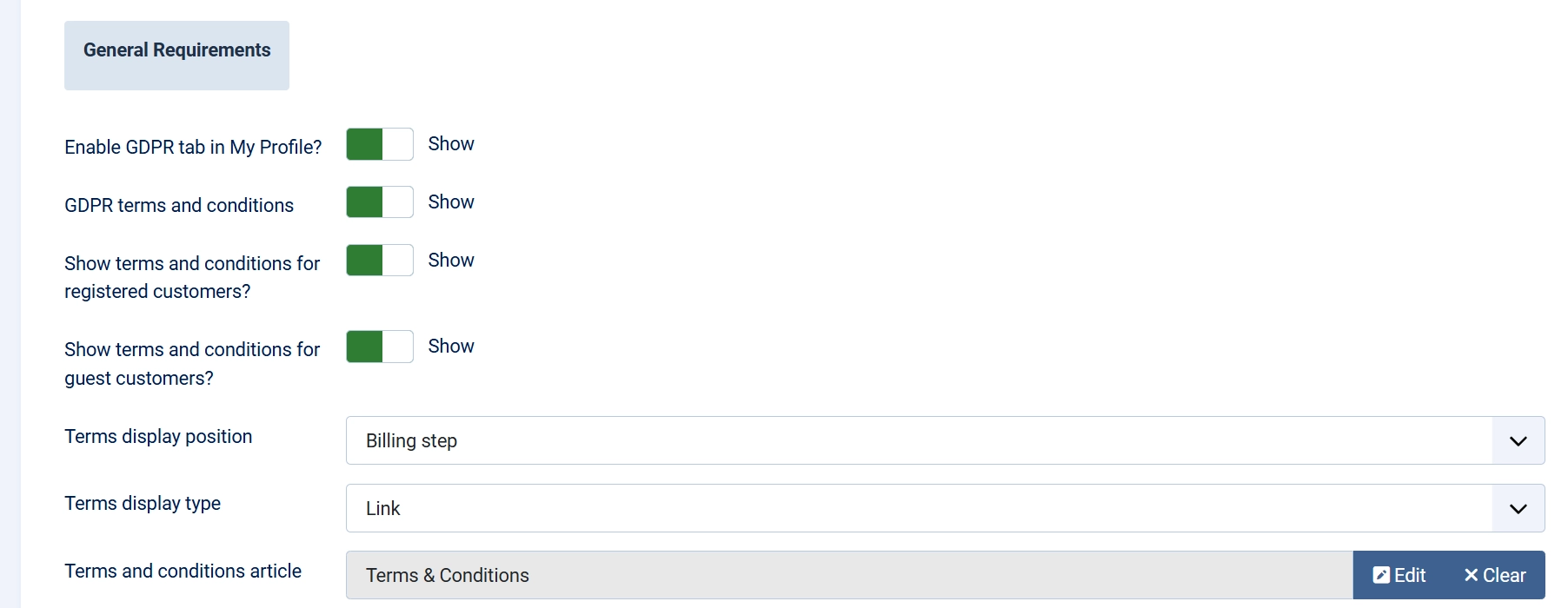
General Requirements tab
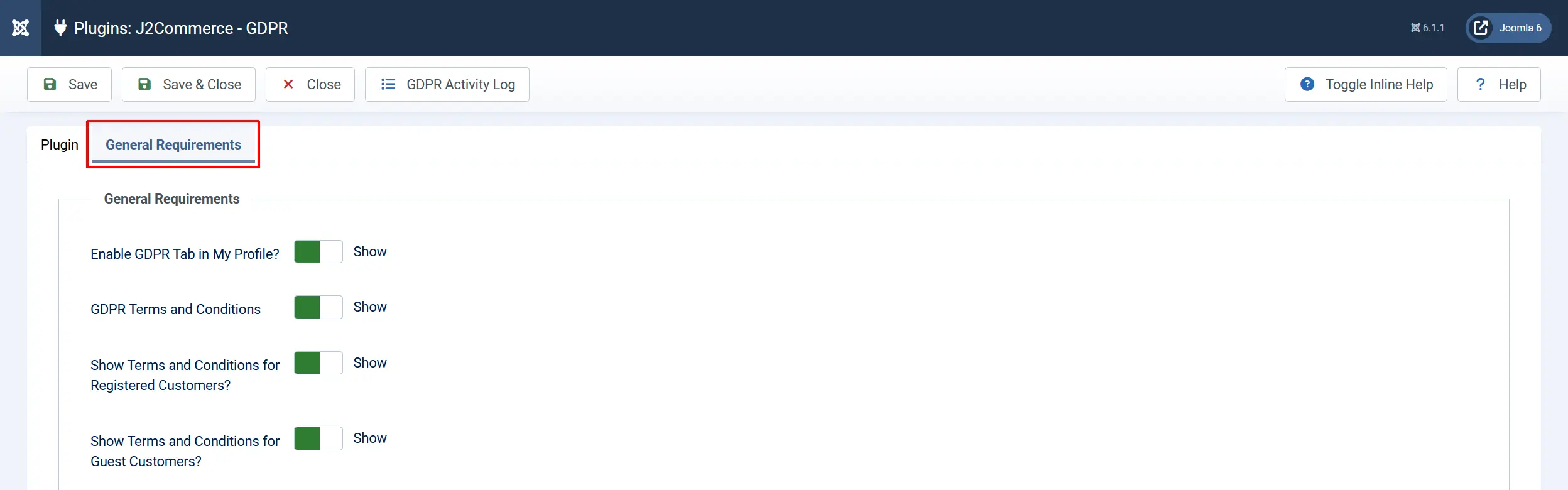
Enable GDPR tab in My Profile: Show a GDPR data request form as a tab on the customer My Profile page
GDPR terms and conditions: Show or hide terms and conditions at checkout
Show terms for registered customers: Include terms display for logged-in customers
Show terms for guest customers: Include terms display for guest checkout

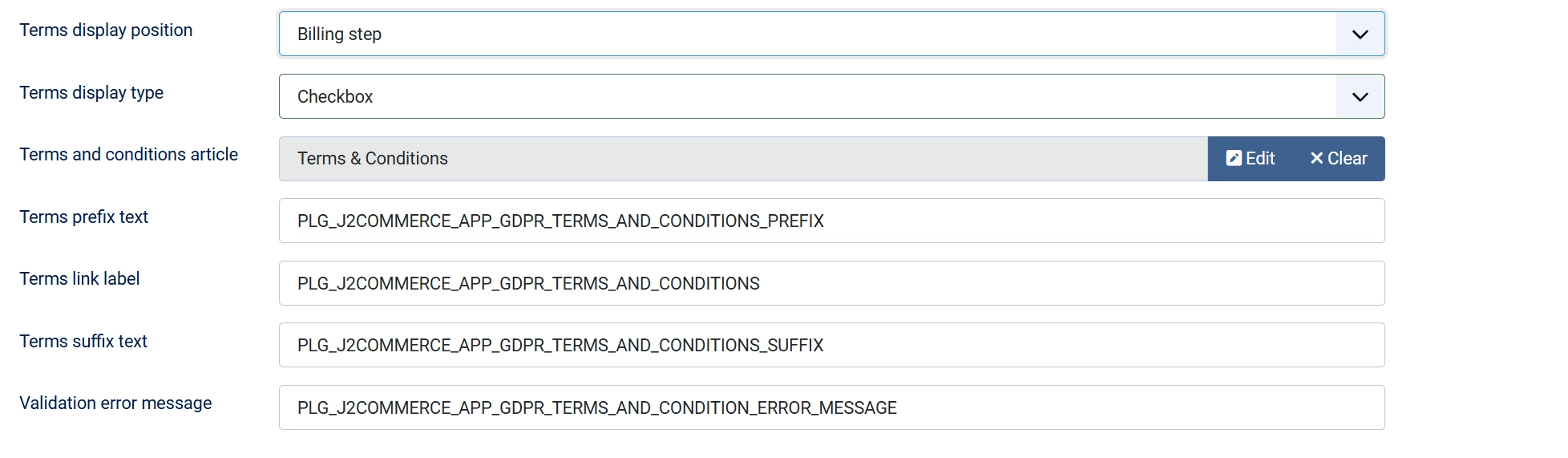
Terms display position: Choose whether terms appear at the Billing step or the Payment step
Terms display type: Show terms as a Link (informational) or a Checkbox (required to proceed)
Terms Label Customisation
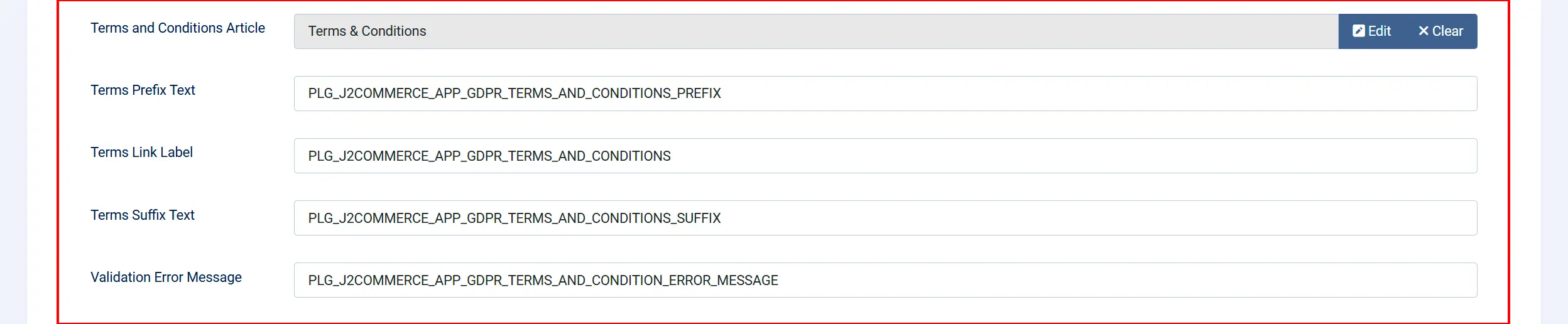
These three fields control the text displayed around the terms link at checkout. They support Joomla language key strings or plain text.
Terms and conditions article: Select the Joomla article that contains your privacy policy or GDPR terms
Terms prefix text: Text before the clickable link
Terms link label: The clickable link text
Terms suffix text: Text after the clickable link
Validation error message: Message shown when the customer does not tick the checkbox
How It Works
Terms and Conditions at Checkout
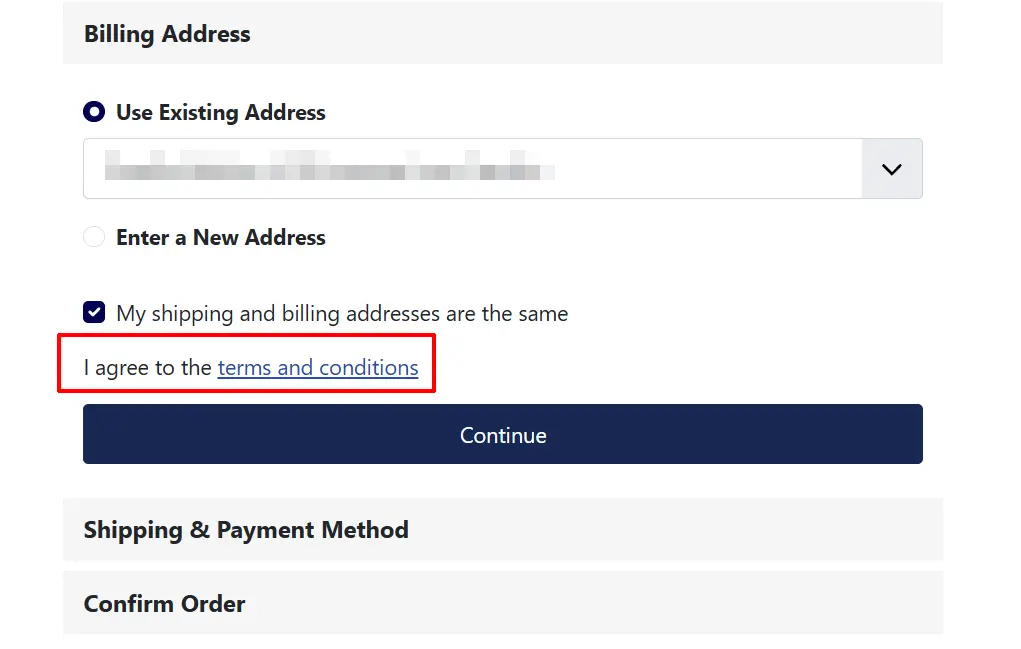
When GDPR terms and conditions is enabled, a notice (or required checkbox) appears at the checkout step you configured — Billing or Payment.
- Link display type: The terms text and link are shown as information only. The customer can click the link to read the full article in a modal window. Checkout is not blocked.
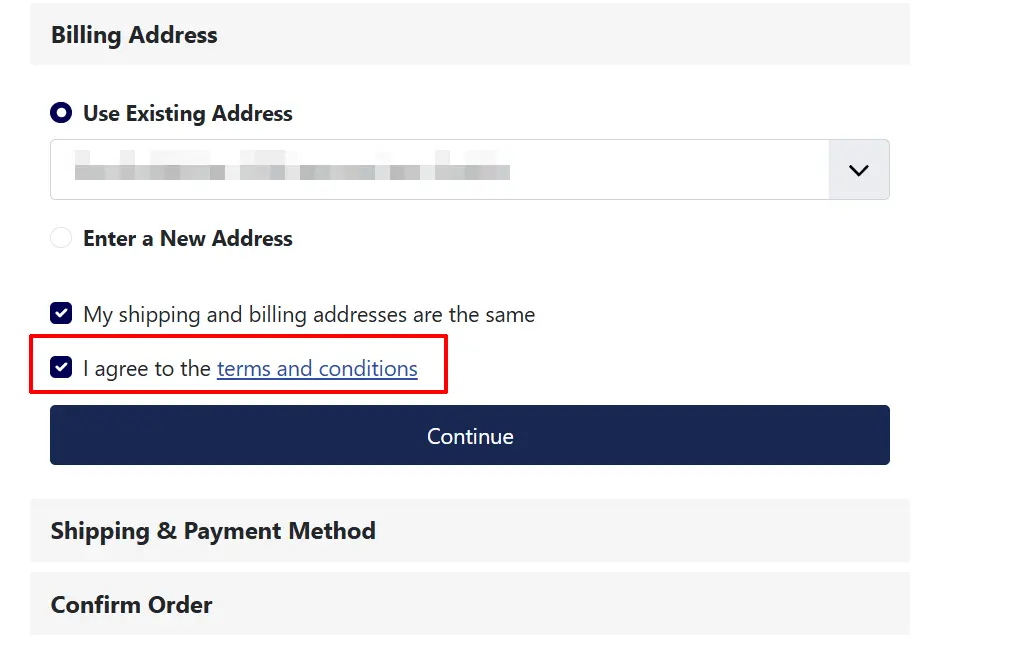
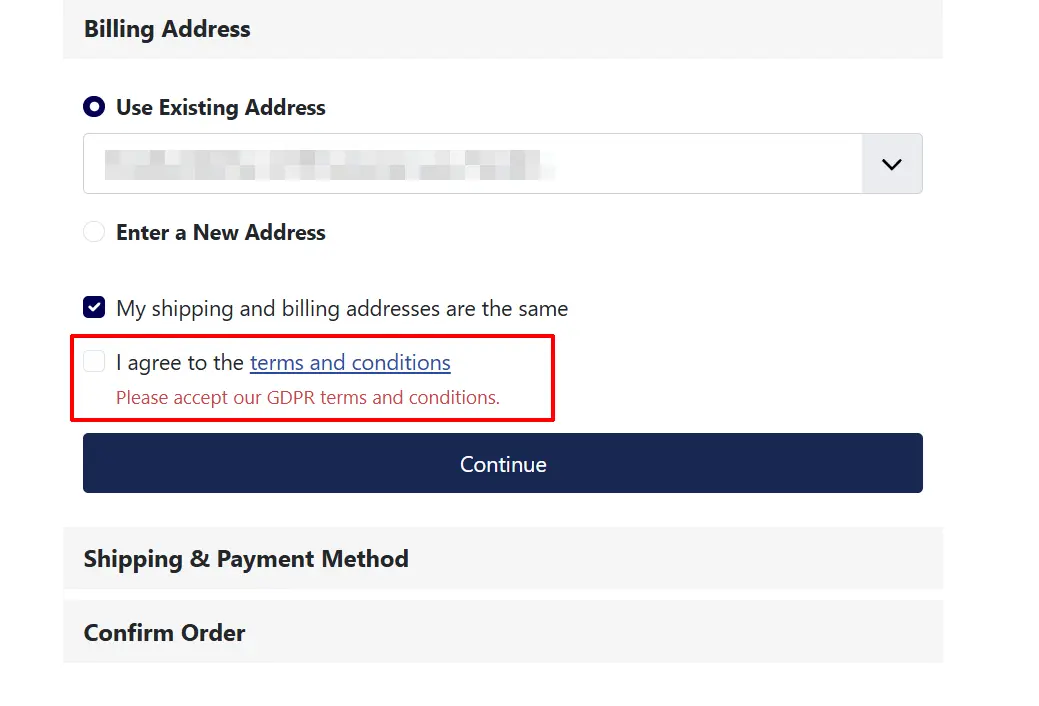
- Checkbox display type: The customer must tick the checkbox to continue. If they try to proceed without ticking it, an inline error message is shown.
Customer Address Deletion
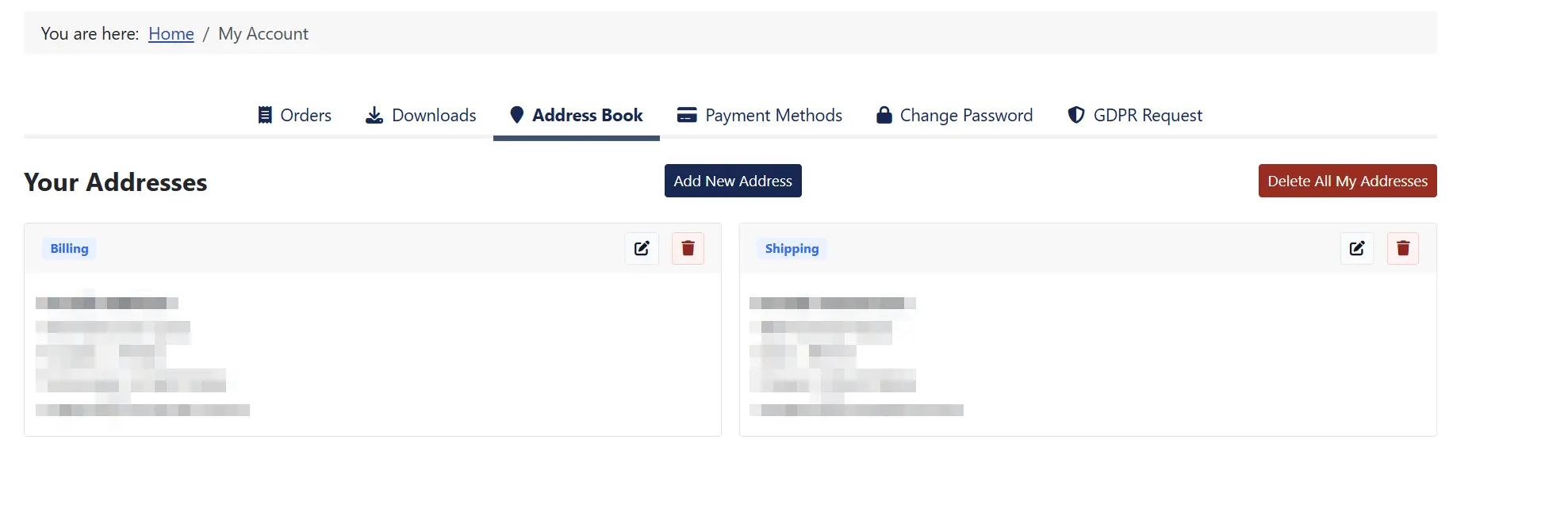
When the Show delete all addresses button setting is enabled, a red Delete all my addresses button appears on the My Profile page above the address list. When a customer clicks it:
- All their saved addresses are deleted from the database.
- An activity log entry is written (if logging is enabled).
- Admin and customer notification emails are sent (if enabled).
- The customer is redirected back to My Profile with a confirmation message.
GDPR Data Request Tab
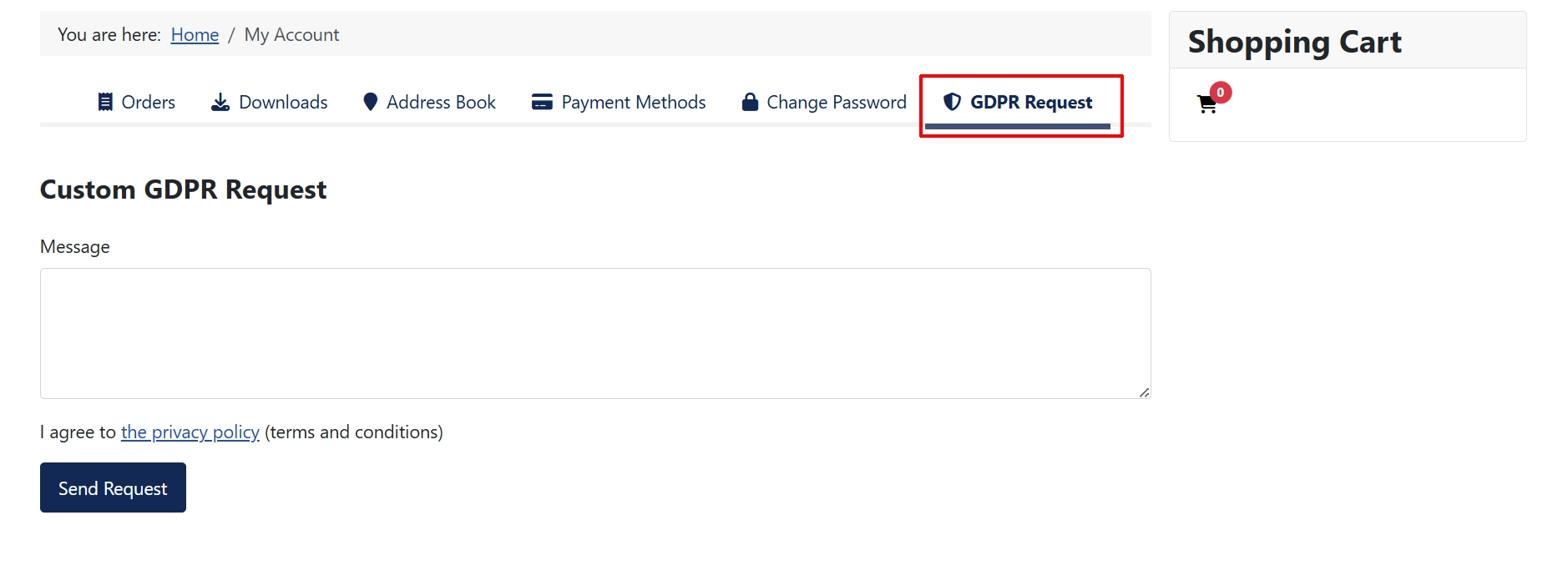
When the Enable GDPR tab in My Profile setting is enabled, a GDPR Request tab appears on the My Profile page. Customers can type a free-text message and submit it to the store admin.
The request is saved to the activity log and — if admin email notifications are enabled — sends an email to the store administrator with the customer's message.
Activity Log
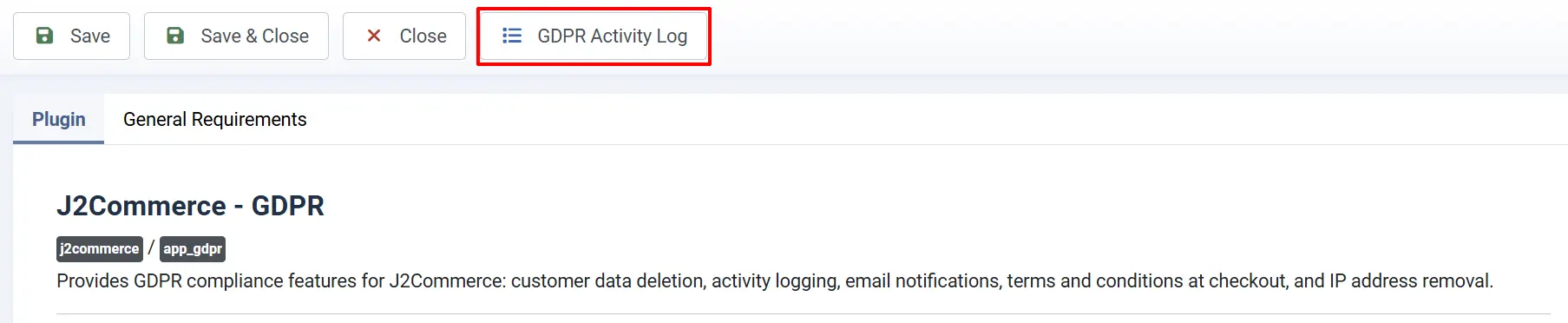
When Log customer edit and delete activities is enabled, the plugin records entries in a private database table. Each entry stores:
- Date and time
- Customer email
- Whether it was an address change or order address removal
- A short description of what changed
You can view the activity log from the J2Commerce Apps page by clicking the GDPR app name and navigating to the log view.
Setting Up Terms and Conditions
Create a Privacy Policy Article
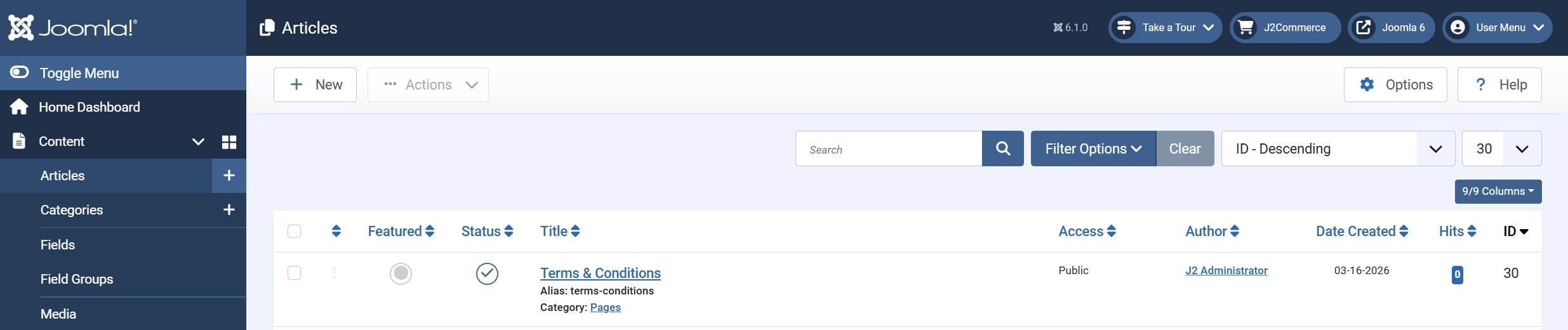
- In the Joomla Administrator, go to Content -> Articles -> New.
- Write your GDPR privacy policy or terms and conditions.
- Save the article and note its ID (shown in the article list).
Link the Article to the Plugin
- Go to J2Commerce -> Apps -> GDPR settings.
- In the Terms and conditions article field, click the Select button and choose your article.
- Set Terms display type to Checkbox if you require acceptance.
- Set Terms display position to where you want the terms to appear (Billing or Payment).
- Click Save.
Frontend Checkout View
Visit your store's checkout as a test customer and confirm the terms text and link appear at the expected step.
Link View
Checkbox View
Checkbox Error
Troubleshooting
Terms are not appearing at checkout
Cause: The GDPR terms and conditions setting may be disabled, or the position setting does not match the step you are checking.
Solution:
- Open the GDPR app settings.
- Confirm GDPR terms and conditions is set to Show.
- Confirm Terms display position matches the step where you expect terms to appear.
- If using Checkbox display, confirm the correct step's validation is completing without errors from other plugins.
The delete address button is not visible on My Profile
Cause: The Show delete all addresses button setting may be disabled, or the customer has no saved addresses.
Solution:
- Confirm Show delete all addresses button is set to Show in the plugin settings.

- Log in as a test customer who has at least one saved address. The button only appears when addresses exist.
Admin notification emails are not arriving
Cause: The admin email addresses may be missing or incorrectly formatted, or Joomla's mail settings may be misconfigured.
Solution:
- Open the GDPR app settings and verify the Store administrator emails field contains valid comma-separated addresses with no spaces.
- Go to System -> Global Configuration -> Server tab and confirm the mail settings are working by using the Send Test Mail option.
GDPR request form submissions are not saving
Cause: The form requires a CSRF token. If the session has expired or the page was cached, the token may be invalid.
Solution: Ask the customer to refresh the My Profile page and submit the form again. If the problem persists, check that Joomla page caching is not enabled for the My Profile view.