Already Purchased
The Already Purchased app recognizes your logged-in customers and shows them a friendly badge on any product page for items they have already bought. The badge displays how many times they have purchased the product, when they last ordered it, and a direct link to that order. For digital or non-repeatable products you can optionally block re-purchase entirely, showing an ownership notice above the cart button instead.
Requirements
- PHP 8.3.0 +
- Joomla! 6.x
- J2Commerce 6.x
Purchase and Download
Step 1: Go to our J2Commerce website -> Apps
Step 2: Locate the Already Purchased app -> click View Details -> Add to cart -> Checkout.
Step 3: Go to your My Downloads under your profile button at the top right corner and search for the app. Click Available Versions -> View Files -> Download Now
Install the App
In the Joomla Administrator, go to System -> Install -> Extensions.
Upload the app_alreadypurchased.zip ZIP file or use the Install from URL option.

Enable the App
Once you have installed the app, you will need to enable it. There are two ways you can access the extension.
Option A: Go to the J2Commerce icon at the top right corner -> Apps
Option B: Go to Components on the left sidebar -> J2Commerce -> Apps

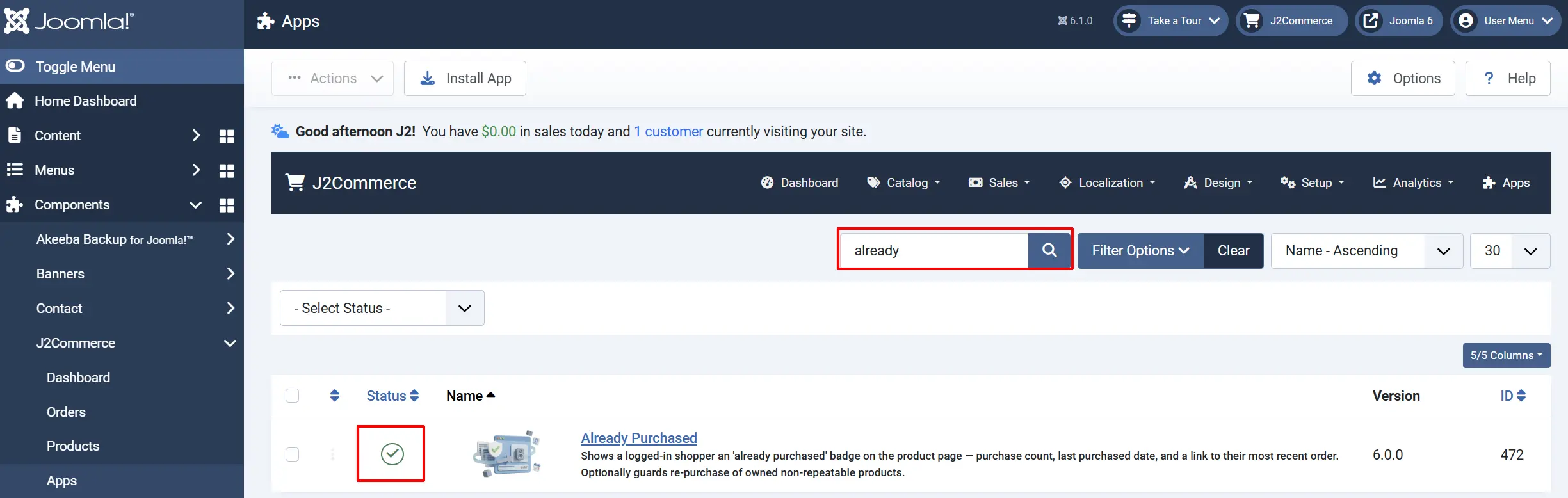
Look for Already Purchased, click the X, and it will turn into a green checkmark. It is now enabled and ready for setup.
Configure the App
Once you click the Already Purchased title next to the green checkmark, you are ready to start setting up the parameters.
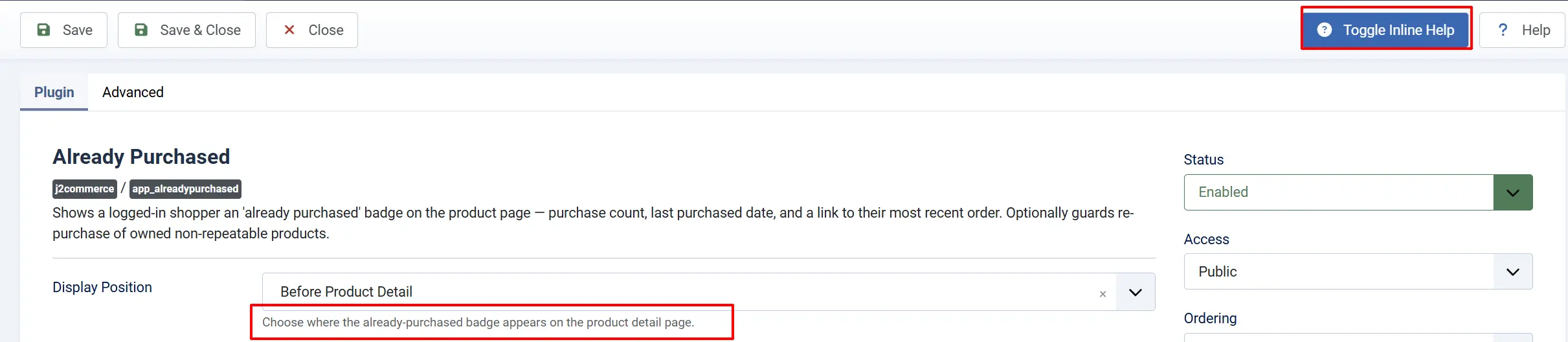
Tip: Click the Toggle Inline Help button on any app you install and it will show a description below each field.
Basic Settings tab
Display Position
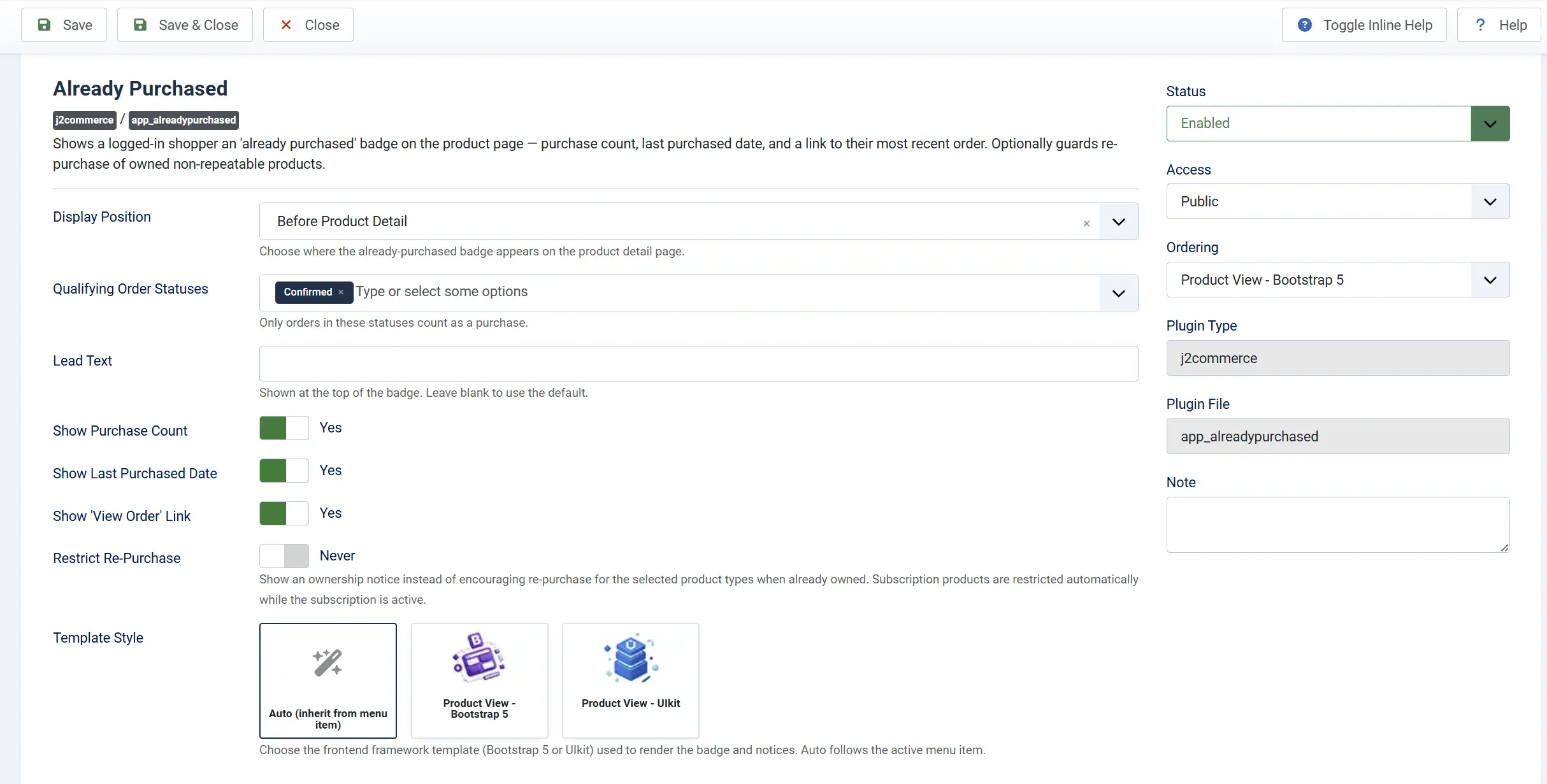
Choose where the already-purchased badge appears on the product detail page.
| Option | Where it appears |
|---|---|
| Before Product Detail | Above all product content (default) |
| Before Product Title | Immediately before the product title |
| After Product Title | Immediately after the product title |
| Before Add to Cart Button | Above the cart button area |
| After Add to Cart Button | Below the cart button area |
Qualifying Order Statuses
Only orders in the selected statuses count toward the purchase history. This field starts empty, so be sure to select the statuses that should qualify (for example your paid and completed statuses). If you use custom order statuses or need to include pending orders, add them here too.
Choose the statuses that fit your store's workflow — typically the ones that mean an order is paid and fulfilled.
Lead Text
The opening line of the badge — for example, "You've purchased this before." Leave the field blank to use the built-in default phrase. Enter your own text to match your store's voice.
Show Purchase Count
When enabled, the badge shows how many times the customer has ordered this product (for example, "Purchased 3 times"). Disable this if you prefer a simpler badge with no count.
Show Last Purchased Date
When enabled, the badge includes the date of the customer's most recent order for this product. The date format follows the store-wide date format setting in J2Commerce -> Setup -> Configuration.
Show 'View Order' Link
When enabled, the badge includes a clickable link that takes the customer directly to their most recent order containing this product. This helps customers who want to check their order details, download a file again, or track delivery.
Restrict Re-Purchase
When enabled, customers who already own a product of the configured types will see a warning notice above the cart button instead of being encouraged to buy again. This is useful for downloadable products or any item a customer should only purchase once.
Subscription products are always restricted automatically while the subscription is active — the Restrict Re-Purchase toggle does not need to be on for that behavior.
Product Types to Restrict

This field appears only when Restrict Re-Purchase is set to Yes.
Select which product types should block re-purchase for customers who already own them. The default is Downloadable. If your store has other non-repeatable product types added by other extensions, they will appear in this list as well.
Template Style
Choose the frontend framework used to render the badge and notices. Auto follows the active Joomla menu item's subtemplate setting, which works correctly for most stores. Select Bootstrap 5 or UIkit only if you need to lock the output to a specific framework regardless of the active template.
Advanced tab
Debug Logging
When enabled, the plugin writes detailed activity to a log file (plg_j2commerce_app_alreadypurchased.php in the Joomla logs folder). Use this only while troubleshooting — disable it in production.
How It Works
When a logged-in customer views a product page:
- J2Commerce checks whether the customer has any qualifying orders for that product, using the order statuses you configured.
- If past purchases are found, the badge is rendered at the display position you selected, showing the lead text, purchase count (if enabled), last purchase date (if enabled), and a link to their most recent order (if enabled).
- For subscription products, the plugin checks whether the customer has an active subscription to that product. If they do, an informational notice replaces the cart button area ("You have an active subscription to this product — no need to purchase it again"). If the subscription has expired, a different notice shows the expiry date and confirms the customer can purchase again.
- For other product types with Restrict Re-Purchase enabled, owned products show an ownership warning notice above the cart button.
- Each badge or notice appears only once per page load, even if the theme renders multiple product views.
Frontend View
The example below shows the position set as 'After Product Title.'
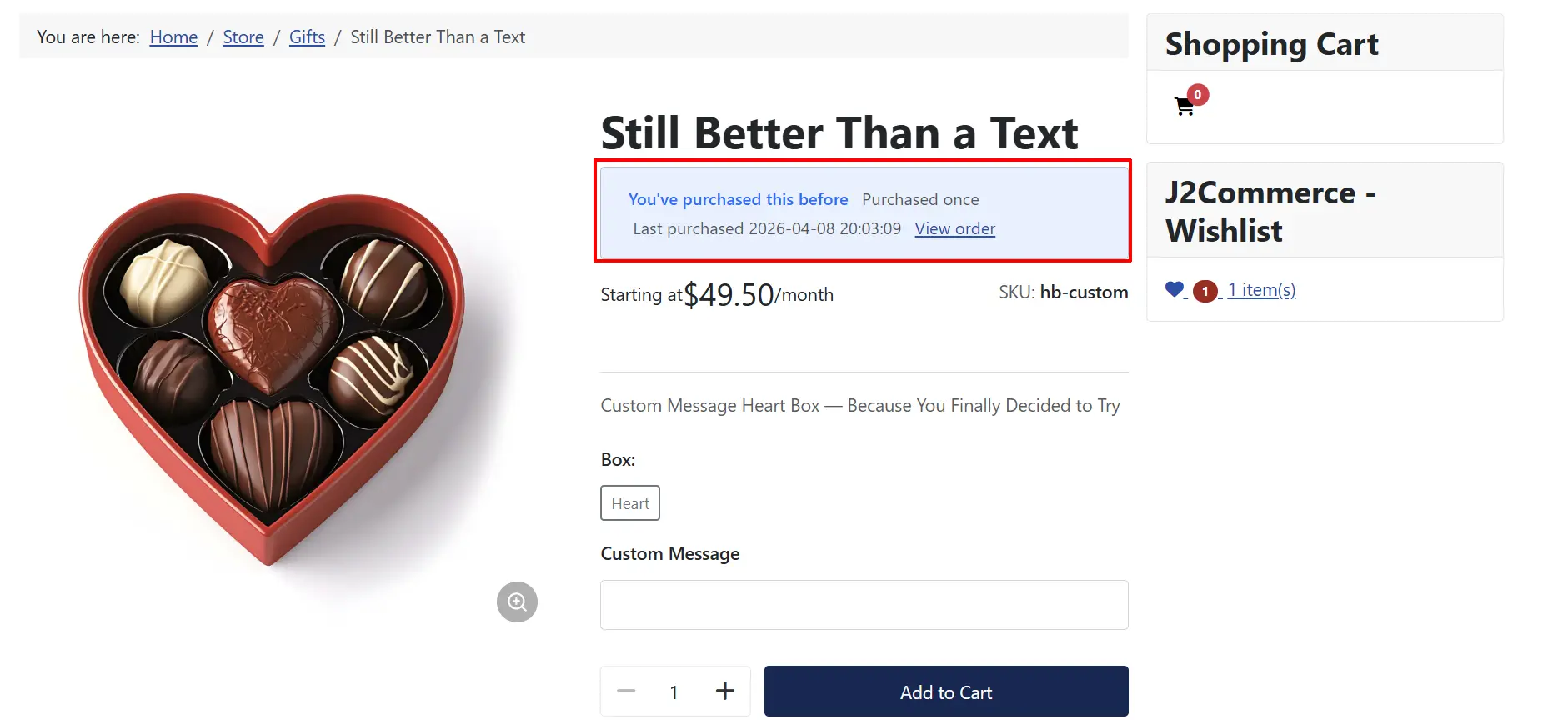
Display Conditions
The badge appears when:
- The plugin is enabled in J2Commerce -> Apps
- The customer is logged in
- The customer has at least one order for this product in a qualifying status
The re-purchase notice appears when:
- Restrict Re-Purchase is set to Yes (or the product is a subscription type)
- The customer is logged in and already owns the product
Nothing is shown when:
- The customer is a guest (not logged in)
- The customer has no qualifying orders for this product
Tips
- Match the display position to your layout — "Before Product Detail" keeps the badge prominent at the top. "Before Add to Cart" places it right where the buying decision is made.
- Use a custom lead text to reinforce loyalty — something like "Welcome back — you've ordered this before!" sets a friendlier tone than the default.
- Restrict downloadable products by default — enabling Restrict Re-Purchase for downloadable products prevents accidental double purchases and reduces support requests.
- Leave Debug Logging off in production — the log file grows quickly on high-traffic stores. Enable it temporarily when investigating a problem, then turn it off.
- Qualifying order statuses — if your store marks paid orders as "Processed" but you have not added that status to the list, the badge will not appear for those orders. Double-check the statuses match your actual order workflow.
Troubleshooting
Badge Does Not Appear on the Product Page
Cause: The plugin is disabled, the customer is not logged in, or no qualifying orders exist.
Solution:
- Go to J2Commerce -> Apps and verify Already Purchased shows a green checkmark.
- Confirm you are viewing the page while logged in as a customer who has previously ordered that product.
- Go to J2Commerce -> Apps -> Already Purchased and check the Qualifying Order Statuses field. Make sure the statuses of the customer's past orders are included in this list.
- If you recently changed order statuses or added custom statuses, save the plugin settings again after updating the status list.
Re-Purchase Notice Not Showing for Owned Products
Cause: Restrict Re-Purchase is disabled, or the product type is not in the restricted types list.
Solution:
- Go to J2Commerce -> Apps -> Already Purchased.
- Set Restrict Re-Purchase to Yes.
- In the Product Types to Restrict field, confirm the product's type (for example, Downloadable) is selected.
- Save and reload the product page while logged in as a customer who owns that product.
Subscription Notice Not Showing
Cause: The subscription product may not be recognized, or the customer has no subscription record.
Solution:
- Confirm the product type is set to a subscription type in the product's J2Commerce settings.
- Verify the customer has an active subscription in J2Commerce -> Apps -> Subscriptions.
- Enable Debug Logging in the Advanced tab, reproduce the issue, then check the Joomla log file (
administrator/logs/plg_j2commerce_app_alreadypurchased.php) for error messages.
Badge Shows Wrong Date Format
Cause: The date format is inherited from the global J2Commerce configuration.
Solution:
- Go to J2Commerce -> Setup -> Configuration.
- Find the Date Format field and update it to your preferred format (for example,
d/m/Yfor day/month/year). - Save the configuration and reload the product page.
Content Cached — Badge Not Updating
Cause: Joomla page caching may serve a cached version that does not reflect the customer's login state.
Solution:
- Go to Home Dashboard -> Cache -> Delete All to clear the cache.
- Consider disabling page-level caching for product pages, or using a cache exclusion for logged-in users, so the badge always reflects live order data.