Shipping Troubleshooter
The Shipping Troubleshooter is a built-in diagnostic tool that helps you find and fix shipping problems in your store. If customers are not seeing shipping options at checkout, or if shipping rates are missing or incorrect, this tool guides you through the most common causes step by step.
Requirements
- PHP 8.3.0+
- Joomla 6.x
- J2Commerce 6.x
Accessing the Shipping Troubleshooter
There are two ways to open the Shipping Troubleshooter.
Option A: Go to the J2Commerce icon at the top right corner -> Setup -> Shipping Troubleshooter
Option B: Go to Components on the left sidebar -> J2Commerce -> Setup -> Shipping Troubleshooter
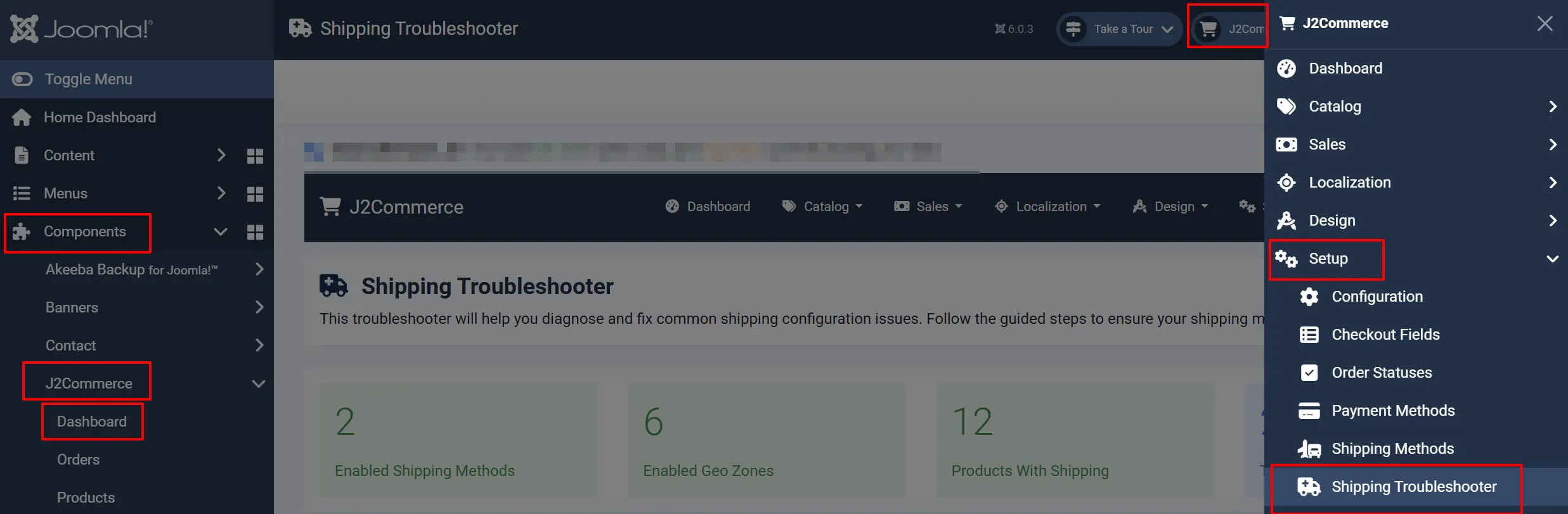
Step 1: Shipping Configuration Dashboard
When you first open the Shipping Troubleshooter, you land on the Shipping Configuration Dashboard. This page gives you an at-a-glance summary of your shipping setup.
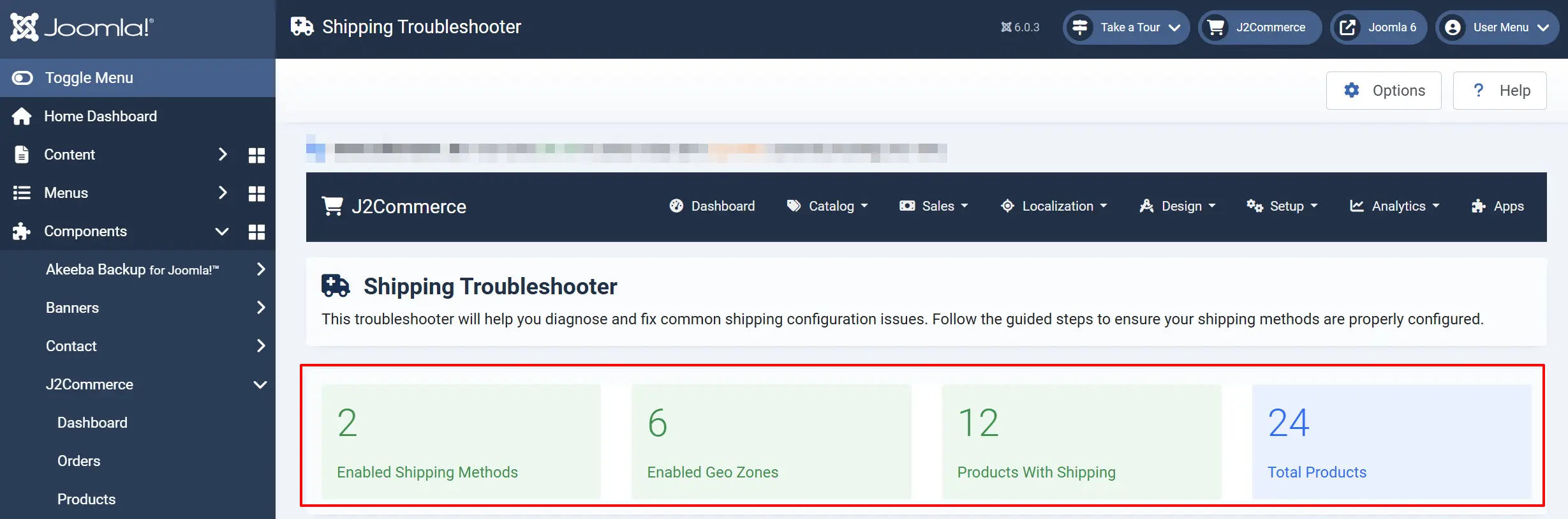
Summary Cards
Four cards display the current state of your shipping configuration:
Shipping Methods: How many shipping methods are currently enabled. Green = at least one enabled. Red = none enabled.
Geo Zones: How many geo zones are currently enabled. Green = at least one enabled. Red = none enabled.
Products with Shipping: How many products have shipping turned on. Green = at least one. Red = none.
Total Products: The total number of products in your catalog.
If any card shows red, that area needs attention before shipping will work correctly.
Next Steps
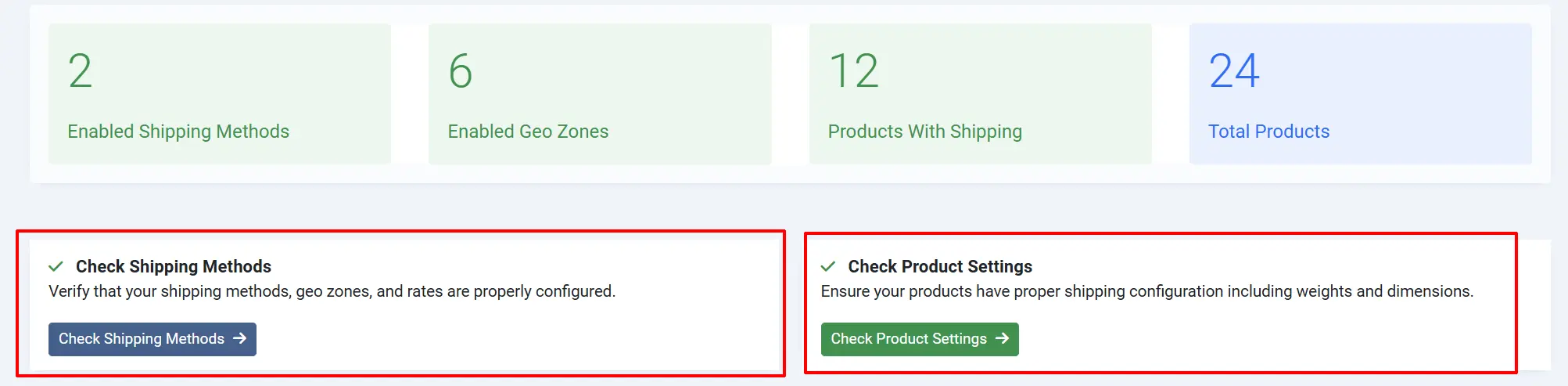
Two buttons guide you through the diagnostic process:
- Check Shipping Methods — Reviews your shipping methods, geo zones, and rates. Start here if no shipping options appear at checkout.
- Check Product Settings — Reviews each product's shipping configuration. Start here if shipping works for some products but not others.
Quick Actions
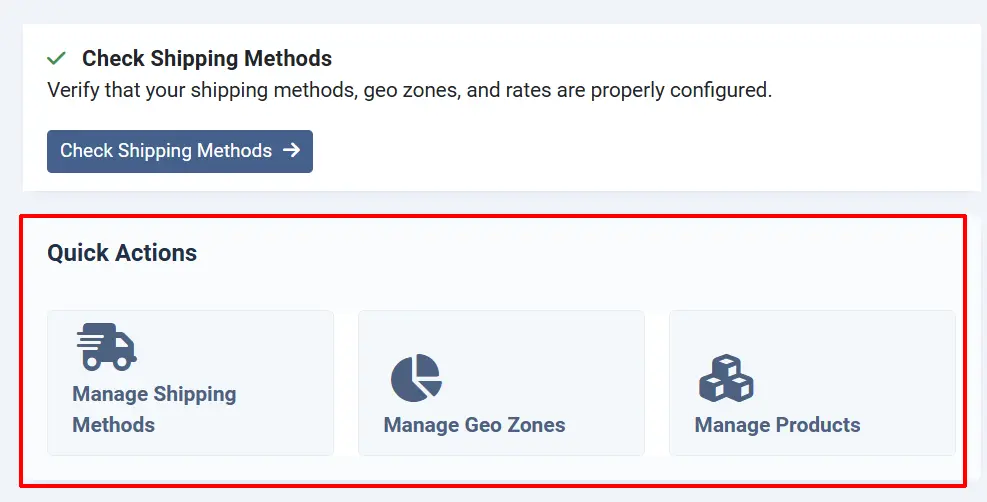
The Quick Actions section provides direct links to the most commonly needed configuration areas:
- Manage Shipping Methods — Go to your shipping method list to enable or create methods.
- Manage Geo Zones — Go to your geo zone list to enable or create zones.
- Manage Products — Go to your product catalog to update product settings.
Common Issues
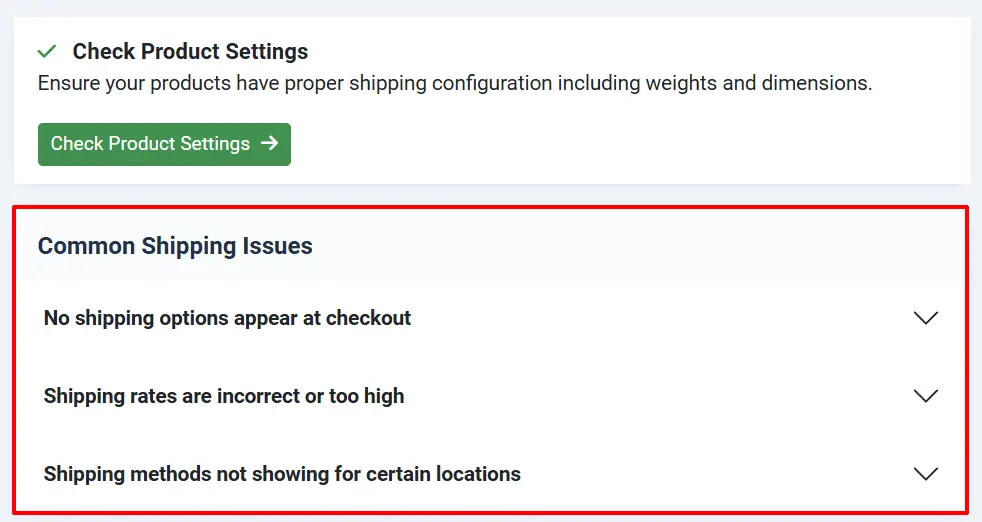
The Common Issues accordion at the bottom of the page expands to show solutions for the most frequent shipping problems:
- No shipping options appear at checkout — Typically caused by missing or disabled shipping methods or geo zones.
- Shipping rates are incorrect or too high — Usually a rate configuration issue within the shipping method.
- Shipping methods not showing for certain locations — Often caused by a geo zone that does not include the customer's country or region.
Step 2: Shipping Methods Diagnostic
Click Check Shipping Methods to open the Shipping Methods Diagnostic page. This step reviews your geo zones, shipping methods, and available rates.
Diagnostic Cards
Three cards show the current state of each shipping component:
Enabled Geo Zones: Green if one or more geo zones are enabled. Red if none.
Enabled Shipping Methods: Green if one or more methods are enabled. Red if none.
Shipping Rates: Green if rates are available. Red if no methods are enabled (which means no rates can apply).
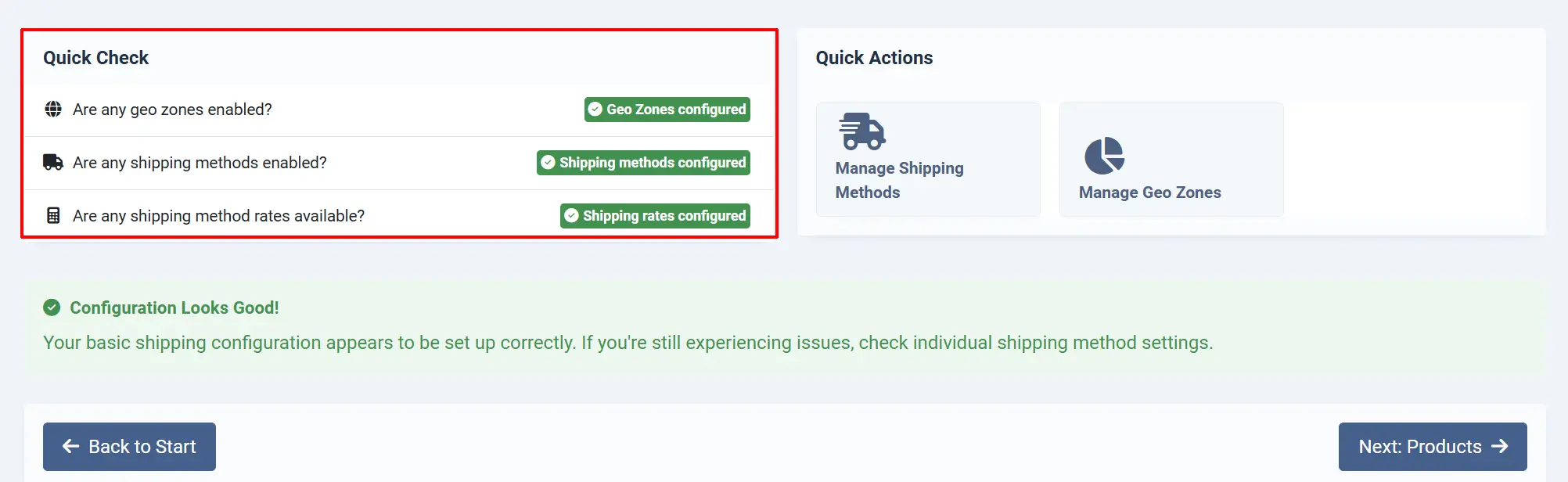
Quick Check
Below the cards, a Quick Check list shows Yes or No answers to three key questions:
- Are any geo zones enabled?
- Are any shipping methods enabled?
- Are any shipping method rates available?
If any answer is No, shipping will not work correctly.
Diagnostic Results
The troubleshooter analyses your configuration and shows one of three result boxes:
- Critical Issues (red box) — Something must be fixed before shipping can work. Each issue includes a specific recommendation, such as "Add at least one shipping method" or "Configure shipping rates for your shipping method".
- Potential Improvements (yellow box) — Shipping may work but some settings could be improved.
- Configuration Looks Good! (green box) — Your shipping methods, geo zones, and rates are correctly configured.
Navigation
- Back to Start — Returns to the Shipping Configuration Dashboard.
- Next: Products — Moves to Step 3 to review product shipping settings.
Step 3: Product Shipping Settings
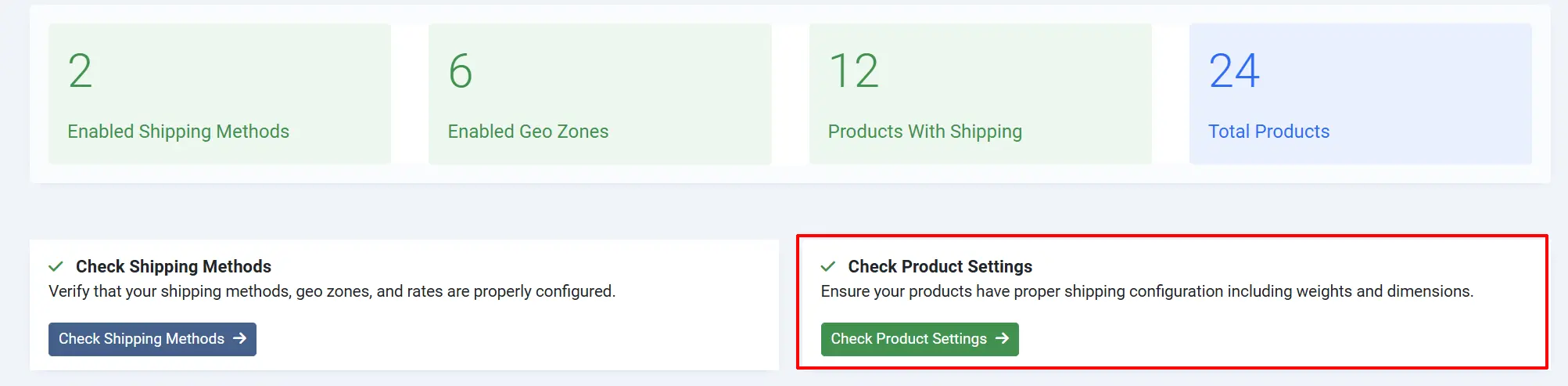
Click Check Product Settings (from the Dashboard by clicking the back button) or Next: Products (from Step 2) to open the Product Shipping Settings page. This step checks every product in your catalog for shipping configuration issues.
Summary Cards
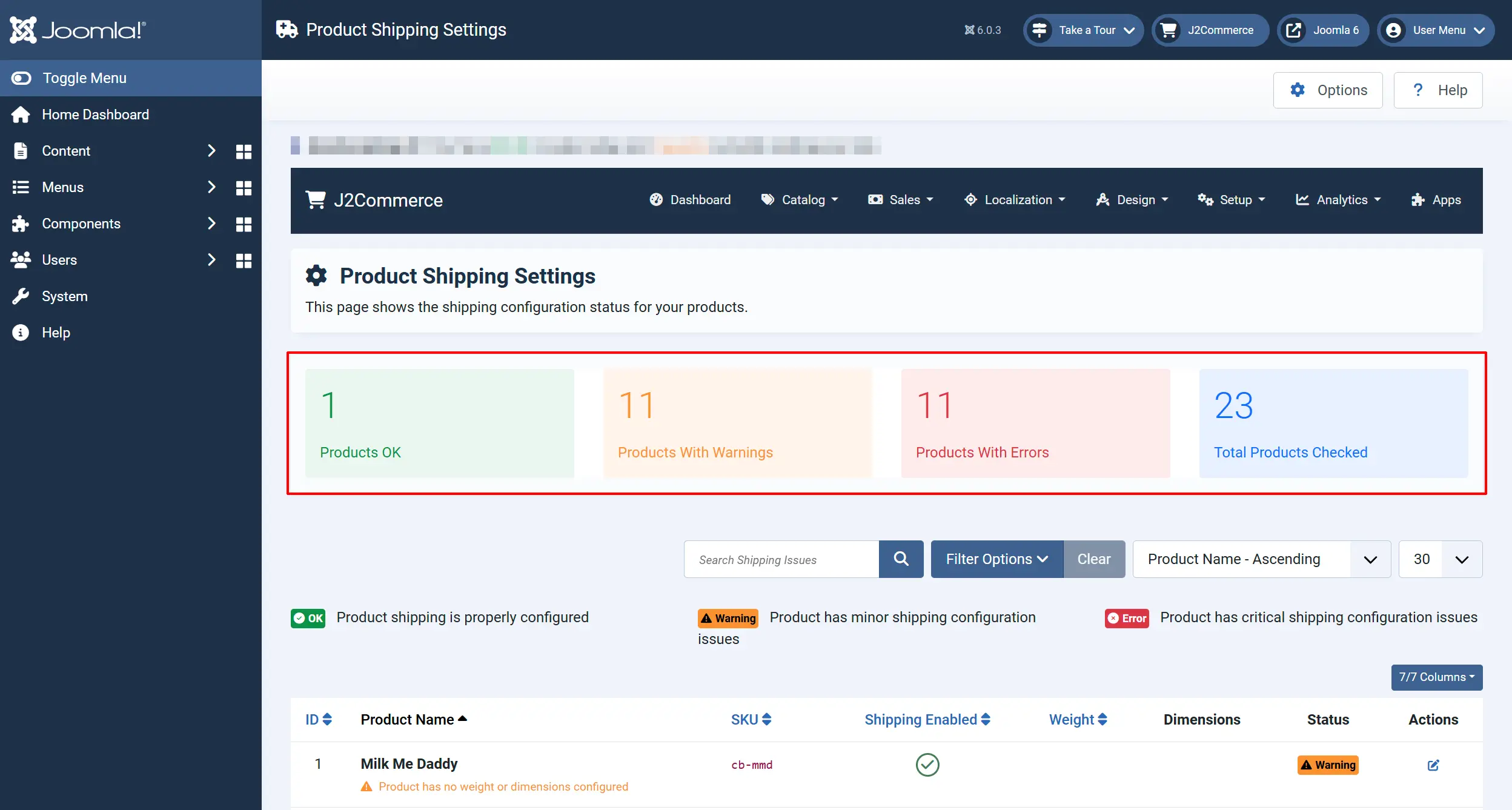
Four cards summarise the results across all products:
Products OK (green): Products with shipping fully configured.
Products with Warnings (yellow): Products with minor issues (e.g., missing weight or dimensions).
Products with Errors (red): Products with critical issues (e.g., shipping is turned off).
Total Products Checked (blue): The total number of products reviewed.
Status Legend
Each product in the table is assigned one of four statuses:
OK (green): Shipping is enabled and weight or dimensions are set.
Warning (yellow): Shipping is enabled but weight or dimensions are missing or incomplete.
Error (red): Shipping is disabled for this product. Customers cannot select a shipping method when purchasing it.
Unknown: The product's configuration could not be determined.
Product Table

The product table lists every product with the following columns:
Product Name: The product name. Issues and warnings appear below the name in red or yellow.
SKU: The product's stock-keeping unit code.
Shipping Enabled: Shows a tick (enabled) or cross (disabled).
Weight: Green badge if a weight is set. Purple badge if no weight is configured.
Dimensions: Green if length, width, and height are all set. Yellow if only some dimensions are set. Purple if no dimensions are set.
Status: The overall shipping status badge for this product.
Actions: An Edit button to open the product for editing.
Use the Search box at the top of the table to find a specific product. Use the pagination controls at the bottom to browse all products.
Fixing Product Issues
To resolve a Warning or Error for a product:
- Click the Edit button next to the product.
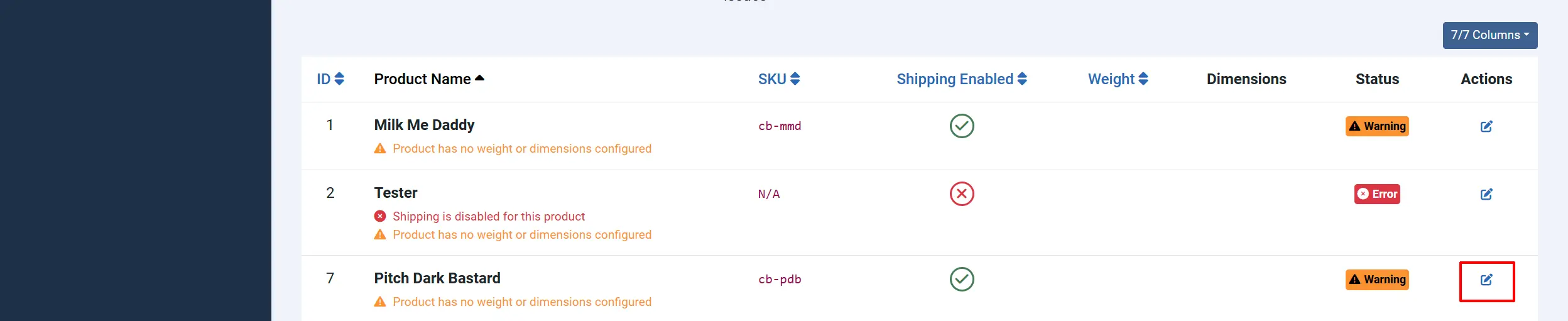
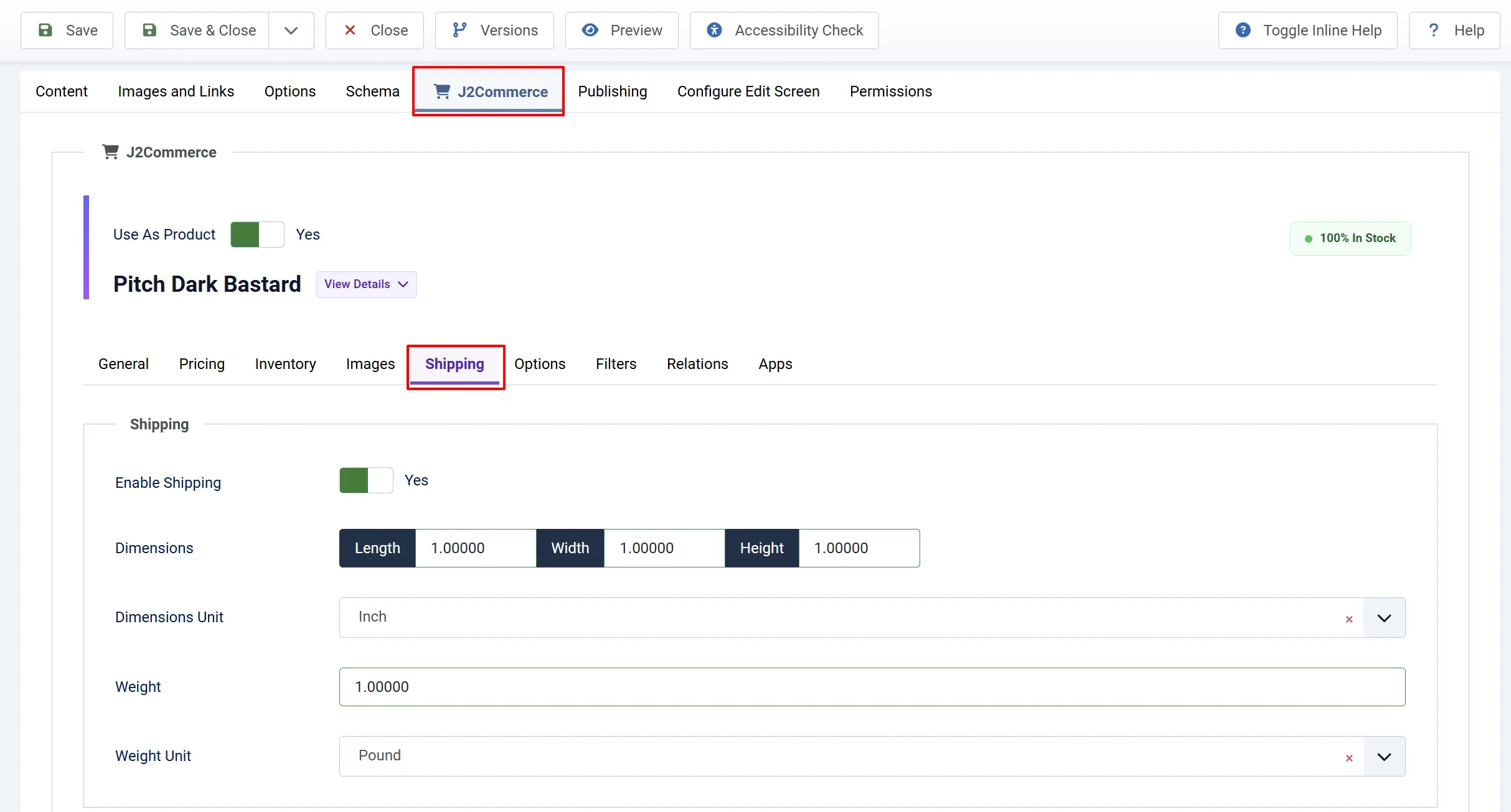
- Go to the J2Commerce tab, then click the Shipping subtab.
-
Set Enable Shipping to Yes to fix an Error.
-
Enter a Weight and Dimensions (Length, Width, Height) to fix a Warning.
-
Click Save & Close.
-
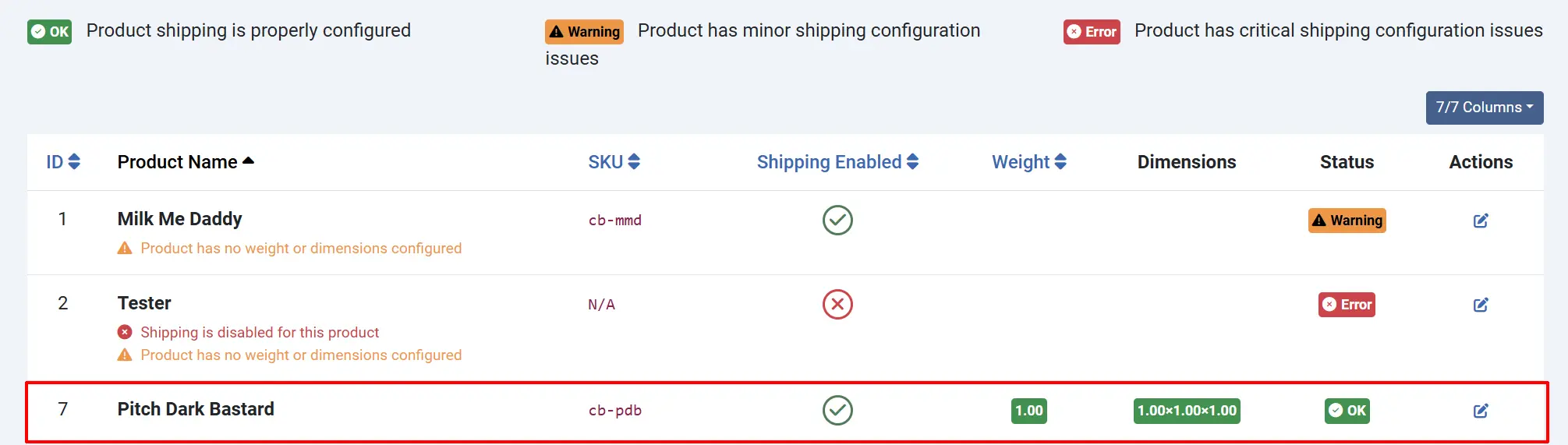
Return to the Shipping Troubleshooter to verify the status has changed to OK.
Navigation
- Back to Methods — Returns to Step 2: Shipping Methods Diagnostic.
- Back to Start — Returns to the Shipping Configuration Dashboard.
Tips
- Start with Step 1 (Dashboard) to identify which area needs attention before diving into details.
- A product with a Warning can still be purchased, but the shipping rate calculation may be inaccurate if weight-based or dimension-based rates are used.
- A product with an Error (shipping disabled) will prevent shipping methods from appearing at checkout when that product is in the cart.
- If all cards on the Dashboard are green but shipping still fails, check that your geo zones include the countries your customers are ordering from.
- After making changes, return to the Shipping Troubleshooter and refresh each step to verify the issues are resolved.
Troubleshooting
No Shipping Options Appear at Checkout
Cause: One or more required shipping components are missing or disabled.
Solution:
- Open the Shipping Troubleshooter and check the Dashboard cards.
- If Shipping Methods is red, go to J2Commerce -> Shipping -> Shipping Methods and enable or create a method.
- If Geo Zones is red, go to J2Commerce -> Shipping -> Geo Zones and enable or create a zone.
- In Step 2, check the Diagnostic Results box for specific recommendations.
- In Step 3, look for products with an Error status and enable shipping on them.
Shipping Works for Some Products but Not Others
Cause: Shipping is disabled on specific products.
Solution:
- Open the Shipping Troubleshooter and go to Step 3: Product Shipping Settings.
- Look for products with a red Error badge.
- Click Edit next to each problem product.
- In the product editor, go to J2Commerce -> Shipping and set Enable Shipping to Yes.
- Click Save & Close.
Shipping Rates Are Wrong or Too High
Cause: Weight or dimensions are missing from products, causing incorrect rate calculations.
Solution:
- Open the Shipping Troubleshooter and go to Step 3: Product Shipping Settings.
- Look for products with a yellow Warning badge.
- Click Edit and enter accurate Weight and Dimensions for each product.
- Review your shipping method rate configuration at J2Commerce -> Shipping -> Shipping Methods.
Step 3 Shows Warnings but Checkout Still Works
Cause: Warnings are non-critical — shipping is enabled, but weight or dimension data is incomplete. This only affects shipping methods that calculate rates based on weight or dimensions.
Solution:
- If you use flat-rate shipping, warnings may not affect your store. No action is required.
- If you use weight-based or dimension-based rates, add the missing weight and dimension data to each product showing a warning.