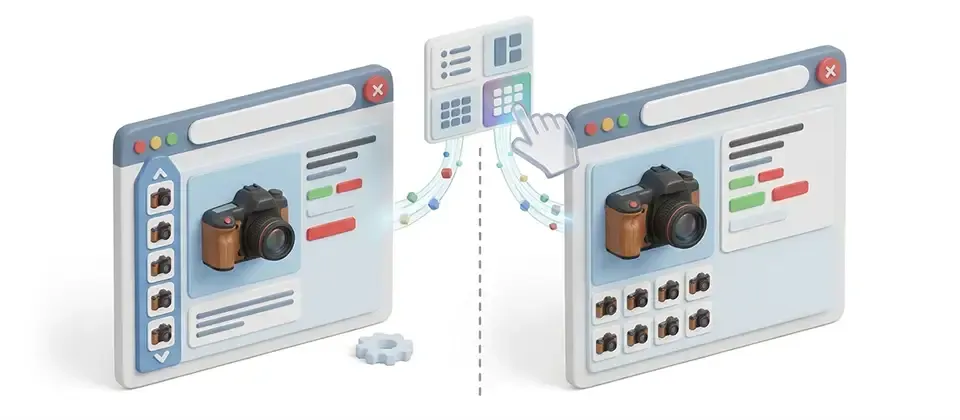

The Image Display app lets you change how the thumbnail strip looks on your product detail pages. By default, J2Commerce shows product thumbnails as a horizontal scroller beneath the main image. With this app enabled, you can switch that strip to a grid below the main image or a vertical strip beside it, add previous/next arrows to the strip, and fine-tune how dim unselected thumbnails appear compared to the one currently on screen. Every setting can also be overridden for an individual product, so a flagship item can use a different layout than the rest of your catalog.
Requirements
- PHP 8.3 or higher
- Joomla! 6.x
- J2Commerce 6.x
Purchase and Download
Step 1: Go to our J2Commerce website -> Apps
Step 2: Locate the Image Display App -> click View Details -> Add to cart -> Checkout.
Step 3: Go to your My Downloads under your profile button at the top right corner and search for the app. Click Available Versions -> View Files -> Download Now
Install the App
You can install the Image Display App using the Joomla installer. The following steps help you with a successful installation.
In the Joomla admin, go to System -> Install -> Extensions
Upload the plugin ZIP file or use the Install from URL option.
%20(1).webp)
Enable the App
Once you have installed the App, you will need to enable it. There are two ways you can access the extension.
Option A: Go to the J2Commerce icon at the top right corner -> Apps
Option B: Go to Components on the left sidebar -> J2Commerce -> Apps
Look for Image Display, click the X, and it will turn into a green checkmark. It is now enabled and ready for setup.
Configure the App
Once you click on the Image Display title next to the green checkmark, you are ready to start setting up the parameters.
Tip
Click the Toggle Inline Help button in the toolbar and the app will show a description below each field as you configure it.
Basic Settings tab
Thumbnail Layout — Choose how product thumbnails are arranged. Horizontal scroller (default) keeps the built-in strip and changes nothing else. Default: Horizontal scroller (default).
| Option | What shoppers see |
|---|---|
| Horizontal scroller (default) | The built-in thumbnail strip below the main image — no visual change |
| Grid below the main image | Thumbnails arranged in a responsive grid below the main image |
| Vertical strip on the left | Thumbnails arranged in a scrolling column beside the main image |
The following settings appear only for the layout you have selected, except for the two opacity settings, which apply to every layout.
Grid layout settings
Thumbnails per Row — How many thumbnails sit side by side on desktop. Thumbnails are stored at 100 pixels, so fewer than three per row will look soft. Default: 4. Options: 3, 4, 5, 6, 7, 8.
Thumbnails per Row on Mobile — Applies below 768 pixels wide. Keep this low so each thumbnail stays large enough to tap. Default: 3. Options: 2, 3, 4, 5.
Opacity settings (all layouts)
Unselected Thumbnail Opacity — How visible unselected thumbnails are, as a percentage. Lower values dim them more. Very low values make thumbnails hard to recognize for visitors with low vision — 40 to 60 is recommended. Default: 50%, which matches the built-in look. Options: 30% to 90% in steps of 5.
Thumbnail Opacity on Hover — How visible a thumbnail becomes when the pointer is over it. Keep this above the unselected value so hovering is noticeable. Default: 80%. Options: 40% to 100% in steps of 5.
Thumbnail arrows
Show Thumbnail Arrows — Add previous and next buttons to the thumbnail strip. Not available with the Grid below the main image layout, which has nothing to scroll. Default: No.
Vertical strip settings
Vertical Strip Width — Width of the thumbnail column beside the main image, in pixels. Default: 96px. Options: 64px, 80px, 96px, 112px, 128px, 160px.
Thumbnails Visible — How many thumbnails the vertical strip shows before scrolling. This also sets the strip's height. Default: 4. Options: 2 to 8.
Vertical Layout From — The narrowest screen width that still shows the vertical strip. Below it, the layout falls back to the choice below.
| Option | Vertical strip shown on |
|---|---|
| Tablet and wider (768px) | Screens 768px and wider |
| Desktop only (992px) | Screens 992px and wider (default) |
Narrow Screen Layout — What the vertical strip becomes on narrower screens.
| Option | Narrow-screen behavior |
|---|---|
| Horizontal scroller (default) | Falls back to the built-in horizontal strip (default) |
| Grid below the main image | Falls back to a grid |
Info
NOTE: Vertical Layout From and Narrow Screen Layout are store-wide settings only. They cannot be overridden per product.
Adding an Override to a Product
Every Basic Settings option (except Vertical Layout From and Narrow Screen Layout) can be overridden for a single product from the product's own Apps tab.
Edit a Product
There are three ways you can access the products.
Option A: Go to the J2Commerce icon at the top right corner -> Catalog -> Products
Option B: Go to Components on the left sidebar -> J2Commerce -> Products
Option C: Go to Content -> Categories -> Find the category and then click inside the published/article section
Click on a product to edit it -> J2Commerce tab -> Apps tab.
Click to expand the Image Display section.
Product override fields
Every field defaults to Use plugin setting, which follows the store-wide choice made in the app configuration. Selecting any other value overrides the store-wide setting for that one product only.
| Field | Overrides |
|---|---|
| Thumbnail Layout | The store-wide Thumbnail Layout |
| Thumbnails per Row | The store-wide Thumbnails per Row |
| Thumbnails per Row on Mobile | The store-wide Thumbnails per Row on Mobile |
| Unselected Thumbnail Opacity | The store-wide Unselected Thumbnail Opacity |
| Thumbnail Opacity on Hover | The store-wide Thumbnail Opacity on Hover |
| Show Thumbnail Arrows | The store-wide Show Thumbnail Arrows |
| Vertical Strip Width | The store-wide Vertical Strip Width |
| Thumbnails Visible | The store-wide Thumbnails Visible |
Click Save or Save & Close when you are done.
Frontend View
When a shopper visits a product with 2 or more images, the thumbnail strip renders using whichever layout is in effect for that product — the grid, the vertical strip, or (if nothing was changed) the same horizontal scroller shoppers already know.
How It Works
When a customer views a product page:
-
J2Commerce checks if the Image Display plugin is enabled.
-
The plugin resolves the effective settings for that product: a product-level override first, then the store-wide plugin setting, then a built-in default.
-
If the resolved layout is the horizontal scroller with arrows turned off, the plugin makes no change at all — it leaves the built-in thumbnail strip exactly as it is.
-
Otherwise, the plugin rewrites the gallery's markup to apply the chosen layout, opacity levels, and any thumbnail arrows.
-
If the product has fewer than 2 images, the layout changes are skipped, since there is nothing to lay out differently.
-
On the Vertical strip on the left layout, the strip automatically switches to the Narrow Screen Layout once the browser window narrows past the Vertical Layout From width.
-
When a shopper changes a product variant or option and the main gallery images refresh, the plugin automatically re-applies the chosen layout to the refreshed thumbnails.
-
A screen reader announcement is made whenever the number of thumbnails changes (for example, after a variant switch), and the arrow buttons carry accessible labels.
Tips
- Start with the default — most stores never need to touch this app; the horizontal scroller is already the default and this app only needs enabling when you want something different.
- Match grid columns to your thumbnail count — a grid with 3 columns and only 2 thumbnails will look sparse; 4 columns suits most product photo sets.
- Keep hover opacity comfortably above idle — a big gap between the two values makes it obvious to shoppers which thumbnail their pointer is over.
- Use the vertical strip for tall product photography — it keeps the main image large while still showing several thumbnails at once on wider screens.
- Test the per-product override on your best-selling item first — it is the fastest way to see how a layout looks on a live page before rolling it out store-wide.
Troubleshooting
Thumbnail Layout Does Not Change
Cause: The Thumbnail Layout is still set to Horizontal scroller (default) with Show Thumbnail Arrows set to No — this is the plugin's no-op state, and it deliberately leaves the built-in gallery untouched. The product may also have fewer than 2 images, in which case no layout change is applied regardless of settings.
Solution:
-
Go to J2Commerce -> Apps -> Image Display and confirm a green checkmark is shown.
-
Open the app's Basic Settings tab and set Thumbnail Layout to Grid below the main image or Vertical strip on the left, or turn Show Thumbnail Arrows to Yes.
-
Confirm the product you are viewing has at least 2 product images uploaded.
Thumbnail Arrows Are Missing
Cause: Show Thumbnail Arrows has no effect when Thumbnail Layout is set to Grid below the main image — a grid has nothing to scroll through, so arrows are never shown for it.
Solution:
-
Go to J2Commerce -> Apps -> Image Display.
-
Set Thumbnail Layout to Horizontal scroller (default) or Vertical strip on the left.
-
Confirm Show Thumbnail Arrows is set to Yes.
Vertical Strip Switches to a Different Layout on Smaller Screens
Cause: This is expected behavior, not a bug. The vertical strip only shows above the width set in Vertical Layout From; below it, the gallery automatically falls back to the layout chosen in Narrow Screen Layout.
Solution:
-
Go to J2Commerce -> Apps -> Image Display.
-
To keep the vertical strip on smaller tablets, change Vertical Layout From to Tablet and wider (768px).
-
To change what shoppers see on narrow screens, adjust Narrow Screen Layout.
Product-Level Setting Is Ignored
Cause: The product's override field is left on Use plugin setting, which follows the store-wide value rather than overriding it. The Image Display plugin may also be disabled, in which case no product-level override is ever applied.
Solution:
-
Go to J2Commerce -> Apps -> Image Display and confirm a green checkmark is shown.
-
Edit the product, open the J2Commerce tab -> Apps tab, and expand Image Display.
-
Change the specific field from Use plugin setting to the value you want for that product.
-
Note that Vertical Layout From and Narrow Screen Layout have no per-product override — they can only be changed store-wide.
Grid Thumbnails Look Blurry
Cause: Product thumbnails are stored at 100 pixels wide. A grid with fewer than 3 columns stretches each thumbnail past its stored size, which makes it look soft or blurry.
Solution:
-
Go to J2Commerce -> Apps -> Image Display.
-
Set Thumbnails per Row to 3 or higher.
-
Set Thumbnails per Row on Mobile to 2 or higher.
Layout Doesn't Look Right After Choosing a Product Variant
Cause: The browser is serving an outdated copy of the app's stylesheet or script from cache.
Solution:
- Clear the Joomla cache: Home Dashboard -> Cache -> Delete All.
-
Reload the product page and select the variant or option again.
-
If the issue continues, check the browser console for JavaScript errors that might point to a conflicting template or extension.