Installing J2Commerce
This guide covers installing J2Commerce on a fresh Joomla 6 installation.
Requirements
Server Requirements
| Requirement | Minimum | Recommended |
|---|---|---|
| PHP | 8.3.0 | 8.3+ |
| MySQL | 8.0+ | 8.0+ |
| Joomla | 6.0+ | 6.0+ |
PHP Extensions
mysqliorpdo_mysql: Database connectivityjson: JSON encoding/decodingcurl: HTTP requests for payment gateways and currency updatesmbstring: Multi-byte string supportgdorimagick: Image processingzip: Extension installationopenssl: Secure API connections
Permissions
The following directories must be writable by the web server:
/tmp: Temporary file storage/logs: Log file writes/administrator/cache: Cache files
Purchase and Download
Step 1: Go to our J2Commerce website -> Plugins
Step 2: Locate the J2Commerce installation package -> click View Details -> Add to cart -> Checkout.
Step 3: Go to your My Downloads under your profile button at the top right corner and search for the app. Click Available Versions -> View Files -> Download
Install J2Commerce
You can install this J2Commerce installation package using the Joomla installer. The following steps help you with a successful installation.
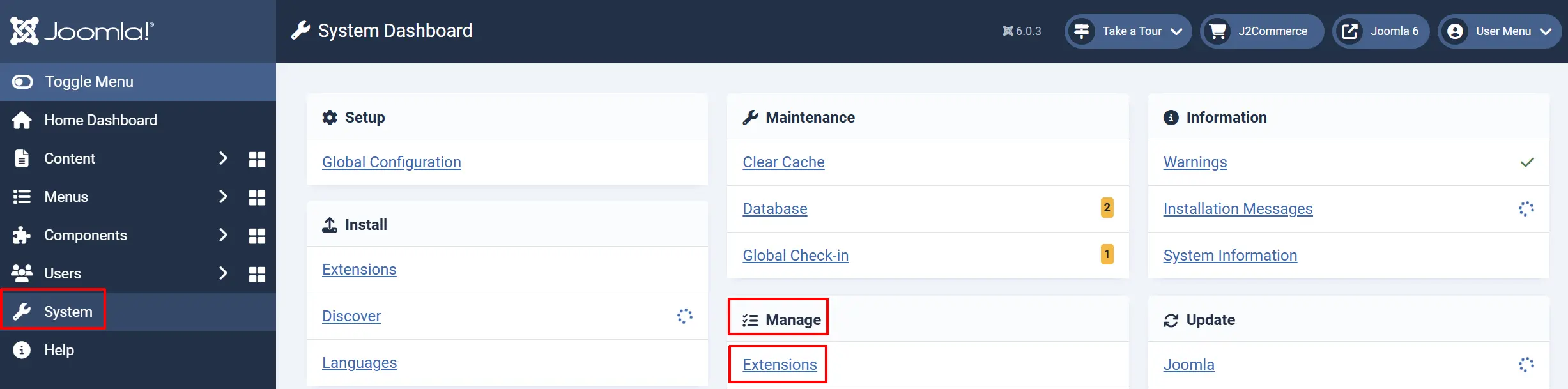
In the Joomla admin, go to System -> Install -> Extensions
Upload the plugin ZIP file or use the Install from URL option.
 (1)-a6689f12b23b8e992f5c2a169737672f.webp)
If you're upgrading from J2Store, use the Install from Directory option and select the extracted folder. The installer detects the upgrade path automatically.
Enable Required Plugins
After installation, J2Commerce requires several system plugins to be enabled:
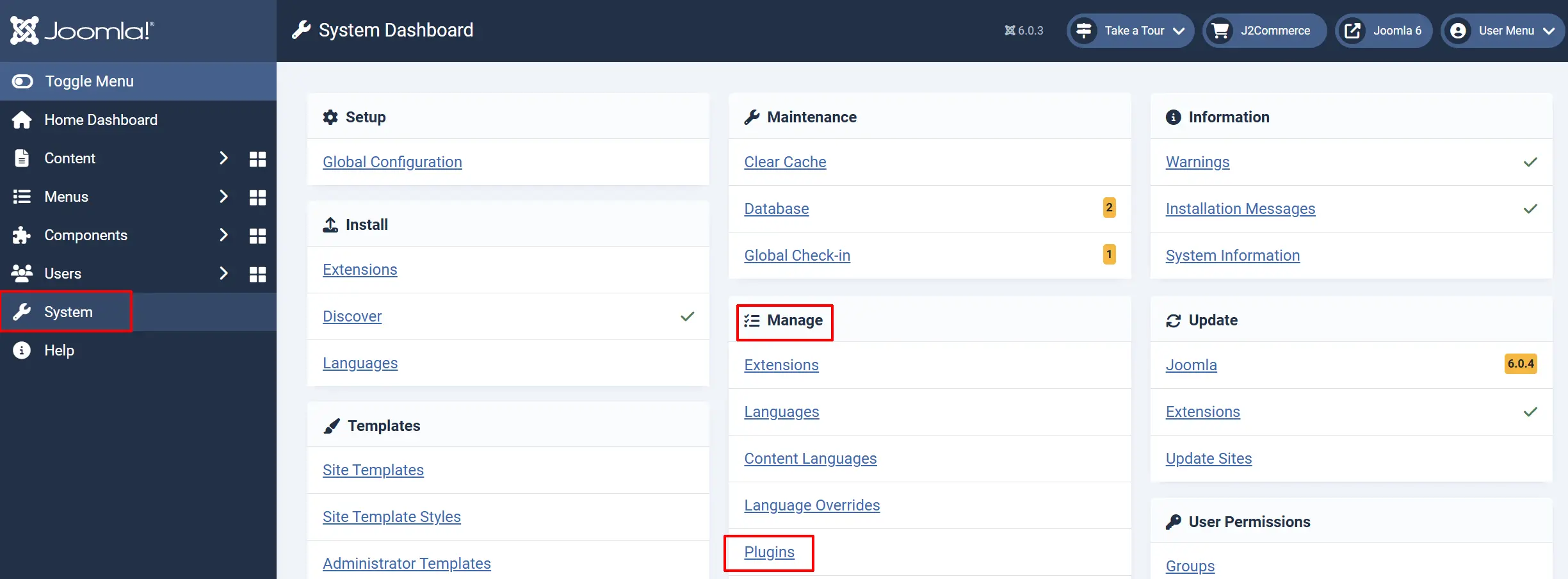
Navigate to System -> Manage -> Plugins
Search for j2commerce
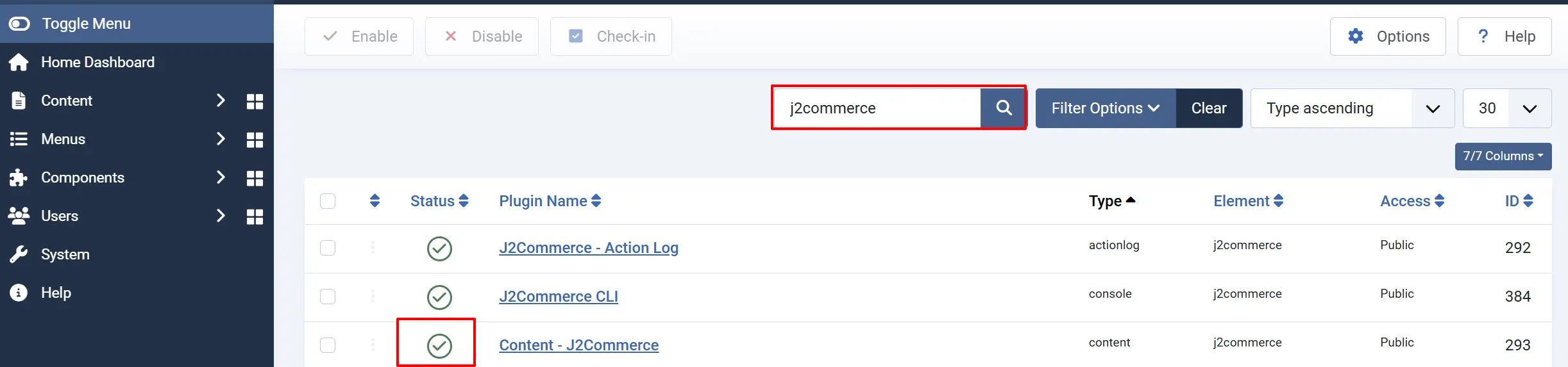
Enable the following plugins:
-
System - J2Commerce: Core system integration
-
System - J2Commerce Content: Article-to-product conversion
-
Content - J2Commerce: Product display in articles
Verify Installation
Go to Components -> J2Commerce
You should see the Dashboard
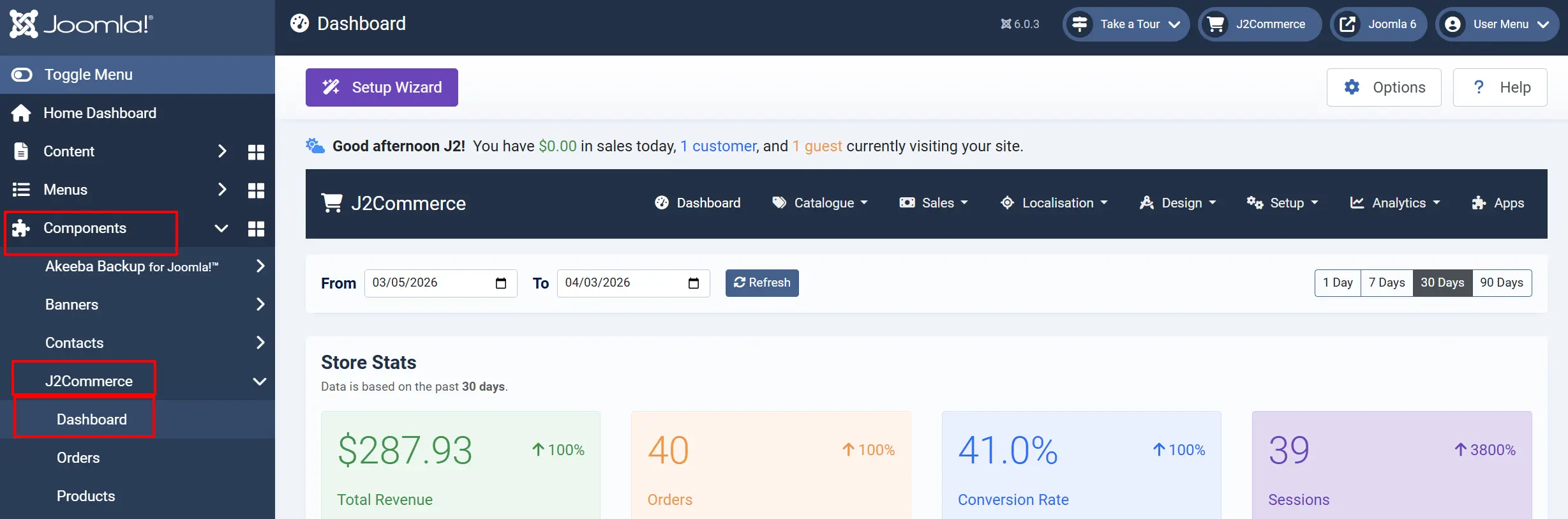
The Setup Wizard should appear if this is a fresh installation

Manual Installation
If the Joomla installer fails, you can install manually:
Via File Manager
-
Extract the J2Commerce
.zipfile -
Upload the extracted contents to your Joomla installation via FTP or file manager:
- Component to:
/administrator/components/com_j2commerce/ - Media to:
/media/com_j2commerce/ - Plugins to:
/plugins/system/j2commerce/,/plugins/content/j2commerce/, etc.
- Component to:
-
Log in to phpMyAdmin and import the SQL file if provided
-
Enable plugins via System -> Manage -> Plugins
Via Command Line
# Navigate to your Joomla installation
cd /var/www/html

# Extract the package
unzip j2commerce.zip

# Move files to correct locations
mv j2commerce/administrator/components/com_j2commerce administrator/components/
mv j2commerce/media/* media/com_j2commerce/
mv j2commerce/plugins/* plugins/

# Set permissions
chmod -R 755 administrator/components/com_j2commerce
chmod -R 755 media/com_j2commerce
Post-Installation Checklist
After installation, verify the following:
- Dashboard loads without errors
- Setup Wizard appears (fresh install)
- The product menu is accessible
- The orders menu is accessible
- Settings save correctly
- Payment methods can be configured
- Shipping methods can be configured
Troubleshooting
Installation Fails
Error: "Unable to find install package"
- The zip file may be corrupted. Download again and retry.
- Ensure you're uploading the
.zipfile directly, not an extracted folder.
Error: "Unable to copy files"
- Check directory permissions. The web server user needs write access.
- Verify the
/tmpand/logsdirectories exist and are writable.
Blank Screen After Installation
- Enable Joomla's debug mode: System -> Global Configuration -> System -> Debug
- Check
/logs/error.phpfor PHP errors - Verify PHP version and required extensions
Plugin Not Found
If plugins don't appear in the plugin manager:
- Verify all plugin folders were uploaded
- Check for duplicate installations from J2Commerce
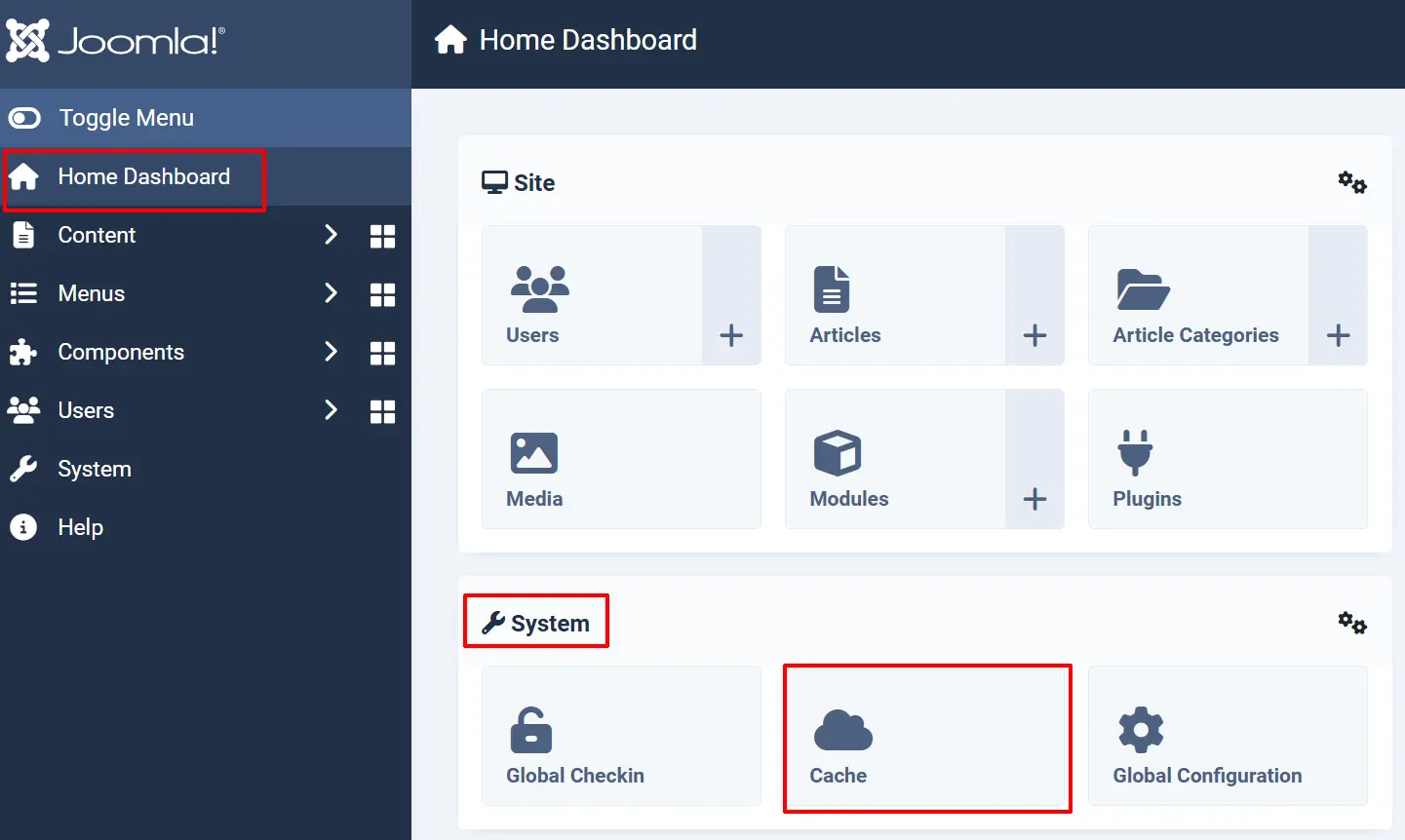
- Clear Joomla cache: Home Dashboard -> System -> Cache -> Delete Cache
Uninstalling
To uninstall J2Commerce:
- Go to System -> Manage -> Extensions
- Find J2Commerce in the component list
- Click Uninstall
Uninstalling removes all J2Commerce data, including products, orders, and customers. Create a backup before proceeding.