Cookiebot
The Cookiebot app adds a Cookiebot cookie consent banner to every page of your J2Commerce store. Visitors see the banner before any non-essential cookies are set, and their choice is recorded the way privacy laws such as GDPR and CCPA require. The app also automatically connects that consent decision to your other J2Commerce tracking apps -- GA4, Google Tag Manager, and Meta Pixel -- so those plugins only start tracking after a visitor accepts marketing cookies.
Requirements
- PHP 8.3.0 or later
- Joomla 6.x
- J2Commerce 6.x, installed and enabled
- A Cookiebot account with a domain group created for your store's website (a free plan is available for smaller sites)
Get Your Cookiebot Domain Group ID
Before configuring the plugin, you need the Domain Group ID (CBID) for your website from your Cookiebot account.
- Sign in to your account at manage.cookiebot.com.
- If you have not already added your store's website, create a new domain group for it and follow Cookiebot's setup steps to verify the domain.
- Open the domain group for your store and go to Your scripts.
- Copy the Domain Group ID shown there -- it looks like
00000000-0000-0000-0000-000000000000.
After you create a domain group, Cookiebot automatically scans your site to find cookies and categorize them. This scan can take a little while to complete. The banner will still appear right away once the plugin is configured, but full automatic cookie blocking is most accurate once the scan finishes.
Purchase and Download
The Cookiebot app is a separate add-on available from the J2Commerce Extensions Store. It is not included with the core J2Commerce 6 component.
Step 1: Go to www.j2commerce.com -> Apps.
Step 2: Locate the Cookiebot app, click View Details, then Add to Cart -> Checkout.
Step 3: After purchase, go to My Downloads under your profile menu and find the app. Click Available Versions -> View Files -> Download Now.
Install the App
- In the Joomla admin, go to System -> Install -> Extensions.
- Upload the
app_cookiebot.zippackage file. - The plugin installs and enables automatically.
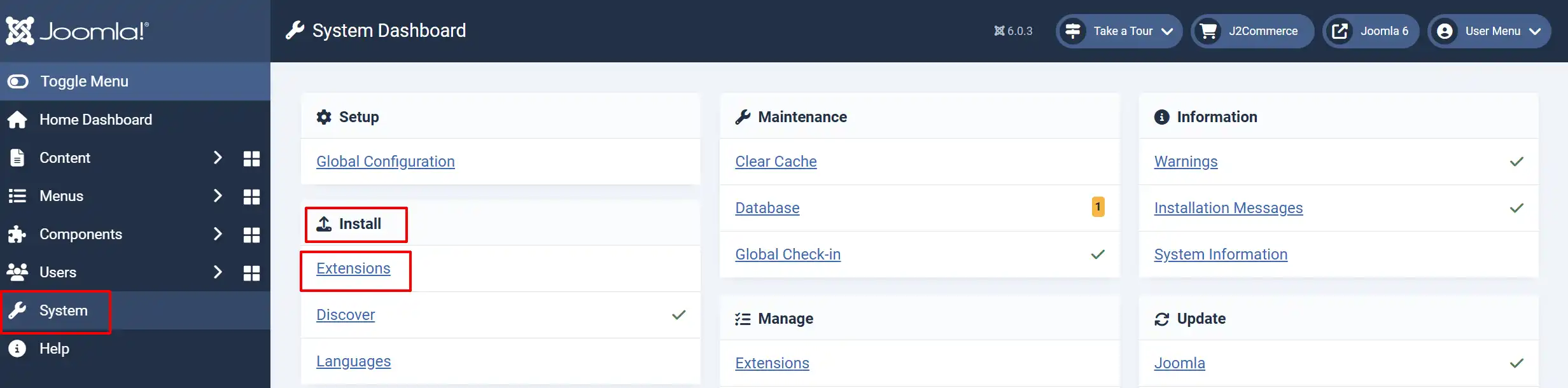
If J2Commerce is not installed and enabled on your site, the installer stops and shows a message telling you to install J2Commerce first.
Enable the App
Once installed, confirm the app is enabled. There are two ways to reach it.
Option A: Click the J2Commerce icon in the top-right corner -> Apps.
Option B: Go to Components in the left sidebar -> J2Commerce -> Apps.
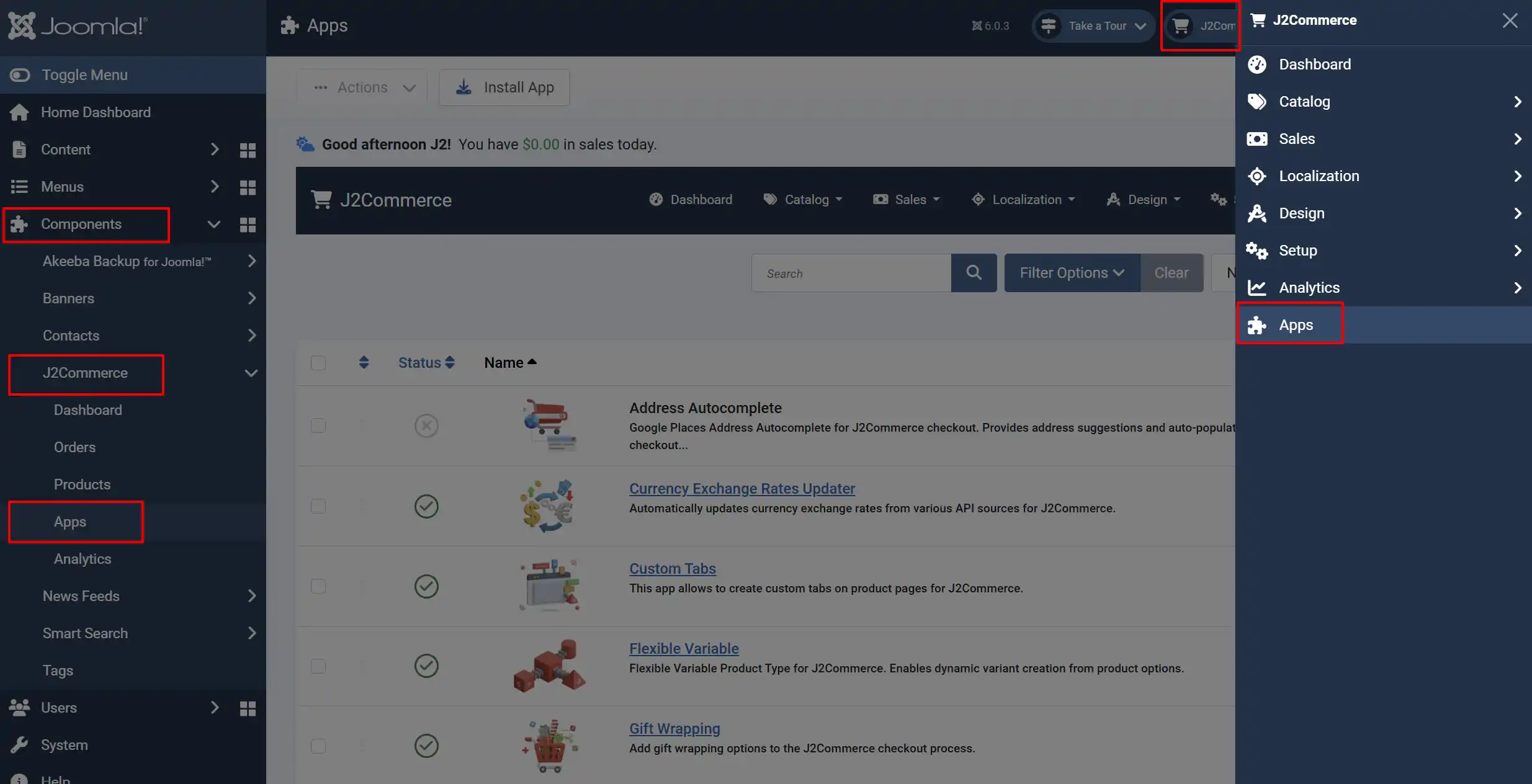
Look for Cookiebot in the list. If the toggle shows a red X, click it to turn it into a green checkmark. The app is now active.
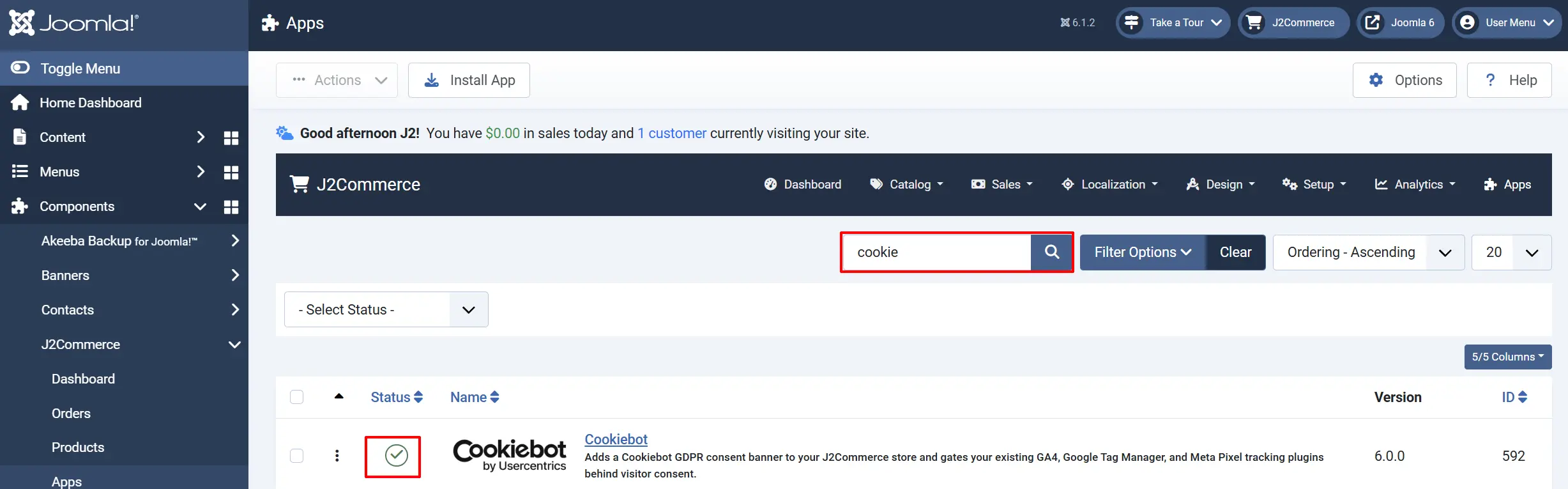
Configure the App
Click the Cookiebot title in the Apps list to open the plugin settings.
Click the Toggle Inline Help button in the toolbar and the app will show a description below each field as you configure it.

Cookiebot Settings
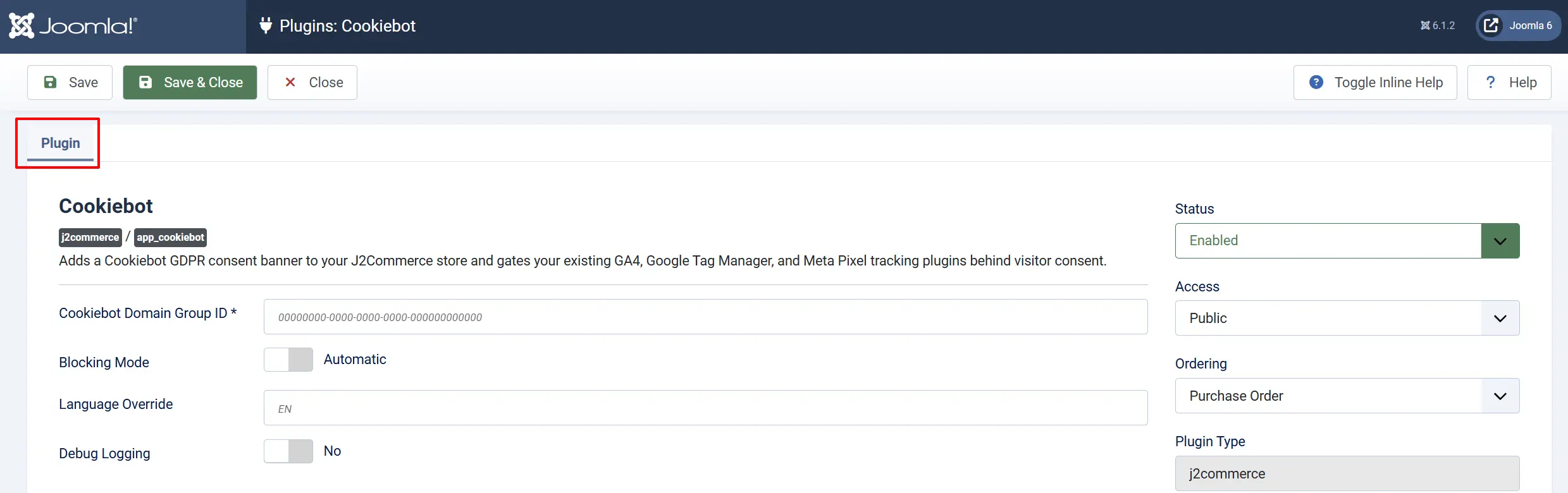
Cookiebot Domain Group ID: Paste the Domain Group ID (CBID) you copied from your Cookiebot account. This field is required -- the banner will not load on your site without it.
- Example:
00000000-0000-0000-0000-000000000000
Blocking Mode: Controls how Cookiebot blocks cookies before a visitor responds to the banner.
-
Automatic: Cookiebot detects and blocks cookie-setting scripts on your site automatically, based on its scan. No extra setup is needed on your templates. Recommended for most stores.
-
Manual: You must mark each cookie-setting script yourself with special Cookiebot markup in your site's templates. Choose this only if you already manage manual cookie blocking elsewhere on your site, or if Cookiebot support has instructed you to use it. Manual mode does not depend on Cookiebot's automated scan being complete.
Language Override: An optional two-letter language code (ISO 639-1, for example EN) that forces the banner to always display in that language. Leave this field blank to let Cookiebot automatically detect and match each visitor's browser language.
Debug Logging: When set to Yes, the app writes its consent-gating decisions to a log file named app_cookiebot.php in your Joomla logs folder. Use this only while troubleshooting -- turn it back to No before going live, since it adds extra writes on every page load.
-
No: No extra logging. Use in production.
-
Yes: Writes detailed log entries to
app_cookiebot.phpin your Joomla logs folder. Enable only while diagnosing a problem.
How It Works
Once a valid Domain Group ID is saved, the app is active on every frontend page of your store (it does not run in the Joomla admin area).
- On every storefront page load, the app places the Cookiebot banner script at the very start of the page so the consent banner can appear immediately and, in Automatic mode, so cookies can be blocked before the page finishes loading.
- The visitor sees the Cookiebot banner and chooses which categories of cookies to accept.
- The app watches for Cookiebot's consent decision and records whether the visitor accepted marketing cookies.
- That decision is shared automatically with any other J2Commerce tracking apps you have installed that support consent gating -- currently GA4, Google Tag Manager, and Meta Pixel / Facebook Conversion. Each of those apps has its own Require Marketing Consent setting; when that setting is turned on in one of those plugins, it will wait for the Cookiebot decision recorded by this app before it starts tracking.
- If a visitor changes their cookie choice later (for example, by reopening the Cookiebot consent dialog), the shared decision updates and tracking apps that were waiting on consent unlock immediately without a page reload.
Tips
- Set up Automatic mode first. It requires no template changes and covers most stores. Only switch to Manual mode if you have a specific reason to hand-mark scripts yourself.
- Give the Cookiebot scan time to finish after creating a new domain group -- automatic blocking accuracy improves once the scan completes.
- Turn on Require Marketing Consent in your GA4, Google Tag Manager, and/or Meta Pixel app settings if you want those apps to wait for visitor consent recorded by Cookiebot. Cookiebot alone does not stop those plugins from tracking -- each plugin has to opt in to consent gating on its own settings screen.
- Test in a private/incognito browser window so you see the banner exactly as a first-time visitor would, without a cookie from a previous test skewing the result.
- Turn off Debug Logging once you have finished troubleshooting -- the log file grows on every page load while it is enabled.
Troubleshooting
The Cookiebot Banner Does Not Appear
Cause: The Domain Group ID field is empty, the app is disabled, or the page being viewed is in the Joomla admin area.
Solution:
- Go to J2Commerce -> Apps and confirm Cookiebot shows a green checkmark.
- Open the plugin settings and confirm Cookiebot Domain Group ID is filled in and saved.
- Confirm you are viewing a frontend storefront page, not the Joomla admin area -- the banner never appears in the admin.
- Clear your browser cache and your Joomla cache, then reload the page.
Google Analytics, Tag Manager, or Meta Pixel Still Track Before Consent Is Given
Cause: Cookiebot only records the visitor's consent decision -- it does not automatically stop other tracking plugins from running. Each tracking app must have its own consent-gating setting turned on.
Solution:
- Open the settings for the app in question (J2Commerce -> Apps -> GA4, Google Tag Manager, or Meta Pixel / Facebook Conversion).
- Find and enable that app's Require Marketing Consent (or equivalent) setting, then save.
- Test again in a private/incognito browser window, decline marketing cookies, and confirm no tracking requests are sent until you accept them.
The Banner Shows in the Wrong Language
Cause: The Language Override field is blank and Cookiebot's automatic language detection guessed a language you did not expect, or the wrong ISO code was entered.
Solution:
- Open the plugin settings and check the Language Override field.
- Enter the correct two-letter ISO 639-1 code for the language you want (for example
EN,DE,FR), or clear the field entirely to let Cookiebot auto-detect based on each visitor's browser. - Save and reload the storefront in a private/incognito window to verify.
Cookies Are Still Being Set Before the Visitor Responds
Cause: Cookiebot's automated scan for your domain group has not finished yet, or Blocking Mode is set to Manual without the required markup added to your templates.
Solution:
- Sign in to manage.cookiebot.com and check the scan status for your domain group -- allow it to complete.
- If you intentionally chose Manual blocking mode, confirm your site's templates include Cookiebot's manual-blocking markup on every script that sets a cookie. If you are not doing that, switch Blocking Mode back to Automatic.
- Clear your Joomla cache and browser cache, then retest in a private/incognito window.
Need More Detail While Troubleshooting
Cause: You need to see exactly what decision the app is making on each page load.
Solution:
- Open the plugin settings and set Debug Logging to Yes, then save.
- Reproduce the issue on the storefront.
- Check
app_cookiebot.phpin your Joomla logs folder for the recorded decisions. - Set Debug Logging back to No once you are done.
Related Topics
- Google Tag Manager -- send GA4-compliant ecommerce events, gated behind Cookiebot consent
- Meta Pixel / Facebook Conversion -- Meta ad tracking, gated behind Cookiebot consent