Related Category Products
The Related Category Products app adds a Related Products section to the bottom of every product detail page. Instead of you having to hand-pick related items product by product, the app does it automatically: it looks at the category the currently viewed product belongs to, then pulls in other products from that same category and displays them in a familiar product grid or swipeable scroller — the same style as the built-in cross-sells.
You control how many products appear, how they are ordered, and whether to include products from child or sibling categories as well. Individual products can opt out or use their own settings when the global defaults don't fit.
Requirements
- PHP 8.3.0 or later
- Joomla! 6.x
- J2Commerce 6.x
Purchase and Download
Step 1: Go to the J2Commerce website -> Apps
Step 2: Locate Related Category Products -> click View Details -> Add to Cart -> Checkout
Step 3: Go to My Downloads under your profile button at the top right and find the app. Click Available Versions -> View Files -> Download Now
In the Joomla Administrator, go to System -> Install -> Extensions.
Upload the app_alreadypurchased.zip ZIP file or use the Install from URL option.

Enable the App
Once you have installed the app, you will need to enable it. There are two ways you can access the extension.
Option A: Go to the J2Commerce icon at the top right corner -> Apps
Option B: Go to Components on the left sidebar -> J2Commerce -> Apps

Look for Related Category Products, click the X, and it will turn into a green checkmark. It is now enabled and ready for setup.
Configure the App
Click the Related Category Products title next to the green checkmark to open the settings.
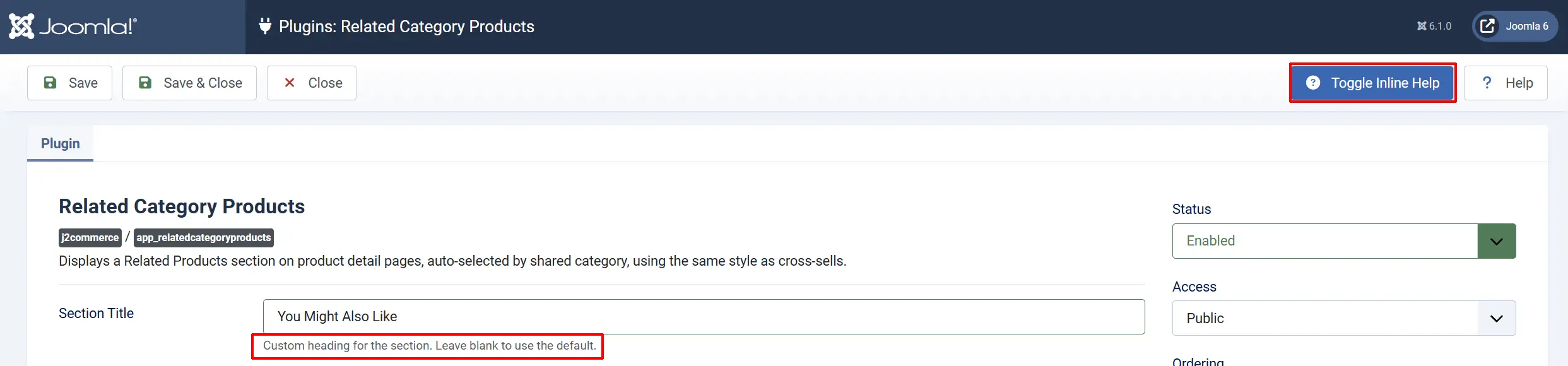
Click the Toggle Inline Help button on any app settings screen to see a description directly below each field.
Basic Settings
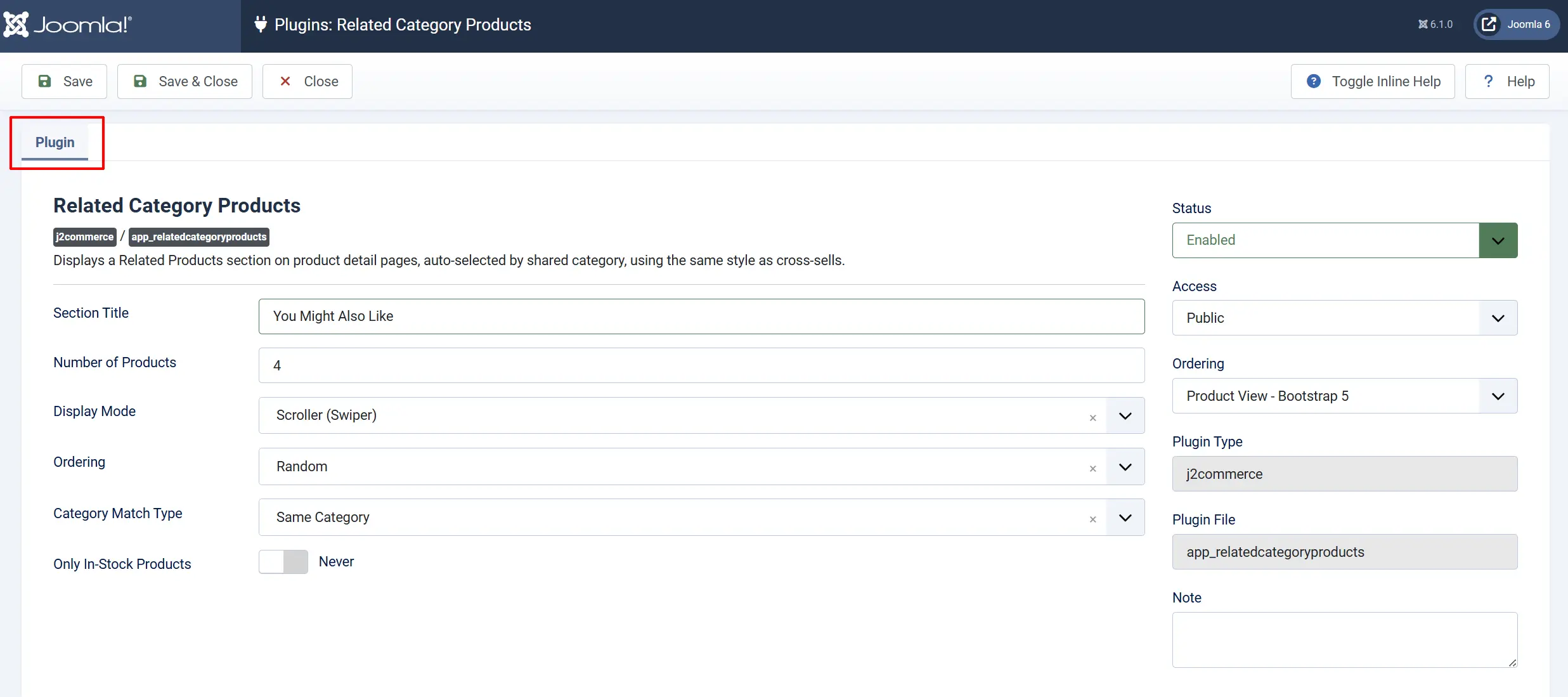
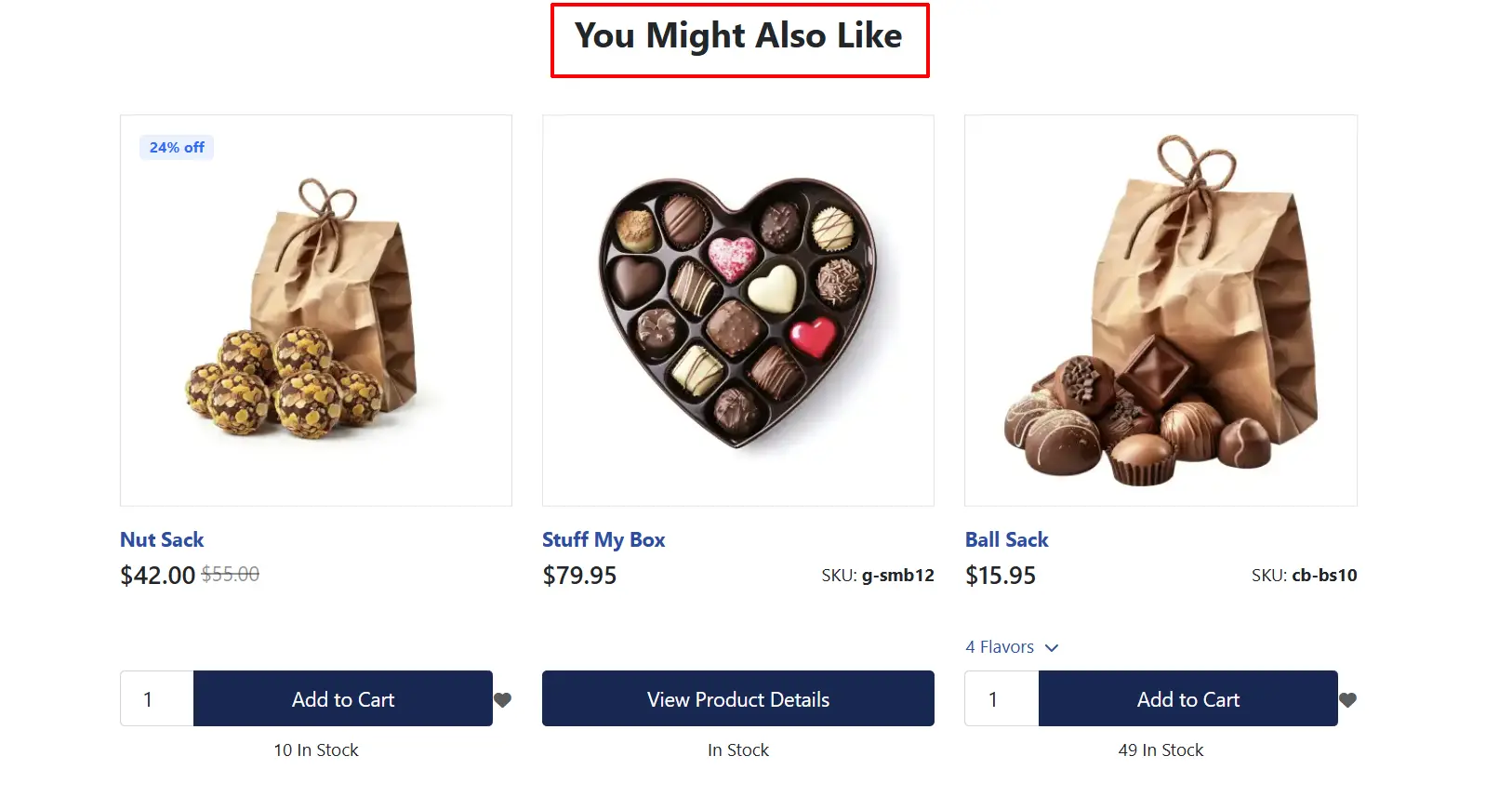
Section Title: The heading is displayed above the related products grid or scroller on the product page. If you leave this blank, the section uses the default heading "Related Products". You can change it to anything that fits your store's language and style — for example, "More From This Category" or "You Might Also Like".
Number of Products: The maximum number of related products to show in the section. Set this based on how much space you want the section to take up and how many products your typical category contains. Range: 1–24
Display Mode: Controls how the related products are laid out on the page. Below are the options and what the customer sees
-
Grid: Products displayed in a static grid of columns. Good when you want a tidy, scan-friendly layout that doesn't auto-scroll.
- Grid Columns: How many columns the grid uses when Display Mode is set to Grid. This setting only has an effect when you have chosen Grid display — it is ignored when using the Scroller. Range: 1–6
-
Scroller (Swiper): Products displayed in a touch-friendly swipeable carousel. Good for mobile shoppers and when you want to show more products without taking up a lot of vertical space.
Ordering: Determines the order in which related products appear in the section.
-
Most Hits: Products with the most page views appear first.
-
Alphabetical (A–Z): Products sorted alphabetically by name.
-
Random: A different random selection each time the page loads. Good for variety.
-
Price (Low to High): Cheapest products appear first.
-
Price (High to Low): Most expensive products appear first.
-
Newest: Most recently added products appear first.
Category Match Type: Defines which categories count as "related" when selecting products to show.
-
Same Category: Only products in the exact same category as the current product.
-
Same Category And Child Categories: Products from the same category plus any sub-categories nested beneath it.
-
Same Category And Sibling Categories: Products from the same category plus other categories at the same level that share the same parent.
Only In-Stock Products: When set to Yes, products that are out of stock are excluded from the related section. Shoppers only see products they can actually add to their cart.
- When set to No, all matching products are shown regardless of stock status.
Per-Product Override
In addition to the global settings above, each individual product can use its own related-products configuration. This is useful when a particular product belongs to a large category and you want to show fewer items, or when you want to turn the section off for a specific product entirely.
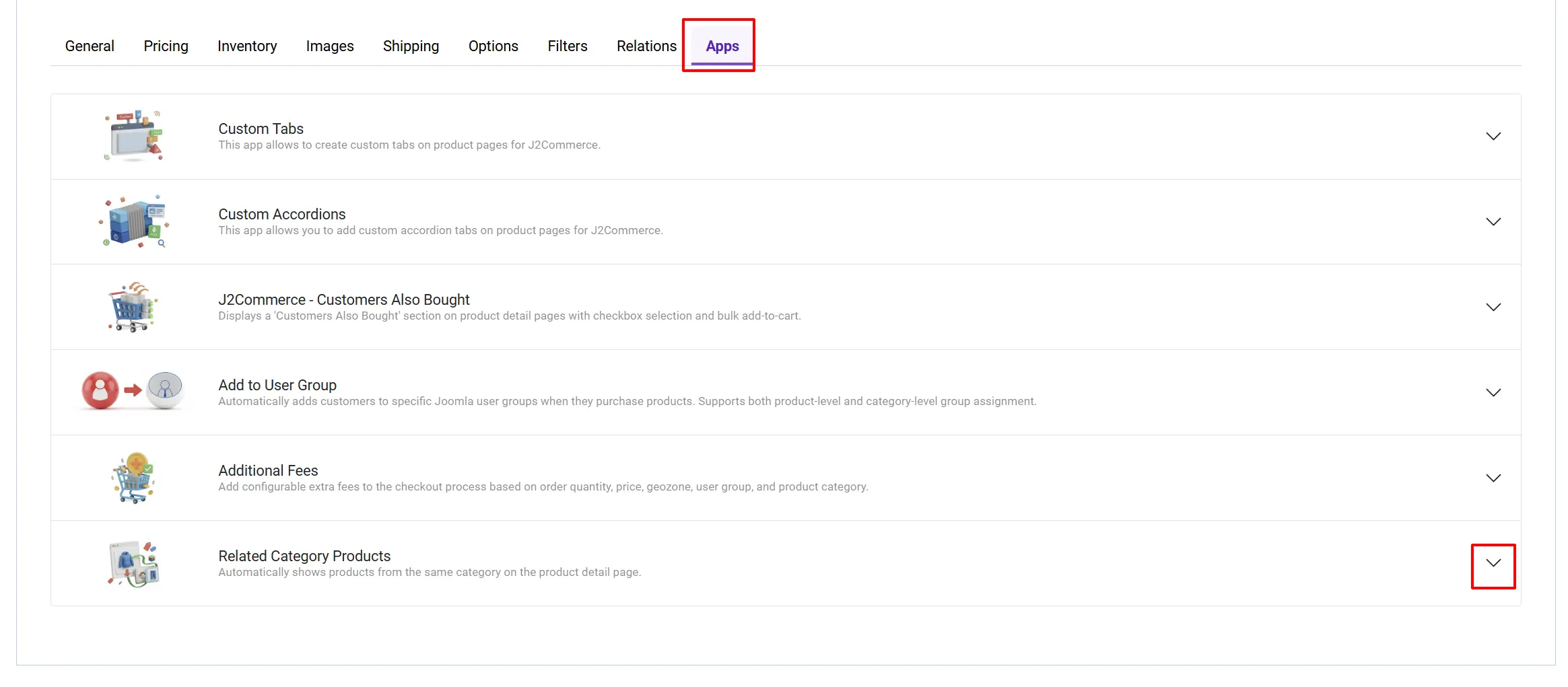
To access the per-product settings, open the product for editing and look for the Related Category Products fieldset in the J2Commerce tab -> App tab
Override Global Settings
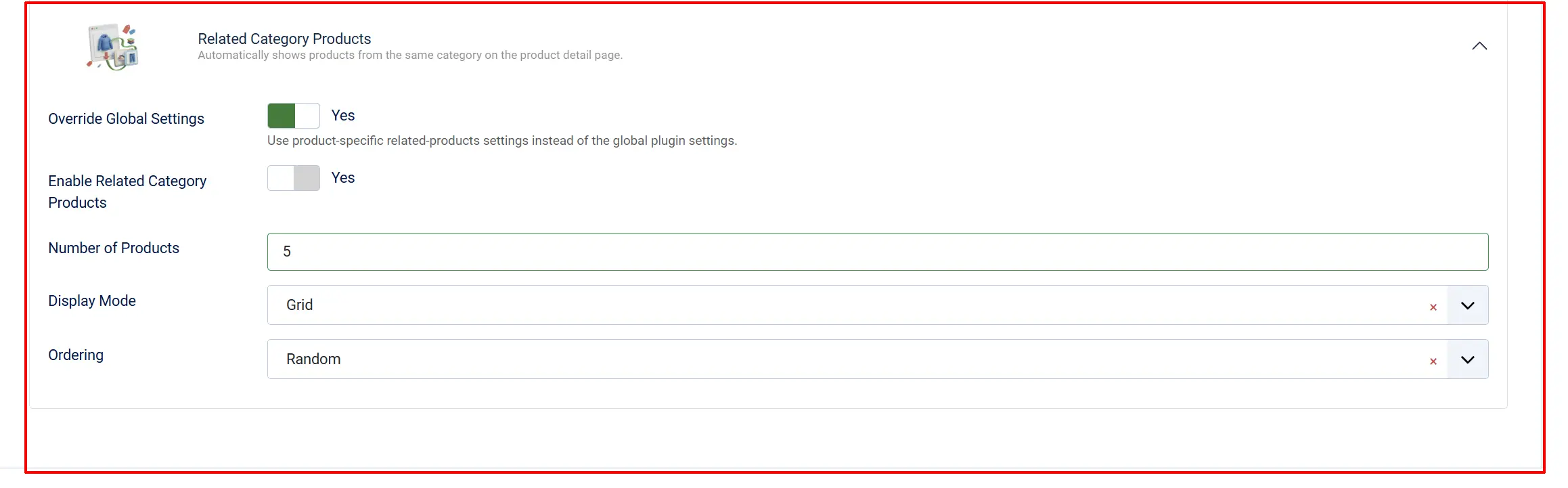
Set to Yes to activate per-product settings for this product. When set to No (the default), the product uses whatever you have configured in the global app settings, and the fields below are hidden.
When Override Global Settings is set to Yes, the following additional fields appear:
Enable Related Category Products: Turns the related section on or off for just this one product. Set to No to hide the section on this product's page without affecting any other products.
Number of Products: The maximum number of related products to display on this product's page. Leave blank to fall back to the global setting.
Display Mode: Override the layout for this product only.
Use Global Setting: Inherits whatever Display Mode is set in the global app settings.
-
Grid: Forces a static grid for this product.
-
Scroller (Swiper): Forces a carousel for this product.
Ordering: Override the sort order for this product only.
-
Use Global Setting: Inherits whatever Ordering is set in the global app settings.
-
Most Hits: Products with the most page views appear first.
-
Alphabetical: Products sorted A–Z by name.
-
Random: A random selection each page load.
-
Price (Low to High): Cheapest first.
-
Price (High to Low): Most expensive first.
-
Newest: Most recently added first.
Grid Columns, Category Match Type, Only In-Stock Products, and Section Title are global-only settings. They cannot be overridden per product.
How It Works
Once the app is enabled, it hooks into the product detail page automatically. No template changes or shortcodes are needed.
When a shopper opens a product page:
- The app reads the category (or categories) the current product belongs to.
- It queries for other published products in the matching category set, applying the Category Match Type, Only In-Stock, and Ordering rules.
- It excludes the currently viewed product from the results.
- It renders the configured number of products in the chosen Display Mode, using the same product card layout as the rest of your store.
- If the current product has Override Global Settings enabled, the product-level settings take precedence over the global ones.
The section appears below the main product content and above the page footer — the same position used by the built-in cross-sells.
Frontend View
When you open a product, the related products will automatically appear at the bottom of the product page.
Tips
- Random ordering keeps the section feeling fresh for repeat visitors, since they see a different selection each time they load the page. If your categories are small (fewer than 5 products), switch to Most Hits or Newest so the results are more predictable.
- Only In-Stock Products: Yes is recommended for stores where stock levels change frequently. It avoids the frustration of a shopper clicking a related product only to find it unavailable.
- Category Match Type: Same Category And Child Categories works well for stores with a deep category hierarchy, where the top-level category is broad but the child categories contain tightly related items.
- Use a small Number of Products on mobile-heavy stores. Four to six products in Scroller mode tend to perform better than a large grid that requires a lot of scrolling.
- If you have a product that genuinely has no related products (for example, a one-of-a-kind item in a single-product category), use the per-product Enable Related Category Products: No override to hide the section cleanly on that page.
Troubleshooting
Related Products Section Does Not Appear
Cause: The app is not enabled, or the current product's category has no other products that meet the filter criteria.
Solution:
- Go to J2Commerce -> Apps.
- Verify Related Category Products shows a green checkmark (enabled).
- Open the product and check the J2Commerce tab. If Override Global Settings is set to Yes, confirm Enable Related Category Products is set to Yes for that product.
- Check how many other products exist in the same category. If Only In-Stock Products is set to Yes and all other category products are out of stock, no products will be shown. Try temporarily switching to No to confirm the section renders.
- If the product is assigned to multiple categories, the app uses the primary category. Confirm the primary category contains at least one other published product.
Fewer Products Appear Than the Number I Configured
Cause: The category does not contain enough products that pass the current filters (stock, published status, or category match type).
Solution:
The app shows as many products as are available, up to the configured maximum. If your category has only two published, in-stock products besides the current one, you will see two — not the configured four. Either add more products to the category, broaden the Category Match Type to include child or sibling categories, or reduce the Number of Products setting to match what's actually available.
The Section Appears But Shows the Wrong Products
Cause: The Category Match Type is set to Same Category And Sibling Categories or Same Category And Child Categories, pulling in products from categories you did not intend.
Solution:
- Open the app settings and change Category Match Type to Same Category to restrict results to the exact same category as the current product.
- If the section still shows unexpected products, verify that the viewed product's category assignment is correct — open the product and check the Category field.