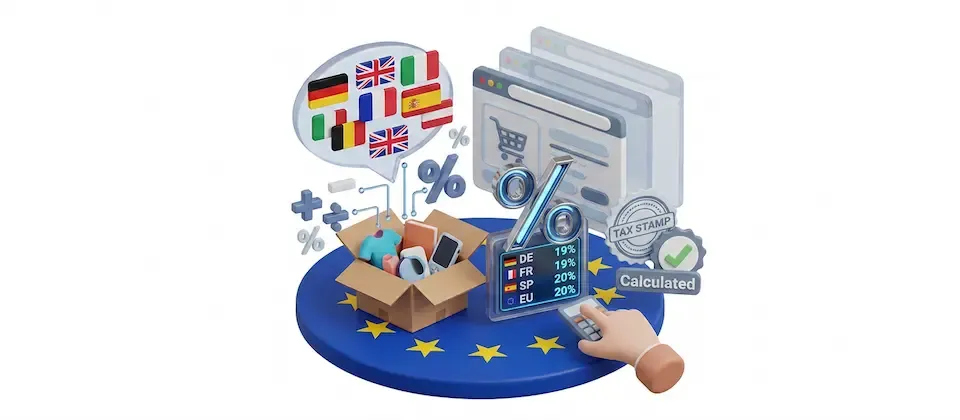

The EU VAT app automates the B2B reverse-charge rule for EU shops: when a business customer in a different EU country gives you a valid VAT registration number, you sell to them with zero VAT and they account for the tax themselves. The app validates the customer's VAT number against the official EU service (or a paid alternative) at checkout, then zeros the order's tax automatically when the number checks out — no manual invoice corrections needed.
Requirements
- with PHP 8.3.0 +
- Joomla! 6.x
- J2Commerce 6.x
Info
NOTE: VAT validation works with or without the PHP SOAP extension. If neither SOAP nor cURL is available on your server, validation still works over Joomla's built-in stream transport, but enabling SOAP or cURL is recommended for reliability.
Purchase and Download
Step 1: Go to our J2Commerce website -> Apps
Step 2: Locate the EU VAT App -> click View Details -> Add to cart -> Checkout.
Step 3: Go to your My Downloads under your profile button at the top right corner and search for the app. Click Available Versions -> View Files -> Download Now
Install the App
You can install this EU VAT App using the Joomla installer. The following steps help you with a successful installation.
In the Joomla admin, go to System -> Install -> Extensions
Upload the plugin ZIP file or use the Install from URL option.
%20(1).webp)
Enable the App
Once you have installed the App, you will need to enable it. There are two ways you can access the extension.
Option A: Go to the J2Commerce icon at the top right corner -> Apps
Option B: Go to Components on the left sidebar -> J2Commerce -> Apps
Look for EU VAT Rules, click the X, and it will turn into a green checkmark. It is now enabled and ready for setup.
Configure the App
Once you click on the EU VAT Rules Title next to the green checkmark, you are ready to start setting up the parameters.
Tip
Click the Toggle Inline Help button in the toolbar and the app will show a description below each field as you configure it.
Basic Settings tab
Disable Non-EU Customer Tax
Set this to Yes if you do not want to charge tax for non-EU customers. When this is on, any customer whose billing or shipping country is not an EU member state has their tax zeroed automatically, regardless of whether they provided a VAT number.
Default: Yes
Apply VAT on Digital Products
Set this to Yes if you also sell digital products. When this is on, EU customers without a registered company name on their address are charged VAT even if they entered a valid VAT number — this matches the EU digital-services rule that reverse charge only applies to genuine business-to-business sales, not to private individuals.
Default: Yes
Info
NOTE: This rule only affects EU cross-border customers. It has no effect on the Disable Non-EU Customer Tax setting above — non-EU customers are handled by that setting on its own.
Show VAT ID Step at Checkout
Set this to Yes to add a dedicated step to checkout where the customer confirms or enters their VAT ID number, instead of relying only on the Tax Number field on the address form. Registered customers who already have a VAT number on file can verify it or enter a different one for this order; guests simply enter a number. See VAT ID Checkout Step below for full details.
Default: No
Checkout Step Position
Choose where the VAT ID step appears in the checkout flow: After billing address, After shipping address, Before payment, or Before order confirmation.
This field only appears when Show VAT ID Step at Checkout is Yes.
Default: After billing address
Display Invalid VAT Message
Set this to Yes to show a warning banner on the checkout confirmation step when a VAT number is rejected.
Default: No
Info
NOTE: VAT number validation always happens at checkout, whether this setting is on or off. This setting only controls whether the rejection banner is shown to the customer — it does not skip or delay the validation check itself.
Validation Service
Choose which service checks VAT numbers:
- VIES (EU Commission) — the official EU service. Free, no account or API key required. Occasionally slow or briefly unavailable during EU maintenance windows.
- Vatlayer — a paid REST service. Requires an access key from vatlayer.com.
Default: VIES (EU Commission)
VIES vs Vatlayer
| VIES (EU Commission) | Vatlayer | |
|---|---|---|
| Cost | Free | Paid subscription |
| Coverage | EU member states only | EU member states + global |
| Uptime | Planned and unplanned outages occur | Higher — commercial SLA |
| Speed | Moderate | Fast |
| Setup | None — works immediately | Requires purchase of an access key |
| Outage behavior | Returns "unknown" — checkout proceeds without zeroing tax | Returns "unknown" or "invalid" depending on the error |
For most small to medium EU shops, VIES is perfectly adequate. If you process high order volumes, have customers who complain about slow checkouts, or need guaranteed uptime, Vatlayer is worth the subscription cost.
Vatlayer Access Key
Enter your Vatlayer API access key here. This field only appears when Validation Service is set to Vatlayer, and is required in that case.
Debug Logging
Set this to Yes to write detailed validation traces to administrator/logs/app_euvat.php. Turn this off once you have finished testing — leave it disabled in production.
Default: No
Connection Check
Click Check Connection to have the server contact your selected validation service right now and report whether it can be reached. The check uses whatever is currently typed into the form — including an unsaved Vatlayer access key — so you can confirm a new key works before you click Save.
A green badge next to the button confirms the service answered; a red badge explains what went wrong (for example, the request could not leave the server, the service returned an error status, or — for Vatlayer — the access key is missing or was rejected).
Setting Up Your Store for EU VAT Rules
Before the app can zero any tax, a few things need to be in place:
- Your store's home country is set. Go to J2Commerce -> Setup -> Configuration -> Store tab and confirm the Store Country field. The app always compares a customer's destination country against this value — customers in your own country are always charged the standard rate.
- Tax Based On is set to the address you collect VAT numbers on. Go to Configuration -> Tax tab and check Tax Based On (Billing Address or Shipping Address). This tells J2Commerce — and the EU VAT app — which address to read the VAT number and company name from.
- A tax rate is already assigned. The app works by zeroing an existing tax rate; if no tax profile or tax rate applies to the order in the first place, there is nothing for the app to remove.
What Your Customers See at Checkout
Every billing and shipping address form in J2Commerce already includes a Tax Number field and a Company field — there is nothing to build or add. Customers who want the reverse-charge rate simply fill in their business's VAT registration number and company name on the address step of checkout.
VAT ID Checkout Step
Turning on Show VAT ID Step at Checkout adds a second, more visible place for customers to handle their VAT ID, alongside the address-form field described above. It is off by default — the address-form Tax Number field works exactly as before whether or not this step is enabled.
What a customer sees depends on who they are:
- A registered customer with a VAT number already saved on their billing address sees two options: Use my saved VAT number (shown alongside the number on file) or Enter a different VAT number. Choosing Use my saved VAT number re-checks that number against your validation service right then, so a number that has since been deregistered is caught before checkout completes rather than only at order time.
- A registered customer with no VAT number on file yet, and any guest, simply sees a VAT Number and Company Name field to fill in.
When a customer enters a new or different number, registered customers also see a checkbox: Also update my saved address with this VAT number and company name. It is unchecked by default. Leaving it unchecked keeps the new number scoped to this order only, exactly like typing a one-off number on the address form; checking it writes the number and company name back onto the customer's saved billing address for future orders. This checkbox only appears when there is an actual saved address to update — it is never shown to guests.
Info
NOTE: The VAT ID entered through this step is what the app validates and, when confirmed, uses to zero tax on the order — it takes priority over whatever is on the address form for that checkout session. The address-form field is unaffected unless the customer explicitly checks Also update my saved address.
Valid vs. Invalid VAT Numbers
- Valid number, business customer, cross-border EU sale: tax is zeroed on the order (reverse charge applies).
- Invalid number: the customer is blocked from continuing past the address step until they correct or remove the number, and standard tax is charged.
- Number cannot be checked right now (the validation service is temporarily down, or the country is not one the app recognizes as an EU member): checkout is not blocked and the order is charged standard tax, since the app never assumes a number is valid — it only zeros tax on a confirmed match.
How It Works
Each time tax is calculated during checkout, the app works through these checks in order:
-
If the customer's destination country matches your store's home country, nothing changes — the standard tax rate applies.
-
If the customer is in a different EU member state and did not provide a VAT number, or the number does not validate, standard tax is charged.
-
If the customer is in a different EU member state and their VAT number is confirmed valid, tax is zeroed for that order.
-
If Apply VAT on Digital Products is Yes and the customer's address has no company name on file (or their VAT number was not confirmed valid), tax is charged even if step 3 would otherwise have zeroed it.
-
If the customer's country is outside the EU and Disable Non-EU Customer Tax is Yes, tax is zeroed for that order — this happens regardless of the digital-products rule above.
Display Conditions
The Tax Number and Company fields appear:
- On every billing and shipping address form at checkout — they are built into J2Commerce and do not need to be added.
The VAT ID checkout step appears when:
- Show VAT ID Step at Checkout is set to Yes — it is off by default.
The "Use my saved VAT number" option appears when:
- The customer is logged in, and
- Their billing address already has a VAT number saved.
Guests, and registered customers with no saved VAT number, see a plain entry field instead.
The "Also update my saved address" checkbox appears when:
- The customer is logged in and has a resolvable saved billing address, and
- They are entering a new or different VAT number (not verifying their saved one).
It never appears for guests, since a guest checkout address is not a saved address to update.
Tax is zeroed on an order when:
- The customer's destination country is an EU member state different from your store's home country, and their VAT number validates successfully, and (if Apply VAT on Digital Products is enabled) they have a company name on file — or
- The customer's destination country is outside the EU and Disable Non-EU Customer Tax is set to Yes.
The invalid-VAT banner on the checkout confirmation step appears when:
- Display Invalid VAT Message is set to Yes, and
- The last VAT number check for this session did not come back as confirmed valid.
Info
NOTE: United Kingdom addresses (other than Northern Ireland) are treated as non-EU by this app, since the official VIES service no longer covers Great Britain after Brexit — they follow whatever you set for Disable Non-EU Customer Tax. Northern Ireland addresses are still treated as EU addresses for VAT purposes and continue to be validated through VIES.
Tips
- Start with VIES — it costs nothing and needs no account. Only move to Vatlayer if you need guaranteed uptime or process a high volume of cross-border B2B orders.
- Use the Connection Check button before you save — it tests the exact settings on your screen, including an unsaved Vatlayer key, so you catch a typo before a real customer does.
- Turn on Display Invalid VAT Message temporarily while testing so you can see exactly when the app rejects a number, then decide whether to leave the banner on for shoppers.
- Leave Debug Logging off in production — only turn it on while diagnosing a specific issue, then turn it back off.
- Double-check Apply VAT on Digital Products if you sell a mix of physical and digital goods — it is designed to protect you from under-charging VAT to private EU individuals on digital products, so leave it on unless you are certain none of your EU customers are non-business buyers of digital goods.
- Turn on Show VAT ID Step at Checkout for a clearer confirmation moment if returning B2B customers place repeat orders — it lets them confirm a saved VAT number with one click instead of retyping it, while still letting them switch to a different number when needed.
Troubleshooting
A Business Customer's Valid VAT Number Was Still Charged Tax
Cause: Several settings can prevent zero-rating from taking effect.
Solution:
- Go to J2Commerce -> Setup -> Configuration -> Store tab and confirm Store Country is set correctly. If it is blank, the app cannot tell which sales are cross-border.
- Check whether Apply VAT on Digital Products is Yes and whether the customer's address has a Company name filled in. If the company field is empty and this setting is on, tax is charged even with a valid VAT number.
- Confirm the customer's billing or shipping country (whichever Tax Based On points to under Configuration -> Tax) is a current EU member state.
- Turn on Debug Logging, have the customer place a test order, and check
administrator/logs/app_euvat.phpfor the line starting withonAfterGetTaxRateItems:.
The Checkout Confirmation Banner Says "Invalid" But the Number Is Correct
Cause: The validation service could not confirm the number when it was checked — this can happen during a brief VIES outage — and the banner uses the same wording for "confirmed invalid" and "could not be confirmed."
Solution:
- Try the same VAT number again a few minutes later. If VIES was simply slow or briefly down, a second check usually succeeds.
- Check the EU VIES portal directly with the same number — if it also fails there, it is a VIES outage, not an app issue.
- If outages are a recurring problem for your store, switch Validation Service to Vatlayer for higher uptime.
Info
NOTE: A number that cannot be confirmed never blocks checkout — only a number the service explicitly rejects as invalid does. The banner wording can look alarming during an outage, but the order still goes through.
The Connection Check Button Shows a Red "Connection Error" Badge
Cause: The server could not reach the selected validation service, or the request was rejected.
Solution:
- Read the message next to the badge — it states whether the request could not leave the server at all, the service answered with an error status, or (for Vatlayer) the access key is missing or was rejected.
- If you are testing Vatlayer, confirm the access key is typed correctly and has not exceeded its monthly usage quota on your Vatlayer dashboard.
- If you are testing VIES and your host blocks outbound connections to the EU Commission's servers, contact your hosting provider — this is a server-level network restriction, not a plugin setting.
Non-EU Customers Are Still Being Charged Tax
Cause: Disable Non-EU Customer Tax is set to No, or the customer's country is not correctly recognized as non-EU.
Solution:
- Go to J2Commerce -> Apps -> EU VAT Rules and confirm Disable Non-EU Customer Tax is set to Yes.
- Confirm the customer's country under Tax Based On (Billing or Shipping) is set correctly on their address.
- Save and place a new test order — the setting is applied at the time tax is calculated, so an existing cart may need to be refreshed.
I Do Not See a Tax Number Field at Checkout
Cause: The Tax Number field is a standard part of every J2Commerce address form — if it is missing, the address step layout may have been customized.
Solution:
- Confirm you are viewing the billing (or shipping) address step, not the shipping-method or payment step.
- If your template uses a custom checkout override, compare it against the default
default_billing.php/default_guest.phplayout files to confirm the Tax Number and Company fields were not removed. - Clear your site cache after restoring the fields: Home Dashboard -> Cache -> Delete All.
Vatlayer Returns "Unknown" Responses
Cause: The access key is incorrect, your Vatlayer plan has run out of monthly lookups, or the Vatlayer service is temporarily unavailable.
Solution:
- Log in to your Vatlayer dashboard and confirm your access key and remaining usage quota.
- Copy the access key fresh from the dashboard, paste it into the plugin's Vatlayer Access Key field, then use Check Connection to confirm it is accepted before you save.
- If the quota is exhausted, upgrade your plan or temporarily switch Validation Service back to VIES (EU Commission) until the quota resets.
The Invalid VAT Banner Does Not Appear at Checkout
Cause: Display Invalid VAT Message is set to No.
Solution:
- Go to J2Commerce -> Apps -> EU VAT Rules.
- Set Display Invalid VAT Message to Yes and click Save.
- The banner appears on the checkout confirmation step when a VAT number is rejected — not on the address step itself.
The VAT ID Step Does Not Appear at Checkout
Cause: Show VAT ID Step at Checkout is set to No, which is the default.
Solution:
- Go to J2Commerce -> Apps -> EU VAT Rules.
- Set Show VAT ID Step at Checkout to Yes, optionally choose a Checkout Step Position, and click Save.
- The address-form Tax Number field keeps working either way — enabling the step adds an additional, clearer place to confirm or enter a VAT number, it does not replace the field.
A Customer Never Sees "Use My Saved VAT Number"
Cause: The option only appears for a logged-in customer whose billing address already has a VAT number saved. Guests and first-time business customers always see a plain entry field instead.
Solution:
- Confirm the customer is logged in, not checking out as a guest.
- Confirm their billing address already has a value in the Tax Number field — check under Components -> J2Commerce -> Customers, open the customer, and review their saved addresses.
- If neither is true, this is expected behavior — the customer will see the plain entry field and can still complete the order with a VAT number.
I Enabled Debug Logging But the Log File Does Not Appear
Cause: The log file is only created on the first validation attempt. If no checkout with a VAT number has run since you turned logging on, there is nothing to write yet.
Solution:
- With Debug Logging set to Yes, go to your storefront and add a product to the cart.
- Proceed to checkout and enter a billing address with a country and a tax number.
- The log file appears at
administrator/logs/app_euvat.phpafter that step. If your site uses a custom log path, check the folder set under System -> Global Configuration -> System -> Path to Log Folder.