Google Merchant Feed
The Google Merchant Feed app generates a live product feed in the format Google Merchant Center expects. Once you register the feed URL in Merchant Center, Google fetches your products on a regular schedule and makes them eligible to appear in Google Shopping results, Google Search product panels, and Performance Max campaigns.
The feed is built from your J2Commerce catalog in real time. Every published product becomes a feed entry automatically — no CSV exports or manual uploads needed.
Requirements
- PHP 8.3.0+
- Joomla! 6.x
- J2Commerce 6.x
Purchase and Download
Step 1: Go to the J2Commerce website -> Apps
Step 2: Locate Google Merchant Feed -> click View Details -> Add to Cart -> Checkout
Step 3: Go to your My Downloads section under your profile button at the top right corner and search for the app. Click Available Versions -> View Files -> Download Now to save the ZIP file to your computer.
Install the App
In the Joomla Administrator, go to System -> Install -> Extensions.
Upload the plugin app_googlemerchantfeed.zip file or use the Install from URL option.

Enable the App
The plugin installs and enables itself automatically. No separate enable step is needed. However, it's important to know where to go to enable or disable it in the future .
There are two ways to reach the Apps list.
Option A: Go to the J2Commerce icon at the top right corner -> Apps
Option B: Go to Components on the left sidebar -> J2Commerce -> Apps

To help you narrow down the list, you can do a search for Google Merchant Feed, click the X, and it will turn into a green checkmark. It is now enabled and ready for setup.
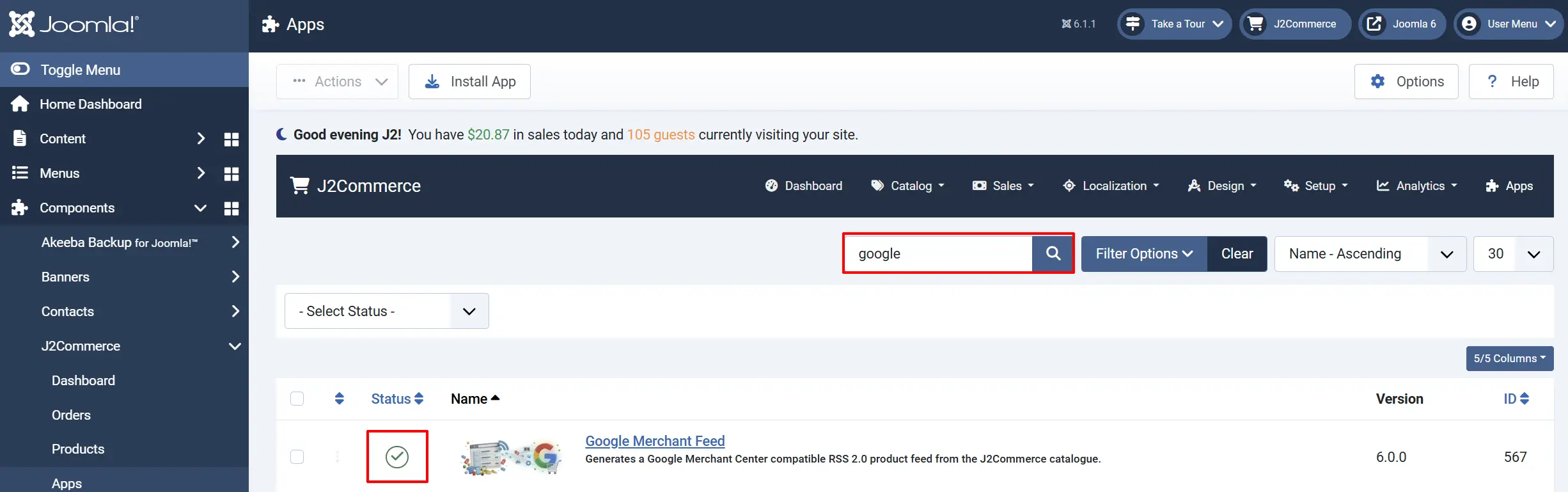
Configure the App
Click the Google Merchant Feed title (next to the green checkmark) to open the settings screen.
Click the Toggle Inline Help button on any app you install to see a description below each field directly in the admin panel.

Basic Settings tab
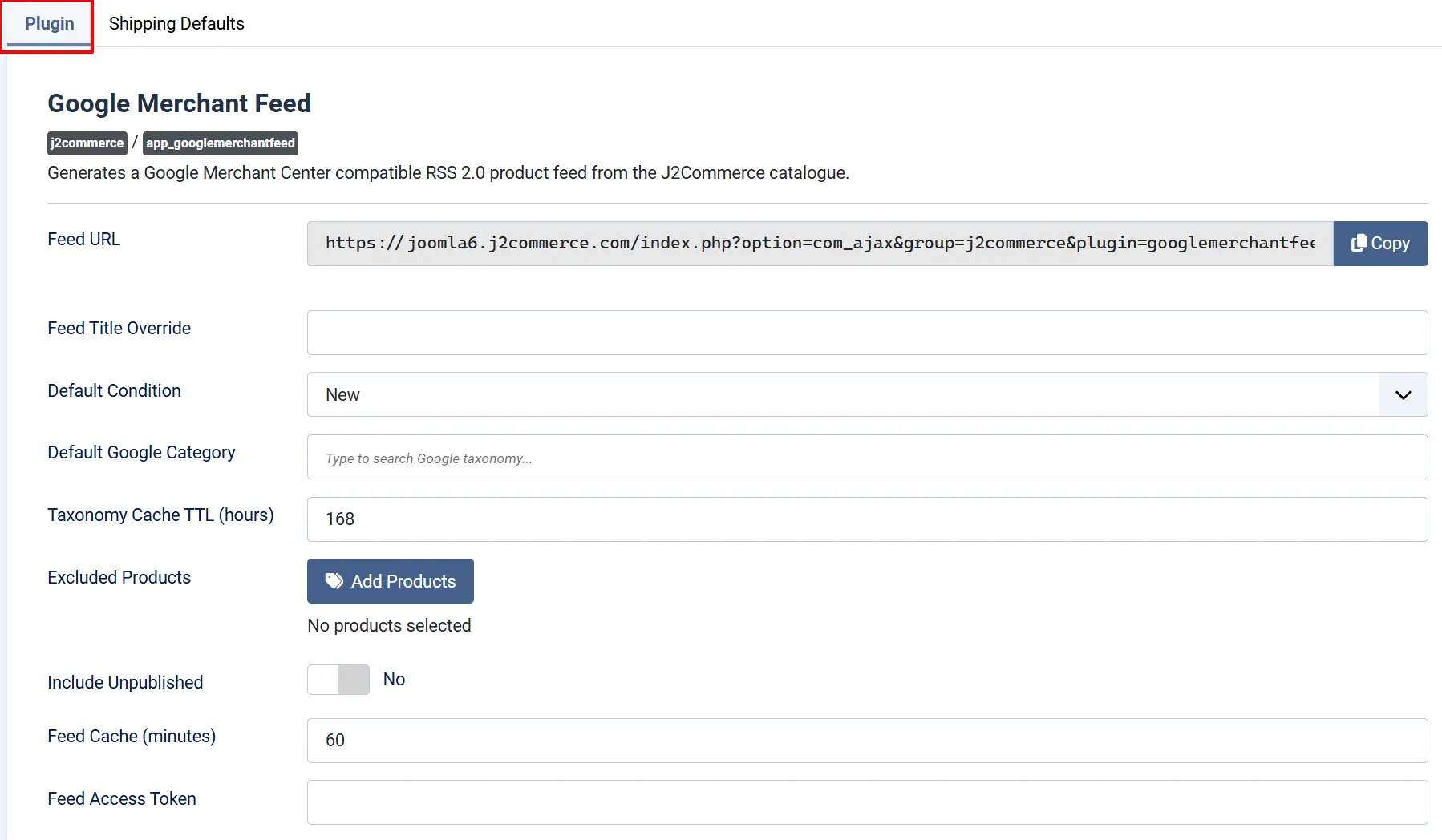
Feed URL: The field displays the unique link that Google uses to fetch your product data. This is a read-only field — copy it using the Copy button next to the URL.
You will paste this URL into Google Merchant Center when setting up your data source (see Register the Feed in Google Merchant Center below).
Feed Title Override: Overrides the title that appears inside the feed XML. Leave blank to use the store name from J2Commerce settings.
Default Condition: The product condition reported in the feed for every product that does not have its own condition set.
-
New
-
Refurbished
-
Used
Most stores sell new products, so New is the right default. If your store sells pre-owned or restored goods, change this to match.
Default Google Category: The fallback Google product taxonomy category applied to any product or category that does not have its own category selected. Start typing to search the taxonomy — the field autocompletes against Google's official product category list and saves the numeric category ID.
Google requires a category for Shopping ads. Setting a sensible default here means your products are always categorised, even if you have not set categories on individual items.
See Category Resolution Order below for details on how product-level and category-level overrides work.
Taxonomy Cache TTL (hours): How long the plugin stores a local copy of Google's product taxonomy before refreshing it. Google updates the taxonomy periodically; one week (168 hours) is a sensible refresh interval.
Excluded Products: A product selector where you can pick individual products to leave out of the feed entirely. Use this for internal test products, gift cards, or anything you do not want listed on Google.
Include Unpublished: Controls whether products that are unpublished in Joomla are included in the generated feed.
Leave this set to No in almost all cases. Set to Yes only if you need to preview feed entries for products that are not yet live on your site.
Feed Cache (minutes): How long the generated feed XML is cached on the server. Google typically fetches feeds once a day, so caching for 60 minutes is a good balance between performance and freshness. Set to 0 to disable caching and always generate the feed fresh on every request.
Feed Access Token: An optional secret token that restricts who can access the feed URL. When you enter a token here, the feed URL will only respond correctly when &token=YOUR_TOKEN is appended to it. Leave blank to allow anyone with the URL to fetch the feed.
If you set a token, the Feed URL field at the top of the screen updates to show the full URL including the token parameter. Copy that updated URL and use it in Google Merchant Center.
Google Merchant Center will send the token on every scheduled fetch, so the feed remains private from casual browsers while still working correctly for Google.
Shipping Defaults tab
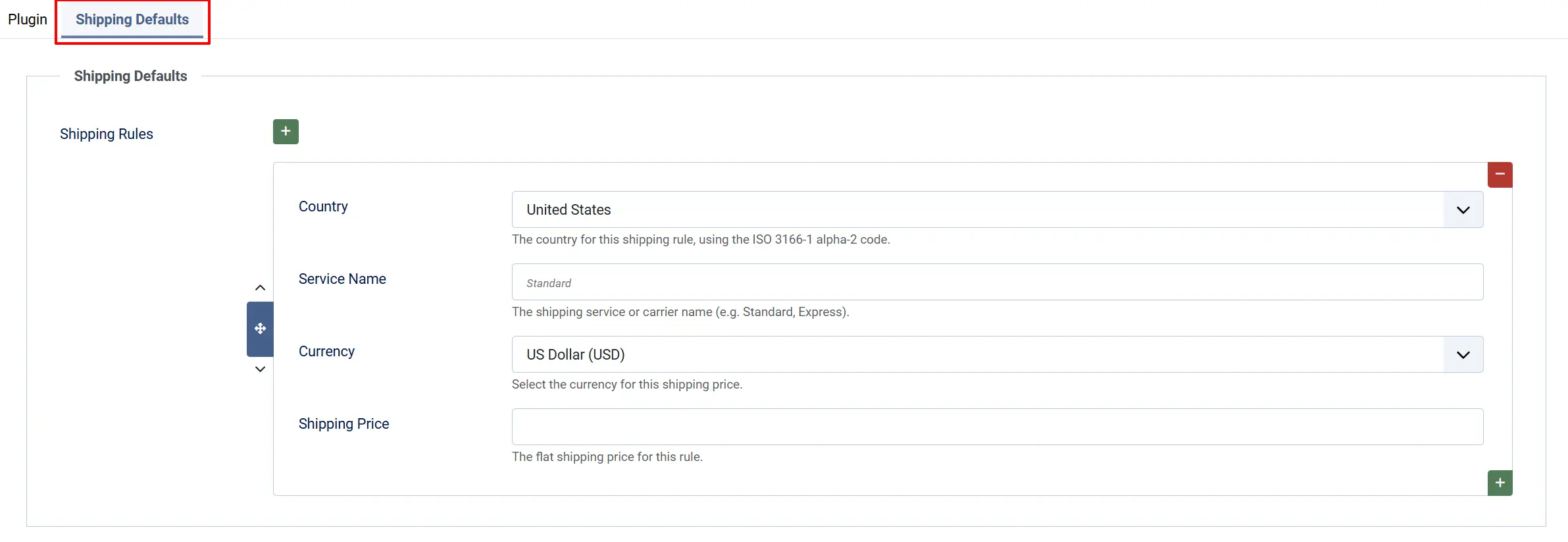
The Shipping Defaults tab lets you declare flat-rate shipping costs that Google includes in your product listings. Google uses this information to show estimated shipping costs on Shopping ads and in free listings.
Click Add Item to create a shipping rule. Each rule has four fields:
Country: The destination country for this shipping rule. Select from the countries enabled in your store. Example: US
Service Name: A label describing the shipping method shown to Google (and optionally in search results). Example: US
Currency: The currency for this shipping price. Select from the currencies published in your store. Example: USD
Shipping Price: The flat shipping cost for this rule, as a decimal number. Enter 0 for free shipping. Example: 4.99
You can add one rule per country, or multiple rules for the same country with different service names (for example, Standard and Express).
If shipping cost varies by product weight or order total, set up your shipping rules in Google Merchant Center directly using its shipping settings rather than relying on flat rates here. The flat rates in this tab are a simpler alternative for stores with a single shipping price.
Register the Feed in Google Merchant Center
After configuring the plugin, you need to tell Google Merchant Center where to find your feed:
- Copy the Feed URL from the top of the plugin settings screen (use the Copy button).
- Log in to Google Merchant Center.
- Go to Products -> Data sources -> Add data source.
- Choose Scheduled fetch as the method.
- Paste the Feed URL into the URL field.
- Set a fetch frequency (daily is recommended).
- Save the data source. Google will fetch the feed on its next scheduled run.
Google must be able to reach your feed URL from the public internet. A URL on a local development server (such as localhost or a private IP address) will not work for a live fetch. During development, you can download the feed XML manually by visiting the URL in your browser and uploading the file to Merchant Center as a manual upload.
Once Google has fetched your feed successfully, your products will appear in the Products section of Merchant Center, where you can review any warnings or errors and fix them before your products go live.
Category Resolution Order
The plugin uses a three-level hierarchy to assign a Google product category to each product in the feed:
- Product-level override — If a Google category is set directly on an individual product, that category is used. This is the highest priority.
- Category-level override — If no product-level category is set, the plugin checks whether the Joomla content category the product belongs to has a Google category assigned.
- Plugin default — If neither the product nor its category has a Google category, the Default Google Category from the plugin settings is used.
Setting a Category Override on a Product

- Go to J2Commerce -> Catalog -> Products.
- Open the product you want to edit.
- Click the J2Commerce tab, then the Apps tab.
- Locate the Google Product Category field and start typing to search and select a category.
Setting a Category Override on a Content Category
- Go to Content -> Categories.
- Open the category you want to edit.
- Click the J2Commerce tab (or the tab where J2Commerce fields appear).
- Locate the Google Product Category field and select a category.
How It Works
When Google (or any visitor with the feed URL) requests the feed:
- The plugin checks whether a cached feed XML exists and is still within the Feed Cache window. If so, it serves the cached version immediately.
- If no valid cache exists, the plugin queries your J2Commerce product catalog, applying the Excluded Products filter and the Include Unpublished setting.
- For each product, the plugin resolves the Google category using the three-level hierarchy described above.
- The plugin outputs a valid RSS 2.0 XML document using Google's Merchant Center namespace, including titles, descriptions, prices, images, product IDs, condition, availability, and any shipping rules you have configured.
- The output is cached for Feed Cache minutes before the next regeneration.
Tips
- Set a Default Google Category before going live. Products with no category may be disapproved in Merchant Center.
- Use the Excluded Products field for test products. Any internal or non-sellable product you have in the catalog should be excluded to avoid Merchant Center warnings.
- Check the feed in a browser first. Visit the Feed URL directly in your browser. You should see XML starting with
<rss. If you see an error message, check that the plugin is enabled and J2Commerce is installed correctly. - Free shipping? Enter
0as the Shipping Price for a country rule to tell Google that shipping is free for that destination. - Secure your feed with a token if your product catalog contains pricing you prefer not to expose publicly.
Troubleshooting
Products Are Not Appearing in Google Merchant Center
Cause: The feed URL has not been registered, the feed has not been fetched yet, or the feed returned no products.
Solution:
- Visit the Feed URL directly in your browser. Confirm it returns XML.
- In Google Merchant Center, go to Products -> Data sources and check the status of your feed. Look for a "Last fetch" timestamp.
- If the feed shows "No products", confirm that the plugin is enabled and that you have published products in J2Commerce.
- Click Fetch now in Merchant Center to trigger an immediate fetch rather than waiting for the scheduled run.
Google Reports Product Category Warnings
Cause: Some or all products have no Google product category assigned.
Solution:
- Go to J2Commerce -> Apps -> Google Merchant Feed.
- Set a Default Google Category that matches your main product type.
- For products in different categories, set category-level or product-level overrides as described in Category Resolution Order.
Feed URL Returns an Error or Empty Page
Cause: The plugin is disabled, J2Commerce is not installed, or a Feed Access Token is set but missing from the URL.
Solution:
- Go to J2Commerce -> Apps and confirm Google Merchant Feed shows a green checkmark.
- If you set a Feed Access Token, make sure you are using the full URL (including
&token=YOUR_TOKEN) that appears in the plugin settings. - Clear the Joomla cache: Home Dashboard -> Cache -> Delete All.
Feed Shows Outdated Product Information
Cause: The feed is being served from cache and has not regenerated since you last changed your products.
Solution:
- Wait for the cache to expire (determined by the Feed Cache setting in minutes).
- To force an immediate refresh, go to the plugin settings and temporarily set Feed Cache (minutes) to
0, save, visit the feed URL once, then restore your preferred cache time.