Video Display
The Video Display app lets you attach videos directly to your J2Commerce products and show them in a polished, responsive block on the product detail page. You can embed YouTube, Vimeo, or self-hosted MP4 videos — the provider is detected automatically from the URL so there is nothing to configure per video. Choose from three layout styles (Grid, Scroller, or Alternating), control exactly where on the page the video block appears, and add a one-click caption bar to your product navbar so shoppers can jump straight to the videos without scrolling.
Requirements
- with PHP 8.3.0 +
- Joomla! 6.x
- J2Commerce 6.x
Purchase and Download
Step 1: Go to our J2Commerce website -> Apps
Step 2: Locate the Video Display App -> click View Details -> Add to cart -> Checkout.
Step 3: Go to your My Downloads under your profile button at the top right corner and search for the app. Click Available Versions -> View Files -> Download Now
Install the App
You can install the Video Display App using the Joomla installer. The following steps help you with a successful installation.
In the Joomla admin, go to System -> Install -> Extensions
Upload the plugin ZIP file or use the Install from URL option.
 (1)-a6689f12b23b8e992f5c2a169737672f.webp)
Enable the App
Once you have installed the App, you will need to enable it. There are two ways you can access the extension.
Option A: Go to the J2Commerce icon at the top right corner -> Apps
Option B: Go to Components on the left sidebar -> J2Commerce -> Apps

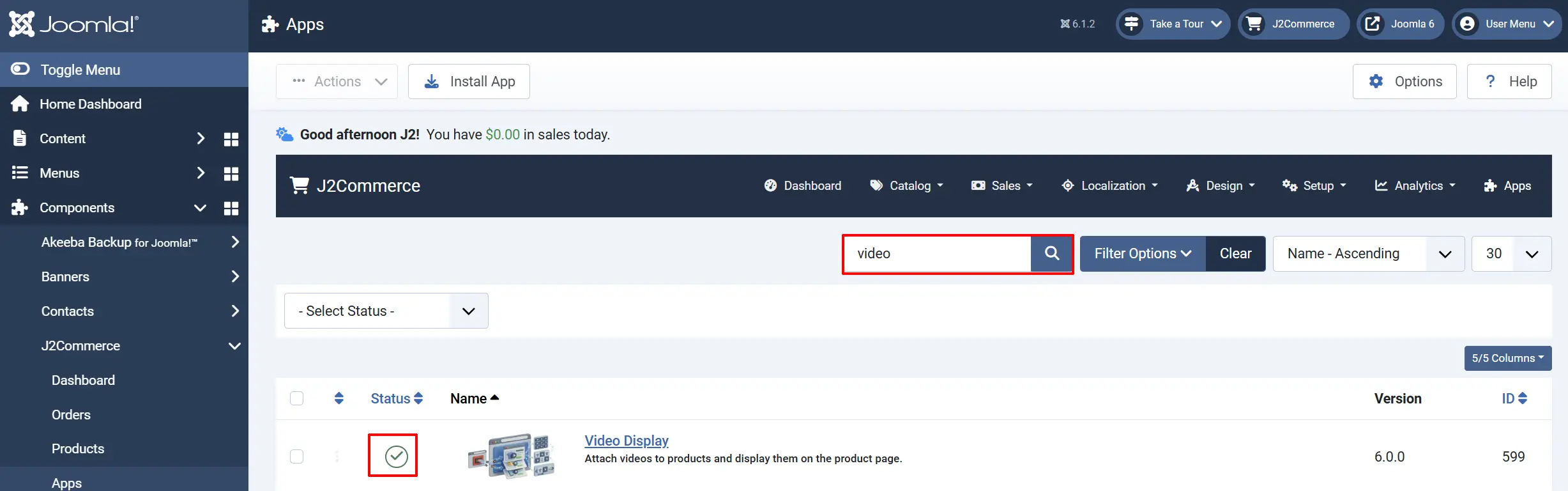
Look for Video Display, click the X, and it will turn into a green checkmark. It is now enabled and ready for setup.
Configure the App
Once you click on the Video Display title next to the green checkmark, you are ready to configure the parameters.
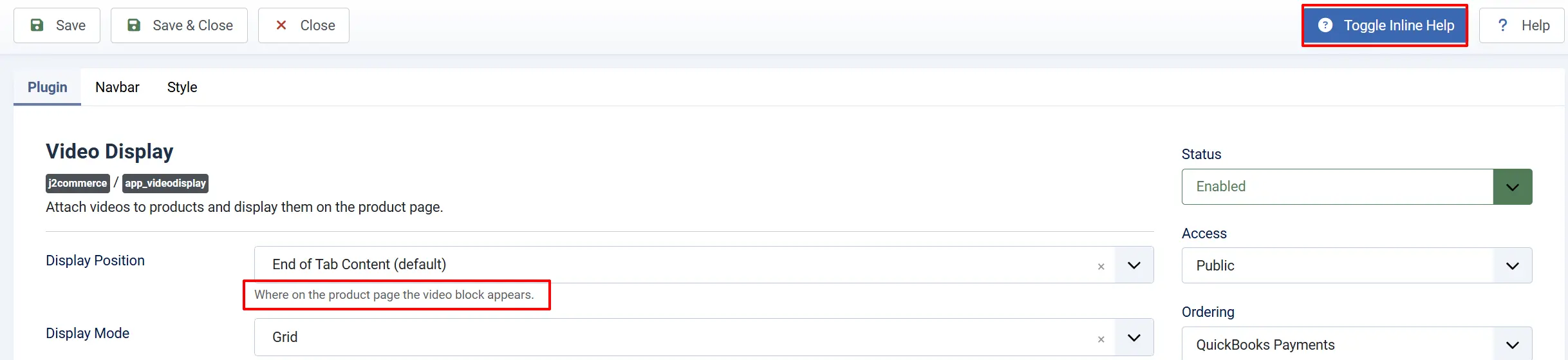
Click the Toggle Inline Help button in the toolbar and the app will show a description below each field as you configure it.
Basic Settings tab
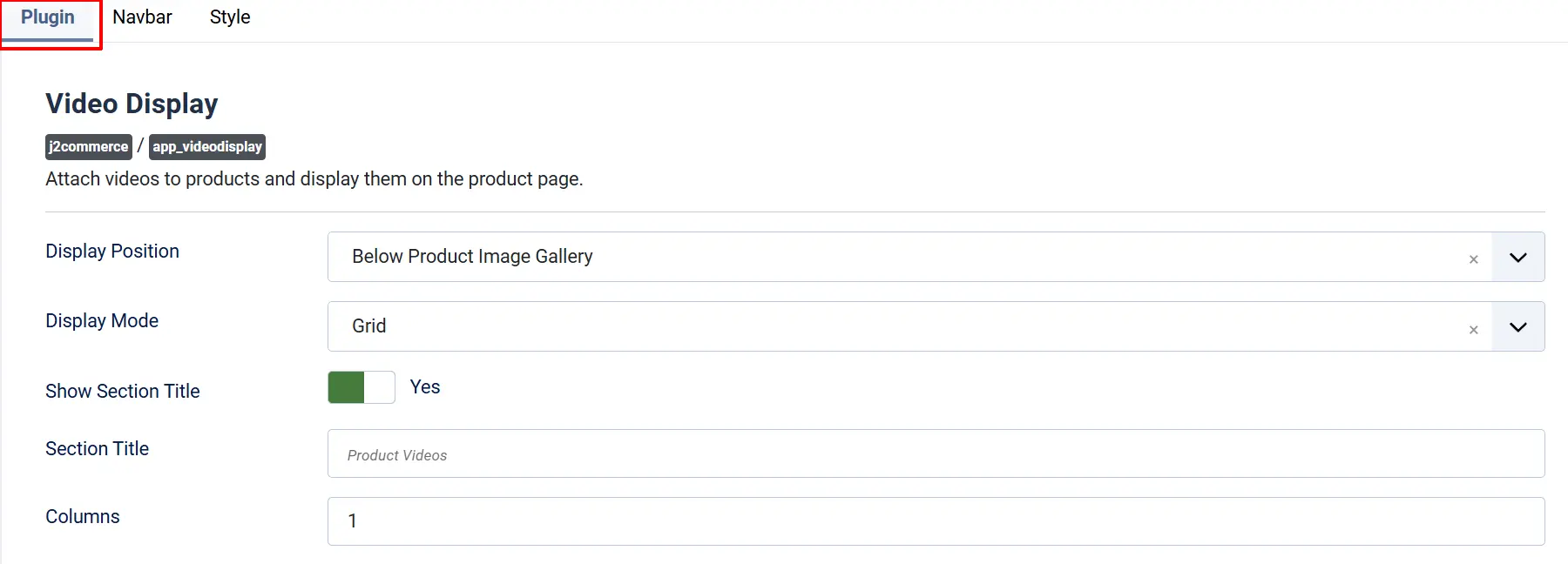
Display Position: Controls where on the product page the video block appears. Six positions are available:
-
End of Tab Content (default): Below the product description tab content
-
Bottom of Product Page: Below all other content, just before the page footer
-
Before Cross-Sells: Above the cross-sell / related products section
-
After Cross-Sells: Below the cross-sell / related products section
-
Below Product Image Gallery: Directly below the main product image gallery (Example shown in the Frontend View section below)
-
After Tab (accordion layout): After the last product tab when using accordion mode
Display Mode: Chooses how the videos are laid out. The same mode applies to all products by default; individual products can override it in their Apps tab.
-
Grid: Videos arranged in a responsive Bootstrap row with a configurable number of columns
-
Scroller: A swipeable carousel (Swiper.js) with optional arrows, dots, autoplay, and loop
-
Alternating (zigzag): Each video paired with text, alternating left-right down the page
Show Section Title: Toggle whether a heading appears above the video block. Default: Yes.
Section Title: The heading text shown above the videos when Show Section Title is enabled. Leave blank to use the built-in default "Product Videos".
The following settings appear only for the mode you have selected.
Grid mode
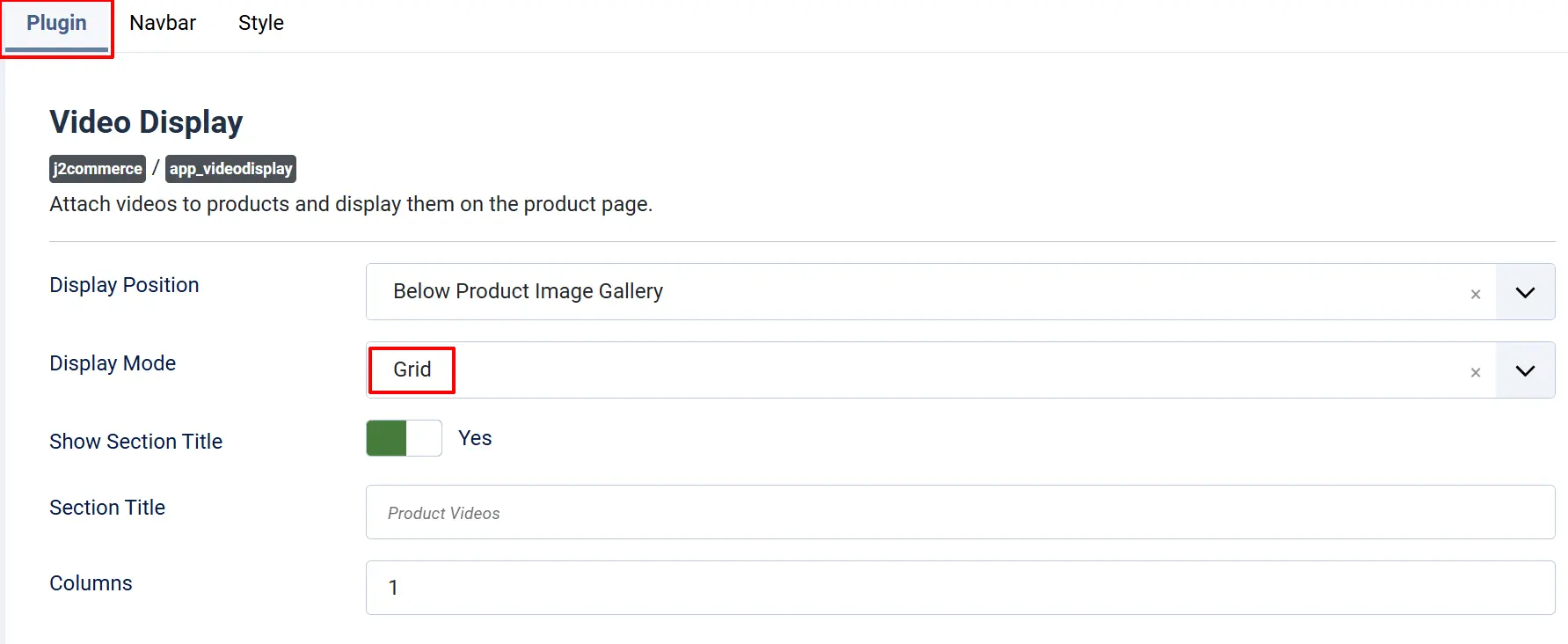
Columns — Number of video columns in the grid (1 to 6). Default: 3. On small screens the grid collapses automatically to fewer columns. (Example shown in the Frontend View section below)
Scroller mode
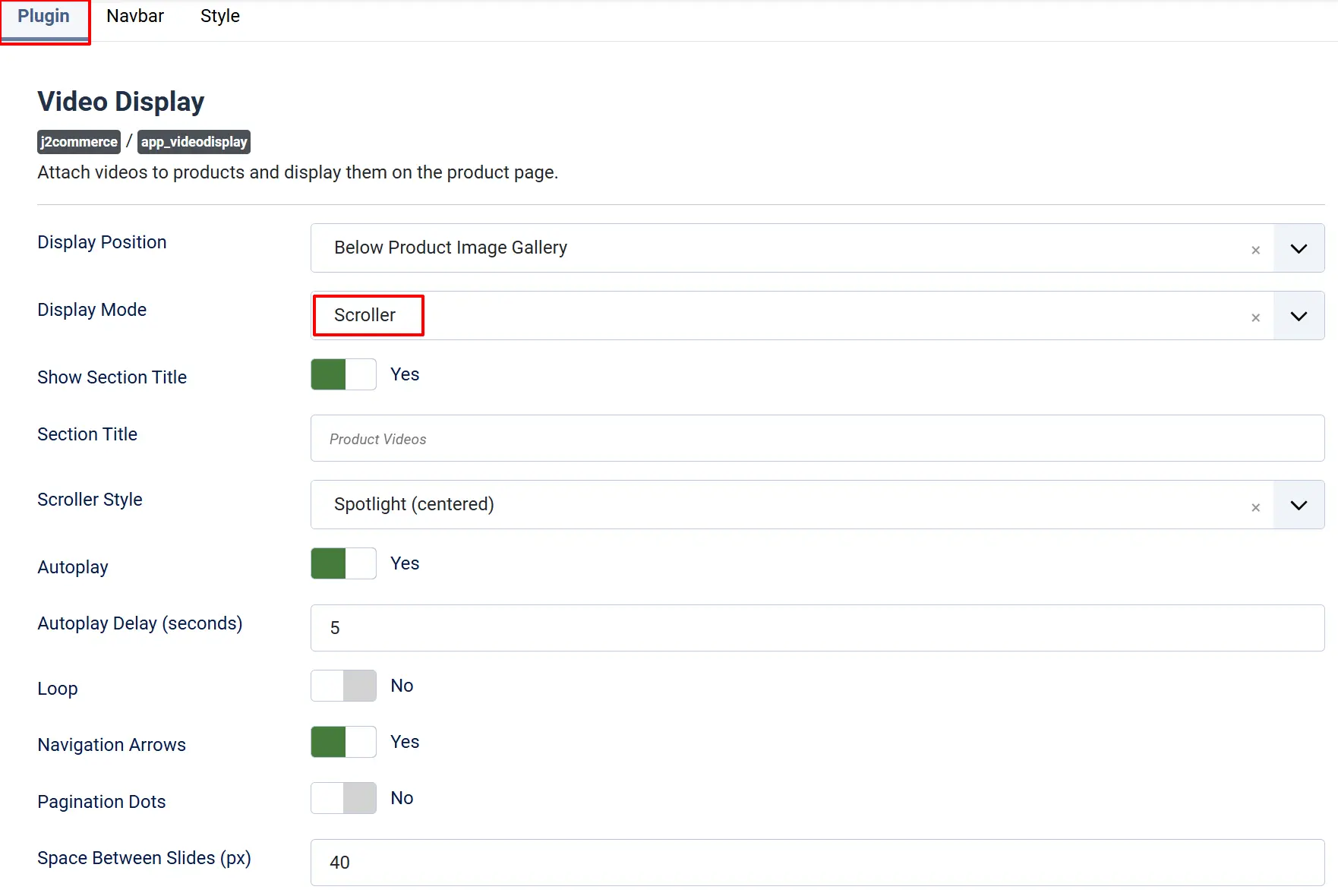
Scroller Style — Visual treatment of the carousel.
-
Spotlight (centered): The active slide is centered and wider than its neighbours, giving a "hero" feel
-
Normal: Slides are equal-width and advance one at a time (or multiple, matching the Columns setting)
Autoplay — Whether the carousel advances automatically. Default: No.
Autoplay Delay (seconds) — How many seconds between slide advances when autoplay is on (1–60). Default: 5. Visible only when Autoplay is Yes.
Loop — Whether the carousel loops back to the first slide after the last. Default: No.
Navigation Arrows — Show previous/next arrow buttons. Default: Yes.
Pagination Dots — Show clickable dot indicators below the carousel. Default: No.
Space Between Slides (px) — Pixel gap between slides (0–100). Default: 40.
Alternating mode
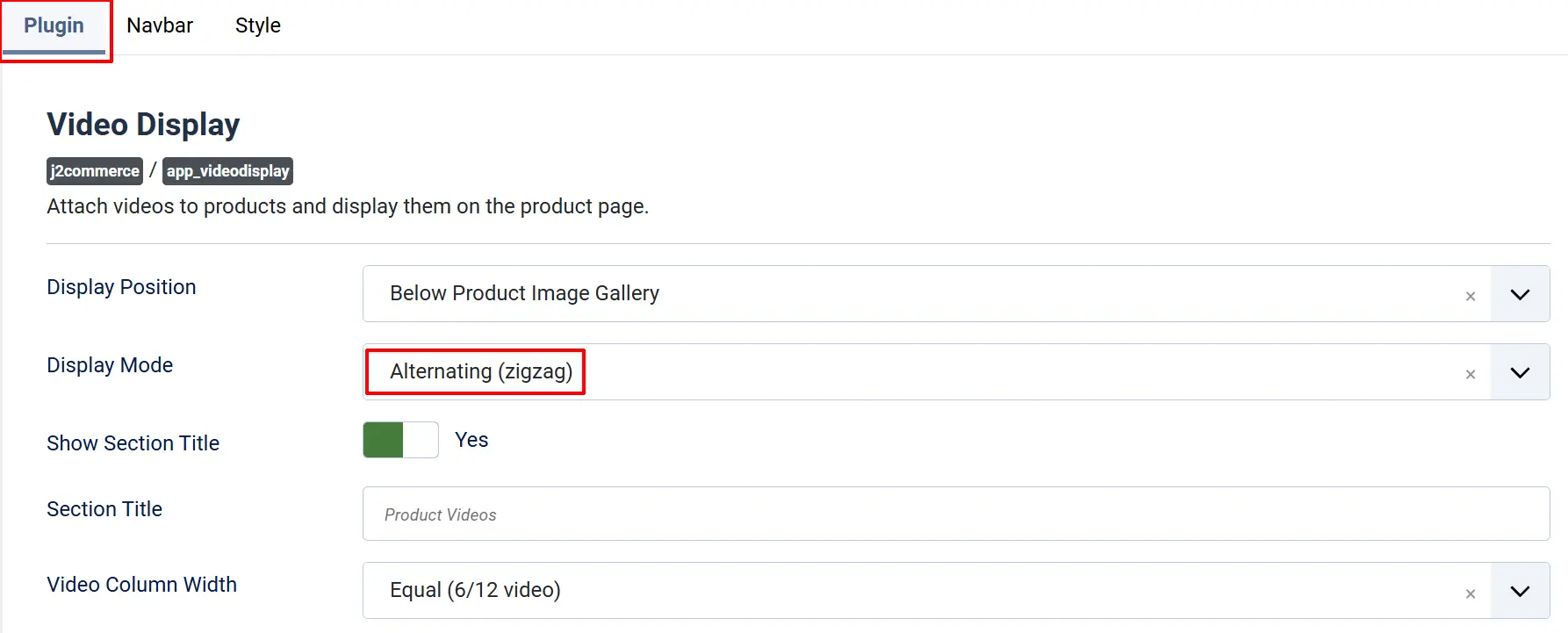
Video Column Width — How much of the row width the video half occupies.
Narrow (4/12 video): Video takes one-third; text takes two-thirds
Equal (6/12 video): Video and text share equal halves (default)
Wide (8/12 video): Video takes two-thirds; text takes one-third
Navbar tab
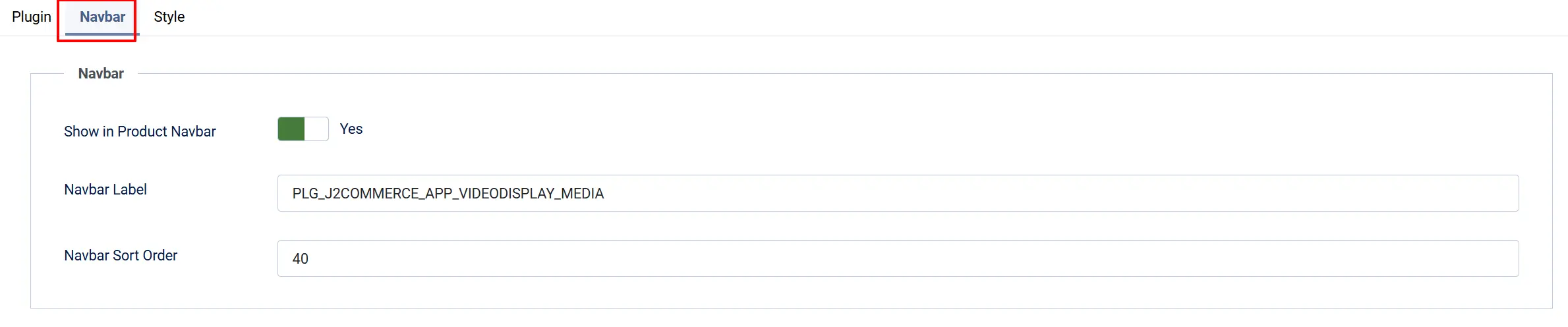
These settings control whether a link to the video block is added to the Product Navbar (requires the Product Navbar app to be installed and enabled).
Show in Product Navbar — When Yes (default), a link targeting the video section is registered with the product navbar for any product that has videos.
Navbar Label — The link text shown in the navbar. Default: Media.
Navbar Sort Order — Numeric position of the link in the navbar relative to other items (0–999). Default: 40. Lower numbers appear earlier.
Style tab
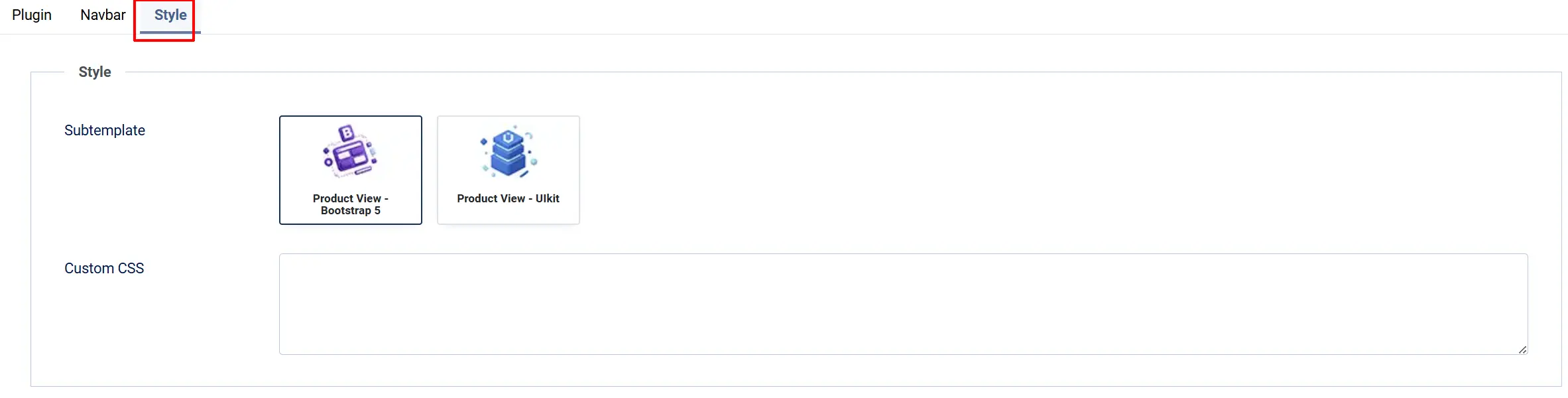
Subtemplate — Choose the visual style for the video block. The default is app_bootstrap5, which uses standard Bootstrap 5 markup. If you have the UIkit app installed, select app_uikit for UIkit-flavoured markup.
Custom CSS — Optional CSS rules applied directly to the video block container (#j2commerce-videodisplay). Do not include <style> tags — paste raw CSS only, for example:
padding: 2rem 0;
background: #f8f8f8;
Adding Videos to the Products
After enabling the plugin, each product can have its own list of videos. The per-product settings also let you override the display mode set in the plugin for that individual product.
There are two ways you can access the products.
Option A: Go to the J2Commerce icon at the top right corner -> Catalog -> Products
Option B: Go to Components on the left sidebar -> J2Commerce -> Products
Click on a product to edit it -> J2Commerce tab -> Apps tab. Click to expand the Video Display section.
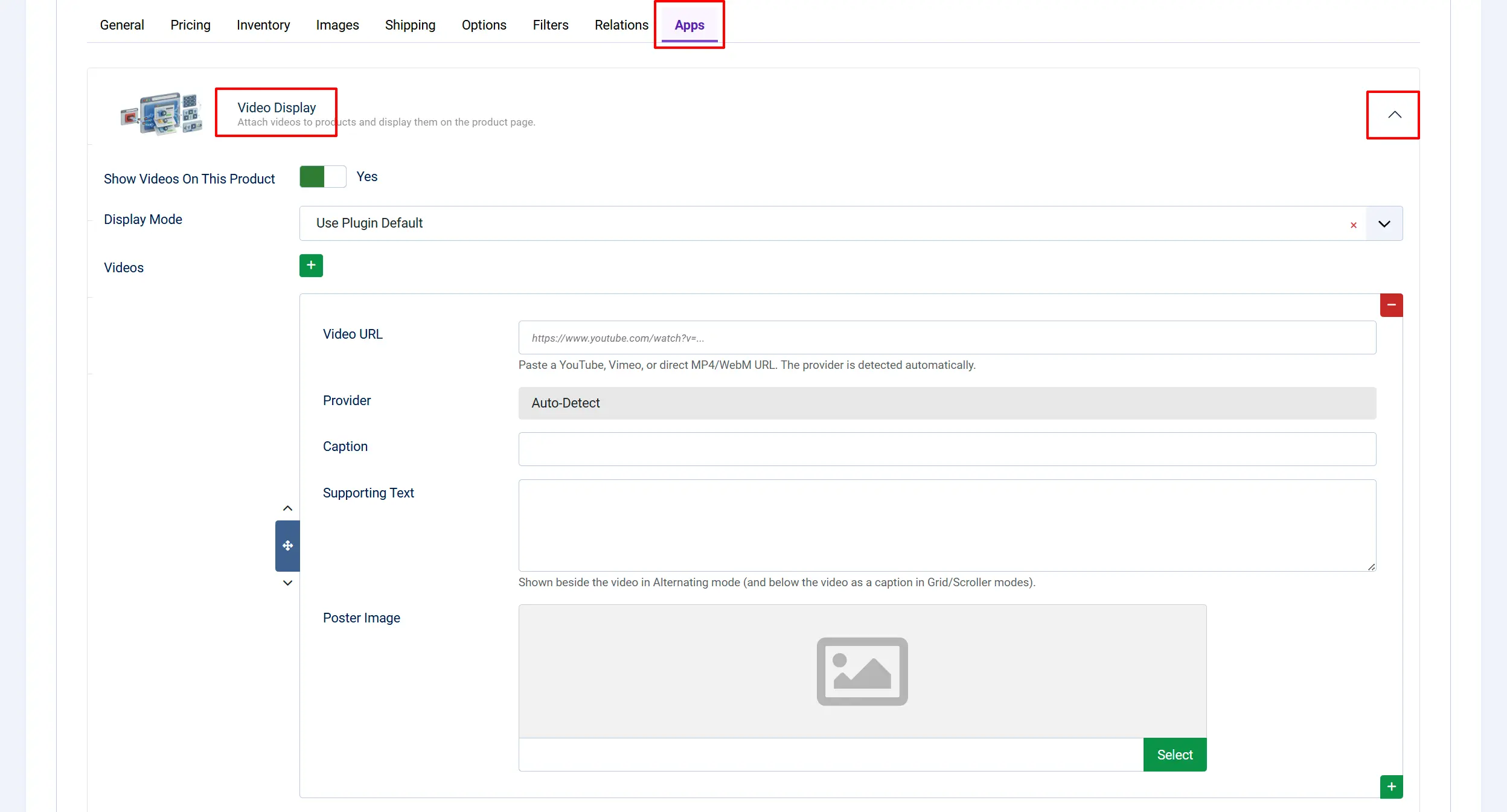
Video Display section fields
Show Videos On This Product — Master on/off switch for this product. Set to No to hide the video block even if videos are configured.
Display Mode — Override the global display mode for this product only.
-
Use Plugin Default: Uses whichever mode is set in the plugin configuration
-
Grid: Forces Grid layout for this product
-
Scroller: Forces Scroller layout for this product
-
Alternating (zigzag): Forces Alternating layout for this product
Adding videos
Click Add item inside the Videos repeater to add a video row. Each row has the following fields:
Video URL — Paste a YouTube, Vimeo, or direct MP4/WebM/OGG URL. Examples:
https://www.youtube.com/watch?v=...https://vimeo.com/...https://example.com/videos/product-demo.mp4
Only https:// URLs and site-relative paths (starting with / or images/) are accepted.
Provider — Leave at Auto-Detect and the plugin will identify YouTube, Vimeo, or HTML5 video automatically. Override only if auto-detection gives the wrong result.
Caption — Short text shown beneath the video thumbnail in Grid and Scroller modes, and as a heading in Alternating mode.
Supporting Text — Longer descriptive text shown beside the video in Alternating mode. In Grid and Scroller modes it appears below the caption. Supports basic HTML.
Poster Image — An optional thumbnail image shown before the video plays. If left blank, YouTube videos use their auto-generated thumbnail. Vimeo and HTML5 videos show a neutral placeholder. Click Select to pick an image from the Joomla Media Manager.
You can add up to 50 videos per product. Use the drag handle to reorder rows. Click the trash icon to remove a row.
Click Save or Save & Close when you are done.
Frontend View
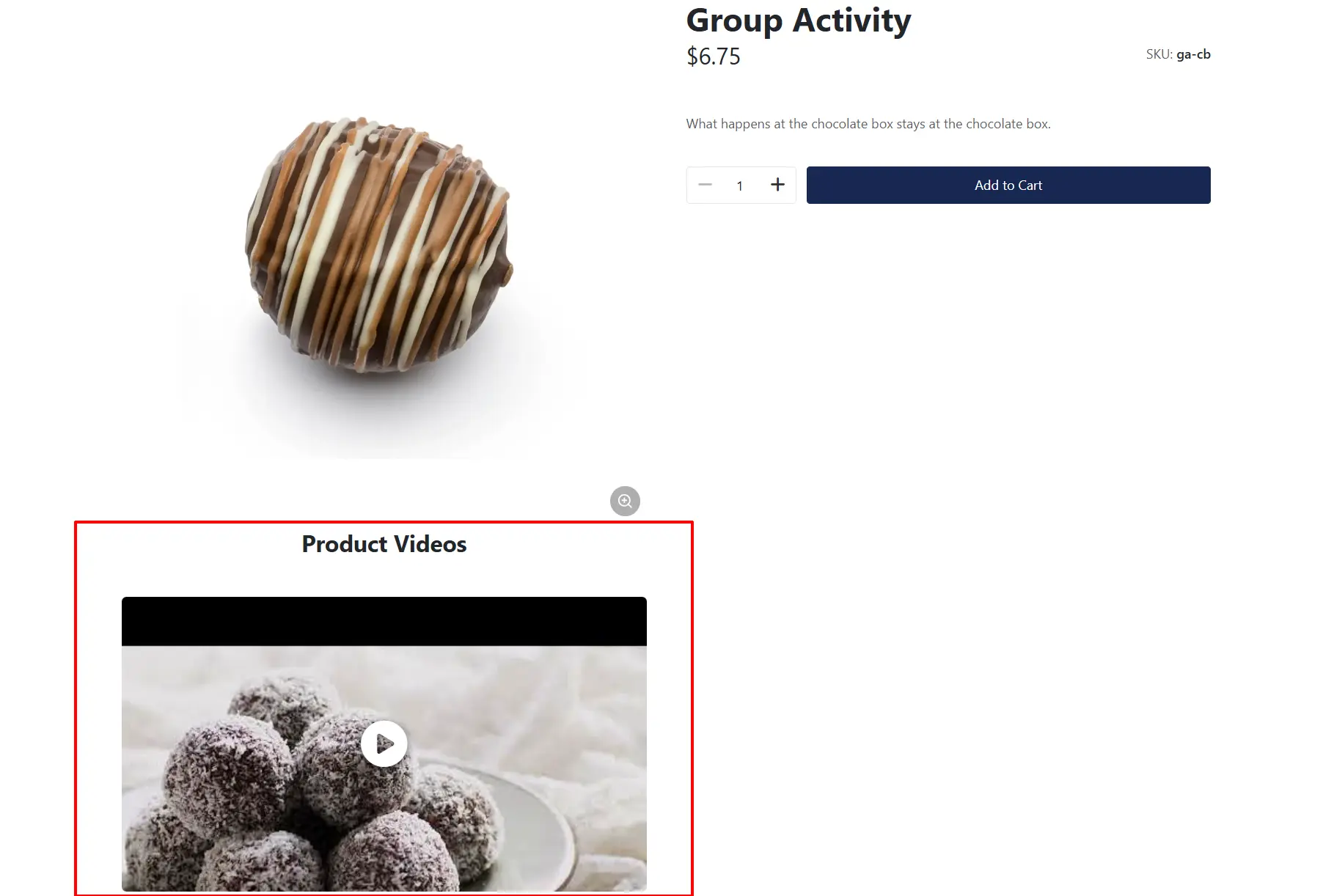
When a shopper visits the product page, the video block appears at the configured position. Each video shows as a poster thumbnail with a play button overlay. Clicking the thumbnail opens the video in a full-screen lightbox (powered by Fancybox). Grid and Scroller modes show poster thumbnails; Alternating mode shows the poster beside the supporting text.
The example below has the Display Position set for Below Product Image Gallery and the Column is set for 1.
How It Works
When a customer views a product page:
- J2Commerce fires the product page event that matches the configured Display Position.
- The Video Display plugin checks whether the product has videos enabled (
Show Videos On This Productis Yes). - The plugin scans the video list and skips any rows with a blank or invalid URL.
- For each valid URL, the provider is resolved and a safe embed string is built — no raw user URL ever reaches an iframe
srcattribute directly. - Poster images are resolved: explicit poster field first, then YouTube thumbnail for YouTube videos, then a neutral SVG placeholder.
- The video block is rendered using the active subtemplate and display mode.
- If the product is viewed in a quickview popup (modal/component layout), the video block is suppressed to avoid layout conflicts.
- If Show in Product Navbar is enabled and videos exist, a "Media" link is registered with the Product Navbar app pointing to the video block anchor (
#j2commerce-videodisplay).
Display Conditions
Videos appear when:
- The plugin is enabled in J2Commerce -> Apps -> Video Display.
- The product's Show Videos On This Product is set to Yes (the default).
- At least one video row has a valid, non-empty URL.
- The URL begins with
https://, or is a site-relative path starting with/orimages/. - The product page is viewed in normal mode (not a quickview popup).
Videos do not appear when:
- The plugin is disabled.
- Show Videos On This Product is set to No on the product.
- All video rows have empty or invalid URLs.
- The page is loaded as a component-only template (quickview / modal).
The Navbar link appears when:
- Show in Product Navbar is Yes in the plugin configuration.
- The Product Navbar app is installed and enabled.
- The product has at least one valid video that would be displayed.
Tips
- Start with Grid mode for most products — it works well for small numbers of videos and requires no extra configuration.
- Use Scroller for long lists — if a product has five or more videos, the Scroller keeps the page compact while still letting shoppers browse all of them.
- Use Alternating for storytelling — the Alternating (zigzag) layout pairs nicely with detailed supporting text, such as a feature-by-feature walkthrough.
- YouTube thumbnails are automatic — you do not need to set a poster image for YouTube videos; the plugin fetches the high-quality thumbnail from YouTube automatically.
- Self-host MP4 files under
images/— files uploaded to the Joomla Media Manager are accessible viaimages/my-video.mp4, which the plugin accepts as a valid site-relative URL. - Caption is used for accessibility — every
<iframe>receives your caption text as itstitleattribute, which is read by screen readers. Write short but descriptive captions. - Per-product mode override is useful when most products suit one mode but a flagship product works better with Alternating layout and rich supporting text.
Troubleshooting
Videos Do Not Appear on the Product Page
Cause: The plugin is disabled, no valid video URLs are configured, or the Display Position does not fire for your template layout.
Solution:
- Go to J2Commerce -> Apps -> Video Display and verify a green checkmark is shown.
- Edit the product, open the J2Commerce tab -> Apps tab, expand Video Display, and confirm Show Videos On This Product is Yes.
- Check that at least one video row has a URL beginning with
https://. - If you recently changed the Display Position, try a different position — some positions only fire when the matching template block is present. Below Product Image Gallery is the most universally available position.
YouTube Video Shows a Placeholder Instead of a Thumbnail
Cause: The YouTube video is private, unlisted, or the video ID could not be extracted from the URL format used.
Solution:
- Confirm the video is public on YouTube.
- Use the standard watch URL format:
https://www.youtube.com/watch?v=XXXXXXXXXXX - Alternatively, upload a custom poster image using the Poster Image field.
Scroller Arrows or Dots Are Not Visible
Cause: The Swiper.js library has not loaded, or a custom CSS rule is hiding the controls.
Solution:
- Clear the Joomla cache: Home Dashboard -> Clear Cache -> Delete All.
- Reload the product page and check the browser console for JavaScript errors.
- If using a custom CSS override in the plugin, check whether any rule accidentally sets
opacity: 0ordisplay: noneon.swiper-button-next,.swiper-button-prev, or.swiper-pagination.
Video Block Appears in the Wrong Position
Cause: The Display Position is set to a location that exists in the page, but a page layout override places that section elsewhere.
Solution:
- Go to J2Commerce -> Apps -> Video Display.
- Try a different Display Position option — End of Tab Content and Bottom of Product Page are the most reliably positioned options across all J2Commerce templates.
- Use the Custom CSS field or a template override to fine-tune placement after selecting the closest available position.
Navbar Link Does Not Appear
Cause: The Product Navbar app is not installed, is disabled, or its Show in Product Navbar setting is off.
Solution:
- Verify the Product Navbar app is installed and enabled under J2Commerce -> Apps.
- In the Video Display plugin, open the Navbar tab and confirm Show in Product Navbar is Yes.
- Confirm the product has at least one valid video — the navbar link is registered only when videos would actually be rendered.