Easy Reorder
The Easy Reorder plugin adds a Reorder button to customers' past orders so they can add all items from a previous order back into their cart with one click. It also provides an optional Try Again button that appears when a checkout or payment fails, letting the customer retry without starting over.
This is especially useful for stores with repeat buyers — such as office supplies, food and beverage, or any business where customers regularly purchase the same products.
Prerequisites
- J2Commerce is installed and enabled
- At least one completed order in your store
Purchase and Download
Step 1: Go to our J2Commerce website -> Apps
Step 2: Locate the app_reorder.zip App -> click View Details -> Add to cart -> Checkout.
Step 3: Go to your My Downloads under your profile button at the top right corner and search for the app. Click Available Versions -> View Files -> Download
Install the App
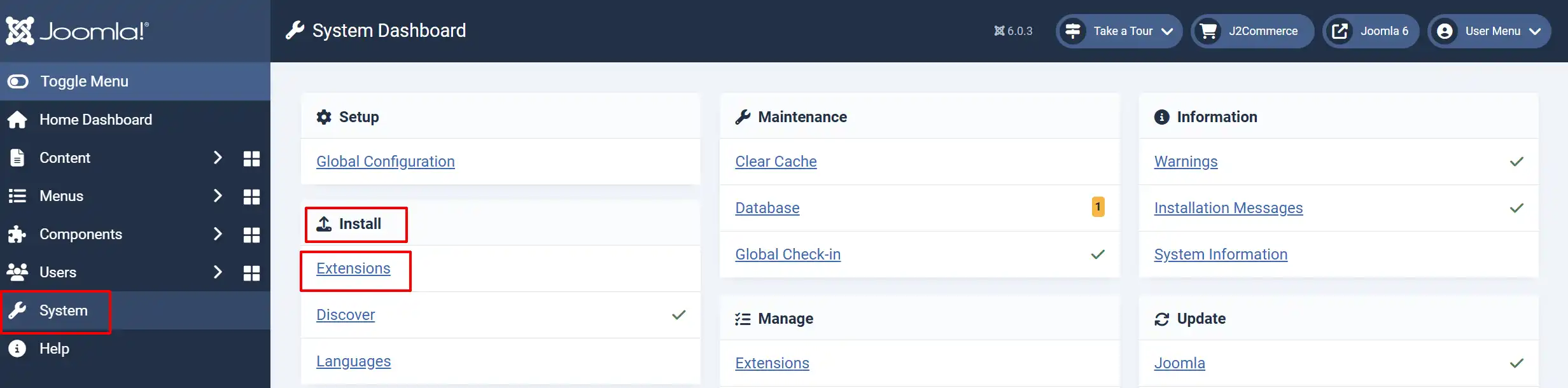
Go to System -> Install -> Extensions
Upload the plugin ZIP file or use the Install from URL option.
Enable the App
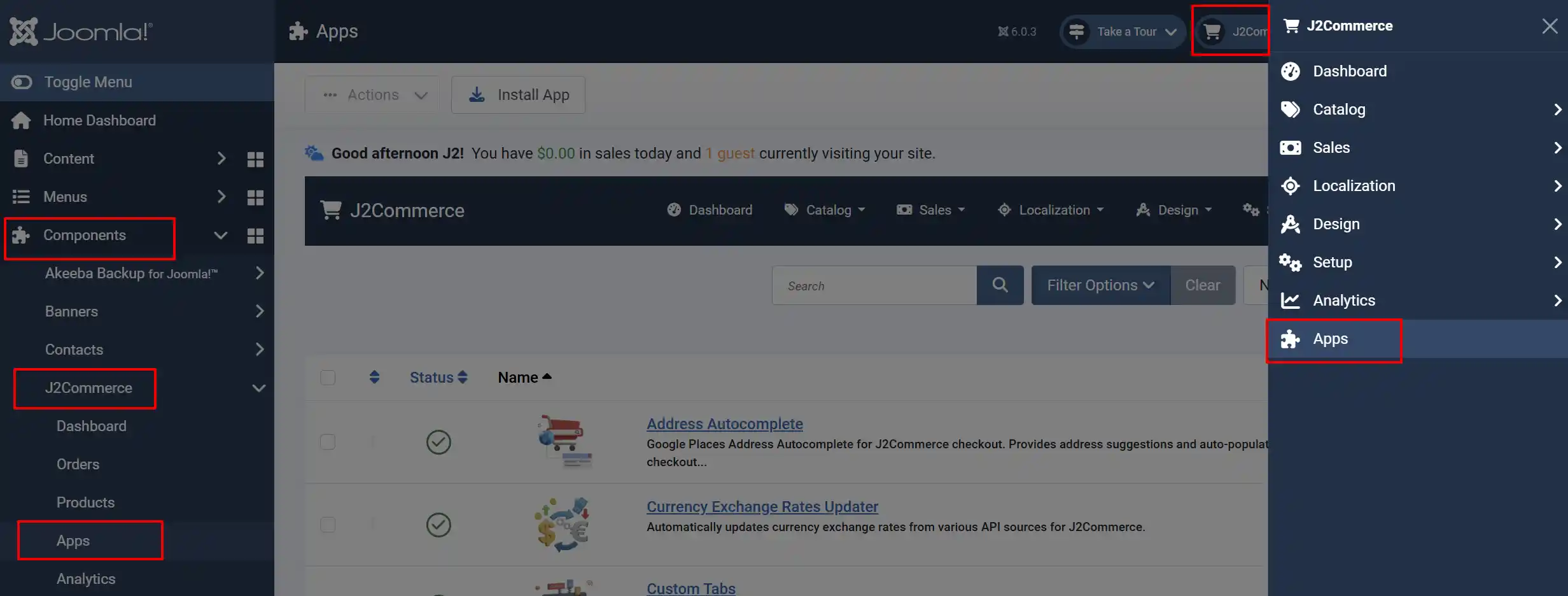
Once you have installed the App, you will need to enable it. There are two ways you can access the App.
Option A: Go to the J2Commerce icon at the top right corner -> Apps
Option B: Go to Components on the left sidebar -> J2Commerce -> Apps
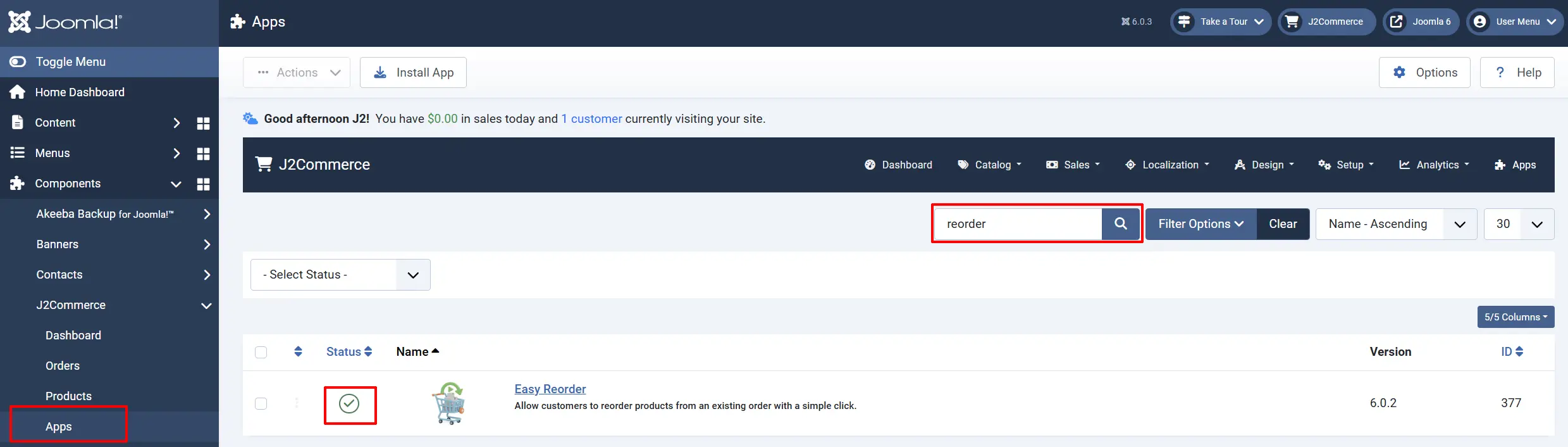
To help you narrow down the list, you can do a search for the Easy Reorder app, click the X, and it will turn into a green checkmark. It is now enabled and ready for setup.
Configure the App
Click on the Easy Reorder title to open the plugin settings.
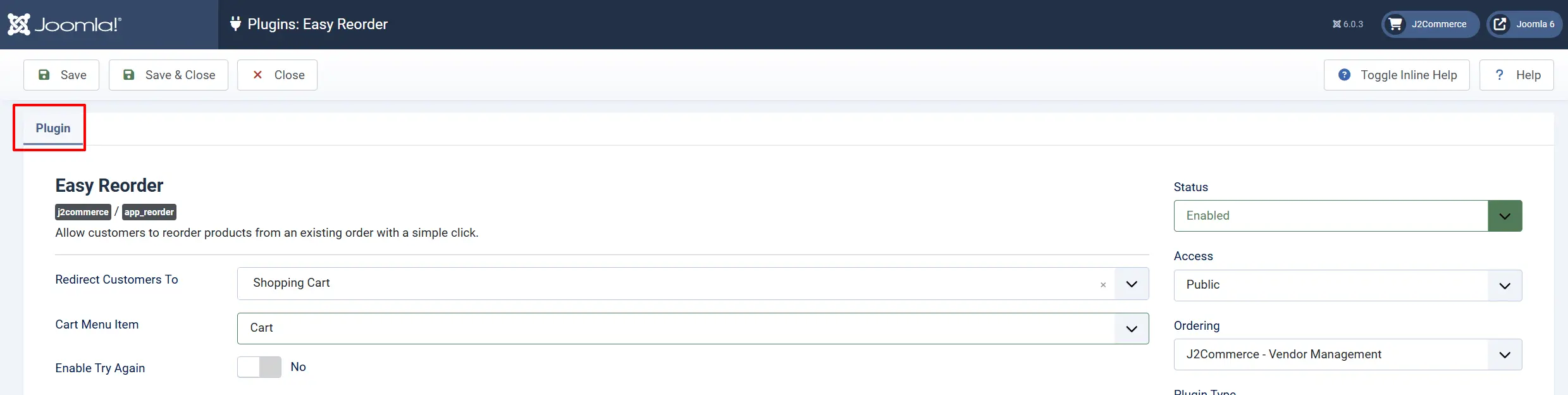
Basic Settings
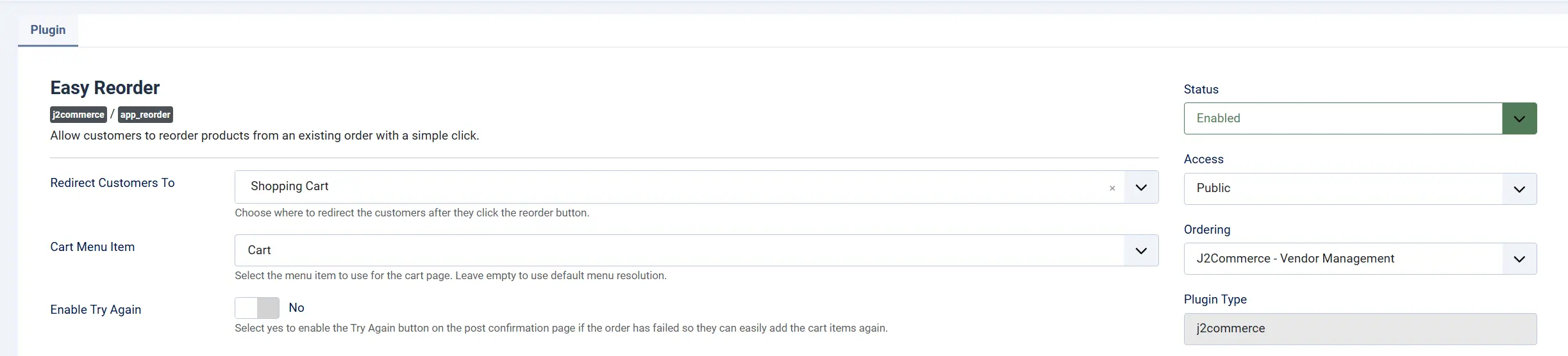
Redirect After Reorder: Controls where the customer is sent after clicking Reorder.
-
Shopping Cart lets them review items before proceeding.
-
Checkout takes them straight to the checkout page.
Cart Menu Item: The Joomla menu item for the shopping cart page.
Note: Only shown when Redirect After Reorder is set to Shopping Cart. Leave blank to use Joomla's default routing.
Checkout Menu Item: The Joomla menu item for the checkout page.
Note: Only shown when Redirect After Reorder is set to Checkout. Leave blank to use Joomla's default routing.
Enable Try Again: Select 'Yes' to enable the "Try Again" button on the post confirmation page if the order has failed, so they can easily add the cart items again.
How It Works
Reordering from Order History
-
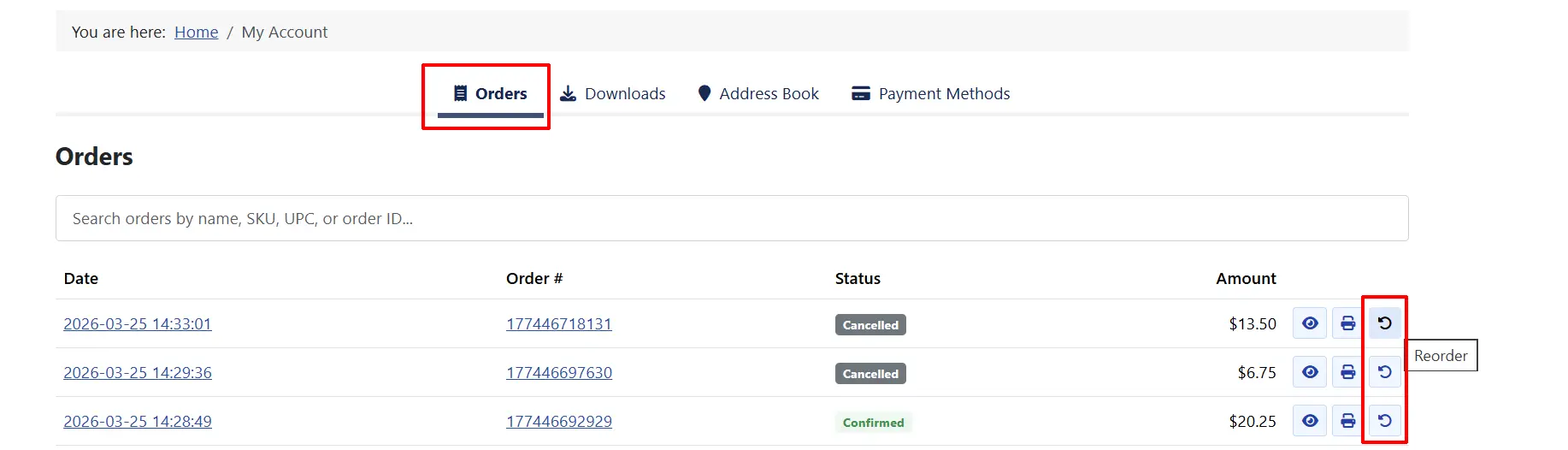
A logged-in customer goes to their My Account and views their past orders.
-
On any order, they see a Reorder button (a circular arrow icon).
-
Clicking the button adds all items from that order back into the customer's shopping cart.
-
The customer is redirected to either the cart page or the checkout page, depending on your configuration.
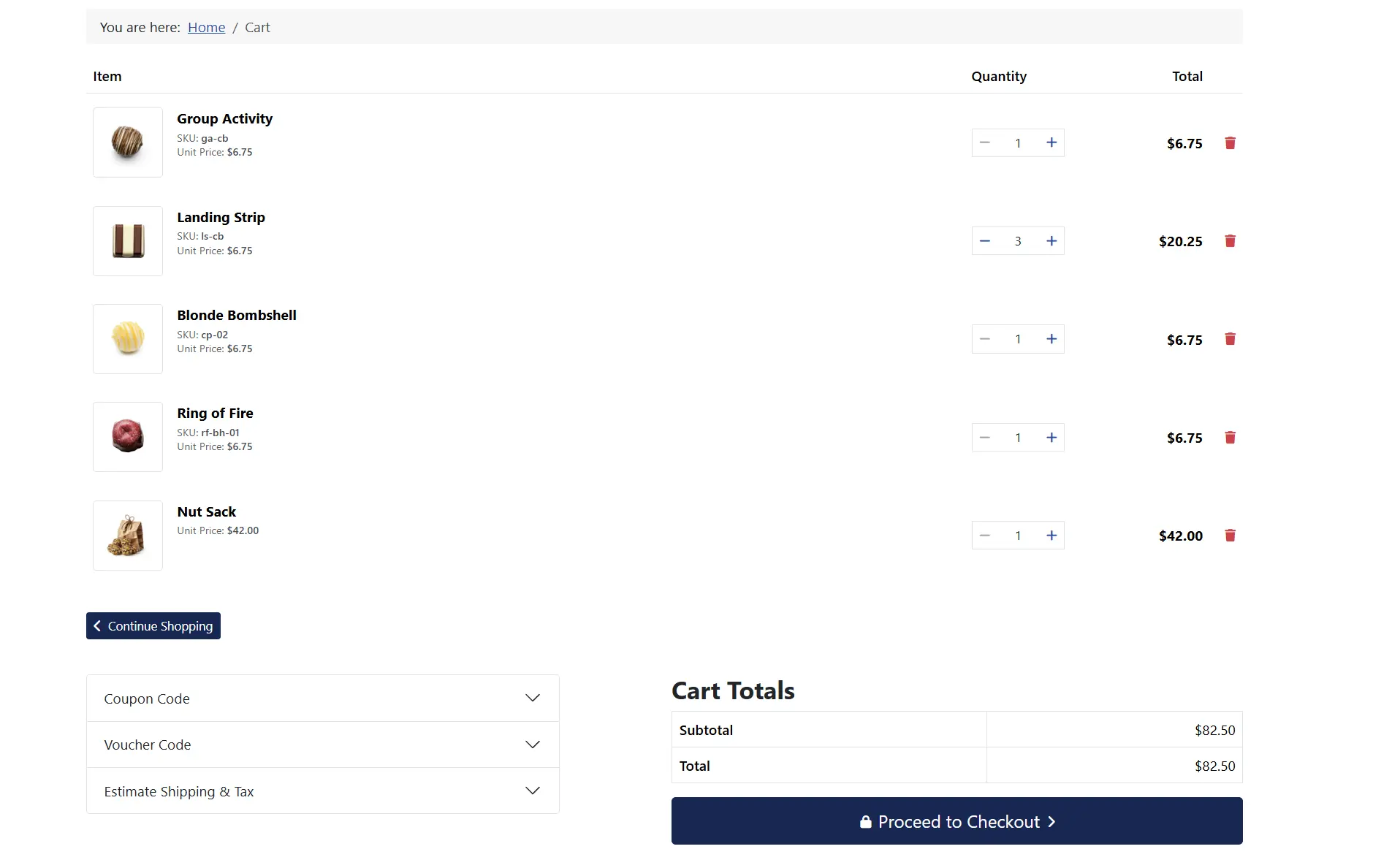
From the cart, the customer can adjust quantities, remove items they no longer need, or proceed directly to checkout.
Retrying After a Failed Payment
When the Enable Try Again setting is turned on:
- If a customer's payment fails during checkout (for example, a declined card or a gateway timeout), the confirmation page shows a Try Again button instead of just an error message.
- Clicking the button reloads all items from the failed order back into the cart.
- The customer is redirected to the cart or checkout page to try again.
This prevents the frustration of customers having to manually find and re-add all their products after a payment error.
Tips
- Set the redirect to Shopping Cart if your customers often modify orders before repurchasing. Set it to Checkout if your repeat buyers typically reorder the exact same items.
- Enable the Try Again feature to reduce abandoned carts from payment failures. A customer who can retry with one click is far more likely to complete their purchase.
- The Reorder button respects current stock levels and pricing. If a product is out of stock or its price has changed since the original order, the cart will reflect the current state.
Troubleshooting
The Reorder button does not appear on past orders
Cause: The plugin may not be enabled.
Solution:
Go to J2Commerce -> Apps and confirm the plugin shows Enabled.
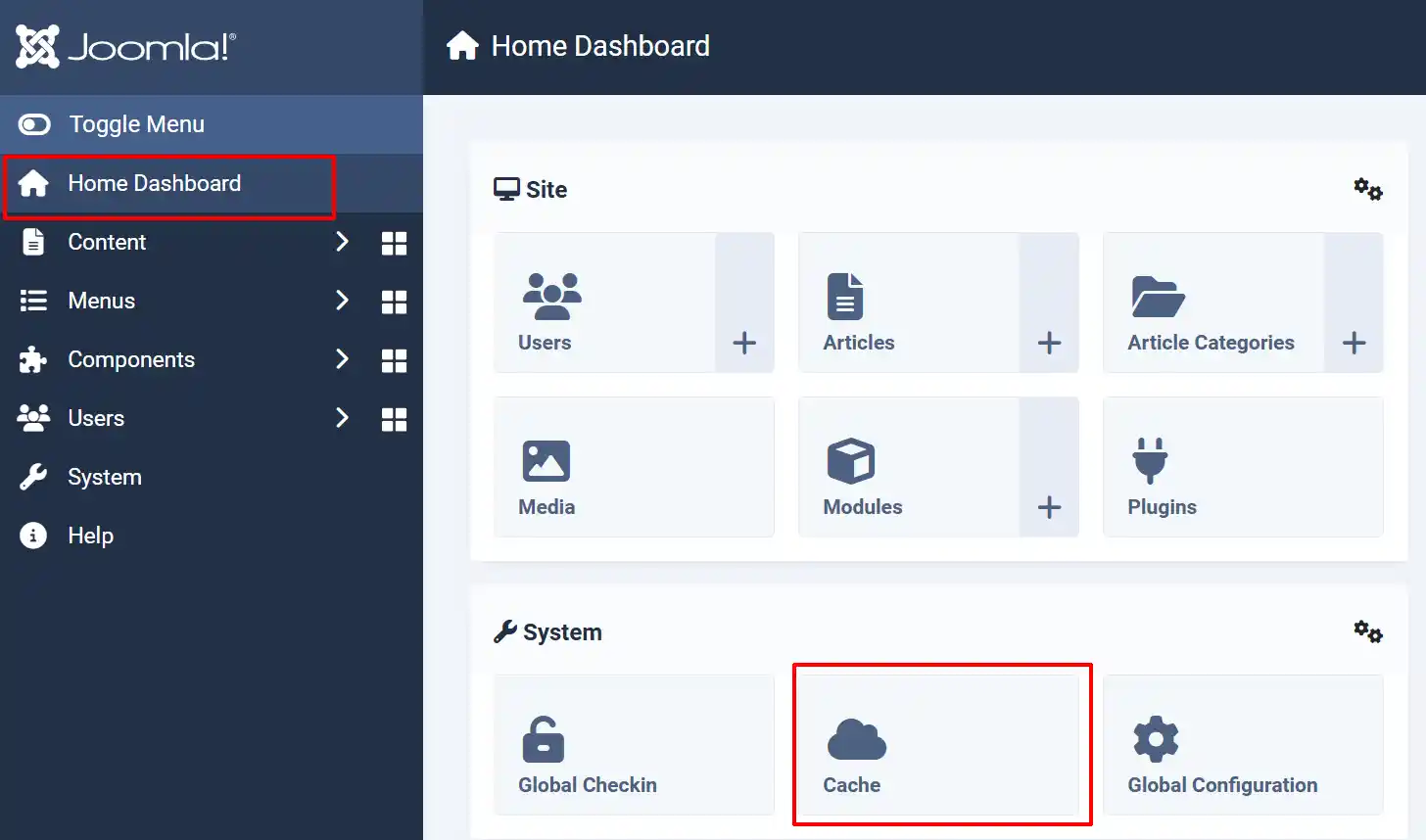
Clear the Joomla cache: Home Dashboard -> Cache -> Delete All.
Log in as a customer and view an order to verify that the button appears.
Clicking Reorder does nothing or shows an error
Cause: The session may have expired, causing the security token to become invalid.
Solution:
- Ask the customer to refresh the page and try again.
- If the issue persists, check that the J2Commerce system plugin is enabled under System -> Manage -> Plugins.
The Try Again button does not appear after a failed payment
Cause: The feature is disabled by default.
Solution:
- Go to J2Commerce -> Apps and click on Easy Reorder.
- Set Enable Try Again to Yes.
- Click Save.

The customer is redirected to the wrong page after reorder
Cause: The menu item settings may not be configured, or the wrong menu item is selected.
Solution:
- Open the plugin settings.
- Check which Redirect After Reorder option is selected.
- Set the appropriate Cart Menu Item or Checkout Menu Item to the correct page in your site's menu.