Markdown for AI Agents
Every product page on your store comes with a full HTML version — navigation, images, scripts, sidebars, the whole thing. That is great for human shoppers, but noisy for an AI tool trying to read the actual facts about a product. The Markdown for AI Agents app creates a clean, plain-text Markdown copy of each product page containing only what matters: the name, price, availability, SKU, description, options, images, and structured data.
To be upfront about expectations: this app will not improve your Google search ranking and it will not reduce traffic from search crawlers. The real benefit is more targeted. When a shopper or partner pastes your product link into ChatGPT, Claude, Perplexity, or a similar tool, the AI can find and use the Markdown version automatically. It gets your accurate product facts in a format that is far cheaper to process — which means fewer hallucinations and more precise answers about your products.
Requirements
- PHP 8.3.0+
- Joomla! 6.x
- J2Commerce 6.x
No special configuration is required. A product's Markdown version is reached by adding ?format=markdown to its web address — see Viewing the Markdown Version below. This works on any site, with or without Search Engine Friendly (SEF) URLs.
Purchase and Download
Step 1: Go to the J2Commerce website -> Apps
Step 2: Locate Markdown for AI Agents -> click View Details -> Add to Cart -> Checkout
Step 3: Go to your My Downloads section under your profile button at the top right corner and search for the app. Click Available Versions -> View Files -> Download Now to save the ZIP file to your computer.
Install the App
In the Joomla Administrator, go to System -> Install -> Extensions.
Upload the plugin app_markdown.zip file or use the Install from URL option.

Enable the App
The plugin installs and enables itself automatically. No separate enable step is needed. However, it's important to know where to go to enable or disable it in the future .
There are two ways to reach the Apps list.
Option A: Go to the J2Commerce icon at the top right corner -> Apps
Option B: Go to Components on the left sidebar -> J2Commerce -> Apps

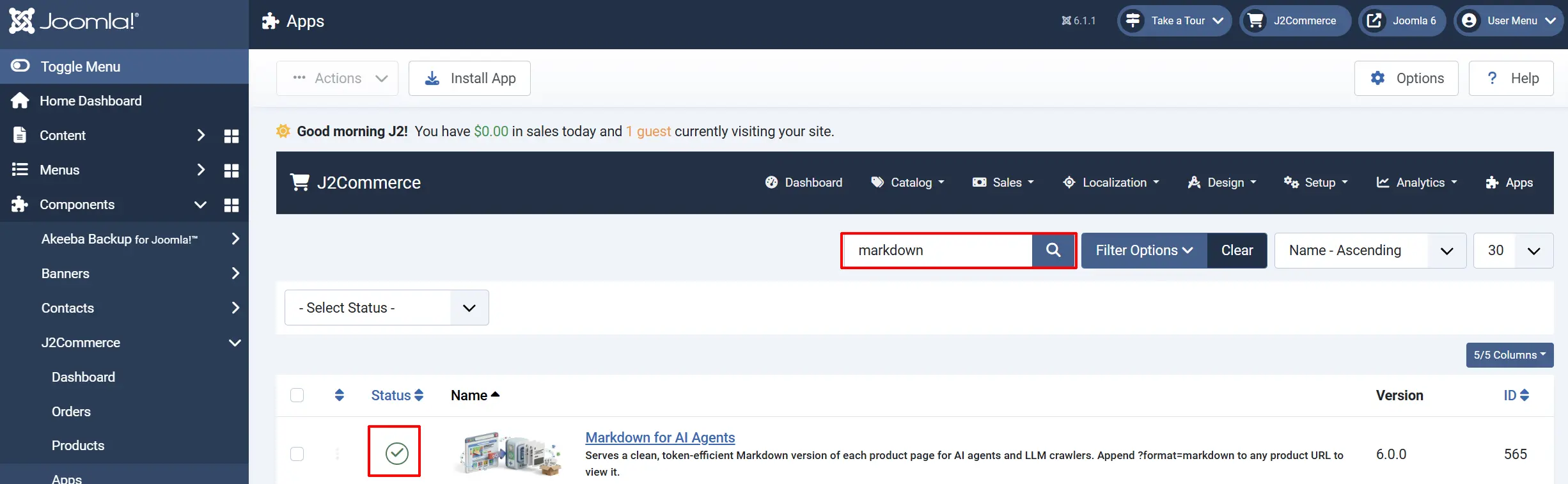
To help you narrow down the list, you can do a search for Markdown for AI Agents, click the X, and it will turn into a green checkmark. It is now enabled and ready for setup.
Configure the App
Click the Markdown for AI Agents title (next to the green checkmark) to open the settings screen.
Click the Toggle Inline Help button on any app you install to see a description below each field directly in the admin panel.

Basic Settings tab
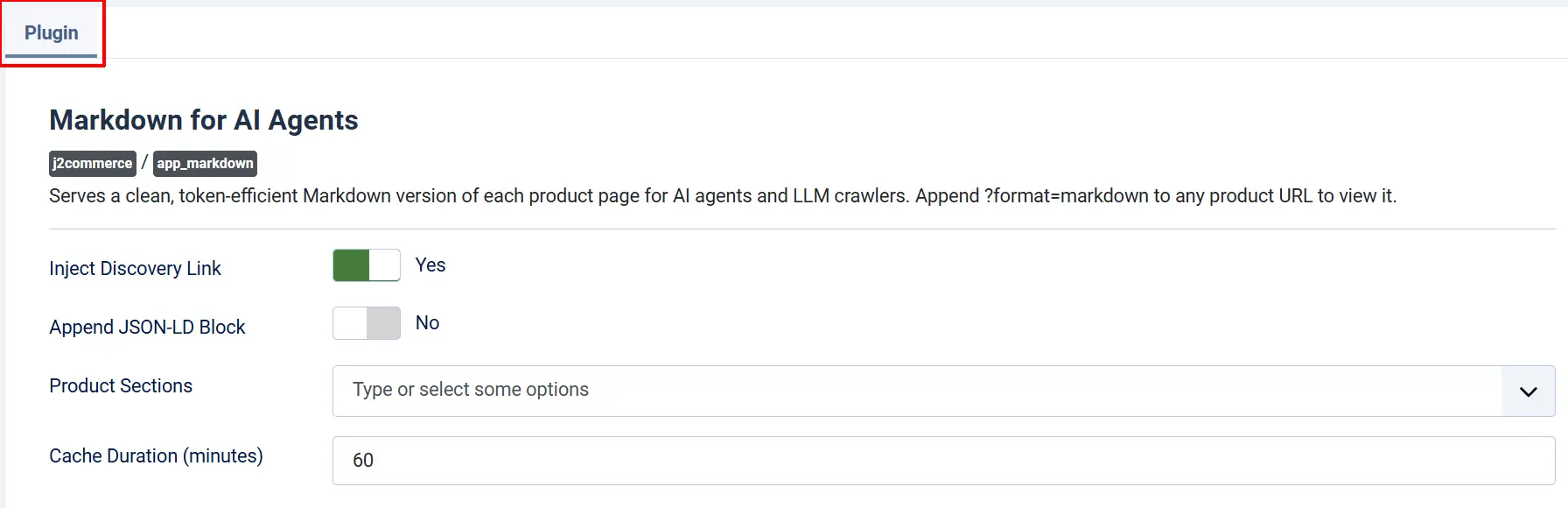
Inject Discovery Link: Adds a hidden <link> tag to every product's regular HTML page so AI browsing tools can automatically find the Markdown URL without you having to share it. Leave this on unless you want to keep the Markdown endpoint private.
Append JSON-LD Block: Appends the product's structured data (Schema.org) as a fenced code block at the bottom of the Markdown output. This gives AI tools a precise, machine-readable summary of price, currency, and availability. Off by default — the regular HTML product page already carries the Product schema for search engines, so the Markdown stays clean for human and AI reading.
Product Sections: Controls which optional content sections appear in the Markdown output. Select any combination of: Long Description, Specifications, Variants Table, Image URLs. All four are included by default.
Cache Duration (minutes): How long browsers and CDN caches may serve a cached Markdown copy to guest visitors before requesting a fresh one. Set to 0 to always return a freshly generated copy. Logged-in users always receive fresh content regardless of this value.
Viewing the Markdown Version of a Product
Once the app is enabled, every published product page has a Markdown twin. There are two main ways to reach it.
Method 1 — Query parameter (recommended): Add ?format=markdown to the end of any product's web address.
https://yourstore.com/shop/footwear/acme-wool-runner?format=markdown
This works on every site, with or without SEF URLs, and is the simplest form to paste into an AI tool or share with a partner. It is also handy for quickly previewing the output while you are still setting things up.
Method 2 — AI auto-discovery: When Inject Discovery Link is enabled, the app adds a hidden <link rel="alternate" type="text/markdown"> tag to the HTML of each product page. The tag points at the product's ?format=markdown address, and most AI browsing tools detect it and follow it automatically. You do not need to do anything extra for this to work — the AI finds the Markdown on its own.
There is also a direct-access URL that reaches the Markdown endpoint without any routing or SEF URLs at all:
index.php?option=com_ajax&group=j2commerce&plugin=Markdown&format=raw&id=[product-id]
Replace [product-id] with the numeric J2Commerce product ID. This is primarily useful for debugging or for automated scripts that fetch by ID rather than by URL.
How It Works
When a shopper, partner, or AI tool requests the Markdown version of a product page:
- J2Commerce receives the request — via a
?format=markdownparameter or the direct API form — and hands it to the Markdown app. - The app loads your product from the database and checks that it is published and that the visitor is permitted to view it. If the product is unpublished or behind a restricted Joomla access level, the app returns a 404 rather than expose hidden products.
- The app builds a clean Markdown document from your product data. The output opens with the product name as an H1 heading, then contains a dedicated Markdown section for each piece of core information: short description (if present), price, availability, SKU (if set), and category path (if available). The optional sections you chose in Product Sections — long description, specifications, variant table, image URLs — follow in order. The document always closes with the product's canonical purchase URL.
- If Append JSON-LD Block is enabled, the product's Schema.org structured data is appended at the bottom inside a fenced code block.
- The response is sent with HTTP headers that tell search engines not to index it (
X-Robots-Tag: noindex, nofollow) and that point back to the real product page as the canonical URL. Your product's SEO is not affected. - Guest visitors receive a response with an HTTP cache header valid for up to Cache Duration minutes. Logged-in users always get a fresh copy — their session-specific pricing is never stored in a shared cache.
Tips
- Share the
?format=markdownlink. Adding?format=markdownto any product URL gives you its Markdown version — this is the link to paste into an AI tool or hand to a partner. - Keep product descriptions clear and factual. The Markdown output converts your HTML description to plain text. Short, accurate paragraphs produce better AI results than content filled with marketing shortcodes or complex layout HTML.
- Leave all Product Sections enabled. AI tools do best when they get the complete picture at once — price, variants, images, and category together give much more useful context than any one piece alone.
- If you already use Cloudflare's AI Markdown feature or a similar "serve Markdown to agents" tool on your host, enable only one. Running both can generate duplicate or conflicting responses for the same product URL.
- Test your output before going live. Visit any product URL with
?format=markdownin your browser. You should see plain Markdown text starting with#followed by your product name. If you see the regular HTML product page, the app is not enabled or the plugin is not installed correctly.
Troubleshooting
A product URL shows the normal HTML page instead of Markdown
Cause: The ?format=markdown parameter is missing from the URL, or the app is not enabled.
Solution:
- Make sure the URL ends with
?format=markdown(for example,https://yourstore.com/shop/footwear/acme-wool-runner?format=markdown). If the product URL already contains a?, use&format=markdowninstead. - Confirm the app is enabled under J2Commerce -> Apps -> Markdown for AI Agents (it should show a green checkmark).
- A correct request returns plain Markdown text starting with
#followed by the product name. If you still see the HTML product page, clear your Joomla cache and try again.
The Markdown is showing old product information
Cause: A browser or CDN is serving a cached copy from within the Cache Duration window. The app itself always generates fresh content on every request — caching happens at the HTTP layer, not on the server.
Solution:
- For a quick test, log in to your store. Logged-in users always bypass the cache and receive a freshly generated copy.
- If you need guest visitors to see updated content sooner, lower the Cache Duration (minutes) value in the app settings, or set it to
0to disable HTTP caching entirely. - You can also try a hard refresh in the browser (usually Ctrl+F5 or Cmd+Shift+R) to bypass the locally cached copy.
AI tools cannot find the Markdown version automatically
Cause: The Inject Discovery Link setting is turned off, so the hidden <link> tag is not present in the product page's HTML.
Solution:
- Go to J2Commerce -> Apps -> Markdown for AI Agents.
- Set Inject Discovery Link to Yes and save.
- The discovery tag will be present on all published product pages from the next page load.
A product returns a 404 for its ?format=markdown URL
Cause: The product is unpublished, the visitor's Joomla access level does not allow viewing that product, or the product slug in the URL is wrong.
Solution:
- Confirm the product is published: go to J2Commerce -> Catalog -> Products and check that the product shows a green checkmark.
- If the product is restricted to a specific Joomla access level (for example, a members-only item), guest visitors cannot retrieve its Markdown — this is intentional to protect restricted content.
- Double-check the URL. A typo in the product slug will return a 404. Confirm the base product URL opens normally in a browser first, then add
?format=markdown.