Conditional Payment Methods
The Conditional Payment Methods app lets you tie your payment options directly to the shipping method a customer chooses. You create rules — each one says "when the customer picks one of these shipping methods, show (or hide) these payment methods" — and the checkout payment list updates automatically the moment they make their shipping selection. It is perfect for scenarios like allowing Cash on Delivery only when Local Pickup is chosen, or hiding Bank Transfer for Express Delivery orders.
Requirements
- PHP 8.3.0 or higher
- Joomla! 6.x
- J2Commerce 6.x
- At least one shipping method and one payment method configured in your store
Purchase and Download
The Conditional Payment Methods app is a separate add-on available from the J2Commerce Extensions Store. It is not included with the core J2Commerce 6 component.
Step 1: Go to the J2Commerce website -> Apps.
Step 2: Locate Conditional Payment Methods -> click View Details -> Add to cart -> Checkout.
Step 3: Go to My Downloads under your profile menu at the top right corner and search for the app. Click Available Versions -> View Files -> Download.
Install the App
Install using the standard Joomla installer.
In the Joomla admin, go to System -> Install -> Extensions.
Upload the app_conditionalpayment.zip package file. The plugin installs automatically.

Enable the App
Once installed, check that the app is active. There are two ways to reach the Apps screen.
Option A: Click the J2Commerce icon at the top right corner -> Apps.
Option B: Go to Components on the left sidebar -> J2Commerce -> Apps.

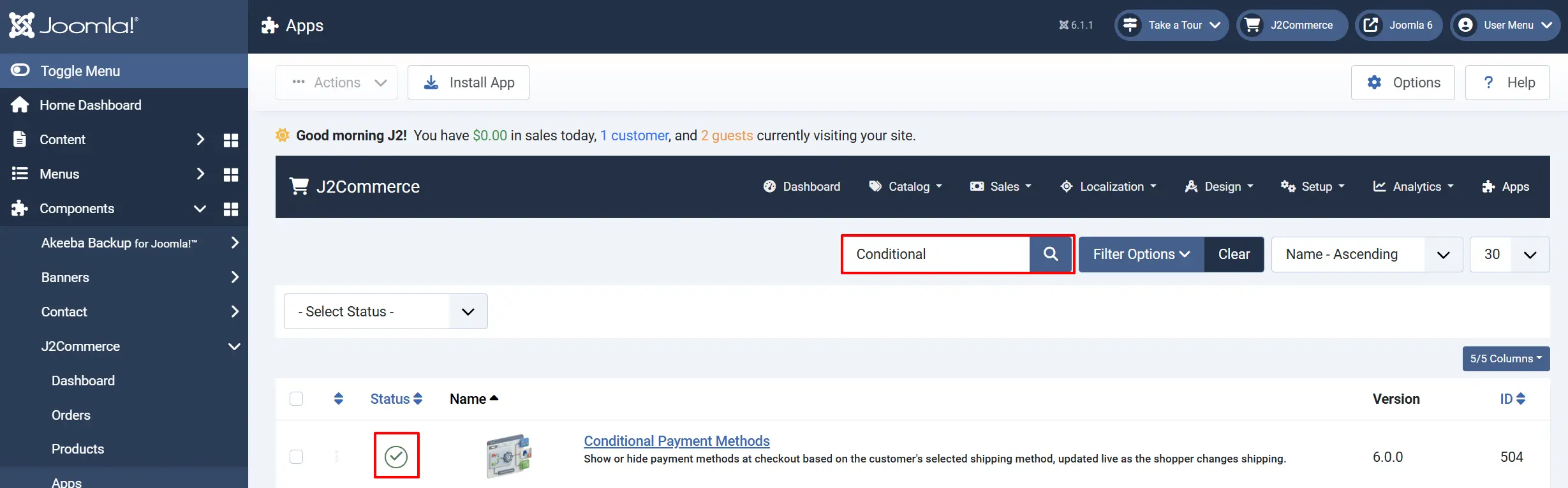
Find Conditional Payment Methods in the list. If it shows a red X, click it to enable it. It becomes a green checkmark when the app is active.
Configure the App
Go to J2Commerce -> Apps and click the Conditional Payment Methods title to open the settings.
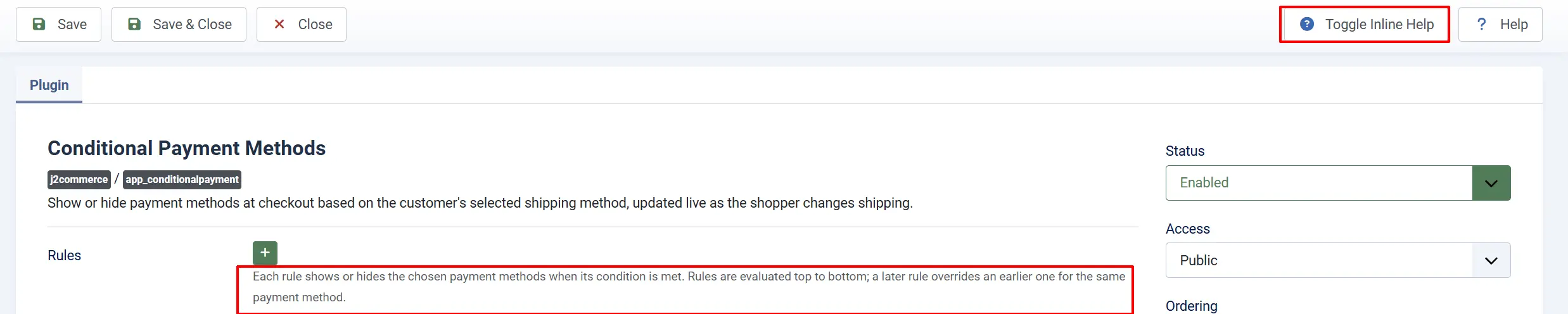
Click the Toggle Inline Help button in the toolbar to reveal a description beneath each field.
Basic Settings tab
Rules
Rules are the heart of this app. Each rule defines a trigger (which shipping method the customer picks) and a response (which payment methods to show or hide). You can have as many rules as you need.
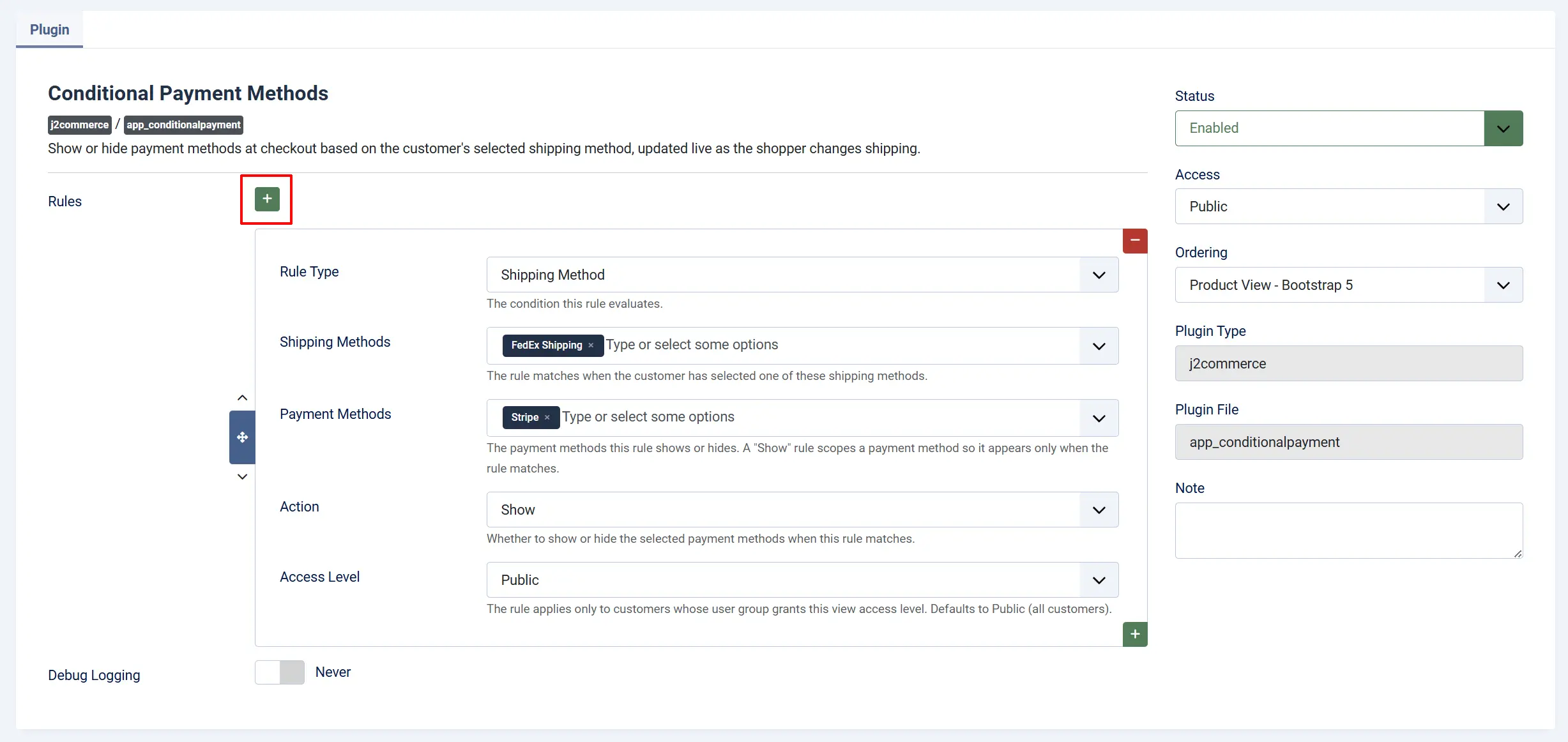
Click the Add button to add a new rule. Each rule contains the following fields.
Rule Type: The event that triggers this rule. Currently the only option is Shipping Method, meaning the rule fires when the customer selects a specific shipping method. This field is here to support additional condition types in future versions.
Shipping Methods: The shipping method (or methods) that activate this rule. Select one or more shipping methods from the list. The rule only takes effect when the customer picks one of the methods you choose here.
All shipping methods currently enabled in your store appear in this list. If a shipping method is missing, publish it first under J2Commerce -> Setup -> Shipping Methods.
Payment Methods: The payment method (or methods) this rule applies to. Select one or more payment methods. Combined with the Action setting below, this determines which payment options appear or disappear when the trigger fires.
All enabled payment plugins appear in this list. If a gateway is not listed, check J2Commerce -> Setup -> Payment Methods and make sure it is published.
Action: What happens to the selected payment methods when the trigger shipping method is chosen.
-
Show: Only the selected payment methods are offered. All other payment methods are removed from the checkout. Use this to whitelist — for example, show only Cash on Delivery when Local Pickup is selected.
-
Hide: The selected payment methods are removed. All other payment methods remain available. Use this to block specific options — for example, hide Bank Transfer when Express Delivery is selected.
Access Level: The Joomla view access level this rule applies to. The default is Public, which means the rule applies to all customers. You can set a more restrictive access level (for example, Registered) to target the rule only at logged-in users or specific user groups. This lets you create rules that apply differently depending on who is shopping.
Managing Multiple Rules
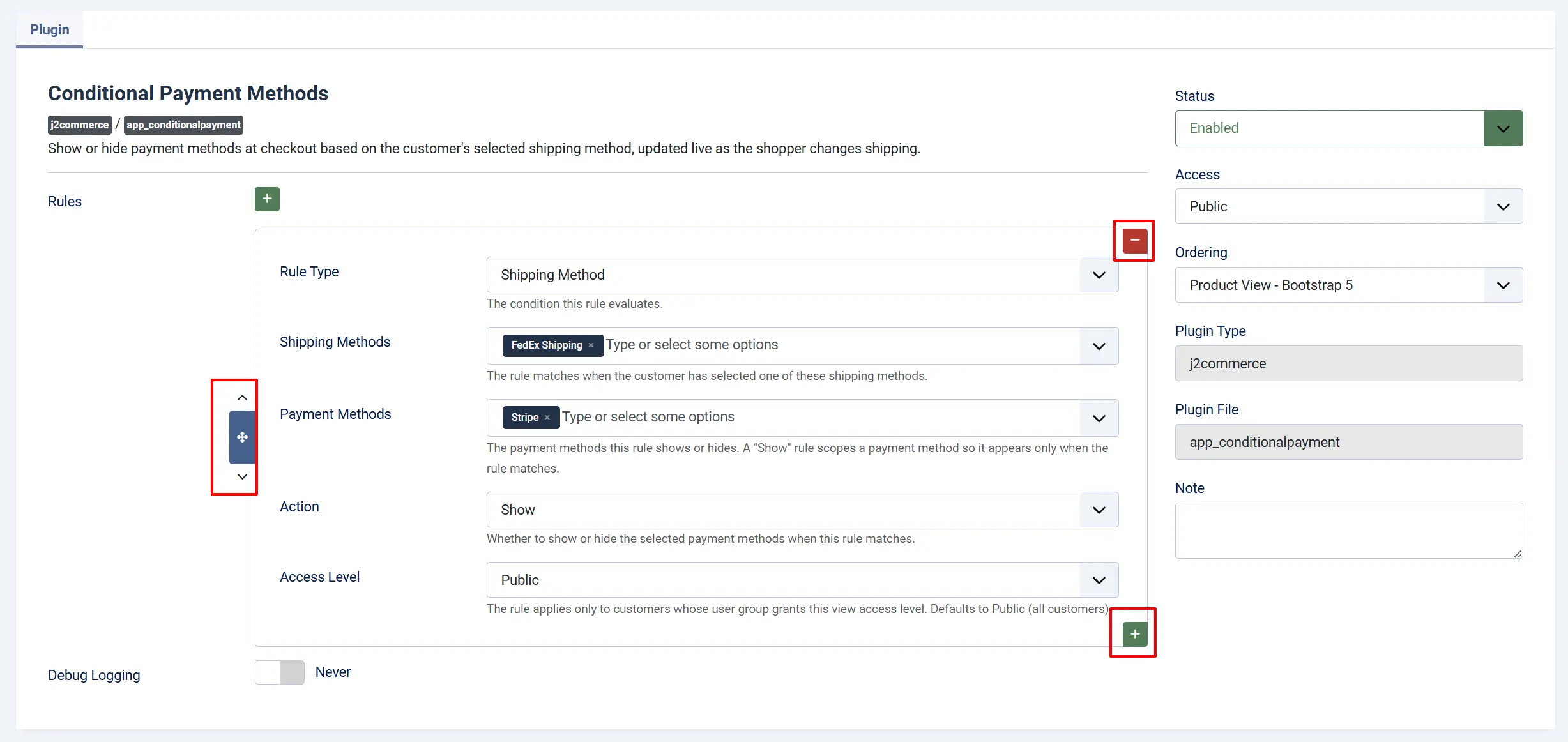
- Click Add to create another rule after the first.
- Drag the handle on the left of a rule row to reorder rules.
- Click the Remove button (trash icon) on a rule row to delete it.
- Rules are evaluated from top to bottom. If more than one rule can match the chosen shipping method, all matching rules are applied together.
Debug:
A global Debug toggle is available at the bottom of the settings. When turned on, the app logs rule evaluation details to help you diagnose unexpected behaviour. Turn this off on live production sites once you have finished testing.
How It Works
Here is what happens from the customer's point of view during checkout.
The customer adds products to their cart and proceeds to checkout.
At the shipping step, they choose a shipping method.
The app immediately evaluates all rules against the selected shipping method and the customer's Joomla access level.
Any rules that match are applied — payment methods are shown or hidden according to the rule's Action setting.
The updated payment method list is presented to the customer before they choose how to pay.
If the customer changes the shipping method, the payment list re-evaluates instantly.
Rules have no effect before the customer selects a shipping method. The full, unfiltered payment list is shown until a shipping method is chosen.
Frontend View
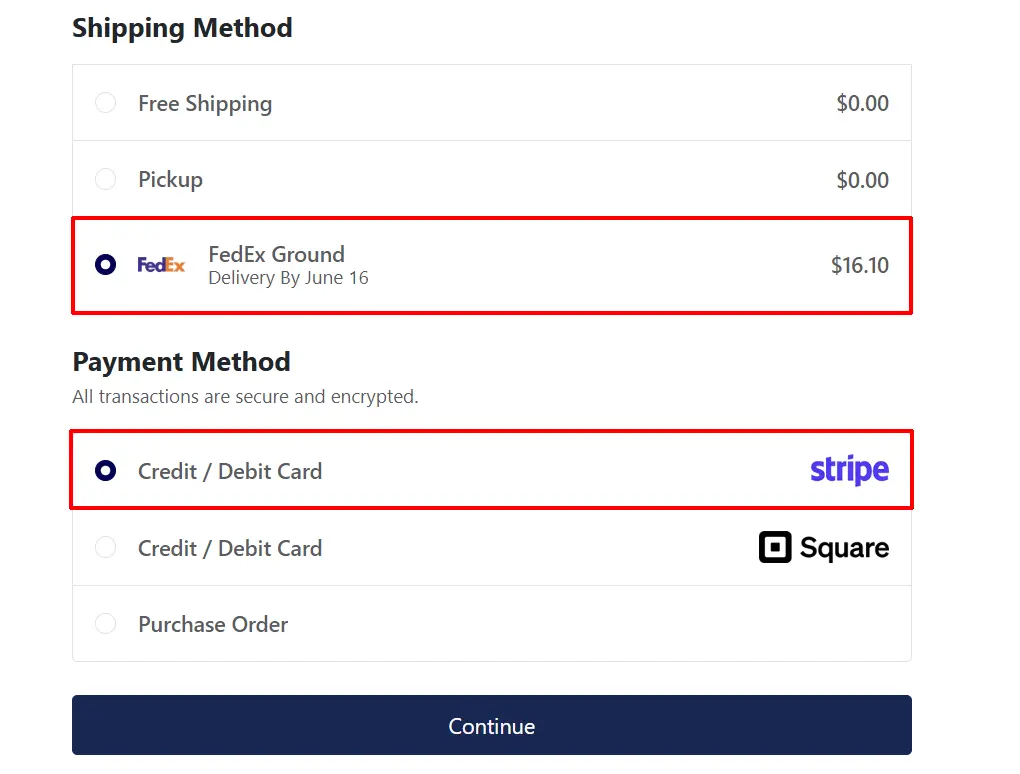
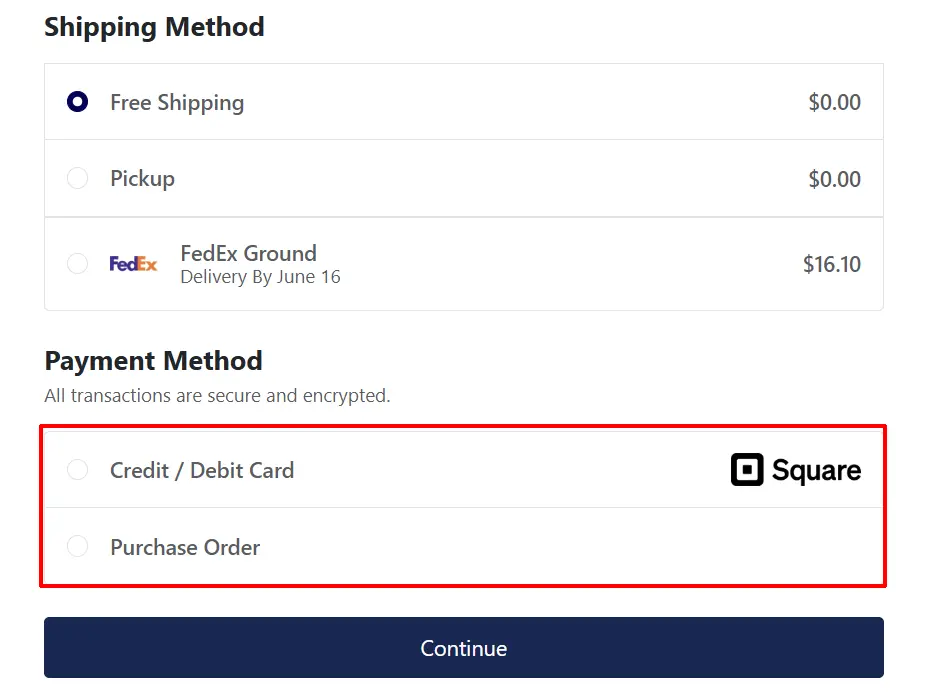
The following screenshots are examples when the settings are set for 'FedEx' as the shipping method and 'Stripe' as the payment method and to 'Show'
- When the shopper chooses the shipping method as FedEx, stripe appears
- When the shopper chooses a different shipping method other than FedEx, Stripe doesn't appear
Display Conditions
The rules take effect when:
- The app is enabled under J2Commerce -> Apps (green checkmark).
- At least one rule is configured and saved.
- The customer has selected a shipping method that matches a rule's Shipping Methods field.
- The customer meets the access level requirement set on the matching rule.
Nothing changes when:
- The app is disabled.
- No rules are configured.
- The customer has not yet chosen a shipping method.
- The chosen shipping method does not match any rule.
Tips
- Start with Show rules for the simplest setup. If you only want Cash on Delivery available for Local Pickup, create one rule: trigger = Local Pickup, action = Show, payment = Cash on Delivery. Every other shipping method leaves the full payment list untouched.
- Test your rules before going live. Place a test order for each shipping method you have configured and confirm the correct payment options appear. Enable Debug logging during this stage.
- Use Hide for exceptions. Hide rules work well when you want to remove just one payment option for a particular shipping method without affecting everything else.
- Access levels let you offer different terms to different customers. For example, create a Show rule restricted to the "Wholesale" user group that makes an invoice/net-30 payment option available only to those customers, regardless of shipping method.
- Multiple rules stack. If a customer selects a shipping method that matches two rules — one Show and one Hide — both are applied at the same time. Keep your rule set simple to avoid unexpected combinations.
- Disable Debug in production. The debug log grows with each checkout. Leave it off unless you are actively troubleshooting.
Troubleshooting
A payment method still appears after the customer selects a shipping method
Cause: The rule may not be matching, or the action may be set incorrectly.
Solution:
- Go to J2Commerce -> Apps -> Conditional Payment Methods and confirm the green checkmark is showing (the app is enabled).
- Check that the Shipping Methods field in your rule includes the exact shipping method the customer is selecting — names must match what is published under J2Commerce -> Shipping -> Shipping Methods.
- Verify that the rule Action is set to Hide (not Show) if you are trying to remove the method, or Show if you are trying to restrict the list to specific methods only.
- Check the Access Level field. If it is set to a restricted level (for example, Registered), the rule will not apply to guest customers.
- Enable Debug logging in the app settings, place a test order, and review the log to see which rules were evaluated.
- Clear the Joomla cache: go to Home Dashboard -> Cache -> Delete All, then test again.
No payment methods appear at checkout
Cause: A Show rule is whitelisting a payment method that is not currently available for the order.
Solution:
- Open the app settings and review your Show rules.
- Confirm that every payment method listed in a Show rule is published and enabled under J2Commerce -> Setup -> Payment Methods.
- If the whitelisted method has its own geo-zone or order total restrictions, make sure the current order qualifies for it.
- Consider switching from a Show rule to a Hide rule so that unexpected filtering does not leave the customer with no options.
A rule has no effect at all
Cause: The app may be disabled, or the customer has not yet selected a shipping method.
Solution:
- Confirm the app is enabled (green checkmark in J2Commerce -> Apps).
- Remember that rules only activate once the customer selects a shipping method. If they are still on the cart page or have not yet reached the shipping step, the payment list shows all available methods.
- Confirm that at least one shipping method is enabled and displayed at checkout — if the store has only one shipping method and it is pre-selected automatically, watch for that pre-selection to trigger the rule.
Changes to rules are not reflected at checkout
Cause: Cached pages or cached plugin data.
Solution:
- After saving changes in the app settings, clear the Joomla cache: go to Home Dashboard -> Cache -> Delete All.
- Open a fresh browser window (or use private/incognito mode) to avoid browser cache interfering with the checkout flow.
- Place a new test order to confirm the updated rules are working.