Quantity Discounts
The Quantity Discounts app shows a pricing table on your product pages and category listings so customers can immediately see what they pay for different order quantities. When a shopper sees that buying 10 units costs less per item than buying 1, they are more likely to increase their order size.
The app reads the tiers you already set up in Advanced Pricing and renders them as a responsive table. It handles optional date windows, customer-group-specific pricing, and live table updates when a shopper switches between product variants.
Prerequisites
- J2Commerce installed and active
- At least one product with Advanced Pricing rows configured on its master variant (see Advanced Pricing)
Purchase and Download
Step 1: Go to our J2Commerce website -> Extensions
Step 2: Locate the Quantity Discount -> click View Details -> Add to cart -> Checkout.
Step 3: Go to your My Downloads under your profile button at the top right corner and search for the app. Click Available Versions -> View Files -> Download Now
Install the App
Go to System > Install -> Extensions
Upload the app_qtydiscount.zip package file or use the Install from URL option.
-e0515ef561b368cb4d5a053cacb4c525.webp)
Configure the Plugin
The plugin installs and enables automatically.
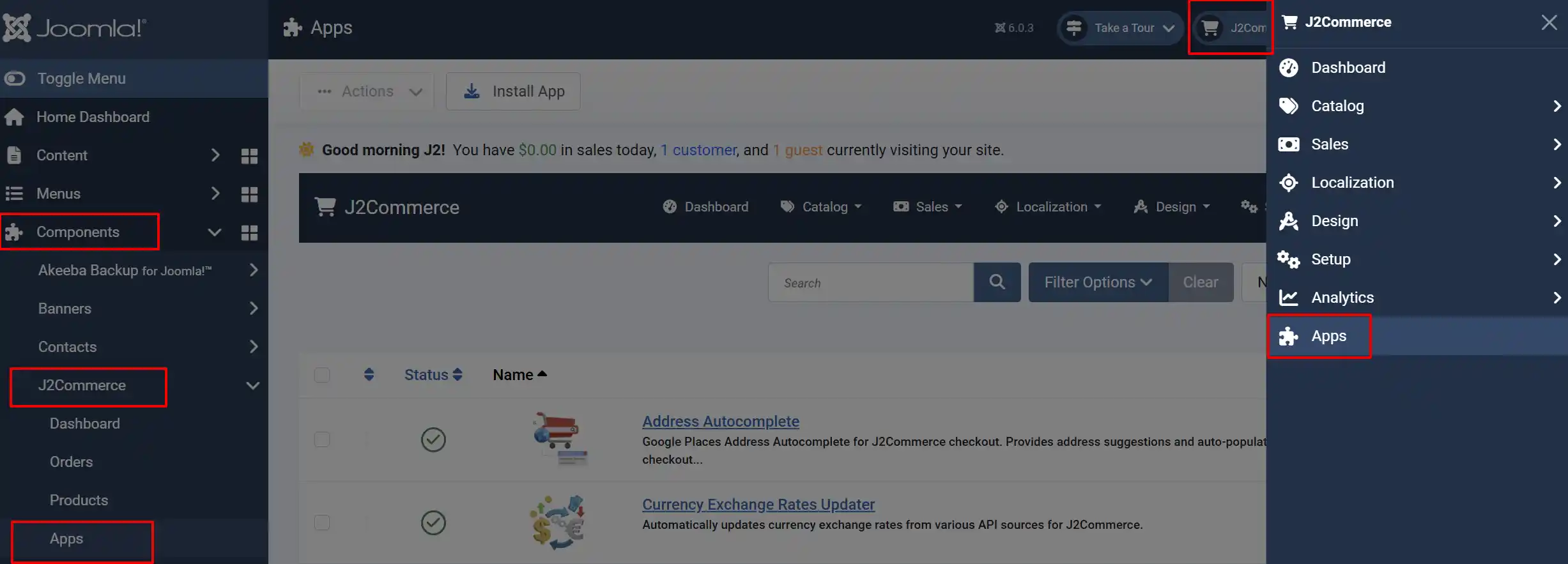
Once you have installed the plugin, there are two ways you can access it.
Option A: Go to the J2Commerce icon at the top right corner -> Apps
Option B: Go to Components on the left sidebar -> J2Commerce -> Apps
Configuration
Open the plugin settings by clicking Quantity Discounts in the Apps list.
Click the Toggle Inline Help button in the toolbar and the app will show a description below each field as you configure it.
Show Discount Table In
Controls which pages display the quantity discount table.
Below shows the Options and what they do.
Product View Only: Table appears only on single-product pages. Best for stores where the table would clutter category grid layouts.
Category View Only: Table appears in category and tag listing pages but not on single-product pages. Rarely needed on its own.
Product and Category Views: Table appears everywhere. Good when products are typically bought in bulk and you want the pricing visible at every stage.
Recommended: Start with Product View Only (the default). Move to Product and Category Views if your customers frequently browse category pages before deciding on quantity.
Date Format
An optional PHP date format string used when a pricing tier has a start or end date. Leave the field empty to inherit the format from J2Commerce global settings.
Common formats and their Example Output are listed below:
d-M-Y: 01-Jan-2026
d/m/Y: 01/01/2026
F j, Y: January 1, 2026
Y-m-d: 2026-01-01
If you have no date-restricted tiers, this setting has no visible effect — the date column only appears in the table when at least one tier has a start or end date set.
Debug Mode
Writes diagnostic information to administrator/logs/plg_j2commerce_app_qtydiscount.php. Turn this on temporarily when troubleshooting a table that is not appearing, then turn it off again in production.
Click Save after adjusting any setting.
Enabling the Table on a Specific Product
The plugin-level Show Discount Table In setting controls which page types can show the table. You also need to switch the table on for each individual product where you want it to appear.
- Go to J2Commerce -> Catalog -> Products.
- Open the product you want to configure.
- Click the Apps accordion tab in the product editor.
- Find the Quantity Discounts section and set Display Quantity Discounts to Yes.
- Click Save or Save & Close.
The table is disabled by default on every product. This means you can install the plugin and configure it without anything appearing on your storefront until you explicitly turn it on product by product.
Setting Up Quantity Tiers
The Quantity Discounts app only displays tiers — it does not create them. You set up the actual price breakpoints in Advanced Pricing.
Go to J2Commerce -> Catalog -> Advanced Pricing and add rows for the product variant you want to discount. Each row specifies:
- Quantity From — the minimum quantity for this price to apply
- Quantity To — the maximum quantity (leave empty for an open-ended "N and above" tier)
- Price — the per-unit price for this quantity range
- Date From / Date To — optional date window (leave empty for no date restriction)
- Customer Group — optional group restriction (leave empty for all customers)
See Advanced Pricing for full instructions on creating tiers.
Once your Advanced Pricing rows exist and the product has Display Quantity Discounts set to Yes, the table appears automatically on the front end.
How the Table Looks
The discount table is a clean, responsive Bootstrap table that appears below the product price.
Quantity column
Each row shows the quantity range for that tier:
- If Quantity To is set: displays as
5 - 9 - If Quantity To is empty on the last tier: displays as
10 and above - If Quantity To is empty on a mid-tier row: the upper bound is derived from the next row's Quantity From minus one
Valid column (date-restricted tiers only)
The date column is hidden completely when none of the tiers have date restrictions. It appears automatically as soon as any tier has a start or end date, showing the active window for that row only.
Price column
Prices are formatted using your J2Commerce currency settings, exactly as they appear elsewhere on the store.
Variant switching
When a shopper selects a different variant (colour, size, etc.) on a Flexible Variable, Variable, or Configurable product, the table updates instantly without a page reload to show the tiers for the newly selected variant.
Customer Group Pricing
Advanced Pricing supports creating tiers that only apply to specific customer groups — for example, wholesale pricing visible only to members of a "Trade" group. The Quantity Discounts table respects these restrictions automatically.
- A tier with no customer group set is visible to all visitors including guests.
- A tier with a specific customer group is only shown to logged-in users who belong to that group.
If a logged-out visitor views a product that has only group-restricted tiers, the discount table does not appear (there are no tiers to show them). This means you can have separate public and wholesale pricing tables on the same product without any extra configuration — each group simply sees its own applicable tiers.
Troubleshooting
The discount table does not appear on the product page
Work through this checklist in order:
- Plugin enabled — Go to J2Commerce -> Apps and confirm the Quantity Discounts plugin status is enabled.
- Product toggle on — Open the product in the editor, expand the Apps accordion, and confirm Display Quantity Discounts is set to Yes.
- Advanced Pricing rows exist — Go to J2Commerce -> Catalog -> Advanced Pricing and verify rows exist for the product's master variant. The table cannot display tiers that do not exist.
- Display location setting — In the plugin settings, confirm Show Discount Table In includes the page type you are viewing (Product View, Category View, or Both).
- Customer group match — If all your tiers are assigned to a specific customer group, log in as a user in that group. Guests see only tiers with no group restriction.
- Date window — If your tiers have Date From or Date To values, confirm today's date falls within the active window. Expired or future tiers are filtered out automatically.
- Debug mode — Enable Debug Mode in the plugin settings, reload the product page, then open
administrator/logs/plg_j2commerce_app_qtydiscount.phpto read the diagnostic output.
The table shows for some variants but not others
Each variant has its own Advanced Pricing rows. The table reads tiers for the currently selected variant. If a variant has no rows in Advanced Pricing, the table will not appear when that variant is selected. Add Advanced Pricing rows for each variant that should show volume discounts.
The date column shows for some products but not others
The date column appears only when at least one visible tier on that product has a start or end date set. Products whose tiers have no date restrictions will never show the date column — this is intentional to keep the table as simple as possible.
Prices are not formatted correctly
The app uses your J2Commerce currency settings. Go to J2Commerce -> Configuration -> Store and verify the currency symbol, decimal places, and thousands separator are configured correctly.
What Is New in J2Commerce
The J2Commerce version of this app is a complete rewrite from the J2Store original with several improvements:
- Customer group rules with no group set are now visible. The J2Store version silently hid these rules. Any tier with no customer group is now correctly shown to all visitors.
- Explicit quantity_to support. J2Commerce uses the
quantity_tocolumn directly when it is set. The J2Store version always derived the upper bound from the next row, which could produce incorrect ranges on the last tier. - Zero-date safe. Tiers stored with a
0000-00-00date (a common database artifact) are now treated as having no date restriction rather than being incorrectly filtered out. - No N+1 queries on category pages. The app caches price rows per variant for the entire page request. A category page with many products triggers one query per unique variant, not one query per product.
- Vanilla JavaScript. The variant-switching update uses no jQuery. It works with any Joomla 6 template.
- Parameterized queries throughout. All database access uses bound parameters, following Joomla 6 security standards.
- Debug logging with the Joomla 6 Log API. When debug mode is on, diagnostic entries go to the standard Joomla log directory in a dedicated log file.