First Data (Global Gateway e4 / IPG Connect)
Legacy gateway — existing merchants only. Fiserv (formerly First Data) has largely sunset the Global Gateway e4 product for new US merchants. The plugin's US mode is provided for merchants with active GGe4 credentials. If you are setting up a new US account, contact Fiserv about a current product such as Payeezy or Clover. The UK/EU IPG Connect mode remains an active gateway.
This plugin connects J2Commerce to two First Data / Fiserv Hosted Payment Page (HPP) gateways. Customers are redirected from your checkout to the First Data secure payment page. After payment, the gateway posts a response back to your site to confirm the transaction. Card data never passes through your server.
This plugin is a separate add-on available from the J2Commerce Extensions Store. It is not included with the core J2Commerce component.
How it works
- Customer reaches the payment step in checkout.
- J2Commerce generates a signed payment form with the order details and submits it to the gateway.
- Customer is redirected to the First Data Hosted Payment Page.
- Customer enters card details on the First Data-hosted page.
- First Data processes the payment and posts a response back to your site.
- Your site verifies the response signature (when Validate Response Hash is enabled) and updates the order status.
- First Data redirects the customer back to your thank-you page.
PCI scope: SAQ-A. Card data never passes through your server.
Prerequisites
- An active First Data / Fiserv merchant account.
- For US mode (Global Gateway e4): A Payment Page configured in the GGe4 Merchant Portal, with a Page ID and Transaction Key issued.
- For UK/EU mode (IPG Connect): A Store Name and Shared Secret from the IPG Connect back-office.
Choosing a gateway mode
The most important setting is Gateway Mode (labelled Payment Type in the form). This selects which First Data protocol the plugin uses. All other credential fields then become relevant to that mode only.
| Mode | Gateway | Intended Region |
|---|---|---|
| US — Global Gateway e4 | checkout.globalgatewaye4.firstdata.com | United States (legacy) |
| UK/EU — IPG Connect | ipg-online.com | United Kingdom and European Union |
The credential fields for each mode are shown and hidden automatically based on this selection. You only need to fill in the fields for your chosen mode.
Purchase and download
This plugin is a separate add-on available from the J2Commerce Extensions Store. It is not included with the core J2Commerce 6 component.
- Go to the J2Commerce website and locate First Data.
- Add it to your cart and complete checkout.
- Go to My Downloads under your account profile and find the plugin.
- Click Available Versions -> View Files -> Download Now to download the ZIP file.
Install the plugin
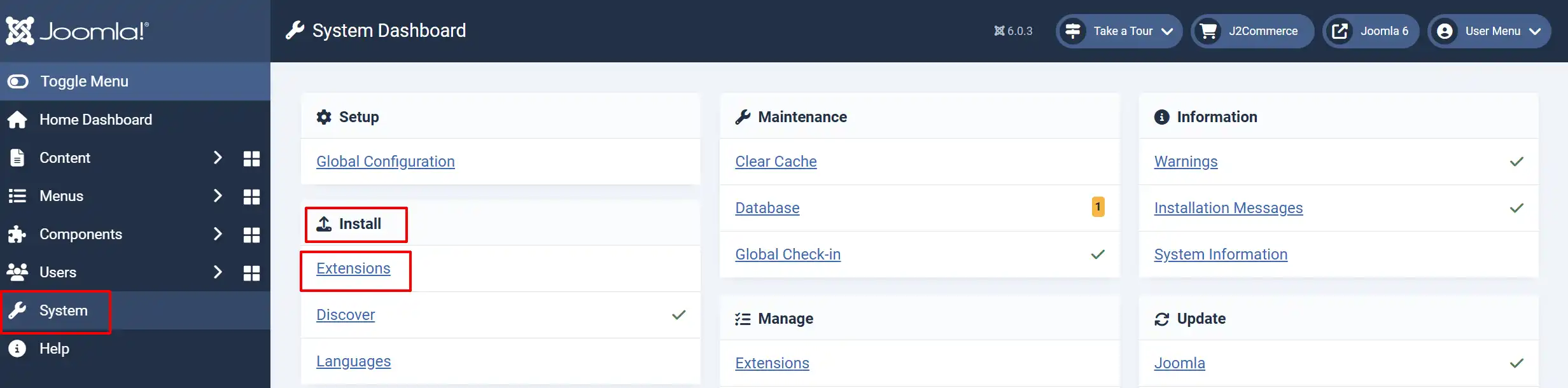
In the Joomla Administrator, go to System -> Install -> Extensions.
Upload the plg_j2commerce_payment_firstdata.zip file.
Enable the Plugin
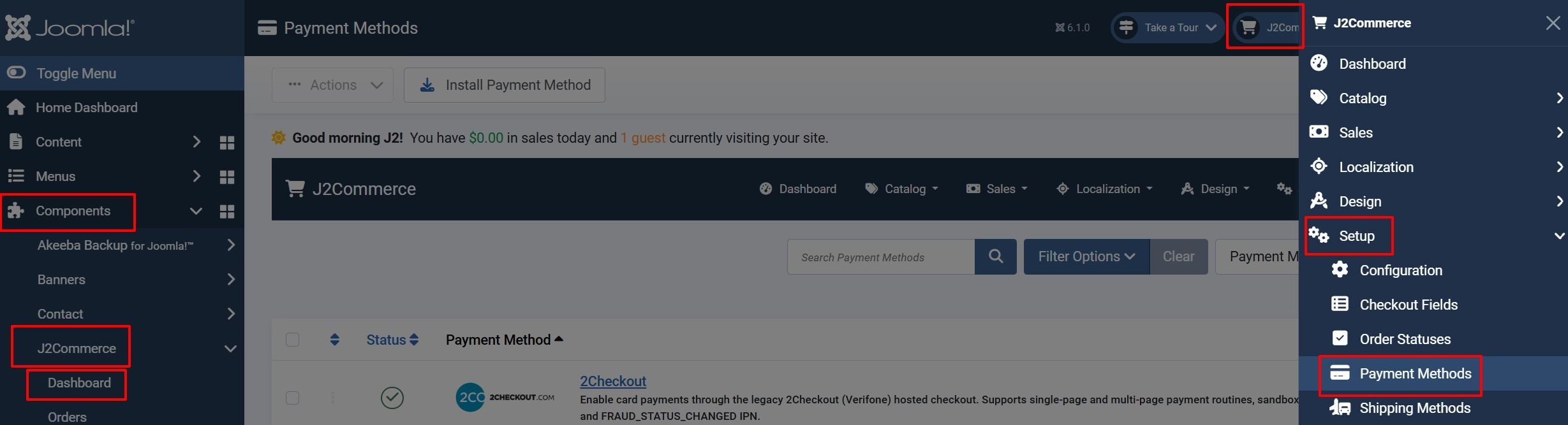
Once you have installed the App, you will need to enable it. There are two ways you can access the App.
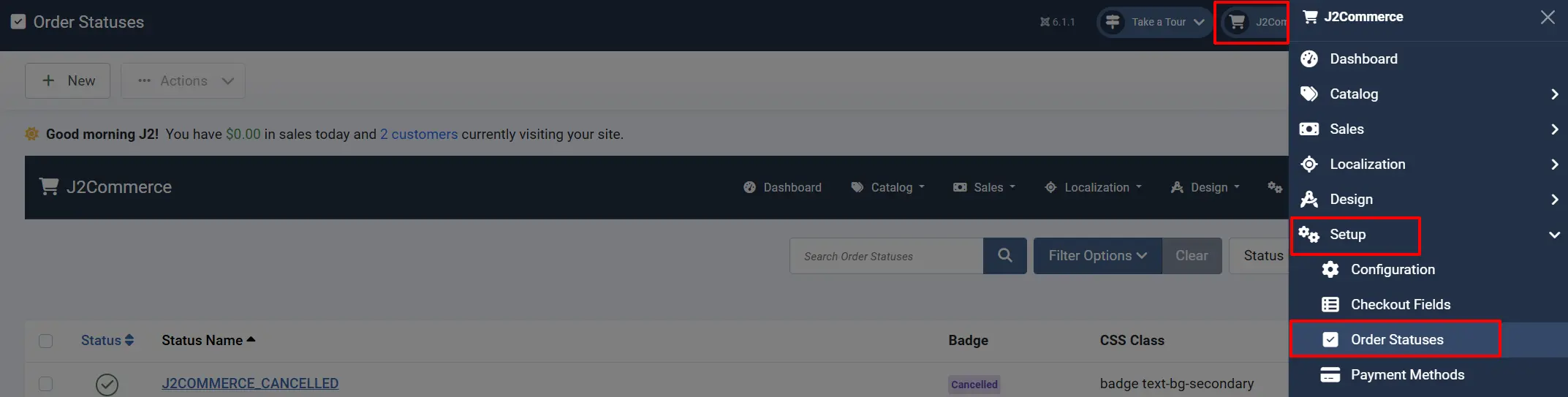
Option A: Go to the J2Commerce icon at the top right corner -> Setup -> Payment Methods
Option B: Go to Components on the left sidebar -> J2Commerce -> Dashboard -> Setup -> Payment Methods
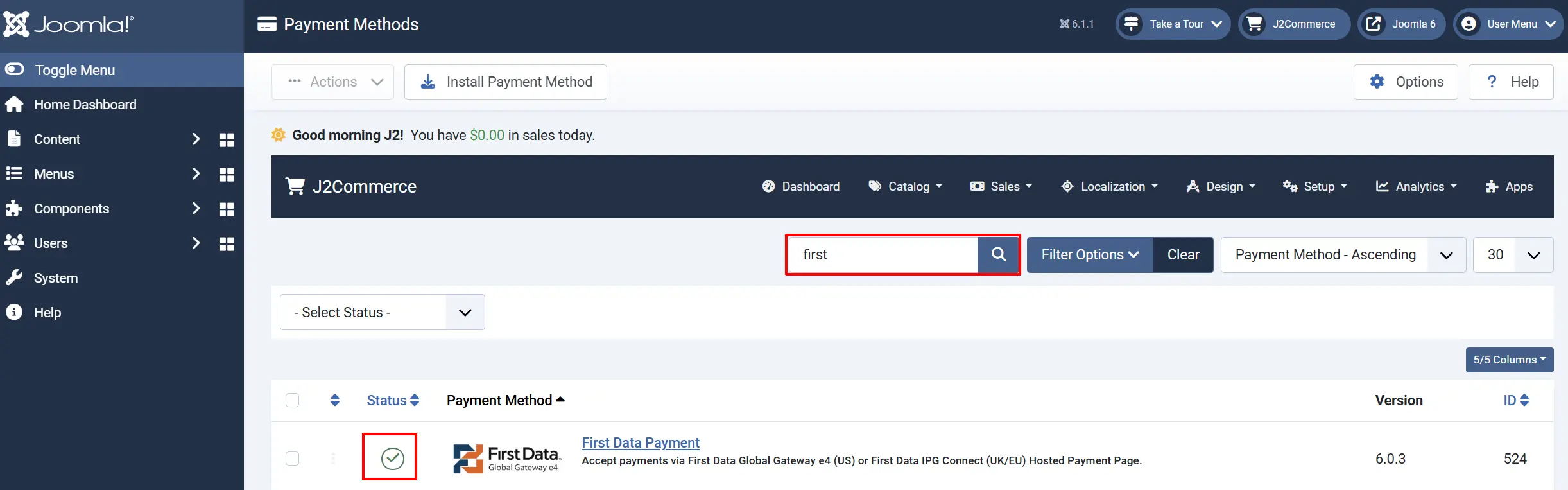
To help you narrow down the list, you can do a search for First Data, click the X, and it will turn into a green checkmark. It is now enabled and ready for setup.
Configure the plugin
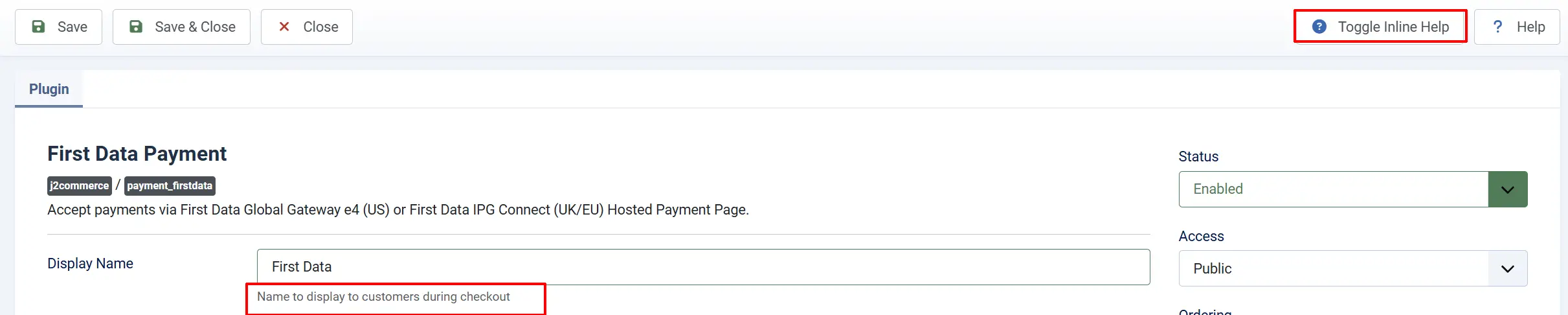
Click the Toggle Inline Help button in the toolbar and the app will show a description below each field as you configure it.
Display settings
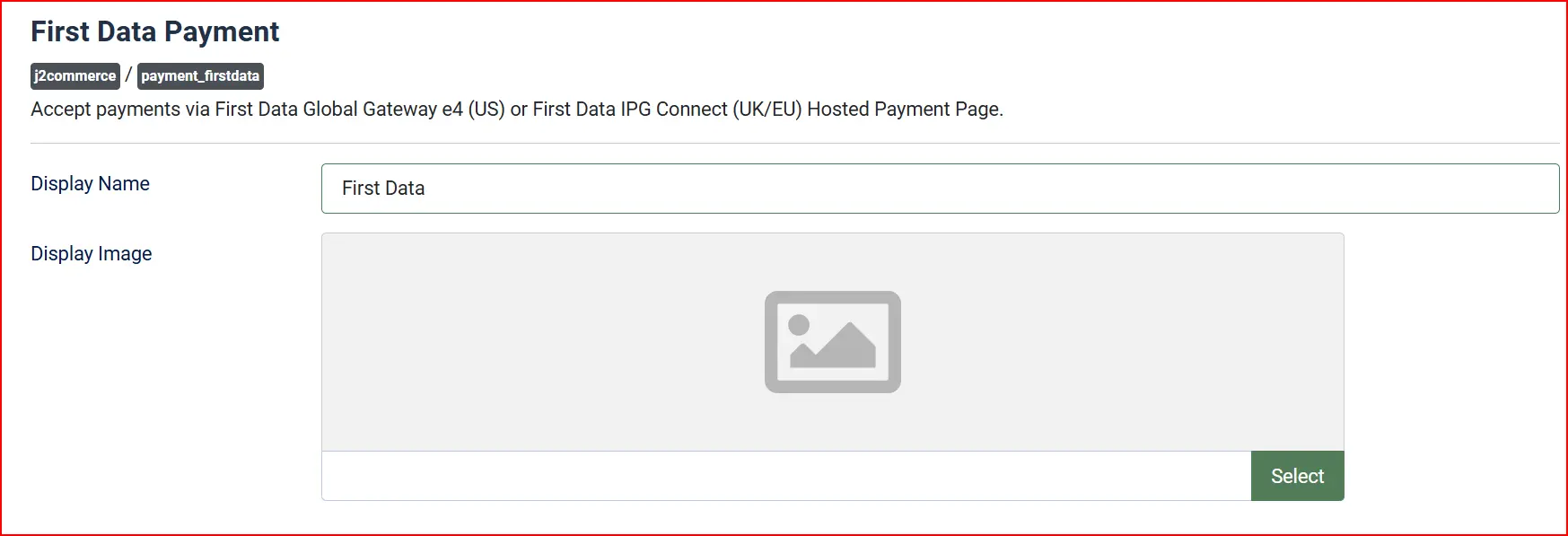
Display Name: The payment method name shown to customers at checkout. Default: "First Data".
Display Image: Optional image (e.g. card logos) shown alongside the payment method name.
US mode — Global Gateway e4 credentials

These fields are only shown when Gateway Mode is set to US — Global Gateway e4.
To find these values, log in to your First Data GGe4 Merchant Portal and open the Payment Page you have configured for your store.
Page ID: The Page ID assigned to your live GGe4 Payment Page.
Transaction Key: The Transaction Key for your live GGe4 Payment Page. Used to generate the HMAC-MD5 request signature.
Sandbox Page ID: Page ID for the GGe4 test environment (demo.globalgatewaye4.firstdata.com).
Sandbox Transaction Key: Transaction Key for the GGe4 test environment.
Enable Level 3 Processing: Activates enhanced purchasing-card data fields in the US payment form. Enable only if your merchant account is enrolled in Level 3 card processing. Default: No.
GGe4 sunset note: Fiserv has largely discontinued GGe4 for new accounts. If you are setting up a new US merchant account, contact Fiserv about Payeezy or Clover instead. This plugin fully supports existing GGe4 accounts.
UK/EU mode — IPG Connect credentials
These fields are only shown when Gateway Mode is set to UK/EU — IPG Connect.
To find these values, log in to your IPG Connect back-office and navigate to your store settings.
Store Name: Your IPG Connect Store Name (provided by First Data during onboarding).
Shared Secret: The Shared Secret configured in your IPG Connect back-office. Used to compute the SHA-256 request and response hashes.
Sandbox Store Name: Store Name for the IPG Connect test environment (test.ipg-online.com).
Sandbox Shared Secret: Shared Secret for the IPG Connect test environment.
Payment URL: Live IPG Connect gateway endpoint. Change only if instructed by First Data.
Sandbox Payment URL: Test IPG Connect gateway endpoint.
Transaction Type: How the gateway handles the authorisation. Sale captures funds immediately. Pre-Auth places an authorisation hold for later capture.
Checkout Mode: Controls the level of detail collected on the First Data payment page. Pay Only — card details only. Pay Plus — card details plus billing address. Full Pay — card details, billing address, and shipping address.
Sandbox / test mode
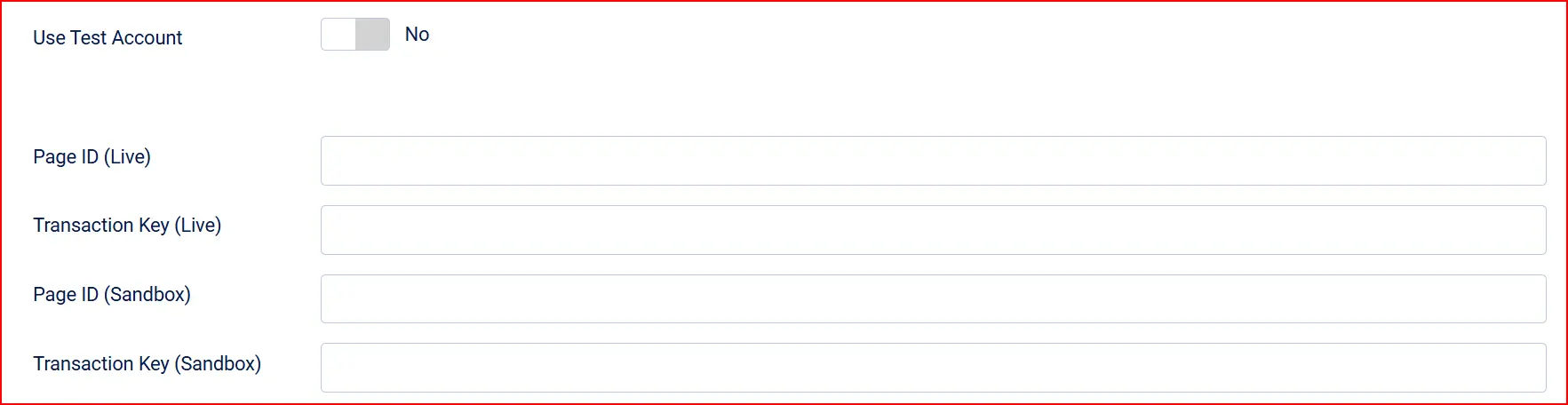
Sandbox Mode: Routes all transactions to the gateway test environment. Disable for live payments.
When sandbox mode is enabled, the plugin automatically uses the sandbox credentials and sandbox endpoint URLs.
Page ID (Live): Your First Data Global Gateway e4 Page ID for the live environment.
Transaction Key (Live): Your First Data Global Gateway e4 transaction key for HMAC signing (live).
Page ID (Sandbox): Your First Data Global Gateway e4 Page ID for the sandbox environment.
Transaction Key (Sandbox): Your First Data Global Gateway e4 transaction key for HMAC signing (sandbox).
Enable Level 3 Processing: Set to Yes to send Level 3 line-item data with the transaction (US only).
Response signature verification

Validate Response Hash: Verifies the cryptographic signature on every response posted back from First Data before updating the order. Strongly recommended. Disable only for debugging.
Response Key / MD5 Hash (US): Only shown for US mode when Validate Response Hash is Yes. Paste the "Response Key" value from your GGe4 Payment Page configuration in the Merchant Portal. Without this value, US relay-response verification is skipped even when the toggle is on, and a warning is logged.
How response verification works
US mode (GGe4): The gateway returns an x_MD5_Hash field in the relay response. The plugin recomputes MD5(response_key + x_login + x_trans_id + x_amount) and compares it. If the hashes do not match, the transaction is rejected.
UK/EU mode (IPG Connect): The gateway returns a response_hash field. The plugin recomputes a SHA-256 hash over bin2hex(shared_secret + approval_code + chargetotal + currency + txndatetime + storename) and compares it. If the hashes do not match, the transaction is rejected.
If verification fails in either mode, the order is set to the Failed status and an admin notification email is sent.
Order statuses

Confirmed Payment Status: Applied when First Data returns Transaction_Approved=YES (US) or status=APPROVED (UK). The customer confirmation email is sent at this point.
Pending Payment Status: Applied when the gateway returns an unrecognised status other than approved or declined.
Failed Payment Status: Applied when the gateway returns Transaction_Approved=NO (US), status=DECLINED (UK), an invalid transaction type, or a signature mismatch.
NOTE: If the status you want isn't listed in the dropdown menu, you can create a new one by going to J2Commerce -> Setup -> Order Statuses
Surcharges
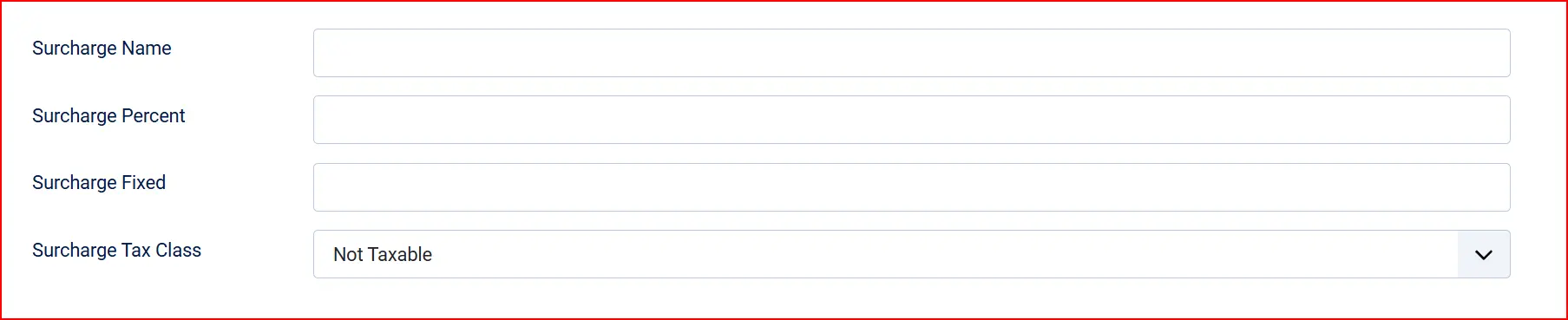
Add a payment surcharge to cover gateway processing fees.
Surcharge Name: Label shown to customers on the order summary (e.g. "Payment processing fee").
Surcharge Percentage: Percentage of the order subtotal plus shipping to add. Enter 2 for 2%. Leave blank for no percentage surcharge.
Surcharge Fixed: Fixed amount to add regardless of order value. Leave blank for no fixed surcharge.
Surcharge Tax Class: Tax profile to apply to the surcharge. Leave blank if the surcharge is not taxable.
Both percentage and fixed surcharges are applied together if both are set.
Geozone

Geographic Restriction: Limit this payment method to customers within a specific geo-zone. Leave blank to allow all customers.
Checkout messaging
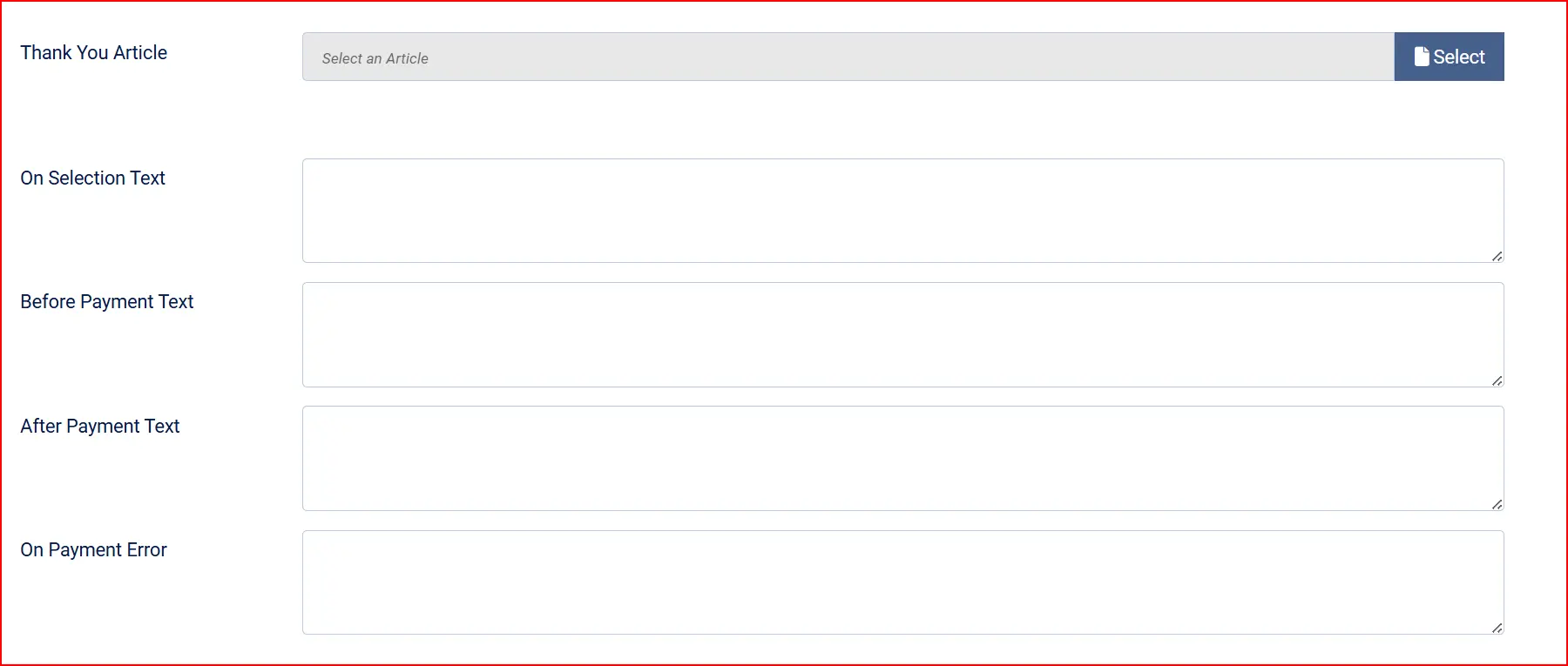
Thank-You Article: Optionally display a Joomla article as an additional thank-you message after successful payment.
On Selection: Text shown when the customer selects First Data as their payment method.
On Before Payment: Text shown on the pre-payment confirmation step just before the customer is redirected to First Data.
On After Payment: Text shown on the thank-you page after successful payment.
On Error Payment: Text shown when a payment error or decline occurs.
Other settings
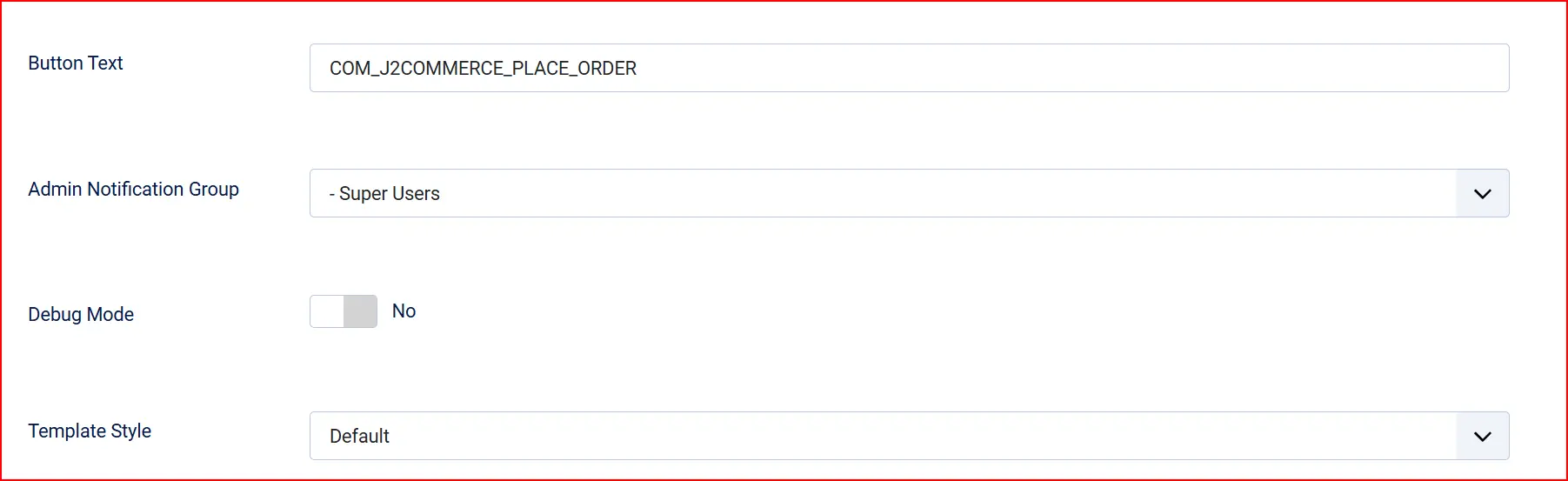
Button Text: Label for the "Place Order" button. Default: "Place Order".
Admin Notification Group: Joomla user group whose members receive an email when payment processing fails (e.g. signature mismatch, invalid order).
Template Style: Select Bootstrap 5 or UIkit 3 to match your front-end template.
Debug: Logs transaction details to the Joomla log system (category: plg_j2commerce_payment_firstdata). Disable in production.
What's new in J2Commerce 6
If you were using this plugin with J2Store, the following changes apply to the J2Commerce 6 version:
| Area | J2Store behaviour | J2Commerce 6 behaviour |
|---|---|---|
| Response signature verification | Off by default; no default toggle | On by default for both modes |
| Order status changes | Called internal update_status() — bypassed confirmation emails | Routes through the J2Commerce status engine — triggers confirmation emails and event hooks |
| Card/PAN data in logs | Raw POST data could be logged including sensitive fields | Allowlisted fields only — no card numbers, encrypted card data, or CVV values ever appear in logs |
| Admin error emails | Hardcoded to user group 8 | Configurable via Admin Notification Group |
| Surcharge | Basic percentage only | Percentage + fixed + taxable surcharge class |
| Geo-zone restriction | Third-party add-on required | Built into plugin configuration |
| Template support | Single template | Bootstrap 5 and UIkit 3 subtemplates |
Troubleshooting
Payment not confirming / order stuck in Pending
Cause: The response hash verification may be failing, or the gateway endpoint is unable to reach your server.
Solution:
-
Enable Debug Mode temporarily and attempt a test payment (sandbox mode on).
-
Check the Joomla log file in your server's Joomla log directory, filtered by category
plg_j2commerce_payment_firstdata. -
Look for
VALIDATION_FAILEDmessages.- UK/EU mode: Confirm that Store Name and Shared Secret match exactly what is shown in your IPG Connect back-office. Copy-paste rather than retyping.
- US mode: Confirm that Response Key / MD5 Hash (US) matches the "Response Key" field in your GGe4 Payment Page settings. If this field is blank, hash verification is skipped silently.
-
Confirm the callback URL (
index.php?option=com_j2commerce&task=checkout.confirmPayment&orderpayment_type=payment_firstdata&paction=process) is publicly reachable. WAF rules, Cloudflare, or server IP restrictions can block the gateway's POST.
Declined transactions
Cause: The card was declined by the issuing bank or the gateway risk engine.
Solution:
- The plugin sets the order to the Failed status and logs the decline reason.
- Check Order History in the J2Commerce order detail view for the
Bank_Message(US) or declinestatus(UK) value. - Ask the customer to try a different card or contact their bank.
"Invalid Transaction Type" error (US mode)
Cause: The gateway returned a Transaction_Type value other than 00 (Purchase).
Solution: Verify in the GGe4 Merchant Portal that your Payment Page is configured for sale/purchase transactions, not pre-auth or credit only. Ensure the correct Page ID and Transaction Key are entered.
Debug log location
Logs are written to the Joomla log directory configured under System -> Global Configuration -> Server -> Path to Log Folder, using the category tag plg_j2commerce_payment_firstdata. Enable Debug Mode in the plugin settings to write transaction details. Disable debug mode after troubleshooting — logs never contain raw card data, but they do contain order IDs and transaction IDs.
Level 3 processing (US mode only)
Level 3 (purchasing-card enhanced data) is available for US GGe4 merchants with enrolled Level 3 card processing agreements. Enable Enable Level 3 Processing in the plugin settings. Contact your First Data / Fiserv account manager to confirm your account supports Level 3 before enabling this setting.