Cardsave Payment
The Cardsave plugin connects your J2Commerce store to the Cardsave Online Payments gateway. It supports two integration modes: a redirect to Cardsave's secure hosted payment page, and a direct card-entry form that processes payments through your server via SOAP. Both modes handle 3D Secure authentication and send the transaction result back to your store automatically.
This plugin is a separate add-on available from the J2Commerce Extensions Store. It is not included with the core J2Commerce 6 component.
Cardsave Online Payments was acquired by Worldpay in 2010. New merchants cannot sign up for Cardsave. This plugin exists only for legacy merchants who already hold active Cardsave credentials (Merchant ID, Password, and Pre-Shared Key).
If you do not already have a Cardsave account, use the Worldpay payment plugin instead, which supports the same Worldpay infrastructure under its current branding.
Prerequisites
- J2Commerce is installed and active on your Joomla site.
- You already have an active Cardsave merchant account with a working Merchant ID, Password, and Pre-Shared Key. These credentials are available in your existing Cardsave merchant portal. If you do not have them, you cannot use this plugin — Cardsave no longer accepts new merchant applications.
Purchase and Download
- Go to the J2Commerce website and navigate to Payment Plugins.
- Locate Cardsave Payment and click View Details -> Add to Cart -> Checkout.
- After purchase, go to My Downloads under your profile and search for the plugin. Click Available Versions -> View Files -> Download Now.
Install the Plugin
In the Joomla Administrator, go to System -> Install -> Extensions.
Upload the payment_cardsave.zip package ZIP file or use the Install from URL option.

Enable the Plugin
Once you have installed the App, you will need to enable it. There are two ways you can access the App.
Option A: Go to the J2Commerce icon at the top right corner -> Setup -> Payment Methods
Option B: Go to Components on the left sidebar -> J2Commerce -> Dashboard -> Setup -> Payment Methods

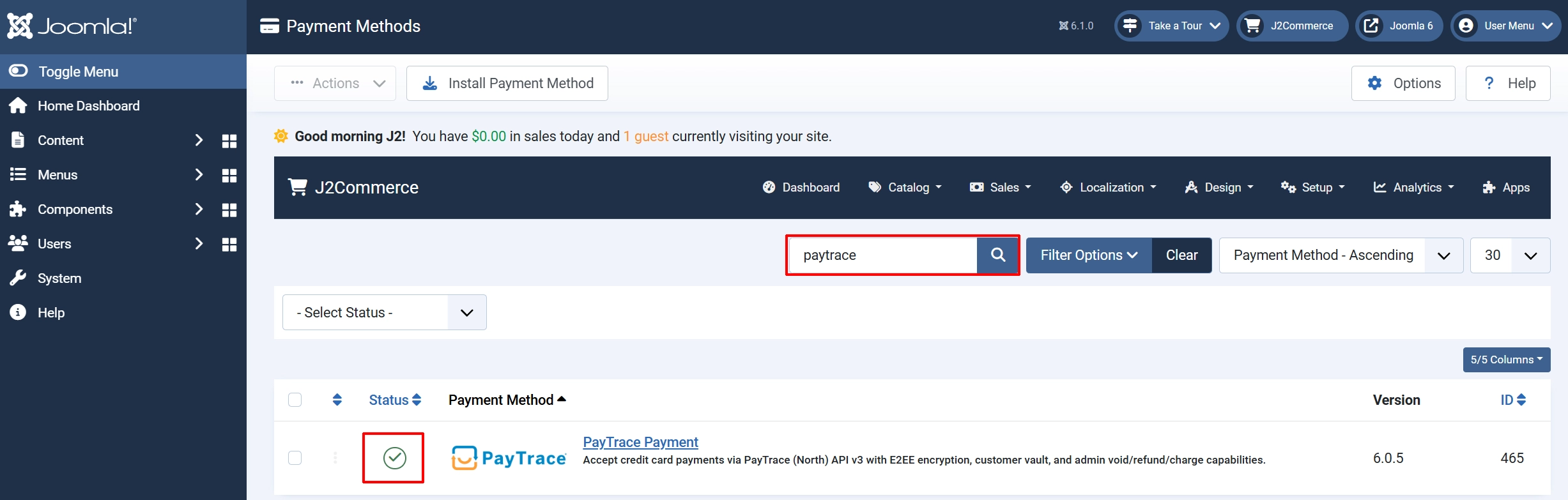
To help you narrow down the list, you can do a search for Cardsave Payment, click the X, and it will turn into a green checkmark. It is now enabled and ready for setup.
Configure the Plugin
Display Settings
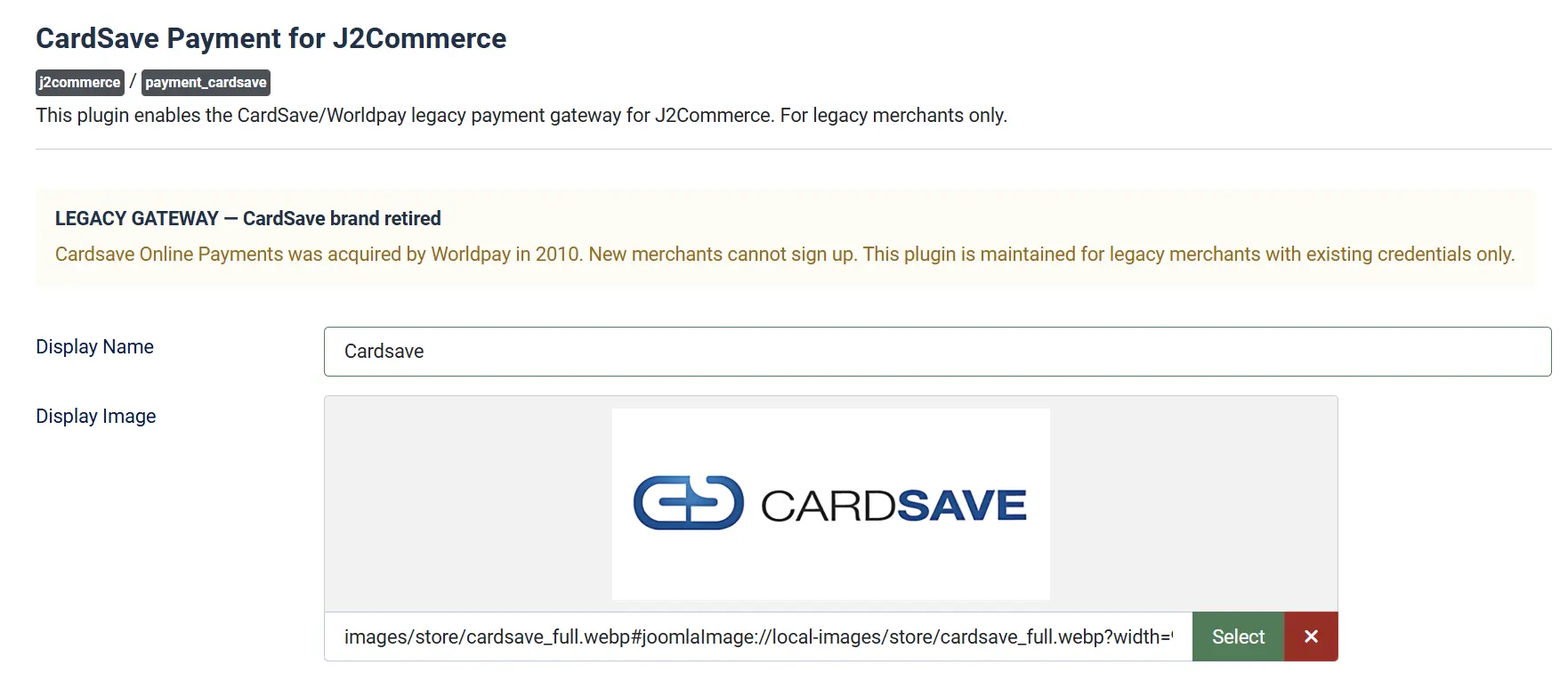
Display Name: The label shown to customers at checkout when they select Cardsave as their payment method. Default is CardSave.
Display Image: An optional image (logo) shown next to the payment method name at checkout. Select an image from your Joomla media library.
Payment Mode

Payment Mode controls how card details are collected:
-
Hosted Payment Page (recommended): The customer is redirected to a secure Cardsave-hosted page to enter their card details. Card data never touches your server. This is the simpler, safer option and requires no additional PCI compliance measures on your end.
-
Direct SOAP: A card-entry form appears on your checkout page. Card details are collected on your server and submitted to Cardsave via a SOAP request. This mode requires full PCI DSS SAQ-D compliance and is only recommended if you have a specific technical reason to avoid the redirect.
Most stores should leave this set to Hosted Payment Page (recommended).
Credentials

These three values come from your existing Cardsave merchant account.
Merchant ID: Your Cardsave Merchant ID.
Merchant Password: The password associated with your Cardsave account.
Pre-Shared Key: The pre-shared key associated with your Cardsave account, used to sign and verify transaction hashes.
All three fields are required. The plugin will not process payments if any of them are blank.
Payment Processor Connection

These settings control which Cardsave server endpoint is used. In almost all cases the defaults are correct.
Payment Processor Domain: The domain provided by Cardsave for your account. Only change this if Cardsave has given you a different domain.
Payment Processor Port: The port for the SOAP connection (Direct mode). Only change this if Cardsave has specified a different port.
Hash Method

Hash Method controls how transaction data is signed. This must match the setting on your Cardsave merchant account.
-
HMAC-SHA1 (default): Recommended. Secure keyed-hash algorithm.
-
HMAC-MD5: Use only if your account is configured for this.
-
SHA1 (deprecated): Insecure. Use only if your account does not support HMAC methods.
-
MD5 (deprecated): Insecure. Use only if your account does not support HMAC methods.
Leave this on HMAC-SHA1 unless Cardsave has specifically told you to use a different method.
Order Description

Order Description: The text sent to Cardsave as the order description. You can use the placeholders [ORDERID] and [INVOICE_NO] and they will be replaced with the actual order ID and invoice number at checkout. The default is Order Id - [ORDERID].
Order Statuses

These settings control which J2Commerce order status is assigned depending on the payment outcome.
Authorized Order Status: Payment was authorized successfully (status code 0 or a duplicate of a successful authorization).
Declined Order Status: Payment was declined or an error occurred.
Pending Order Status: 3D Secure authentication is in progress (status code 3, Direct mode only).
If the status you want is not listed in a dropdown, create it first at J2Commerce -> Setup -> Order Statuses.

Surcharge

Add an optional surcharge to orders paid via Cardsave.
Surcharge Name: Label shown to customers for the surcharge (e.g., Card Processing Fee).
Surcharge Percent: Percentage of the order subtotal added as a surcharge. Leave blank for no percentage surcharge.
Surcharge Fixed: Fixed amount added as a surcharge. Leave blank for no fixed surcharge.
Surcharge Tax Class: Tax profile applied to the surcharge amount.
You can combine a percentage and a fixed amount. Both are added together.
Order Total Restrictions

Use these settings to limit which orders can use Cardsave.
Minimum Order Total: Hide Cardsave at checkout if the cart subtotal is below this amount. Set to 0 to disable the minimum.
Maximum Order Total: Hide Cardsave at checkout if the cart subtotal exceeds this amount. Set to -1 to disable the maximum.
Geo-Zone Restriction
Geo-Zone Restriction: Limit Cardsave availability to customers in a specific geo-zone. Leave empty to make Cardsave available to all customers regardless of their billing address.
Custom Messages
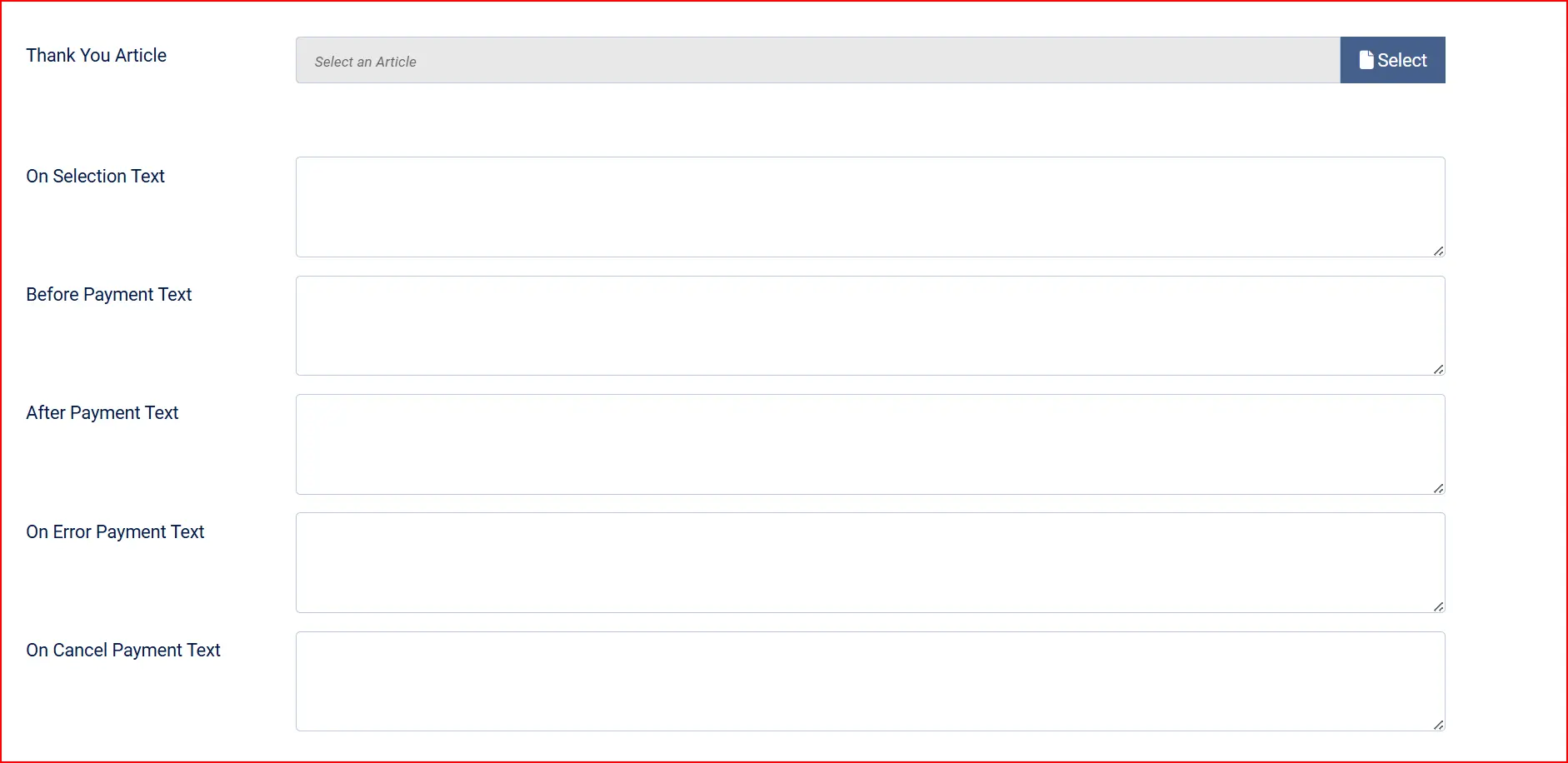
Thank You Article: Select a Joomla article to display on the order confirmation page after a successful payment. Leave blank to use the default J2Commerce confirmation page.
Custom Code Hooks
These text areas let you inject custom content at specific points in the payment flow. They are optional and intended for advanced use — most stores can leave them blank.
On Selection: When the customer selects Cardsave as their payment method at checkout.
On Before Payment: On the page shown before the customer is redirected to Cardsave (Hosted mode).
On After Payment: On the confirmation page after the customer returns from Cardsave.
On Error Payment: When a payment error occurs.
On Cancel Payment: When the customer cancels the payment on the Cardsave hosted page.
Button Text

Button Text: The label on the payment submit button. Default is Place Order.
Debug Mode

Debug Mode: When enabled, detailed transaction activity is written to the Joomla log file. The log category is plg_j2commerce_payment_cardsave.
Enable debug mode only while troubleshooting a problem. Disable it in production — logs can grow large and contain transaction details.
Admin Notification Group

Admin Notification Group: The Joomla user group whose members receive an email notification when a payment transaction cannot be validated. Default is the Super Users group (ID 8). Members of this group must have Receive System Emails enabled in their profile.
Template Style

Template Style: The frontend layout framework used to render the checkout form. Match this to your Joomla template:
- Bootstrap 5 — recommended for most Joomla sites
- UIkit — use if your template is UIkit-based (e.g., YOOtheme Pro)
How the Payment Flow Works
Hosted Payment Page (default)
- The customer reaches the payment step of checkout and selects CardSave.
- They click Place Order. J2Commerce creates a pending order, signs the transaction data with your Pre-Shared Key, and redirects the customer to the Cardsave hosted payment page.
- The customer enters their card details on Cardsave's secure server.
- Cardsave processes the payment (including any 3D Secure challenge required by the customer's bank) and sends the result back to your store via a secure server-to-server callback.
- J2Commerce validates the callback signature using your Pre-Shared Key and updates the order status to Authorized Order Status (if approved) or Declined Order Status (if declined).
- The customer is redirected to your store's confirmation page.
Direct SOAP Mode
- The customer selects CardSave and a card-entry form appears on your checkout page.
- They fill in their card number, expiry date, start date (if applicable), issue number (if applicable), and CVV, then click Place Order.
- J2Commerce submits the card details to the Cardsave gateway via a SOAP connection.
- Cardsave processes the charge and returns a status code. If 3D Secure authentication is required, the order is set to Pending Order Status and the authentication flow continues.
- Once complete, the order status is updated to Authorized, Declined, or Pending based on the result.
Direct SOAP mode transmits raw card data through your server. This places your site in PCI DSS scope at the SAQ-D level, which requires a comprehensive annual audit. Only use Direct mode if you have a specific requirement and have confirmed your PCI compliance obligations with your acquiring bank.
Most merchants should use Hosted Payment Page mode.
Subscription and Renewal Payments
Cardsave does not provide a customer card vault, so automatic recurring billing is not supported. If you use subscription products with Cardsave, subscription renewals will stay in a pending state until you manually confirm payment via the Worldpay merchant portal and update the order status in J2Commerce.
Troubleshooting
Payment fails immediately with "Merchant ID is missing or invalid"
Cause: The Merchant ID field is empty in the plugin settings.
Solution: Open the Cardsave plugin settings and enter your Merchant ID from your Cardsave account.
Orders stay Pending after the customer returns from the Cardsave page
Cause: The server-to-server callback from Cardsave could not reach your site, or the transaction result could not be validated (hash mismatch).
Solution:
- Enable Debug Mode and check the Joomla log for entries under
plg_j2commerce_payment_cardsave. - Verify your Pre-Shared Key is entered correctly — a wrong key causes every hash validation to fail silently.
- Confirm your server is reachable from external networks. Cardsave sends the transaction result to your
szServerResultURL, which must be publicly accessible (not behind a firewall or localhost). - Check that the Payment Processor Domain and Port match what Cardsave provided for your account.
"The payment response could not be validated" error
Cause: The hash in Cardsave's response does not match the expected value, usually because the Pre-Shared Key or Hash Method is wrong.
Solution:
- Log in to your Cardsave merchant portal and confirm the Pre-Shared Key and Hash Method configured there.
- Update the plugin settings to match exactly.
- Enable Debug Mode and reproduce the error to see the raw response in the log.
Cardsave payment page shows an error before accepting card details
Cause: The transaction data sent to Cardsave contains an invalid currency code or amount, or the Merchant ID / Password is incorrect.
Solution:
- Confirm your Merchant ID and Password are copied exactly from your Cardsave portal — no extra spaces.
- Verify the order currency is one that your Cardsave account is configured to accept. Cardsave uses numeric ISO 4217 currency codes (e.g., 826 for GBP, 840 for USD) — the plugin converts automatically, but your account must be enabled for the currency.
- Enable Debug Mode and check the log for the pre-payment hash string and POST URL.
Admin notification emails are not being sent
Cause: The user group selected in Admin Notification Group has no members with Receive System Emails enabled, or Joomla's mail settings are not configured.
Solution:
- Go to System -> Global Configuration -> Server and confirm the mail settings are correct.
- Check the Joomla user accounts in the selected group and ensure at least one has Receive System Emails: Yes in their profile.
Support
- J2Commerce documentation: docs.j2commerce.com
- J2Commerce support: www.j2commerce.com/support
- Worldpay (current Cardsave platform): www.worldpay.com