GestPay / Axerve (Banca Sella) Payment
GestPay — now branded as Axerve — is the online payment gateway operated by Banca Sella, one of Italy's leading banking groups. It is widely used by Italian and European merchants and accepts cards in several major currencies.
When a customer reaches the payment step, J2Commerce encrypts the order details server-to-server and redirects the buyer to the GestPay Hosted Payment Page (HPP) at pagam.aspx. The customer enters card details directly on GestPay's secure, Banca Sella-hosted page. Your server never sees card numbers. After payment, GestPay redirects the buyer back to a URL you configure in the GestPay back office, and J2Commerce decrypts the result to finalize the order.
PCI scope: SAQ-A. Card data never passes through your server.
This plugin is a separate add-on available from the J2Commerce Extensions Store. It is not included with the core J2Commerce component.
How it works
- Customer reaches the payment step in checkout and selects GestPay.
- J2Commerce calls the GestPay WSCryptDecrypt SOAP service to encrypt the order amount, currency, and order ID.
- The browser is redirected to the GestPay HPP (
pagam.aspx) with the encrypted payload. - Customer enters card details on GestPay's hosted page.
- GestPay redirects the customer to the response URL you configured in the GestPay back office, carrying an encrypted result parameter (
b). - J2Commerce calls the SOAP Decrypt method to read the transaction result (
OK,XX, orKO). - The order status is updated and the customer sees the confirmation page.
Prerequisites
Before installing the plugin, confirm you have:
- A GestPay / Axerve merchant account with a Shop Login (also called
shopLogin) — provided by Banca Sella during onboarding. - If you want to test first: access to the GestPay test environment (
testecomm.sella.it) with test credentials. Banca Sella provides these separately from your live credentials. - PHP
soapextension enabled on your hosting server. The plugin uses SOAP to communicate with the WSCryptDecrypt service. Many hosts enable it by default; ask your hosting provider if you are unsure. - J2Commerce 6 installed and working on Joomla 6.
CRITICAL: Configure the Response URL in GestPay Back Office
This is the most important setup step. The plugin will not finalize payments unless you do this.
GestPay's WSCryptDecrypt SOAP service does not accept a per-transaction return URL. Instead, GestPay redirects the buyer to a single URL that you configure once in your GestPay / Axerve back office (the merchant administration panel at Banca Sella).
You must set both the positive response URL and the negative response URL to this exact value (replace YOUR-SITE with your actual domain):
https://YOUR-SITE/index.php?option=com_j2commerce&task=checkout.confirmPayment&orderpayment_type=payment_gestpay&paction=display_message
The parameter paction=display_message is required. If this parameter is missing or set to anything else, J2Commerce will not clear the cart or send the order confirmation email, even if GestPay reports a successful payment.
Where to find this setting in GestPay back office:
- Log in to your GestPay / Axerve merchant portal.
- Navigate to the Pagine di risposta (Response pages) or equivalent settings section.
- Set both the positive (OK) and negative (KO) response URLs to the value above.
- Save and confirm the change.
If you are unsure where this setting is in your account, contact Banca Sella / Axerve support.
GestPay
Purchase and download
This plugin is a separate add-on available from the J2Commerce Extensions Store. It is not included with the core J2Commerce 6 component.
- Go to the J2Commerce website and locate GestPay.
- Add it to your cart and complete checkout.
- Go to My Downloads under your account profile and find the plugin.
- Click Available Versions -> View Files -> Download Now to download the ZIP file.
Install the plugin
In the Joomla Administrator, go to System -> Install -> Extensions.
Upload the plg_j2commerce_payment_gestpay.zip file.

Enable the Plugin
Once you have installed the App, you will need to enable it. There are two ways you can access the App.
Option A: Go to the J2Commerce icon at the top right corner -> Setup -> Payment Methods
Option B: Go to Components on the left sidebar -> J2Commerce -> Dashboard -> Setup -> Payment Methods

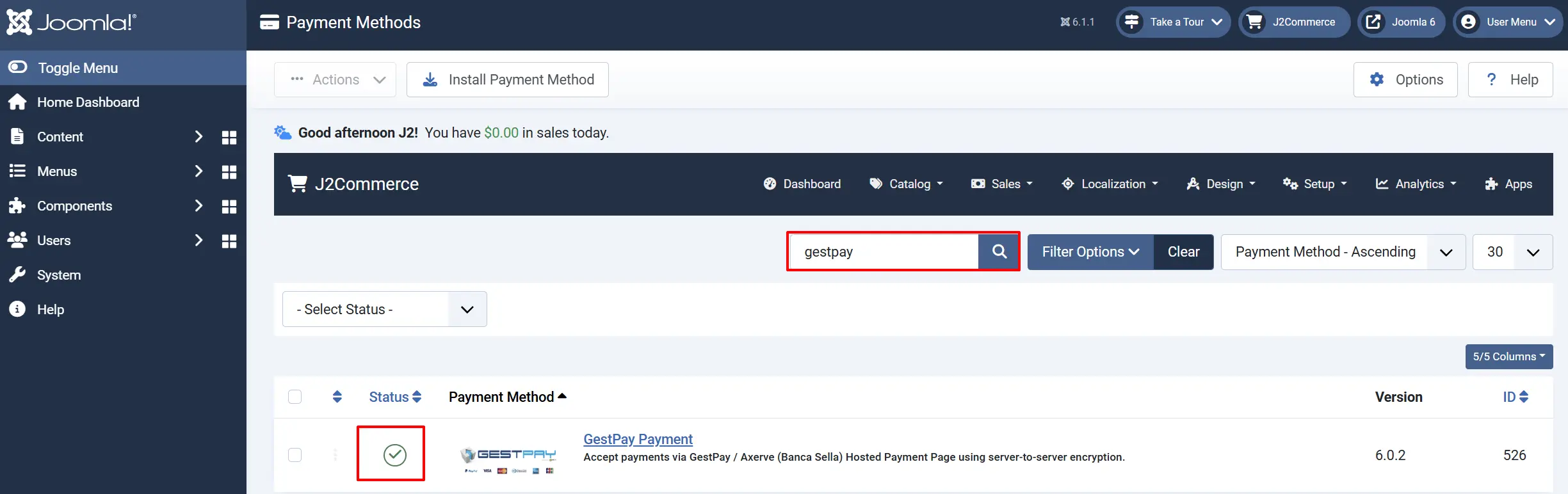
To help you narrow down the list, you can do a search for GestPay, click the X, and it will turn into a green checkmark. It is now enabled and ready for setup.
Configure the plugin
Click the Toggle Inline Help button in the toolbar and the app will show a description below each field as you configure it.

Basic settings
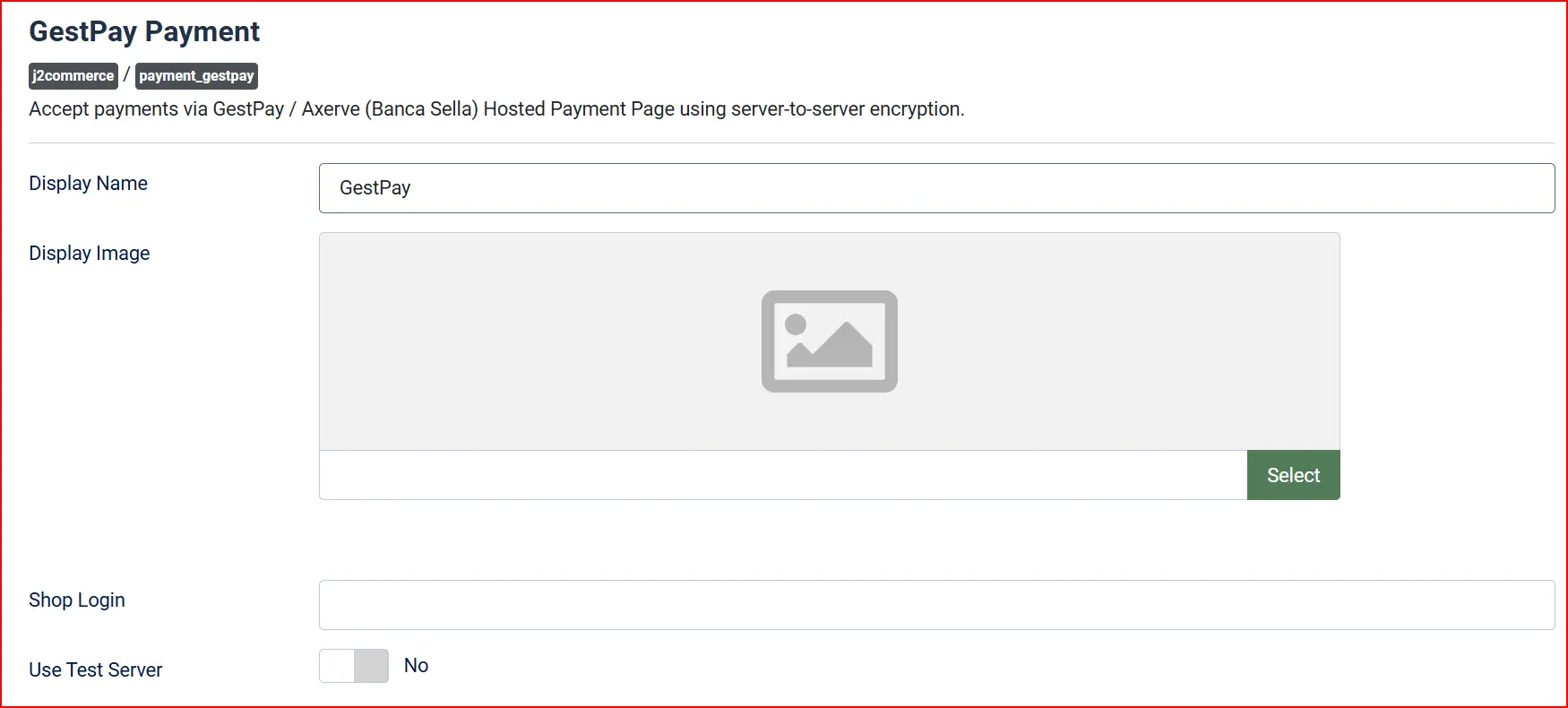
Display Name: Label shown to customers at checkout
Display Image: Optional logo shown next to the payment name
Shop Login: Your shopLogin credential from Banca Sella. This is your merchant identifier, not a username or password.
Use Test Server: Switches between the sandbox (testecomm.sella.it) and live (ecomm.sella.it) environment.
Order status

These settings control which J2Commerce order status is applied for each payment outcome.
Confirmed Payment Status: Applied when GestPay returns TransactionResult = OK (payment accepted).
Pending Payment Status: Applied when GestPay returns TransactionResult = XX (payment suspended or under review by the bank).
Failed Payment Status: Applied when payment is declined, an error code is returned, or GestPay returns KO.
NOTE: If the status you want isn't listed in the dropdown menu, you can create a new one by going to J2Commerce -> Setup -> Order Statuses

Optional surcharge

You can add a payment surcharge when the customer selects GestPay. Both a percentage and a fixed amount can be combined — they are added together.
Surcharge Name: Label shown on the order summary, e.g. Payment fee
Surcharge Percent: Percentage of the order subtotal + shipping, e.g. 1.5 for 1.5%
Surcharge Fixed: Fixed amount added to every order, e.g. 0.50
Surcharge Tax Class: Tax profile applied to the surcharge amount, if applicable
Leave all surcharge fields empty if you do not want to add a fee.
Geo zone restriction

Geo Zone Restriction: If set, GestPay will only appear at checkout for billing addresses within the selected geo zone. Leave empty to show GestPay to all customers regardless of country.
Custom messages
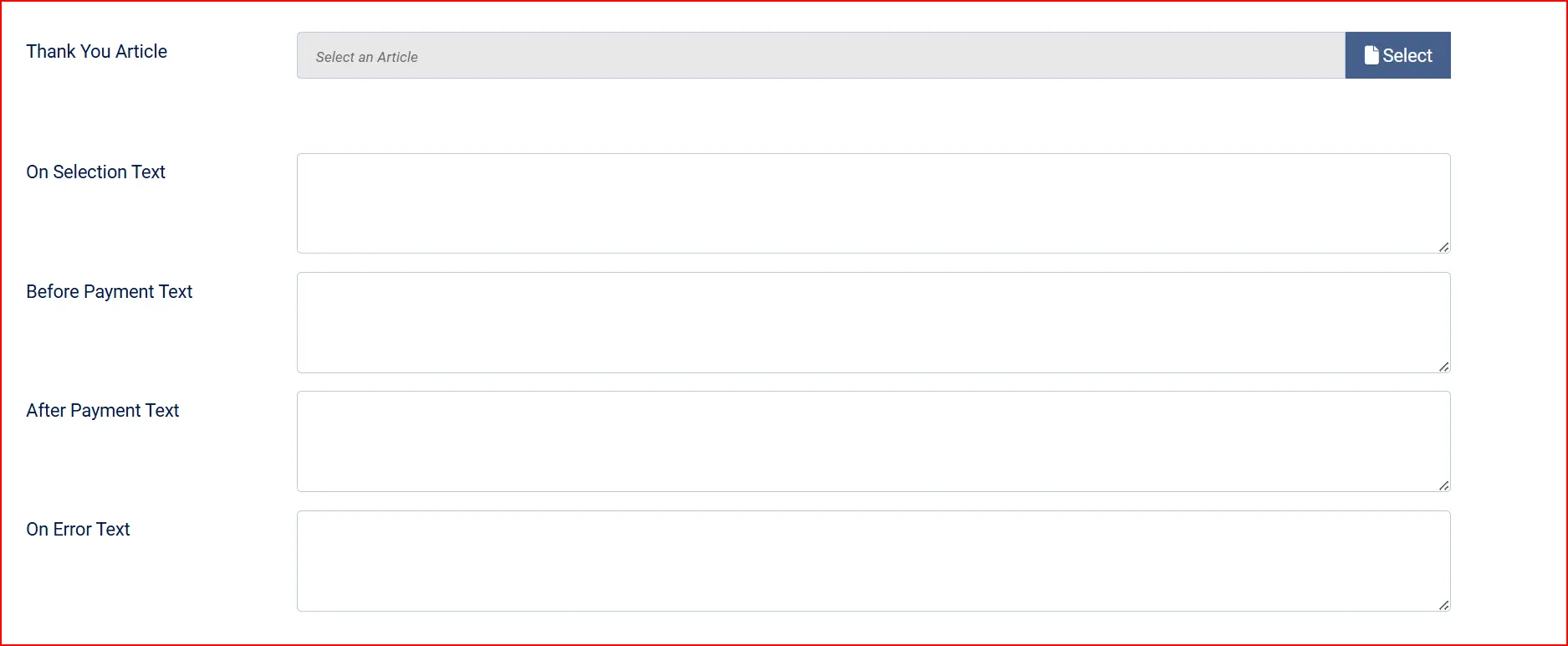
These text areas let you customize what customers see at each stage.
Thank You Article: An optional Joomla article displayed below the payment confirmation message. Useful for post-purchase instructions or cross-sell content.
On Selection: Shown in the checkout payment list when the customer selects GestPay, before they click to proceed.
Before Payment: Shown on the order summary page, just before the button that redirects to GestPay.
After Payment: Shown on return from a successful GestPay transaction. Leave empty to use the plugin default.
On Error: Shown when GestPay returns an error or the payment is declined.
Appearance
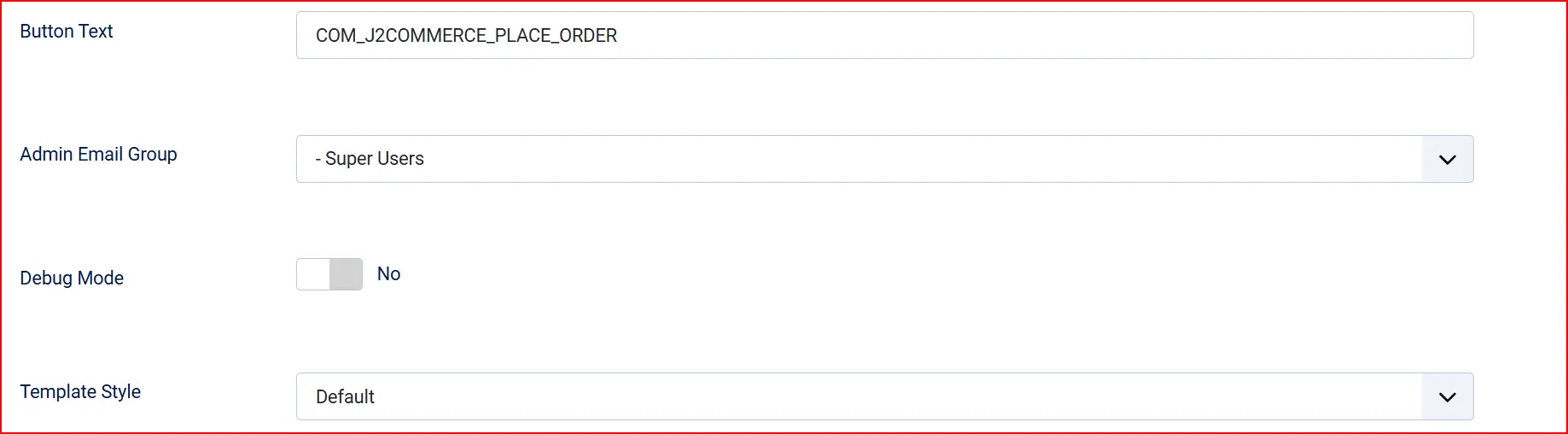
Button Text: Label on the "Proceed to GestPay" button.
Admin Email Group: The Joomla user group whose members receive an email when GestPay returns a payment error. Only users in this group with Receive System Emails enabled are notified.
Debug Mode: Logs SOAP requests and responses to Joomla's log system under the plg_j2commerce_payment_gestpay category. Card numbers are never logged.
Disable debug mode in production. Enable it temporarily when diagnosing issues.
Template Style: Choose the checkout layout style — Bootstrap 5 or UIkit. Defaults to your site's active J2Commerce theme.
Supported currencies
GestPay accepts only the following currencies. If your store uses a different currency, customers who try to pay with GestPay will see an error message at checkout.
| Currency | Code |
|---|---|
| Euro | EUR |
| US Dollar | USD |
| British Pound | GBP |
| Swiss Franc | CHF |
| Danish Krone | DKK |
| Norwegian Krone | NOK |
| Swedish Krona | SEK |
| Canadian Dollar | CAD |
| Japanese Yen | JPY |
| Hong Kong Dollar | HKD |
| Brazilian Real | BRL |
EUR is the primary and most common currency for Italian merchants. If you operate in a currency not on this list, you will need to use a different payment gateway.
Testing in sandbox mode
- Obtain test credentials (a test Shop Login) from Banca Sella. These are separate from your live credentials.
- In the plugin settings, set Shop Login to your test Shop Login and switch Use Test Server to Yes.
- Configure the response URL in the GestPay test back office (a separate portal for test accounts) pointing to your Joomla site, using the same
paction=display_messageURL described above. - Place a test order on your store and complete payment using GestPay's published test card numbers (provided in the Banca Sella developer documentation).
- Verify the order status updates correctly in J2Commerce -> Sales -> Orders.
- When you are satisfied, switch Use Test Server back to No and update your live GestPay back office response URL.
What changed from J2Store
If you previously used the GestPay plugin for J2Store v4, here is what is new in the J2Commerce 6 version:
- Configurable order statuses. Instead of hardcoded status transitions, you now choose which J2Commerce order status maps to Confirmed, Pending, and Failed outcomes.
- Optional surcharge. You can add a percentage or fixed payment fee directly in the plugin settings, without needing a separate app.
- Geo zone restriction. Limit GestPay availability by country or region using a J2Commerce geo zone.
- Admin error emails. The plugin automatically emails administrators when GestPay returns a payment error, so you can follow up with affected customers.
- Double-charge protection. If GestPay sends the buyer to the return URL more than once (e.g. browser back-button), the plugin detects the already-confirmed order and skips re-processing.
- Lighter codebase. The vendored 2,275-line library has been removed. The plugin now communicates directly with the WSCryptDecrypt SOAP service using a compact internal currency map.
- Debug logging. All SOAP traffic can be captured to Joomla's log system (with card data excluded) to make troubleshooting much easier.
Troubleshooting
PHP SOAP extension is not enabled
Symptom: After installing the plugin, you see an error about SOAP not being available, or the plugin installation fails with a preflight warning.
Solution: Enable the php_soap extension on your server. In a shared hosting environment, look for a "PHP Extensions" section in your hosting control panel, or contact your hosting provider and ask them to enable ext-soap for your PHP version.
Unsupported currency error at checkout
Symptom: The customer sees "GestPay does not support the order currency" when trying to pay.
Solution: Your store's active currency is not in GestPay's supported list. Either switch your store to a supported currency (EUR is recommended for Italian stores) or add a different payment gateway for customers using unsupported currencies.
Payment succeeds on GestPay but the cart is not cleared and no confirmation email is sent
Symptom: The customer completes payment on the GestPay page. They are redirected back, but the cart still contains items and no order confirmation email was sent.
Cause: The response URL configured in your GestPay back office is missing the paction=display_message parameter, or the URL points to an incorrect address.
Solution:
- Log in to your GestPay / Axerve back office.
- Find the response URL settings (positive and negative).
- Confirm the URL ends with
&paction=display_message. - Save the change and test again.
Payment is not being finalized — order stays in a "new" or pending state
Symptom: The customer pays on GestPay, but the order in J2Commerce never moves to Confirmed.
Solution checklist:
- Confirm the response URL in GestPay back office is correct and includes
paction=display_message. - Enable Debug Mode in the plugin settings, place a test order, and check the Joomla logs (System -> Logs) for entries in the
plg_j2commerce_payment_gestpaycategory. Look for Decrypt response lines showingTransactionResult. - If you see "Could not communicate with the GestPay payment gateway," your server cannot reach
ecomms2s.sella.it. Confirm that outbound HTTPS (port 443) to Sella servers is not blocked by your firewall or hosting provider. - If no log entries appear, the buyer may not be returning to your site at all — double-check the back-office URL.
GestPay returns an error code
Symptom: The "After payment" area shows a GestPay error like "GestPay error 1143: ..." or similar.
Solution: Look up the GestPay error code in the Banca Sella / Axerve developer documentation. Common causes include incorrect shopLogin, an amount formatted incorrectly, or a currency code mismatch. Enable Debug Mode to capture the full Decrypt response in the logs.
Admin error notification emails are not arriving
Symptom: Payments are failing but no email notification is sent to administrators.
Solution:
- Go to System -> Plugins and open the GestPay plugin settings.
- Check the Admin Email Group field. Members of this group receive notifications.
- In System -> User Management -> Users, confirm that the relevant admin accounts have Receive System Emails set to Yes in their user profile.
- Confirm Joomla's mail settings are working (System -> Global Configuration -> Server -> Mail Settings).