Itemized Report
The Itemized Report gives you a detailed breakdown of every product sold in your store, grouped by product and option combination. Use it to see exactly which sizes, colors, or other variants your customers are buying most.
Requirements
- PHP 8.3.0+
- Joomla! 6.x
- J2Commerce 6.x
Accessing the Report
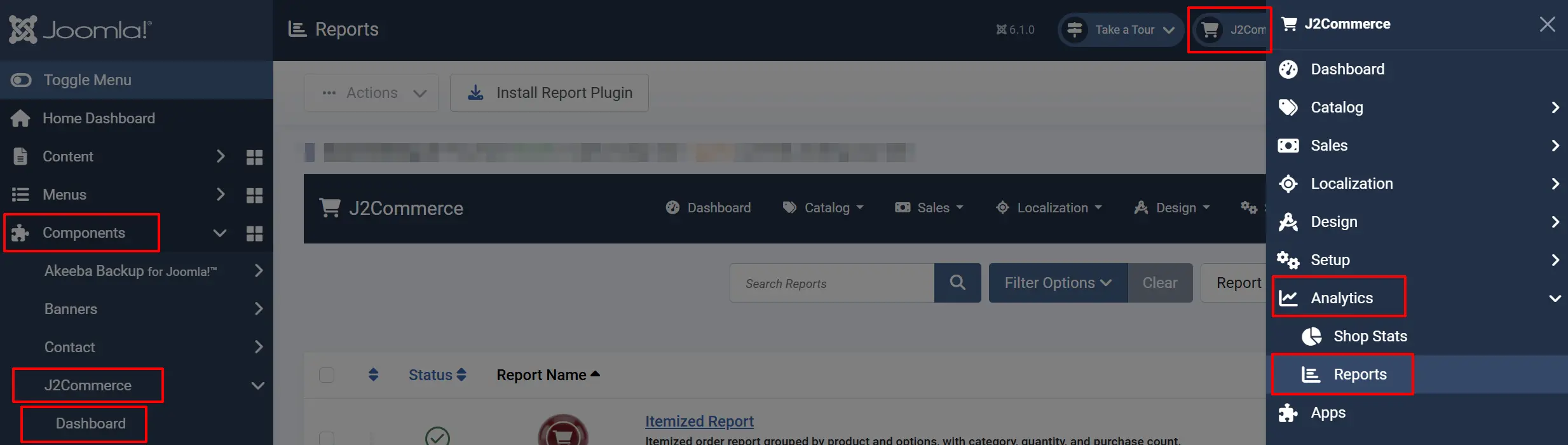
There are two ways you can access the Reports.
Option A: Go to the J2Commerce icon at the top right corner -> Analytics -> Reports
Option B: Go to Components on the left sidebar -> J2Commerce -> Dashboard -> Analytics -> Reports
-
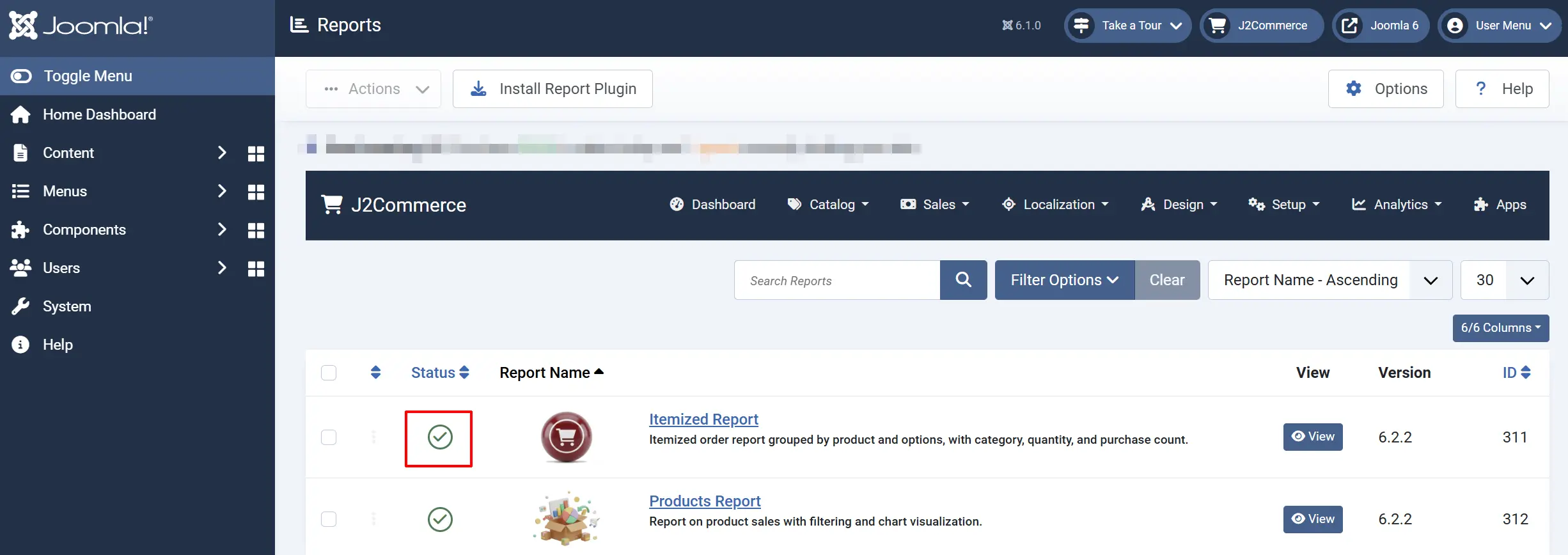
Click Itemized Report from the list.
-
Click View Report

The report loads with a bar chart at the top and a data table below.
Understanding the Report
Bar Chart
The bar chart at the top of the page shows the quantity sold for each product. The tallest bar represents your best-selling product or variant. This gives you an instant visual comparison of your top performers.
Data Table
The table displays one row for each unique product and option combination. For example, if you sell a T-shirt in three sizes, each size appears as its own row.
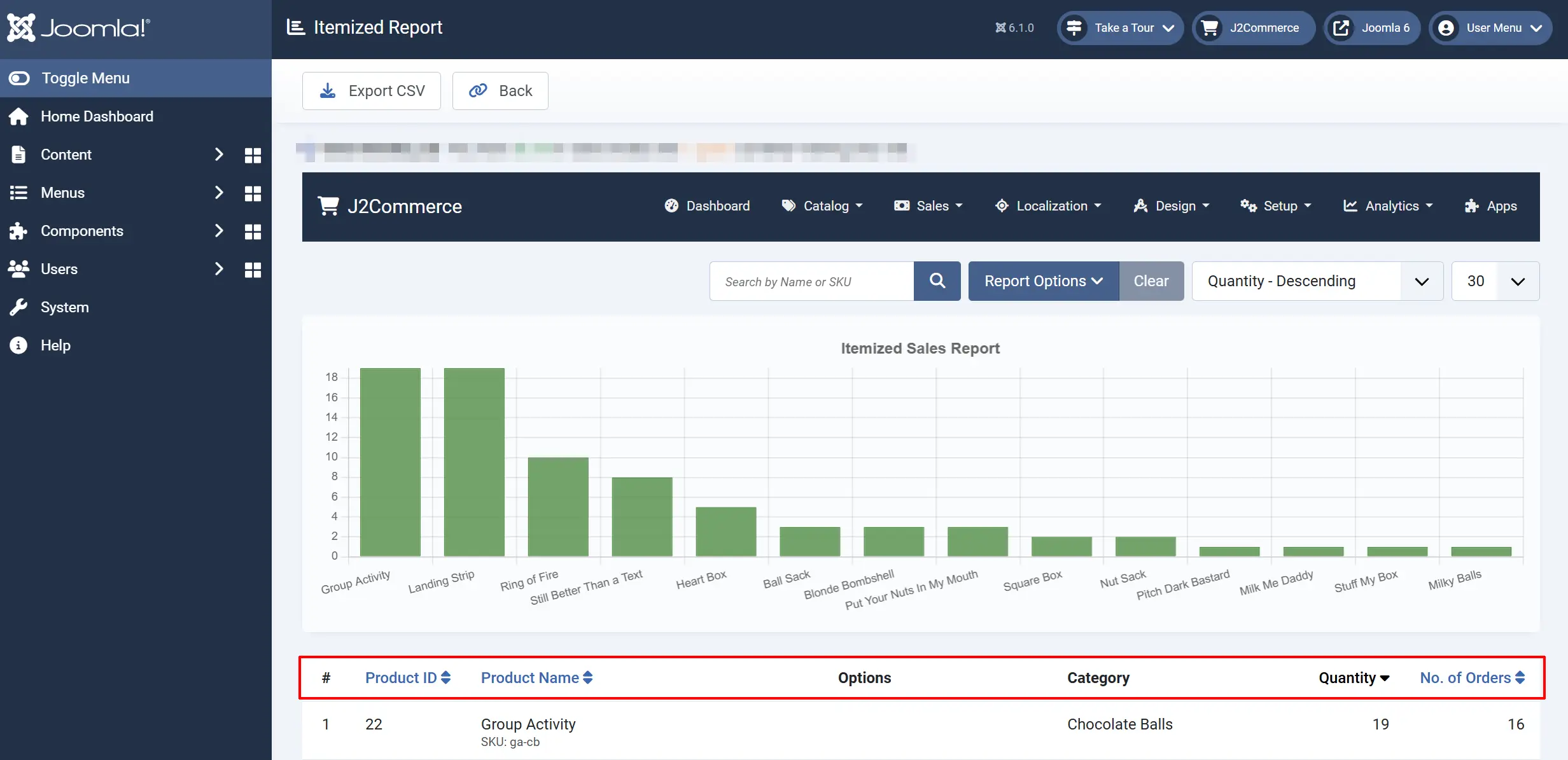
#: Row number
Product ID: The internal J2Commerce product ID
Product Name: The name of the product, with SKU shown below it
Options: The specific option values for this row (e.g., Size: Large, Color: Blue)
Category: The Joomla category the product belongs to
Quantity: Total number of units sold
No. of Orders: How many separate orders include this product
A Total row at the bottom sums up the Quantity and No. of Orders columns.
Filtering Your Data
Use the filter toolbar above the table to narrow down the results.
Search
Type a product name or SKU into the search box and press Enter. The report updates to show only matching products.
Order Status
Select an order status from the dropdown to include only orders with that status. For example, select Confirmed to exclude cancelled or pending orders from the report.
Duration
Choose a preset time period or set a custom date range:
Today: Orders placed today
This Week: Orders from the current week
This Month: Orders from the current month
This Year: Orders from the current year
Last 7 Days: Orders from the past 7 days
Last Month: Orders from the previous calendar month
Last Year: Orders from the previous calendar year
Custom: Enter a specific From Date and To Date
When you select Custom, two date picker fields appear. Choose your start and end dates to define the exact range.
Sorting
Click any column header to sort the table by that column. Click again to reverse the sort direction. You can also use the Sort By dropdown to choose from:
- Product ID (ascending or descending)
- Product Name (ascending or descending)
- Quantity (ascending or descending)
- No. of Orders (ascending or descending)
By default, the report sorts by Quantity in descending order, showing your best sellers first.
Exporting to CSV
Click the Export CSV button in the toolbar to download the full report as a CSV file. The export includes all filtered results (not just the current page) with these columns:
- Product ID
- Product Name
- Options
- Category
- Quantity
- No. of Orders
A totals row is included at the bottom of the exported file. Open the CSV in Excel, Google Sheets, or any spreadsheet application for further analysis.
Tips
- Filter by status first. Set the Order Status to Confirmed (or your equivalent completed status) before analyzing. This ensures cancelled or incomplete orders do not skew your numbers.
- Use Custom dates for seasonal analysis. Compare holiday periods year over year by setting custom date ranges.
- Check the Options column. If a product has many variants, this report helps you identify which specific options are most popular so you can stock accordingly.
- Export regularly. Download a monthly CSV export to build a historical archive of your sales data outside of J2Commerce.
Troubleshooting
Report shows no data
Cause: No orders match the current filter criteria, or the plugin is disabled.
Solution:
- Clear all filters by resetting the search box, order status, and duration dropdowns.
- Verify that you have completed orders in the system by checking J2Commerce -> Sales -> Orders.
- Go to the J2Commerce icon at the top right corner -> Analytics -> Reports and confirm the Itemized Report plugin is enabled.
Options column is empty
Cause: The products in your orders do not have options (variants) configured, or the orders were placed before options were added.
Solution:
This is normal for simple products without variants. The Options column only displays data when the ordered product had option selections (e.g., Size, Color) at the time of purchase.
Category column is empty
Cause: The product is not linked to a Joomla article category, or the article has been unpublished.
Solution:
- Edit the product in J2Commerce -> Catalog -> Products.
- Check that the product is associated with a published Joomla article.
- Verify the article belongs to a published category.