EU VAT for Physical Goods
When selling physical goods within the European Union, the VAT applied depends on the buyer's location and VAT registration status. J2Commerce offers a VAT plugin that validates VAT numbers automatically and applies the correct tax rules.
Important Legal Notice
The information and examples provided are for general informational purposes only and do not constitute tax or legal advice. J2Commerce and its employees or affiliates make no representations or warranties regarding accuracy or applicability and accept no liability for VAT or tax compliance. Tax regulations, including but not limited to, US, CANADIAN tax or EU VAT rules for digital and physical goods, are complex and subject to change. Users are solely responsible for ensuring compliance and should consult a qualified tax advisor.
How VAT Applies to Physical Goods
| Buyer Type | Location | VAT Number | Tax Applied |
|---|---|---|---|
| Individual or Company | Your home country | Any | Your country's VAT rate |
| Individual | Other EU country | N/A | Your country's VAT rate |
| Company | Other EU country | Invalid or None | Your country's VAT rate |
| Company | Other EU country | Valid | 0% VAT (reverse charge) |
| Individual or Company | Non-EU country | Any | 0% VAT (export) |
The system follows these standard EU VAT principles:
| Buyer Type | Location | VAT Number | Result |
|---|---|---|---|
| Individual/Company | Home Country | Any | Home VAT Rate applied |
| Individual | Other EU Country | N/A | Home VAT Rate applied |
| Company | Other EU Country | Invalid/None | Home VAT Rate applied |
| Company | Other EU Country | Valid | 0% VAT |
| Individual/Company | Non-EU | Any | 0% VAT |
Store Configuration
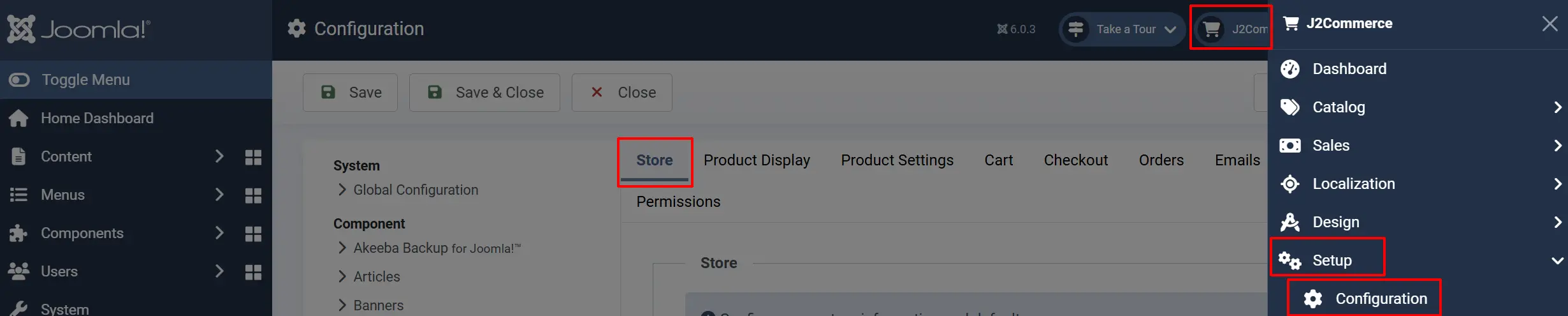
Go to J2Commerce -> Setup -> Configuration -> Store tab.
Set the Default Country to your home country. ie; United Kingdom
Set the State/Province
Purchase and Download
This plugin is a separate add-on available from the J2Commerce Extensions Store. It is not included with the core J2Commerce 6 component.
Step 1: Go to our J2Commerce website
Step 2: Locate the European VAT App -> click View Details -> Add to cart -> Checkout.
Step 3: Go to your My Downloads under your profile button at the top right corner and search for the app. Click Available Versions -> View Files -> Download Now
Installing the Plugin
To automate the validation of VAT numbers against the official EU database (VIES), you must install the VAT Plugin from the J2Commerce Extensions store.
You can install this European VAT App using the Joomla installer. The following steps help you with a successful installation.
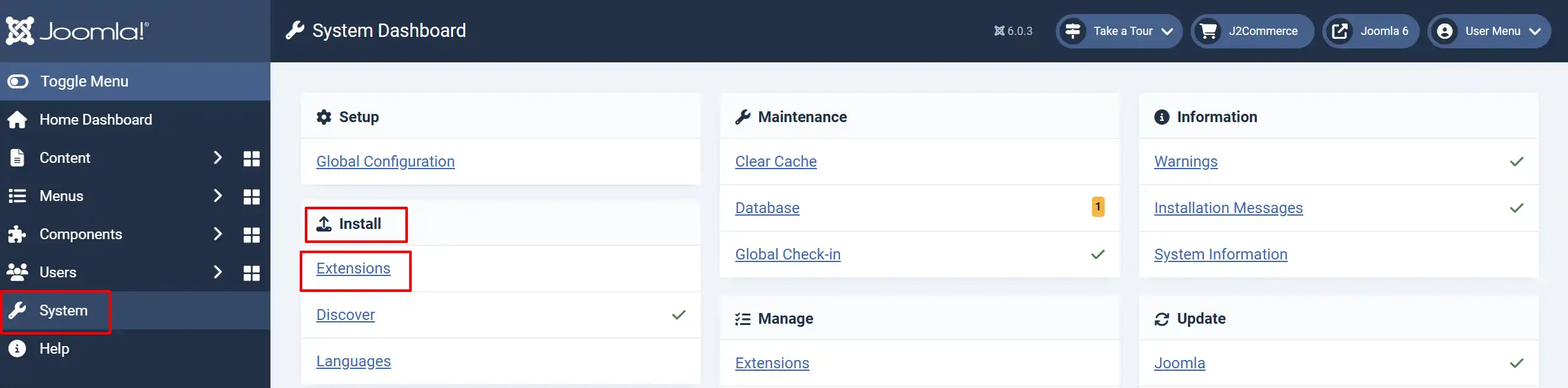
In the Joomla admin, go to System -> Install -> Extensions
Upload the plugin ZIP file or use the install from URL option.
Enable the App
NOTE: You must enable the EU VAT Plugin to automate the verification of VAT IDs against the EU database. Without this, you cannot reliably distinguish between B2B and B2C transactions.
Once you have installed the extension, you will need to enable it. There are two ways you can access the Apps.
Option A: Go to the J2Commerce icon at the top right corner -> Apps
Option B: Go to Components on the left sidebar -> J2Commerce -> Apps
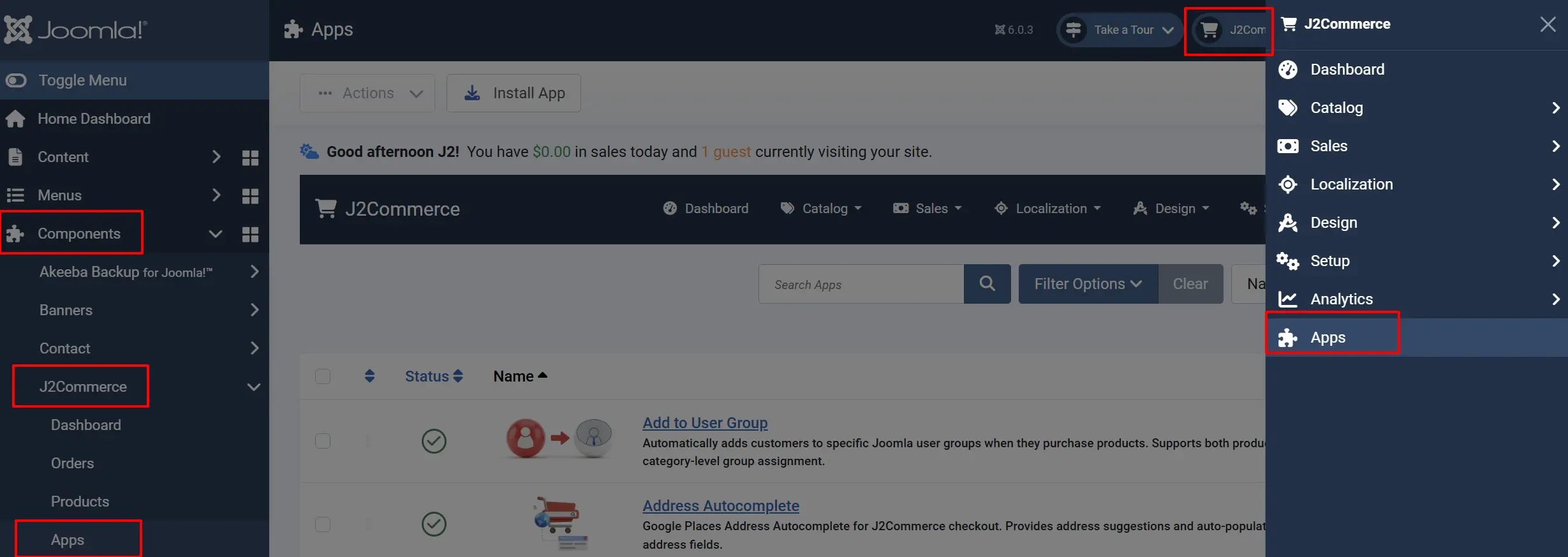
Look for European VAT click the X, and it will turn into a green checkmark. It is now enabled and ready for setup.
Define the VAT Geo Zone
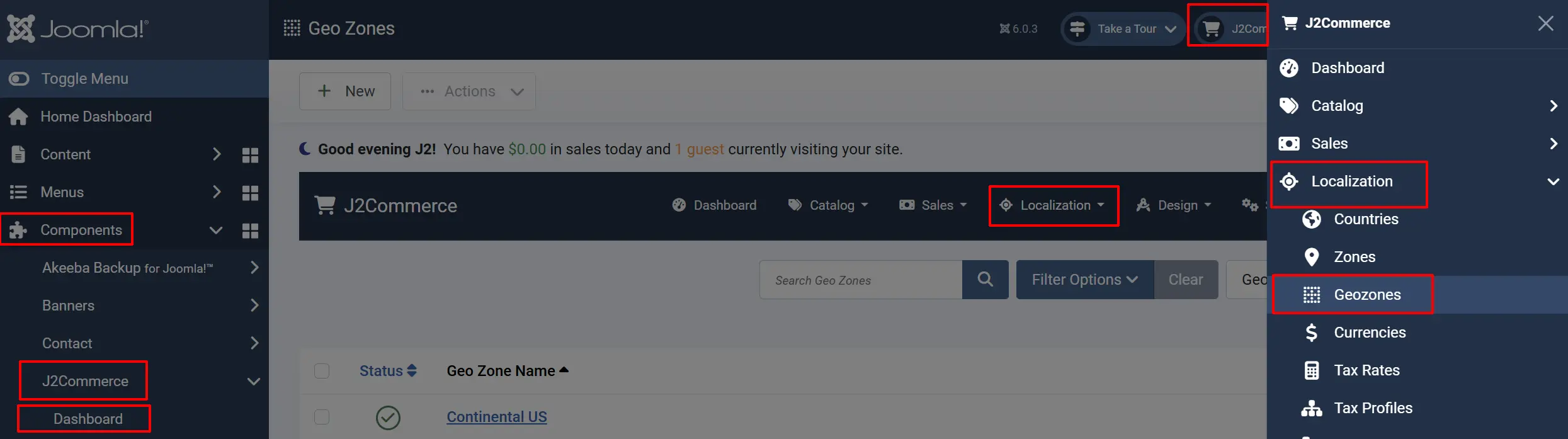
Group all taxable EU countries together.
Go to Localisation -> Geo Zones -> New.
-
Name:
VAT Zone. -
Important: Add your home country AND all other EU countries to this Geo Zone. This ensures that EU residents without a valid VAT number are charged your home rate.
Set the VAT Rate
Go to Localisation -> Tax Rates -> New.
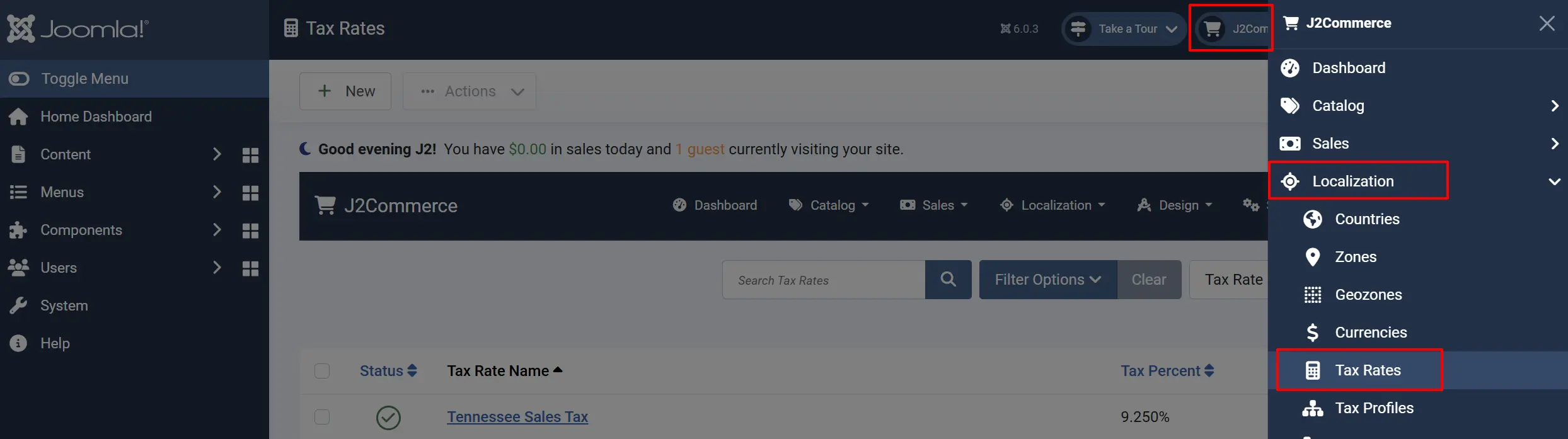
Name: VAT Rate.
Tax Percent: Enter your home country's VAT percentage (e.g., 21).
Geo Zone: Select the VAT Zone created above.
Create the Tax Profile
Go to Localisation -> Tax Profiles -> New.
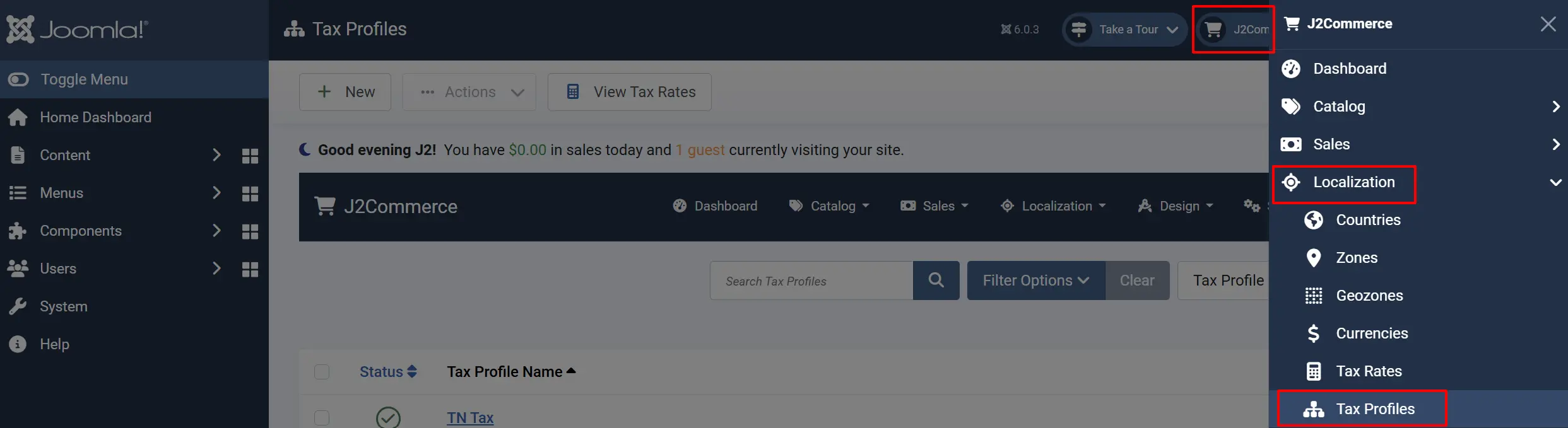
Tax Profile Name: Physical Goods Tax Profile.
Mapping: Add a rule selecting the VAT Rate and set the Associated Address to Billing Address.
Apply Tax Profile to Products
Each product must have the tax profile assigned.
- Go to Content -> Articles and open a product article.
- Click the J2Commerce tab.
- Go to the General tab.
- Find the Tax Profile field and select "
Physical Goods Tax Profile". - Click Save.
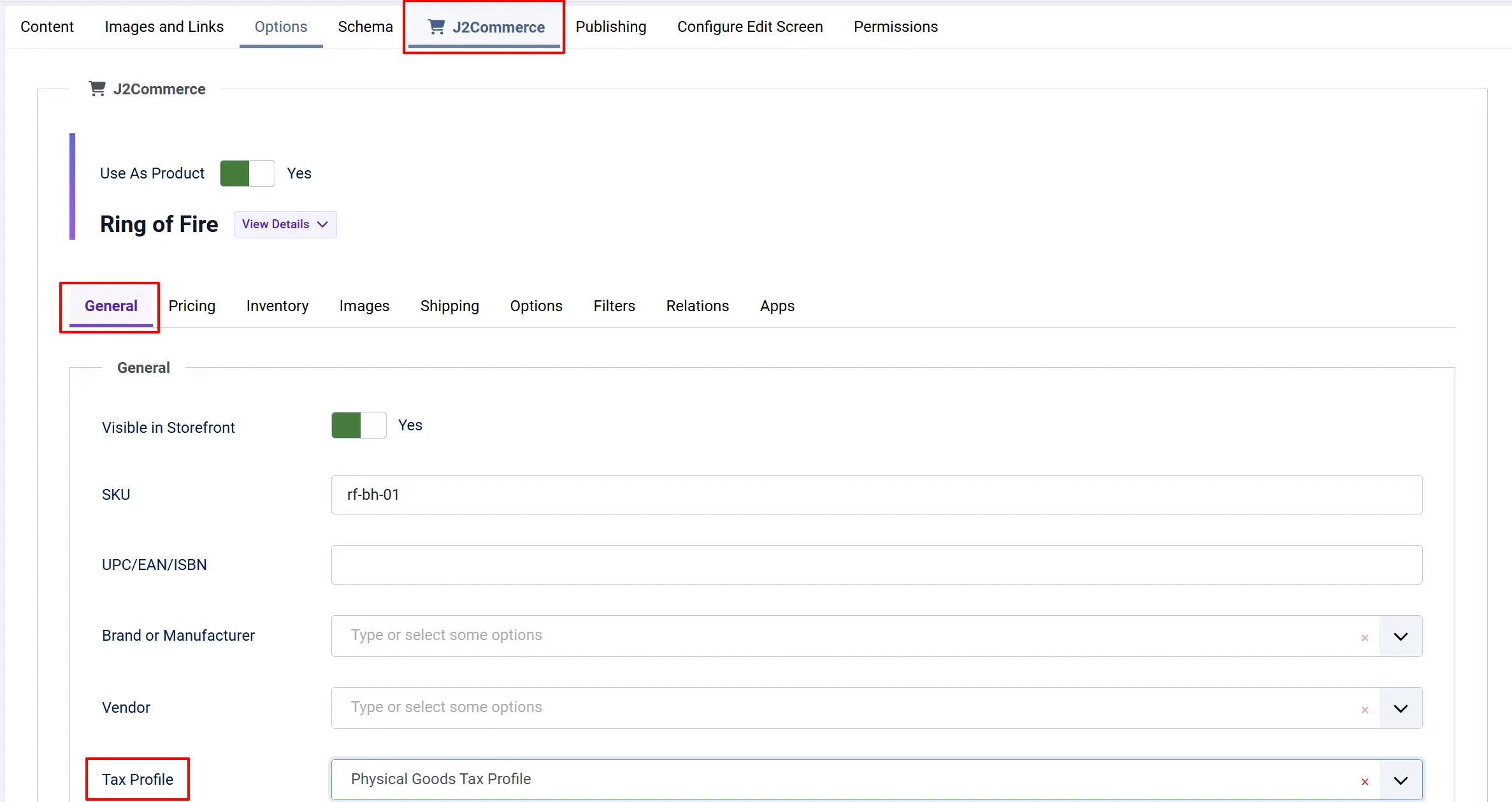
If you do not choose the tax profile, tax will NOT be applied in the storefront.
Tips
- B2B Transactions: The VAT plugin is critical for B2B sales. When a customer enters a valid VAT number, J2Commerce will automatically zero out the tax for that order.
- Non-EU Exports: By not adding non-EU countries to your "VAT Zone," J2Commerce will automatically apply 0% VAT to those orders.
Troubleshooting
Tax shows for EU businesses with valid VAT ID
Cause: The VAT number validation plugin is not installed or not enabled.
Solution: Install the European VAT plugin from the J2Commerce Extensions Store and enable it in System -> Manage -> Plugins.
Non-EU customers are charged VAT
Cause: Your VAT Zone geozone includes non-EU countries.
Solution: Edit the VAT Zone and ensure only EU countries are included. Non-EU customers should not match any tax geozone.
VAT applies for all products when it shouldn't
Cause: Products have a tax profile assigned when they should be exempt.
Solution: Edit the exempt products and set Tax Profile to "None" or create a separate "No Tax" profile.