EU VAT Configuration
This guide explains how to configure Value Added Tax (VAT) for stores based in the European Union. The example uses Germany with a 19% VAT rate, but you can adapt it to any EU country.
Important Legal Notice
The information and examples provided are for general informational purposes only and do not constitute tax or legal advice. J2Commerce and its employees or affiliates make no representations or warranties regarding accuracy or applicability and accept no liability for VAT or tax compliance. Tax regulations, including but not limited to, US, CANADIAN tax or EU VAT rules for digital and physical goods, are complex and subject to change. Users are solely responsible for ensuring compliance and should consult a qualified tax advisor.
Understanding EU VAT Pricing
EU stores typically display prices including VAT. When you enter a product price of €100, customers see €100 (with the VAT already calculated into that price).
Recommended Step-by-Step Setup
Step 1: Create a Geozone for Base Rates
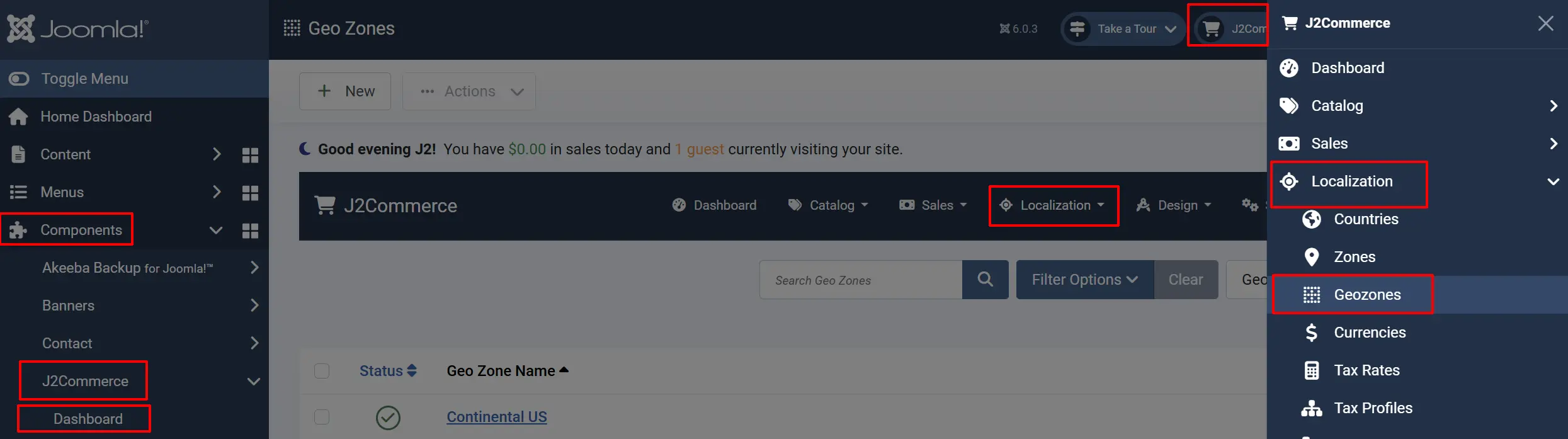
- Go to J2Commerce -> Localisation -> Geozones.
-
Click New.
-
Enter the following:
- Geozone Name:
Base rates - Country:
Germany - Zones:
All
- Geozone Name:
-
Click Save.
Step 2: Create a Tax Rate
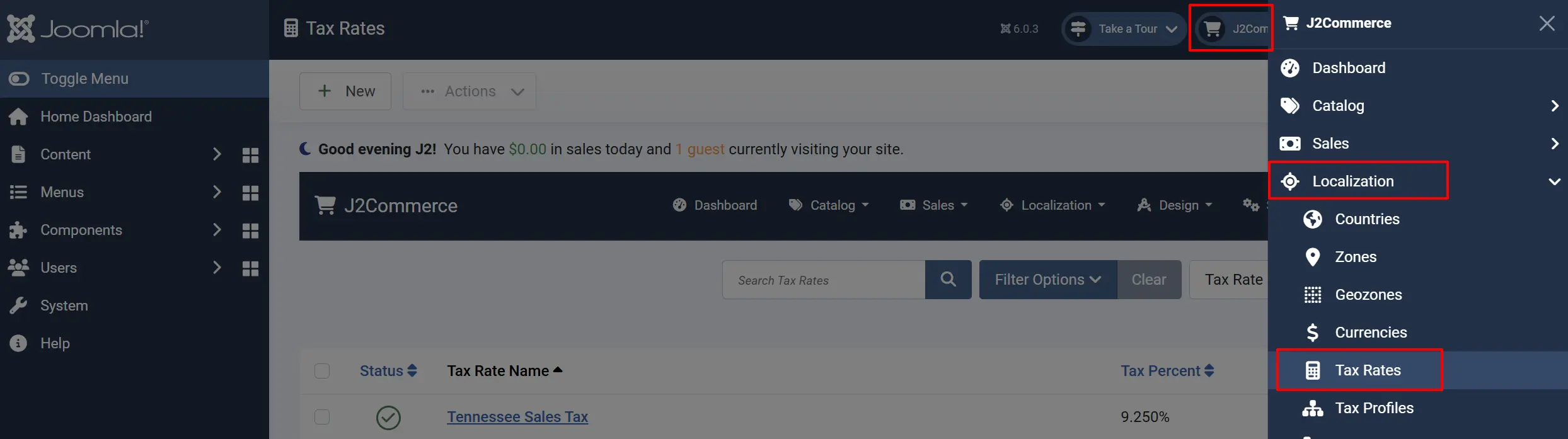
- Go to J2Commerce -> Localisation -> Tax Rates.
-
Click New.
-
Enter the following:
- Name:
VAT - Tax Percent:
19 - Geozone:
Base rates - Status:
Published
- Name:
-
Click Save.
Step 3: Create a Tax Profile and Rules
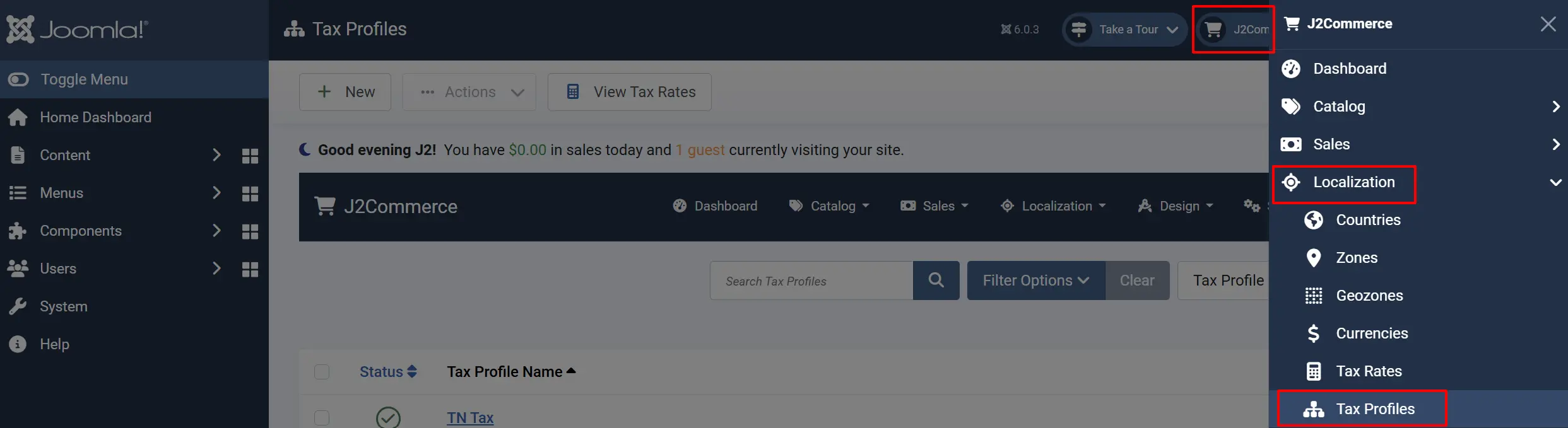
- Go to J2Commerce -> Localisation -> Tax Profiles.
-
Click New.
-
Enter the following:
- Tax Profile Name:
Base Tax Profile - Status:
Published
- Tax Profile Name:
-
In the Tax Rate section, click Add, select the VAT rate, and set the Address Type to Shipping.
-
Click Save.
Step 4: Configure General Tax Settings
Because EU prices are generally displayed inclusive of tax, use these settings:
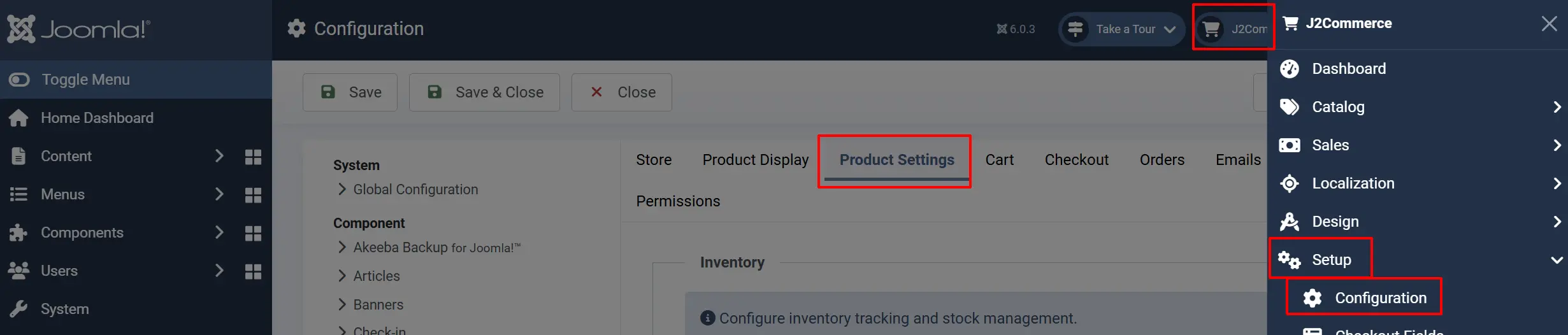
- Go to J2Commerce -> Setup -> Configuration.
-
Navigate to the Product Settings tab.
-
Set the following values:
| Setting | Value | Description |
|---|---|---|
| Prices Entered with Tax | Yes | Prices in the backend include VAT. |
| Calculate tax based on | Shipping address | VAT is based on where the item is sent. |
| Default Customer address | Store address | Default to your home country. |
| Display prices on product pages | Including tax | Customers see the final price. |
| Display prices in cart / checkout | Including tax | Show inclusive prices. |
| Apply discounts | After tax | Discounts are applied to the gross price. |
Step 5: Assign Tax Profile to Products
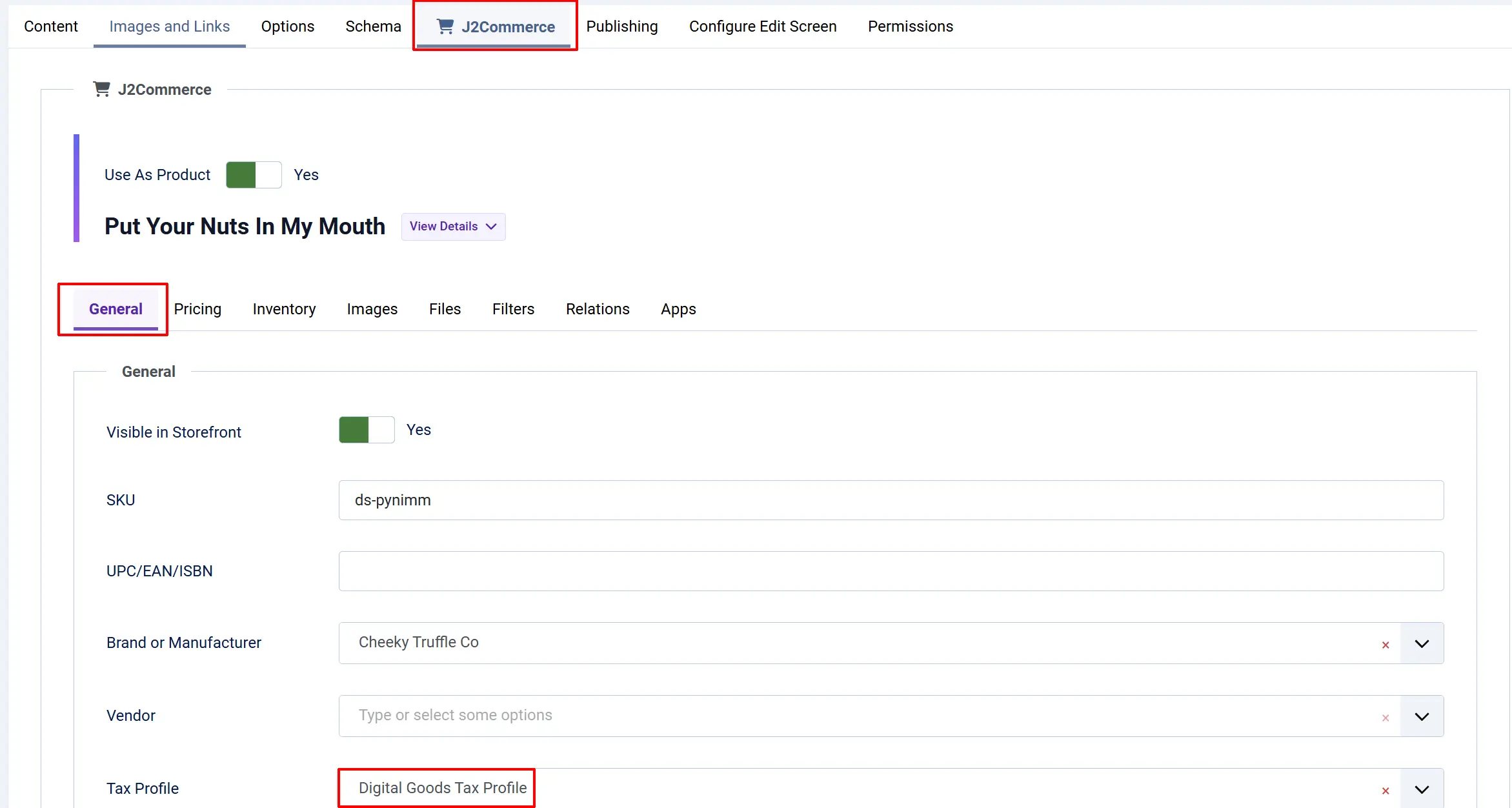
- Open the Article Manager and edit your product.
- Go to the J2Commerce tab -> General tab.
- Select Base Tax Profile from the Tax Profile dropdown.
- Click Save.
Selling to Multiple EU Countries
If you sell across Europe, you have two options for managing different VAT rates:
Option A: Same VAT Rate
If other countries use the same rate (e.g., 19%), simply edit your Base rates Geozone and add those additional countries to the list.
Option B: Different VAT Rates
- Create a new Geozone for the specific countries (e.g., "France & Italy").
- Create a new Tax Rate with the correct percentage (e.g., 20%).
- Open your Base Tax Profile and add a new rule mapping this new tax rate to the Shipping address.
Digital Goods Note
For digital products, EU law requires charging VAT based on the buyer's location (Billing Address). For this, we recommend using the EU VAT Plugin, which automates VAT number validation and handles B2B (0% VAT) vs. B2C transactions.