J2Commerce CLI
The J2Commerce CLI plugin adds command-line tools to your Joomla installation. These commands let you create new payment or shipping plugins from templates and load sample store data for testing — all without opening a web browser.
This plugin is designed for store owners and developers who prefer working from the terminal or need to automate repetitive tasks.
Requirements
- PHP 8.3.0+
- Joomla! 6.x
- J2Commerce 6.x
- SSH or terminal access to your server
Enable the Plugin
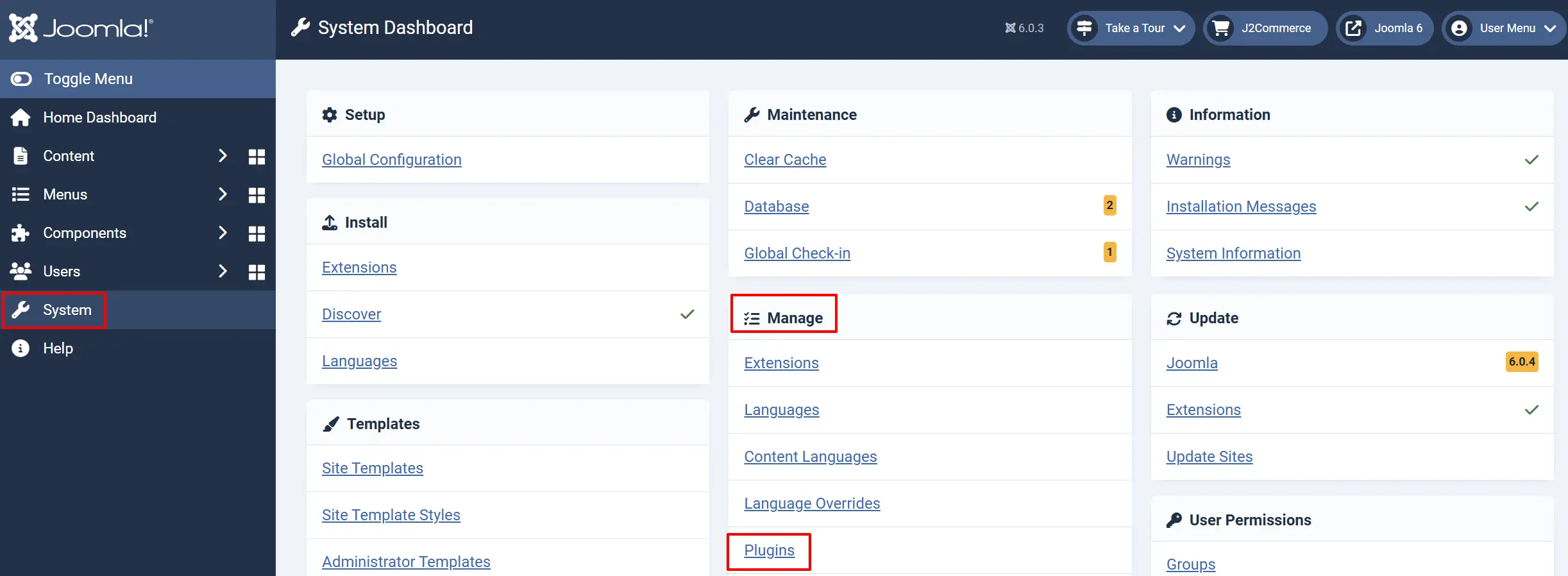
-
Go to System -> Manage -> Plugins.
-
Search for J2Commerce CLI.
-
Verify the plugin shows a green checkmark (enabled). If not, click the status icon to enable it.
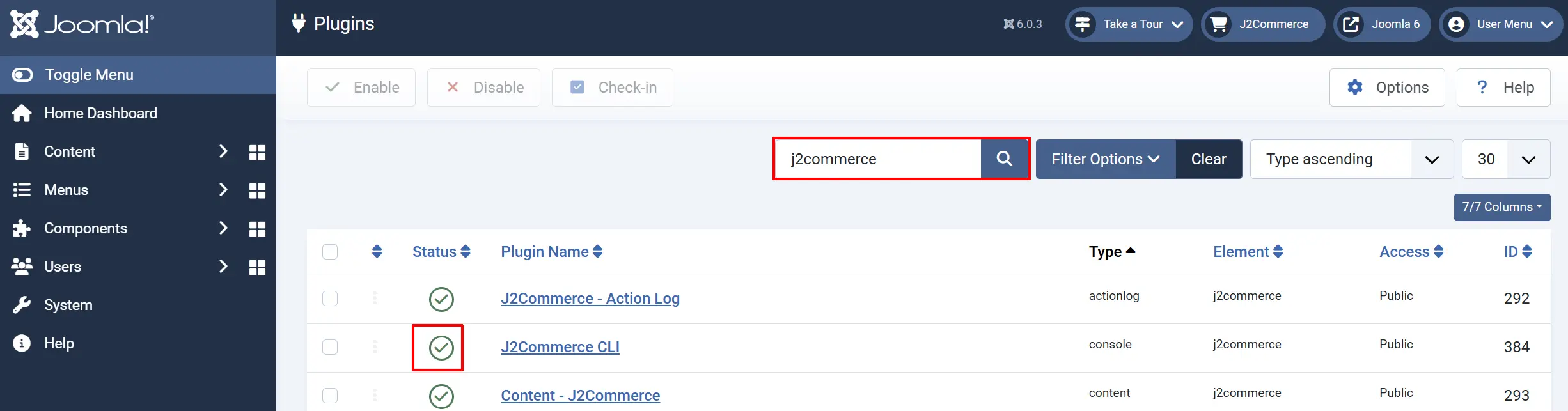
Available Commands
The plugin registers two CLI commands that you can run from your server's terminal.
Create Plugin Command
Scaffolds a new J2Commerce payment or shipping plugin with all required files, ready for customization.
php joomla.php j2commerce:create:plugin [type] [name]
Below are the Argument / Options and Descriptions
type: The plugin type: payment or shipping
name: Plugin name in lowercase with underscores (e.g., my_gateway)
--path: Output directory (defaults to plugins/j2commerce/)
--install: Automatically install the plugin after creation
--force: Overwrite existing files if the plugin already exists
Example — Create a payment plugin:
php joomla.php j2commerce:create:plugin payment my_gateway
The command asks a series of questions to customize your plugin:
For payment plugins:
Display name: Human-readable name shown to customers
Sandbox mode support: Adds sandbox/test mode toggle
Sandbox credential fields: Adds separate fields for test API keys
Webhook support: Adds webhook endpoint handling
Surcharge support: Adds payment surcharge fields
Geozone restriction: Limits the method to specific geozones
Min/max subtotal limits: Restricts availability by cart total
Debug logging: Adds debug log output
For shipping plugins:
Display name: Human-readable name shown to customers
API credentials: Adds API key/secret fields
Sandbox mode support: Adds sandbox/test mode toggle
Surcharge support: Adds shipping surcharge fields
Geozone restriction: Limits the method to specific geozones
Shipping tax (tax profile): Adds tax profile selection
Custom rate table: Adds a rate table for manual rates
Debug logging: Adds debug log output
After answering, the command creates all plugin files (PHP classes, XML manifest, language files, templates) in the output directory. The generated plugin follows J2Commerce 6 coding standards and is ready for you to add your custom logic.
Non-interactive mode: If you run the command in a script or CI pipeline, the questions are skipped and default values are used automatically.
Load Sample Data Command
Populates your store with sample categories, products, customers, and orders for testing or demonstration purposes.
php joomla.php j2commerce:load:sampledata
| Option | Short | Description | Default |
|---|---|---|---|
--profile | -p | Data volume preset: minimal, standard, or full | standard |
--yes | -y | Skip the confirmation prompt | No |
--clean | Remove existing sample data before loading new data | No | |
--remove | Remove all sample data and exit (does not load new data) | No | |
--categories | Override number of categories | Profile default | |
--products | Override number of simple products | Profile default | |
--variable | Override number of variable products | Profile default | |
--customers | Override number of customers | Profile default | |
--orders | Override number of orders | Profile default |
Example — Load standard sample data:
php joomla.php j2commerce:load:sampledata --profile standard --yes
Example — Load minimal data with custom product count:
php joomla.php j2commerce:load:sampledata --profile minimal --products 10 --yes
Example — Remove all sample data:
php joomla.php j2commerce:load:sampledata --remove
After loading, the command displays a summary table showing how many categories, products, customers, and orders were created.
Use the --clean flag to remove old sample data and reload fresh data in one step. This is useful when you want to reset your demo store.
How to Run CLI Commands
Joomla CLI commands are executed from your server's terminal (SSH, local terminal, or command prompt).
Step 1: Open a terminal and navigate to your Joomla root directory:
cd /path/to/your/joomla
Step 2: Run the command using the Joomla CLI entry point:
php joomla.php [command]
Step 3: To see all available J2Commerce commands:
php joomla.php list | grep j2commerce
This shows all registered commands that start with j2commerce:.
Tips
- Use sample data for demos. Load the
fullprofile before presenting your store to a client or team. Remove it afterwards with--remove. - Scaffold plugins to save time. The
create:plugincommand generates a complete plugin skeleton that follows J2Commerce conventions, so you can focus on the business logic. - Automate with scripts. Both commands support non-interactive mode (
--yesflag for sample data, or pipe input for plugin creation), making them suitable for CI/CD pipelines and deployment scripts. - Back up before loading sample data. Always create a backup before loading sample data on a production site. Sample data can be removed with
--remove, but a backup provides extra safety.
Troubleshooting
Command not found
Cause: The J2Commerce CLI plugin is not enabled, or J2Commerce is not installed.
Solution:
- Go to System -> Manage -> Plugins.
- Search for J2Commerce CLI and verify it is enabled.
- Verify J2Commerce is installed by checking Components -> J2Commerce in the admin menu.
- Run
php joomla.php listto see all available commands. If noj2commerce:commands appear, the plugin is not active.
"Sample data is already loaded" warning
Cause: Sample data was previously loaded and has not been removed.
Solution:
Use the --clean flag to remove existing data and load fresh data:
php joomla.php j2commerce:load:sampledata --clean --yes
Or remove the data entirely with:
php joomla.php j2commerce:load:sampledata --remove
Plugin creation fails with "directory already exists"
Cause: A plugin with the same name already exists in the output directory.
Solution:
Use the --force flag to overwrite existing files:
php joomla.php j2commerce:create:plugin payment my_gateway --force
Or choose a different plugin name.
Permission denied errors
Cause: The web server user does not have write access to the plugins directory.
Solution:
- Ensure the
plugins/j2commerce/directory is writable by the user running the command. - On Linux/macOS, you may need to run with appropriate permissions or use
sudo.