Managing Products
The Products list is your central hub for managing everything you sell in your J2Commerce store. From here you can view, search, filter, publish, and delete products — all in one place.
Each product is linked to a Joomla article, which holds the product title, description, images, and category. J2Commerce layers pricing, stock, shipping, and tax settings on top of that article.
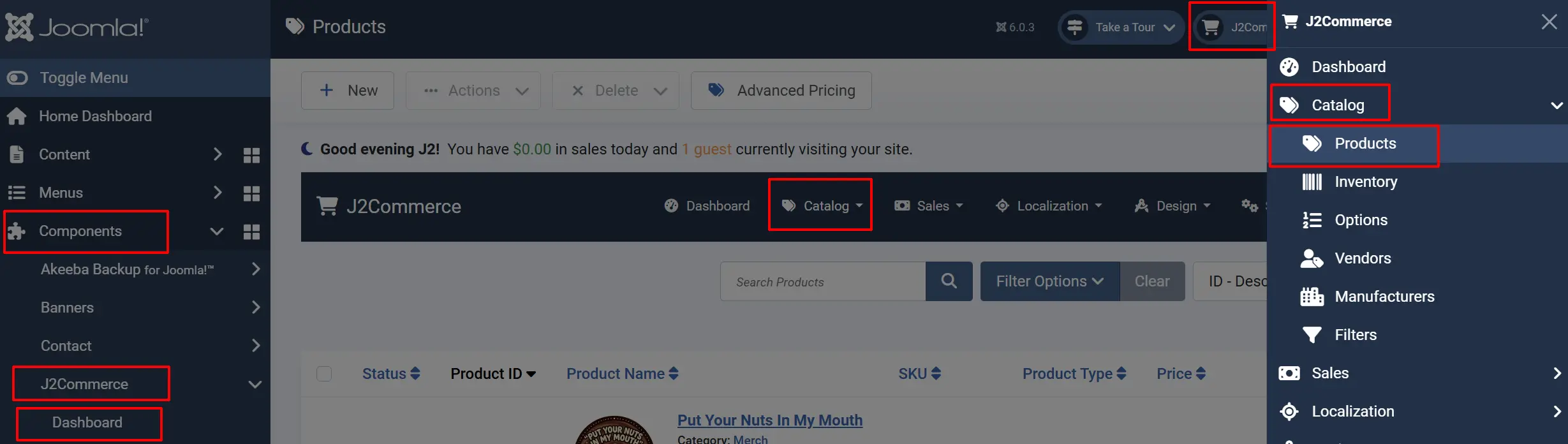
Accessing the Products List
There are two ways you can access Manufacturers.
Option A: Go to the J2Commerce icon at the top right corner -> Catalog -> Products
Option B: Go to Components on the left sidebar -> J2Commerce -> Dashboard -> Catalog -> Products
Understanding the Products List

The list shows all products in your store. Each row displays:
Status: Green (published) or red (unpublished) toggle. Click to change.
Product Name: Product title with thumbnail image, category, and tax profile shown below.
SKU: The Stock Keeping Unit identifier for this product.
Product Type: Simple, Variable, Configurable, or Downloadable.
Price: Base price formatted in your store currency.
Shipping: Whether shipping is enabled for this product.
Visibility: Whether the product appears in your catalog and search results.
ID: The internal product ID number.
Click any column heading to sort the list by that column. Click again to reverse the sort order.
Toolbar Actions
The toolbar at the top of the page contains the actions you can take on selected products.

New: Opens the Joomla article editor to create a new product.
Actions:
-
Publish: Makes the selected products visible to customers.
-
Unpublish: Hides the selected products from your storefront.
Delete Product: Removes the J2Commerce product data but keeps the Joomla article.
Delete Product & Article: Permanently removes both the product data and the linked article.
Advanced Pricing: Opens the Advanced Pricing manager for setting special or tiered prices.
Options: Opens the global J2Commerce configuration settings.
Help: Opens the J2Commerce documentation.
To act on multiple products at once, check the boxes in the left column, then click the toolbar button. Check the top checkbox to select all products on the current page.
Searching and Filtering
Use the search bar and filter panel to quickly find the products you need.
Search Bar
Type in the search box to search by product name or SKU.
You can also use these prefixes for an exact search:
| Prefix | Example | Finds |
|---|---|---|
id: | id:42 | The product with ID 42 |
sku: | sku:TSHIRT-L | The product with that exact SKU |
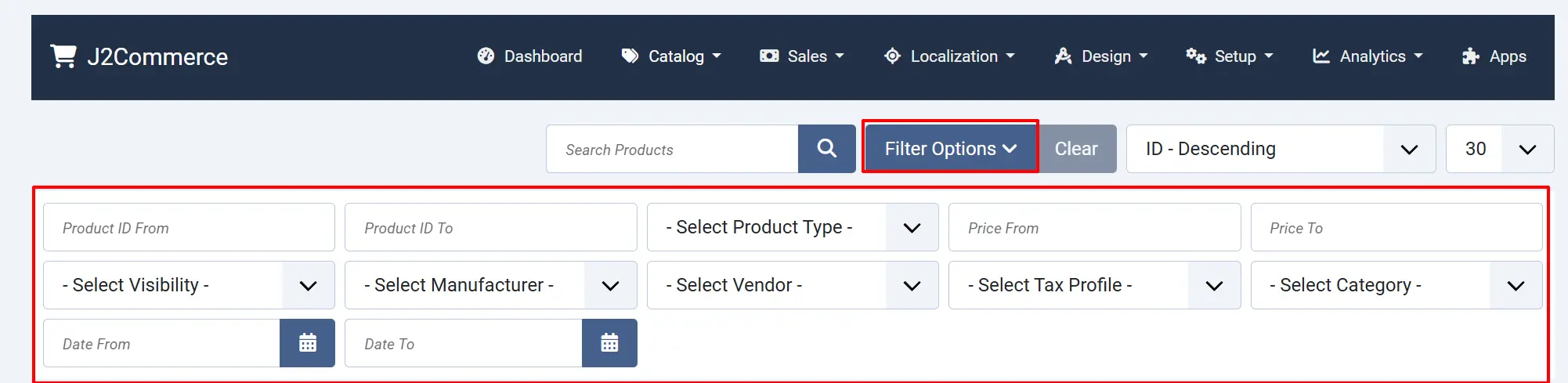
Filter Options
Click the Search Tools button next to the search bar to show additional filters.
| Filter | Description |
|---|---|
| Product Type | Filter by Simple, Variable, Configurable, or Downloadable. |
| Visibility | Show only visible or hidden products. |
| Category | Filter by Joomla article category. |
| Tax Profile | Filter by assigned tax profile. |
| Manufacturer | Filter by manufacturer (if configured). |
| Vendor | Filter by vendor (if using multi-vendor features). |
| Product ID From / To | Filter by a range of product ID numbers. |
| Price From / To | Filter by price range. |
| Date From / To | Filter by the date the product article was created. |
To clear all filters and reset the list, click the Clear button or remove each filter manually.
Product Types
J2Commerce supports four product types. You assign the type when setting up the product.
| Type | Best For |
|---|---|
| Simple | A single product with no selectable options (e.g., a book, a candle). |
| Variable | A product with options the customer selects, such as size or color, each with its own price and stock. |
| Configurable | A product with customer-configurable options that affect the final price. |
| Downloadable | A digital product delivered as a file download after purchase. |
For detailed setup instructions for each type, see the Product Types guides.
Publishing and Unpublishing Products
A published product is visible in your store. An unpublished product is hidden from customers but remains in your admin panel.
To publish or unpublish a single product:
Click the status icon (green or red circle) in the Status column for that product.
To publish or unpublish multiple products at once:
- Check the boxes next to the products you want to update.
- Click Publish or Unpublish in the toolbar.
Deleting Products
Use Delete Product when you want to remove the J2Commerce settings but keep the Joomla article (for example, if you plan to re-enable the product later). Use Delete Product & Article to remove everything permanently.
- Check the box next to each product you want to delete.
- Open the Delete dropdown in the toolbar.
- Choose Delete Product or Delete Product & Article.
- Confirm the action when prompted.
Advanced Pricing
The Advanced Pricing button in the toolbar opens a separate screen where you can set:
- Special prices for specific date ranges
- Quantity-based tiered pricing
- Customer group-specific prices
Tips
- Use the Visibility filter to quickly find products that are hidden from your catalog. Hidden products will not appear in search results or category pages even if they are published.
- Use the
sku:prefix in the search bar for exact SKU lookups when you know the full SKU. - Products with a lock icon in the Name column are currently being edited by another user. Wait for them to save or cancel before editing.
Troubleshooting
A product is published but not showing on my site
Cause: The linked Joomla article may be unpublished, or the product's Visibility is set to No.
Solution:
- Check the Status column. If the circle is red, click it to publish the product.
- Open the product and verify the article it is linked to is also published in Content -> Articles.
- Open the product and check that Visibility is set to Yes.
I deleted a product but the article is still in Joomla
Cause: You used Delete Product instead of Delete Product & Article.
Solution:
The article is still in your Joomla Content -> Articles list. If you no longer need it, go there and delete it manually. J2Commerce does not automatically remove articles when using the product-only delete option.
Filters are applied but I cannot tell which ones
Cause: Filters persist between page loads and are easy to forget.
Solution:
Click Search Tools to open the filter panel and review what is selected. Click Clear to reset all filters and show the full product list.