Cash on Delivery Payment
The Cash on Delivery plugin provides a simple payment method for stores that accept payment upon delivery or in-person pickup. Customers place their order online and pay with cash when they receive their goods — no credit cards, bank transfers, or third-party payment processors required.
This is ideal for local delivery services, restaurant takeout, farmers markets, and any business where you deliver products and collect payment at the door.
Enable the Plugin
This plugin ships with J2Commerce 6 and is available immediately after installation. There are three ways you can access the plugin.
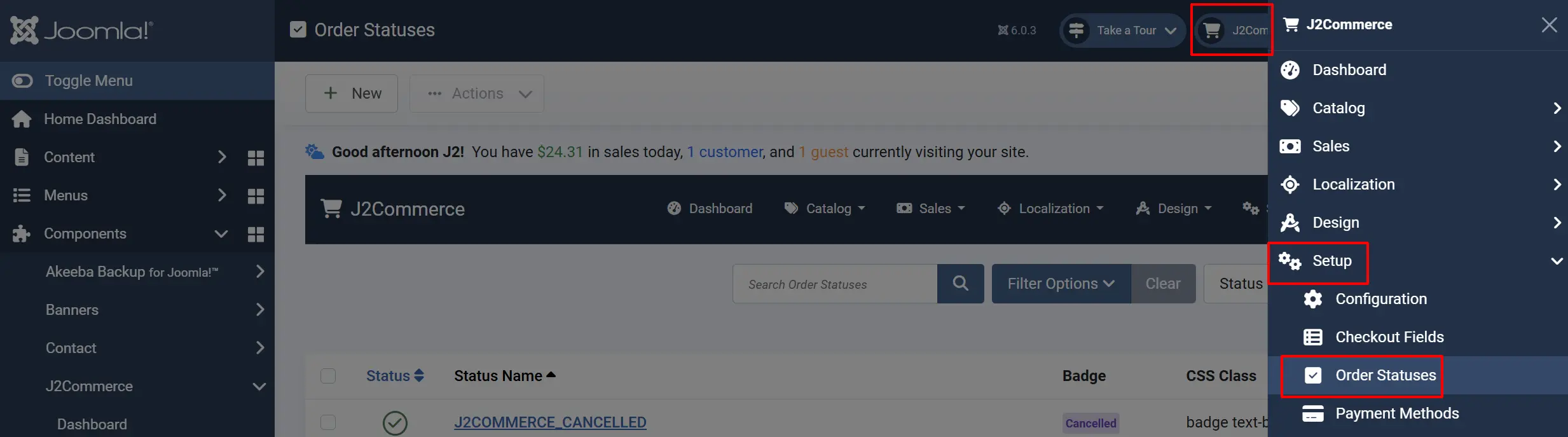
Option A: Go to the J2Commerce icon at the top right corner -> Setup -> Payment Methods
Option B: Go to Components on the left sidebar -> J2Commerce -> Dashboard -> Setup -> Payment Methods
Option C: Go to Settings on the left sidebar -> Manage -> Plugins
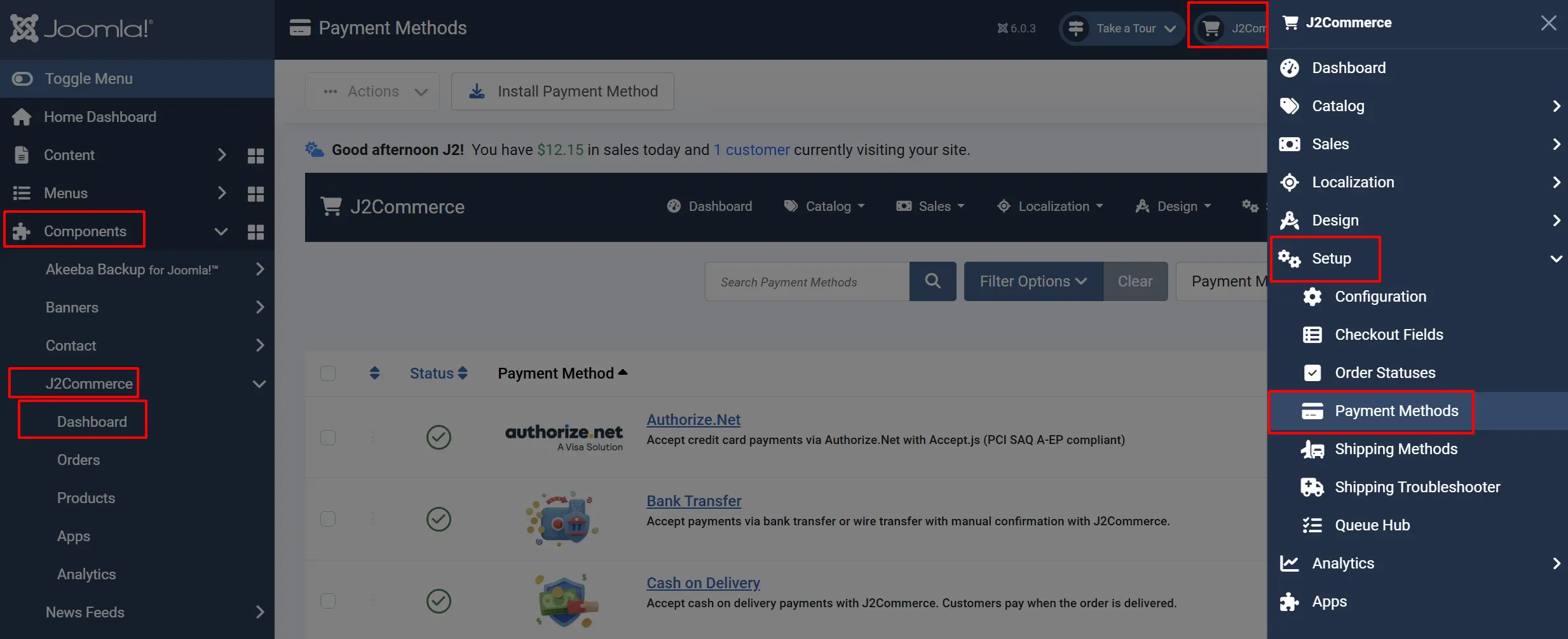
Look for Cash on Demand, click the X, and it will turn into a green checkmark. It is now enabled and ready for setup.
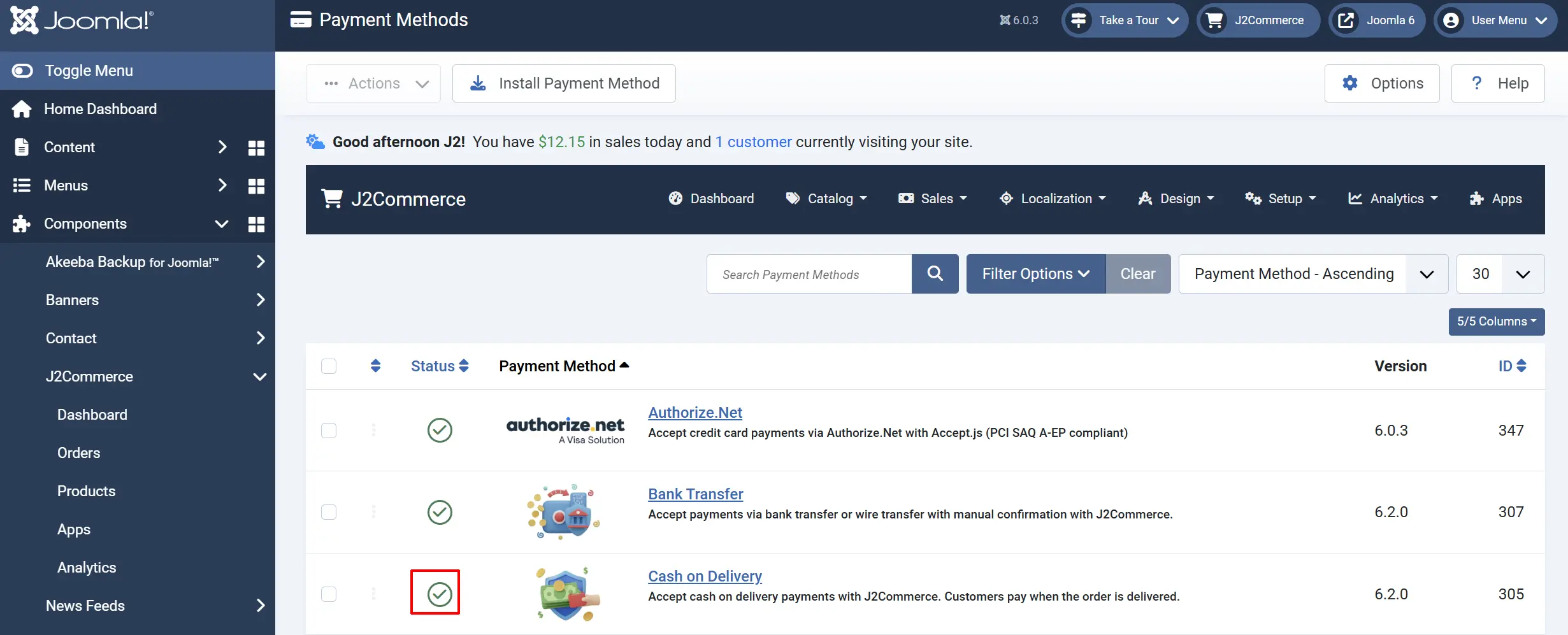
Configuration
After enabling the plugin, click the Cash on Delivery title to open the settings.
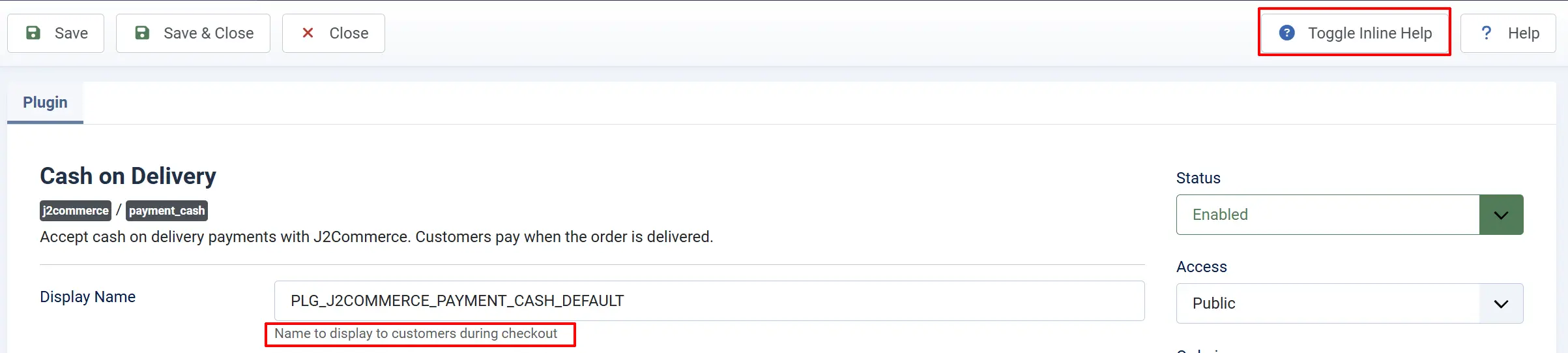
Tip: Click on the Toggle Inline Help button on any app/plugin you install and it will show a description below each section. See image below
Display Settings
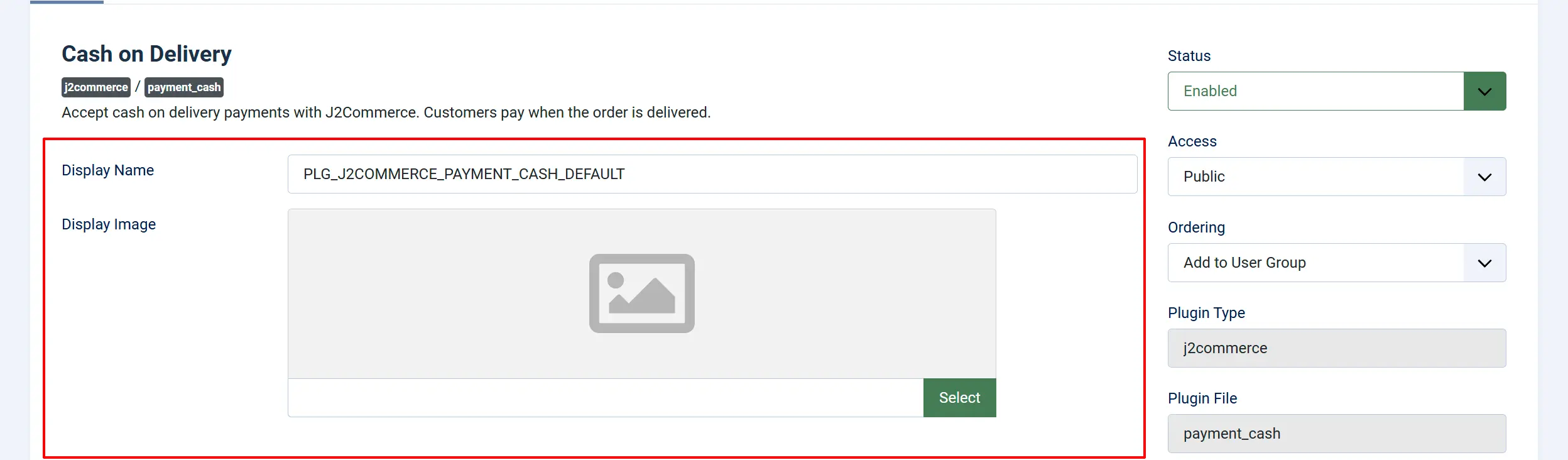
Display Name: The label shown to customers at checkout. You can change this to anything — "Cash on Delivery", "Pay on Pickup", "Collect on Delivery", etc.
Display Image: Optional logo or image shown next to the payment option at checkout
The Display Name supports language string keys. If you enter PLG_J2COMMERCE_PAYMENT_CASH, the plugin will use the translated name from your language files.
Surcharge (Optional)

Add a fee for cash on delivery orders. This is useful if you want to charge extra for the convenience or to cover handling costs.
Surcharge Name: Label shown to customers for the surcharge (e.g., "COD Fee", "Handling Fee")
Surcharge Percent: Percentage of the order subtotal added as a surcharge
Surcharge Fixed: Fixed amount added as a surcharge (in your store currency)
Surcharge Tax Class: Tax profile to apply to the surcharge amount
You can combine a percentage and a fixed amount — both will be added together. For example, with 2% surcharge and a $5 fixed fee on a $100 order, the total surcharge is $7.
Order Amount Limits

Restrict cash on delivery to orders within a specific price range.
Minimum Subtotal: Hide Cash on Delivery if the cart subtotal is below this amount
Maximum Subtotal: Hide Cash on Delivery if the cart subtotal exceeds this amount. Set to -1 for no maximum.
Why use limits?
- Minimum: Some stores don't want the overhead of COD for small orders (e.g., under $20).
- Maximum: Reduce risk by limiting COD to smaller orders, requiring a different payment method for large orders.
Order Status

Order Status: The status applied after the customer confirms the order
When a customer places an order using Cash on Delivery, the order is immediately marked with this status. Most stores use Confirmed or Processing since the customer has committed to pay on delivery.
Choose Pending if you want to manually review each COD order before proceeding.
Geo-Zone Restriction
Geo-Zone Restriction: Limit Cash on Delivery to customers in a specific region or country
Select a geo-zone to show this payment method only to customers whose billing or shipping address matches that zone. This is useful for:
- Local delivery areas only
- Specific countries or regions where you accept cash
- Excluding regions with high fraud rates
Leave empty to show Cash on Delivery to all customers regardless of location.
Thank You Page
Thank You Article: Select a Joomla article to display after a successful order. This appears on the confirmation page in addition to the standard thank-you message.
Use this to show delivery instructions, payment reminders, or contact information. For example, create an article with your delivery hours and contact phone number.
Custom Messages
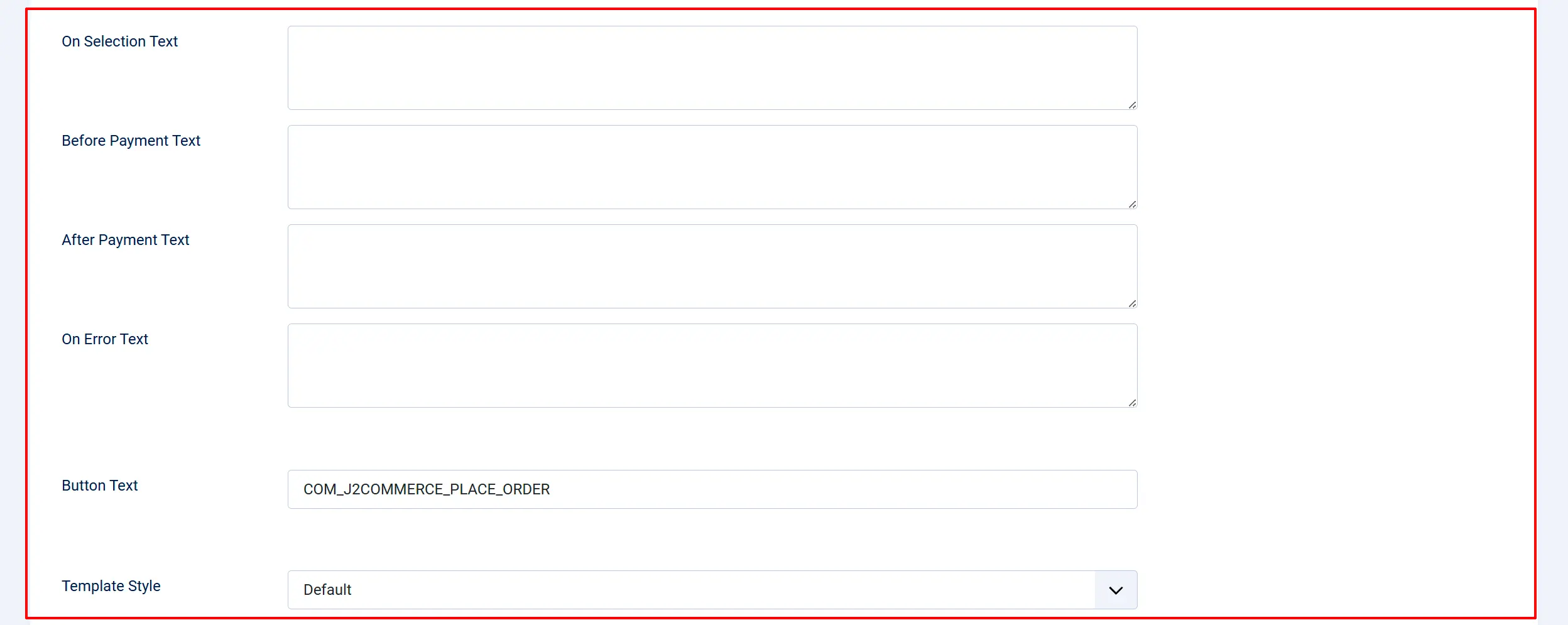
These text fields let you customize messages shown to customers at different points in the checkout process.
On Selection: It displays when the customer selects Cash on Delivery as their payment method — shown on the payment selection page
On Before Payment: It displays on the confirmation page before the customer clicks the final Place Order button
On After Payment: It displays on the thank-you page after the order is confirmed
On Error Payment: It displays when an error occurs during order processing
Common use for On Before Payment:
Please have exact change ready. Our driver carries limited cash.
Common use for On After Payment:
Thank you for your order! Please have payment ready when your order arrives.
Button Text
Button Text: The text on the final confirmation button
Change this to something more specific, like "Confirm Order" or "Complete Purchase" if you prefer.
Template Style
Template Style: Select an alternative layout template for the Cash on Delivery payment form
Subtemplates let you customize how the payment step appears. If you've installed additional payment templates (via app plugins), they appear in this dropdown.
Checkout Experience
When a customer selects Cash on Delivery at checkout:
- The customer selects Cash on Delivery from the payment options.
- If you configured an On Selection message, it appears below the payment option.
- The customer proceeds to the order confirmation page.
- The On Before Payment message appears (if configured).
- The customer clicks Place Order (or your custom button text).
- The order is created with the configured order status.
- The On After Payment message appears (if configured) along with the thank-you article.
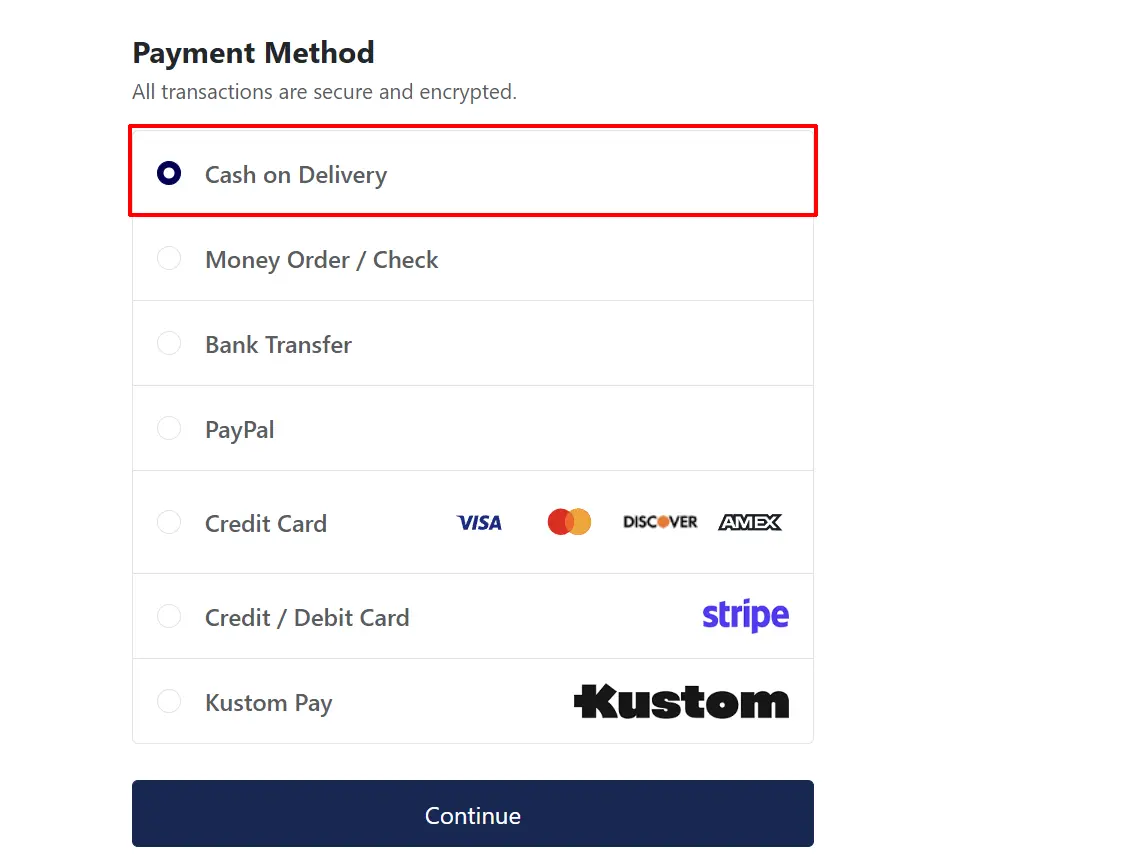
No payment gateway interaction occurs — the order is simply recorded as awaiting cash payment on delivery.
Order Management
After an order is placed:
- Order status is set to the status you configured (default: Confirmed).
- Order history records "Payment received via Cash on Delivery".
- Payment method shows "Cash on Delivery" in the order details.
Marking Orders as Paid
When you receive payment on delivery:
-
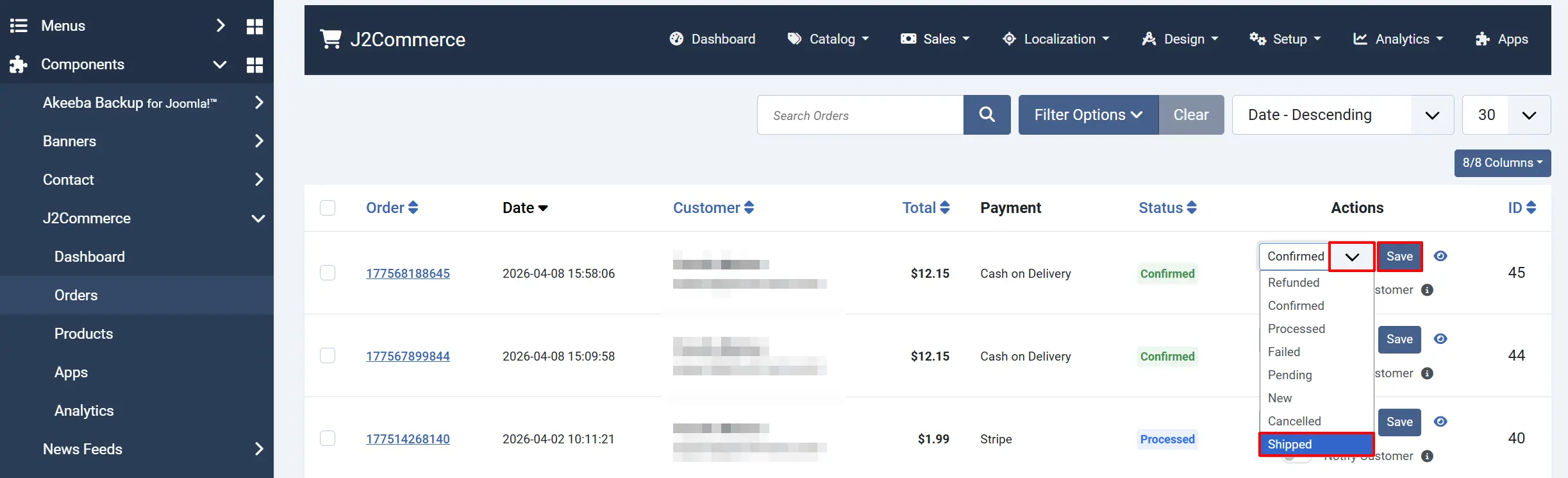
Go to J2Commerce -> Sales -> Orders.
-
Change the order status to Shipped, Delivered, or a custom status that indicates successful payment.
There is no automatic "paid" status change — you update the order manually when you collect payment.
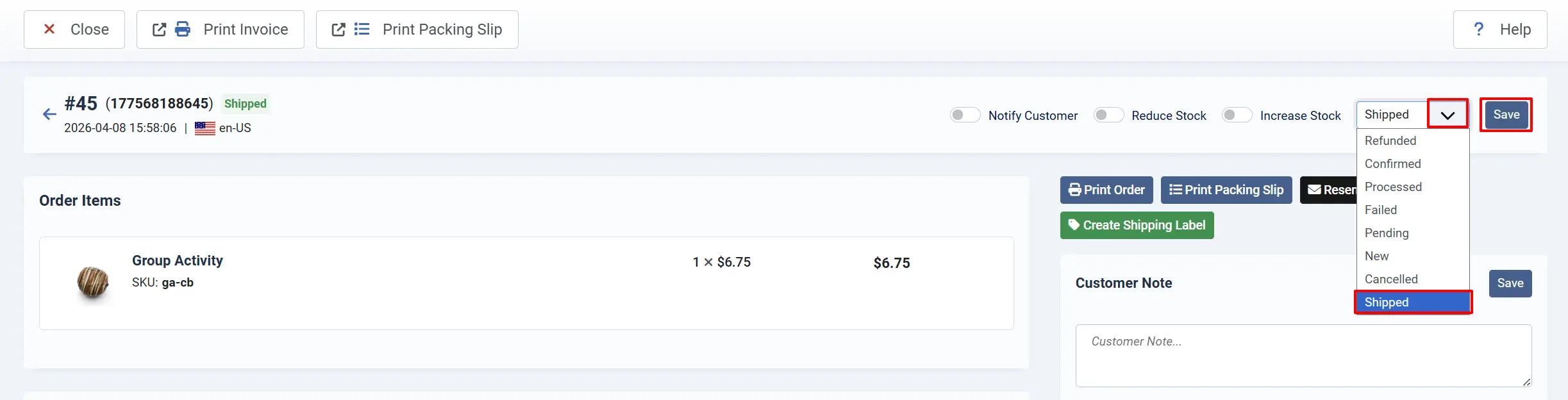
There are two locations you can change the order status.
Option A: on the main order page. Click Save after selecting the new status
Option B: Open the order and change it in the top right corner. Click Save after selecting the new status
- Add a note in the order history (e.g., "Payment collected on delivery").
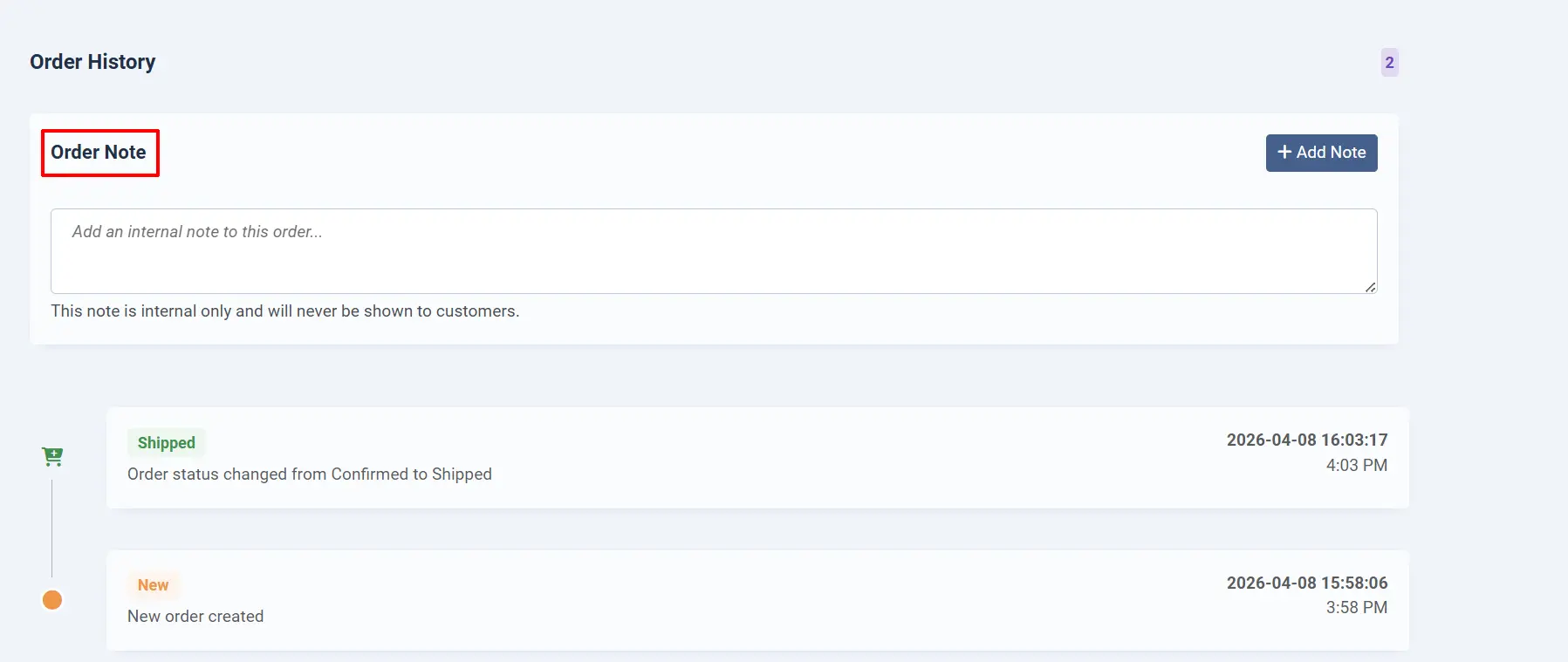
Handling Failed Payments
If a customer refuses or cannot pay on delivery:
- Open the order in Orders.
- Change the status to Cancelled or a custom status like COD Failed.
- Add an order history note explaining what happened.
- Contact the customer if needed to resolve the issue.
How to Add a New Order Status
If you don't see the status you want, ie: delivered, paid, etc.
Go to J2Commerce -> Setup -> Order Statuses -> New. If you have questions on how to create a new status, check out the Order Status Documentation.
When to Use Cash on Delivery
Cash on Delivery works best for:
| Use Case | Why COD fits |
|---|---|
| Local delivery | You deliver products within your city and can collect payment in person |
| Restaurant takeout | Customers pick up orders and pay at the counter |
| Farmers markets | Seasonal vendors who sell at physical locations |
| Customers without cards | Serve customers who don't have credit cards or bank accounts |
| Building trust | New customers may prefer paying when they see the product |
Cash on Delivery is not recommended for:
- International shipping (you cannot collect cash across borders)
- High-value items (risk of non-payment)
- Digital products (nothing to deliver)
- Scalable e-commerce (manual payment collection doesn't scale)
Tips
- Set a maximum order amount to limit your risk. Larger orders should use secure payment methods.
- Use geo-zone restrictions to limit COD to areas where your delivery drivers operate.
- Add a surcharge to cover the extra handling time and cash management costs.
- Configure an "On Before Payment" message to remind customers about exact change or delivery timing.
- Monitor unpaid orders by creating a custom order status like "COD Pending" and regularly review orders in that status.
Troubleshooting
Cash on Delivery does not appear at checkout
Cause: The plugin is disabled, or geo-zone/order amount restrictions are hiding it.
Solution:
- Go to J2Commerce -> Setup -> Payment Methods and confirm Cash on Delivery is enabled.
- Check the Minimum Subtotal and Maximum Subtotal settings. If the cart is outside this range, the payment method is hidden.
- Check the Geo-Zone Restriction setting. If set, only customers in that zone see Cash on Delivery.
- If your store uses multiple currencies, verify the cart total meets the minimum in the current currency.
Orders show "Pending" instead of "Confirmed"
Cause: The Order Status setting is set to Pending.
Solution: Open the Cash on Delivery plugin settings and change Order Status to Confirmed or Processing.
Surcharge is not added to the order
Cause: The surcharge fields are empty or the tax class is misconfigured.
Solution:
- Open the plugin settings and verify Surcharge Percent or Surcharge Fixed has a value greater than zero.
- If you want the surcharge to be taxable, select a Surcharge Tax Class.
- Clear the J2Commerce cache and try again.
Customers outside my delivery area can still select Cash on Delivery
Cause: The geo-zone restriction is not set, or the customer's address does not match the geo-zone rules.
Solution:
- Go to J2Commerce -> Localisation -> Geo Zones and verify your geo-zone is configured correctly with the right countries and zones.
- Open the Cash on Delivery plugin and select that geo-zone in Geo-Zone Restriction.
- Test with a customer address inside and outside the zone to confirm the restriction works.
"Invalid payment request" error appears
Cause: The order could not be loaded, or the payment hash validation failed.
Solution:
- Check the Joomla error log at
administrator/logs/error.phpfor details. - Verify the J2Commerce component is fully installed and all database tables exist.
- Try placing a new order from a different browser session.