Avalara AvaTax
Sales tax in the United States is a patchwork of more than 13,000 jurisdictions, each with its own rates and rules. Avalara AvaTax takes that burden off your shoulders by calculating the correct tax at checkout in real time, filing detailed transaction records with Avalara's cloud service, and validating shipping addresses before orders are placed.
The Avalara AvaTax app for J2Commerce submits your orders to the AvaTax API after payment is confirmed, stores a local record of every transaction, and gives you a dashboard inside your Avalara account for reporting and remittance.
This app is a separate add-on available from the J2Commerce Extensions Store. It is not included with the core J2Commerce component.
What you need before you start
Before installing the plugin, gather the following from your Avalara account:
- Account ID — a numeric identifier found on your Avalara account page
- License Key — the API password associated with your Account ID
- Company Code — the short code Avalara assigns to each company (often
DEFAULTfor single-company accounts) - Your origin (ship-from) address — street, city, state/region, postal code, and country
- A decision on environment — use Sandbox while testing, then switch to Production when you go live
- A dedicated J2Commerce Tax Profile — the plugin does not create one for you automatically. Create an empty tax profile (no local tax rates attached) in J2Commerce -> Localisation -> Tax Profiles before you reach Step 6 below.
If you don't have an Avalara account yet, sign up at avalara.com. Avalara offers a free trial for evaluation.
Purchase and Download
The AvalaraTax is a separate add-on available from the J2Commerce Extensions Store. It is not included with the core J2Commerce 6 component.
Step 1: Go to www.j2commerce.com -> Apps.
Step 2: Locate the AvalaraTax app, click View Details, then Add to Cart -> Checkout.
Step 3: After purchase, go to My Downloads under your profile menu and find the app. Click Available Versions -> View Files -> Download Now.
Install the App
In the Joomla Administrator, go to System -> Install -> Extensions.
Upload the plugin plg_j2commerce_app_avalaratax.zip file or use the Install from URL option.

Enable the App
The plugin installs and enables itself automatically. No separate enable step is needed. However, it's important to know where to go to enable or disable it in the future .
There are two ways to reach the Apps list.
Option A: Go to the J2Commerce icon at the top right corner -> Apps
Option B: Go to Components on the left sidebar -> J2Commerce -> Apps

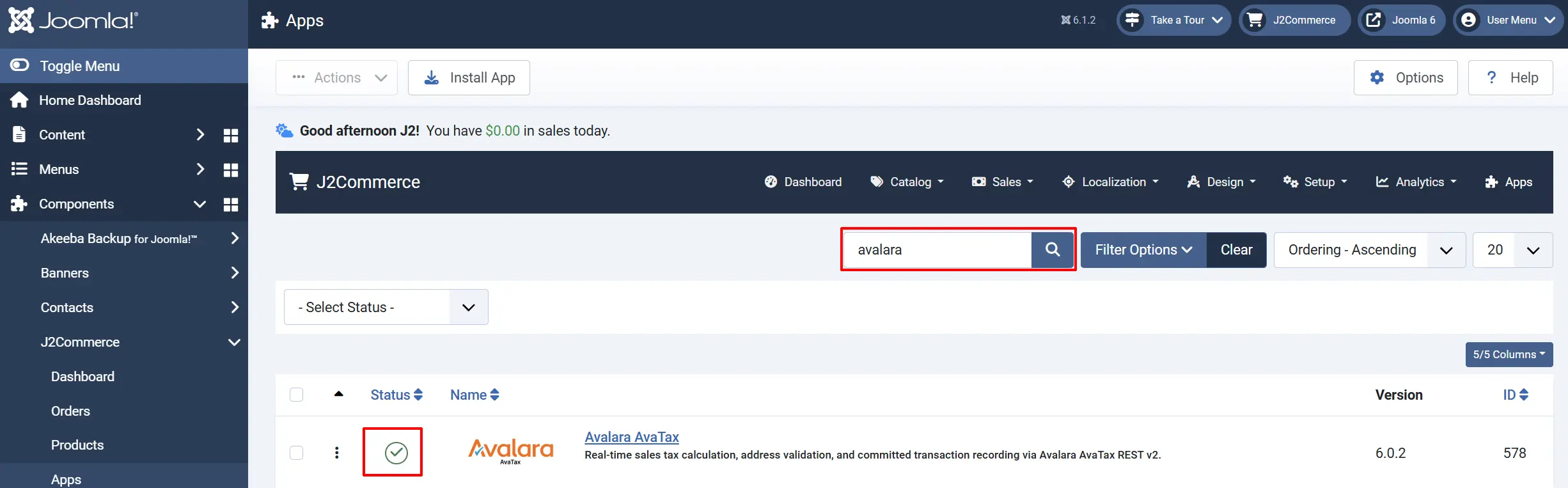
To help you narrow down the list, you can do a search for AvalaraTax, click the X, and it will turn into a green checkmark. It is now enabled and ready for setup.
Configure the App
Work through these steps in order. Don't switch to Production until every step passes.
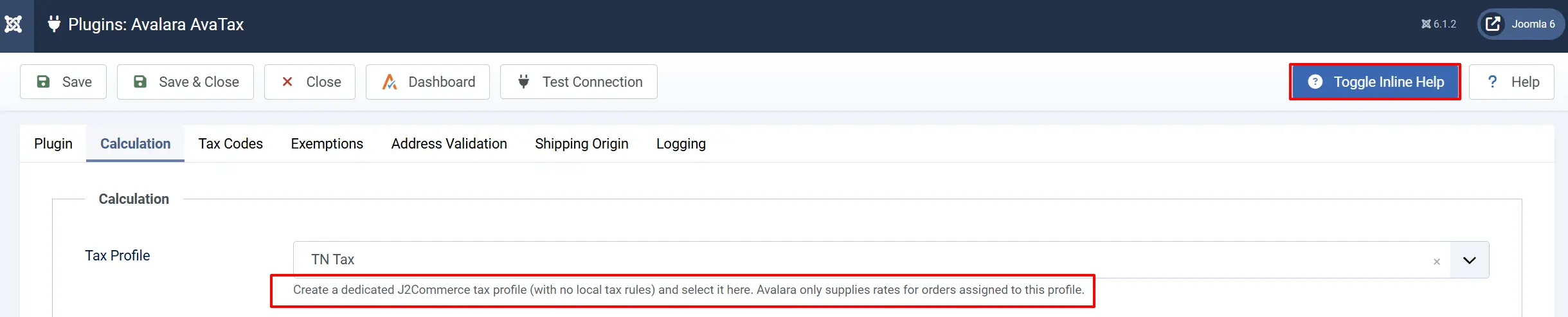
Click the Toggle Inline Help button on any app you install to see a description below each field directly in the admin panel.
Avalara Credentials tab
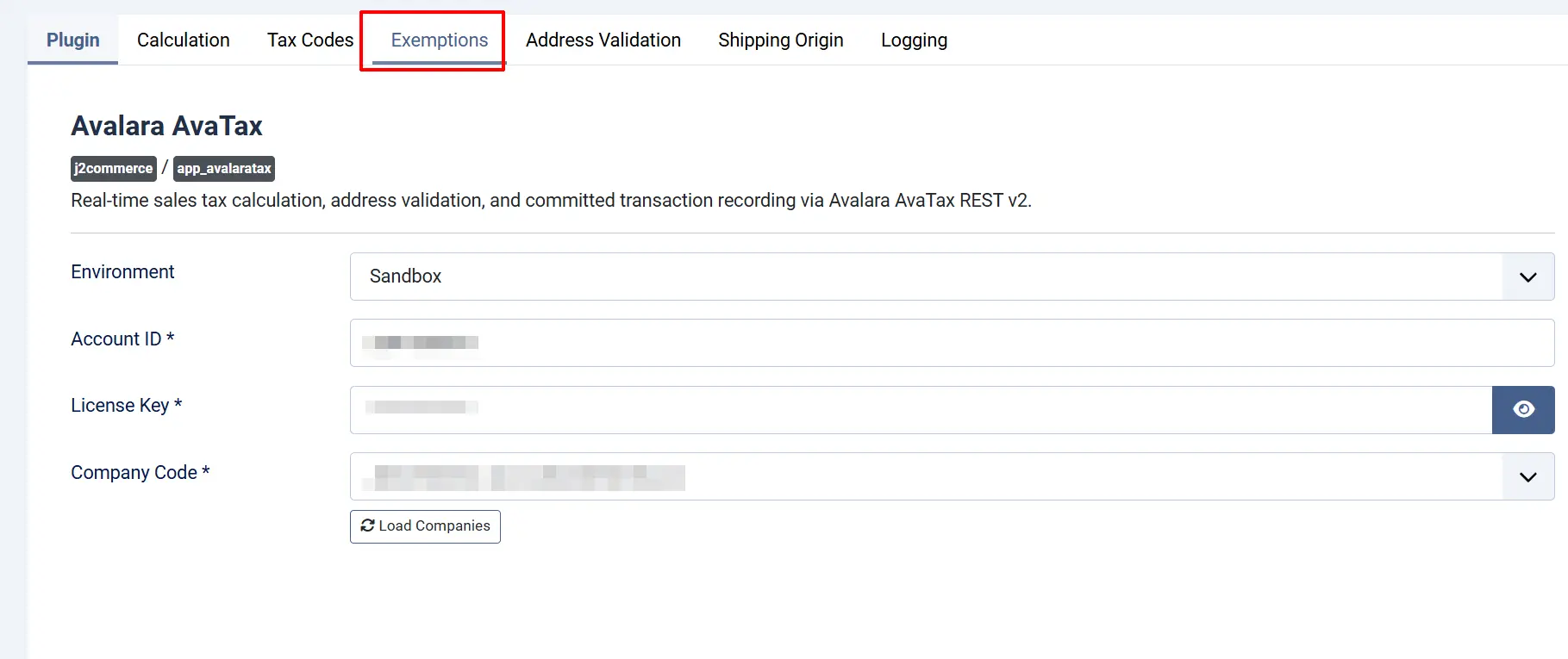
Environment: Sandbox for testing, Production for live transactions.
While you are still setting up and testing, keep Environment (at the top of the Plugin tab) set to Sandbox. Sandbox transactions don't create real tax liability and won't appear in your production Avalara account. Switch to Production only after you have completed all testing
Account ID: Your numeric Avalara Account ID
License Key: Your Avalara API License Key
Company Code: Your exact Avalara Company Code (e.g. DEFAULT)
These three fields are required. Leaving any of them blank disables Avalara tax calculation entirely — the plugin never silently falls back to a DEFAULT company or a partially configured state.
Calculation tab
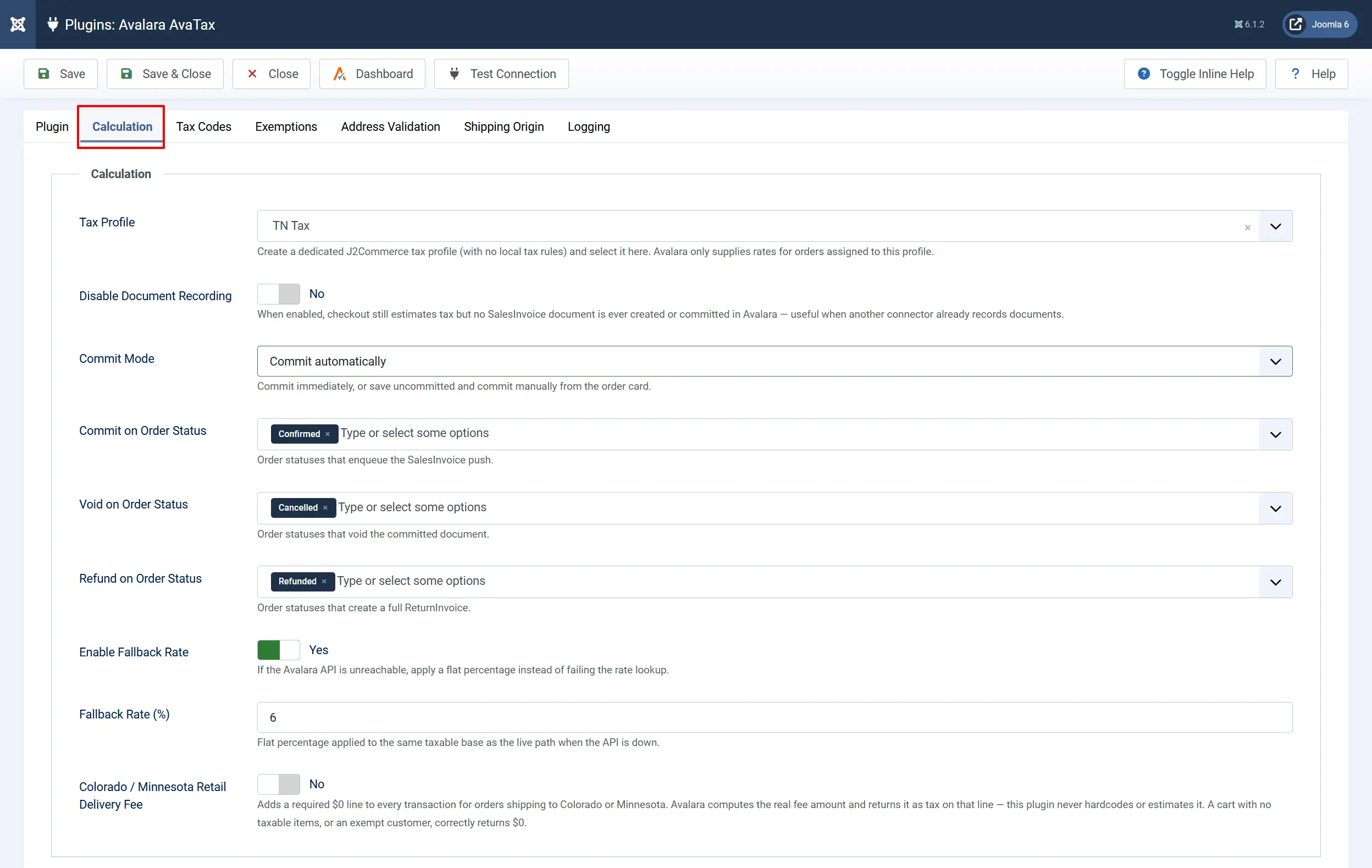
Tax Profile: The J2Commerce tax profile whose line items Avalara calculates tax for. Create this profile yourself in Localisation -> Tax Profiles first — the plugin does not create one automatically.
Disable Document Recording: When Yes, checkout still estimates tax but no document is ever created or committed in Avalara — useful if another connector already records documents there.
Commit Mode: Commit automatically creates a locked SalesInvoice as soon as an order reaches a Commit status. Save uncommitted creates the document but leaves it uncommitted until you click Commit on the order card. Hidden when Disable Document Recording is Yes.
Commit on Order Status: Order statuses that enqueue the push to Avalara as a SalesInvoice. Multiple statuses can be selected.
Void on Order Status: Order statuses that void the committed document in Avalara.
Refund on Order Status: Order statuses that issue a full ReturnInvoice in Avalara.
Enable Fallback Rate: If the Avalara API is unreachable, apply a flat percentage instead of failing the rate lookup.
Fallback Rate: The percentage rate applied when fallback is active (0–100). Only shown when Enable Fallback Rate is Yes.
Colorado / Minnesota Retail Delivery Fee: When Yes, adds the required Colorado/Minnesota retail delivery fee to eligible orders as its own order fee. Avalara computes the exact amount — the plugin never estimates it.
The fallback rate is a safety net. If Avalara's servers are temporarily unavailable, customers can still check out and a fixed rate is applied. You can reconcile the difference later in your Avalara account.
Tax Codes
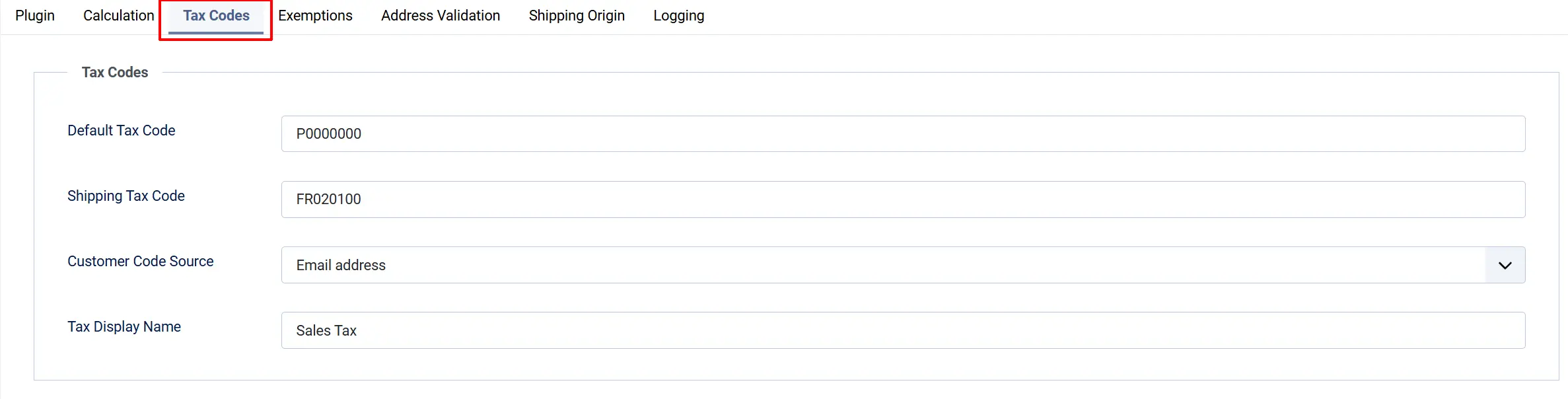
Default Tax Code: Fallback tax code used when a product has no product-level or category-level mapping. P0000000 covers general tangible personal property.
Shipping Tax Code: Tax code applied to the synthetic shipping line on every transaction.
Customer Code Source: How to identify the customer in Avalara: by email address, Joomla user ID, or order ID.
Tax Display Name: The label shown to customers for the calculated tax line in cart and checkout totals.
Exemptions
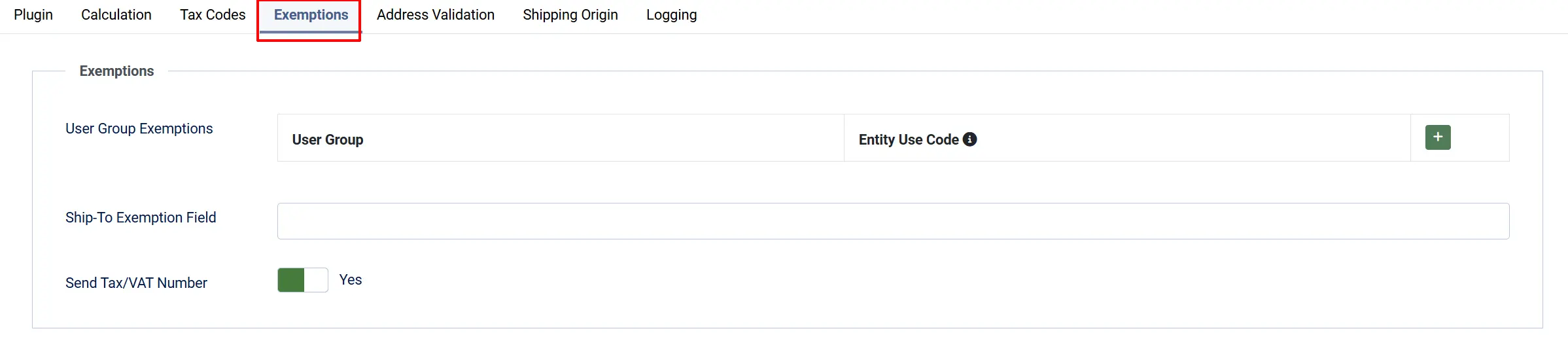
User Group Exemptions: A repeatable table mapping a Joomla user group to an Avalara entity use code (e.g. resellers, non-profits, government buyers). Every order placed by a member of a mapped group is sent to Avalara as tax-exempt under that code.
Ship-To Exemption Field: The name of a J2Commerce shipping custom field whose value, when set on an order, overrides the exemption for that specific destination. Leave blank to disable.
Send Tax/VAT Number: When Yes, the customer's tax/VAT number (from the order's billing or shipping address) is sent to Avalara as the business identification number.
Address Validation

Address Validation Mode: Disabled skips validation entirely. Warn shows a notice but lets checkout continue. Require blocks the shipping step until a resolvable address is entered.
Validation Countries: Countries checked against Avalara's address resolution. Avalara only supports the United States and Canada — other countries always skip validation regardless of this setting.
Shipping Origin tab

Open the Shipping Origin tab. By default, Ship-From Address is set to Use Store Address — the plugin reuses the address already configured in Joomla's Site Settings, so most stores can skip straight to Step 5.
If you ship from a different address (a warehouse or fulfillment center), change Ship-From Address to Use Different Address. New fields appear:
| Field | Example |
|---|---|
| Origin Address Line 1 | 123 Warehouse Blvd |
| Origin Address Line 2 | Suite 400 (optional) |
| Origin City | Austin |
| Origin State/Region | TX (use two-letter state/province code) |
| Origin Postal Code | 78701 |
| Origin Country | US |
If the resolved ship-from address has no region or postal code, the plugin shows a warning banner in the admin area — jurisdiction accuracy can suffer without a complete origin address.
Logging
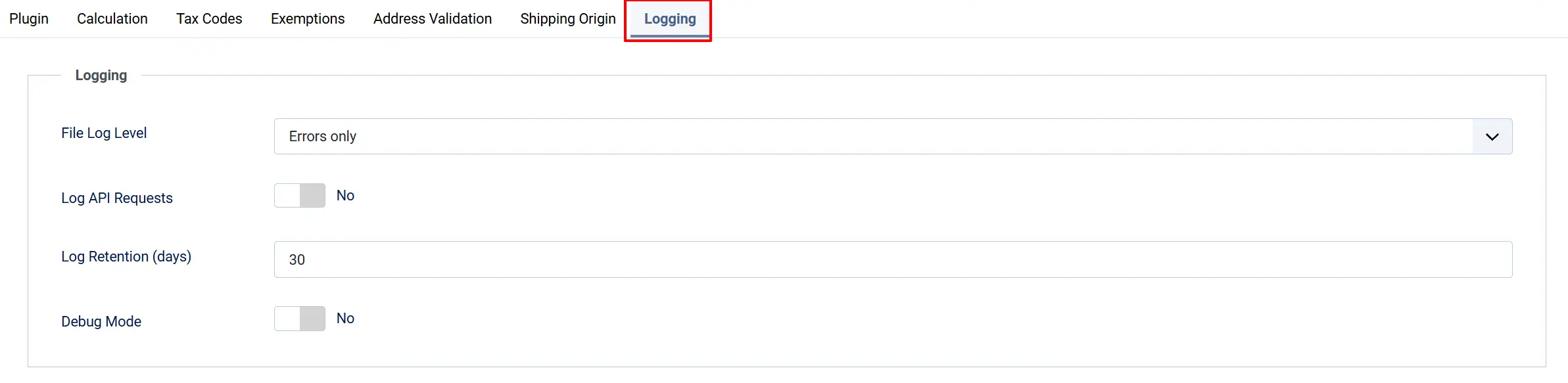
File Log Level: Verbosity of the Joomla file log. None = silent, Errors only, Warnings, Info, Debug = verbose output for troubleshooting.
Log API Requests: When Yes, the full sanitized request/response and round-trip time for every Avalara API call is recorded to a database log, viewable from the AvaTax dashboard's API Log screen.
Log Retention (days): API log rows older than this are pruned automatically while the queue processes.
Debug Mode: Enables additional debug logging to the Joomla log. Disable in production.
Log files are written to administrator/logs/plg_j2commerce_app_avalaratax.php in your Joomla installation.
Test the connection

Test Connection is a button in the toolbar at the top of the plugin's settings page, next to the Dashboard button — not a field you scroll down to. Click it any time, even before saving, to verify your typed-in credentials.
- A success message confirms the credentials are valid and, if your entered company code matches one on your account, that it was matched too.
- An error message means something is wrong — double-check your Account ID, License Key, and Company Code.
Your server must be able to make outbound HTTPS requests to sandbox-rest.avatax.com (sandbox) or rest.avatax.com (production) on port 443. Ask your host if outbound requests are restricted.
Create and assign an Avalara tax profile
Avalara calculates tax only for line items assigned to one specific J2Commerce tax profile — you choose which one. The plugin does not create a profile for you automatically.
- Go to J2Commerce -> Localisation -> Tax Profiles and create a new, empty tax profile with no local tax rates attached — for example, name it "Avalara AvaTax". An existing profile works too, as long as nothing else relies on its own tax rates.
- Open the AvalaraTax App and go to the Calculation tab.
- Set Tax Profile to the profile you just created.
- Click Save.

Now assign that same profile to every product Avalara should tax:
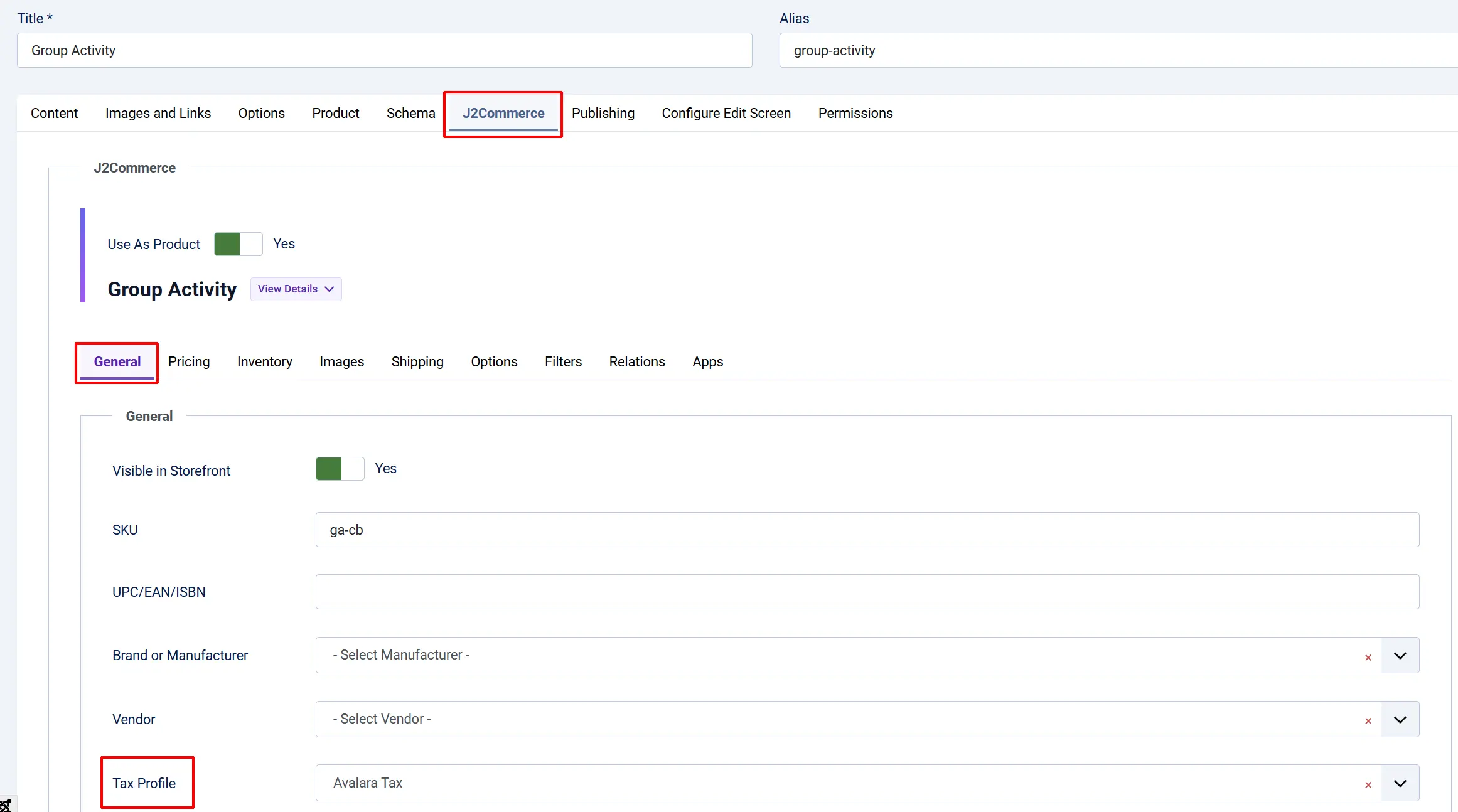
- Go to J2Commerce -> Catalog -> Products.
- Click on a product to open the edit form.
- Open the J2Commerce tab
- Open the Tax tab (or General tab depending on your template).
- Set Tax Profile to the profile you created in step 1 above.
- Click Save.
Repeat for every taxable product, or use the plugin's Product Tax Profiles screen to assign the profile to many products at once — see Bulk tax profile assignment further down this page. Products left on a different tax profile fall back to J2Commerce's own tax calculation.
Place a test order and verify tax
With the plugin in Sandbox mode:
- Go to your store's frontend and add a product to the cart.
- Proceed to checkout and enter a US shipping address.
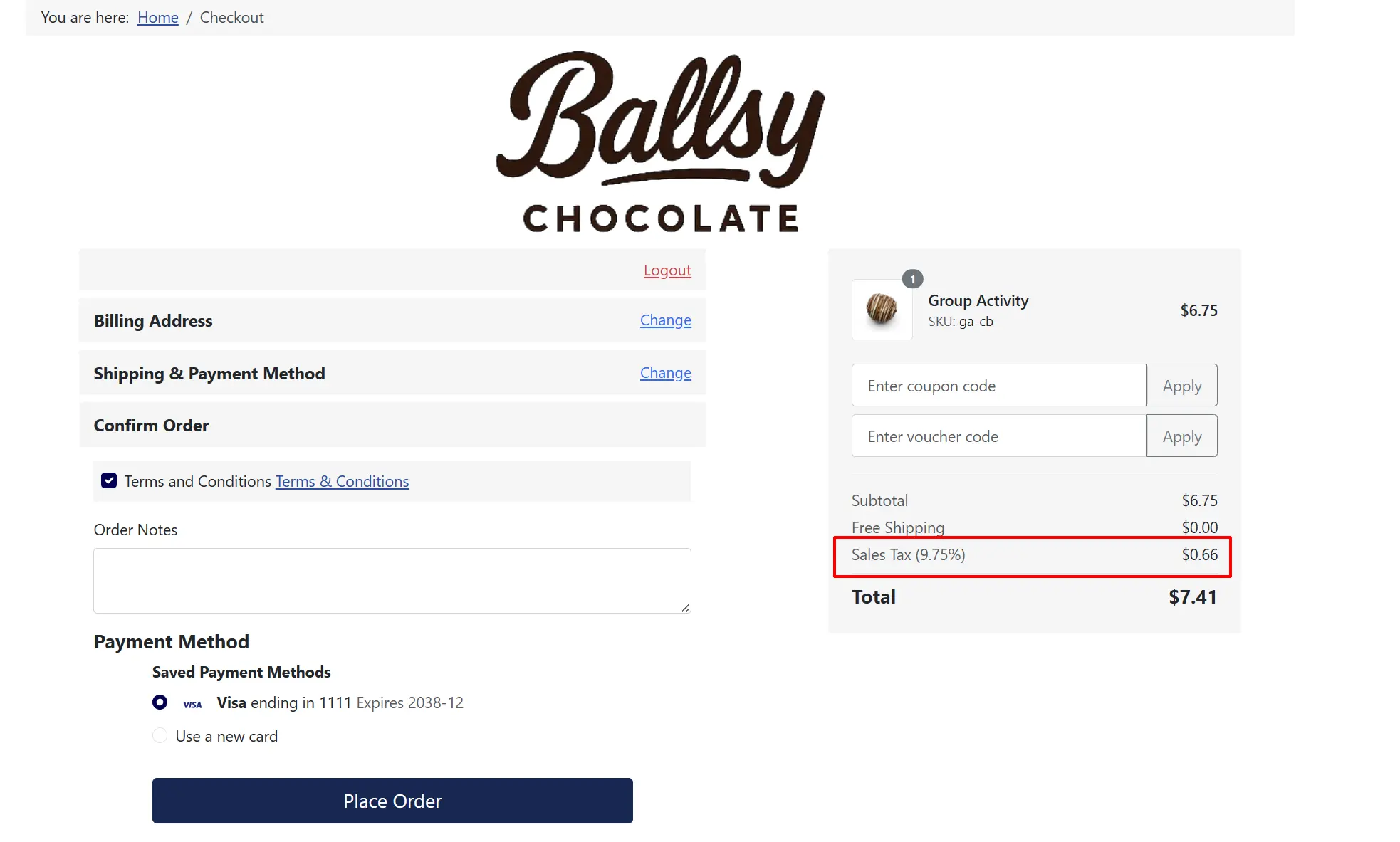
- Review the tax line in the order summary — it should show an Avalara-calculated amount rather than a flat rate.
- Complete the checkout process.
-
In your Joomla admin, go to J2Commerce -> Sales -> Orders and open the order you just placed.
-
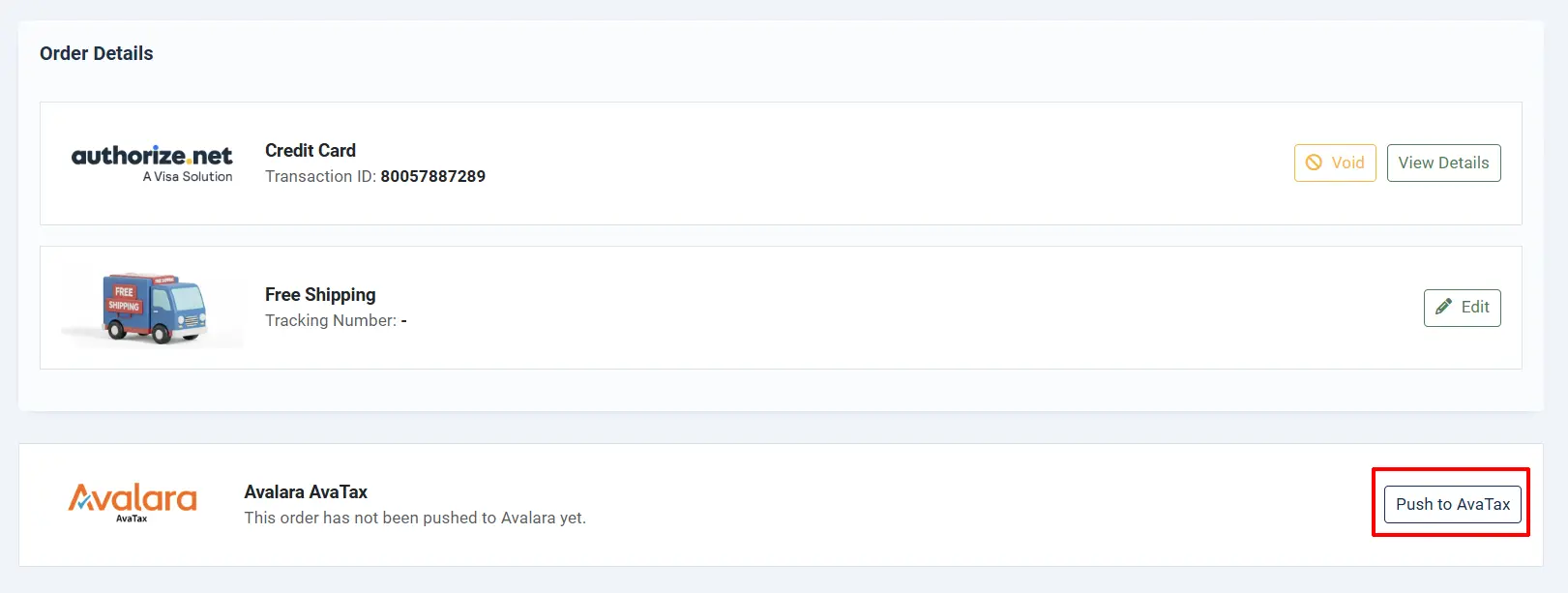
Look for the Avalara AvaTax panel on the order page. It shows the transaction status.
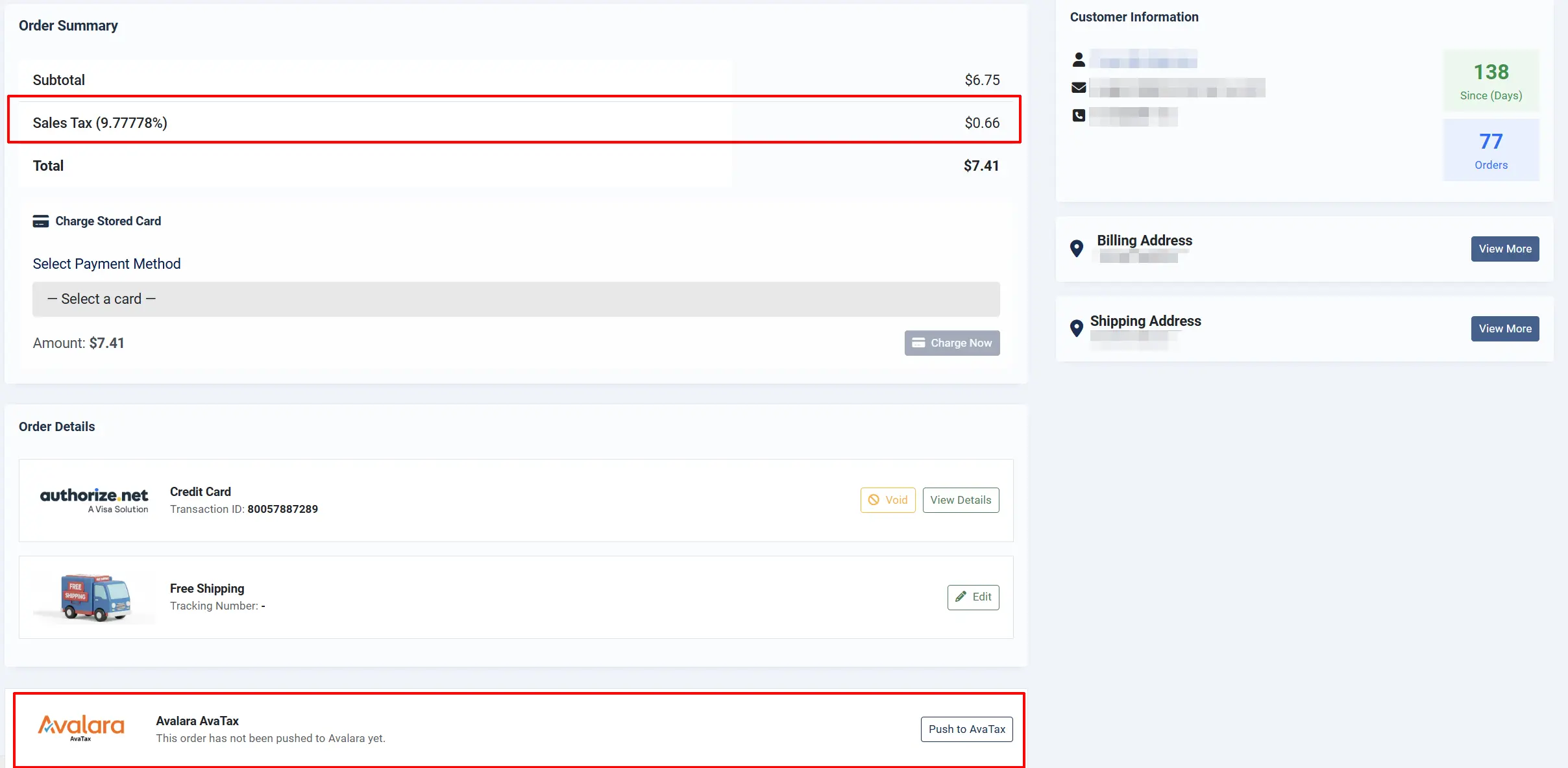
If the order's status isn't in the Commit on Order Status list you'll configure in the Configuration reference below, it won't be queued automatically — click Push to AvaTax in the panel to submit it right away.
If no tax appears, check that:
- The product has the Avalara tax profile assigned (Step 6)
- The shipping address is a valid US address
- The plugin is enabled and credentials are correct
Set up scheduled queue processing
Orders are added to a queue after payment (or when their status matches one of the Commit on Order Status values from the Calculation tab). A Joomla Scheduled Task processes that queue in the background — there is no cron URL to copy from the plugin itself.
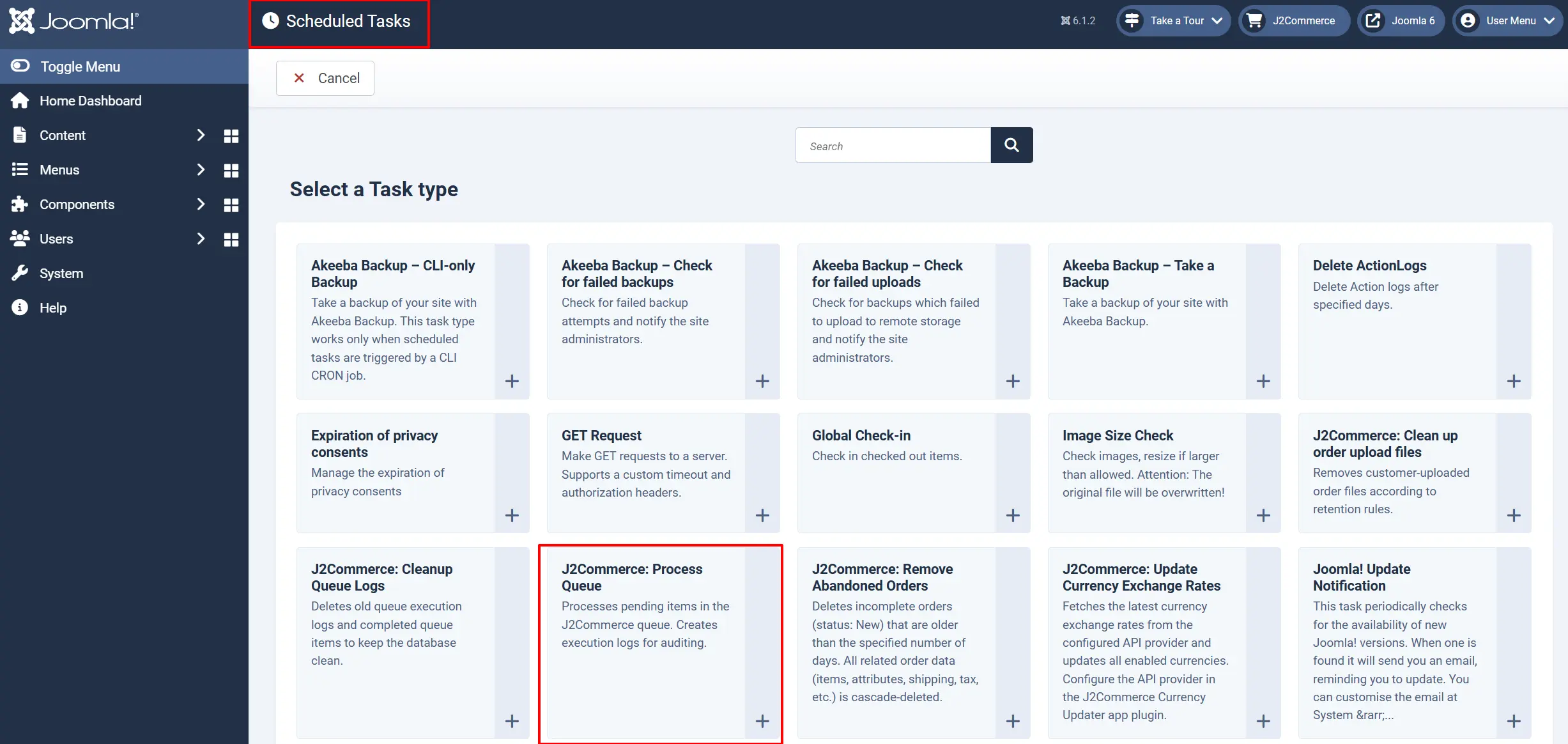
- Go to System -> Scheduled Tasks -> New.
- Select the task type J2Commerce: Process Queue.
- Give it a title, e.g. "Process AvaTax Queue".
- Configure the task's own settings:
| Field | Description | Suggested value |
|---|---|---|
| Queue Type | Restrict this task to one queue type. Leave empty to process every J2Commerce queue type (AvaTax and any other apps sharing the same queue) in the same run. | avalaratax (or leave blank) |
| Batch Size | Maximum number of queue items processed per run. | 10–25 |
| Release Stale | Minutes after which a stuck "processing" item is released back to pending. | 30 |
- Set the task to run on a recurring interval — every 5 minutes is a reasonable starting point for most stores.
- Save the task.
Scheduled Tasks run automatically once your server's system cron (or Joomla's own web-cron trigger, shown on the Scheduled Tasks list page) is calling Joomla's task runner on a regular basis. If you haven't set that up yet, see your Joomla installation's cron / Scheduled Tasks documentation — this is a site-wide setting, not something specific to Avalara AvaTax.
Before waiting on the scheduled task, open J2Commerce -> Apps -> Avalara AvaTax and click the Sync Queue quick link on the Dashboard. It immediately processes the next batch of pending AvaTax items using the same logic as the scheduled task — a fast way to confirm everything is wired up correctly.
Switch to Production
Once your test orders look correct and tax amounts match what you expect:
- Go back to plugin settings (J2Commerce -> Apps -> Avalara AvaTax).
- Change Environment to Production on the Connection tab.
- Click Save.
- Click Test Connection in the toolbar again to confirm the production credentials work.
From this point forward, every order will create a real transaction in your Avalara account.
Per-product tax codes
Avalara uses a system called product tax codes to determine what tax rules apply to each item. For example, clothing is tax-exempt in some states, while electronics are always taxable. The code P0000000 (the default) covers general tangible personal property.
Each product has a single tax code override — not one per variant.
To assign a tax code to a specific product:
-
Go to J2Commerce -> Catalog -> Products and open the product.
-
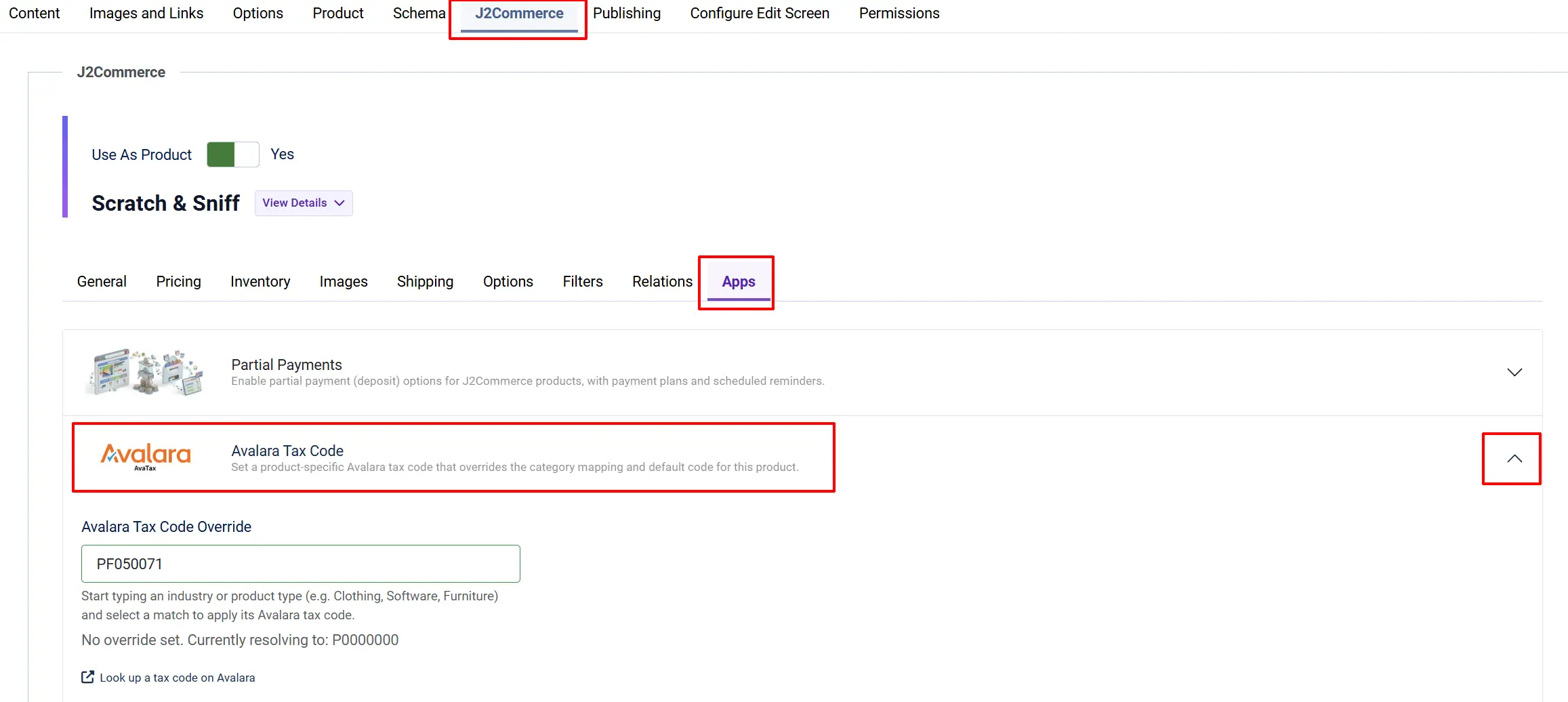
Click J2Commerce tab -> Apps tab -> Avalara Tax Code tab in the product edit form.
-
Start typing an industry or product type (e.g. "Clothing", "Software", "Furniture") into the search box — at least two characters trigger the search.
-
Select the correct code from the autocomplete results.
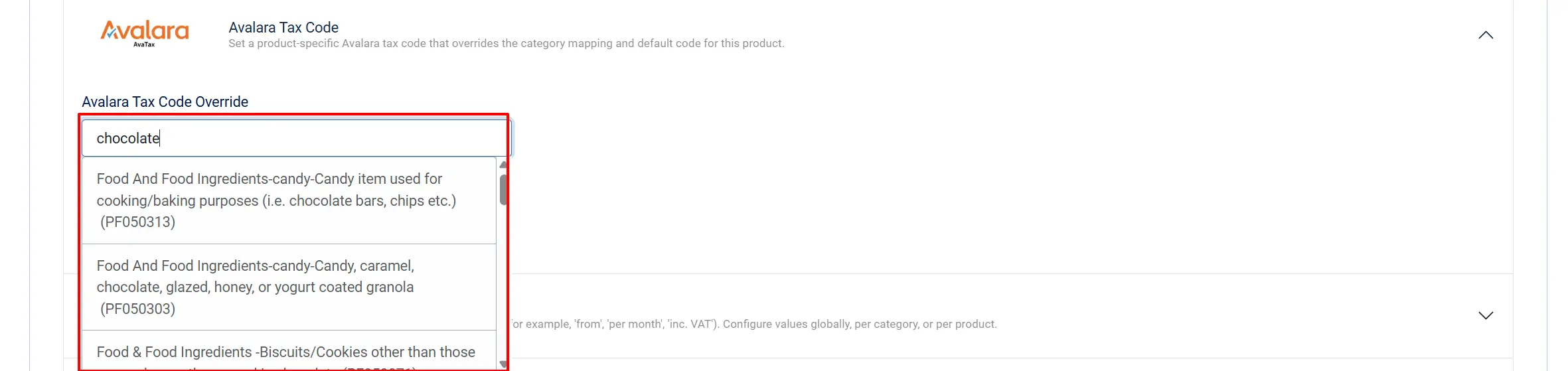
The search box pulls codes directly from the Avalara API, so you always see the most current list. A Look up a tax code on Avalara link on the same tab opens Avalara's public tax code lookup tool if you'd rather browse the full list.
If you leave the field blank, the placeholder text shows which code the product currently resolves to — its category mapping if one exists, otherwise the Default Tax Code from the Tax Codes settings tab.
Dashboard
Category-level tax code mappings
Instead of setting a code on every product individually, you can set a default code per J2Commerce category:
- Go to J2Commerce -> Apps -> Avalara AvaTax to open the dashboard.

- Click the Tax Code Mapping under the quick link section
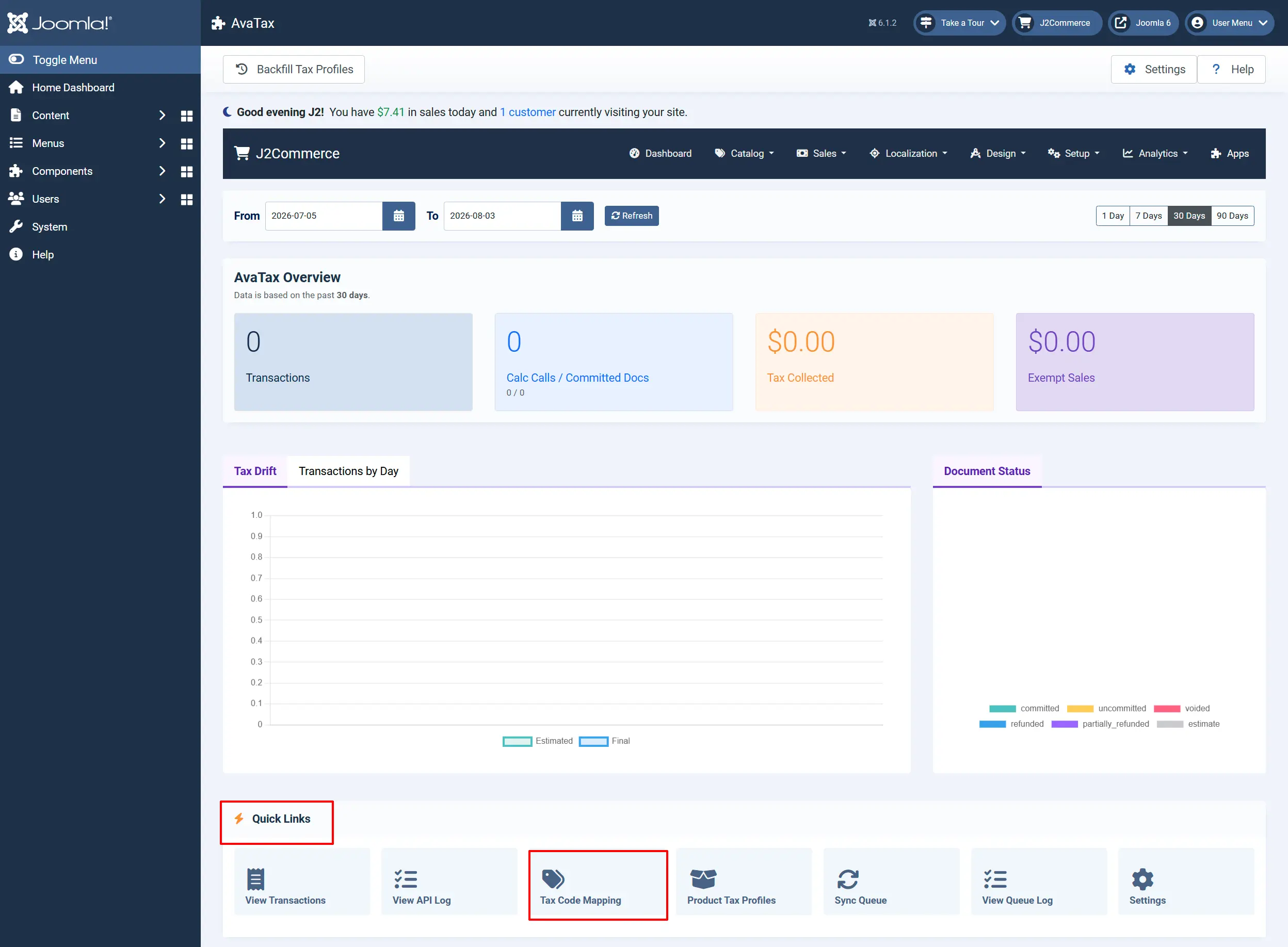
- Add a row for each category you want to map, and enter its Avalara tax code.
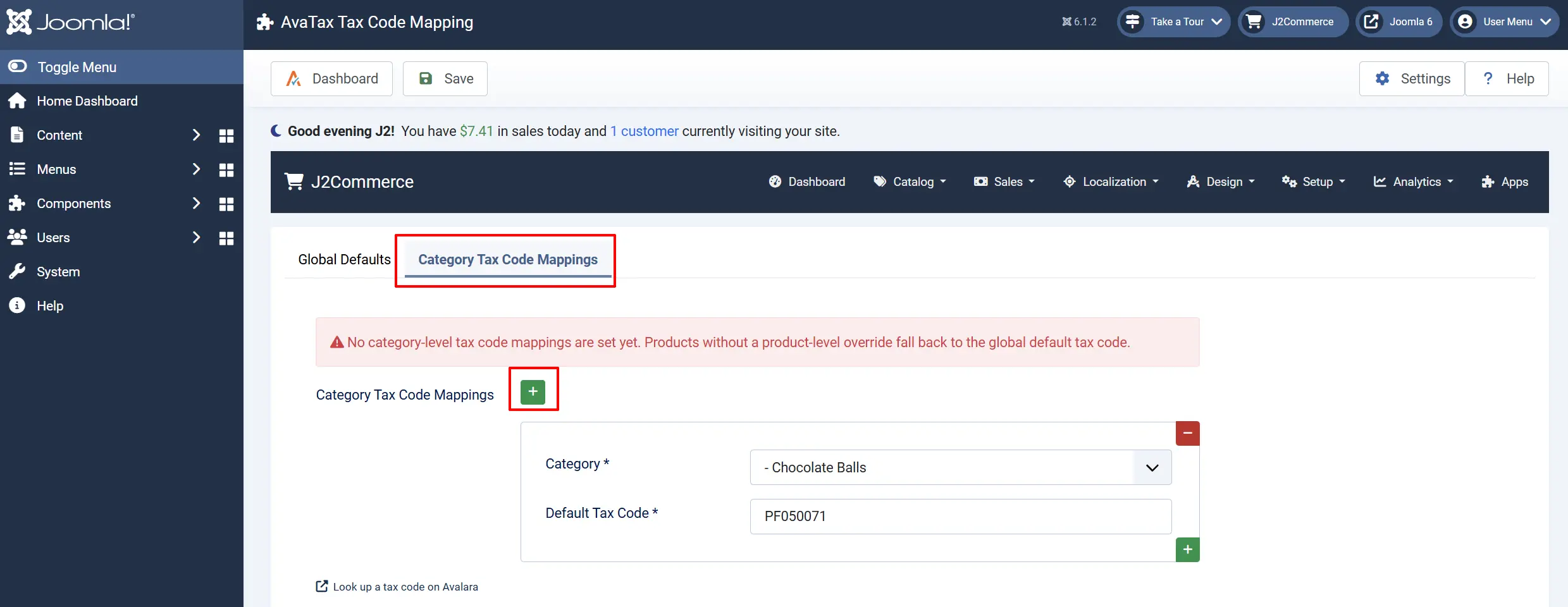
A product-level override always takes priority over its category's mapping. A category mapping always takes priority over the global Default Tax Code.
Bulk tax profile assignment
To assign the Avalara tax profile to many products at once instead of opening each one individually:
- From the AvaTax dashboard, click the Product Tax Profiles under the quick link section.

-
Select the products you want to update using the checkboxes.
-
Open the Actions dropdown in the toolbar and choose Set Tax Profile (or Clear Tax Profile to remove it).
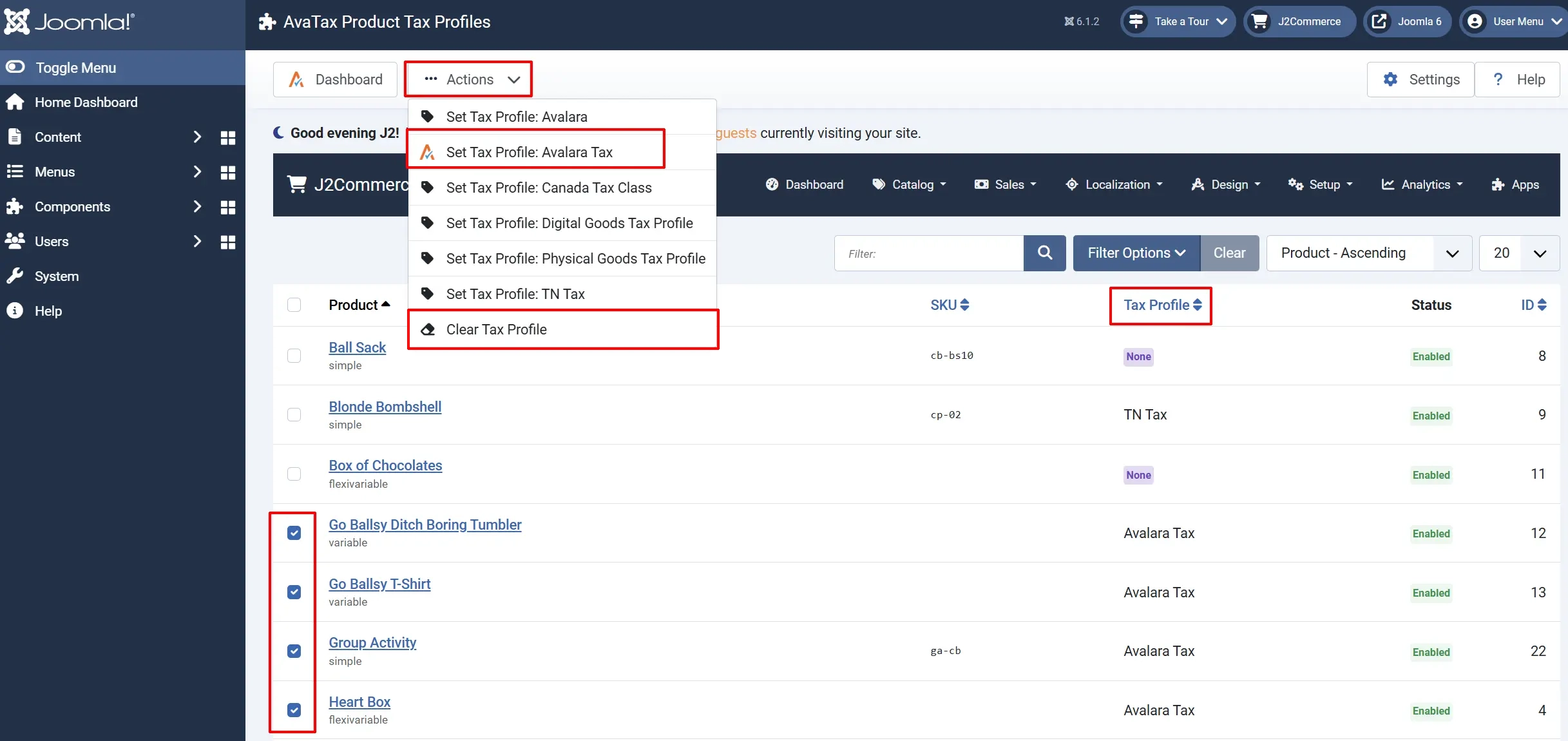
- Confirm the change.
Manual sync from the order page
Every order page has an Avalara AvaTax panel with buttons that change depending on the order's current state — there's no setting that turns this on or off.
Go to J2Commerce -> Sales -> Orders. Open an order
| Button | Appears when | What it does |
|---|---|---|
| Push to AvaTax | No transaction has been recorded for this order yet | Submits the order to Avalara immediately, without waiting for the scheduled queue task |
| Sync to AvaTax | A transaction already exists | Fetches the latest transaction data from Avalara and refreshes the local record |
| Commit | The transaction is uncommitted (Commit Mode is set to Save uncommitted) | Locks the SalesInvoice in Avalara so it's included in filing |
| Void | The transaction is not already voided or refunded | Voids the document in Avalara. If Avalara has already filed the document, the plugin automatically issues a full ReturnInvoice instead and shows a message explaining this happened |
| Refund | The transaction is not already voided or refunded | Opens a refund panel where you choose Full refund, Partial refund, or Tax-only adjustment, enter an amount if needed, and send it to Avalara |
To manually push an order:
- Go to J2Commerce -> Sales -> Orders.
- Open the order you want to submit.
- In the Avalara AvaTax panel, click Push to AvaTax.
- A confirmation dialog appears. Click OK to proceed.
- A success message confirms the transaction code and the amount of tax recorded.
The panel also displays the estimated tax, final tax, exempt amount, a jurisdiction-by-jurisdiction tax breakdown, and — for eligible Colorado or Minnesota orders — the retail delivery fee charged. A View in AvaTax link opens the transaction directly in Avalara's web console.
Whether an order is pushed, voided, or refunded automatically is controlled by the Commit on Order Status, Void on Order Status, and Refund on Order Status lists on the Calculation settings tab — not by a separate toggle.
Queue management
The plugin uses J2Commerce's shared queue system to process commit, void, and refund tasks asynchronously. You can monitor and manage the queue from the plugin's dashboard.
Checking queue status
-
Go to J2Commerce -> Apps -> Avalara AvaTax -> Dashboard
-
The Sync Queue card on the Dashboard shows live counts for Pending, Processing, Failed, and Dead items, plus the ten most recent failures with their error messages.
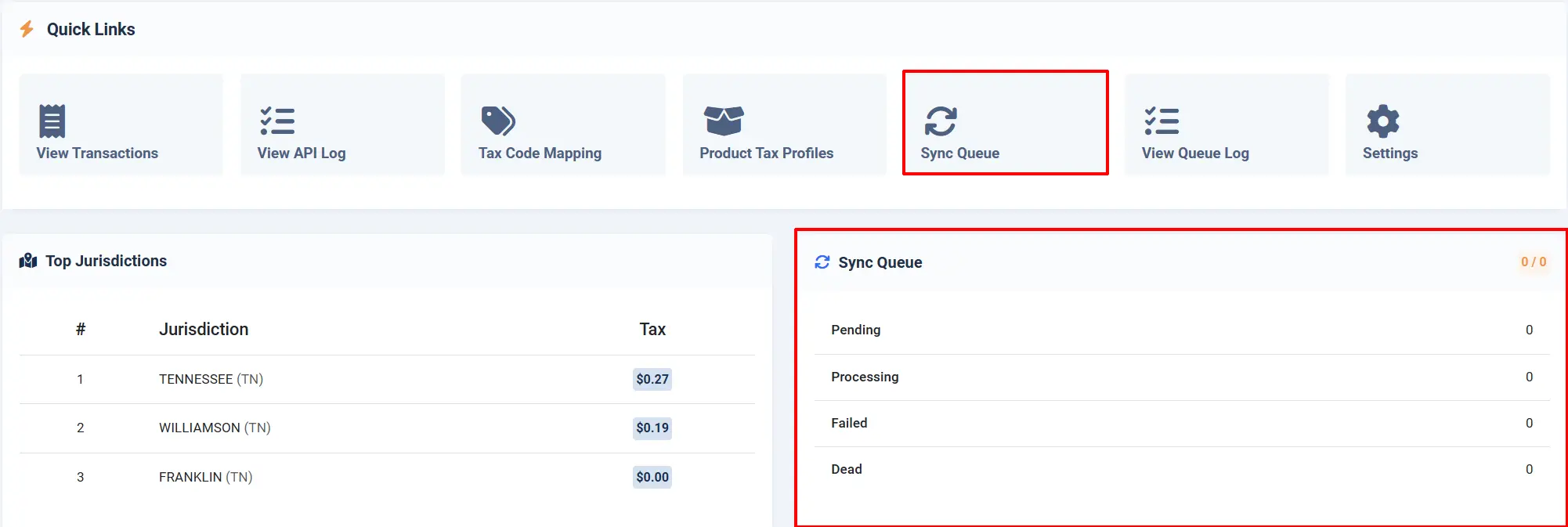
- Click the View Queue Log quick link (or the AvaTax Sync Queue menu item) for the full list.

Each queue item represents one commit, void, or refund task. Items move from pending to processing while a worker handles them, then to completed on success or failed if Avalara returns an error. An item that fails repeatedly and exhausts its retry attempts becomes dead.
Retrying failed items
Failed and dead items each show their own Retry button — both in the Dashboard's recent-failures list and on the full AvaTax Sync Queue screen. Clicking it resets that item back to pending so the next queue run attempts it again. There's no single "retry all" button — retry the items you want individually.
Processing the queue immediately
Don't want to wait for the scheduled task? Click the Sync Queue quick link on the Dashboard to immediately process the next batch of pending items — this runs the exact same logic as the scheduled task, just on demand.
How often the queue runs
This depends on how you configured the J2Commerce: Process Queue scheduled task in Step 8 above — every 5 minutes is typical for most stores. High-volume stores may want every 1–2 minutes.
Address validation
Unless Address Validation Mode is set to Disabled on the Address Validation settings tab, the plugin calls the Avalara address resolution API when a customer enters or changes their shipping address at checkout, for any country listed in Validation Countries.
Avalara checks whether the address is deliverable and, where available, corrects minor typos (such as a wrong ZIP code or misspelled street name). What happens next depends on the mode:
- Warn — the customer sees a notice that the address could not be fully verified, but checkout continues.
- Require — checkout is blocked at the shipping step until a resolvable address is entered.
Address validation only works for addresses in countries Avalara supports — the United States and Canada. Other countries always pass through without validation, regardless of your Validation Countries setting.
This feature helps avoid tax calculation failures caused by bad addresses later when the queue processes the order.
What is stored locally
The plugin creates three database tables during installation.
#__j2commerce_appavalaratax_transactions
Records every transaction submitted to Avalara:
| Column | What it stores |
|---|---|
j2commerce_order_id | Link to the J2Commerce order |
order_id | The order's reference number |
transaction_code | The code sent to Avalara (format: J2C-[order_id]) |
transaction_id | Avalara's internal ID for the transaction |
document_type | SalesOrder, SalesInvoice, or ReturnInvoice |
status | Current status: estimate, uncommitted, committed, voided, refunded, or partially_refunded |
estimated_tax | The tax amount estimated before commit |
final_tax | The tax amount Avalara calculated on commit |
total_amount | The full order amount sent to Avalara |
total_exempt | The portion of the order Avalara treated as tax-exempt |
currency_code | The transaction's currency |
jurisdictions | JSON breakdown of tax collected per jurisdiction |
response_data | Full JSON response from Avalara |
parent_code | Links a void/refund document back to the original transaction |
environment | Whether the transaction was sandbox or production |
created_on / modified_on | When the record was created and last updated |
#__j2commerce_appavalaratax_logs
Records every Avalara API call when Log API Requests is enabled — the operation name, HTTP method and endpoint, status code, duration, and optionally the full sanitized request/response JSON. Viewable from the AvaTax dashboard's AvaTax API Log screen. Rows older than Log Retention (days) are pruned automatically.
#__j2commerce_appavalaratax_taxmap
Stores product- and category-level tax code overrides set on the Avalara Tax Code product tab and the Tax Code Mapping screen.
This local record means you can see Avalara transaction details without leaving your Joomla admin. If you ever need to reconcile, the transaction_code column is the key that links your order to Avalara's records.
Logs are also written to Joomla's standard file log at administrator/logs/plg_j2commerce_app_avalaratax.php.
Migrating from the J2Store version
The J2Commerce version of Avalara AvaTax does not automatically copy transaction history from a previous J2Store installation — installing it starts a fresh local transaction log.
Your Avalara account itself is unaffected: every historical transaction Avalara recorded for your store remains fully accessible in your Avalara account and web console regardless of which plugin version submitted it. Only the local, in-Joomla copy of that history starts over.
If you need your old J2Store-era transaction records visible inside Joomla again, contact support rather than attempting to copy the old #__j2store_appavalaratax_transactions table into the new one yourself — the column layout has changed, as shown in What is stored locally above.
What's new compared to the J2Store version
| Area | J2Store version | J2Commerce version |
|---|---|---|
| Architecture | FOF 2 framework, non-namespaced | Native Joomla 6 MVC, fully namespaced |
| JavaScript | jQuery-dependent | Vanilla ES6, no jQuery |
| Plugin configuration | Custom App view with its own admin route | Standard Joomla plugin settings via J2Commerce -> Apps |
| Security | Older ACL patterns | ACL check on every AJAX handler (core.manage on com_j2commerce) |
| Transaction history | — | Not migrated — starts fresh on install (see Migrating from the J2Store version above) |
| Tax code search | Basic text field | Live autocomplete against Avalara API, plus category-level tax code mappings |
| Order lifecycle | Push tax only | Push, Sync, Commit, Void, and Refund directly from the order page |
| Queue | Custom queue table | J2Commerce shared queue system, processed by a Joomla Scheduled Task |
| Exemptions | Not supported | User-group-to-entity-use-code mapping, with a per-destination override field |
Troubleshooting
Test Connection shows an error
Cause: Wrong credentials, wrong environment, or a firewall blocking outbound HTTPS.
Solution:
- Double-check Account ID, License Key, and Company Code — copy/paste them directly from your Avalara account portal to avoid typos.
- Confirm Environment matches where your credentials live (sandbox credentials will not work in Production mode).
- Ask your host whether outbound HTTPS to
sandbox-rest.avatax.com(Sandbox) orrest.avatax.com(Production) on port 443 is allowed.
No tax is calculated at checkout
Cause: The product does not have the Avalara tax profile assigned, or the plugin isn't fully configured.
Solution: Open the product in J2Commerce (J2Commerce -> Catalog -> Products) and set Tax Profile to the profile you selected on the plugin's Calculation tab (see Step 6 above). Save the product and test again.
Also confirm that the plugin is enabled and that Account ID, License Key, and Company Code are all filled in on the Connection tab — the plugin calculates no tax at all until all three are set.
"Duplicate transaction" errors in the log
This is not a real problem. When the queue retries a failed item, it sends the same transaction code (J2C-[order_id]) to Avalara. Avalara recognizes duplicate codes and returns the existing transaction rather than creating a new one. The plugin handles this correctly — no duplicate charges are created.
Queue is stuck — items stay in Pending forever
Cause: No scheduled task is processing the queue, or your Joomla installation's cron / Scheduled Tasks trigger isn't running.
Solution:
- Go to System -> Scheduled Tasks and confirm a J2Commerce: Process Queue task exists, is enabled, and shows a recent last-execution time.
- If it has never run, verify your site's cron (or Joomla's built-in web-cron trigger, shown on the Scheduled Tasks list) is actually being called on a schedule — this is a Joomla-wide setting, not something specific to this plugin.
- As an immediate test, open J2Commerce -> Apps -> Avalara AvaTax and click the Sync Queue quick link on the Dashboard. If that clears the pending items, the plugin itself is working correctly and the scheduled task simply isn't running yet.
Queue items show Failed or Dead
Cause: Avalara returned an error for the task. Common reasons: missing or invalid address, no line items on the configured tax profile, or changed API credentials.
Solution:
- Set File Log Level to Info (or Debug for maximum detail) on the Logging tab.
- Check
administrator/logs/plg_j2commerce_app_avalaratax.php, or enable Log API Requests and review the AvaTax API Log screen, for the specific error message. - Fix the underlying issue (correct the address on the order, re-enter credentials, assign the tax profile to the product, etc.).
- Click Retry next to the item — in the Dashboard's recent-failures list or on the AvaTax Sync Queue screen. Dead items (ones that already exhausted their retry attempts) can still be retried the same way.
Checkout fails when Avalara is down
Cause: The Avalara API is temporarily unavailable and no fallback is configured.
Solution: Enable Fallback Rate on the Calculation tab and enter a reasonable percentage (for example, 8 for 8%). This lets customers complete checkout even when Avalara is unreachable. Review any fallback-taxed orders in your Avalara account later and adjust if needed.
I only see "Sync to AvaTax", not "Push to AvaTax"
Cause: This is expected. The button shown depends on whether a transaction already exists for the order — it isn't controlled by a setting. Push to AvaTax only appears before the first transaction exists; once one does, Sync to AvaTax, Void, Refund, and (while uncommitted) Commit take its place.
Solution: Nothing to fix. If you want to resubmit an order from scratch, Void it first (or Refund if it was already committed and filed), then trigger a fresh push by moving the order to a status in Commit on Order Status, or by clicking Push to AvaTax again once the previous transaction is voided.
"This order has no line items on the configured tax profile"
Cause: None of the order's products are currently assigned to the tax profile set in Calculation -> Tax Profile — often because the tax profile was changed, or assigned to products, after the order was already placed.
Solution: If the message indicates matching products exist elsewhere in your catalog, click Backfill Tax Profiles on the AvaTax dashboard toolbar — it updates the tax profile recorded on existing order line items to match what their products are assigned to now, so you can push the order again. If no matching products are found, assign the tax profile to the relevant products first (see Step 6 above).