Custom Tabs
Do you wish to create beautiful tabbed content for your product pages? You can create any number of tabs to display in the product page. You can enter any type of content, like features, videos, and more. You can enter the content for the tabs while creating/editing your product itself. You can create the content quickly by using the Editor.
IMPORTANT: The app supports only J2Commerce's Product List layout and Joomla! articles that are treated as products. That is, the catalog source should be Joomla! articles.
Requirements
- with PHP 8.3.0 +
- Joomla! 6.x
- J2Commerce 6.x
Purchase and Download
Step 1: Go to our J2Commerce website -> Apps
Step 2: Locate the Custom Tabs App -> click View Details -> Add to cart -> Checkout.
Step 3: Go to your My Downloads under your profile button at the top right corner and search for the app. Click Available Versions -> View Files -> Download Now
Install the App
Go to System > Install -> Extensions
Upload the plugin ZIP file or use the Install from URL option.
-e0515ef561b368cb4d5a053cacb4c525.webp)
Enable the App
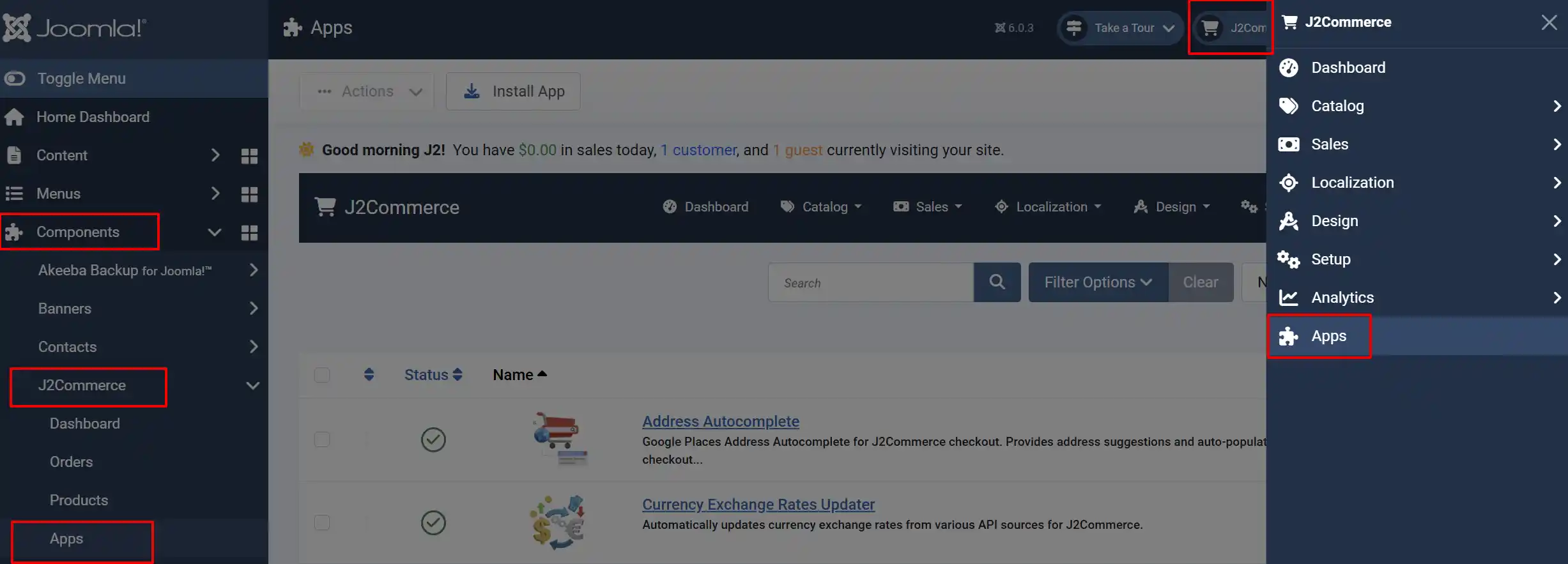
Once you have installed the app, you will need to enable it. There are two ways you can access the app.
Option A: Go to the J2Commerce icon at the top right corner -> Apps
Option B: Go to Components on the left sidebar -> J2Commerce -> Apps
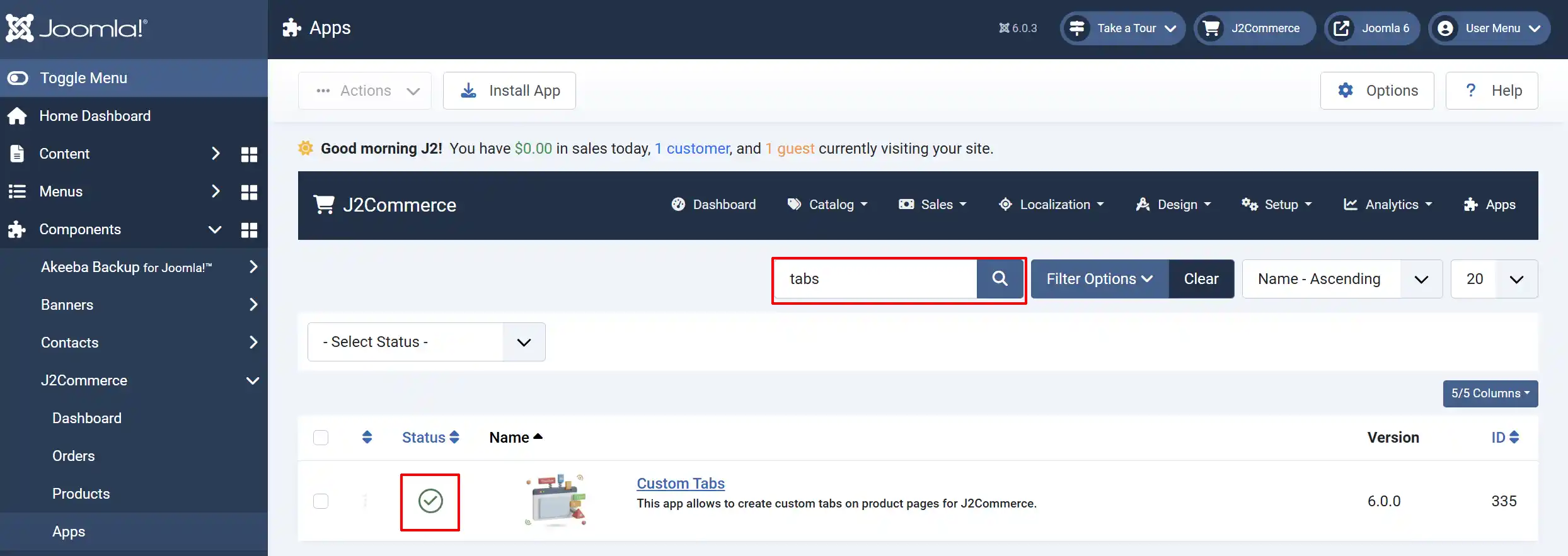
Search for Custom Tabs, click the X, and it will turn into a green checkmark. It is now enabled and ready for setup.
Configure the App
Once you click on the Custom Tabs Title next to the green checkmark, you are ready to start setting up the Tabs parameters.
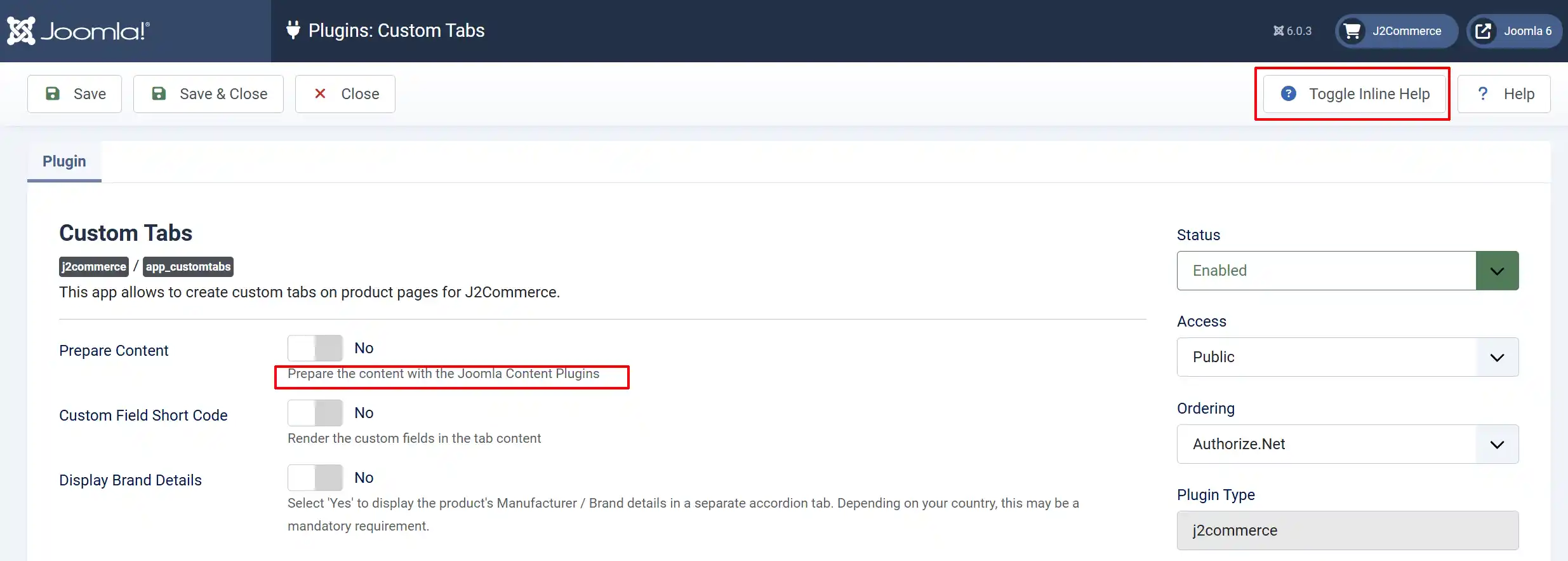
Click the Toggle Inline Help button in the toolbar and the app will show a description below each field as you configure it.
Prepare Content
Select 'Yes' to prepare the content with the Joomla Content Plugins
Enable Prepare Content when your tab content contains:
-
Joomla content plugins (e.g.,
{loadmodule},{loadposition}) -
Third-party plugin syntax (e.g., gallery sliders, video embeds)
-
Shortcodes that require content plugin processing
NOTE: This option applies processing overhead. Leave disabled for simple HTML content.
Custom Field Short Code
Select 'Yes' to choose whether to prepare the data for the Custom tab or not.
Enable Custom Field Short Code when:
-
You have created J2Commerce custom fields for products (e.g., material, weight, dimensions)
-
You want to display these custom field values inside tab content
-
You use custom field shortcodes in your tab descriptions
Leave disabled for standard HTML content without custom field references.
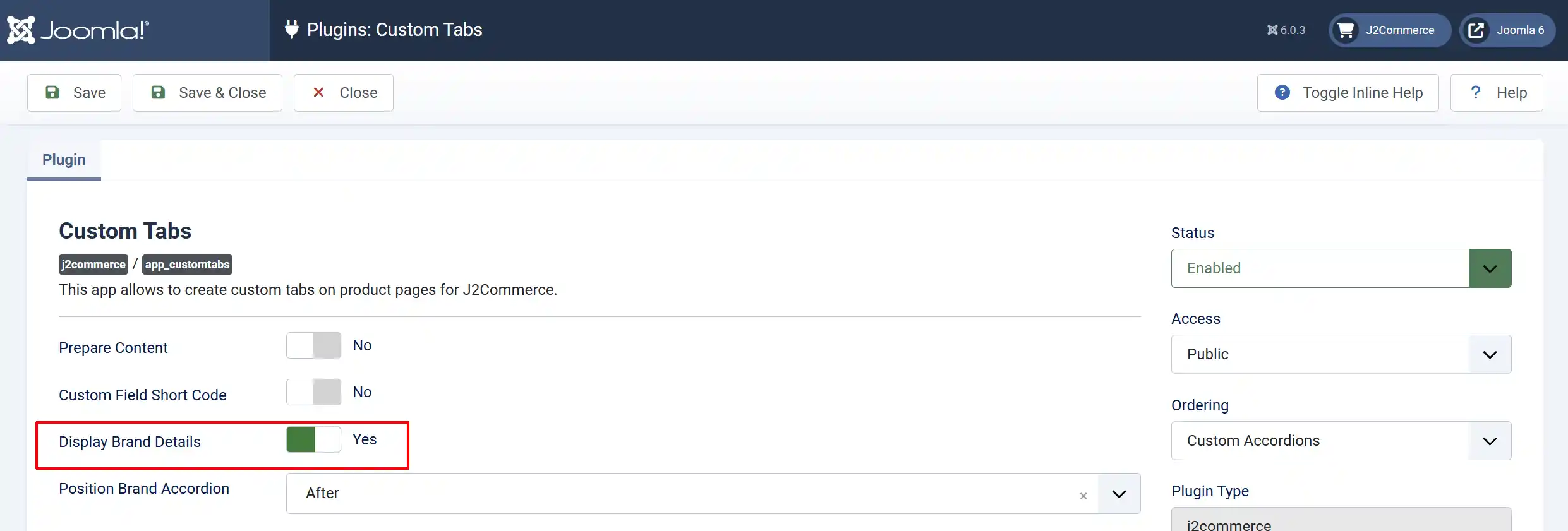
Display Brand Details
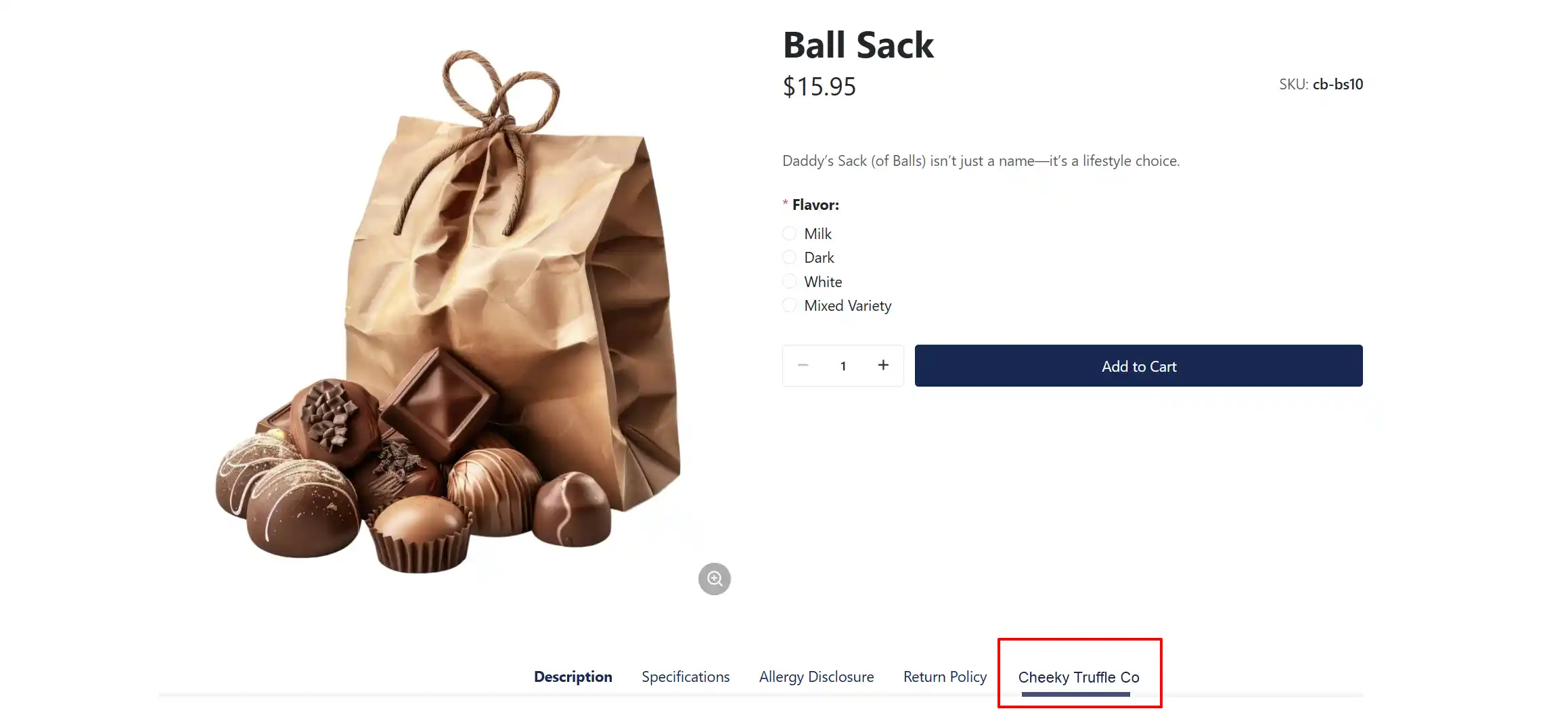
Select 'Yes' to display the product's Manufacturer / Brand details in a separate tab. Depending on your country, this may be a mandatory requirement.
NOTE: In order to add the Brand or Manufacturer to a product, you have to add them to the database. Go to J2Commerce -> Dashboard -> Catalog -> Manufacturer. Fill out the company information and hit save
When enabled, J2Commerce retrieves manufacturer details from the product's assigned manufacturer:
-
The manufacturer's name appears as the accordion title
-
Manufacturer description content loads from the linked Joomla article
Position Options
This only shows up when the Display Brand Details is enabled.
Before: Brand accordion appears as the first accordion on the product page
After: Brand accordion appears as the last accordion on the product page
Adding a Manufacturer to the Products
There are three ways you can access the products.
Option A: Go to the J2Commerce icon at the top right corner -> Catalog -> Products
Option B: Go to Components on the left sidebar -> J2Commerce -> Products
Option C: Go to Content -> Categories -> Find the category and then click inside the published/article section
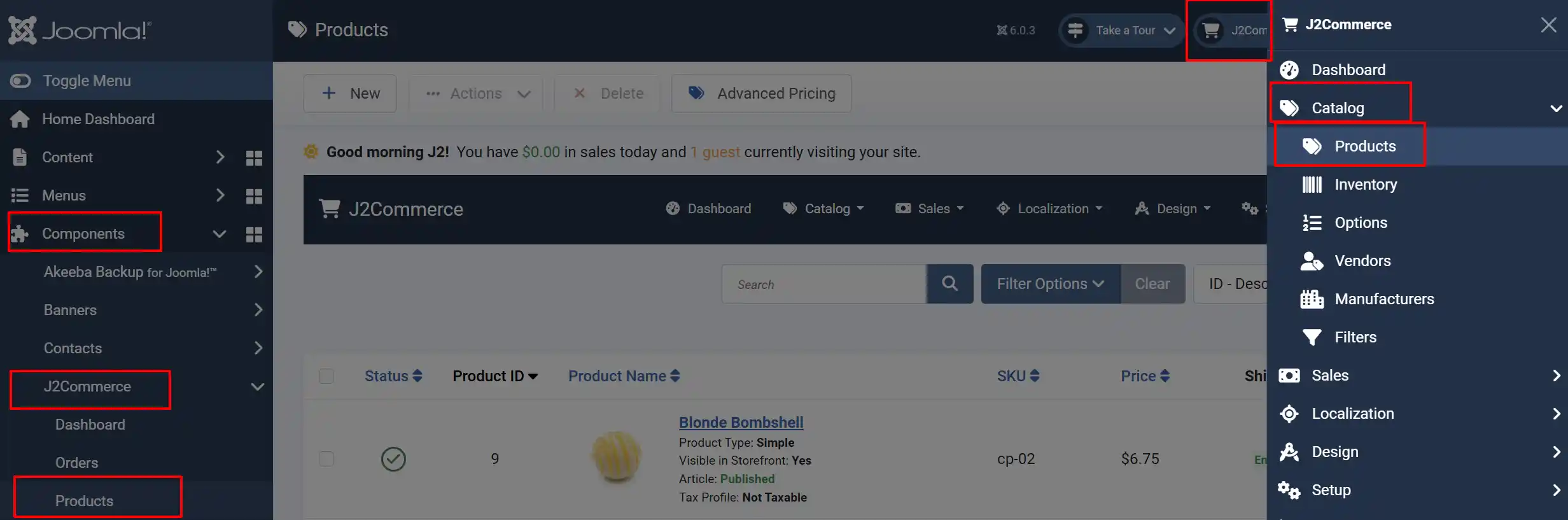
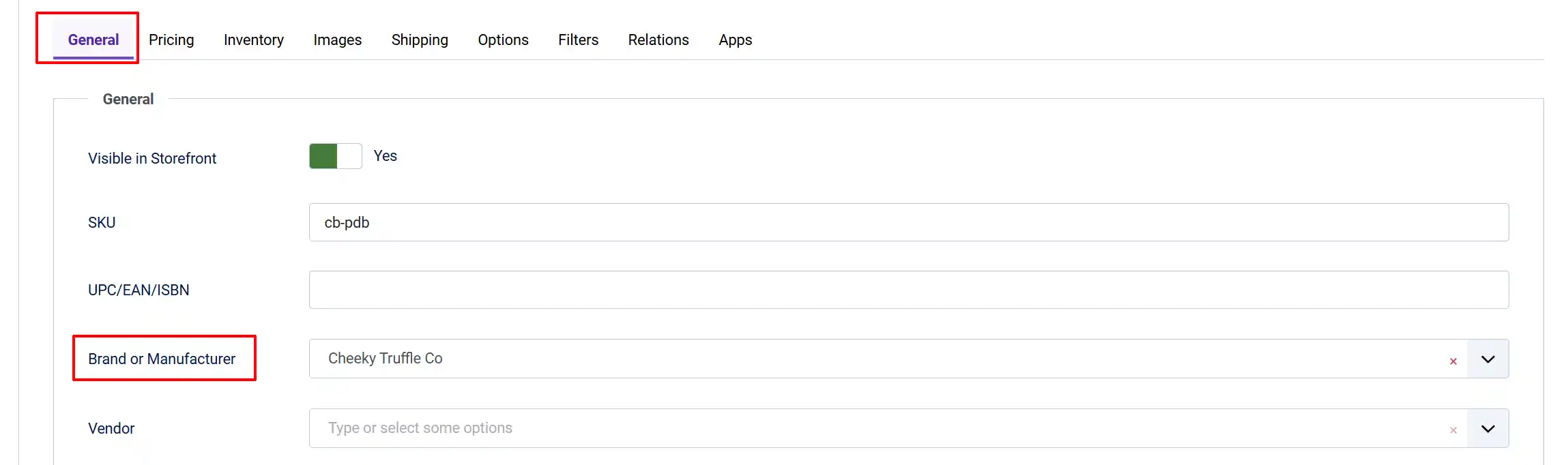
Open the product -> J2Commerce tab -> General tab -> Brand or Manufacturer -> Select the Manufacturer Article
Frontend View
Adding Custom Tabs to Products
This is a great tool if you want to display a specific article on the individual product pages. ie, Return Policy, Allergy Disclosure, etc.
After enabling and configuring the plugin, each product can have custom tabs.
Edit a Product
There are three ways you can access the products.
Option A: Go to the J2Commerce icon at the top right corner -> Catalog -> Products
Option B: Go to Components on the left sidebar -> J2Commerce -> Products
Option C: Go to Content -> Categories -> Find the category and then click inside the published/article section
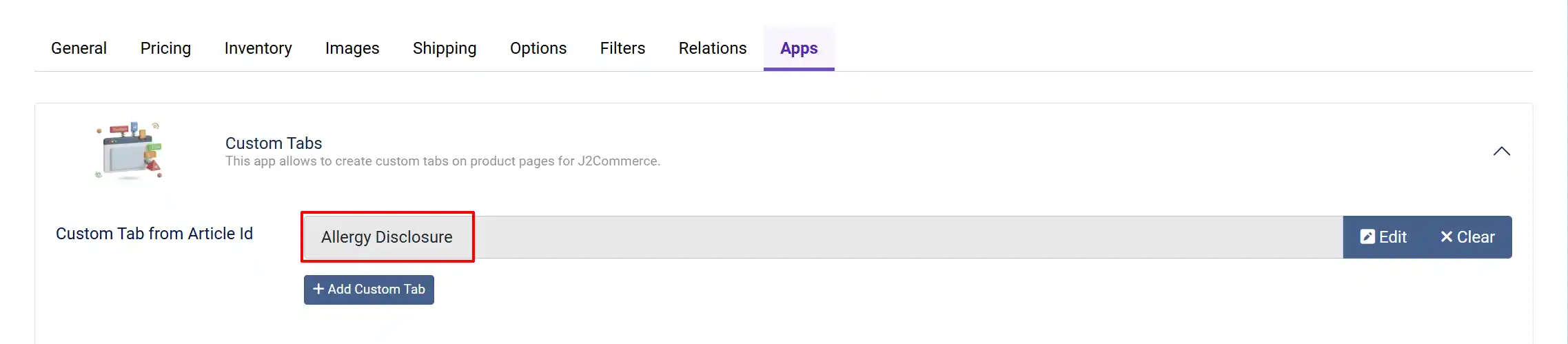
Click on a Product to edit it -> J2Commerce tab -> Apps tab
Custom Tab from Article ID: Select an existing Joomla article. The article title becomes the tab title, and the article content becomes the tab body.
Click Select to Add Custom Tab from Article ID
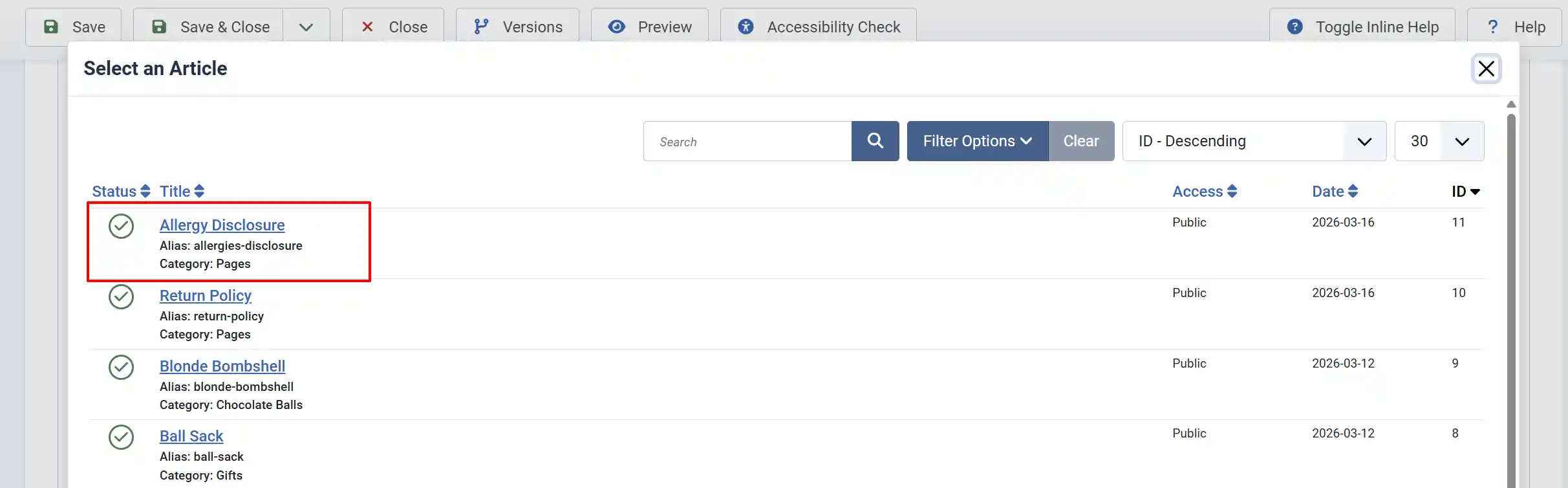
Select the article you want to be displayed on the product.
Adding Additional Custom Tabs
Click the Add Custom Tab button to create unlimited custom tabs.
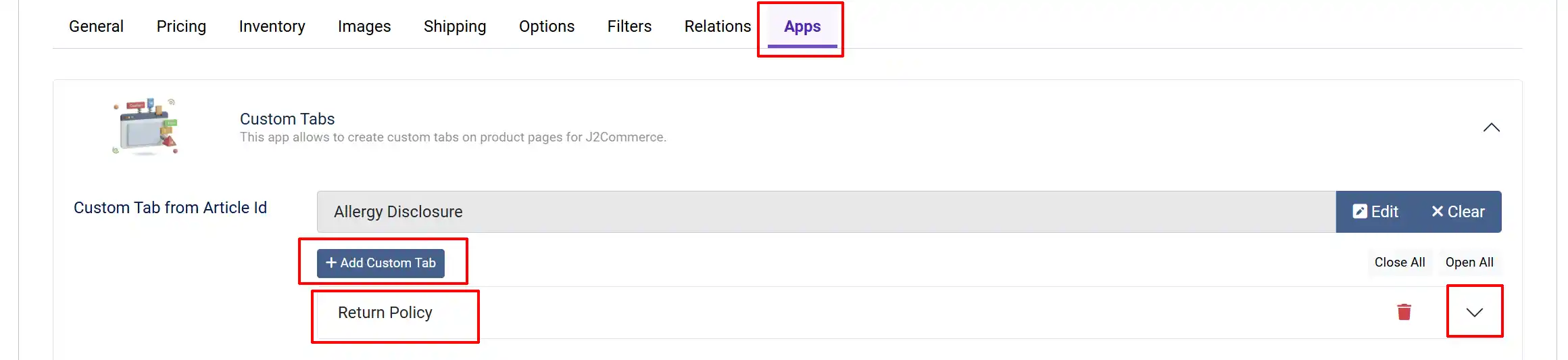
Each tab row has these fields:
Tab Title: The title displayed on the tab header
Tab Title Icon: Font Awesome icon class (e.g., fa-solid fa-star). Leave empty for no icon.
Enabled: Toggle to show or hide this tab.
Tab Content: The content displayed when the tab is active. Supports HTML and opens with the configured editor.
Organize Tabs
The order in which tabs appear in the admin interface determines their display order on the frontend. The first tab appears first in the tab navigation.
Bulk Actions:
-
Collapse All - Minimize all tab rows for easier navigation
-
Expand All - Open all tab rows for editing
-
Delete - Click the trash icon on any row to remove it
Frontend View
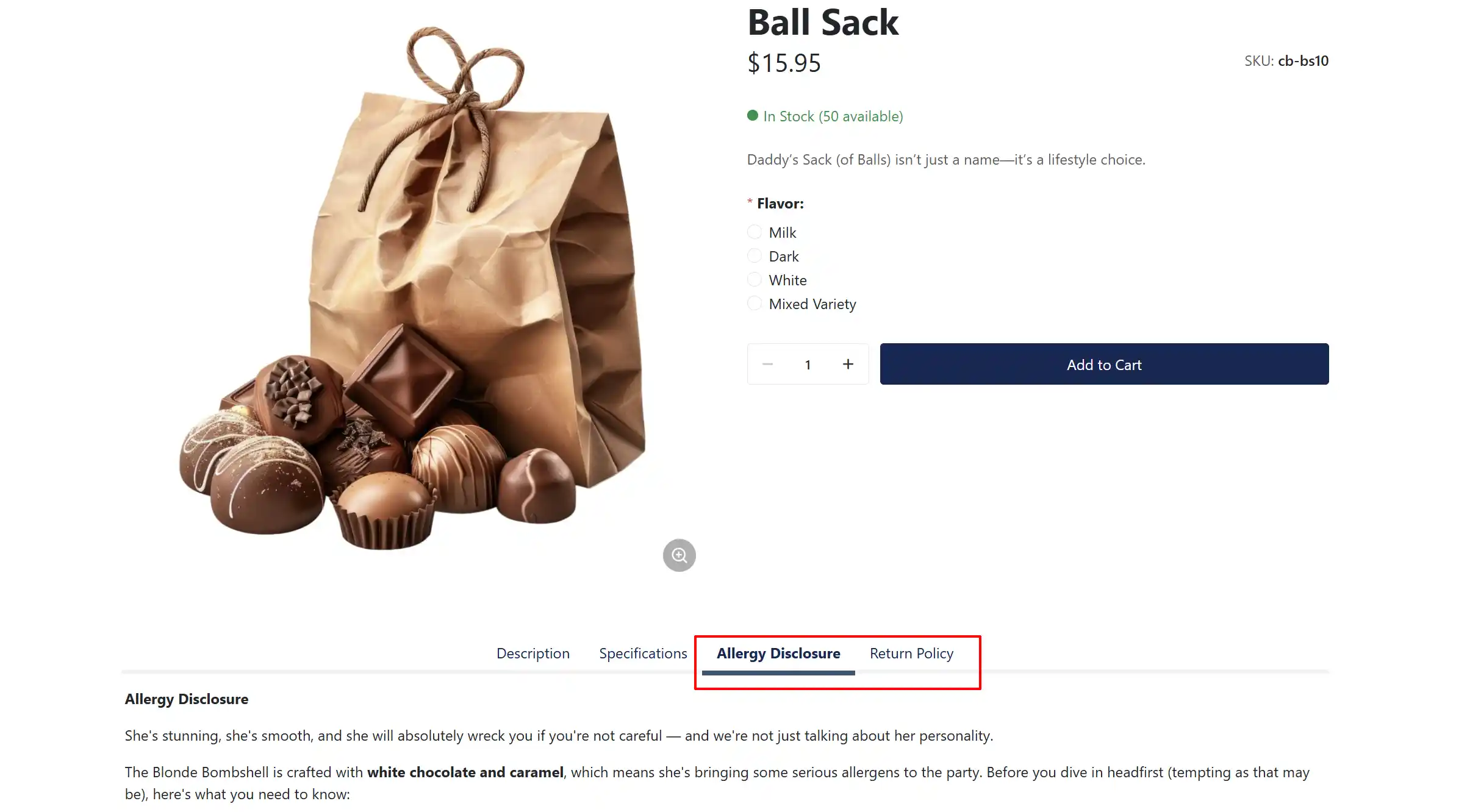
How It Works
When a customer views a product page:
-
J2Commerce checks if the Custom Tabs plugin is enabled.
-
If Display Brand Details is enabled and the product has a manufacturer, a Brand tab is added.
-
Custom tabs defined on the product are rendered in order.
-
If Prepare Content is enabled, content plugins process the tab content.
-
All tabs appear in a Bootstrap 5 tabbed interface.
Display Conditions
Custom tabs appear when:
-
The plugin is enabled in J2Commerce -> Apps.
-
At least one tab is configured (article-based or custom).
-
The product is published and visible.
The brand tab appears when:
- Display Brand Details is set to 'Yes'.
NOTE: In order to add the Brand or Manufacturer to a product, you have to add them to the database. Go to J2Commerce -> Dashboard -> Catalog -> Manufacturer. Fill out the company information and hit save
-
The product has a manufacturer assigned: Open the Product. Go to the General tab and add the Brand or Manufacturer. If it doesn't appear in the dropdown menu, then it needs to be created by following the note from above.
-
The manufacturer has a description article configured: Create an article with a Description/Bio of the manufacturer for it to show up on the frontend
Tips
-
Use articles for reusable content: If the same specifications apply to multiple products, create a Joomla article and reuse it across products.
-
Keep titles concise: Long tab titles may truncate on mobile devices.
-
Use icons sparingly: Icons should complement, not replace, meaningful titles.
-
Test with content plugins: If using
{loadmodule}or similar syntax, enable Prepare Content and verify the output. -
Organize by importance: Place critical information (shipping, warranty) in the first tabs for visibility.
Troubleshooting
Tabs Do Not Appear on Product Page
Cause: The plugin is disabled, or no tabs are configured.
Solution:
-
Go to J2Commerce -> Apps.
-
Verify Custom Tabs shows a green checkmark (enabled).
-
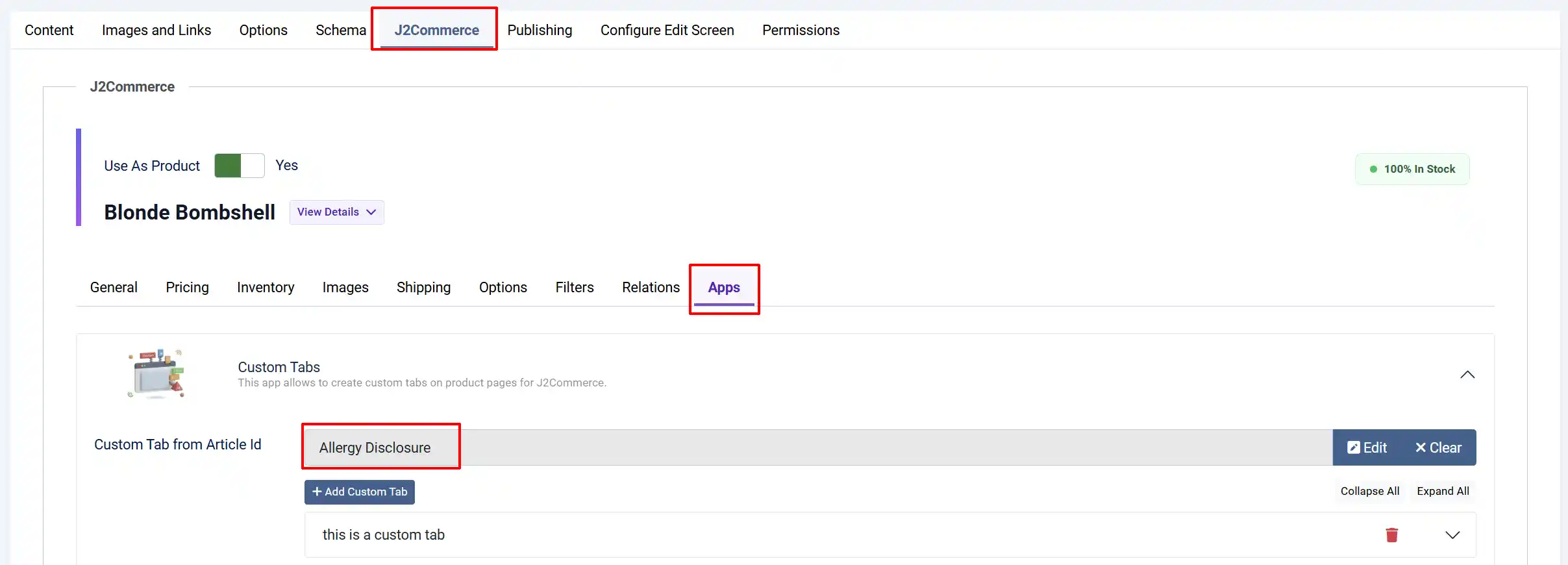
Edit the product and verify that at least one tab is configured and enabled in the Apps tab.
-
Check that the tab row has Enabled set to 'Yes'.
Article Content Not Loading
Cause: Invalid article ID or article unpublished.
Solution:
-
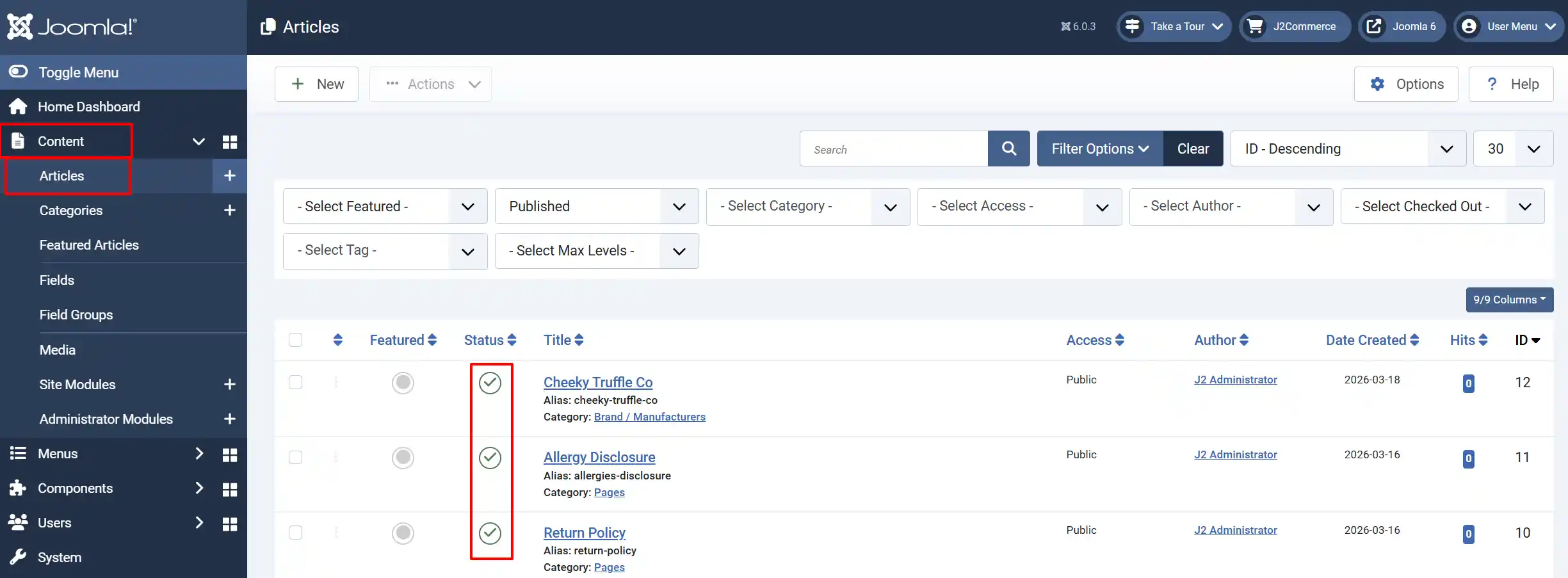
Go to Content -> Articles -> Open the Article
-
Verify the article exists and is published.
-
Return to the product edit screen and reselect the article in the Custom Tabs section of the Apps tab.
Content Plugins Not Processing
Cause: Prepare Content is disabled.
Solution:
-
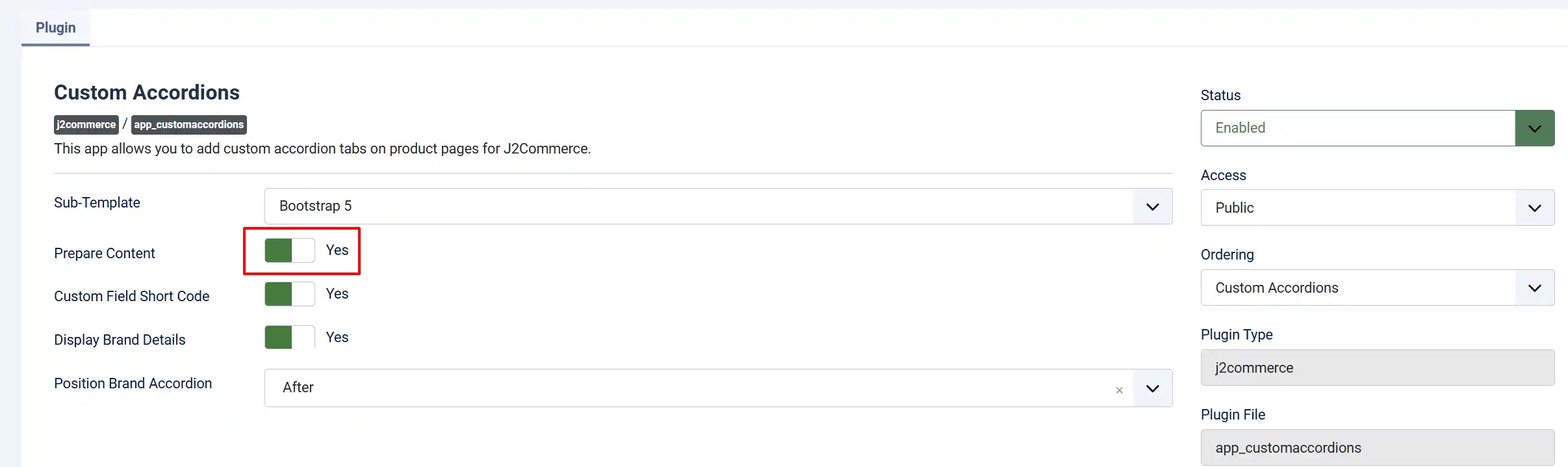
Go to J2Commerce -> Apps -> Custom Tabs.
-
Set Prepare Content to 'Yes'.
-
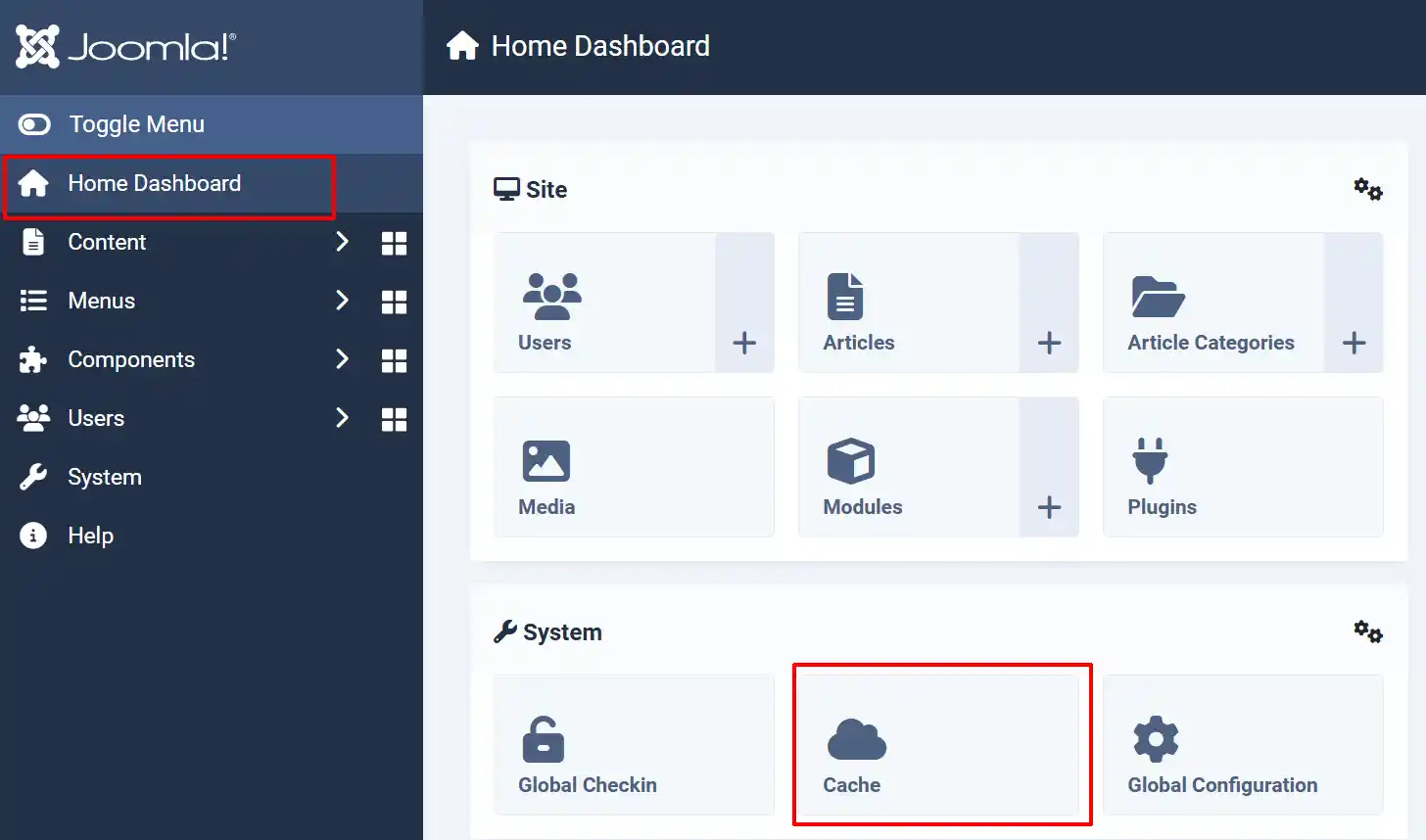
Clear cache: Go to Home Dashboard -> Cache -> Delete All
Brand or Manufacturer Tab Missing
Cause: Product has no manufacturer assigned, or the manufacturer lacks a description.
-
Go to J2Commerce -> Catalog -> Products.
-
Edit the product. Go to the J2Commerce tab -> General tab -> and check the Manufacturer field has a manufacturer assigned.
-
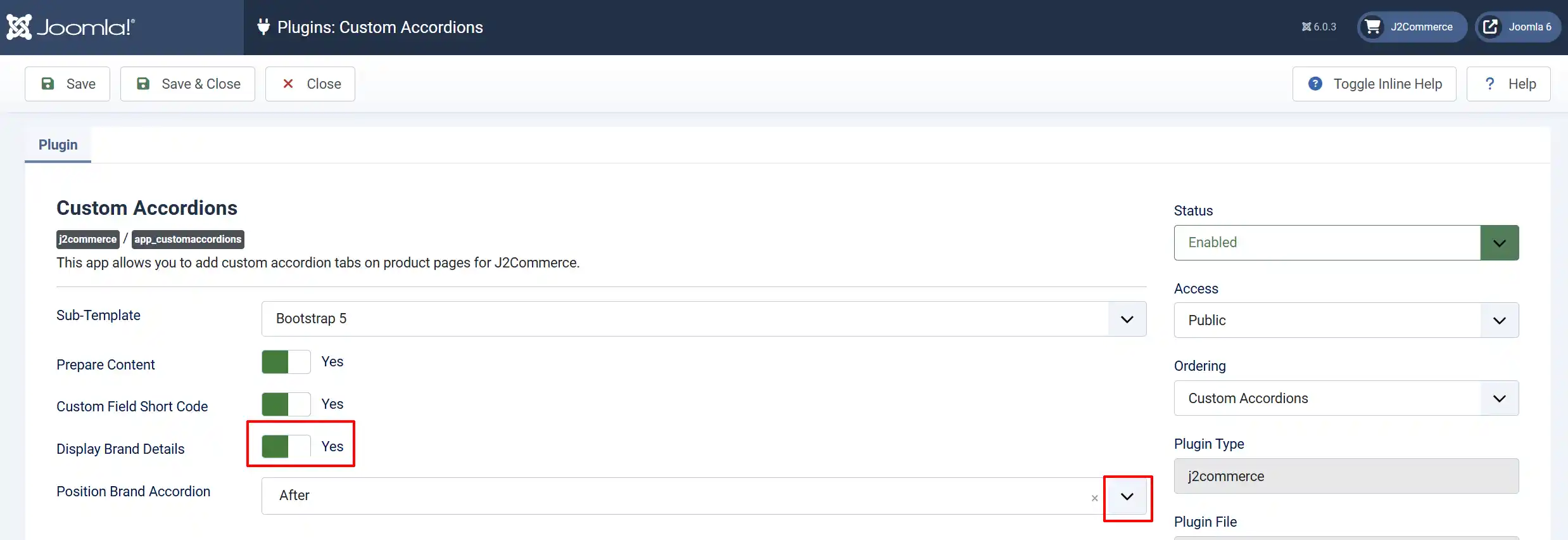
Verify that the Display Brand Details is set to 'Yes' in the App.
-
Go to J2Commerce -> Catalog -> Manufacturers.
-
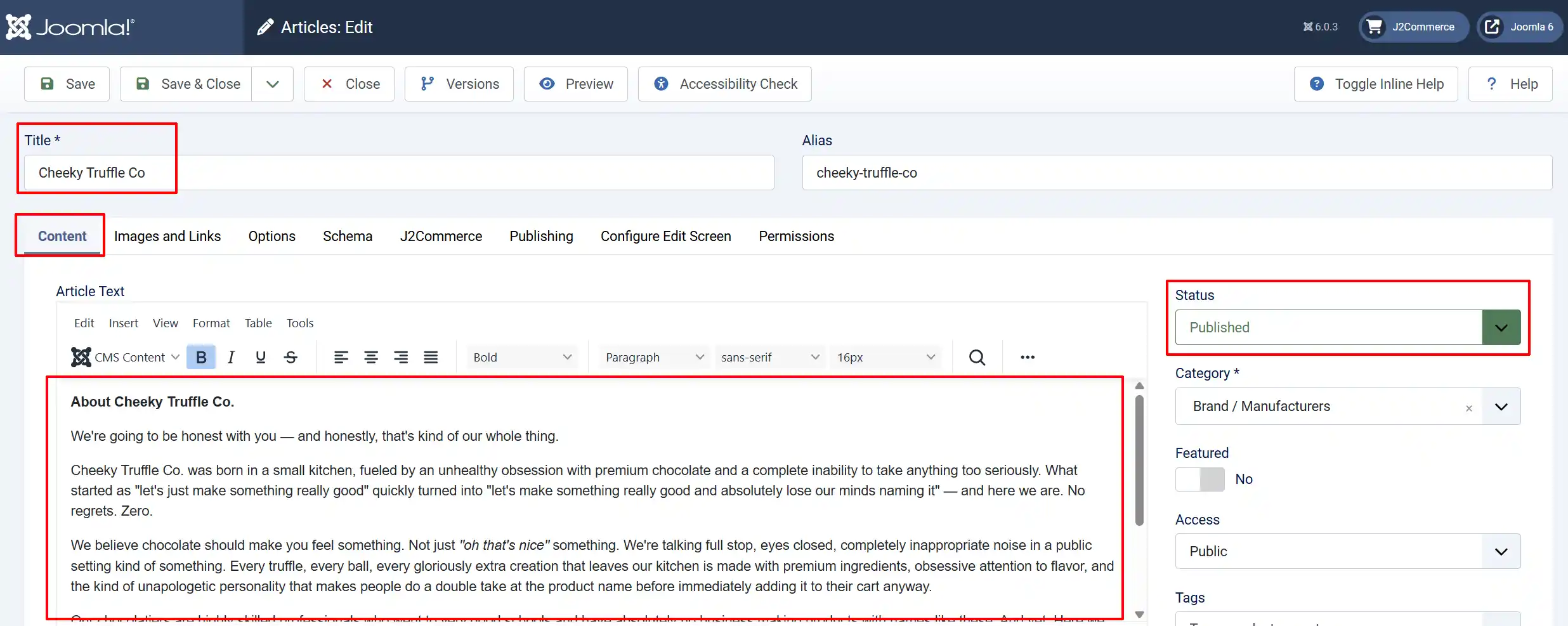
Edit the manufacturer and verify that the description article is configured.
-
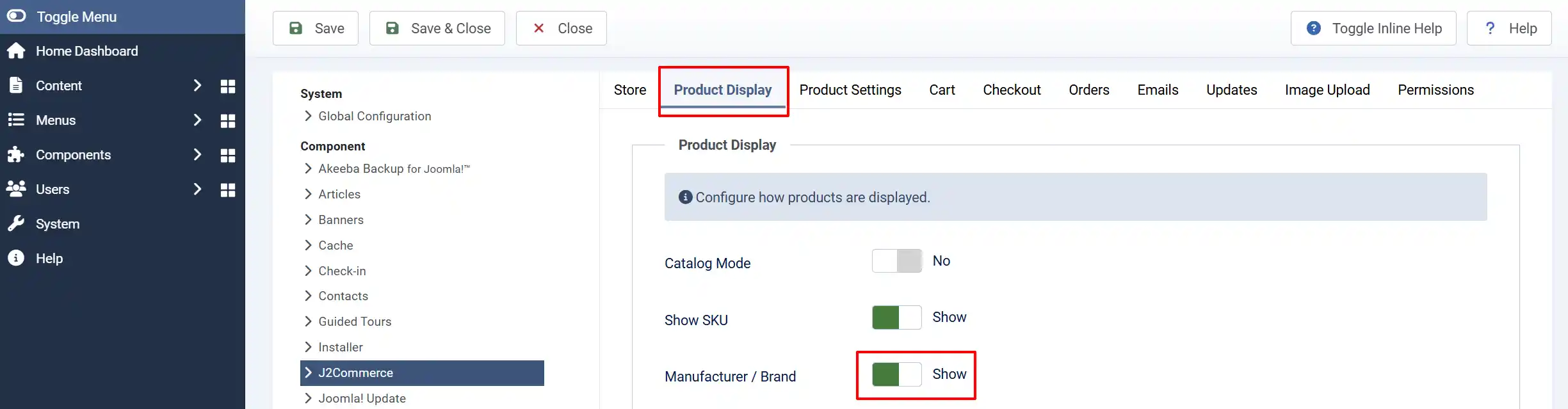
Go to J2Commerce -> Setup -> Configuration -> Product Display tab -> make sure the Manufacturer / Brand is set to 'Show'
Tab Content Shows Raw HTML
Cause: Content contains HTML but is not being processed.
Solution:
-
If you want HTML rendered, ensure Prepare Content is enabled.
-
If HTML should appear as code (e.g., tutorials), leave Prepare Content disabled and escape your HTML.
Icon Not Displaying
Cause: Invalid icon class or missing Font Awesome library.
Solution:
-
Verify the icon class format:
fa-solid fa-starorfa-regular fa-circle. -
Ensure your template or plugin loads Font Awesome.
-
Test with a known icon
fa-solid fa-checkto verify the library loads.