Sort by Price Calculator
The Sort by Price Calculator plugin adds an alternative pricing calculator to J2Commerce. When a product has multiple price levels set up in its Additional Pricing table, this calculator automatically finds and applies the lowest matching price for each customer based on three factors: their Joomla user group, the quantity they are ordering, and the current date.
This is useful for stores that offer tiered pricing, wholesale discounts, time-limited promotions, or group-specific pricing. Without this plugin, J2Commerce uses the Standard calculator, which only uses the base variant price.
Prerequisites
- J2Commerce installed and enabled
- At least one product with multiple price levels defined in Additional Pricing
Purchase and Download
The Sort By Price Calculator app is a separate add-on available from the J2Commerce Extensions Store. It is not included with the core J2Commerce 6 component.
Step 1: Go to the J2Commerce website -> Apps.
Step 2: Locate the Sort By Price Calculator app -> click View Details -> Add to cart -> Checkout.
Step 3: Go to My Downloads under your profile menu at the top right corner and search for the app. Click Available Versions -> View Files -> Download.
Install the App
You can install this Sort By Price Calculator App using the Joomla installer. The following steps help you with a successful installation.
In the Joomla admin, go to System -> Install -> Extensions
Upload the plugin app_calculatorsortbyprice.zip file or use the Install from URL option.
 (1)-a6689f12b23b8e992f5c2a169737672f.webp)
Enable the App
Once you have installed the App, you will need to enable it. There are two ways you can access the extension.
Option A: Go to the J2Commerce icon at the top right corner -> Apps
Option B: Go to Components on the left sidebar -> J2Commerce -> Apps
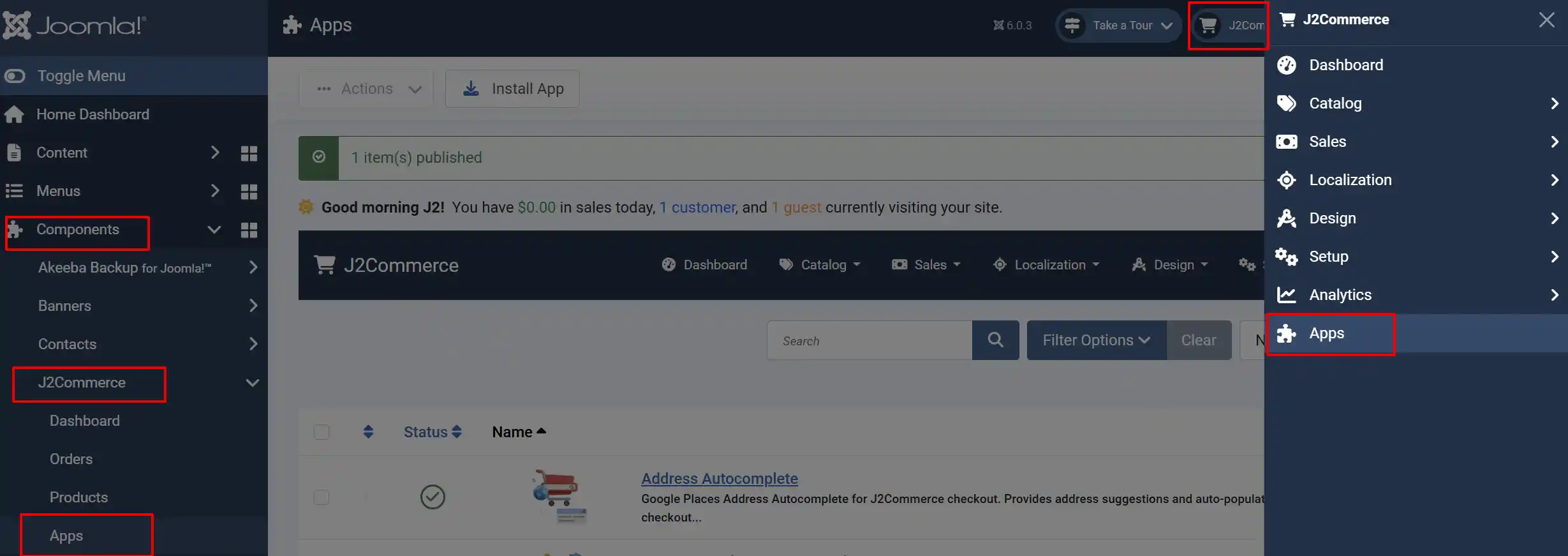
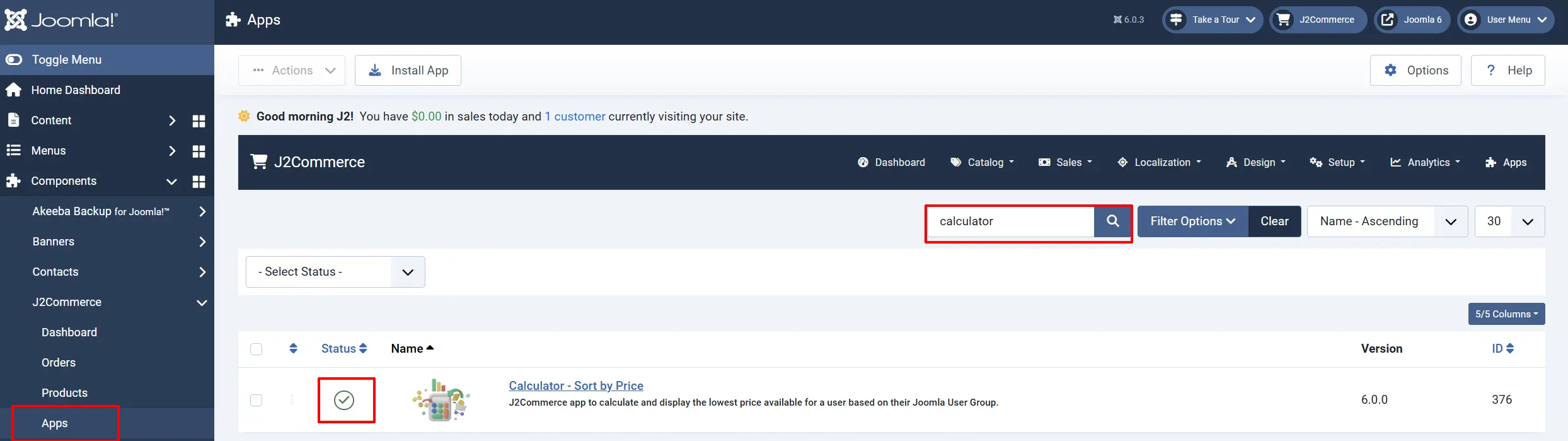
Look for Sort By Price Calculator, click the X, and it will turn into a green checkmark. It is now enabled and ready for setup.
How Pricing Calculators Work
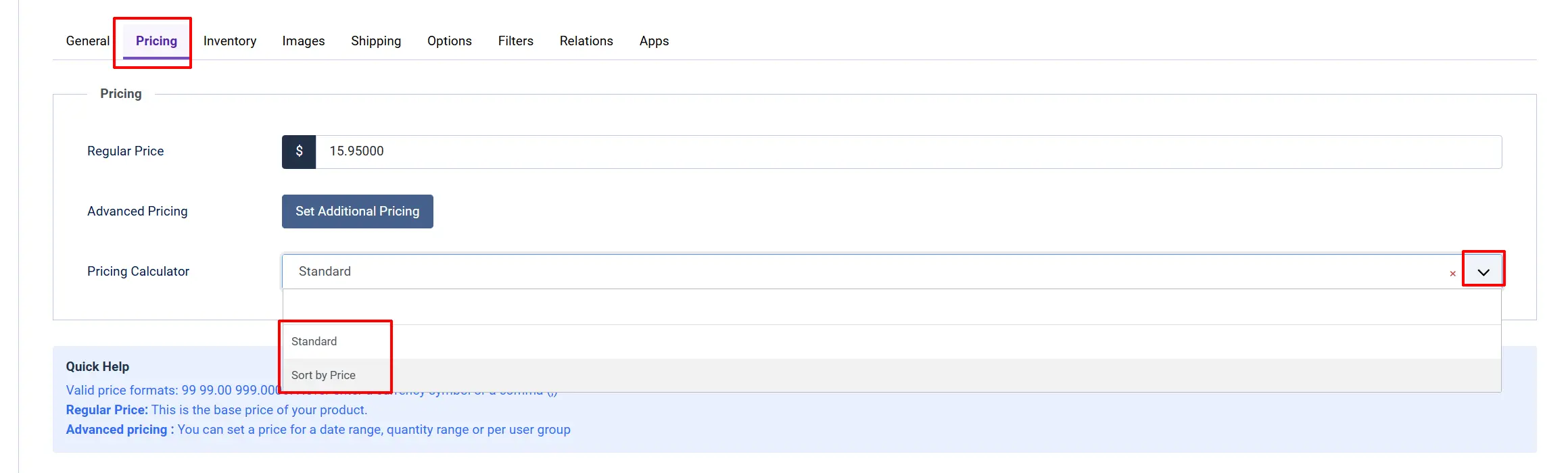
Every product variant in J2Commerce has a Pricing Calculator setting that controls how the final price is determined. By default, all products use the Standard calculator. Once this plugin is installed, a second option — Sort by Price — becomes available.
Standard: Uses the base variant price only. Additional pricing rules are ignored.
Sort by Price: Evaluates all additional pricing rules and selects the lowest price that matches the customer's group, quantity, and the current date.
The calculator is set per product, so you can use Standard pricing on some products and Sort by Price on others.
Setting Up a Product to Use Sort by Price
Open the Product
-
Go to J2Commerce -> Catalog -> Products.
-
Click the product you want to configure.
-
Select the Price tab.
-
Find the Pricing Calculator dropdown in the Price tab.
-
Change it from Standard to Sort by Price.
Add Price Levels
The Sort by Price calculator only works when you have additional pricing rules defined. To add them:
- In the same Price tab, click the Additional Pricing button.

-
A modal window opens showing your existing price rules (if any) and a form to add new ones.
-
Fill in the fields for each price level:
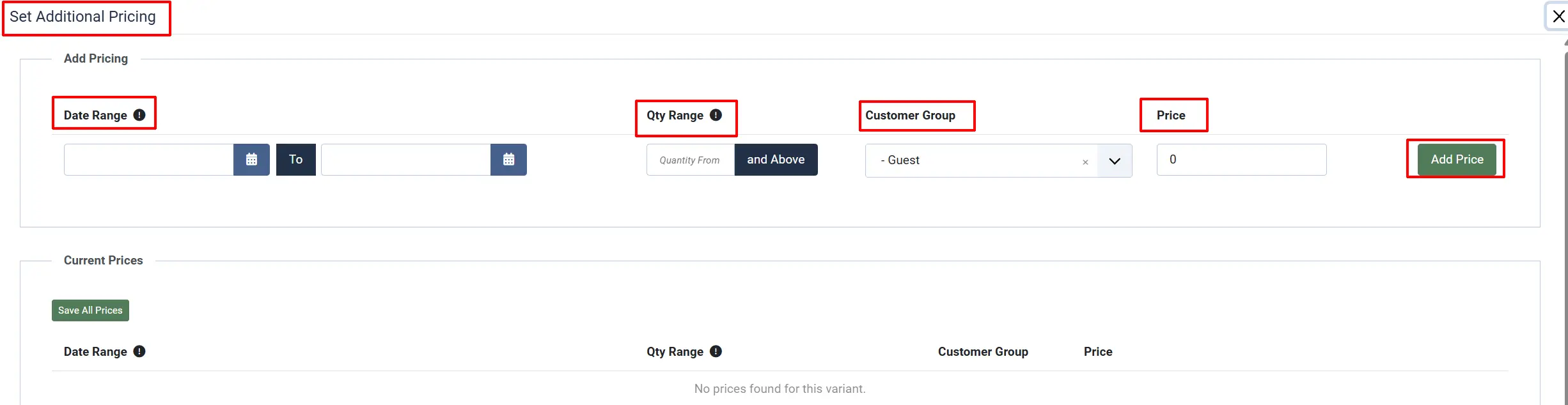
Quantity From: Minimum quantity for this price to apply. Set to 0 for no minimum
Date From: Start date for this price. Leave empty for no start restriction.
Date To: End date for this price. Leave empty for no end restriction.
Customer Group: The Joomla user group this price applies to. Select All to apply to every customer.
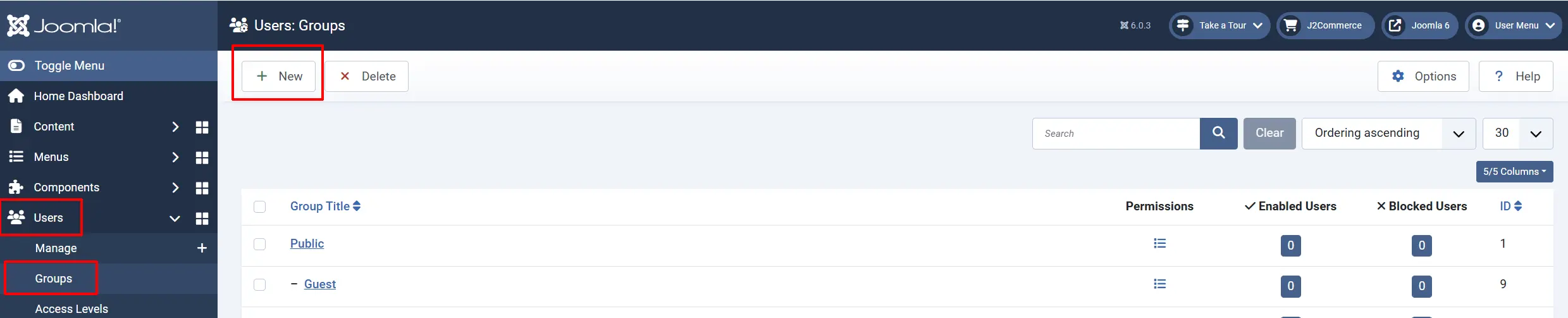
Note: If you want to have a specific Customer Group be added to the list, ie; VIP, Wholesale, etc. You can create new customer groups by going to Users -> Groups -> New
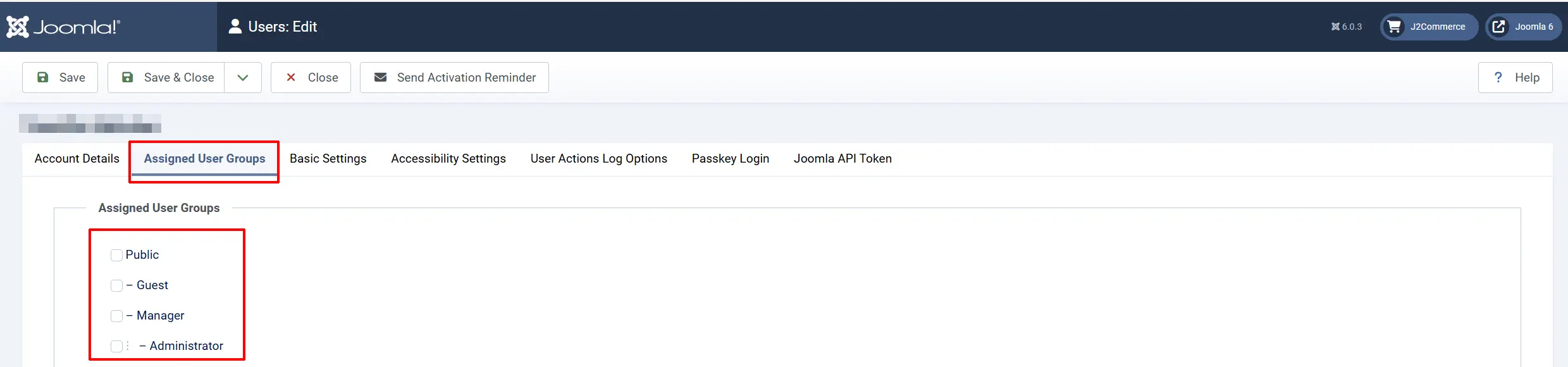
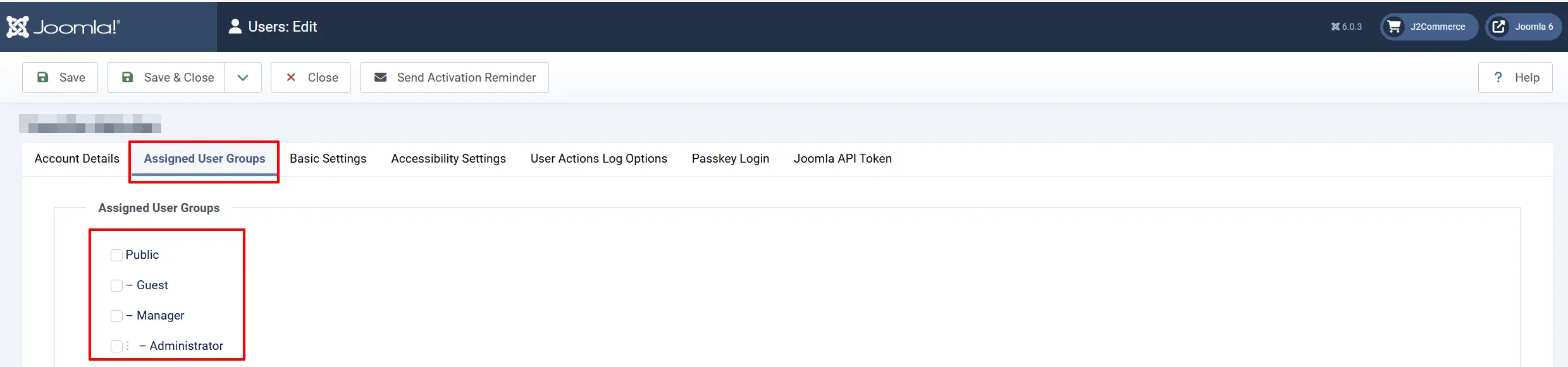
Note: Don't forget to add the specific use to the group in order for them to see the Advanced Pricing that is just for that group. Go to Users -> Manage -> click on the -> User -> Assigned User Groups tab
Price: The price amount for this rule.
Click Save to add the rule.
Repeat for each price level you need.
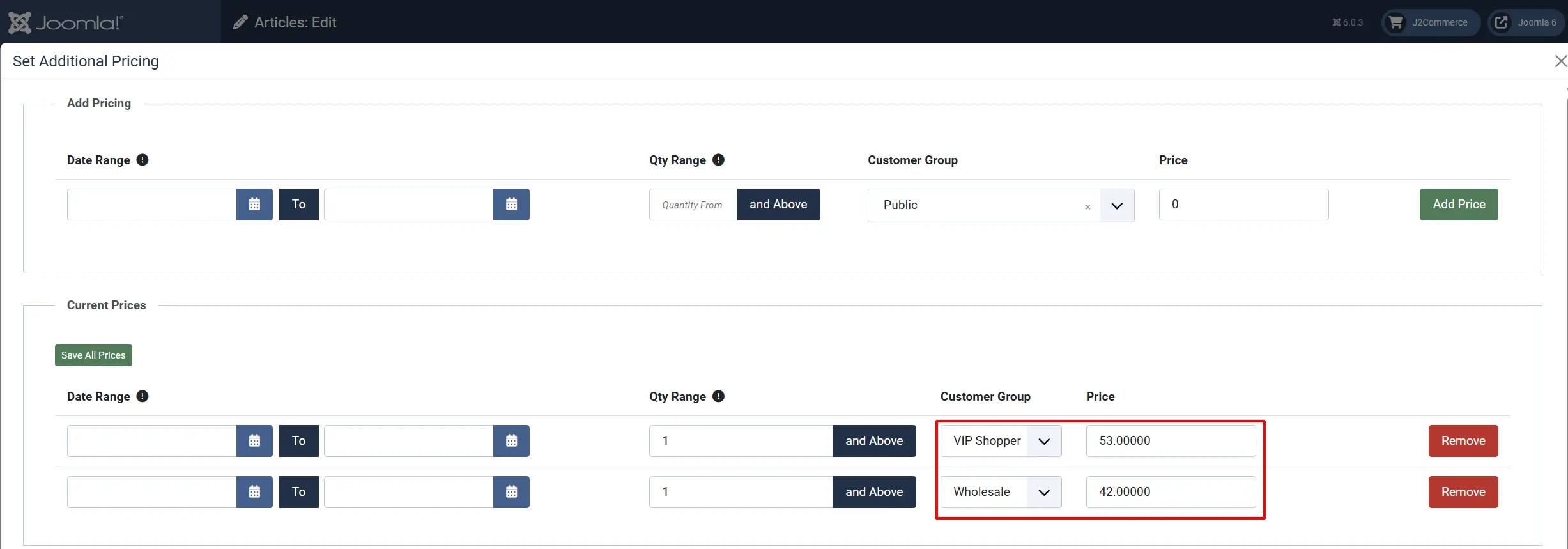
Close the modal and click Save on the product.
Frontend View
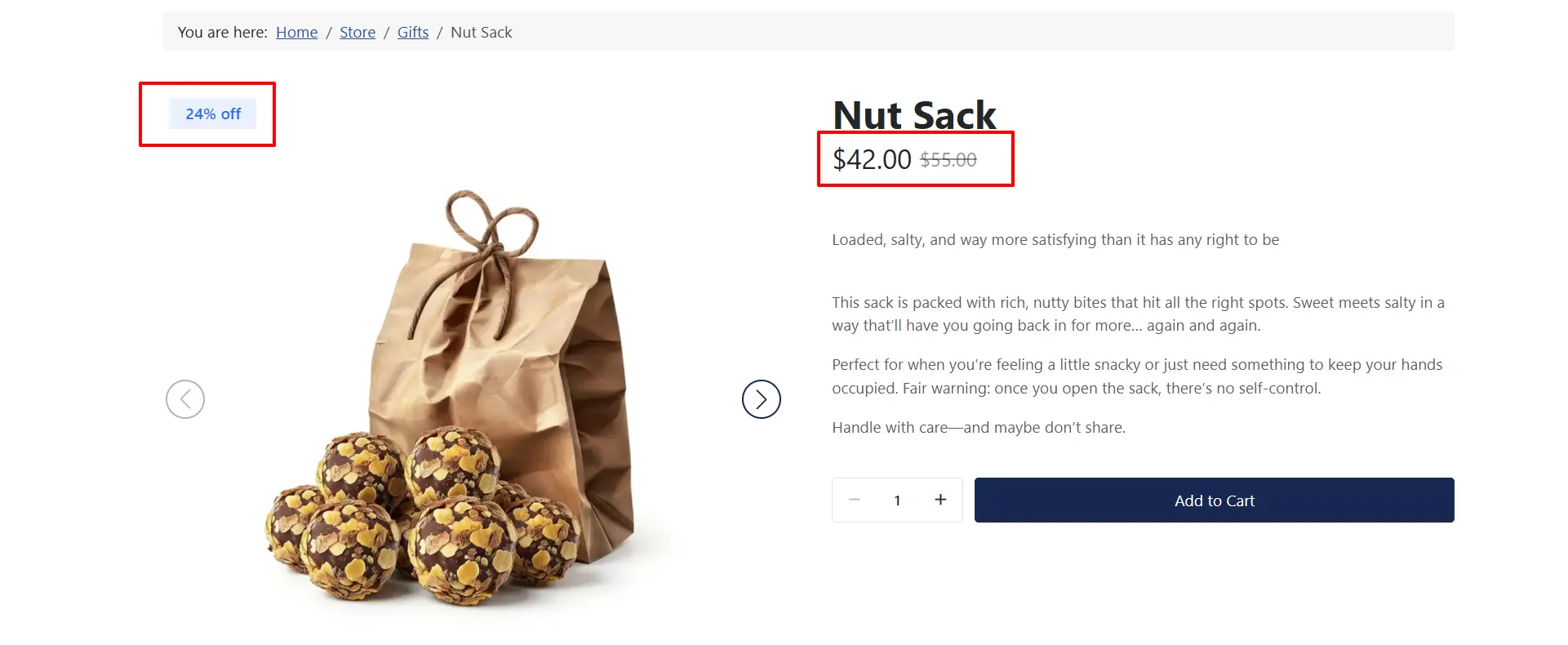
Example: Multiple Price Levels in Action
Suppose you sell a product with a base price of $25.00 and you set up these additional pricing rules:
| Rule | Quantity | Group | Price |
|---|---|---|---|
| 1 | 1 – 9 | All | $25.00 |
| 2 | 10 – 49 | All | $20.00 |
| 3 | 50+ | All | $15.00 |
| 4 | 1+ | Wholesale | $18.00 |
With the Sort by Price calculator, here is what each customer would pay:
- A retail customer ordering 5 units: Rule 1 matches ($25.00). Final price: $25.00 per unit.
- A retail customer ordering 25 units: Rule 2 matches ($20.00). Final price: $20.00 per unit.
- A retail customer ordering 100 units: Rule 3 matches ($15.00). Final price: $15.00 per unit.
- A wholesale customer ordering 25 units: Rules 2 ($20.00) and 4 ($18.00) both match. The calculator picks the lowest: $18.00 per unit.
- A wholesale customer ordering 100 units: Rules 3 ($15.00) and 4 ($18.00) both match. The calculator picks the lowest: $15.00 per unit.
The key behavior is that when multiple rules match, the customer always gets the best (lowest) price.
How the Calculator Evaluates Rules
When a customer views or adds a product to the cart, the Sort by Price calculator:
-
Retrieves all additional pricing rules for that product variant.
-
Filters out rules that do not match:
- Quantity: The customer's quantity must fall within the rule's quantity range.
- Date: Today's date must fall within the rule's date range (if one is set).
- Customer Group: The customer must belong to the rule's user group, or the rule must be set to All.
-
Sorts the remaining matching rules by price, lowest first.
-
Applies the lowest price.
If no rules match, the product's base variant price is used as a fallback.
Tips
- You do not need to create a rule that matches the base price. If no additional pricing rules match, the standard base price is used automatically.
- Use date ranges for seasonal sales or limited-time promotions. The calculator will only apply those prices during the specified period.
- Combine quantity tiers with group-specific pricing for maximum flexibility. The calculator will always find the best deal for the customer.
- You can switch a product back to Standard at any time without deleting your additional pricing rules. The rules are preserved but ignored until you switch back to Sort by Price.
Troubleshooting
The product still shows the base price even though I added pricing rules
Cause: The product's Pricing Calculator is still set to Standard.
Solution:
- Edit the product and go to the Price tab.
- Change the Pricing Calculator dropdown from Standard to Sort by Price.
- Click Save.

A customer is not getting the expected discounted price
Cause: The customer's quantity, date, or user group may not match any of the pricing rules.
Solution:
- Open the product and click Additional Pricing to review the rules.
- Verify that the customer's order quantity falls within the Quantity From range of the intended rule.
- Check that today's date is within the Date From and Date To range (if set).
- Confirm the customer belongs to the correct Joomla user group. You can check this under Users -> Manage in the Joomla admin.
- Click on the User and then the Assigned User Group tab and enable the appropriate group for that user