Currencies
The Currencies feature allows you to configure multiple currencies for your J2Commerce store. When selling internationally, customers may prefer to see prices and pay in their local currency. J2Commerce supports multi-currency stores with configurable exchange rates and formatting options.
Requirements
- PHP 8.3.0+
- Joomla 6.x
- J2Commerce 6.x
Locating Currencies
Currencies are managed from the J2Commerce Dashboard.
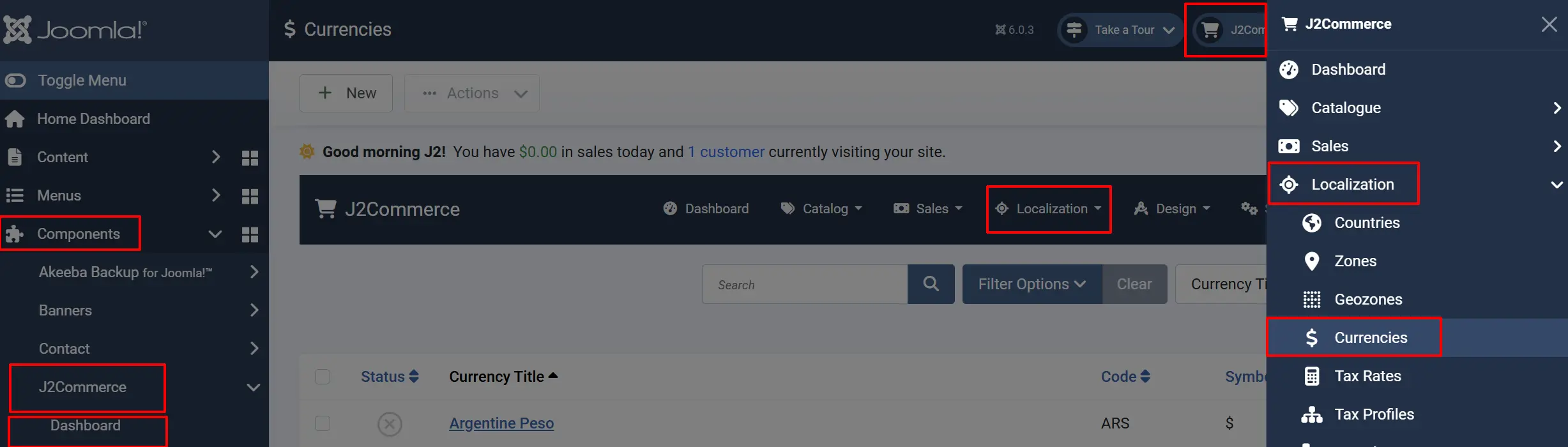
There are two ways you can access the Currencies.
Option A: Go to the J2Commerce icon at the top right corner -> Localization -> Currencies
Option B: Go to Components on the left sidebar -> J2Commerce -> Dashboard -> Localization -> Currencies
Currency List
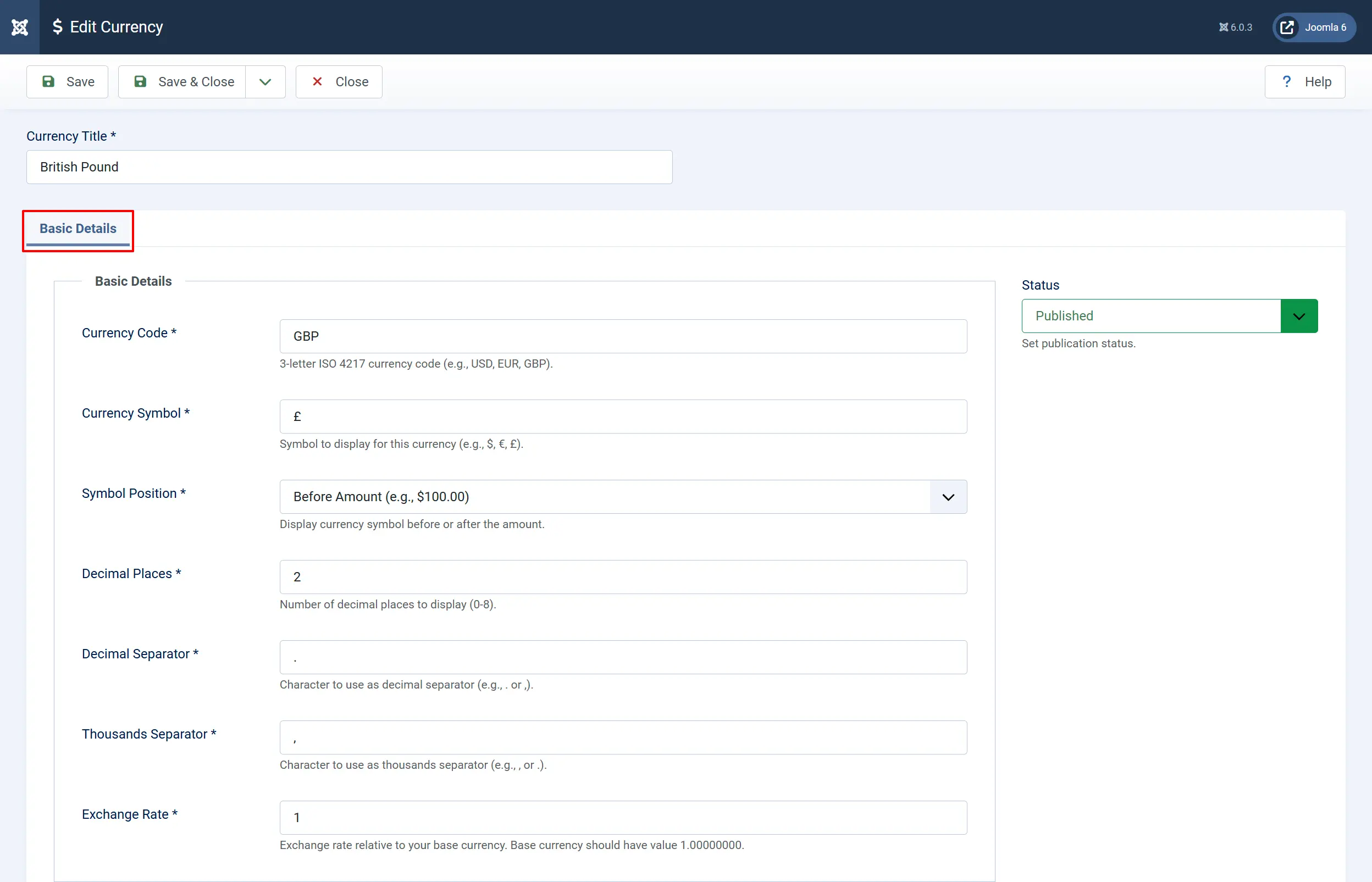
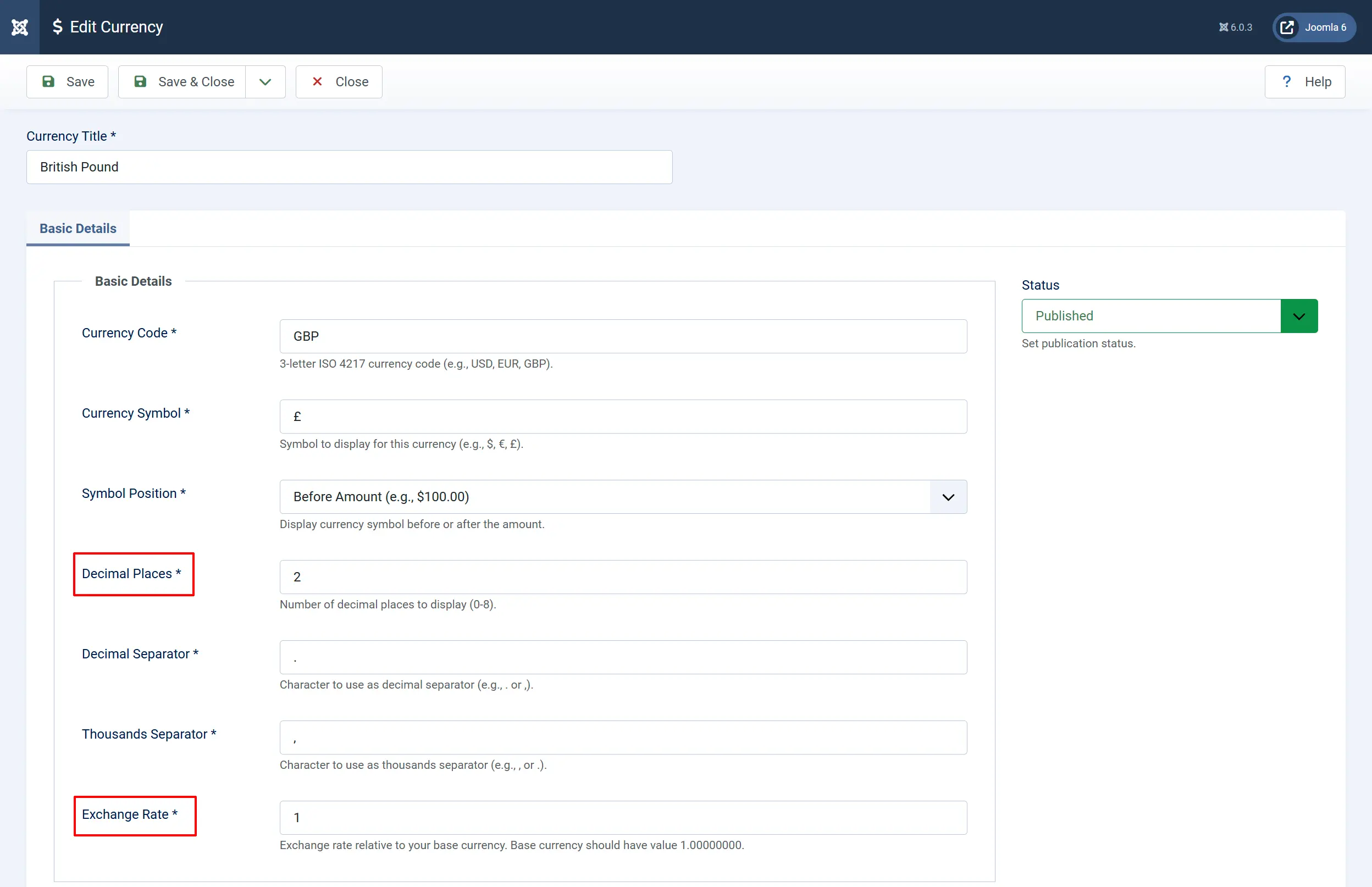
The Currencies list displays all currencies configured in your store. Each currency shows:
Checkbox: Select currencies for batch actions.
Currency Title: The display title shown to customers and in admin lists. Example: British Pound
Code: The 3-letter ISO 4217 currency code. Must be exactly 3 characters, uppercase. Example: GBP
Symbol: The symbol displayed with prices. Example: £
Symbol Position: Where to display the symbol relative to the amount. Example: Before or After
Decimal Places: Number of decimal places to display. Example: 2 (most currencies)
Decimal Separator: Character separating whole and decimal amounts. Example: . or ,
Thousands Separator: Character separating thousands groups. Example: , or . or space
Exchange Rate: Conversion value relative to your base currency. Example: 1.27000
Status: Set to Published to make the currency available.
Adding a New Currency
- Click the New button in the toolbar.
- Fill in the currency details (see Configuration above).
- Click Save or Save & Close.
Currency Code Standards
Currency codes must follow ISO 4217 standards:
- USD — United States Dollar
- EUR — Euro
- GBP — British Pound Sterling
- CAD — Canadian Dollar
- AUD — Australian Dollar
- JPY — Japanese Yen
- CNY — Chinese Yuan
- INR — Indian Rupee
Symbol Position Examples
| Position | Symbol | Amount | Display |
|---|---|---|---|
| Before | $ | 99.99 | $99.99 |
| After | € | 99.99 | 99.99€ |
Decimal and Thousands Separator Examples
Different regions use different formatting:
| Region | Decimal | Thousands | Example |
|---|---|---|---|
| US/UK | . | , | 1,234.56 |
| EU (most) | , | . | 1.234,56 |
| Switzerland | . | ' | 1'234.56 |
Exchange Rate
The exchange rate is relative to your base currency (the currency with a value of 1.00000000):
- Base Currency: Value = 1.00000000
- Other Currencies: Value = conversion rate from base currency
For example, if your base currency is USD and you want to add GBP:
- If 1 GBP = 1.27 USD, the GBP exchange rate is 1.27000
- If 1 EUR = 1.08 USD, the EUR exchange rate is 1.08000
The system uses 8 decimal places for precise calculations.
Base Currency
Your base currency is identified by having an exchange rate of 1.00000000. This is the currency in which:
- Product prices are stored in the database
- Reports and statistics are calculated
- Payment gateways receive payment amounts (unless multi-currency payments are enabled)
To change your base currency:
- Set the new currency's exchange rate to
1.00000000. - Update all other currency exchange rates relative to the new base.
- Update your store configuration to reflect the new default currency.
How Currencies Are Used
Currencies are referenced throughout J2Commerce:
- Product Pricing — Products have a base price in your store's default currency.
- Checkout — Customers can select their preferred currency during checkout (if multiple currencies are published).
- Order Totals — Orders record the currency used and the converted amounts.
- Reports — Sales reports can display totals in any published currency.
- Currency Converter — The optional Currency Converter app can automatically update exchange rates.
Exchange Rate Updates
Exchange rates fluctuate constantly. You have several options for keeping rates current:
Manual Updates
Edit each currency and update the Exchange Rate field as needed.
Enable Currency Updater App
J2Commerce includes a Currency Updater app that can automatically fetch exchange rates from external services:
-
Go to J2Commerce -> Apps.
-
Enable the Currency Exchange Rates Updater app.
-
Configure the app with your preferred exchange rate provider and their API Key
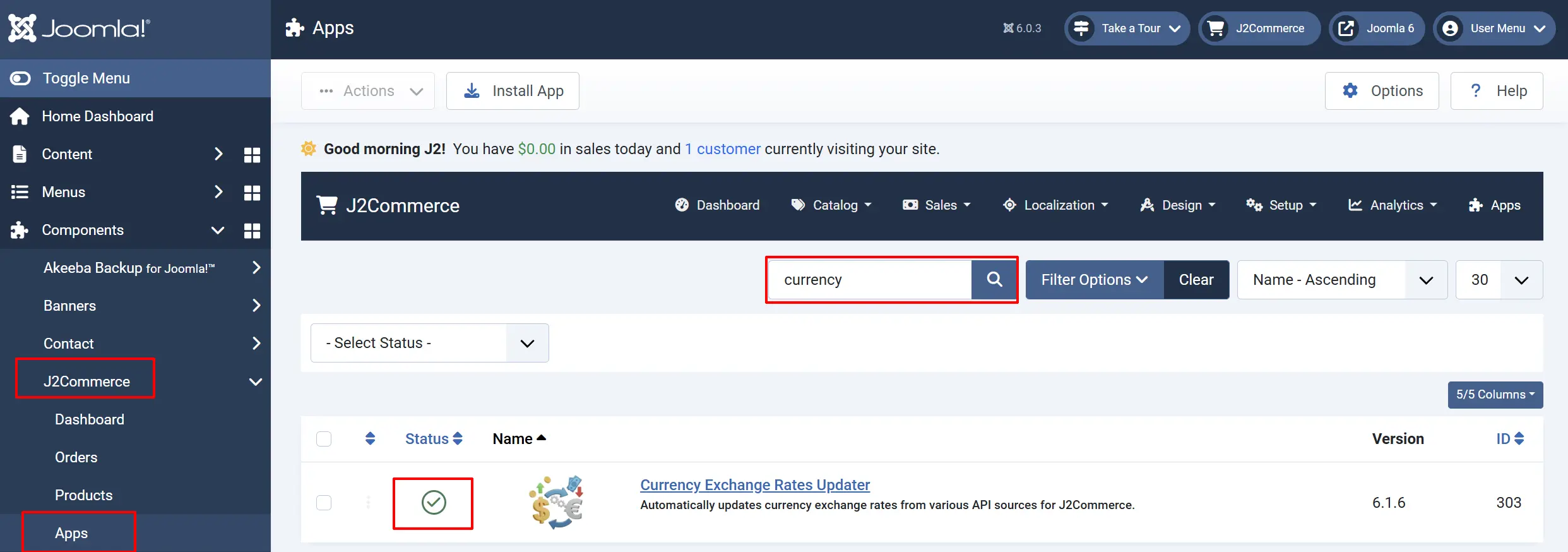
Configure the Currency Updater App
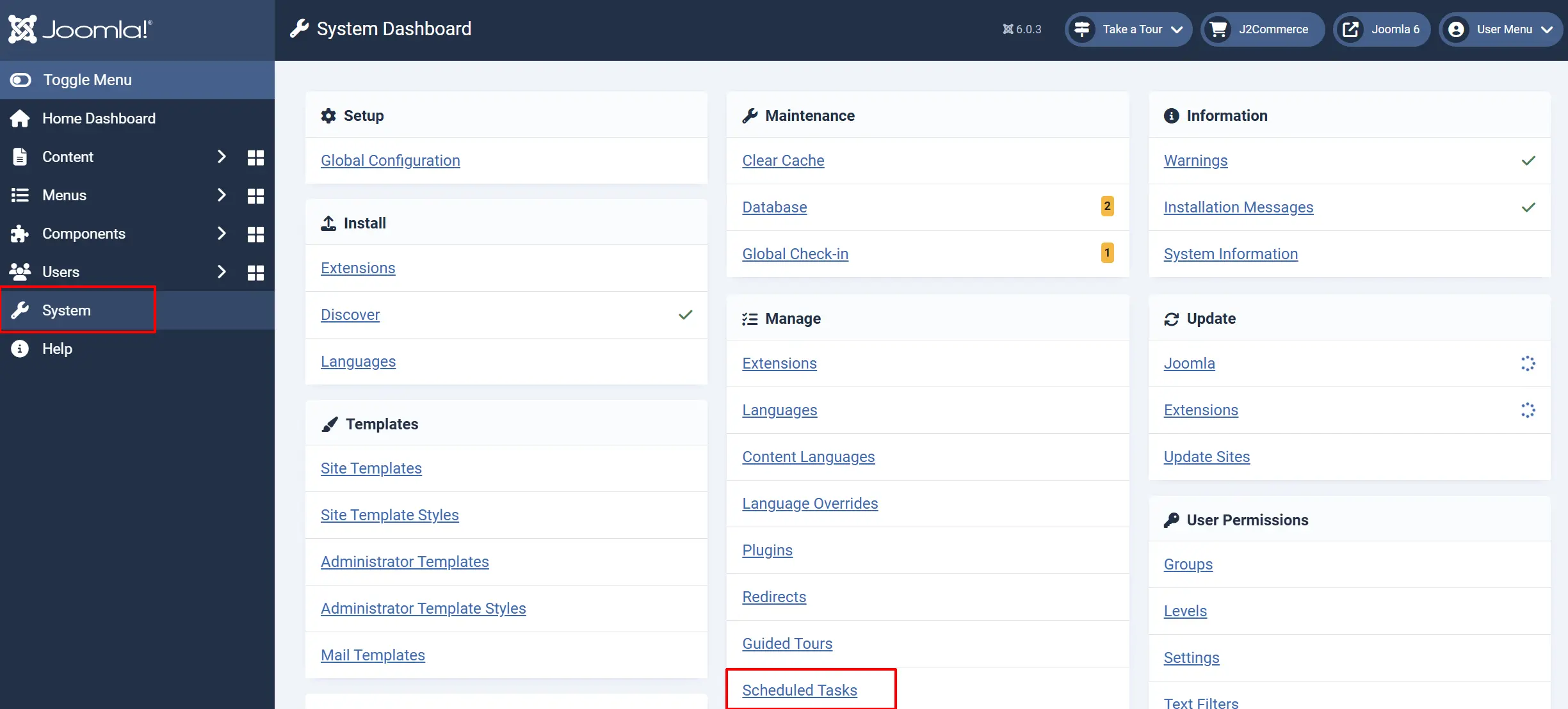
Go to Settings -> Scheduled Tasks
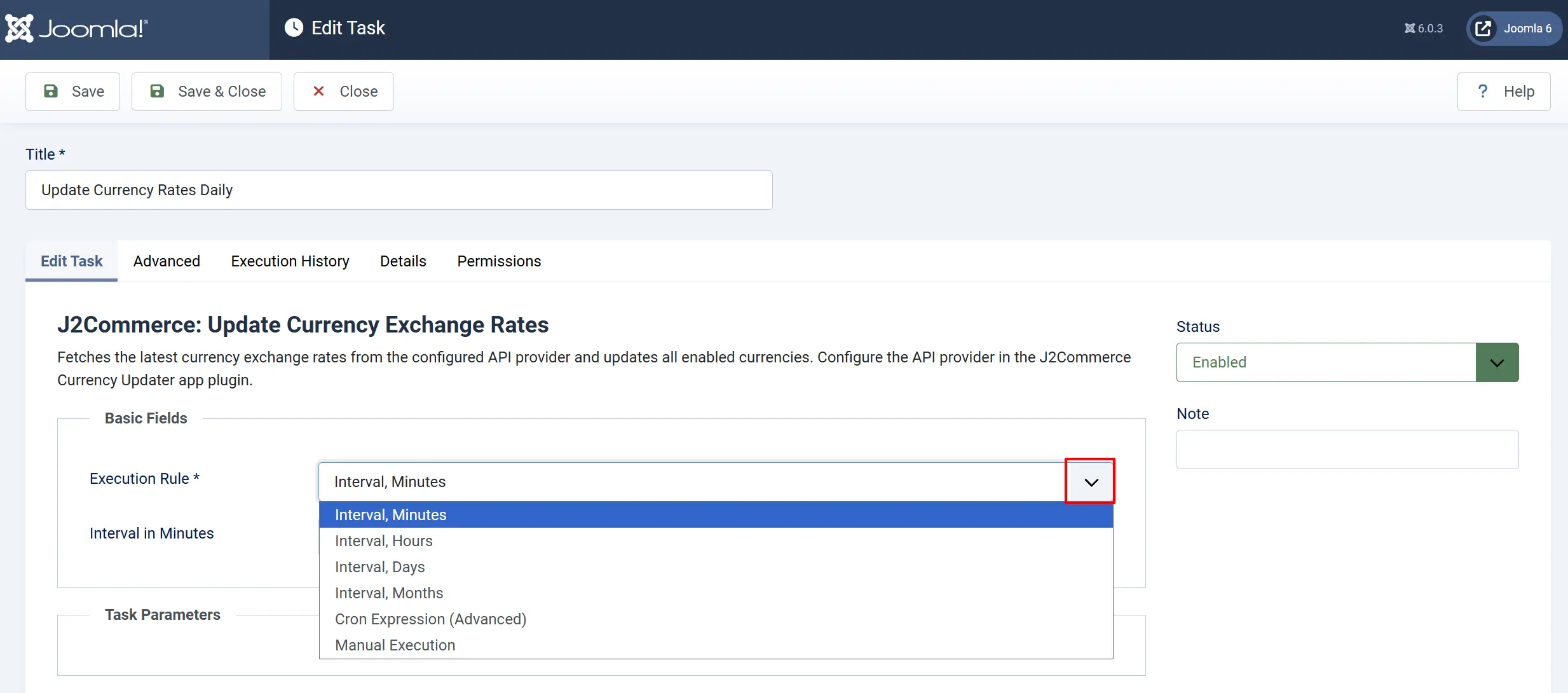
Search for Update Currency Rates Daily and set the Execution Rate frequency (daily, weekly, etc.)
Bulk Actions
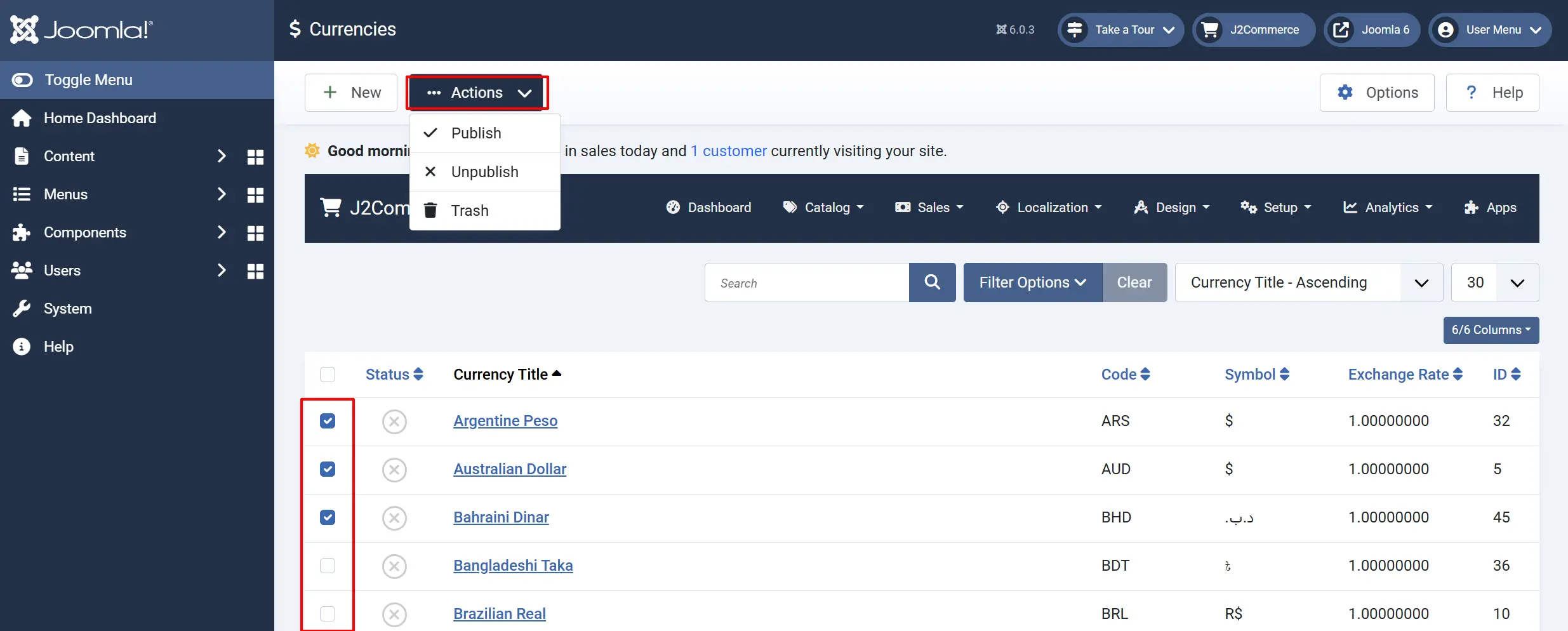
Go to the J2Commerce icon at the top right corner -> Localization -> Currencies
The Actions button will be hidden until at least one currency is chosen.
- Publish — Enable selected currencies.
- Unpublish — Disable selected currencies.
- Trash — Move selected currencies to trash.
Search and Filter
Use the search and filter options to find currencies:
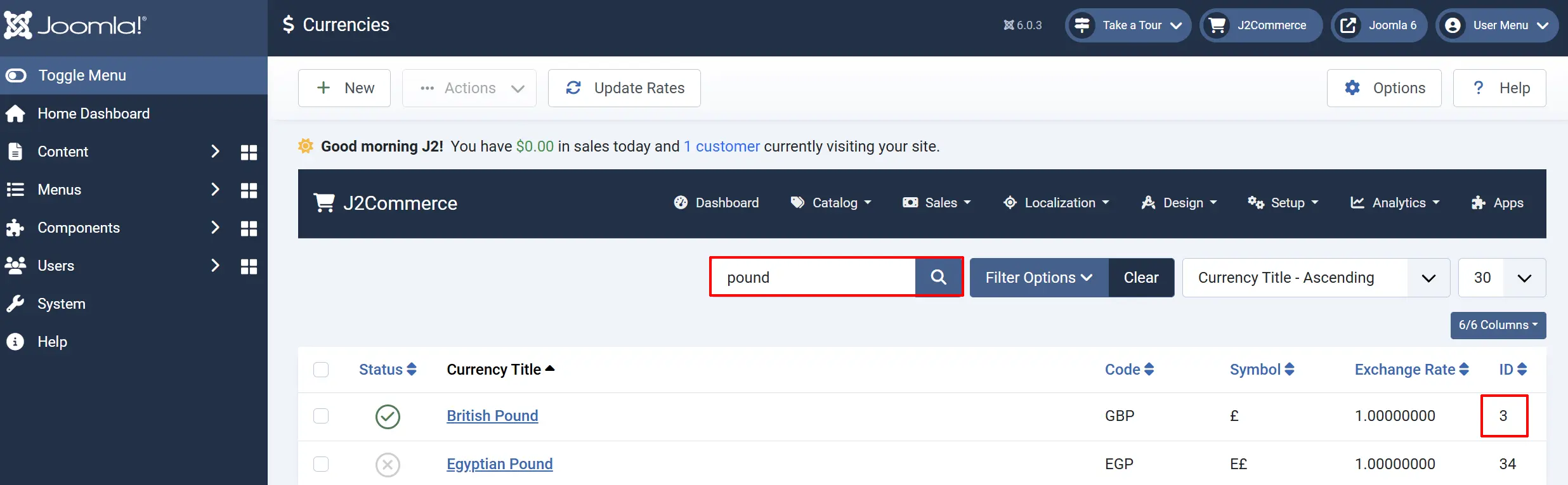
- Search — Type a currency name, code, or symbol to filter the list.
- ID Search — Type
id:3to find a currency by its ID. - Status Filter — Filter by Published, Unpublished, Archived, or Trashed.
Tips
- Keep base currency at 1.0 — Your default currency should always have an exchange rate of 1.00000000.
- Use ISO 4217 codes — Always use standard 3-letter currency codes for compatibility with payment gateways.
- Update rates regularly — Exchange rates change daily. Set up automatic updates or update manually at least weekly.
- Test currency display — After configuring currencies, view your storefront to verify symbols and formatting display correctly.
- Consider currency rounding — When converting prices, small differences may appear due to decimal precision. Most stores round to the nearest cent/penny.
Troubleshooting
Currency Not Appearing in Storefront
Cause: The currency is unpublished or has an invalid configuration.
Solution:
- Go to J2Commerce -> Localisation -> Currencies.
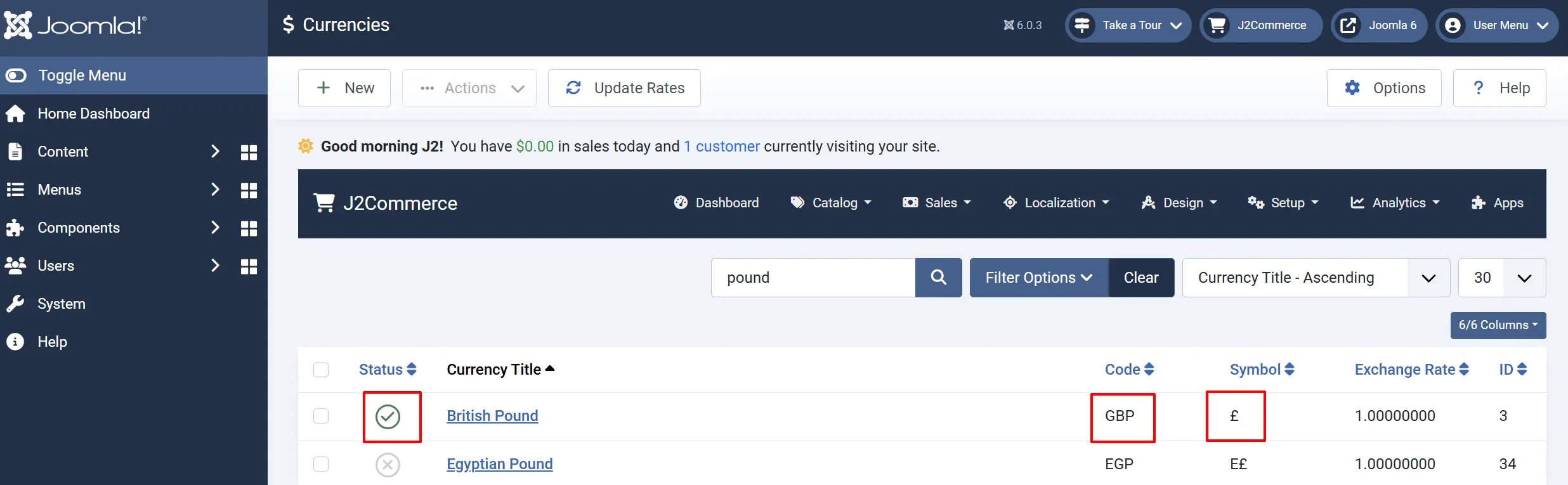
- Find the currency and check that Status shows Published (green check).
- Verify the Currency Code is exactly 3 uppercase letters.
- Verify the Currency Symbol is not empty.
Prices Show Wrong Currency Symbol
Cause: The symbol position or symbol character is misconfigured.
Solution:
- Edit the currency.
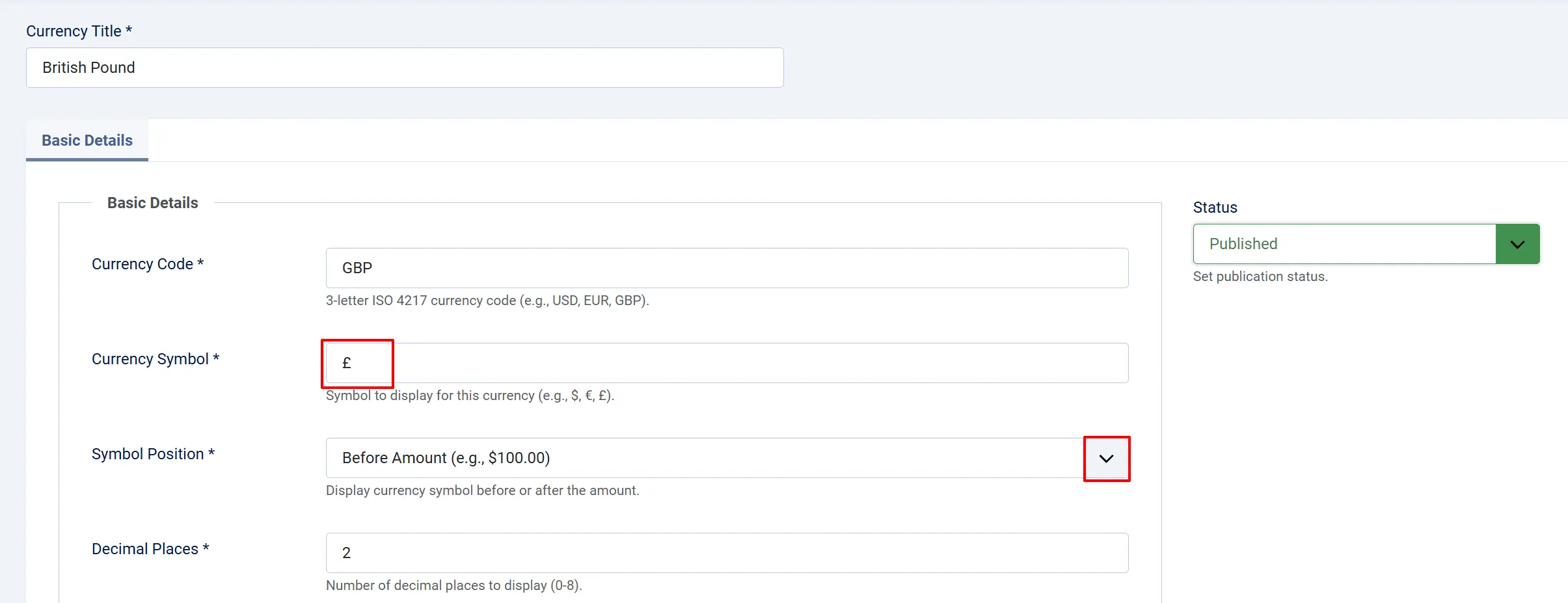
- Check Symbol Position — set to "Before" for currencies like USD ($99.99), "After" for some European formats (99.99€).
- Verify the Currency Symbol field contains the correct character.
- Save and clear the cache. Go to Home Dashboard -> Cache -> Delete All
Exchange Rate Not Updating
Cause: The Currency Updater app is disabled or misconfigured.
Solution:
-
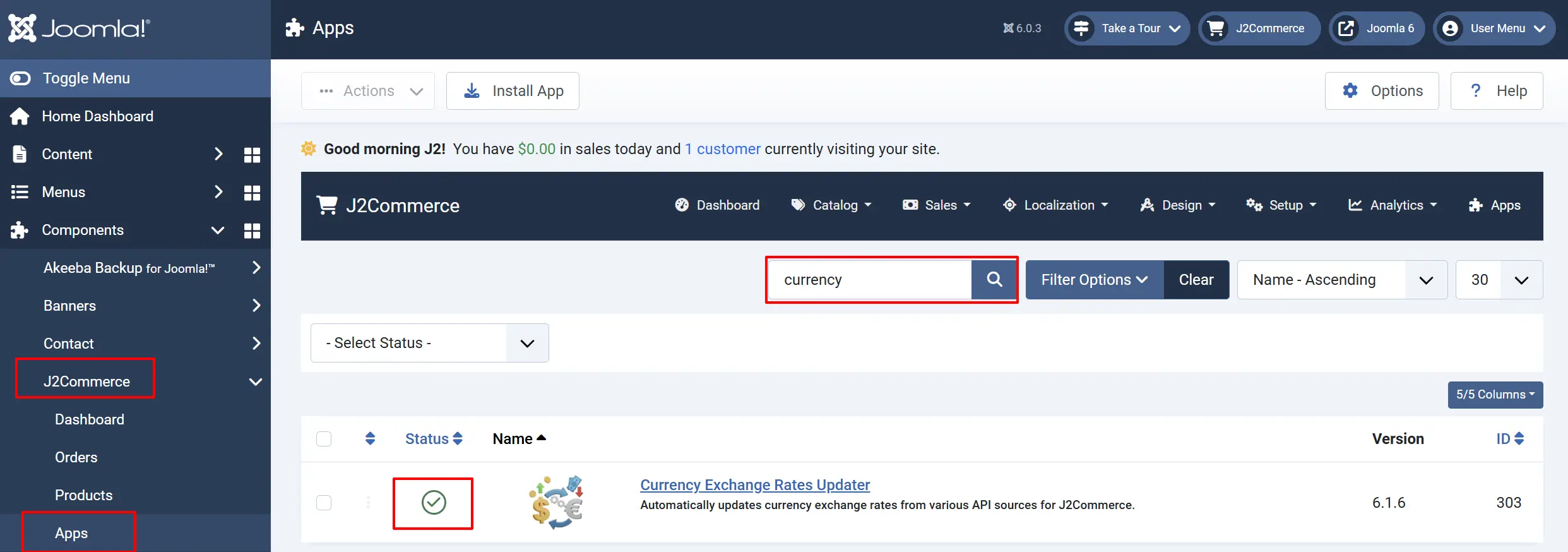
Go to J2Commerce -> Apps.
-
Find Currency Exchange Rates Updater and ensure it shows a green checkmark (enabled).
-
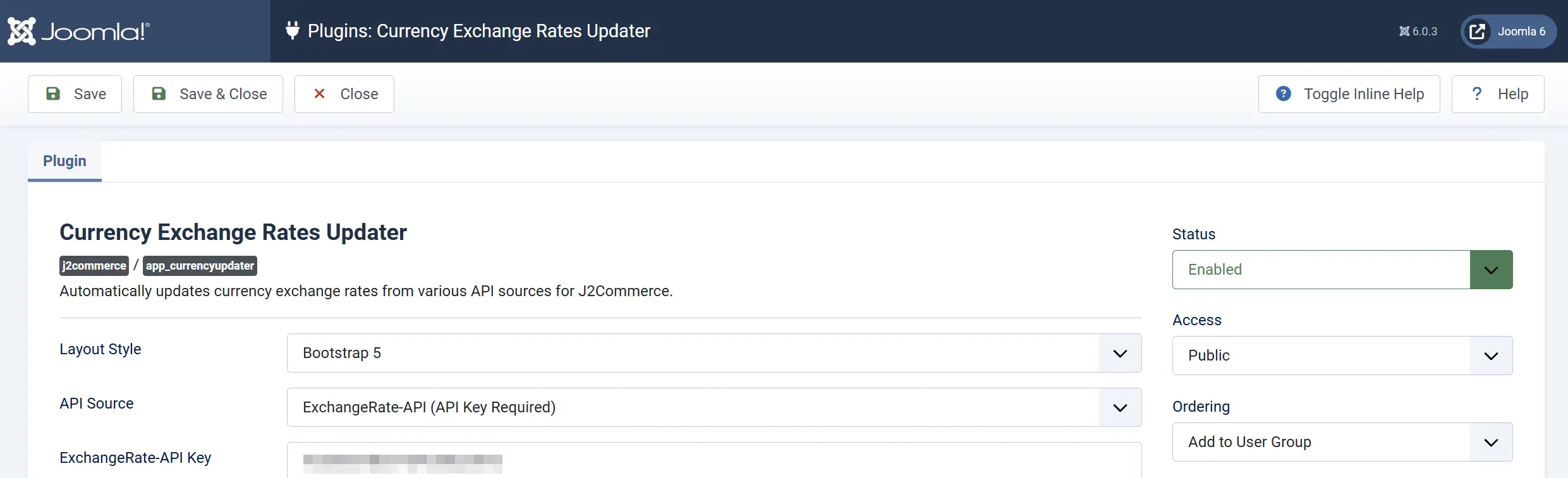
Click the app title to configure settings.
-
Verify your exchange rate provider API key is correct.
-
Check the update frequency and last update time. Go to Settings -> Scheduled Tasks
-
Search for Update Currency Rates Daily and set the Execution Rate frequency (daily, weekly, etc.)
Currency Conversion Shows Wrong Amounts
Cause: Exchange rate precision or rounding settings.
Solution:
Go to J2Commerce -> Localisation -> Currencies.
- Edit the currency and verify the exchange rate has sufficient decimal places.
- For most currencies, 5-8 decimal places in the exchange rate provide accurate conversions.
- Check that the decimal places match your currency's standard (2 for most, 0 for JPY, 3 for some).