ExpertVoice Recommendations
The ExpertVoice Recommendation app connects your product catalog to the ExpertVoice platform by syncing product SKUs between the two systems. Once the SKUs are synced, the app displays personalized product recommendations to shoppers — but only to users who have an active ExpertVoice account. If a shopper does not have an ExpertVoice account, the app will not appear on the page. Because of this, it is important that product SKUs match correctly between your catalog and ExpertVoice. Any SKU that is not synced will not be included in recommendations.
ExpertVoice accounts are for verified industry professionals, not the general public — so developers testing the app will need to qualify and get approved, which can take up to 24 hours. Might be useful to mention that in your documentation so developers aren't caught off guard during testing. To sign up for ExpertVoice, visit www.expertvoice.com and click Join Now.
Requirements
- PHP 8.3.0 or later
- Joomla! 6.x
- J2Commerce 6.x
- An active ExpertVoice account with an API key
Purchase and Download
Step 1: Go to the J2Commerce website -> Apps
Step 2: Locate ExpertVoice Recommendations -> click View Details -> Add to Cart -> Checkout
Step 3: Go to your My Downloads section under your profile button at the top right corner and search for the app. Click Available Versions -> View Files -> Download Now to save the ZIP file to your computer.
Install the App
In the Joomla Administrator, go to System -> Install -> Extensions.
Upload the plugin ZIP file or use the Install from URL option.

Enable the App
The plugin installs and enables itself automatically. No separate enable step is needed. However, it's important to know where to go to enable or disable it in the future .
There are two ways to reach the Apps list.
Option A: Go to the J2Commerce icon at the top right corner -> Apps
Option B: Go to Components on the left sidebar -> J2Commerce -> Apps

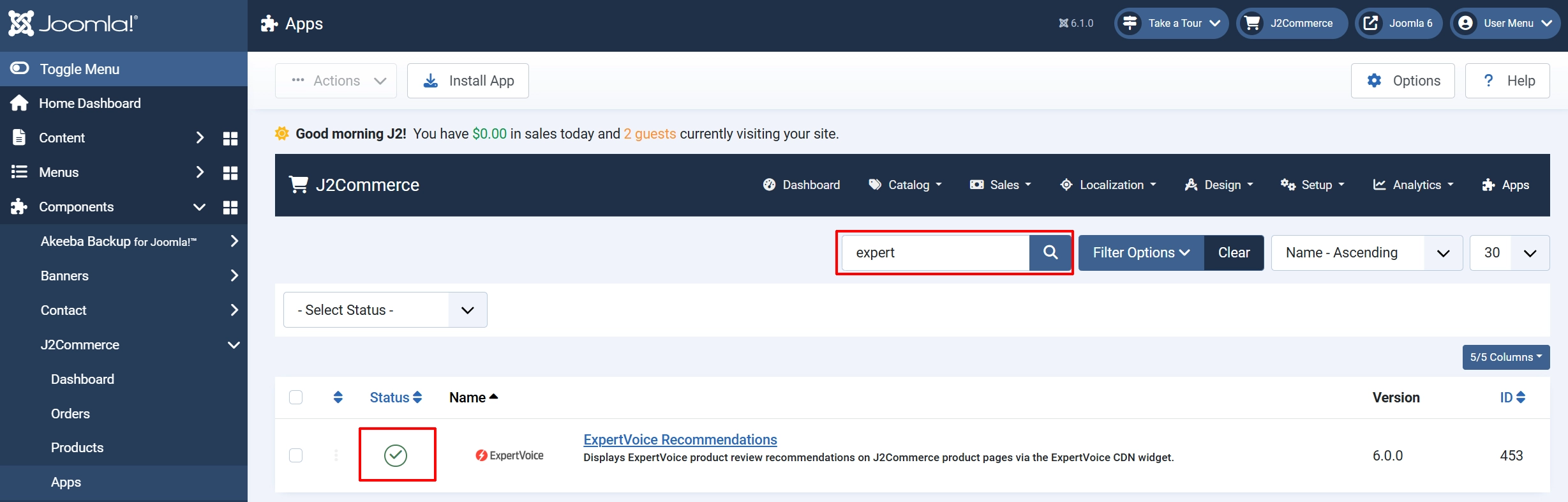
To help you narrow down the list, you can do a search for ExpertVoice Recommendations, click the X, and it will turn into a green checkmark. It is now enabled and ready for setup.
Configure the App
Click the ExpertVoice Recommendations title (next to the green checkmark) to open the settings screen.
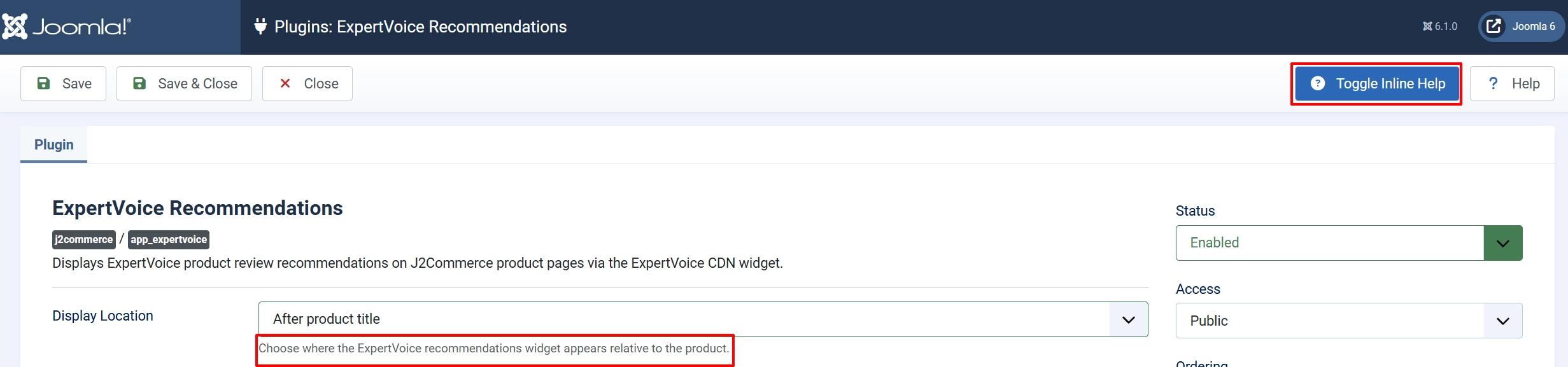
Click the Toggle Inline Help button on any app you install to see a description below each field directly in the admin panel.
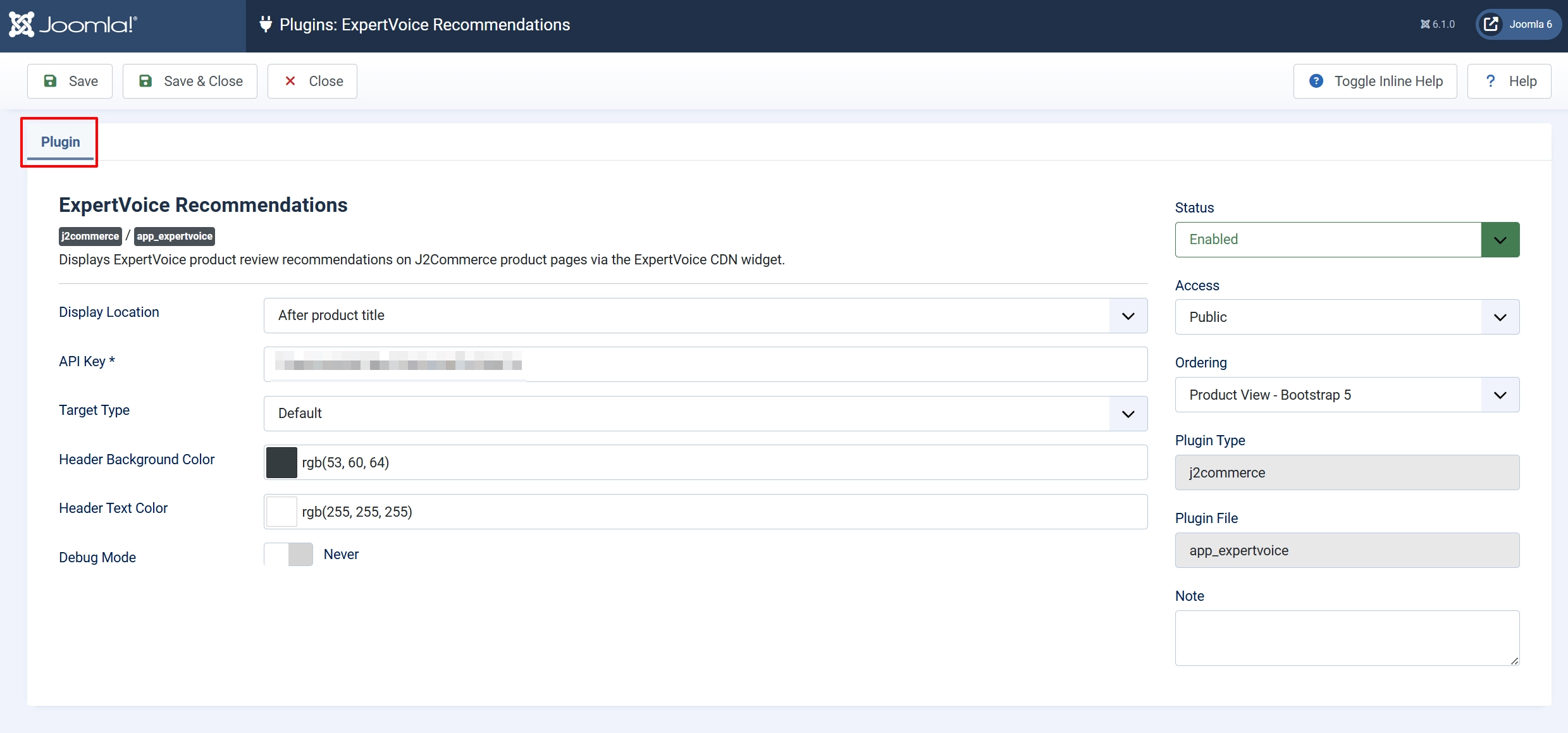
Basic Settings tab
Display Location
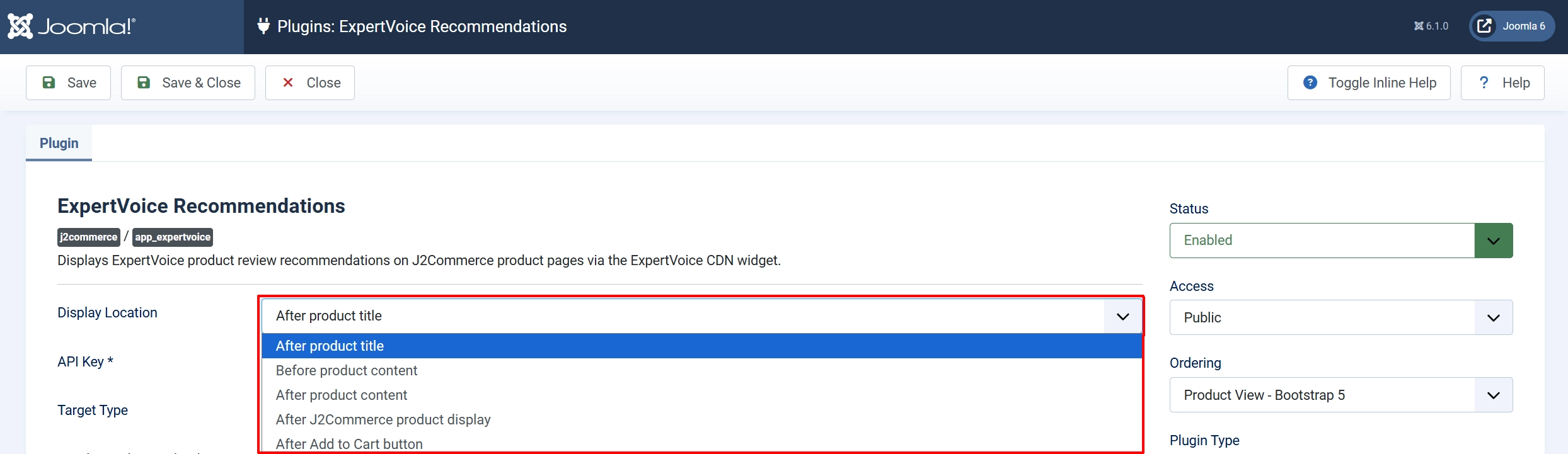
The Display Location setting controls exactly where the widget appears on the page. Choose the option that matches the way your store displays products.
| Option | Where the widget appears | Best for |
|---|---|---|
| After product title | Between the product title and the body text | Stores using Joomla articles for products |
| Before product content | Immediately before the product description | Stores using Joomla articles for products |
| After product content | Immediately after the product description | Stores using Joomla articles for products |
| After Add to Cart button | Directly below the Add to Cart button | Stores using J2Commerce native product pages |
| J2Commerce product detail | At the top of the J2Commerce product detail area | Stores using J2Commerce native product pages |
Not sure which to pick? Use After product content if your products are Joomla articles. Use J2Commerce product detail if your store uses J2Commerce's built-in product page templates. Either choice puts the widget where shoppers are already focused on the product.
API Key
Enter your ExpertVoice API key here. This field is required — without it, the widget will not appear on any product page, even if all other settings are correct.
To find your API key, log into your ExpertVoice account at expertvoice.com, navigate to Account Settings -> API, and copy the key shown there. If you do not see an API section, contact your ExpertVoice account representative.
If the API Key field is empty, the ExpertVoice widget is silently hidden on every product page. No error is shown to shoppers. Enable Debug Mode (see below) if you need to confirm whether a missing API key is the cause.
Target Type

The Target Type setting controls which HTML container the widget is rendered into.
- Default — uses the standard ExpertVoice container. This is the right choice for almost every store.
- Custom — lets you specify your own container ID. Use this only if ExpertVoice support has asked you to target a specific element on your page.
Leave this set to Default unless you have a specific reason to change it.
Custom Target ID
This field only appears when Target Type is set to Custom. Enter the HTML element ID you want the widget to attach to.
The ID must contain only letters, numbers, hyphens, and underscores. Any other characters are automatically removed before the value is used on the page.
Header Background Color
Click the color swatch to open a color picker and choose the background color for the ExpertVoice widget header bar. The default is black (rgb(0, 0, 0)).
Match this color to your store's brand for a polished, integrated look.
Header Text Color
Click the color swatch to open a color picker and choose the text color for the widget header bar. The default is white (rgb(255, 255, 255)).
Make sure there is enough contrast between the Header Background Color and the Header Text Color so the header text is easy to read.
Debug Mode
When set to Yes, the app writes a log entry every time it decides whether to show or skip the widget. Log entries are saved to administrator/logs/plg_j2commerce_app_expertvoice.php.
Keep this set to No on a live store. Turn it on temporarily only when you are diagnosing why a widget is not appearing, then turn it off again straight away.
Debug log files grow with every page view while Debug Mode is on. Turn it back off as soon as you have finished diagnosing.
How It Works
When a shopper views a product page on your store, the following happens:
- J2Commerce checks whether the ExpertVoice Recommendations app is enabled and the configured Display Location matches the current page position.
- The app looks up the product's SKU. If the product has no SKU, the widget is skipped for that product.
- The app checks that the API Key field is not empty. If it is empty, the widget is skipped.
- A widget container is added to the page at the chosen display location, tagged with the product's SKU and your API key.
- The ExpertVoice CDN script loads in the background and populates the container with expert recommendations matching that SKU.
- The shopper sees the recommendations without any page reload or delay.
The whole process is automatic and SKU-driven — you do not need to configure anything per product beyond making sure each product has a SKU filled in.
Display Conditions
The ExpertVoice widget appears when:
- The app is enabled in J2Commerce -> Apps -> ExpertVoice Recommendations
- The API Key field contains a valid key
- The product being viewed has a SKU set
- The Display Location matches the type of page being viewed (Joomla article page or J2Commerce native product page)
The widget is skipped silently when:
- The API Key is empty
- The product has no SKU
- The Display Location setting does not match the current page type
Tips
- Make sure every product has a SKU before enabling this app. Without a SKU, the widget cannot load for that product.
- Use J2Commerce product detail for stores that rely on J2Commerce's native product pages. Use After product content for stores that display products as Joomla articles.
- Match the Header Background Color and Header Text Color to your store's brand colors for a seamless widget appearance.
- Test on a single product first before rolling out to your entire catalog. Open the product page and confirm the widget container appears.
- Turn Debug Mode off as soon as you have finished diagnosing. Log files grow quickly and can take up disk space on busy stores.
Troubleshooting
Widget Does Not Appear on Product Page
Cause: One or more conditions are stopping the widget from rendering — the most common causes are a missing API key, a missing product SKU, or a Display Location that does not match the current page type.
Solution:
- Go to J2Commerce -> Apps and confirm ExpertVoice Recommendations shows a green checkmark (enabled).
-
Open the app settings and verify the API Key field contains your key from the ExpertVoice dashboard. If it is empty, the widget will not appear on any page.
-
Check the Display Location setting. If you selected After product title, Before product content, or After product content, those options only fire on Joomla article (com_content) pages. If your store uses J2Commerce native product templates, switch to After Add to Cart button or J2Commerce product detail instead.
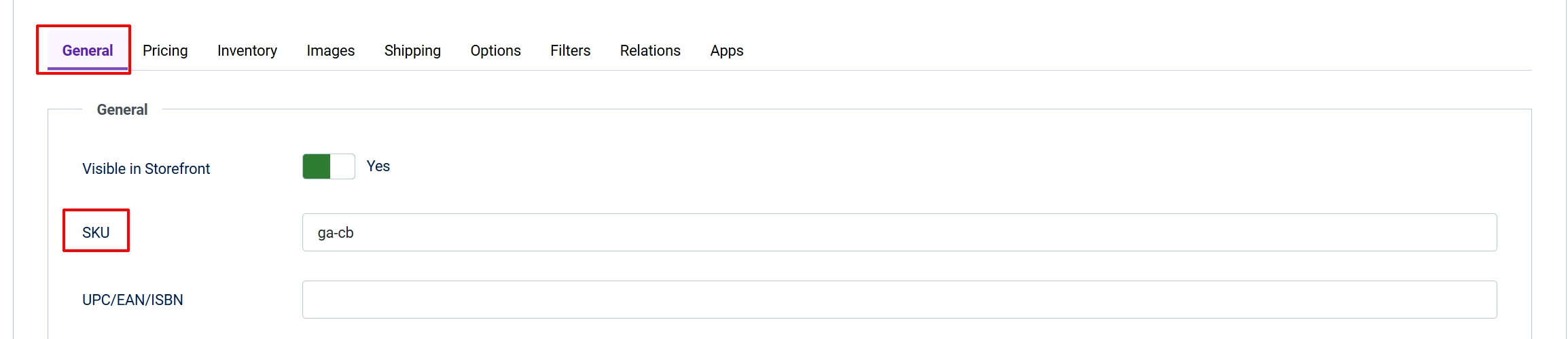
- Edit the product you are testing. Confirm the SKU field is filled in on the product's General tab (or on the variant row if it is a variable product).
Widget Appears but Shows No Reviews
Cause: The widget container is loading correctly, but ExpertVoice has no approved recommendations for that product's SKU yet. This is an ExpertVoice platform issue, not a J2Commerce configuration issue.
Solution:
- Contact your ExpertVoice account representative.
- Confirm that your API key is approved for production use (not just a test/sandbox key).
- Verify that the SKU in J2Commerce exactly matches the product code registered in your ExpertVoice catalog — even a small difference (extra space, different capitalization) will result in no match.
- Confirm that your store's domain is whitelisted in your ExpertVoice account settings.
Only One Widget on a Category Page
Cause: The ExpertVoice CDN script is designed to initialize once per page load. When a category or product list page shows several products at once, only one widget container is filled in by the CDN's single-init logic.
Solution:
Switch the Display Location to After Add to Cart button or J2Commerce product detail. These locations only fire on single-product detail pages, so exactly one widget loads per page view and the issue does not occur.
Need to Diagnose a Hidden Widget
Cause: When the widget is skipped, no error is shown on the page — the skip happens silently and nothing visible changes for the shopper.
Solution:
- Open the app settings and set Debug Mode to Yes, then click Save.
- Open the product page that should show the widget.
- In the Joomla admin, open the file
administrator/logs/plg_j2commerce_app_expertvoice.phpin a text editor. Look for the most recent log entries — they will tell you exactly which condition caused the widget to be skipped (empty API key, missing SKU, etc.). - Fix the identified issue, then return to the app settings and set Debug Mode back to No and click Save.