Product Reviews
The Product Reviews app lets customers submit star ratings and written reviews directly on your product pages. Reviews appear below the product with a summary showing the average rating and star distribution. Store owners can moderate submissions, respond to reviews, and trigger automated email requests after purchase.
Key capabilities include image uploads per review, Google reCAPTCHA spam protection, structured data (JSON-LD) for Google rich snippets, CSV import for existing reviews, review analytics, and a customizable HTML review request email.
Requirements
- PHP 8.3.0+
- Joomla! 6.x
- J2Commerce 6.x
Purchase and Download
The Product Reviews app is a separate add-on available from the J2Commerce Extensions Store. It is not included with the core J2Commerce 6 component.
- Go to the J2Commerce website -> Apps.
- Locate the Product Reviews app -> click View Details -> Add to cart -> Checkout.
- Download the
app_reviews.zipfile from your account downloads.
Install the App
You can install the Product Review App using the Joomla installer. The following steps help you with a successful installation.
In the Joomla admin, go to System -> Install -> Extensions
Upload the app_reviews.zip file or use the Install from URL option.
 (1)-a6689f12b23b8e992f5c2a169737672f.webp)
Enable the App
Once you have installed the App, you will need to enable it. There are two ways you can access the extension.
Option A: Go to the J2Commerce icon at the top right corner -> Apps
Option B: Go to Components on the left sidebar -> J2Commerce -> Apps
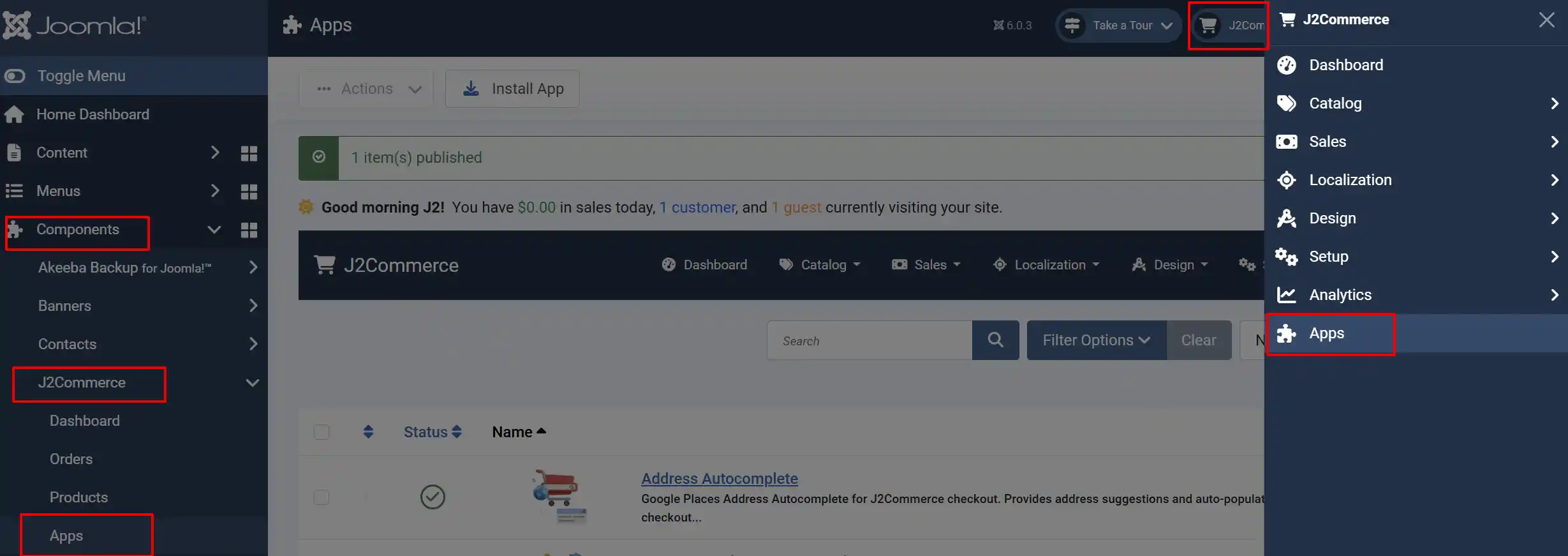
Look for Product Review, click the X, and it will turn into a green checkmark. It is now enabled and ready for setup.
Configure the App
Click the Toggle Inline Help button in the toolbar and the app will show a description below each field as you configure it.
Basic Settings
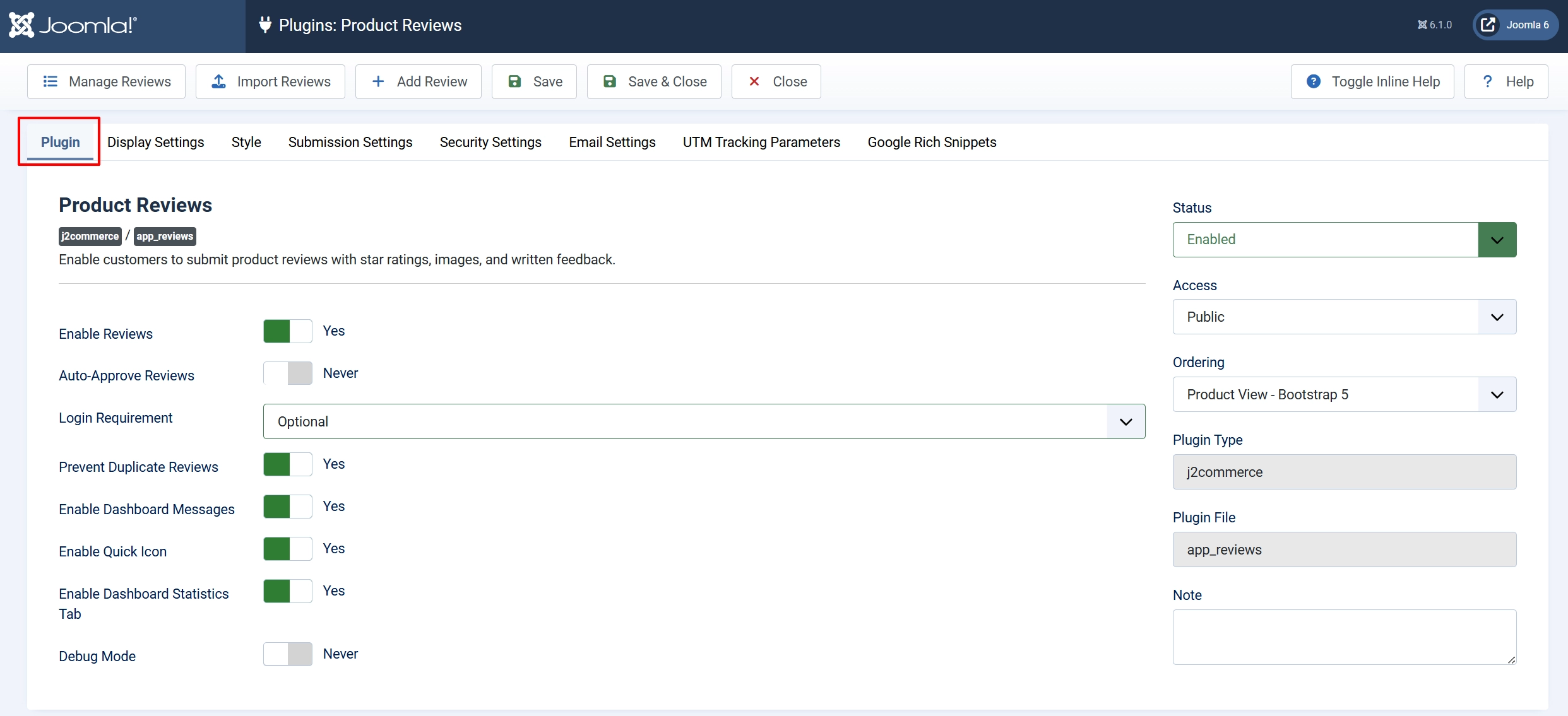
Enable Reviews: Turn review functionality on or off globally
Auto-Approve Reviews: Publish new reviews immediately without moderation
Login Requirement: Whether customers must be logged in to submit
Prevent Duplicate Reviews: Block the same user from reviewing the same product twice
Enable Quick Icon: Show a quick-access icon in the Joomla administrator dashboard
Enable Dashboard Statistics Tab: Add a Review Statistics tab to the main dashboard chart area with date-filtered review metrics.
Debug Mode: Enable debug logging. Logs are written to the Joomla log file app_reviews.php. Disable in production.
Display Settings
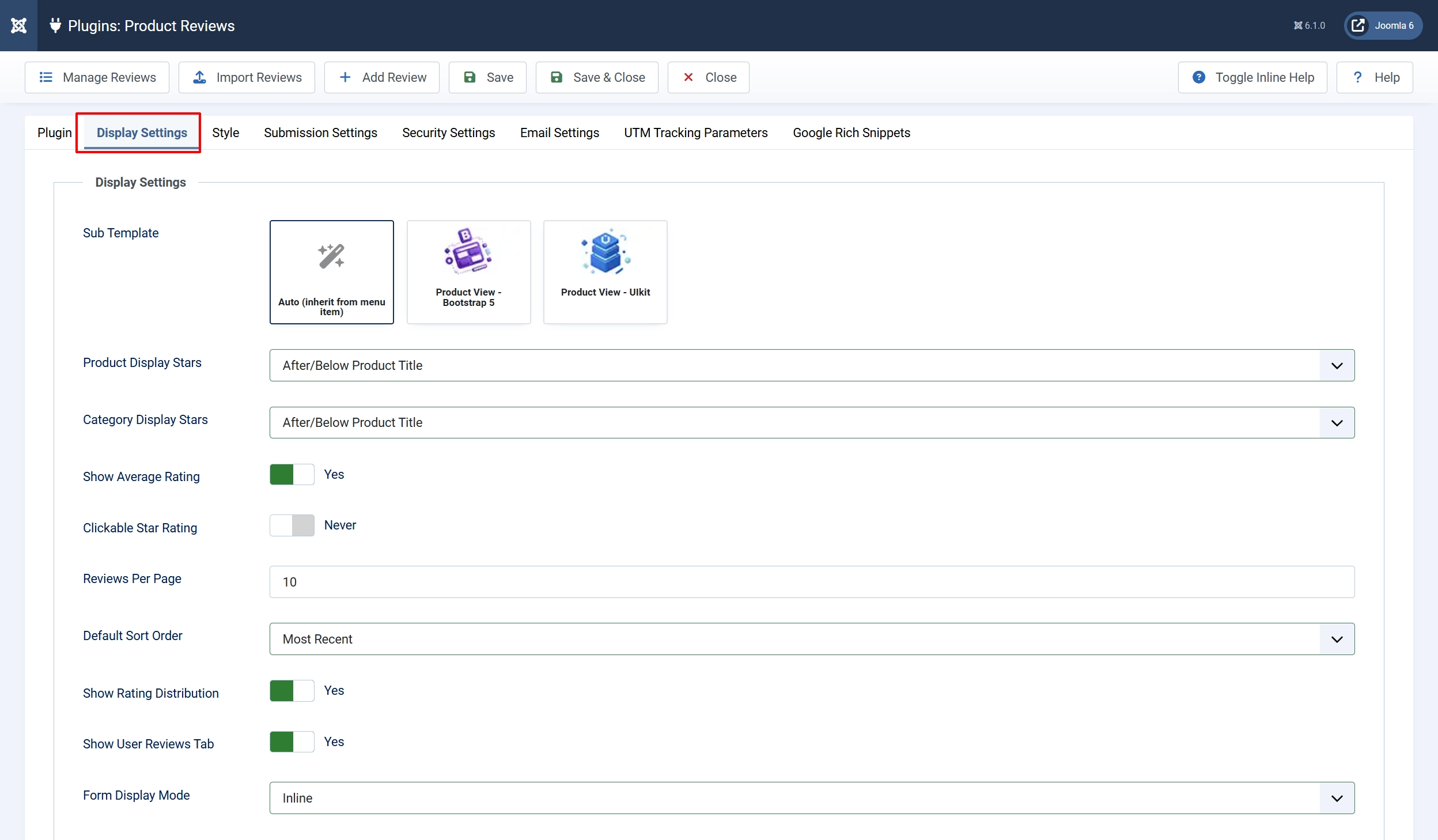
Sub Template: Select the sub template to use for rendering the review star ratings. Auto inherits from the active menu item.
Product Display Stars: Where to show the star summary on product detail pages

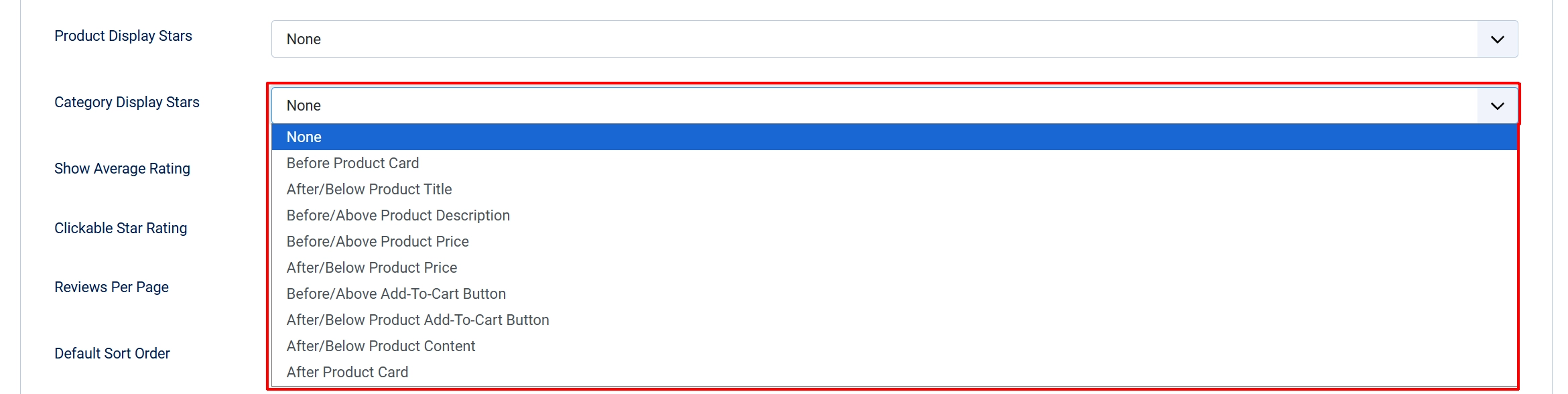
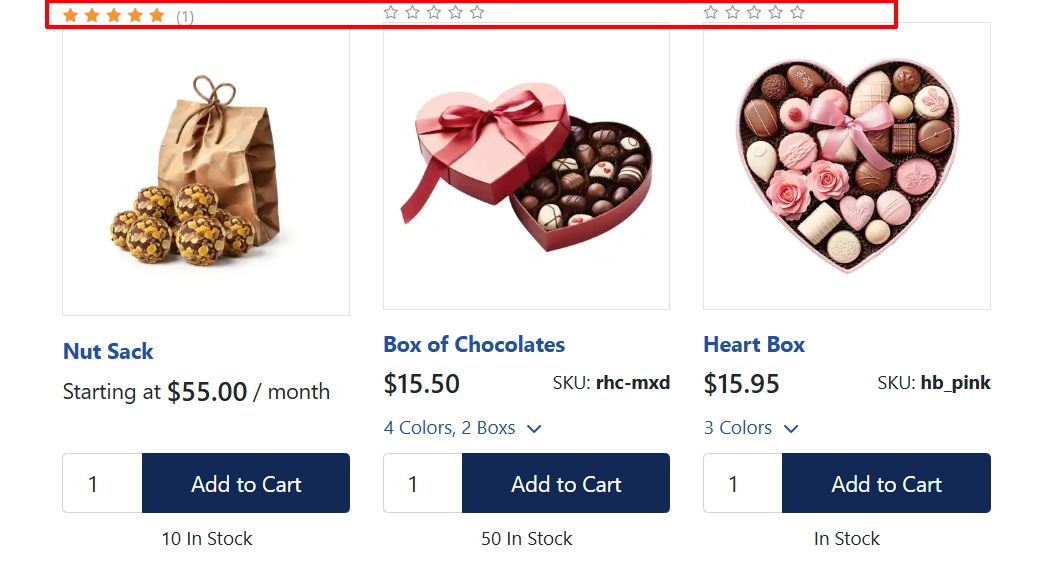
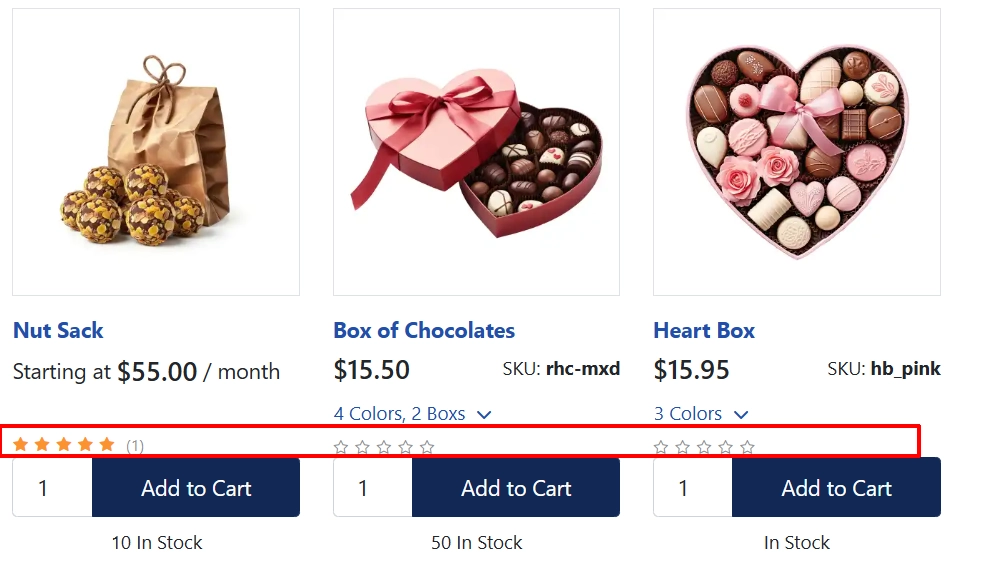
Category Display Stars: Where to show the star summary in category listing views
Show Average Rating: Display the numeric average alongside stars in the summary
Clickable Star Rating: Make the review count a link that scrolls to the reviews section
Reviews Per Page: Number of reviews to show per page in the list
Show Rating Distribution: Show the breakdown bar chart (5-star, 4-star, etc.)
Show Rating Distribution: Display the star rating distribution chart.
Default Sort Order: Initial sort when the reviews list loads
Form Display Mode: Show the review form inline on the page or in a modal popup
Style Settings
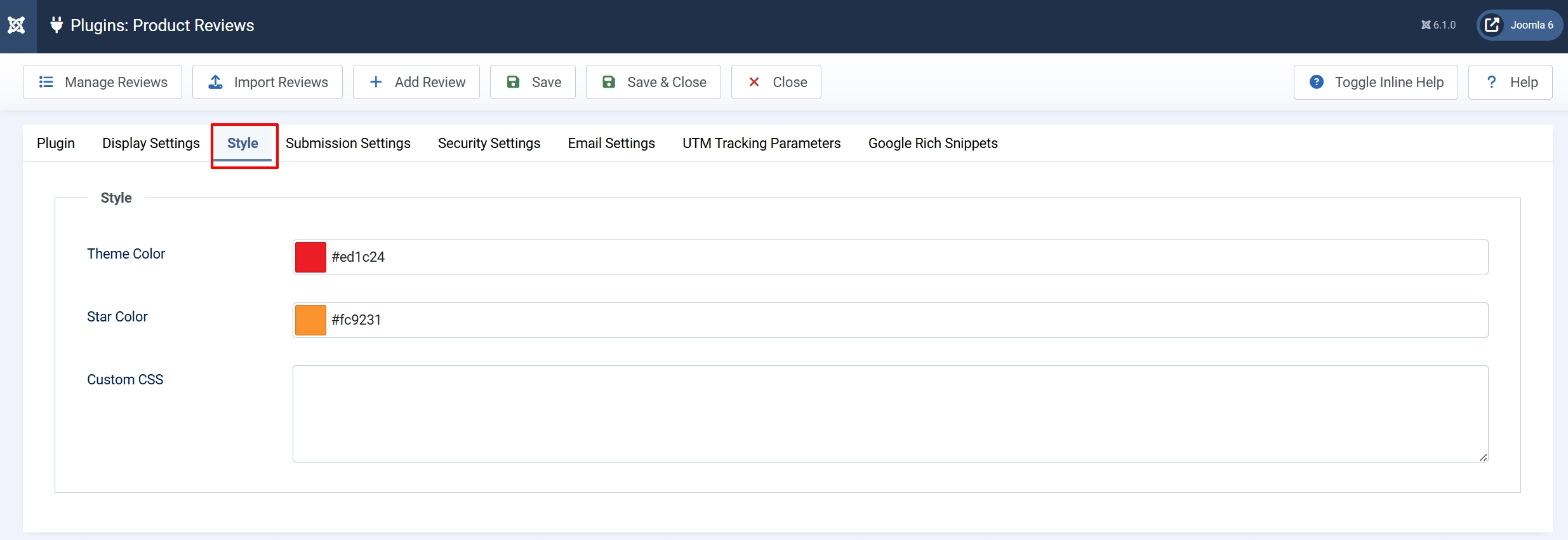
Theme Color: Accent color applied to buttons and interactive elements
Star Color: Color for filled star icons
Custom CSS: Additional CSS rules applied to all review output
Submission Settings
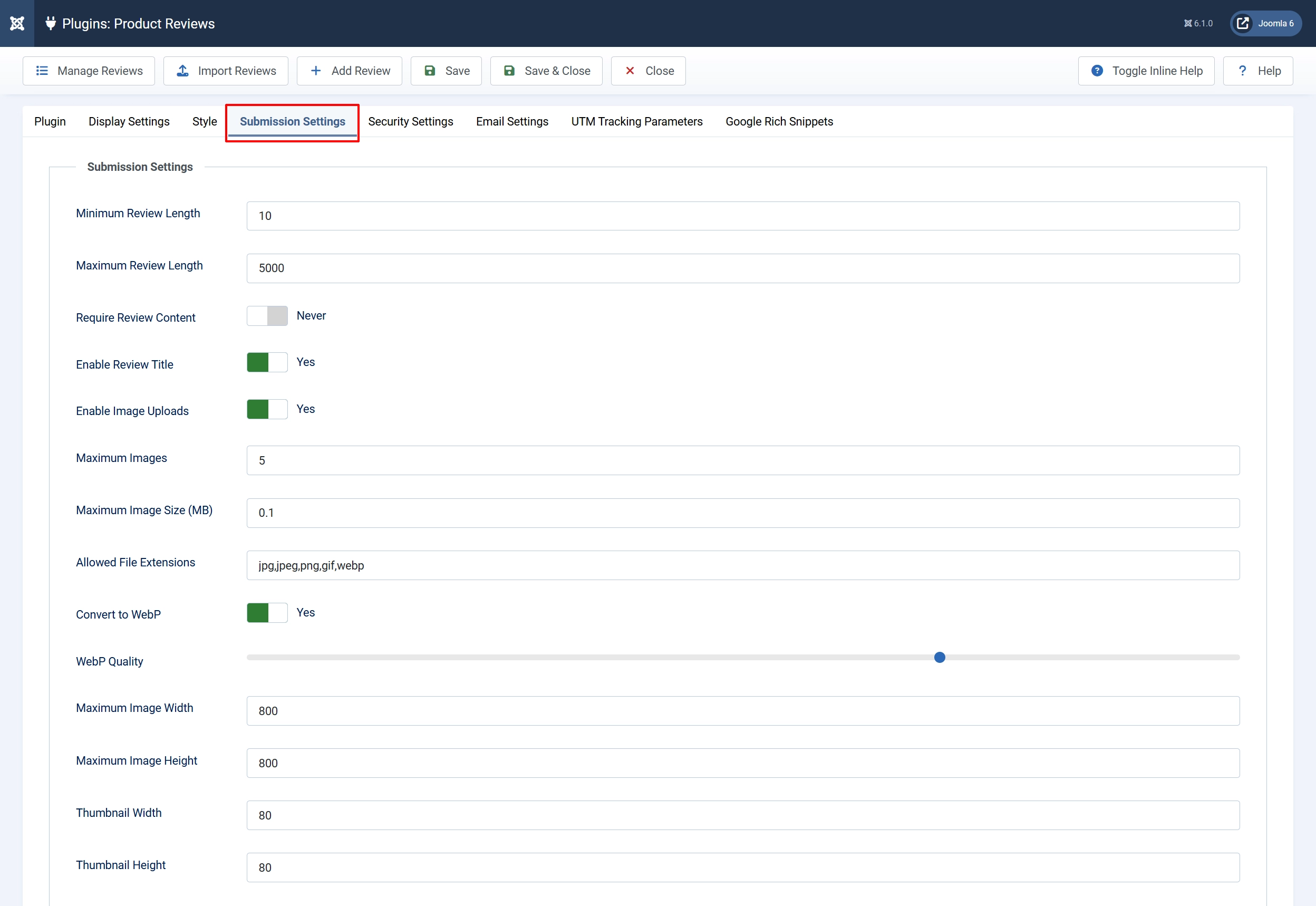
Minimum Review Length: Minimum characters required in review text
Maximum Review Length: Maximum characters allowed in review text
Require Review Content: Make the text field mandatory (rating is always required)
Enable Review Title: Allow reviewers to add a short title to their review
Enable Image Uploads: Allow customers to attach photos to their review
Maximum Images: Maximum number of images per review
Maximum Image Size (MB): Maximum file size per uploaded image
Allowed File Extensions: Comma-separated list of accepted image formats
Convert to WebP: Automatically convert uploaded images to WebP format
WebP Quality: Quality level for WebP conversion (50–100)
Maximum Image Width: Maximum width in pixels for stored images
Maximum Image Height: Maximum height in pixels for stored images
Thumbnail Width: Width of generated thumbnails
Thumbnail Height: Height of generated thumbnails
Security Settings
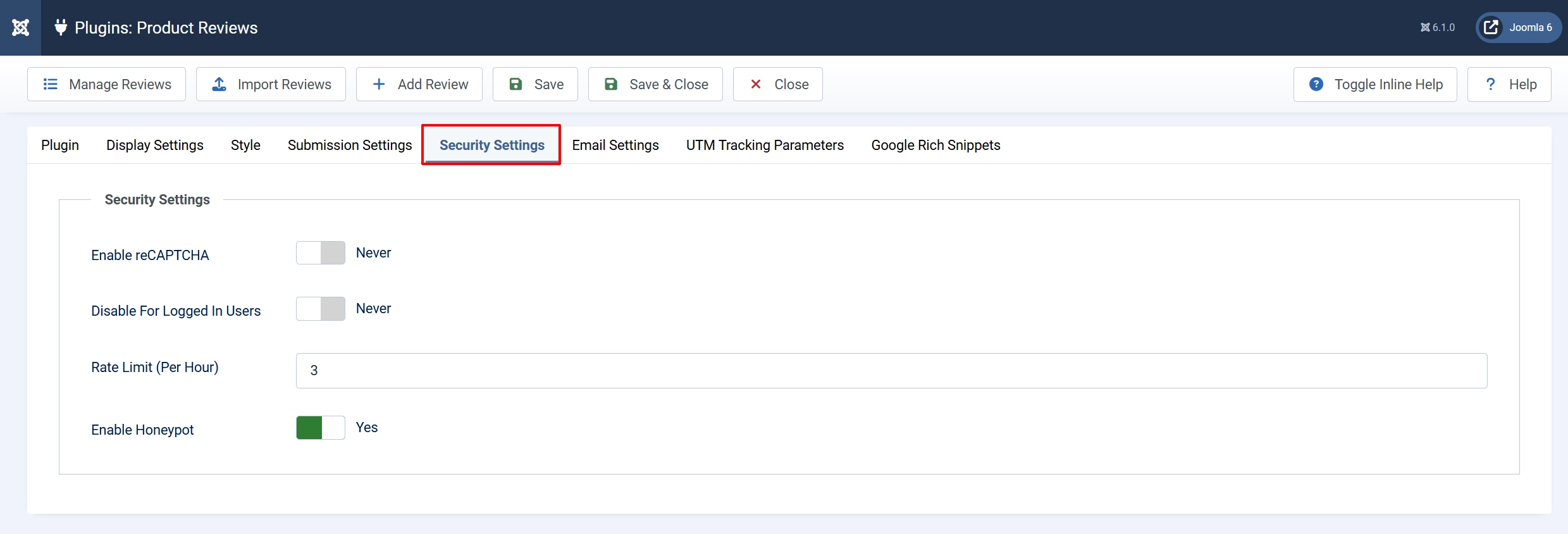
Enable reCAPTCHA: Add Google reCAPTCHA to the review form
-
reCAPTCHA Type: Version to use: v2 (checkbox) or v3 (invisible)
-
reCAPTCHA Site Key: Your Google reCAPTCHA public site key
-
reCAPTCHA Secret Key: Your Google reCAPTCHA private secret key
-
reCAPTCHA v3 Threshold: Minimum score for v3 (0.0–1.0, higher = stricter)
Disable For Logged In Users: Skip reCAPTCHA for logged-in customers
Rate Limit (Per Hour): Maximum review submissions per user per hour
Enable Honeypot: Add a hidden field to catch spam bots
Email Settings
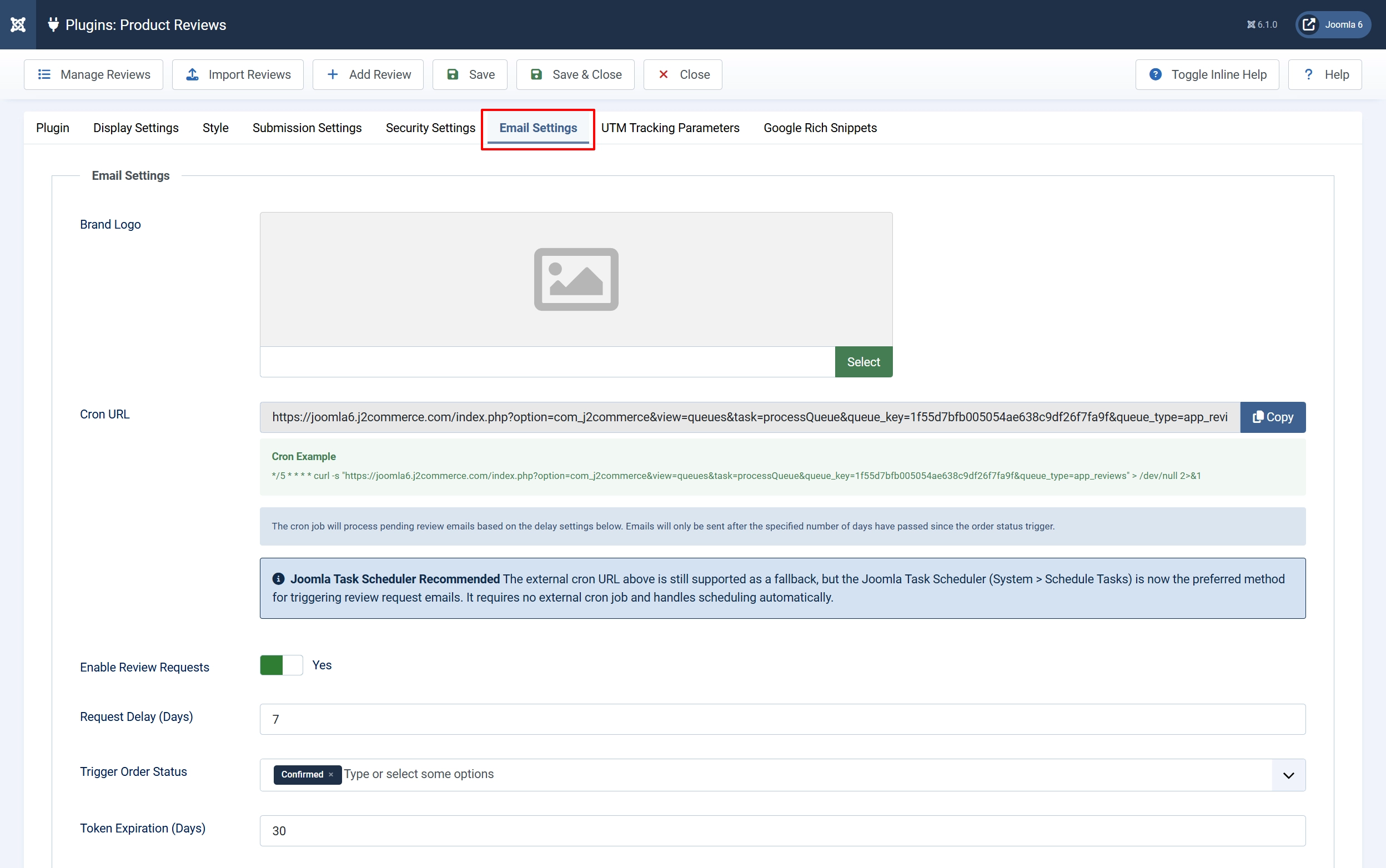
The app can automatically send review request emails to customers after their order reaches a specific status.
Brand Logo: Your store logo displayed in review request emails
Enable Review Requests: Send automated post-purchase review request emails
Request Delay (Days): Days to wait after trigger status before sending
Trigger Order Status: Which order status triggers the email
Token Expiration (Days): Days the one-click review link in the email remains valid
Admin Notification: Email admins when a new review is submitted
Admin Email Addresses: Addresses to notify (one per line) — leave blank for site admin
Customer Approval Email: Email customers when their review is approved
Setting Up the Cron Job
Emails are sent via a cron job, not immediately on order status change.
- In the Email Settings fieldset, copy the Cron URL displayed there.
- Set up a cron job on your server to call that URL every 30–60 minutes:
*/30 * * * * curl -s "https://yoursite.com/index.php?option=com_j2commerce&..." > /dev/null
The cron processes the queue and sends pending emails once the configured delay has passed.
Customizing the Email
Click the Email Editor tab within the plugin settings to edit the subject line and HTML body of the review request email.
Available shortcodes you can use in the subject and body:
| Shortcode | Replaced With |
|---|---|
[CUSTOMER_NAME] | Customer full name |
[CUSTOMER_FNAME] | Customer first name |
[PRODUCT_NAME] | Product name |
[PRODUCT_SKU] | Product SKU |
[PRODUCT_LINK] | Link to the product page |
[REVIEW_LINK] | Direct link to leave a review |
[REVIEW_LINK_1] through [REVIEW_LINK_5] | Pre-filled rating links (1–5 stars) |
[ORDER_ID] | Order ID |
[ORDER_DATE] | Order date |
[STORE_NAME] | Your store name |
[STORE_URL] | Your store URL |
Click Send Test Email to preview the email against a real product in your store.
UTM Tracking
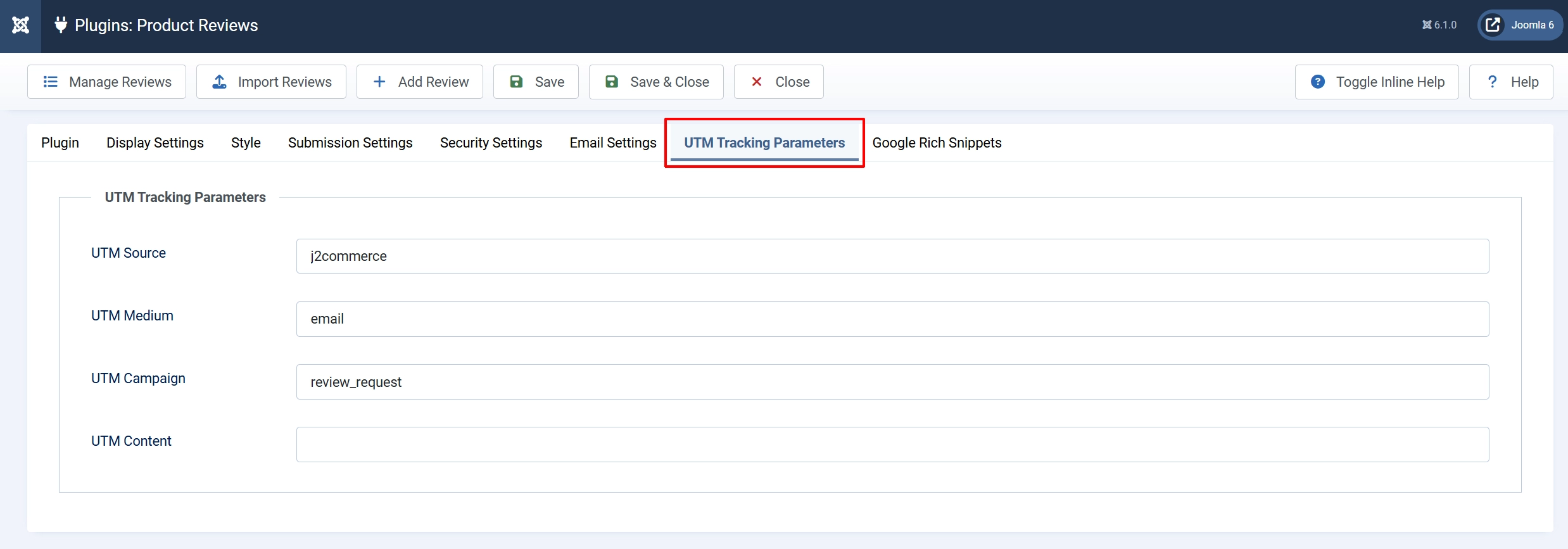
Add UTM parameters to review links in emails to track campaign performance in Google Analytics:
| Field | Example Value |
|---|---|
| UTM Source | j2commerce |
| UTM Medium | email |
| UTM Campaign | review_request |
| UTM Content | (optional differentiator) |
Google Rich Snippets
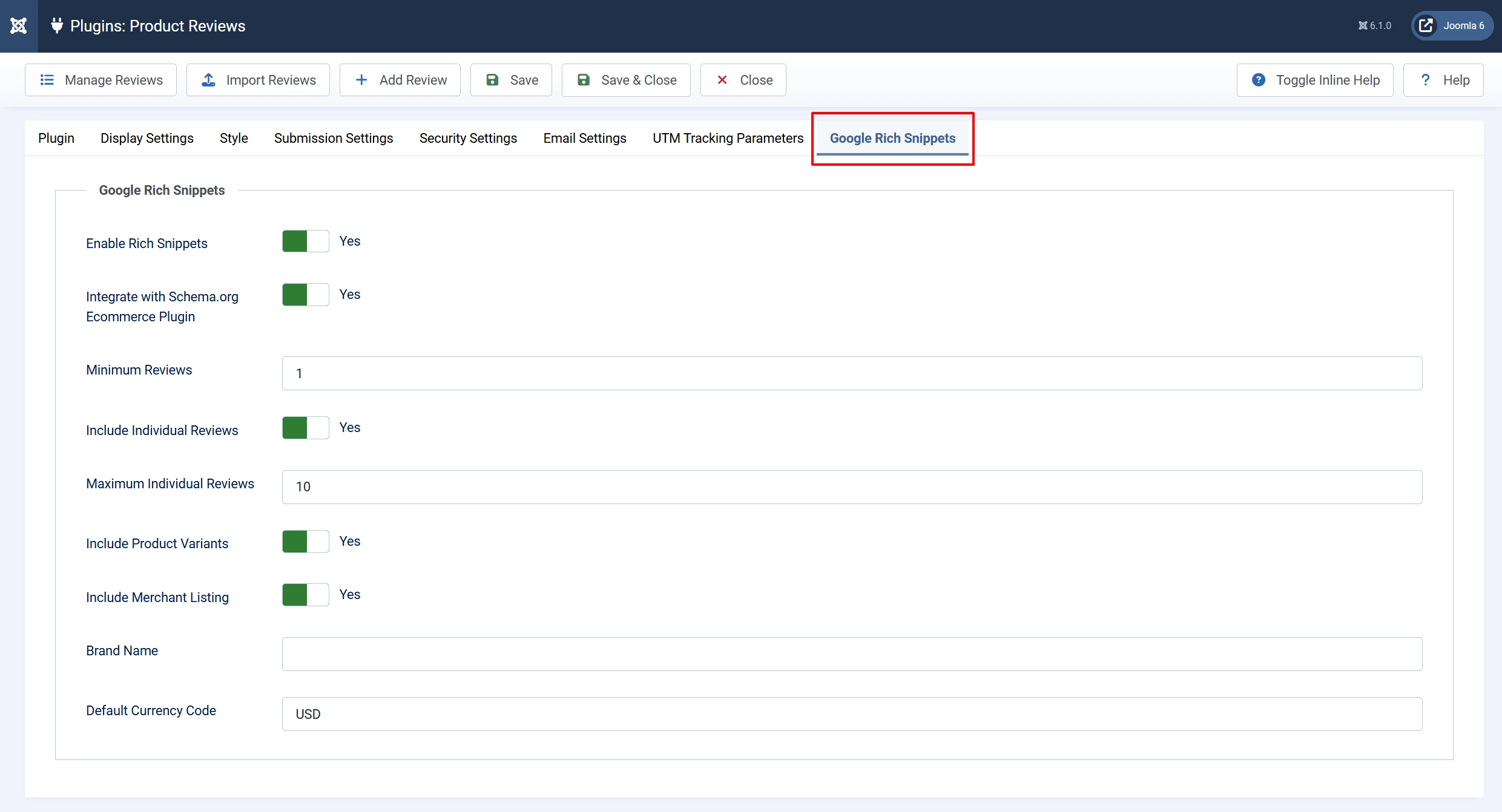
When enabled, the app outputs JSON-LD structured data on product pages so Google can display star ratings in search results.
Enable Rich Snippets: Output JSON-LD on product pages with reviews
Integrate with Schema.org Ecommerce Plugin: Inject review data into a co-installed schema plugin instead of outputting standalone schema
Minimum Reviews: Minimum approved reviews required before schema is added
Include Individual Reviews: Add individual review details to the structured data
Maximum Individual Reviews: Number of individual reviews to include in the schema
Include Product Variants: Add ProductGroup schema for products with variants
Include Merchant Listing: Add pricing and availability to the schema
Brand Name: Default brand for structured data (leave blank if not applicable)
Default Currency Code: ISO 4217 currency code for pricing in schema (e.g., USD, EUR)
Managing Reviews
Go to J2Commerce -> Apps -> Product Reviews -> Manage Reviews to access the review management screen.

Review Statuses
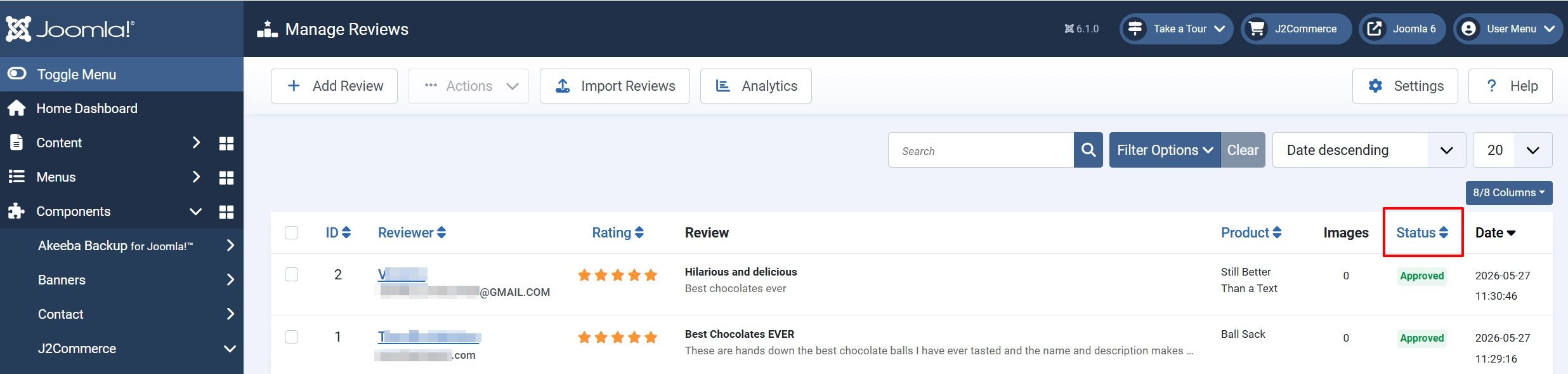
Pending: Submitted but not yet reviewed by a moderator
Approved: Visible on the product page
Rejected: Hidden from the public but kept in the database
Spam: Identified as spam, hidden from the public
Moderating Reviews
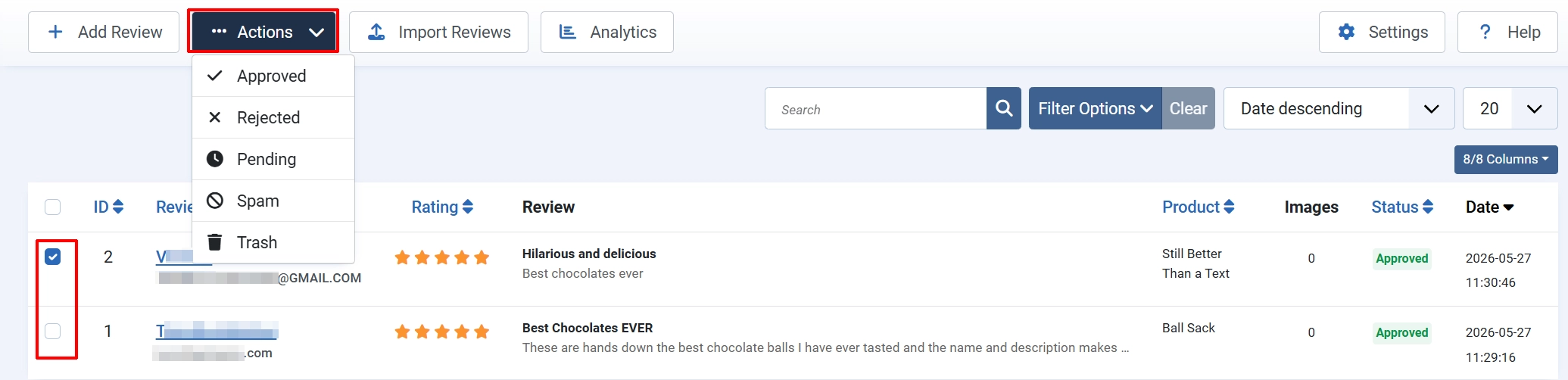
- Click the **checkbox (**next to the individual review or select more than one) -> Action.
- Use the Bulk Actions dropdown to approve, reject, mark as spam, or delete multiple selected reviews at once.
Filter Reviews
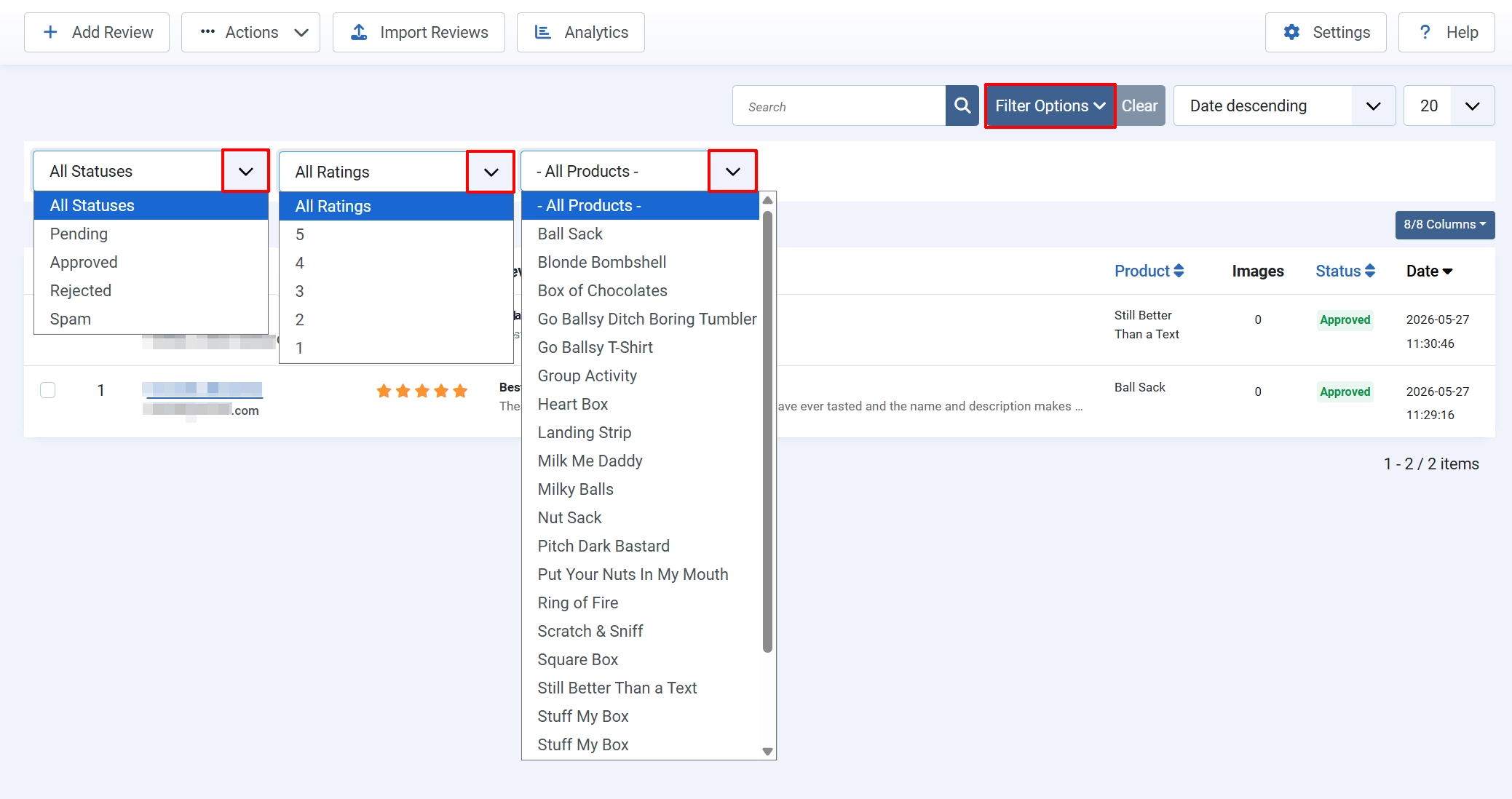
Click on Filter Options. Filter by status, rating, or product using the toolbar dropdowns.
Editing a Review
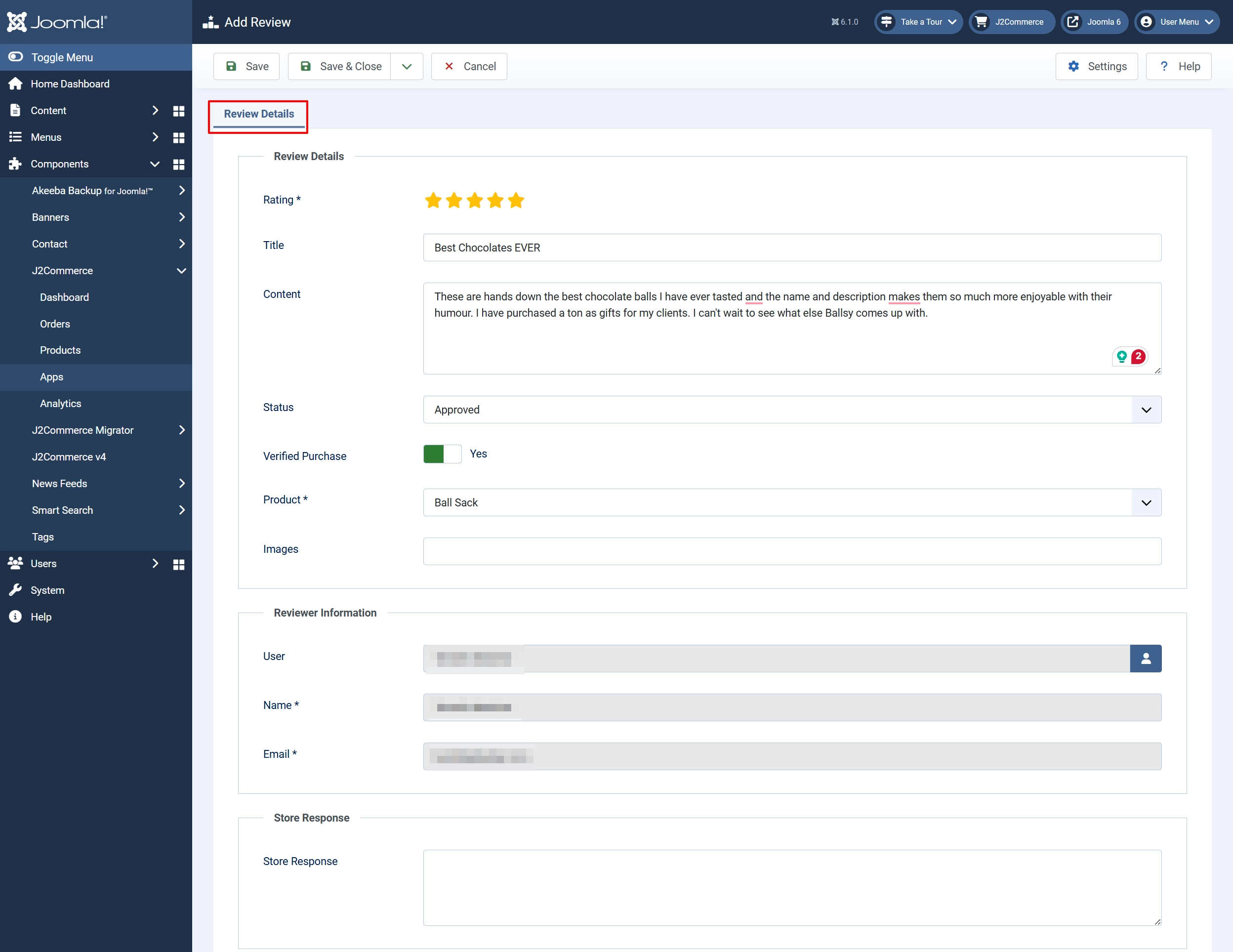
Click on a reviewer's name to open the full edit form. You can:
- Change the rating, title, and content
- Write a Store Response that appears publicly below the review
- Update the reviewer's name, email, and associated user
- Add or remove review images
- Toggle Verified Purchase status
- Change the review status
Importing Reviews

The app includes a CSV import tool to migrate reviews from another platform.
- Go to J2Commerce -> Apps -> Product Reviews -> Import Reviews
- Choose the Product Identifier — either Product ID or SKU.
- Set the Default Status for imported reviews that have no status column.
- Enable Skip Duplicate Reviews to avoid re-importing reviews by the same email for the same product.
- Download the Sample CSV to see the required format.
- Upload your CSV file and click Start Import.
Required CSV Columns
| Column | Required | Description | Example |
|---|---|---|---|
product_id | If using Product ID | J2Commerce product ID | 42 |
sku | If using SKU | Product SKU code | SHIRT-L-BLU |
reviewer_name | Yes | Reviewer full name | Jane Smith |
reviewer_email | Yes | Reviewer email address | jane@example.com |
rating | Yes | Star rating 1–5 | 5 |
review_title | No | Short title | Great product! |
review_content | No | Full review text | Arrived quickly... |
status | No | pending, approved, rejected, or spam | approved |
verified | No | 1 for verified purchase, 0 otherwise | 1 |
created | No | Date created (YYYY-MM-DD HH:MM:SS ) | 2025-03-15 09:00:00 |
order_id | No | Associated order ID | 1001 |
helpful | No | Helpful vote count | 12 |
Review Analytics
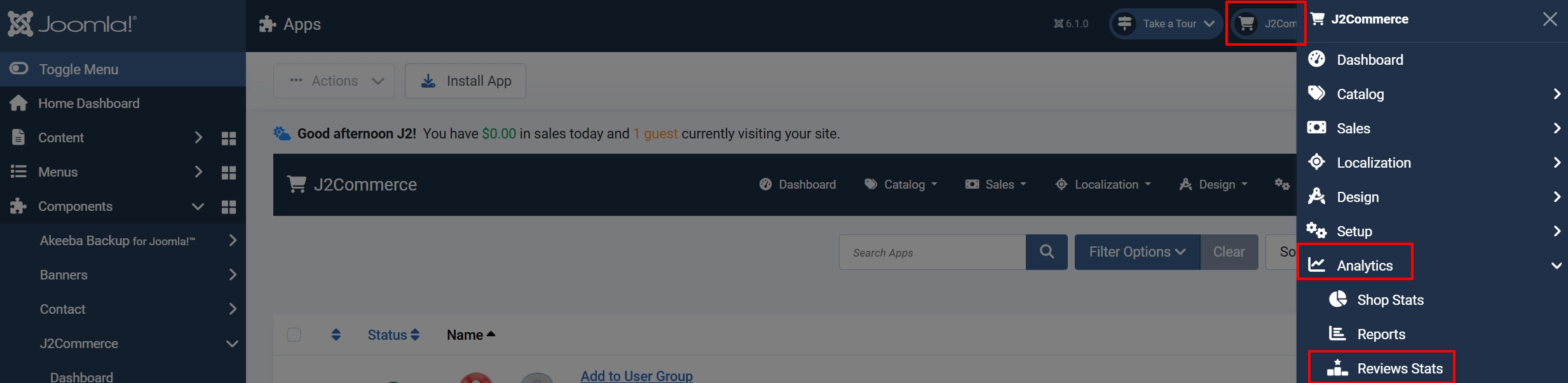
Go to J2Commerce -> Analytics -> Review Stats
You can now review the entire summary of review activity:
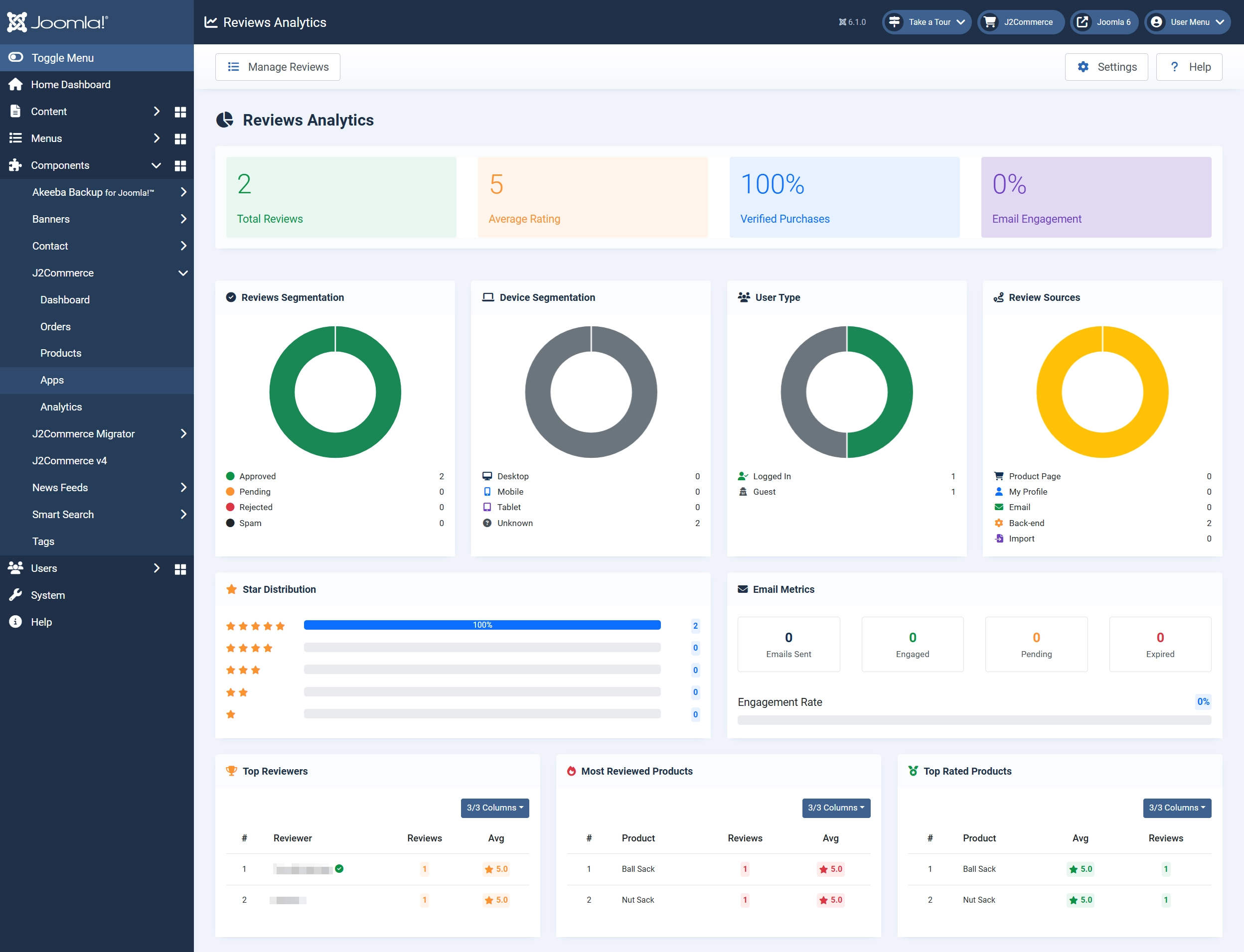
- Total, pending, and approved review counts
- Average rating
- Email engagement metrics (sent, engaged, pending, expired)
- Star distribution chart
- Reviews by source (product page, email, profile, backend, import)
- Device breakdown (desktop, mobile, tablet)
- User type breakdown (registered vs. guest)
- Top reviewers
- Most reviewed products
- Top-rated products
Frontend Category View
Before/Above Product Card
Before/Above Add-to-Cart Button
Troubleshooting
Reviews Not Appearing on Product Pages
Cause: The app is enabled, but Enable Reviews is set to No, or the individual product has reviews disabled.
Solution:
- In the plugin settings, confirm Enable Reviews is set to Yes.
- Edit the product and check the Reviews tab — if an override is set to No, change it to Yes or remove the override.
Review Request Emails Not Sending
Cause: No cron job is configured, or the queue has not yet accumulated emails ready to send.
Solution:
- Confirm that Enable Review Requests is turned on in Email Settings.
- Verify the cron job is running and the URL is correct.
- Check that enough days have passed since the order reached the trigger status — emails are held until the Request Delay period expires.
- Enable Debug Mode in the plugin settings and check the Joomla log file at
administrator/logs/app_reviews.phpfor error messages.
reCAPTCHA Not Working
Cause: Invalid site key or secret key, or the domain is not registered in your Google reCAPTCHA console.
Solution:
- Verify your keys at https://www.google.com/recaptcha/admin.
- Confirm the domain of your Joomla site is listed under Domains in the reCAPTCHA settings.
- If using v3, try lowering the reCAPTCHA v3 Threshold if legitimate submissions are being blocked.
Rich Snippets Not Appearing in Google Search
Cause: Google may take days or weeks to re-crawl and index updated structured data.
Solution:
- Test your product page in Google's Rich Results Test tool.
- Confirm Enable Rich Snippets is on and the product has at least the number of approved reviews set in Minimum Reviews.
- If using the Schema.org Ecommerce plugin integration, confirm that plugin is installed and active.