Change Password
The Change Password app adds a dedicated tab to the J2Commerce My Profile page on the frontend. Logged-in customers can update their Joomla account password without leaving the store — no need to visit the Joomla User Profile or reset their password by email.
The form validates both fields client-side and server-side, shows inline error messages for empty or mismatched passwords, and displays a confirmation message on success.
Requirements
- PHP 8.3+
- Joomla! 6.x
- J2Commerce 6.x
Purchase and Download
The Change Password app is a separate add-on available from the J2Commerce Extensions Store. It is not included with the core J2Commerce 6 component.
Step 1: Go to the J2Commerce website -> Apps.
Step 2: Locate the Change Password app -> click View Details -> Add to cart -> Checkout.
Step 3: Go to My Downloads under your profile menu at the top right corner and search for the app. Click Available Versions -> View Files -> Download.
Install the App
You can install this Change Password App using the Joomla installer. The following steps help you with a successful installation.
In the Joomla admin, go to System -> Install -> Extensions
Upload the plugin ZIP file or use the Install from URL option.
 (1)-a6689f12b23b8e992f5c2a169737672f.webp)
Enable the App
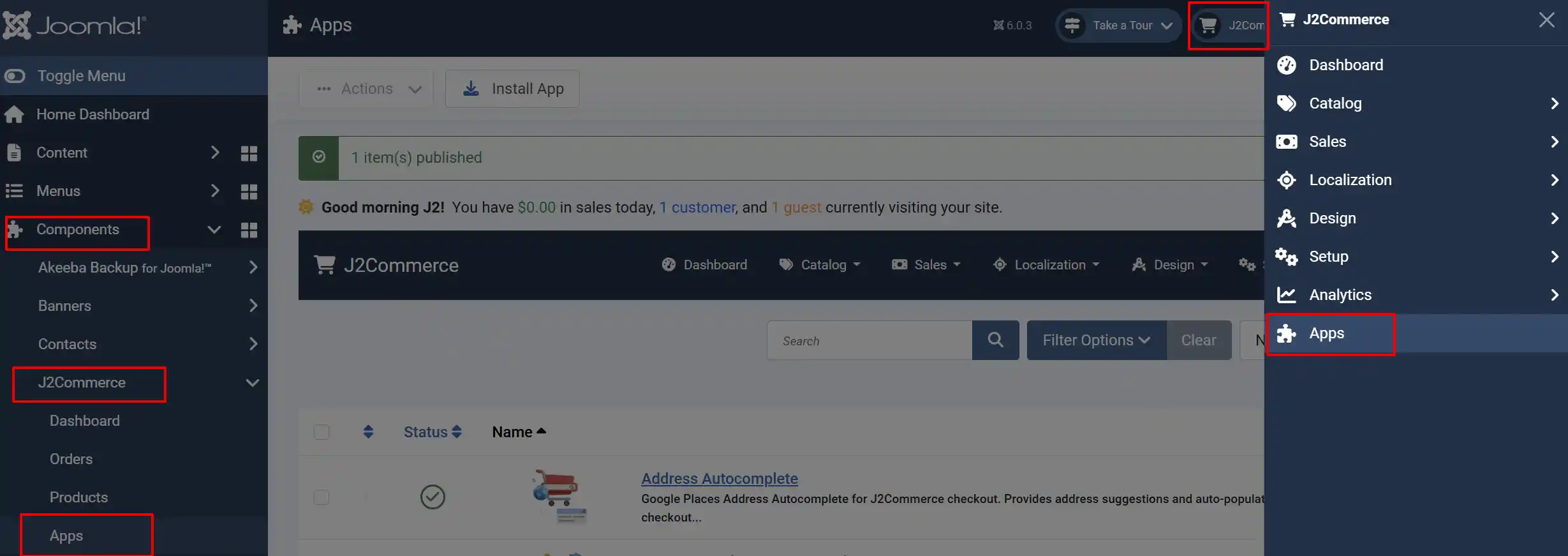
Once you have installed the App, you will need to enable it. There are two ways you can access the extension.
Option A: Go to the J2Commerce icon at the top right corner -> Apps
Option B: Go to Components on the left sidebar -> J2Commerce -> Apps
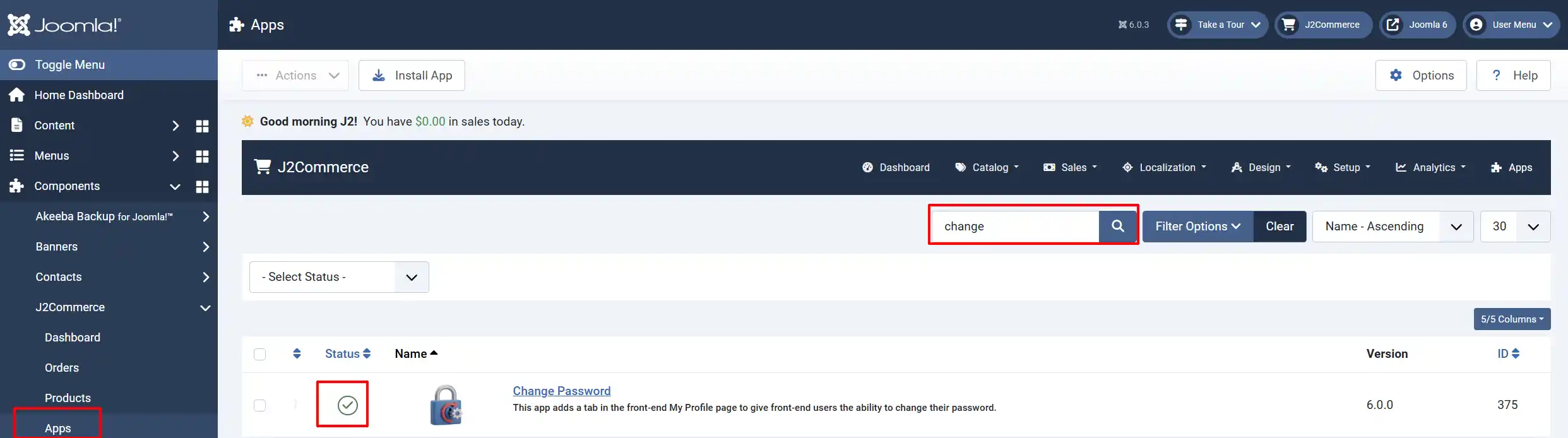
Look for Change Password, click the X, and it will turn into a green checkmark. It is now enabled and ready for setup.
Configure the App
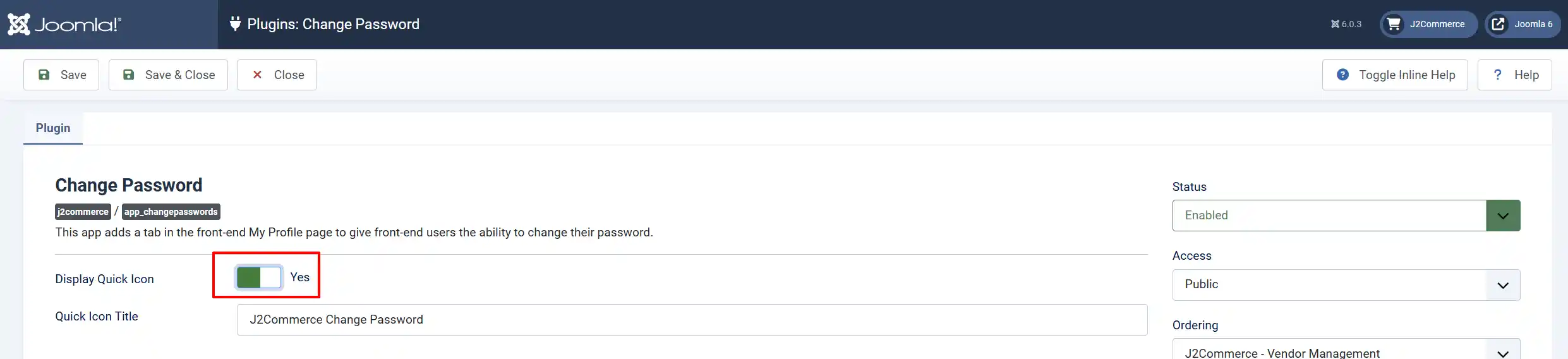
Click on the Change Password title to open the plugin configuration screen.
Plugin Tab
Display Quick Icon: Show a quick icon for this app on the J2Commerce dashboard. Requires the J2Commerce Quick Icon plugin to be installed and enabled.
Quick Icon Title: The label displayed on the quick icon. Only visible when Display Quick Icon is set to 'Yes'.
After adjusting settings, click Save or Save & Close.
How It Works
When a logged-in customer visits their My Account page on the frontend, a Change Password tab appears in the profile navigation alongside any other profile tabs.
Clicking the tab reveals a simple form with two fields:
- New Password — the customer's desired new password
- Confirm Password — must match the New Password field exactly

When the customer clicks Change Password:
- The button shows a loading spinner while the request processes.
- If both fields pass validation, the password is updated immediately.
- A green success message appears: "Password Updated Successfully."
- The form clears so the fields are ready for another change if needed.
If there is a problem, inline error messages appear directly below the relevant field rather than at the top of the page, making it clear which field needs attention.
Validation and Error Messages
| Situation | Message Shown |
|---|---|
| New Password field left empty | "New Password Required" |
| Confirm Password field left empty | "Confirm Password Required" |
| Passwords do not match | "Password Field Mismatch" |
| Server-side save error | "New Password Save Problem" |
| Success | "Password Updated Successfully" |
Tips
- The tab only appears for logged-in users. Guest visitors and users who are not signed in will not see the Change Password tab.
- The app uses your Joomla site's password strength and minimum length requirements — the same rules that apply when editing a user account in the Joomla Administrator.
- If you enable the Display Quick Icon setting, the icon links directly to the plugin configuration page in the administrator, giving your staff a one-click shortcut to the app settings from the J2Commerce dashboard.
Troubleshooting
The Change Password Tab Does Not Appear on the My Profile Page
Cause: The plugin is not enabled, or the customer is not logged in.
Solution:
-
Go to J2Commerce -> Apps and verify Change Password has a green checkmark.
-
Confirm the customer is logged into a Joomla user account on the frontend.
-
If the problem persists, go to System -> Manage -> Extensions, search for Change Password, and verify the plugin status is Enabled.

Password Change Fails with a Generic Error
Cause: A server-side error occurred during the save, such as a session timeout or a Joomla security token mismatch.
Solution:
-
Ask the customer to refresh the My Profile page to get a fresh session token.
-
Try the password change again.
-
If the error persists, check your Joomla error logs at System -> System Information -> PHP Error Log for details.

Quick Icon Does Not Appear on the Dashboard
Cause: The J2Commerce Quick Icon plugin is not installed or not enabled, or Display Quick Icon is set to No.
Solution:
-
Go to J2Commerce -> Apps and confirm the Change Password plugin is enabled.
-
Click Change Password to open its configuration.
-
Set Display Quick Icon to Yes.
-
Verify a label is entered in the Quick Icon Title field.
-
Go to System -> Manage -> Extensions and search for J2Commerce Quick Icons — confirm it is enabled.

- Click Save in the Change Password configuration and reload the J2Commerce dashboard.