Pay. (Pay.nl) Payment
The Pay. (Pay.nl) Payment plugin connects your J2Commerce store to the Pay. payment platform so customers can pay with iDEAL, credit and debit cards, Bancontact, and over 80 other payment methods. When a customer checks out, they are sent to the secure Pay.-hosted payment page, choose how they want to pay, and are returned to your store once the payment is finished.
Pay. confirms every payment behind the scenes, so your orders are marked paid automatically and reliably. You can also save payment methods for returning customers, accept subscriptions, and capture, void, or refund payments directly from the J2Commerce order screen.
Requirements
- PHP 8.3.0 +
- Joomla! 6.x
- J2Commerce 6.x
- An active Pay. account with API credentials (AT-code, API token, Service ID / SL-code, and an exchange signing secret)
Get Your Pay. Credentials
Before the plugin can take payments, you need your account details from Pay.
- Log in to your Pay. dashboard at https://my.pay.nl.
- Find your AT-code (looks like
AT-1234-5678) and create an API token. - Find your Service ID — this is your SL-code (looks like
SL-1234-5678). - Locate or generate your exchange signing secret (used to verify Pay.'s payment confirmations).
Pay. provides a separate sandbox (test) set of credentials. Use these while you set everything up so no real money changes hands. Switch to your live credentials only when you are ready to go live.
Purchase and download
This plugin is a separate add-on available from the J2Commerce Extensions Store. It is not included with the core J2Commerce 6 component.
- Go to the J2Commerce website and locate Pay. (Pay.nl).
- Add it to your cart and complete checkout.
- Go to My Downloads under your account profile and find the plugin.
- Click Available Versions -> View Files -> Download Now to download the ZIP file.
Install the plugin
In the Joomla Administrator, go to System -> Install -> Extensions.
Upload the plg_j2commerce_payment_paynl.zip file.

Enable the Plugin
Once you have installed the App, you will need to enable it. There are two ways you can access the App.
Option A: Go to the J2Commerce icon at the top right corner -> Setup -> Payment Methods
Option B: Go to Components on the left sidebar -> J2Commerce -> Dashboard -> Setup -> Payment Methods

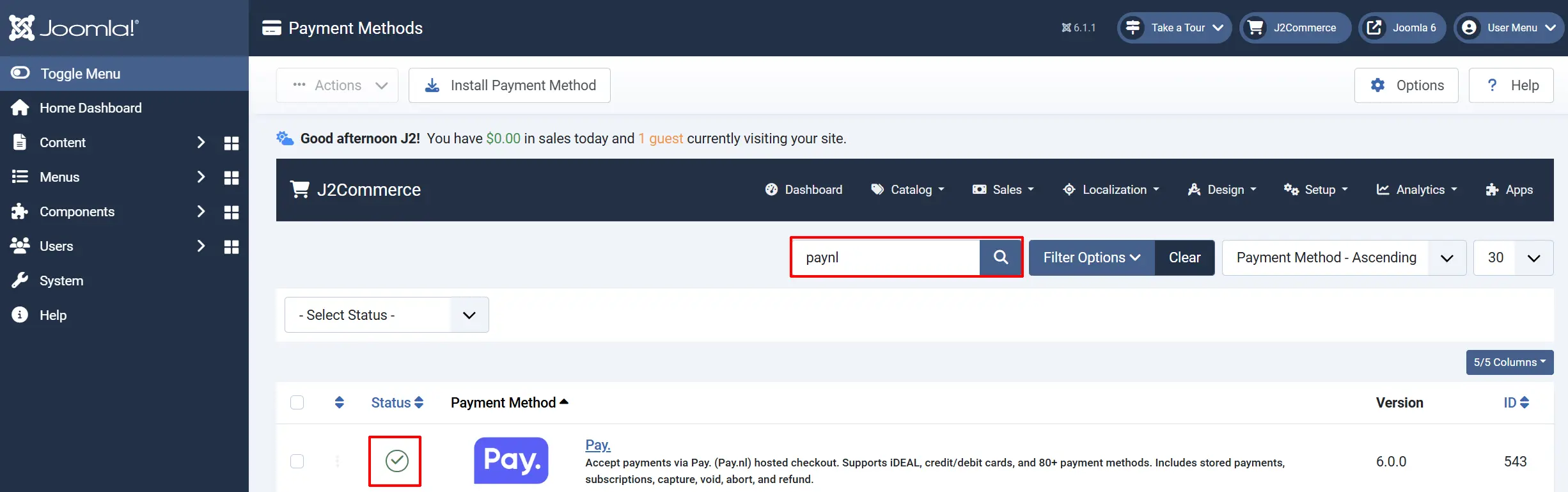
To help you narrow down the list, you can do a search for Pay. (Pay.nl), click the X, and it will turn into a green checkmark. It is now enabled and ready for setup.
Configure the plugin
Click the Pay. (Pay.nl) title next to the green checkmark to open the configuration screen.
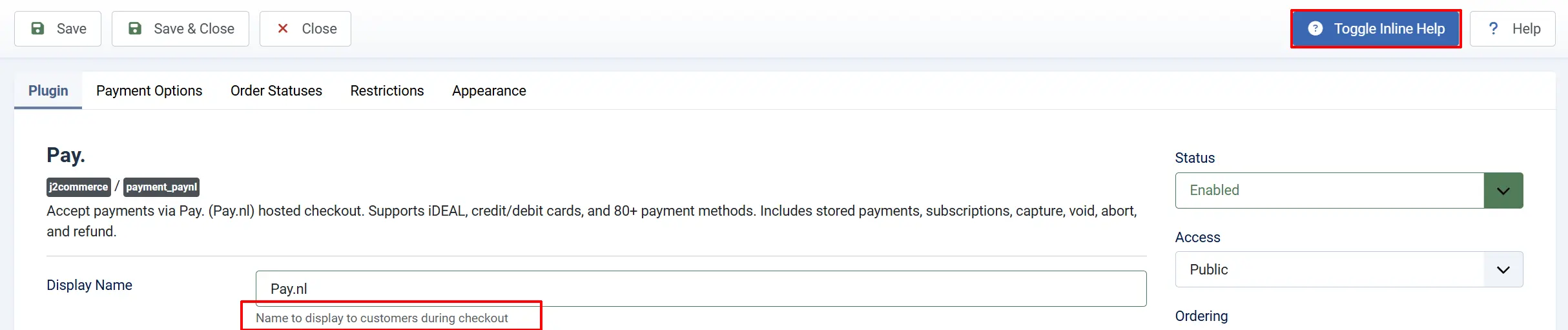
Click the Toggle Inline Help button at the top of any plugin configuration page to show a short description beneath each field.
Display Settings tab
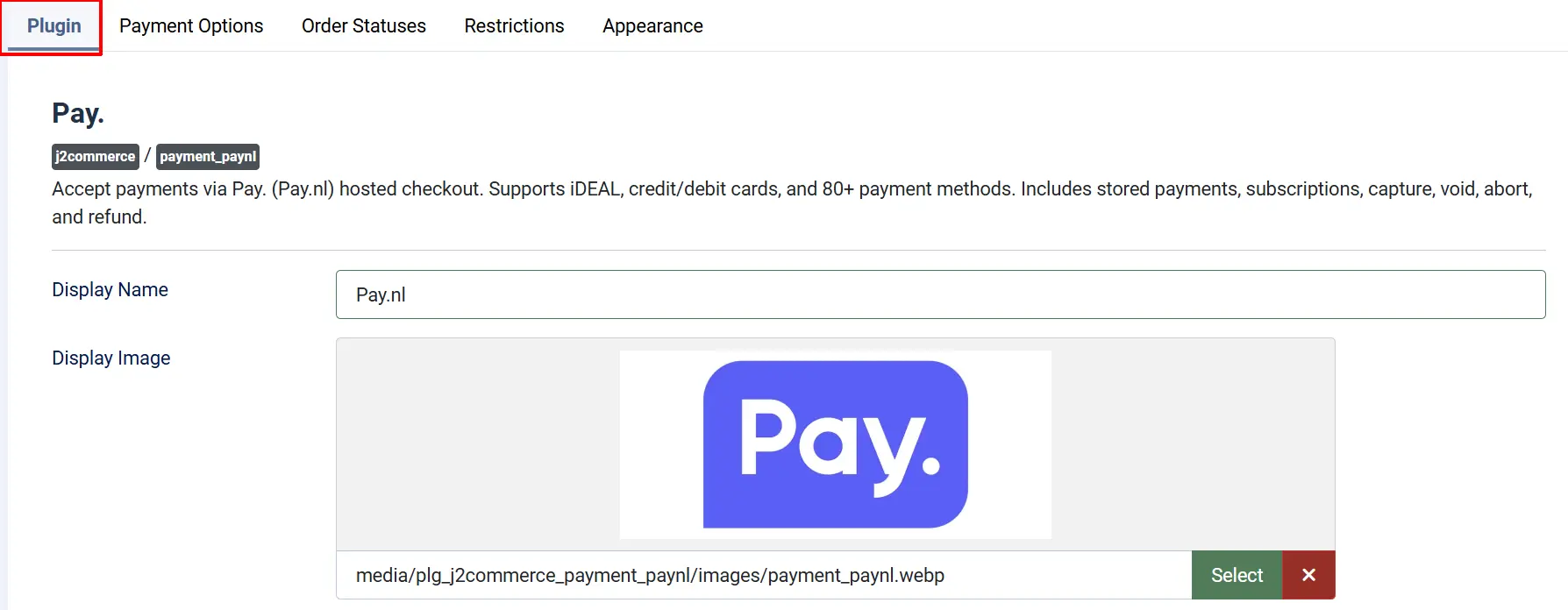
Display Name: The name customers see at checkout. Leave as Pay. or enter your own label, such as Pay. (iDEAL & Cards).
Display Image: A logo shown next to the payment method at checkout. The default Pay. logo is pre-filled — you can replace it with your own image.
Sandbox Mode: Set to Yes to use the Pay. test environment so you can test without real payments. Set to No when you are ready to go live. When you switch modes, a matching set of credential fields appears for that mode.
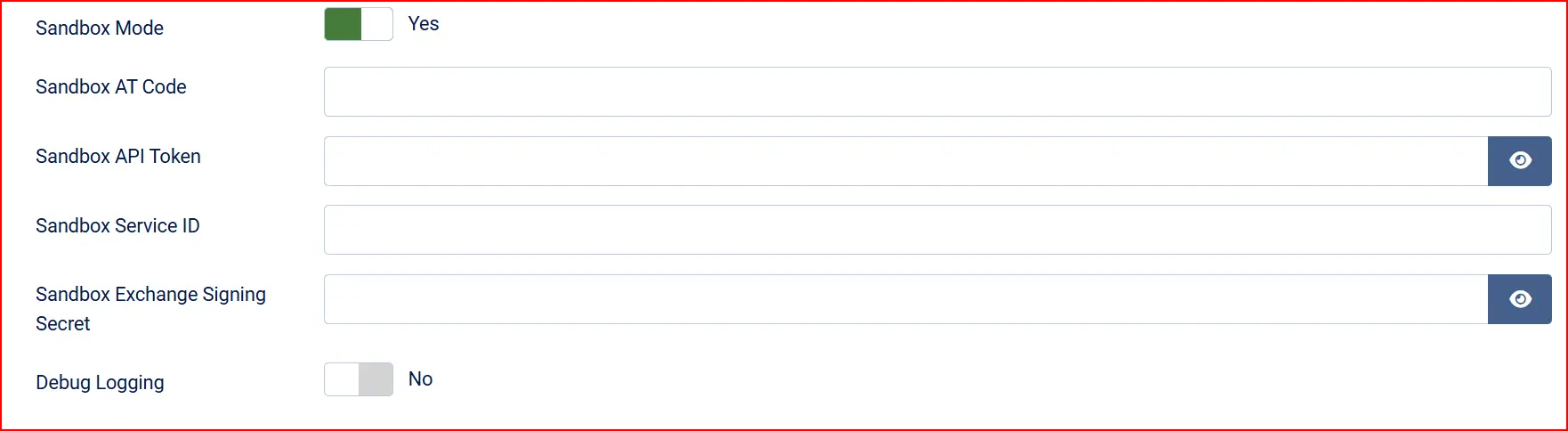
AT Code / Sandbox AT Code: Your Pay. AT-code for the active mode. It looks like AT-1234-5678.
API Token / Sandbox API Token: Your Pay. API token for the active mode. This is kept private and never shown publicly.
Service ID / Sandbox Service ID: Your Pay. SL-code (service or app ID) for the active mode. It looks like SL-1234-5678.
Exchange Signing Secret / Sandbox Exchange Signing Secret: The secret used to verify Pay.'s payment confirmations. This must match the signing secret in your Pay. dashboard exactly.
Debug Logging: Logs Pay. API requests and responses to file. Leave this No during normal operation and only turn it on while diagnosing a problem.
NOTE: Leave Debug Logging off during normal operation. Log files can grow quickly.
Payment Options tab
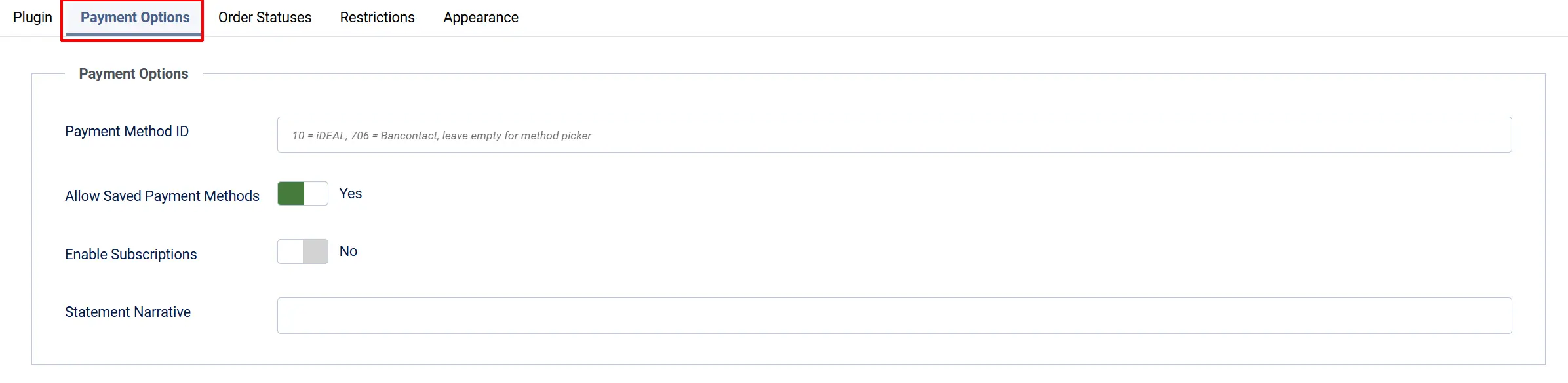
Control how customers pay and which extra features are enabled.
Payment Method ID: Optionally pre-select one Pay. method so customers skip the picker. Leave empty to show Pay.'s full method selection screen. Common IDs: 10 for iDEAL, 706 for Bancontact.
Allow Saved Payment Methods: Set to Yes to let logged-in customers save their payment method for faster future checkouts. Set to No to require a fresh selection every time.
Enable Subscriptions: Set to Yes to allow subscription and recurring payments through Pay.
Statement Narrative: Text shown on the customer's bank or card statement (max 100 characters). Setting this to your store name helps customers recognize the charge and reduces disputes. Leave empty to use Pay.'s default.
Order Statuses tab
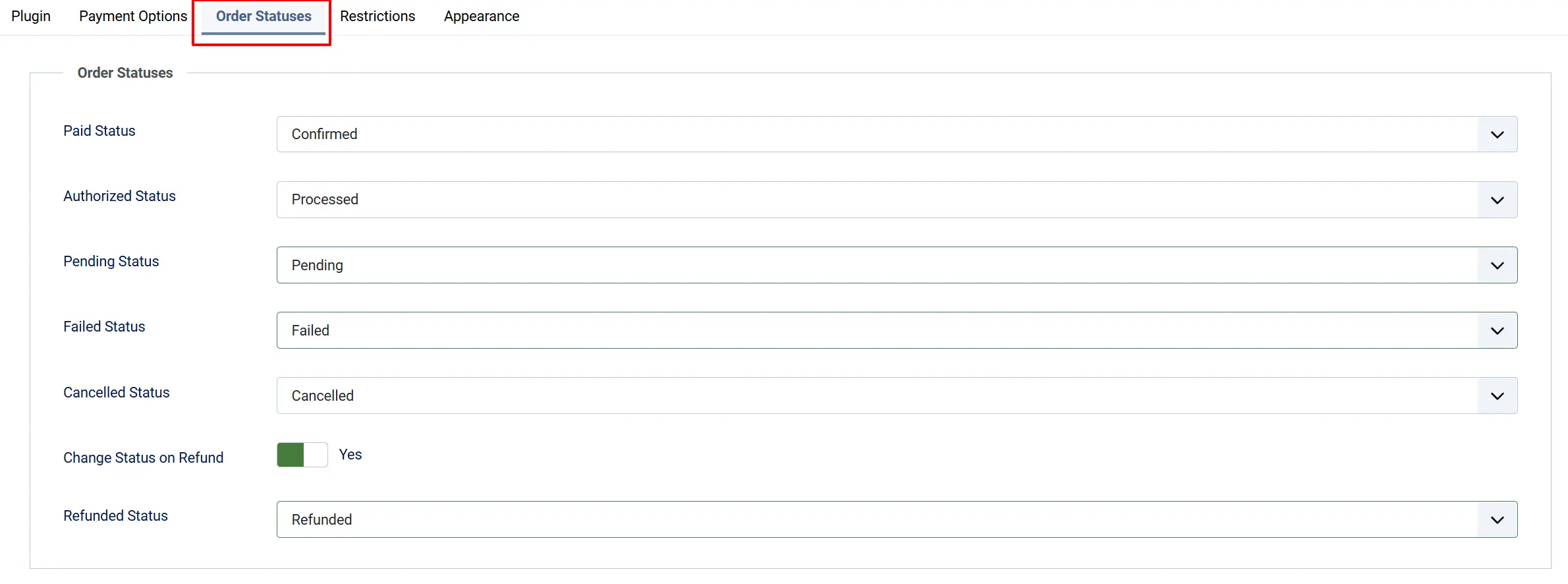
Tell J2Commerce which order status to apply at each stage of a payment. The defaults work for most stores.
Paid Status: Set when the payment completes successfully.
Authorized Status: Set when a payment is approved but not yet captured (a reservation).
Pending Status: Set while a payment is still being processed by the customer's bank.
Failed Status: Set when a payment fails or expires.
Cancelled Status: Set when a customer cancels the payment at Pay.
Change Status on Refund: Turn Yes to change the order status when you issue a refund.
Refunded Status: The status to apply after a refund (shown only when the option above is Yes).
NOTE: The status names you see depend on the order statuses configured in your store under J2Commerce -> Setup -> Order Statuses.

Restrictions tab
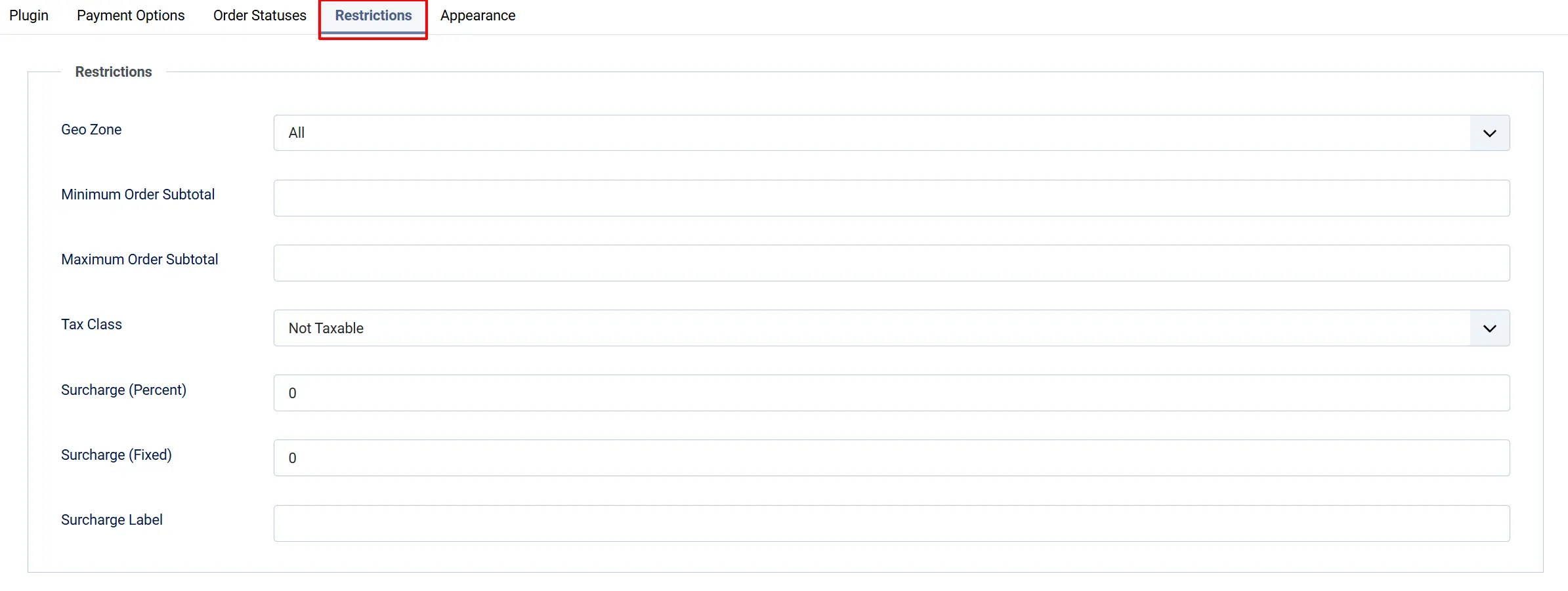
Limit when this payment method is offered and add an optional surcharge.
Geo Zone: Restrict the method to a geographic zone. Leave empty to offer it worldwide.
Minimum Order Subtotal: Hide this method when the order subtotal is below this amount. 0 means no minimum.
Maximum Order Subtotal: Hide this method when the order subtotal exceeds this amount. 0 means no maximum.
Tax Class: The tax profile applied to any surcharge you add below.
Surcharge (Percent): A percentage fee added to the order total. 0 means no fee.
Surcharge (Fixed): A flat fee added to the order total. 0 means no fee.
Surcharge Label: The label shown for the surcharge line on the order.
Appearance tab
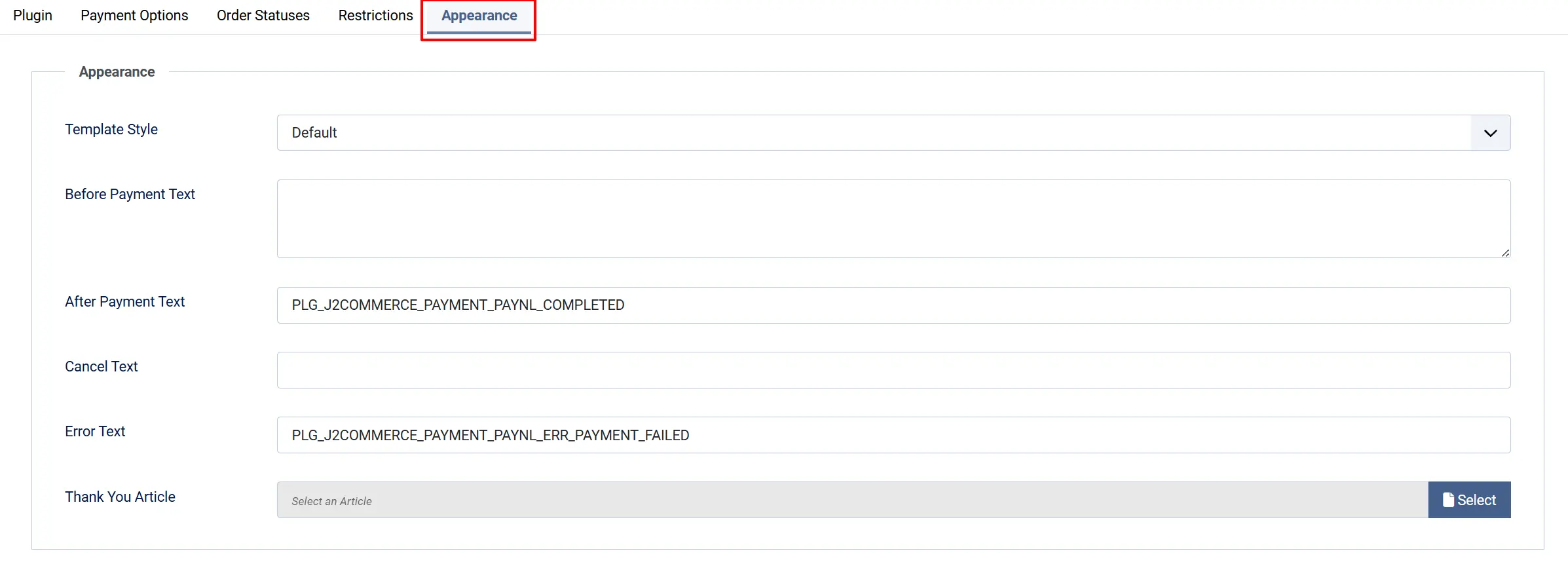
Control the checkout template and the messages customers see.
Template Style: Choose the checkout template to match your site design. Select Bootstrap5 for most Joomla templates, or UIkit if your site uses a UIkit-based template.
Leave Template set to a value. If it is left empty, the payment form will not appear at checkout. If the form is blank after installation, open this tab, select a template, and click Save.
Before Payment Text: Text shown to the customer before they are redirected to Pay. Use this to set expectations, such as "You will be redirected to a secure payment page."
After Payment Text: Text shown after a successful payment. Defaults to "Thank you. Your payment has been received."
Cancel Text: Text shown when a customer cancels the payment at Pay. and returns to your store.
Error Text: Text shown when a payment fails. Defaults to "Payment failed. Please try again or choose another payment method."
Thank You Article: Optional Joomla article to display after a successful payment
How It Works
When a customer places an order and chooses Pay.:
- The customer reviews your Before Payment Text and clicks Pay Now at checkout.
- J2Commerce creates the payment with Pay. and redirects the customer to the secure Pay.-hosted payment page.
- The customer chooses iDEAL, a card, Bancontact, or another available method and completes the payment.
- Pay. sends a signed confirmation (the "exchange") back to your store in the background. J2Commerce verifies the signature and updates the order status automatically.
- The customer is returned to your store and sees your After Payment Text.
NOTE: The confirmation that Pay. sends in the background is what marks an order paid — not the customer returning to your site. This means orders are confirmed correctly even if the customer closes their browser immediately after paying.
Managing Payments from the Order Screen
Open any Pay. order under J2Commerce -> Sales -> Orders. Depending on the payment's state, the order screen shows buttons to manage it:
- Capture — Settle a payment that was only authorized (reserved), collecting the money.
- Void — Cancel an authorized payment that has not yet been captured.
- Abort — Stop a payment that is still pending and has not reached the customer's bank.
- Refund — Return money to the customer, in full or in part. Click Refund, enter the amount, and click Confirm Refund.
NOTE: The available buttons change with the payment's status. Capture and Void only appear for an authorized payment, while Refund appears once a payment has been captured and settled.
When Pay. Appears at Checkout
Pay. is offered to a customer when all of the following are true:
- The Pay. payment method shows a green checkmark (enabled) under J2Commerce -> Setup -> Payment Methods.
- Valid Pay. credentials are entered for the active mode (live or sandbox).
- The order subtotal is within any Minimum / Maximum Order Subtotal limits you set.
- The customer's address is inside the selected Geo Zone (if one is set).
Tips
- Test in sandbox first — Turn Sandbox Mode on, enter your Pay. test credentials, and place a test order before going live.
- Keep the signing secret accurate — Pay. payment confirmations are rejected if the Exchange Signing Secret does not match the one in your Pay. dashboard. Orders stay pending if this is wrong.
- Use a clear statement narrative — Setting the Statement Narrative to your store name helps customers recognize the charge on their bank statement and reduces disputes.
- Pre-select a method for a focused store — If you only sell to Netherlands customers using iDEAL, set the Payment Method ID to
10so customers skip the picker. - Turn off debug logging when done — Leave Debug Logging off in everyday use.
Troubleshooting
Pay. Does Not Appear at Checkout
Cause: The plugin is disabled, credentials are missing, or a restriction is blocking it.
Solution:
- Go to J2Commerce -> Setup -> Payment Methods and confirm Pay. shows a green checkmark.
- Open the Pay. settings and confirm the AT Code, API Token, Service ID, and Exchange Signing Secret are filled in for the active mode (live or sandbox).
- Check the Restrictions tab — the order subtotal must fall within your Minimum / Maximum limits, and the customer must be inside the chosen Geo Zone.
Orders Stay Pending After a Successful Payment
Cause: Pay.'s background confirmation (the exchange) is not reaching your store or is failing signature verification.
Solution:
- Confirm the Exchange Signing Secret in the plugin settings matches the one in your Pay. dashboard exactly.
- Make sure your store is reachable from the internet (Pay. cannot reach a local-only or password-protected site).
- Turn on Debug Logging, place another test order, and review the log for the confirmation request and any error messages.
The Payment Form Is Blank
Cause: No checkout template is selected in the Appearance tab.
Solution:
- Open the Pay. settings -> Appearance tab.
- Select a Template (for example, Bootstrap5).
- Click Save, then clear the cache: Home Dashboard -> Cache -> Delete All.
"Pay. credentials are not configured" Message
Cause: One or more required credential fields are empty for the active mode.
Solution:
- Open the Pay. settings -> General tab.
- If Sandbox Mode is Yes, fill in the Sandbox credential fields; if No, fill in the live credential fields.
- Click Save.
Refund Could Not Be Processed
Cause: The payment is not in a refundable state, or the refund amount exceeds the available balance.
Solution:
- Open the order under J2Commerce -> Sales -> Orders and confirm the payment status shows Paid.
- Keep the refund amount at or below the maximum shown in the refund dialog.
- If the problem continues, turn on Debug Logging and retry to capture the full error from Pay.