Paysafe Payment
The Paysafe plugin lets your customers pay by credit or debit card at checkout, processed securely through Paysafe's payment platform. Card fields are rendered inside Paysafe-hosted iframes using Paysafe.js — a technique called tokenization. The real card number never touches your server, keeping your store at the simplest PCI compliance level (SAQ-A) while still providing a seamless, on-page checkout experience.
Logged-in customers can optionally save their card for future orders, and you can manage captures, voids, and refunds directly from the J2Commerce order admin without logging into the Paysafe portal.
Requirements
- PHP 8.3 or later
- Joomla 6.x
- J2Commerce 6.x
- An active Paysafe merchant account with API credentials
Purchase and download
This plugin is a separate add-on available from the J2Commerce Extensions Store. It is not included with the core J2Commerce 6 component.
- Go to the J2Commerce website and locate Paysafe.
- Add it to your cart and complete checkout.
- Go to My Downloads under your account profile and find the plugin.
- Click Available Versions -> View Files -> Download Now to download the ZIP file.
Install the plugin
In the Joomla Administrator, go to System -> Install -> Extensions.
Upload the plg_j2commerce_payment_paysafe.zip file.

Enable the Plugin
Once you have installed the App, you will need to enable it. There are two ways you can access the App.
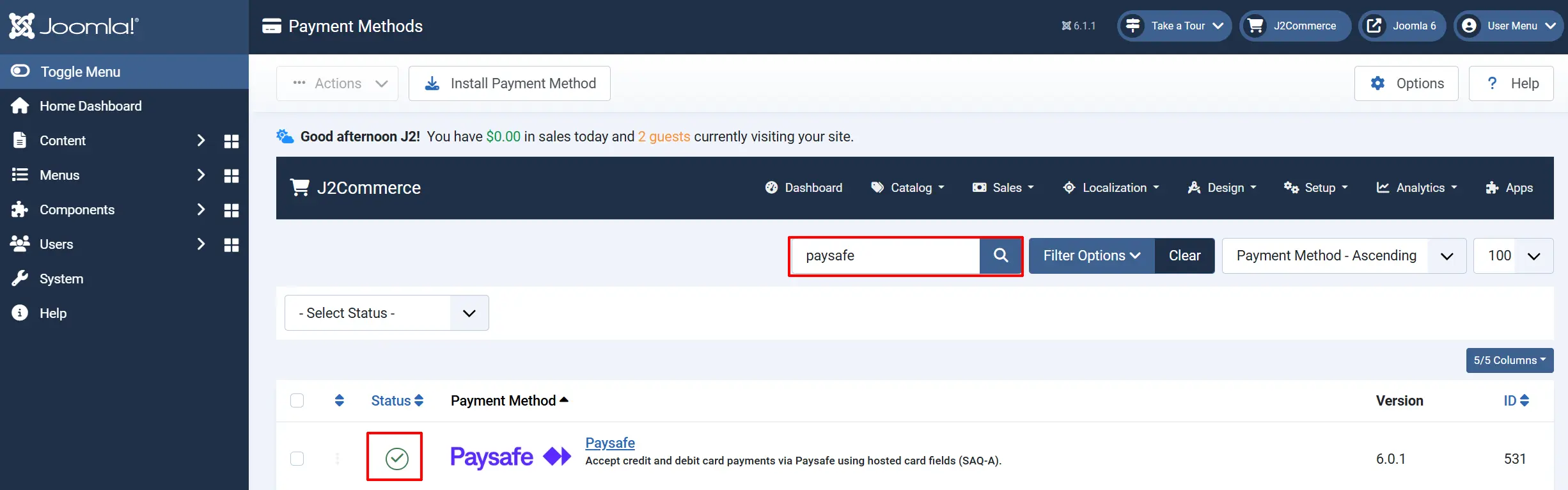
Option A: Go to the J2Commerce icon at the top right corner -> Setup -> Payment Methods
Option B: Go to Components on the left sidebar -> J2Commerce -> Dashboard -> Setup -> Payment Methods

To help you narrow down the list, you can do a search for Paysafe, click the X, and it will turn into a green checkmark. It is now enabled and ready for setup.
Configure the Plugin
Click the Toggle Inline Help button at the top of any plugin configuration page to show a short description beneath each field.

Display Settings tab
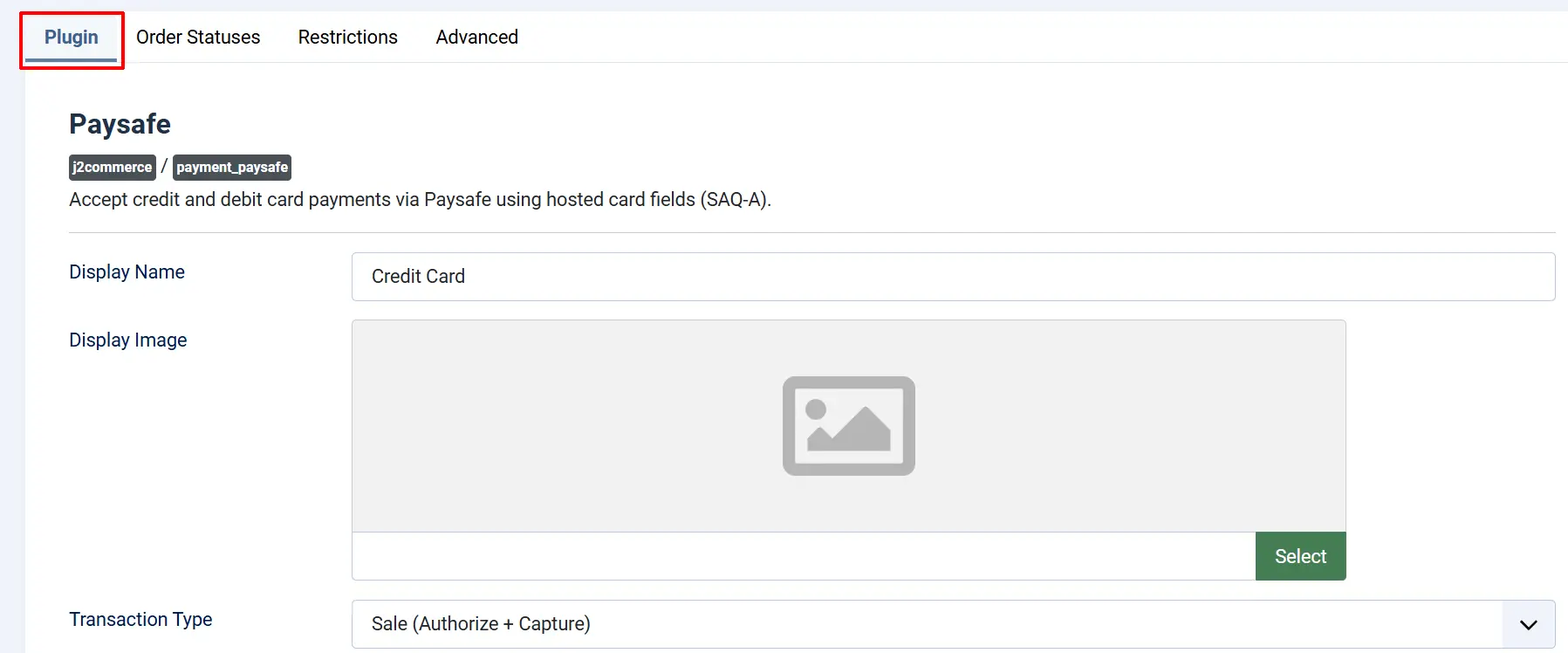
These are the core settings that control how Paysafe processes payments on your store.
Display Name: The label shown to customers at checkout (for example, "Credit Card").
Display Image: An optional image or logo shown next to the payment method name at checkout.
Transaction Type
- Sale (Authorize + Capture) — The card is authorized and the funds are captured in one step. This is the most common setting. The order moves to your Paid Status immediately after a successful payment.
- Authorize Only — The card is reserved (a hold is placed) but funds are not collected yet. You must manually capture the payment from the order admin. Use this when you want to verify the order before collecting payment, such as for made-to-order products.
Credentials
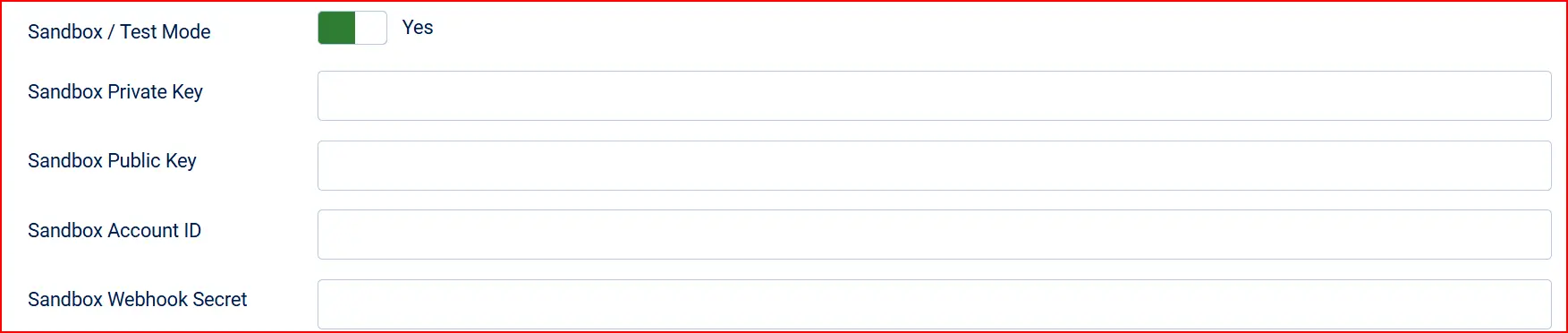
Sandbox / Test Mode
- Yes (enabled) — Transactions go to
api.test.paysafe.com. Use sandbox API keys (see below). This is the default; you must switch this off before going live. - No (disabled) — Transactions go to
api.paysafe.com(live). Use live API keys.
A sandbox key on the live host (or vice versa) will be rejected by Paysafe. Always make sure your keys match the selected environment.
Sandbox API Keys (shown when Sandbox is Yes)
Sandbox Private Key: Your Paysafe server-side key for sandbox. Begins with pmle-. Never expose this in the browser.
Sandbox Public Key: Your Paysafe client-side key for sandbox. Begins with OT-. Used to initialize the Paysafe.js card fields in the browser.
Sandbox Account ID: Your Paysafe merchant account ID for sandbox transactions.
Sandbox Webhook Secret: Your Paysafe HMAC secret for verifying sandbox webhook calls. Leave blank if you are not testing webhooks.
Live API Keys (shown when Sandbox is No)
Live Private Key: Your Paysafe server-side key for live transactions. Begins with pmle-. Keep this secret.
Live Public Key: Your Paysafe client-side key for live transactions. Begins with OT-. Safe to use in the browser.
Live Account ID: Your Paysafe merchant account ID for live transactions.
Live Webhook Secret: Your Paysafe HMAC secret for verifying live webhook calls.
You can find your API keys in your Paysafe merchant portal under Developer -> API Keys.
Saved Cards

Allow Saved Cards: Lets logged-in customers save their card as a multi-use token for faster checkout and automatic subscription renewals.
When enabled, customers will see a Save this card for future purchases checkbox at checkout, and a Saved Cards selector on subsequent purchases.
Layout Template
The Layout Template field lets you choose a custom checkout layout if your developer has created one. Leave this on the default unless you have been given specific instructions.
Order Statuses tab
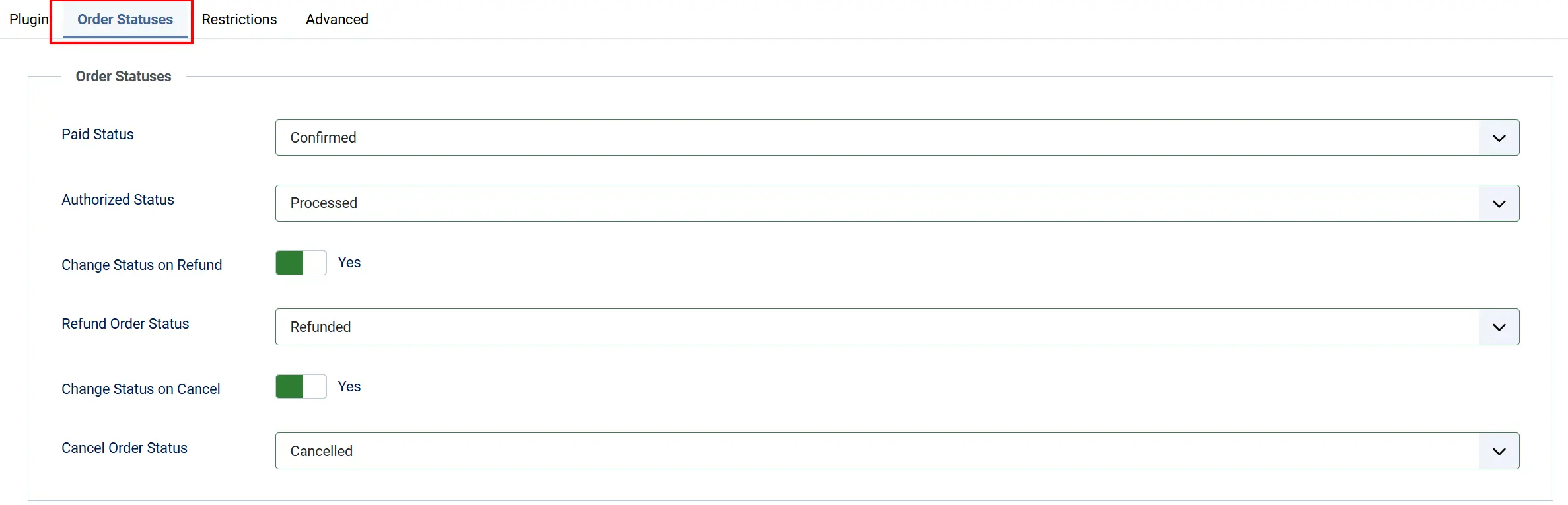
These settings control which order status J2Commerce assigns at each stage of the payment lifecycle.
Paid Status: The status assigned when payment is successfully captured. Typically set to Confirmed or Processing.
Authorized Status: The status assigned when a payment is authorized but not yet captured (Authorize Only mode). Typically set to a custom Authorized status.
Change Status on Refund: When enabled, the order status changes automatically after a refund.
Refund Order Status: The status to apply after a refund is processed. Only visible when Change Status on Refund is enabled.
Change Status on Cancel: When enabled, the order status changes automatically after a void or cancellation.
Cancel Order Status: The status to apply after a cancellation or void. Only visible when Change Status on Cancel is enabled.
If the order status you want is not listed, create it first under J2Commerce -> Setup -> Order Statuses.

Restrictions tab
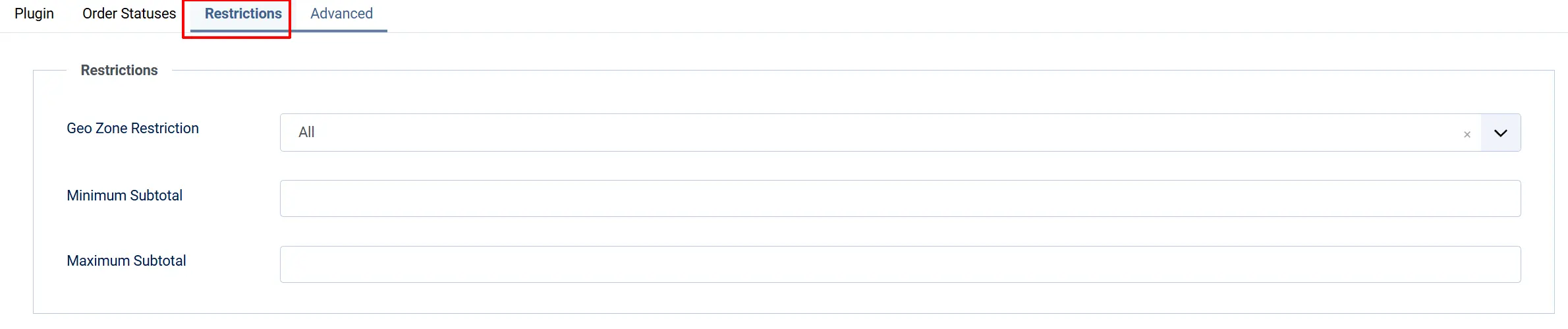
Use these settings to control which customers see Paysafe as a payment option.
Geozone Restriction: Limit Paysafe to customers in a specific geozone (for example, United States only). Leave blank to allow all locations.
Minimum Subtotal: Hide Paysafe when the cart subtotal is below this amount. Leave blank for no minimum.
Maximum Subtotal: Hide Paysafe when the cart subtotal exceeds this amount. Leave blank for no maximum.
Advanced tab
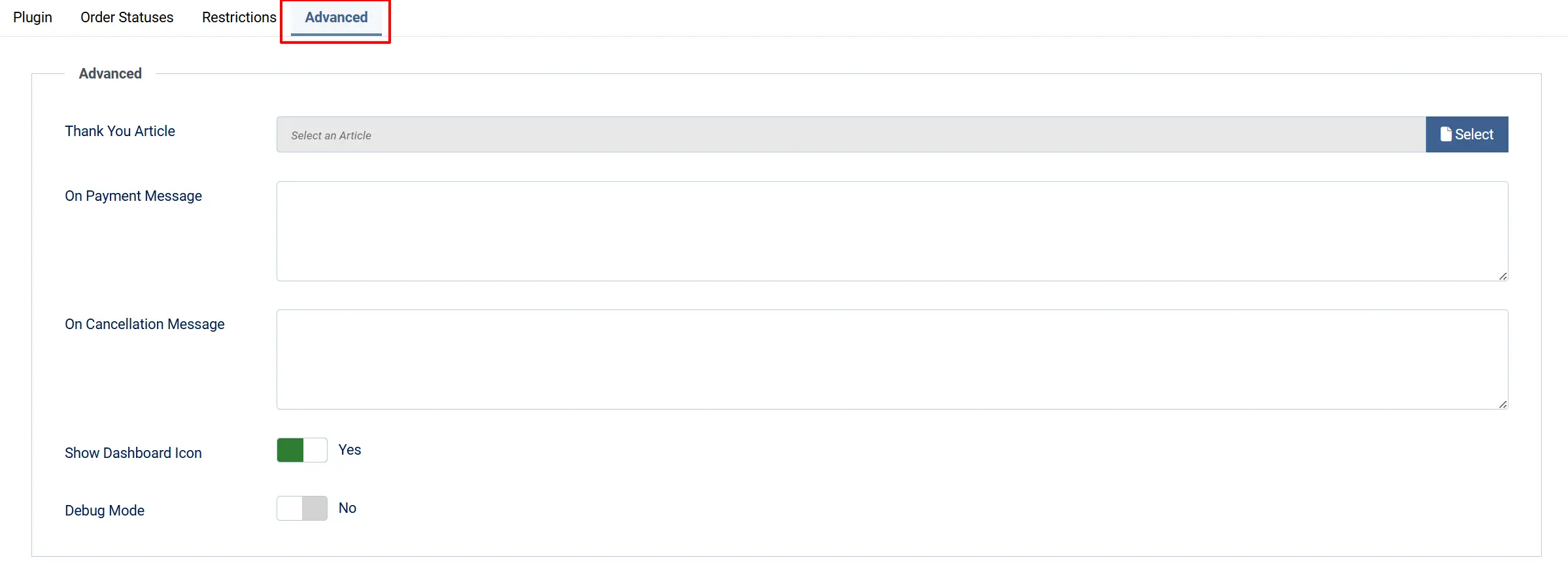
Thank You Article: Select a Joomla article to display on the order confirmation page after a successful payment. Leave blank to use the default confirmation page.
On Payment Message: Optional message or HTML content shown to the customer after a successful payment.
On Cancellation Message: Optional message or HTML content shown when a payment is cancelled.
Show Dashboard Icon: Show a Paysafe shortcut icon on the J2Commerce admin dashboard.
Debug Mode: Logs all Paysafe API requests and responses to the Joomla log directory. Do not enable on live sites.
Managing Orders in the Admin
After a payment is processed, you can take further actions directly from the J2Commerce order view.
Go to J2Commerce -> Sales -> Orders and open any order paid with Paysafe.
Capture a Payment (Authorize Only mode)
If you configured Transaction Type as Authorize Only, the order will show a Capture Payment button.
- Click Capture Payment.
- Confirm the dialog that appears. The funds are collected from the customer immediately.
- The order status updates to your configured Paid Status.
Void / Cancel a Payment
If the payment has not yet settled, you can void it to release the authorization hold without charging the customer.
- Click Cancel / Void.
- Confirm the dialog. If the payment has already settled, a refund will be issued instead.
Issue a Refund
- Click Issue Refund.
- Choose Full refund to return the entire amount, or enter a smaller amount for a Partial refund.
- Click Process Refund.
Partial refunds are supported. The maximum refundable amount is shown in the refund panel. If the order status is not automatically updated after a refund, check that Change Status on Refund is enabled in the Order Statuses tab.
How It Works
When a customer reaches the payment step at checkout:
- J2Commerce loads the Paysafe.js script from Paysafe's servers and renders secure card-entry fields (card number, expiry, CVV) as hosted iframes.
- The customer enters their card details directly into those iframes. The data goes from the customer's browser straight to Paysafe — your server never sees the raw card number.
- Paysafe returns a single-use payment handle token to the browser.
- J2Commerce's checkout submits the token (not the card data) to your server.
- Your server makes a server-to-server API call to Paysafe to charge or authorize the token.
- Paysafe returns the transaction result. On success, J2Commerce updates the order status and takes the customer to the confirmation page.
If the customer has saved cards, they can select a previously stored card at step 1 instead of entering new details.
Paysafe supports Strong Customer Authentication (SCA / 3D Secure 2). If your customer's bank requires additional verification, they will be shown a challenge screen before the payment completes.
Tips
- Always test in sandbox mode first. Complete a test order from start to finish before switching to live keys.
- Authorize Only + Capture is useful for pre-orders or custom products where you want to verify stock before charging. Remember to capture each order manually, as authorized holds expire after a set period.
- Saved cards work only for logged-in customers. Guest customers cannot save cards.
- Set a clear Paid Status. Using a dedicated status like "Confirmed" makes it easy to filter paid orders in the orders list.
- Webhook Secret is optional for basic use. If Paysafe cannot reach your server via webhook (for example, on a local development environment), payment confirmation still works because J2Commerce finalizes the order synchronously at checkout.
Troubleshooting
The card fields do not appear at checkout
Cause: The Paysafe Public Key is missing or incorrect, or there is a JavaScript conflict.
Solution:
- Go to J2Commerce -> Setup -> Payment Methods -> Paysafe.
- Check that Sandbox Public Key (or Live Public Key) is filled in correctly and begins with
OT-. - Make sure Sandbox / Test Mode matches the type of key you entered.
- Open your browser's developer console (F12) and look for any JavaScript errors that might be blocking Paysafe.js from loading.
Payment fails with "API keys are not configured"
Cause: The private key, public key, or account ID fields are empty.
Solution:
- Go to J2Commerce -> Setup -> Payment Methods -> Paysafe.
- Fill in all three fields for the active environment (sandbox or live): Private Key, Public Key, and Account ID.
- Click Save and retry a test order.
Card is declined even with test card details
Cause: A sandbox key is being used against the live Paysafe host, or vice versa.
Solution:
- Confirm that Sandbox / Test Mode is set to Yes when using sandbox keys.
- Confirm that Sandbox / Test Mode is set to No when using live keys.
- A sandbox key sent to
api.paysafe.com(live) will always be rejected — the environment must match.
Capture button does not appear on the order
Cause: The plugin is configured for Sale (Authorize + Capture) mode, which captures automatically. No manual capture button is shown.
Solution:
If you need manual capture, go to the plugin settings and change Transaction Type to Authorize Only. New orders placed after this change will show the Capture Payment button.
Sandbox warning banner appears on the storefront
Cause: Sandbox / Test Mode is still enabled on a live store.
Solution:
- Go to J2Commerce -> Setup -> Payment Methods -> Paysafe.
- Set Sandbox / Test Mode to No.
- Enter your live API keys.
- Click Save.